Page Table of Contents

It can be an easy and safe task to clone partitions for data migration, partition re-sizing, moving OS to another drive, or backup & recovery. However, there are still many details to consider and fallacies to avoid for effectiveness maximization. Let's delve in!
Part 1. Clone Partition vs Clone Disk
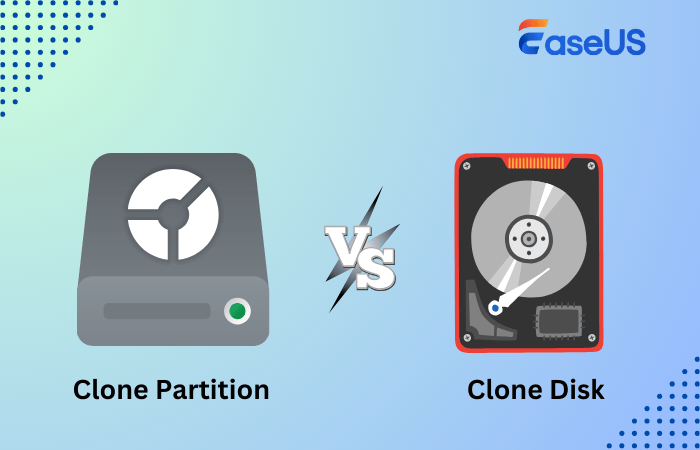
Partition cloning and disk cloning are used to copy data, but they serve different purposes.
⏩Partition Clone
Partition clone copies a single partition (D:, E:) to another disk, including data, games, files, etc., to another drive. It can be used to clone data disks.
However, a partition clone is unsuitable for OS migration since it can copy the system partition (C:) but cannot clone all necessary OS partitions (EFI/System Reserved + Recovery). This can make your computer unbootable.
⏩Disk Clone
The disk clone copies the entire drive to another drive, including all partitions, boot files, and data.
Clone the disk if you are migrating Windows to a new SSD or HDD. If the source disk you clone contains the operating system, the cloned disk is bootable.
Part 2. Types of Partitions Overview
There are several types of partitions, each serving a specific function. Understanding them is important for overall disk management, OS migration, and troubleshooting.
|
Partition Type |
Found In |
Purpose |
|
Primary Partition |
MBR & GPT |
Holds OS and bootable programs |
|
Extended Partition |
MBR |
Container for logical partitions (not needed in GPT) |
|
Logical Partition |
MBR |
Non-bootable storage inside an extended partition |
|
EFI System Partition (ESP) |
GPT |
Stores UEFI bootloader (required for UEFI systems) |
|
System Reserved Partition (SRP) |
MBR |
Stores boot files for Legacy BIOS systems |
|
Recovery Partition |
MBR & GPT |
Stores system recovery files |
|
Microsoft Reserved Partition (MSR) |
GPT |
Reserved for Windows system management |
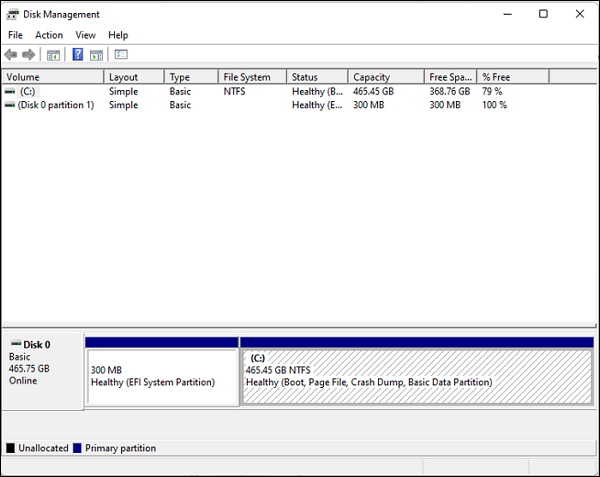
- Tip: To locate and identify what types of partitions your HDD/SSD has, right-click "This PC" → "Manage" → "Disk Management".
Part 3. How to Clone Partition
The process of coping partition on Windows can be easy, but make sure you meet the basic requirements before you start.
Stage 1. Check the disk and partition size.
Ensure the target partition or disk has enough space for the copied data. If the target partition is smaller, shrink the source partition or extend the target partition before you clone hard drives with different sizes.
Stage 2. Back up important data.
Cloning will overwrite the target partition. Ensure you back up any important files before using a free backup tool like EaseUS Todo Backup. You can use an external drive or cloud storage to store backups.
Stage 3. Set the correct partition style.
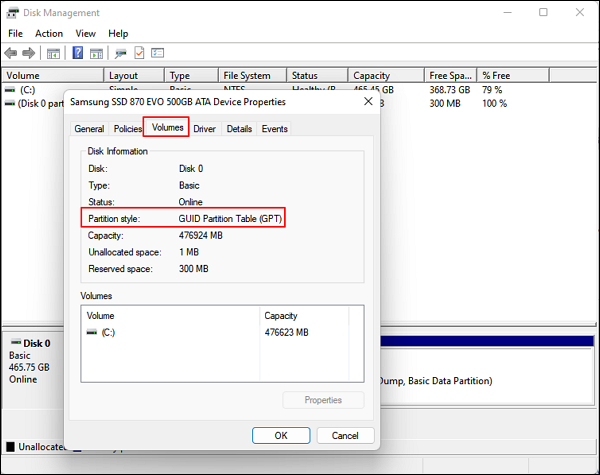
If the partition type (GPT vs MBR) of the source and target partition do not match, boot failures, data corruption, and compatibility issues may occur.
Check if your disk uses GPT or MBR: open "Disk Management", right-click the disk, click "Properties", go to the "Volumes" tab, and locate "Partition style".
If the partition types are inconsistent, convert MBR to GPT or GPT to MBR. (All Windows 11 PCs support GPT only.)
Stage 4. Start cloning partition to another disk.
Download EaseUS Disk Copy and follow the steps to how to clone partition.
 Free Download
Windows 11/10/8/7
Step 1. Launch EaseUS Disk Copy and choose Partition Mode.
Download and install EaseUS cloning software on your computer, launch it and choose Partition Mode.
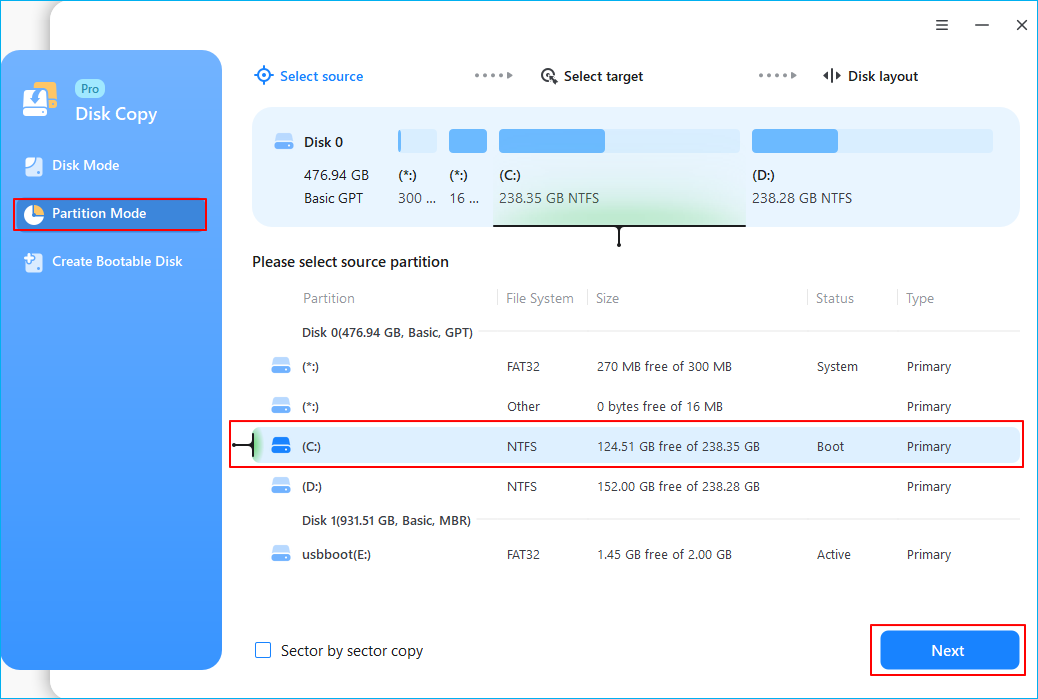
Step 2. Select the source and target partitions.
- Source - the partition you want to make a copy.
- Destination - the partition that you want to clone data to.
- Note that the used space of source partition should be less than the target partition capacity.
Step 3. Adjust target partition layout.
Specify the traget partition layout as your preference. You can choose among:
- Autofit the disk: makes some changes by default on the destination partition layout so that it can work at its best.
- Copy as the source: create a 1-to-1 copy of your source partition, the layout is the same as the source partition.
- Edit disk layout: allows you to manually resize/move layout on this destination partition.
Step 4. Start cloning.
Click Proceed, a message will appears, warning you that data will be lost. Confirm the message by clicking Continue.
Now, it will start partition cloning.
Part 4. What to Do After Partition Copy
Once you've copied a partition, follow these important post-cloning steps to ensure the partition works properly, avoid conflicts, and make necessary adjustments.
|
Step |
Why It's Important |
|
Check if the partition copied successfully |
Ensures no data loss or corruption. |
|
Assign a drive letter (if missing) |
Makes the partition accessible in Windows. |
|
Make it bootable (if OS partition) |
Required for the cloned system to start properly. |
|
Extend the partition (if necessary) |
Uses full disk space after cloning. |
|
Delete old partition (if needed) |
Frees up storage space on the old disk. |
|
Fix partition conflicts |
Prevents hidden partitions or file system errors. |
|
Enable TRIM (for SSDs) |
Ensures better SSD performance and lifespan. |
|
Verify data integrity |
Ensures all files were copied correctly. |
-
Updated by
Jean is recognized as one of the most professional writers in EaseUS. She has kept improving her writing skills over the past 10 years and helped millions of her readers solve their tech problems on PC, Mac, and iOS devices. …Read full bio