Page Table of Contents

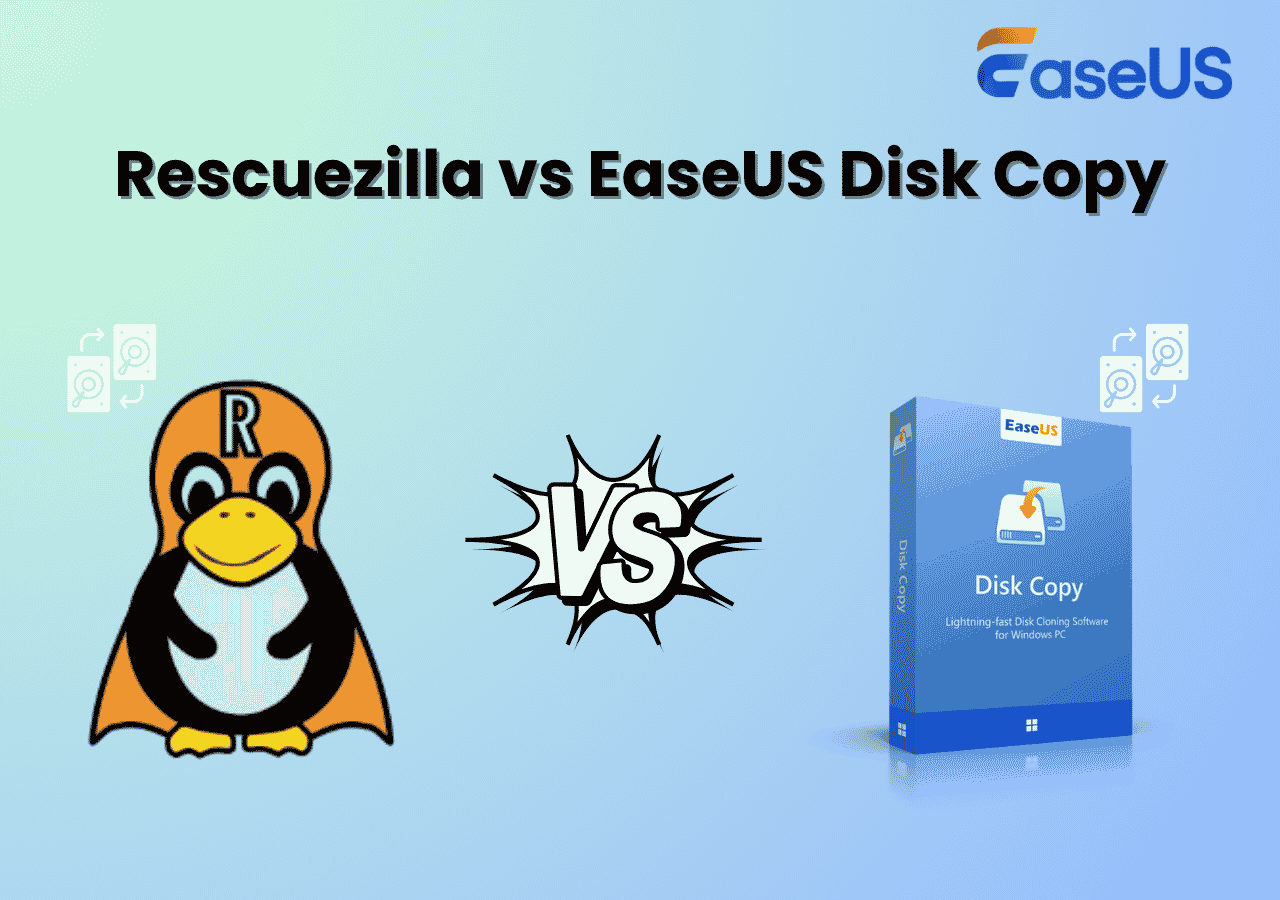
Rescuezilla and Macrium Reflect are two popular disk cloning and backup tools, but they target different users.
Rescuezilla is a free, open-source solution with a simple interface built on Clonezilla, making it a good choice for basic disk cloning and imaging. Macrium Reflect is a Windows-based backup tool that offers more advanced features, including incremental backups, recovery options, and a smoother overall experience.
If you're deciding between the 2 tools, this guide compares cloning performance, ease of use, backup features, SSD migration, and pricing to help you choose the right tool.
Rescuezilla vs Macrium Reflect: A Quick Comparison
| Feature | Rescuezilla | Macrium Reflect |
| Pricing | Free/Open-source | Paid |
| Disk Cloning | Yes | Yes |
| Windows Migration | Yes | Yes |
| Disk Imaging | Yes | Yes |
| SSD Alignment | Yes | Yes |
| Bootable recovery | Yes | Yes |
| Backup Automation | Limited | Advanced |
| Incremental backup | No | Yes |
| Differential Backup | No | Yes |
| Scheduled backup | No | Yes |
| UEFI/GPT Support | Yes | Yes |
| Ease of Use | Moderate | Easy |
| Best for | Free cloning and imaging | Professional backup and migration |
Note: Macrium Reflect offers a 30-day free trial version.
Both Rescuezilla and Macrium Reflect can clone drives and create disk images, but that's where most of the similarities end. Rescuezilla is aimed at users who want a free and straightforward cloning tool, whereas Macrium Reflect is designed as a complete backup and recovery solution with features like scheduled and incremental backups.
Share this article to help others compare Rescuezilla and Macrium Reflect!

Rescuezilla and Macrium Reflect Take Different Approaches
Rescuezilla: A Free and Open-Source Approach to Disk Cloning
Rescuezilla is a free, open-source cloning and imaging tool based on the same technology as Clonezilla, but with a much simpler graphical interface. Instead of installing software in Windows, you boot your computer from a Rescuezilla USB drive and perform cloning or recovery from there.
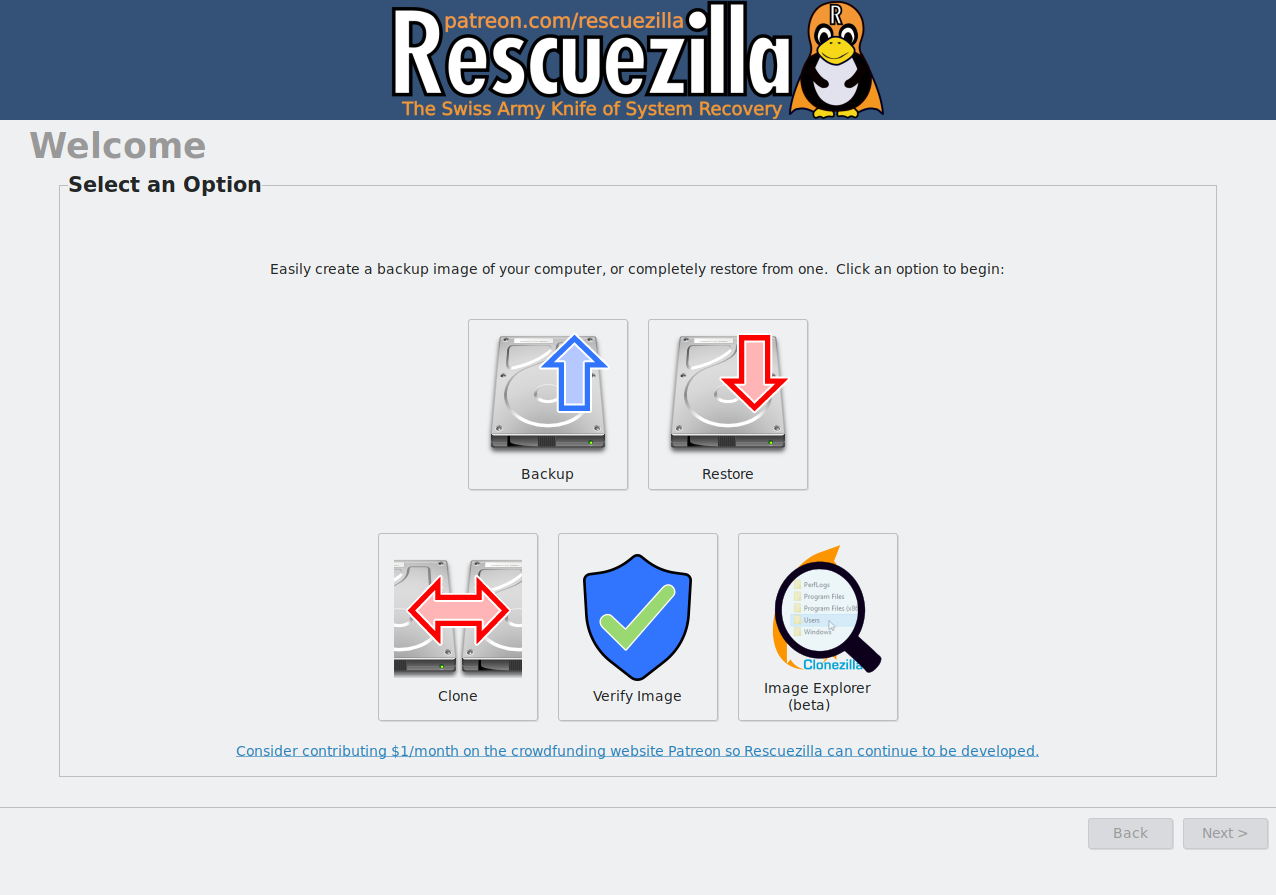
This approach is useful if Windows won't start, you need to recover a damaged system, or you simply want a free cloning tool without installing additional software. The downside is that creating bootable media and restarting into a separate environment adds a few extra steps.
Macrium Reflect: A Windows-Focused Backup Platform
Macrium Reflect takes a different approach by running directly inside Windows. You can clone a drive, create disk images, and manage backups without leaving the desktop.
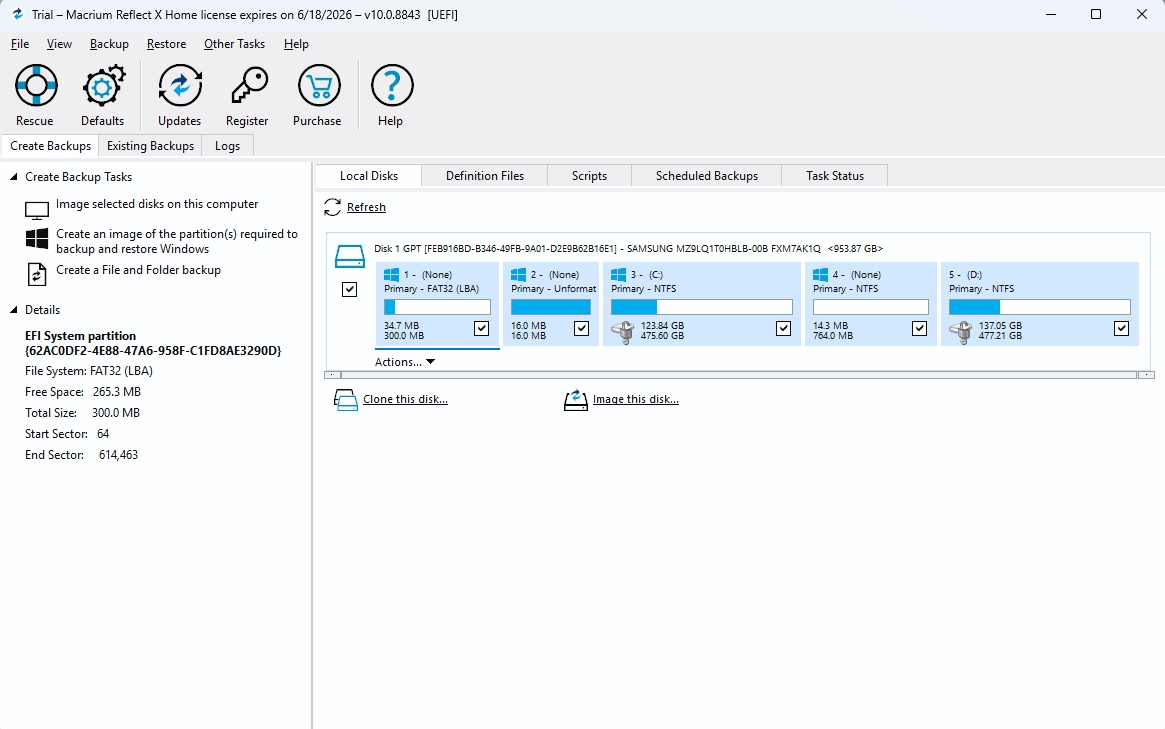
Beyond cloning, it also includes features such as scheduled backups, incremental and differential backups, recovery media, and flexible restore options. These tools make it a better fit for users who want ongoing backup protection instead of a one-time disk migration.
User Experience: Which One Is Easier to Use?
When it comes to usability, the biggest difference between Rescuezilla and Macrium Reflect isn't the interface-it's how each tool fits into the cloning process.
Rescuezilla
Rescuezilla offers a clean, beginner-friendly interface that's much easier to navigate than Clonezilla. Once you've booted into the live environment, the cloning process is guided step by step and doesn't require command-line knowledge.
The main drawback is the setup. Before you can clone a drive, you'll need to create a bootable USB drive and start your computer from it. If you're familiar with cloning a disk with bootable media, this only takes a few extra minutes. For less experienced users, however, it can be the most challenging part of the process.
Macrium Reflect
Macrium Reflect works like a standard Windows application. After installing it, you can select the source and destination drives, configure the cloning task, and start the process without leaving Windows.
That familiar workflow makes it easier for most people, particularly those replacing an old hard drive with a new SSD. There's less preparation involved, which reduces the chance of making a mistake before the cloning even begins.
- Verdict:
- Rescuezilla requires a little more preparation because it runs from bootable media, while Macrium Reflect provides a smoother experience for most Windows users by keeping everything inside the operating system.
Share this article to help others compare Rescuezilla and Macrium Reflect!
Disk Cloning: Which Tool Is Better?
If your primary goal is to migrate Windows to a new SSD, both Rescuezilla and Macrium Reflect can clone an entire drive, including the operating system, applications, partitions, and boot information. The biggest difference is how the cloning process is handled.
Rescuezilla
Rescuezilla performs reliable disk cloning from a bootable live environment. Because it runs outside Windows, it can clone drives even if the operating system won't start, making it a good option for system recovery or hardware replacement.
The trade-off is convenience. You'll need to boot from a USB drive before cloning, which adds a few extra steps compared with Windows-based software.
Macrium Reflect
Macrium Reflect performs cloning directly from Windows using a guided interface. It also lets you resize partitions during the cloning process, making it easier to migrate from a smaller drive to a larger SSD without leaving unused space.
Another advantage is Rapid Delta Cloning, which turns a standard entire drive clone into an incremental update. Instead of rewriting the entire disk from scratch, it compares both drives and only copies the sectors that have changed, cutting subsequent cloning times from hours down to seconds.
- Verdict:
- Rescuezilla and Macrium produce reliable clones, and neither has a clear advantage in cloning accuracy. Rescuezilla is an excellent free choice if you don't mind using bootable media, while Macrium Reflect offers a smoother and more convenient migration experience for most Windows users.
Backup & Recovery: Where Macrium Reflect Pulls Ahead
Backup is the area where Macrium Reflect has the clearest advantage. While both tools can create disk images and restore a system, they're designed for different backup needs.
Rescuezilla
Rescuezilla lets you create a full image of an entire drive and restore it later if something goes wrong. It's a practical choice before replacing hardware, upgrading storage, or making major changes to your system.
However, backups are entirely manual. Rescuezilla doesn't support scheduled, incremental, or differential backups, making it better suited to occasional system images than ongoing data protection.
Macrium Reflect
Macrium Reflect is built around long-term backup management. In addition to full disk images, it supports scheduled backups, incremental and differential backups, retention rules, and automated backup plans.
Incremental backups save only the data that has changed since the previous backup, reducing both backup time and storage requirements. These features make Macrium Reflect a much better option if you want your PC backed up automatically.
What's more, both provide bootable recovery media that can restore a system when Windows won't start. Rescuezilla focuses on straightforward image restoration from a live USB environment, while Macrium Reflect offers a more polished recovery experience with integrated tools for restoring system images and repairing boot issues.
- Verdict:
- If you only need to create a system image before replacing a drive or making major changes, Rescuezilla is more than capable. But for users who want automated backups and a long-term recovery strategy, Macrium Reflect is in a different league.
Rescuezilla vs. Macrium Reflect: Pros and Cons
Pros & Cons of Rescuezilla
PROS
✔
Free and open source. All cloning and imaging features are available without a paid license.
✔
Reliable disk cloning and imaging. Handles full drive cloning and system imaging effectively, even when Windows won't boot.
✔
Cross-platform supported. Runs on Windows, macOS, and Linux seamlessly.
✔
Runs independently of Windows. Ideal for system recovery or cloning drives outside the operating system.
CONS
●
Requires bootable media. You'll need to create a bootable USB drive before using it.
●
No automated backups. Doesn't support scheduled, incremental, or differential backups.
●
Less convenient for everyday use. The boot-from-USB workflow adds extra steps compared with Windows-based software.
Pros & Cons of Macrium Reflect
PROS
✔
Comprehensive backup features. Supports full, incremental, and differential backups, along with flexible scheduling.
✔
Seamless Windows integration. Clone drives and manage backups without leaving Windows.
✔
Flexible disk migration. Makes it easy to resize partitions when cloning to a larger drive.
✔
Advanced recovery tools. Includes recovery media and boot repair features for restoring failed systems.
CONS
●
Paid software. A license is required for continued use
●
More features than some users need. If you only want to clone a drive once, many of its backup features may go unused.
●
Slightly steeper learning curve. The additional backup options can take time to explore.
Share this article to help others compare Rescuezilla and Macrium Reflect!
Rescuezilla vs Macrium: Which One Should You Choose?
Neither tool is the universal winner. The right choice depends on how you plan to use it.
Choose Rescuezilla if you:
- Want a free, open-source cloning tool
- Only need occasional disk imaging or cloning
- Need a recovery tool that runs outside Windows
- Do not mind using a bootable USB drive
Choose Macrium Reflect if you:
- Want automatic backups
- Need incremental or differential backups
- Prefer a Windows-based workflow
- Want long-term system protection
For a simple one-time SSD upgrade, both tools can handle the job. Rescuezilla provides excellent value for users who want a free solution, while Macrium Reflect offers a more polished experience with advanced backup capabilities.
Need Only Disk Cloning? Consider Dedicated Cloning Tool
Not every user needs a complete backup platform. Some people simply want to move Windows from an old drive to a new one with as little hassle as possible.
This is common when upgrading from an HDD to an SSD, replacing a smaller drive with a larger one, or moving an existing Windows installation to new hardware.
For these situations, a dedicated disk cloning tool may be a better match. Unlike full backup applications, these tools focus mainly on one task: making drive migration as simple as possible. EaseUS Disk Copy is designed around this type of workflow.
 Free Download
Windows 11/10/8/7
Instead of managing scheduled backups or long-term recovery plans, it focuses on helping users transfer their existing system to another drive, and the cloning process is quite simple:
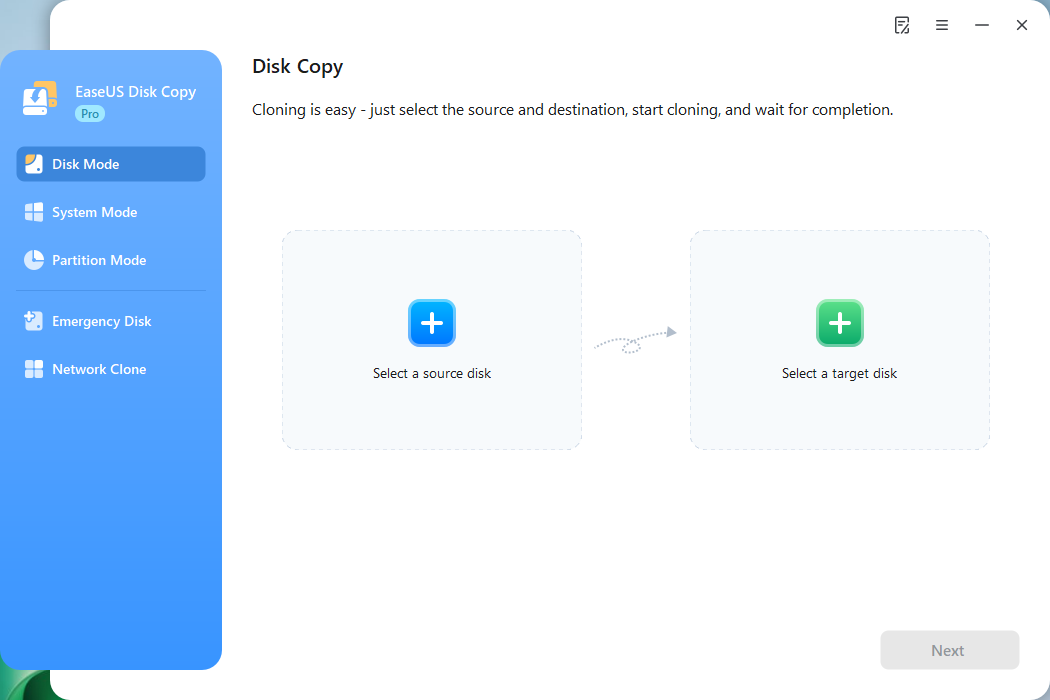
- Connect the new drive
- Launch the software
- Select source and target disks
- Clone the existing disk
If you only need a one-time migration or a simple cloning workflow and do not require features such as scheduled backups, incremental imaging, or advanced recovery options, a dedicated cloning tool may be a more practical choice.
Final Verdict: Rescuezilla or Macrium Reflect?
Rescuezilla and Macrium Reflect are both powerful tools, but they are designed with different goals in mind.
Rescuezilla is a strong choice for users who want a free, open-source solution for occasional disk cloning, imaging, and system recovery. It provides the essential features without requiring a paid license, although the bootable USB workflow requires a little more technical involvement.
Macrium Reflect is better suited for users who want a complete backup and recovery platform. Features such as scheduled backups, incremental backups, and deeper Windows integration make it a better choice for protecting a system over time.
If you only need to clone a drive once, Rescuezilla can handle the job. If you want ongoing backup protection, Macrium Reflect offers a more complete experience.
For users focused only on moving Windows to a new SSD, a dedicated disk cloning tool may be a better fit because it removes many of the extra backup features they may not need.
- Free disk cloning and system recovery: Rescuezilla
- Automated backup and long-term system protection: Macrium Reflect
- Simple SSD migration and one-time drive cloning: A dedicated cloning tool such as EaseUS Disk Copy
Share this article to help others compare Rescuezilla and Macrium Reflect!
FAQs About Macrium Reflect vs Rescuezilla
1. Is Rescuezilla better than Macrium Reflect?
Neither tool is better for every user. Rescuezilla is a better choice if you want a free, open-source solution for disk cloning and system recovery. Macrium Reflect is better suited for users who need automated backups, scheduling, and advanced recovery features.
2. Can Rescuezilla clone Windows 11?
Yes. Rescuezilla can clone Windows 11 installations by copying the entire drive, including the operating system, partitions, and boot information. After migration, users may need to check boot settings, especially when moving Windows to different hardware or storage types.
3. Is Rescuezilla easier than Clonezilla?
Yes. Rescuezilla provides a graphical interface that makes disk cloning and imaging much easier than traditional Clonezilla. However, it still uses a bootable environment, so users need to start the computer from a USB drive.
4. Is Rescuezilla completely free?
Yes. Rescuezilla is free and open source, with no paid license required for disk cloning or imaging features.
5. Is Macrium Reflect free?
Macrium Reflect is paid software. While older versions offered free editions, current versions focus on paid plans with backup and recovery features. Still, it offers a 30-day trial version.
-
Updated by
![Jerry]()
Jerry
"I hope my articles can help solve your technical problems. If you are interested in other articles, you can check the articles at the bottom of this page, and you can also check my Facebook to get additional help."…Read full bio