






Page Table of Contents
Reviews and Awards


Have you often encountered the term "FTP" when transferring files? What exactly is it, and how does it affect the way you move your files?
In this article, we will provide a comprehensive explanation of what FTP is and the role it plays in data transfer. We will also address a common concern: security. Is FTP secure? And if not, what steps should you take to stay protected?
Read on to find the complete answers in this blog post!
What Is File Transfer Protocol?
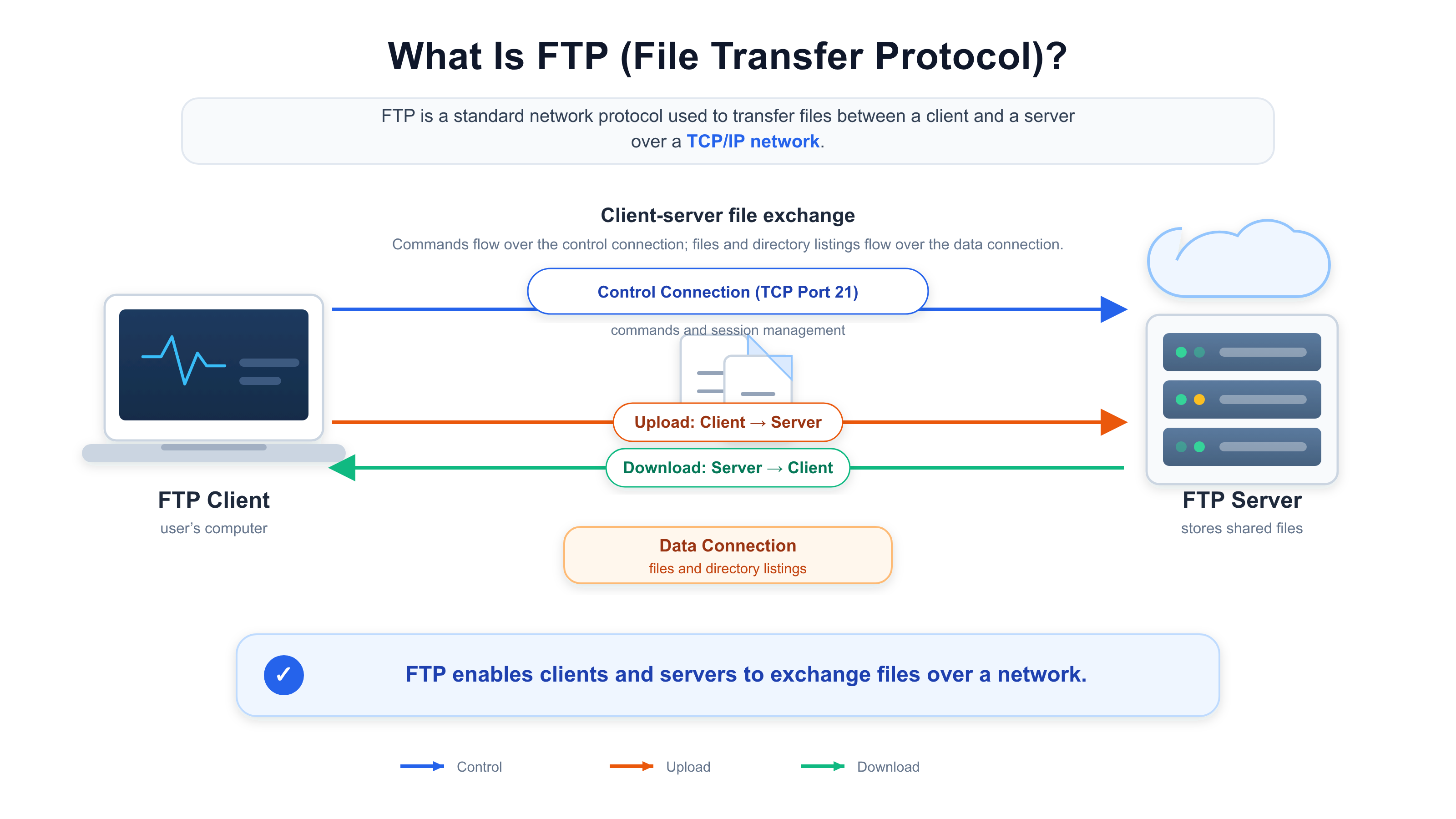
File Transfer Protocol (FTP) is a standard network protocol used for transferring files between a client and a server within a TCP/IP network environment.
FTP is commonly used for tasks such as uploading website files to a hosting server, downloading resources from remote systems, and exchanging files between networked computers. It supports various data representation formats, allowing for the transfer of both text and binary content.
However, FTP is not the only method for transferring files between devices. Depending on your specific needs, you might instead opt for secure transfer protocols, cloud storage services, or specialized computer migration tools to move large files, applications, and personal data.
FTP was formalized in 1985 under the RFC 959 standard. While it remains in use within certain legacy systems and workflows, traditional FTP does not, by default, encrypt the data being transferred or the login credentials used.
How many FTP data types are there?
FTP defines several data representation types that determine how information is transmitted. These are not distinct file formats, but rather mechanisms that control how data is presented during the transfer process.
ASCII
The ASCII mode is designed specifically for text data that uses an ASCII-compatible character encoding. Depending on the transfer settings, line-ending characters may be converted to conform to the specifications of different systems. This mode is generally suitable for plain text files when such conversions are required.
EBCDIC
The EBCDIC mode is intended to support systems that use the "Extended Binary Coded Decimal Interchange Code." It facilitates the transfer of text data between compatible systems that both utilize EBCDIC (rather than ASCII).
Image (Binary)
Also known as "Binary mode," this mode transmits data as a continuous sequence of bits, without any text-oriented character conversion. This is typically the best choice for images, videos, audio files, archives, executable files, and any other data that must retain its original byte-for-byte content.
Local
The "Local" mode allows the client and server to negotiate a "local byte size" for data representation. It is used in specific environments where systems employ a negotiated local representation rather than the standard 8-bit transfer format. This mode is rarely used in typical, everyday FTP operations.
For most modern file transfers, Binary mode is the appropriate choice when handling non-text files. When transferring text files, choose a mode and encoding compatible with both systems to prevent unintended changes to characters or line-ending sequences.
What is FTP used for?
FTP supports a variety of file transfer tasks and is particularly useful when users need to access remote servers or automate repetitive data exchanges.
- Website File Management: When a hosting environment supports FTP or FTPS, web developers and administrators can use FTP-compatible clients to upload website assets, update files, and manage remote directories.
- Downloading Files from Remote Servers: Provided they have the necessary access permissions, users can retrieve documents, software packages, archives, and other resources stored on an FTP server.
- Bulk File Transfer: FTP supports the transfer of individual files as well as multiple files and directories. It is well-suited for workflows that require frequent exchange of large volumes of data; however, actual performance depends on the configuration of the network, server, and client.
- Automated Data Exchange: Organizations can use FTP-compatible tools and scripts to exchange reports, business data, and other files between different systems on a scheduled basis. For transfers involving sensitive business information, protocols with robust security safeguards and appropriate access controls should be employed.
- Legacy System Integration: Some existing business systems and equipment still rely on FTP. In such cases, organizations can choose to either retain FTP within a controlled environment to maintain compatibility or migrate to a more secure alternative.
- Warning
- It is important to distinguish between "file transfer" and "data migration." FTP is used solely for moving files between systems; migrating an entire working environment to a new computer, by contrast, typically requires the transfer of applications, application data, user settings, and other related dependencies.
How does FTP work?
FTP uses a client-server architecture. The client requests operations, and the server processes these requests based on its configuration and user permissions.
A typical FTP session involves the following steps:
Step 1. Connecting to the FTP server.
The user opens an FTP client and enters the server address, port, and required login credentials. The client then establishes a control connection with the server.
Step 2. Authentication and command submission.
When authentication is required, the server verifies the user's credentials. Once authenticated, the client can send commands to navigate directories, list files, upload data, or download resources.
Step 3. Establishing a data connection.
FTP uses a separate data connection for file content and certain directory operations. The method for establishing this connection depends on whether the session uses active mode or passive mode.
Step 4. File transfer.
The client and server exchange the requested data. Once the operation is complete, the connection may remain open to accept further commands, or it may be closed, depending on the session and client configuration.
- Tip
- FTP typically uses TCP port 21 for the control connection. Data connections are handled separately and may involve different ports, depending on the transfer mode and server configuration.
Active FTP vs. Passive FTP
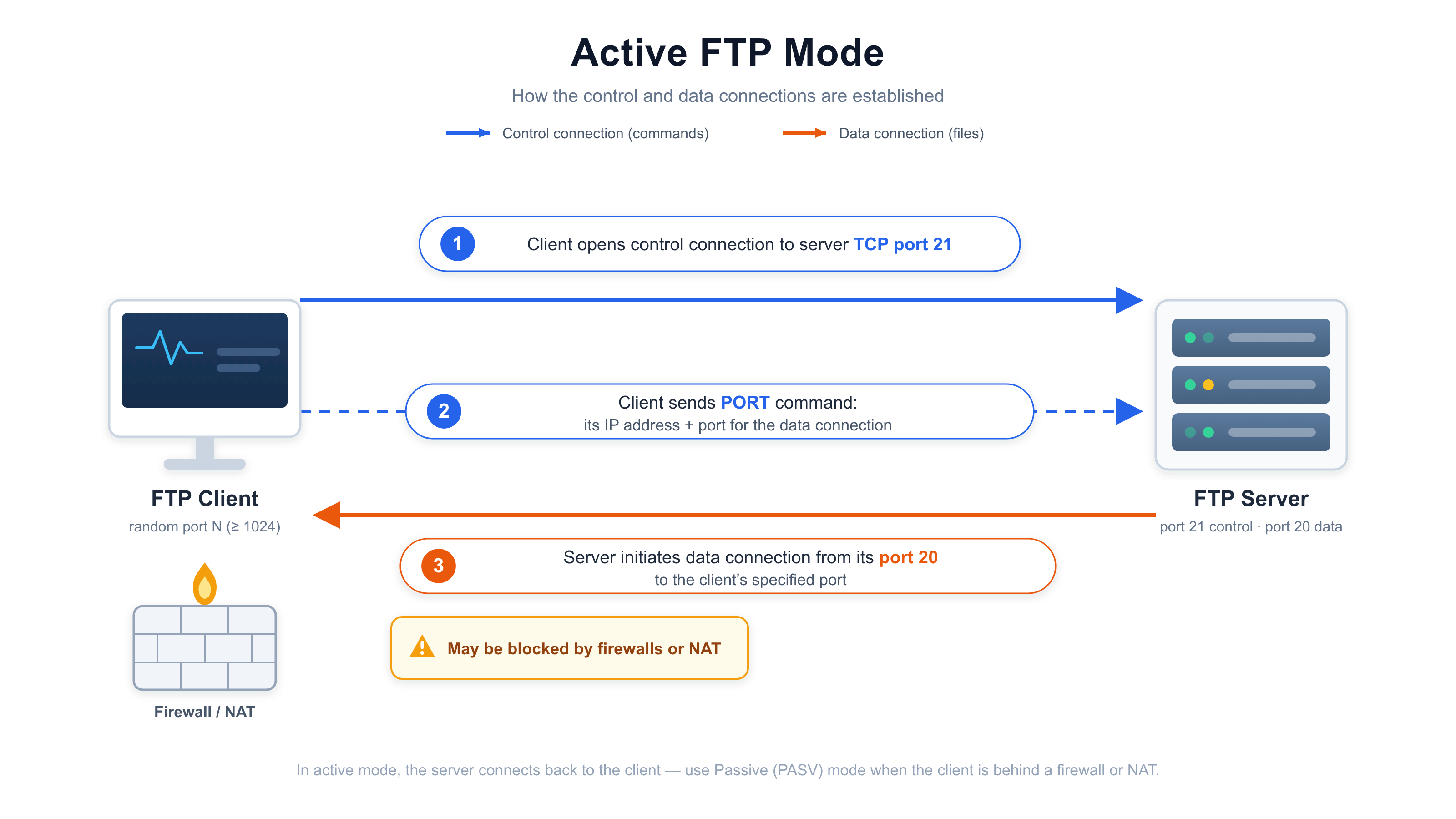
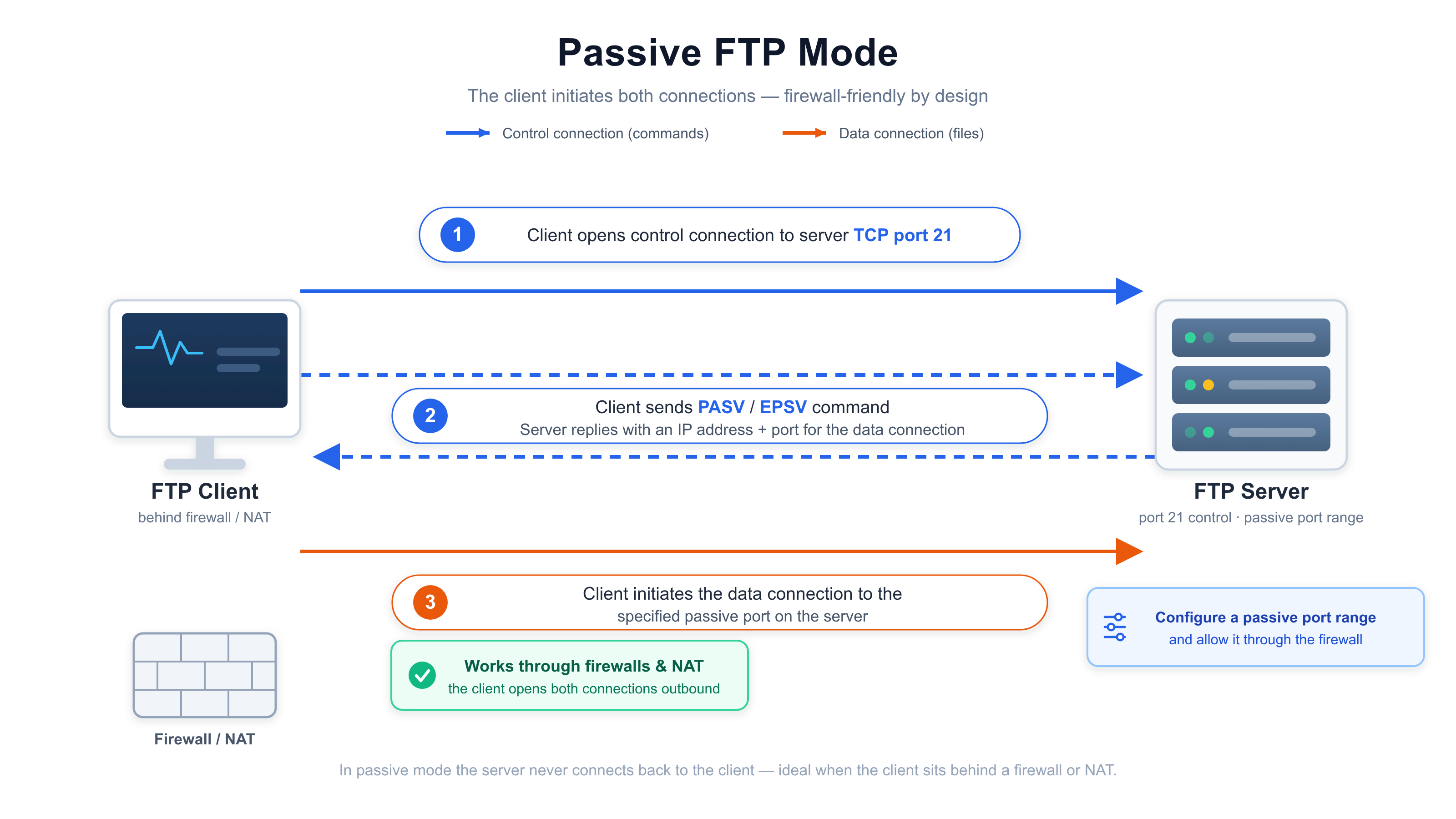
FTP supports two common modes for establishing data connections:
Active Mode: The client provides an address and port for the data connection, and the server initiates the connection to the client. Firewalls or Network Address Translation (NAT) may interfere with this connection method.
Passive Mode: The client requests a data port from the server and then initiates the data connection to that port. This mode is generally more convenient for clients located behind a NAT or firewall; however, the range of passive ports on the server side must be configured accordingly, and the firewall must be set to allow traffic through these ports.
What Is an FTP Server?
An FTP server is software capable of accepting FTP connections and providing authorized clients with access to files. It can run on a physical server, a virtual machine, or any computer configured to host FTP services.
FTP servers typically handle the following functions:
- User Authentication: Verifying login credentials or permitting specific types of anonymous access.
- File Permissions: Controlling which directories and files a user can read, upload, modify, or delete.
- File Operations: Responding to requests such as listing directory contents, retrieving files, uploading content, or managing remote resources.
- Connection Settings: Defining ports, data connection modes (active or passive), and other network parameters.
- Logging and Monitoring: Recording connection attempts and various operations for the purposes of troubleshooting and security monitoring.
To connect to an FTP server, users generally need to provide the host name or IP address, the appropriate port number, and the necessary login credentials. Furthermore, the server must be active and accessible over the network.
An FTP server is not the same as a cloud storage service. While FTP provides a protocol for file exchange, cloud storage platforms typically offer additional features—such as web interfaces, file synchronization, shareable links, and storage management—built upon that foundation.
100% Secure
Free Inquiry
How Many Types of FTP Are There?
1. Plain FTP
Plain FTP refers to the traditional form of the File Transfer Protocol. It utilizes separate connections for control and data, but the underlying protocol itself provides no encryption.
Usernames, passwords, commands, and file contents may be transmitted in plaintext. Anyone capable of intercepting traffic along the network path could potentially view this data.
While plain FTP may still be found in legacy systems or controlled, isolated environments, it should generally be avoided when transmitting sensitive information over untrusted networks.
2. FTPS
FTPS refers to FTP protected by Transport Layer Security (TLS). It adds encryption and server authentication to the traditional FTP connection model, while maintaining separate control and data connections.
There are two primary methods for establishing an FTPS connection: explicit TLS and implicit TLS. When configured correctly, both enable encrypted transmission, though their connection establishment processes differ.
3. FTPES (Explicit FTPS)
FTPES commonly refers to explicit FTPS. The client initially connects using the FTP protocol and then requests TLS protection, typically through the `AUTH TLS` command.
In a common explicit FTPS configuration, the control connection is initially established on port 21, followed by a TLS negotiation. Once this is complete, the client and server can engage in protected communication; the data channel can also be encrypted, depending on the configuration requirements.
Explicit FTPS is often used when existing FTP-based workflows require encryption, but the FTP protocol itself cannot be entirely replaced.
4. Implicit FTPS
Implicit FTPS requires TLS protection to be enabled from the very start of the connection, rather than being negotiated after an initial FTP connection has been established. Implicit FTPS typically uses port 990, though the actual port assignment depends on the server's specific configuration. Unlike FTPES, implicit FTPS does not establish an unprotected FTP control connection first, only to upgrade it later via explicit TLS negotiation.
- Important
- FTPES is commonly another name for explicit FTPS, not a separate protocol alongside FTPS. SFTP is different: it is the SSH File Transfer Protocol and operates over SSH rather than FTP.
Is FTP Secure When Transferring Files?
The traditional FTP protocol was not designed with encrypted communication channels in mind. By default, it does not encrypt login credentials or the files transferred between a client and a server.
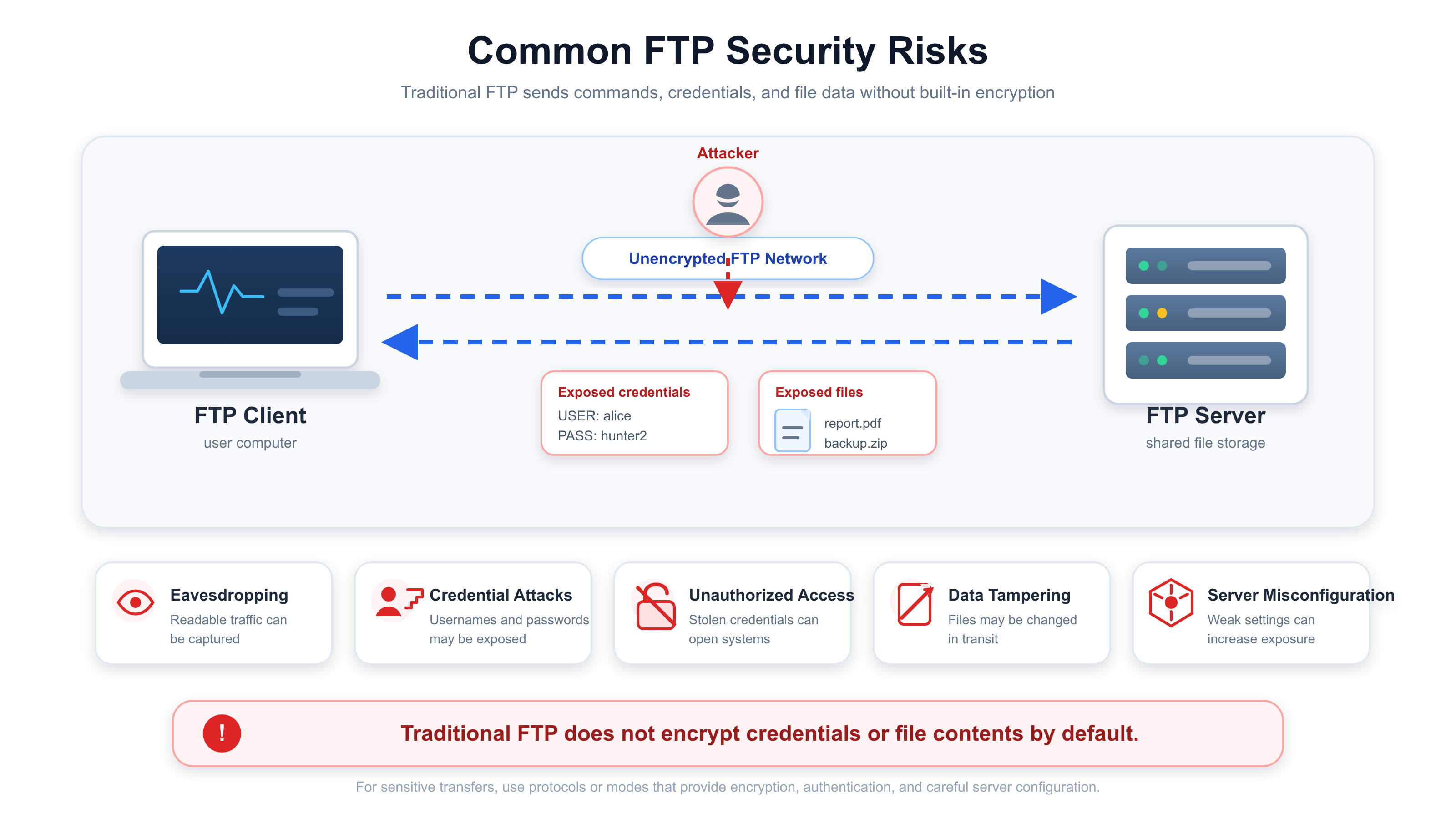
If an attacker manages to capture unencrypted FTP traffic, they could potentially read the credentials and file contents contained within. Depending on the network and server configuration, these compromised credentials could then be used to attempt unauthorized access.
Common FTP security risks include:
- Eavesdropping: Attackers may intercept unencrypted credentials or files when they can observe network traffic.
- Credential attacks: Weak or reused passwords can be targeted through password guessing, credential stuffing, or brute-force attempts.
- Unauthorized access: Incorrect permissions or exposed FTP services can allow unauthorized users to access or modify files.
- Data tampering: Without appropriate integrity and authentication protections, users may not have sufficient assurance that transferred data came from a trusted source and remained unchanged.
- Misconfigured servers: Excessive permissions, anonymous access, outdated software, and unnecessary public exposure can increase the risk of compromise.
> Need to transfer files and programs securely? EaseUS Todo PCTrans makes PC-to-PC transfers easy, fast, and secure.
If you need to transfer sensitive files, consider the following precautions:
- Use SFTP or a properly configured FTPS. These protocols encrypt both credentials and data during transit. SFTP is based on the SSH protocol, while FTPS is based on the TLS protocol.
- Verify server identity. Confirm the identity of the server by validating its TLS certificate or SSH host key, rather than blindly trusting every connection.
- Follow the principle of "least privilege." Grant each account only the file access and operational permissions necessary to complete its assigned tasks.
- Implement strong authentication. Prioritize secure authentication methods and take steps to prevent the exposure of credentials.
- Keep software updated. Promptly install security updates for your servers, clients, and related systems. Verify file integrity. In scenarios where file accuracy is critical, use checksums or other appropriate verification methods.
- Maintain data backups. While encryption protects data during transit, it is not a substitute for backups and cannot prevent all forms of data loss.
How to Transfer, Share, or Send Large Files Safely - EaseUS Todo PCTrans
FTP can be used to exchange files with a remote server, but not every file transfer task requires an FTP connection. If you need to send large videos, share folders, or migrate files and programs from an old computer to a new one, other methods may be more convenient.
If you are upgrading your computer, transferring just your documents may not be enough. You might also need to migrate installed applications, user data, and various settings so that you can continue working seamlessly on your new computer.
EaseUS Todo PCTrans is designed specifically for migrating files, applications, and other selected data between Windows computers. Depending on the version and the specific transfer scenario, it offers features such as "PC to PC" migration, backup and restore, and application migration.
Unlike FTP, which focuses on exchanging files between a client and a server, Todo PCTrans is purpose-built for computer migration and related data transfer tasks.
Step 1: Prepare both computers.
Download and install EaseUS Todo PCTrans on both your old and new computers. Check for system compatibility, ensure the target computer has sufficient storage space, and back up important files before you begin.
Step 2: Connect the old and new computers.
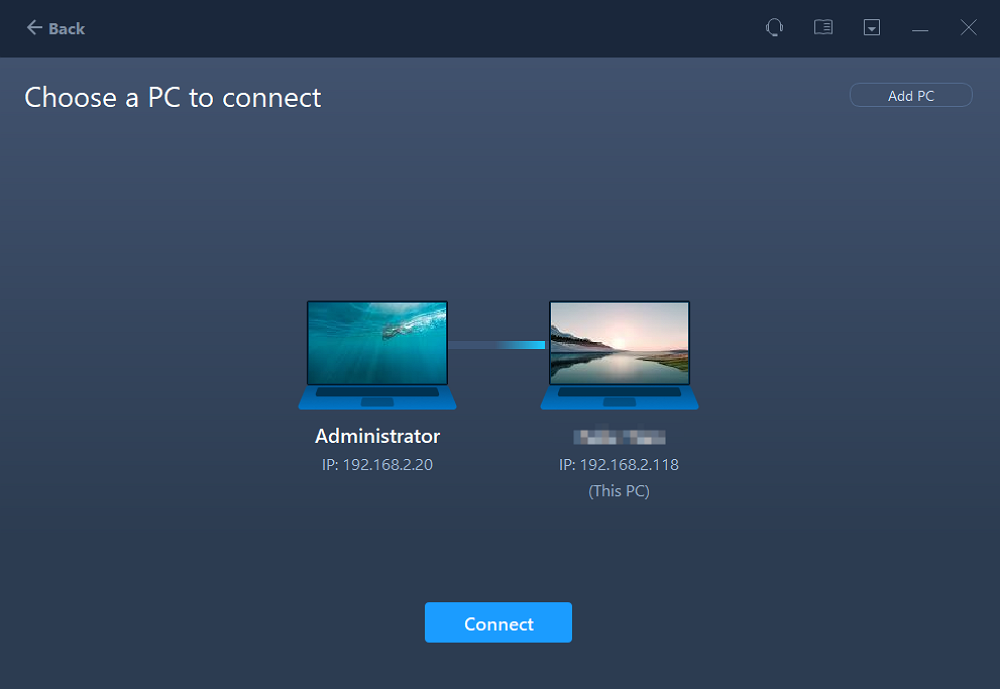
Launch the software and select the "PC to PC" or "Data Transfer" option. Follow the on-screen prompts to connect the two computers via a supported network or cable. If a direct connection is not possible, you can use the "Backup and Restore" migration method instead.
PCTrans offers two ways to connect the computers:
- Network: Connect both computers to the same Local Area Network (LAN). This is a convenient option when both computers have access to the same network.
- Cable: You can also connect the two computers directly using a supported Ethernet cable.
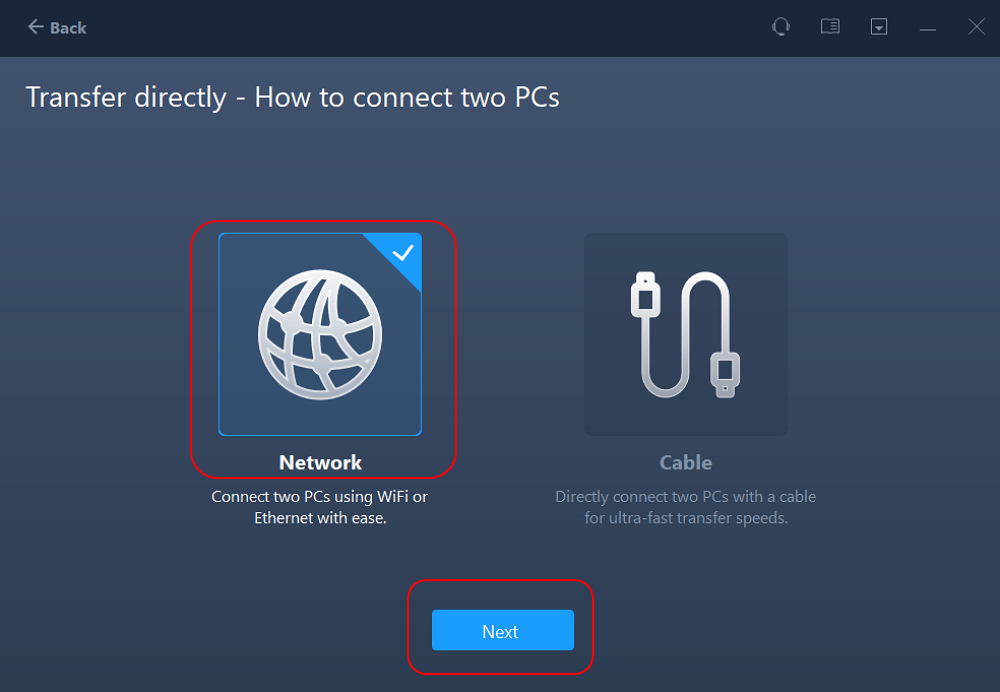
Step 3: Select the files and programs to migrate.
Review the files, folders, applications, and other data available for migration. Select the items you wish to transfer and ensure that the target computer has enough storage space.
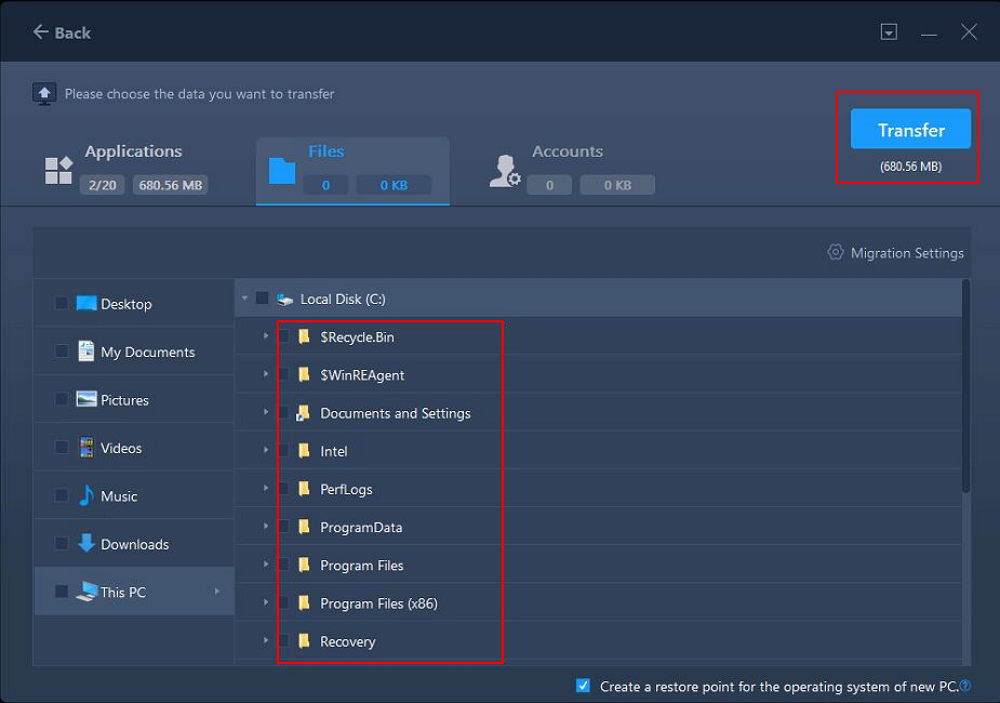
Step 4: Initiate the transfer and verify the results.
Start the transfer process and keep both computers connected until the operation is complete. Once finished, open the migrated files and test your applications to ensure everything is working correctly. Due to compatibility or licensing restrictions, some programs may require reactivation, the installation of additional components, or a complete reinstallation.
100% Secure
Free Inquiry
Comparing Common File Transfer Protocols
FTP vs. SFTP
| Feature | FTP | SFTP |
| Full name | File Transfer Protocol | SSH File Transfer Protocol |
| Encryption | None by default | Provided through SSH |
| Common port | TCP 21 for the control connection | TCP 22 |
| Connection model | Separate control and data connections | File operations use an SSH connection |
| Common use | Legacy systems and compatible workflows | Secure file exchange and automation |
FTP vs. HTTP/HTTPS
| Feature | FTP | HTTP/HTTPS |
| Primary purpose | File exchange and remote file management | Web communication and resource delivery |
| Typical interaction | FTP client and FTP server | Browser or application and web server |
| Encryption | None by default | HTTPS uses TLS |
| Common use | Uploading website files or exchanging server data | Downloading files, accessing websites, and sharing web resources |
FTP vs. MFT
| Feature | FTP | MFT |
| What it is | A network protocol | A managed file transfer solution |
| Primary purpose | Move files between systems | Manage, monitor, and automate file exchanges |
| Security | No encryption by default | Depends on the platform and its configuration |
| Automation | Often requires scripts or external tools | May provide built-in scheduling and workflow automation |
| Monitoring | Depends on server and client logging | May include centralized tracking, alerts, and audit trails |
| Best suited for | Basic or legacy file transfer workflows | Complex organizational and partner-to-partner transfers |
Final Thoughts
File Transfer Protocol (FTP) remains an important concept in networking and file exchange. It allows users to upload, download, and manage files on remote servers, but traditional FTP lacks encryption and may not be suitable for transferring sensitive data.
If you're moving to a new computer and need to migrate large files and supported applications, EaseUS Todo PCTrans offers a practical solution for transferring your data and programs between PCs.
About the Author

Oliver is an EaseUS professional writer who dares explore new areas. With a passion for solving tech issues with straightforward guides for common users, Oliver keeps honing his writing craft by developing in-depth solutions for disk and partition management, computer boot-up issues, file transfer, etc.
Reviews and Awards
-
EaseUS Todo PCTrans Free is a useful and and reliable software solution created to serve in computer migration operations, be it from one machine to another or from an earlier version of your OS to a newer one.
Read More -
EaseUS Todo PCTrans is by the folks at EaseUS who make incredible tools that let you manage your backups and recover your dead hard disks. While it is not an official tool, EaseUS has a reputation for being very good with their software and code.
![]() Read More
Read More
-
It offers the ability to move your entire user account from your old computer, meaning everything is quickly migrated. You still get to keep your Windows installation (and the relevant drivers for your new PC), but you also get all your apps, settings, preferences, images, documents and other important data.
Read More

Related Articles
-
Laptop Screen Broken! How to Get Data off?
![author icon]() Tracy King/2026/10/07
Tracy King/2026/10/07 -
Uninstalled Program Keeps Coming Back? How to Fix?
![author icon]() Sherly/2026/10/18
Sherly/2026/10/18 -
How to Transfer Files from iCloud to Google Drive Step by Step
![author icon]() Tracy King/2026/10/07
Tracy King/2026/10/07 -
How to Save/Run Microsoft Office to/from External Hard Drive
![author icon]() Jean/2026/01/29
Jean/2026/01/29
 Tracy King/2026/10/07
  Sherly/2026/10/18
  Jean/2026/01/29

