







Content
Page Table of Contents
About the Author
Hot Topics
When your Mac suddenly slows down, freezes, takes unusually long to boot, or starts showing beachball delays during everyday tasks, one of the first suspects is SSD health degradation. Many users only start searching for SSD health check software for Mac when they notice performance drops, random crashes, or fear unexpected data loss. Having a reliable SSD diagnostic tool helps you detect early symptoms, check SMART status, validate drive health, and avoid failures before they happen.
Posts from the macos
community on Reddit
This guide explains the best way to check Mac SSD health for free, what to look for in a diagnostic tool, and how to choose the right solution. If you find this helpful, consider sharing it so more Mac users can protect their data.

SSD Health Check Software for Mac Free Download
Choosing the right SSD monitoring tool is critical, especially if you rely on your Mac for work, design, video editing, or large file workflows. Before downloading any tool, users should evaluate it against these factors:
- SMART analysis accuracy (early failure predictions, temperature, and reallocated sectors)
- APFS/HFS compatibility
- Usability for non-technical users
- Support for external SSDs (NVMe, SATA, USB, Thunderbolt)
- Speed, stability, and low system consumption
- Free download availability
Based on these criteria, EaseUS Partition Master for Mac stands out as a comprehensive disk management and SSD health check utility. It provides fast diagnosis, SMART monitoring, file system compatibility checks, bad sector scanning, and full disk management functions, all in a clean, intuitive interface.
| Evaluation Factor | How EaseUS Partition Master for Mac Performs |
|---|---|
| SMART Health Check | Real-time SMART status, temperature, wear level, and failure prediction |
| File System Support | APFS, HFS+, HFS, FAT32, exFAT, NTFS (read/write after extension) |
| Ease of Use | One-click analysis, beginner-friendly dashboard, no command lines required |
| External SSD Support | NVMe, M.2 SSDs, PCIe SSDs, USB SSDs, Thunderbolt storage |
| Scan Depth & Accuracy | Full-sector scan, bad block detection, logical error fixing |
| Performance Impact | Lightweight, minimal background resource use |
| Free Download | Free version available for basic disk health analysis |
Technical Specifications
| Category | Details |
|---|---|
| Supported Operating System | macOS 10.15 (Catalina), 11 (Big Sur), 12 (Monterey), 13 (Ventura), 14 (Sonoma), 15 (Sequoia), macOS 26(Tahoe) |
| Supported Storage Devices | M.2 SSD, NVMe SSD, PCIe SSD; USB 1.0/2.0/3.0 drives, flash drives, memory cards, memory sticks |
| Brands Supported | Samsung, Western Digital (WD), Crucial, Intel, Seagate, Kingston, SanDisk |
| Supported Architectures | Intel Macs, M1, M2, and M3 Macs |
Follow the next part to learn how to use this disk diagnostic tool for Mac and how to check SSD health on Mac.
How to Check Disk Health on Mac
Whether your SSD is built-in or external, regularly checking the health status helps prevent data loss and catch early signs of drive fatigue. With a dedicated Mac SSD health check tool, the process takes just minutes and delivers more detail than macOS's built-in Disk Utility.
Here is how to check SSD health on Mac:
Step 1. Run EaseUS Partition Master for Mac, select your target disk, and you'll see a few options.
Step 2. Locate the option related to Disk health.
- If it shows "Disk health is Unknown (Request to install extension)," click on "Learn more" and move to Step 3.
- If it shows "Disk health is valid," click on "S.M.A.R.T" and move to Step 5.
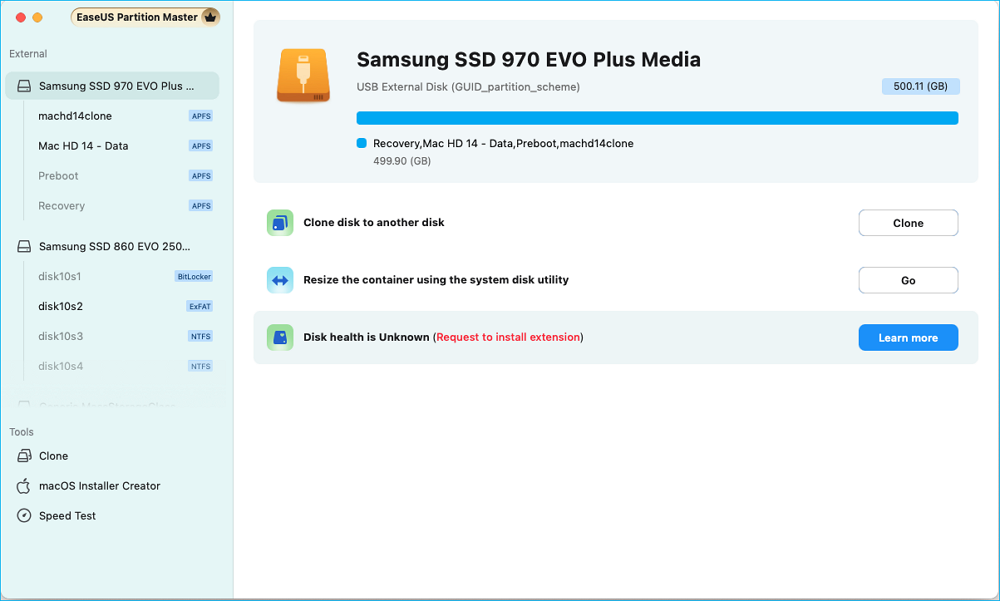
Step 3. In the new window, you'll be prompted to enable the EaseUS extension. Click the "Follow Guide" buttons below to get the detailed steps of each.
- 1: Restart Mac to Recovery Mode and allow user management kernel extension in Recovery mode.
- 2: Install the extension and click "Allow" in your Privacy & Security.
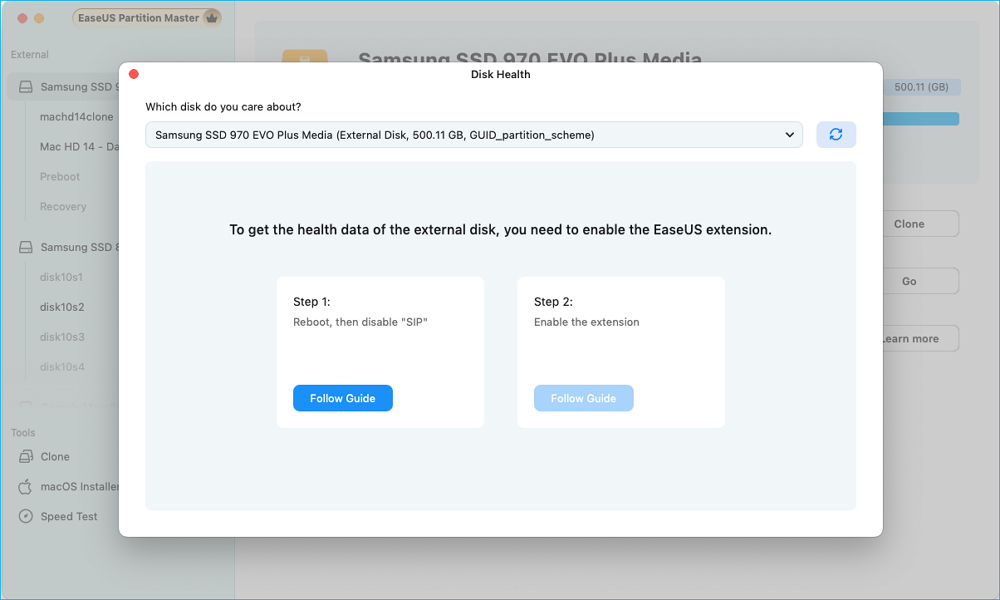
Step 4. Once you've completed the installation, the option will presented as "Disk health is valid." Then, click "S.M.A.R.T" to check your disk health.
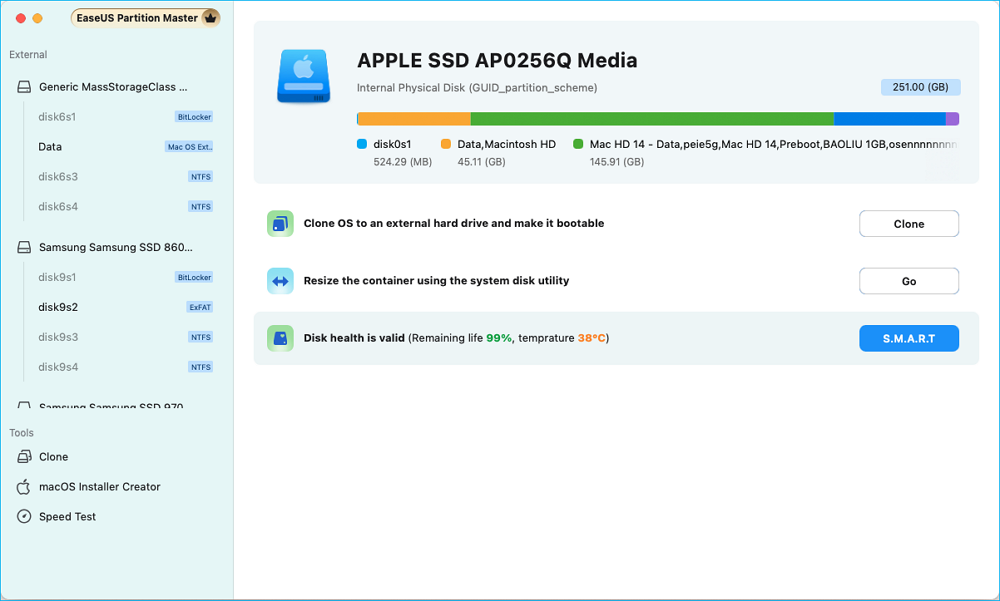
Step 5. Then, the health condition of your disk will be presented on the new window.
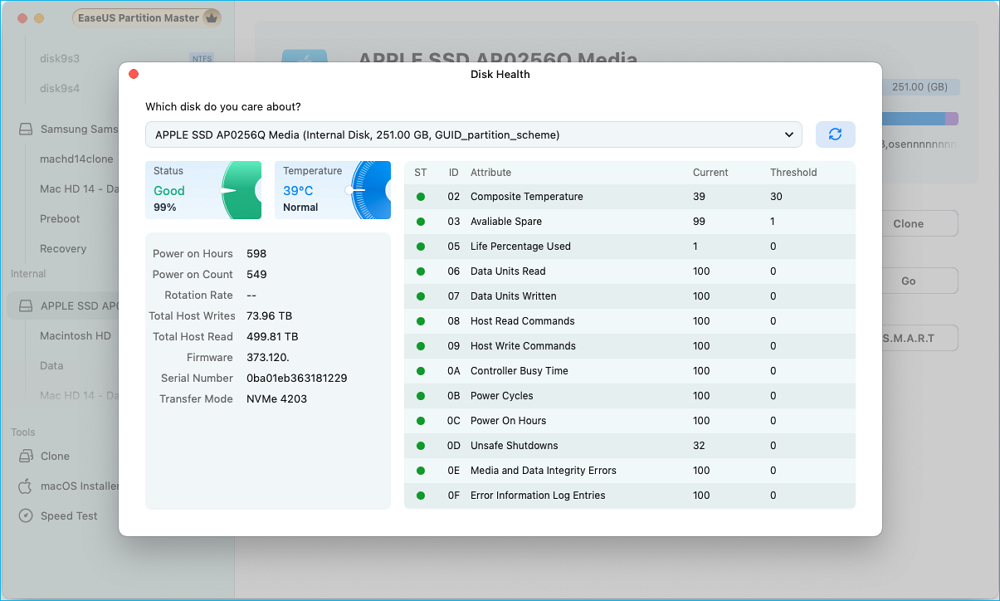
After confirming your SSD's condition, feel free to share this guide so more Mac users can avoid unexpected drive failures.
Bonus Tip: How to Prolong SSD Lifespan on Mac
Keeping your Mac's SSD healthy is not just about periodic checks—routine usage habits matter. Here are practical, actionable tips that directly impact longevity:
1️⃣Maintain at least 20% free space
- SSDs slow down and wear out faster when nearly full because they have fewer empty blocks for wear-leveling.
2️⃣Avoid excessive write cycles
- Tasks like constant file rewriting, heavy caching, or large downloads can accelerate SSD wear. Use cloud storage or external drives for large media workflows.
3️⃣Enable TRIM (macOS enables TRIM by default for Apple SSDs)
- TRIM improves performance and prevents premature wear by cleaning unused blocks. For third-party SSDs, confirm TRIM support.
4️⃣Keep macOS updated
- System updates improve disk optimization algorithms and fix storage-related bugs.
5️⃣Safely eject external SSDs
- Unplugging without ejecting increases file system corruption risk—especially on APFS and exFAT drives.
6️⃣Use SSD-friendly power settings
- Avoid aggressive sleep/wake cycles which may stress the SSD's controller.
Conclusion
A slow Mac, random freezing, or unexplained performance drops are often early warnings of SSD deterioration. Using a reliable SSD health check software for Mac helps you monitor SMART status, detect bad sectors, analyze performance, and avoid unexpected failures. EaseUS Partition Master for Mac offers free, accurate health diagnostics along with complete disk management features, making it an ideal tool for everyday users and professionals alike. Checking your SSD regularly is the simplest way to extend its lifespan and safeguard your data.
FAQs About Mac Disk Diagnostic Tool
1. What is the best free SSD health check tool for Mac?
There are several reputable SSD monitoring apps for macOS, and the "best" option depends on the level of detail you need. Popular choices include DriveDx, SSD Reporter, and other SMART-reading utilities that provide temperature, wear-level, and lifespan predictions.
2. How do I check SSD health on macOS without Terminal?
You can use Disk Utility and run a First Aid check for basic file system issues. For a deeper look at SMART status, most people use an SSD monitoring app with a graphical interface so they don't need to rely on Terminal commands.
3. Can I check SMART status on an external SSD connected via USB or Thunderbolt?
In many cases, yes, but it depends on the enclosure and the controller it uses. Some USB and Thunderbolt adapters pass SMART data through correctly, while others do not. If SMART information doesn't appear, it's usually due to bridge-chip limitations, not the SSD itself.
4. Why is my Mac SSD slowing down?
Slowdowns can come from several factors: the drive may be nearly full, the SSD might be overheating, APFS may need repair, or the flash memory is simply aging. Heavy workloads with frequent writes can also cause noticeable performance drops over time.
5. How often should I run an SSD health check on Mac?
A monthly check is a good baseline for most users. If your Mac suddenly boots slowly, freezes, or shows repeated beachballing, it's worth running a health scan sooner rather than later.
6. Does macOS have built-in SSD health monitoring?
macOS does include basic SMART reporting and First Aid through Disk Utility, but it doesn't provide detailed metrics like wear level, temperature, or bad block counts. For more advanced diagnostics, users typically turn to third-party tools.
How Can We Help You
About the Author

Sherly joined EaseUS in 2022 and she has always loved writing articles and enjoys the fun they bring. She receives professional training here, focusing on product performance and other relative knowledge. She has written over 200 articles to help people overcome computing issues.
Product Reviews
-
I love that the changes you make with EaseUS Partition Master Free aren't immediately applied to the disks. It makes it way easier to play out what will happen after you've made all the changes. I also think the overall look and feel of EaseUS Partition Master Free makes whatever you're doing with your computer's partitions easy.
Read More -
Partition Master Free can Resize, Move, Merge, Migrate, and Copy disks or partitions; convert to local, change label, defragment, check and explore partition; and much more. A premium upgrade adds free tech support and the ability to resize dynamic volumes.
Read More -
It won't hot image your drives or align them, but since it's coupled with a partition manager, it allows you do perform many tasks at once, instead of just cloning drives. You can move partitions around, resize them, defragment, and more, along with the other tools you'd expect from a cloning tool.
Read More
Related Articles
-
Recover/Create EFI Partition Windows 11/10 When EFI Boot Partition Missing
![author icon]() Tracy King/2026/09/21
Tracy King/2026/09/21 -
Format/Reformat Seagate External Hard Drive on Windows or Mac
![author icon]() Tracy King/2026/09/23
Tracy King/2026/09/23 -
How to Partition SSD Safely in 2026 | Complete Guide
![author icon]() Jean/2026/09/22
Jean/2026/09/22 -
Best Two Useful Disk Utilities in Windows (11/10/8/7/Vista/XP)
![author icon]() Daisy/2026/09/22
Daisy/2026/09/22
 Tracy King/2026/09/21
  Jean/2026/09/22
  Daisy/2026/09/22









