







Content
Page Table of Contents
About the Author
Hot Topics

Updated on Oct 22, 2026
Need to format a SanDisk SD card on Windows? A good SD card formatter can help you quickly change the file system, fix an unusable partition, or prepare a card for a camera, game console, phone, or other device.
If you're looking for a SanDisk SD Card Formatter free download, EaseUS Partition Master is a practical option for Windows. It supports SD cards and other memory cards and lets you format partitions to FAT32, exFAT, NTFS, and other supported file systems. You can also use it to manage partitions, check file system errors, and test a card for bad sectors.
Before formatting, back up anything important. Formatting deletes the files on the selected partition.
What Is a SanDisk SD Card Formatter?
A SanDisk SD card formatter is a tool that prepares an SD or microSD card for use by formatting its partition with a suitable file system.
You may need to format a SanDisk card when:
- The SD card is new and needs to be prepared for use.
- You want to change the file system to FAT32 or exFAT.
- Windows cannot format the card normally.
- The SD card shows an incorrect or unavailable file system.
- The card has an old or unwanted partition.
- You need to prepare the card for a camera, phone, game console, or other device.
- A previously used card needs to be erased and reused.
For simple formatting, Windows built-in tools can usually handle the job. But if the card has partition problems or Windows doesn't offer the file system you need, a dedicated SanDisk SD card formatter gives you more options. For example, a Reddit user needs to format a 64 GB microSD card to FAT32:
I recently bought a 64 gb micro sd card, and need to format it into FAT32. - From r/sdcard.
SanDisk SD Card Formatter Free Download
👍Best for: Users who want a SanDisk SD card formatter and an SD card troubleshooting tool in one program.
Want to find a free SanDisk SD card formatter for Windows? EaseUS Partition Master is a practical choice. It can format SanDisk SD and microSD cards to commonly used file systems such as FAT32 and exFAT, while also giving you tools to manage partitions and troubleshoot common storage problems.
With this SanDisk SD card formatter. you can format large-capacity SD cards, check file system errors, test for bad sectors, and manage unallocated space or problematic partitions. This makes it useful when a simple format isn't enough to get your SanDisk SD card working properly again.
SanDisk SD Card Formatter Free Download:
Why Use EaseUS SanDisk SD Card Formatter:
- File System: Support NTFS/EXT3/EXT2/FAT32/FAT16/FAT12 formats.
- SD Card Type: Support SD memory cards, SDHC, SDXC, SDUC, etc.
- Large-capacity: Format large-capacity SD cards to FAT32, NTFS, etc.
- Fix partition problems while formatting: Fix incorrect or damaged partition layouts.
- Check SD card health and errors: Check file systems and test for bad sectors.
- One tool for all your storage needs: Works with USB drives and other storage devices.
How EaseUS SanDisk SD Card Formatter Solves Your Problems
| Your SD Card Situation | What You May Need | How EaseUS Helps |
| You simply want to erase and reuse the card | Quick formatting | Format the SD card and choose a suitable file system |
| Windows doesn't offer FAT32 | FAT32 formatting for a large SD card | Format supported large-capacity cards to FAT32 |
| The card shows less space than expected | Partition management | Check partitions and reclaim usable unallocated space |
| The SD card has multiple or unwanted partitions | Partition cleanup | Delete, create, and format partitions |
| The card won't format normally | Troubleshooting | Check the file system and inspect the partition layout |
| The card is slow or files become corrupted | Storage health check | Run a surface test to look for bad sectors |
| You regularly manage USB drives and memory cards | One storage management tool | Format and manage different removable storage devices from one interface |
How to Format a SanDisk SD Card (Step by Step)
Need to format a SanDisk SD card for a camera, game console, phone, or everyday storage? EaseUS Partition Master helps you format the card and choose a suitable file system without using complicated commands.
This SanDisk SD card formatter is especially useful when the standard Windows Format option doesn't offer the file system you need, especially when formatting a large-capacity SD card to FAT32.
Before You Format:
- Back up important files: Formatting will erase the data on the selected partition.
- Check the correct SD card: Confirm the card's capacity and disk number before formatting to avoid selecting the wrong drive.
- Choose the right file system: FAT32 is commonly used for compatibility, while exFAT is better suited to larger cards and files over 4GB.
- Check device compatibility: Make sure the camera, game console, phone, or other device supports the file system you choose.
- Check for write protection: If the card cannot be formatted, make sure the SD adapter's lock switch is not enabled.
- Don't interrupt the process: Avoid removing the SD card or shutting down the computer while formatting is in progress.
Follow the steps below to format your SanDisk SD card safely:
Download and open the SanDisk SD card formatter.
Step 1. Find your SD card and right-click the partition you want to format and choose "Format".
Step 2. Set a new partition label, file system (NTFS/FAT32/EXT2/EXT3/EXT4/exFAT), and cluster size to the selected partition, then click "OK".
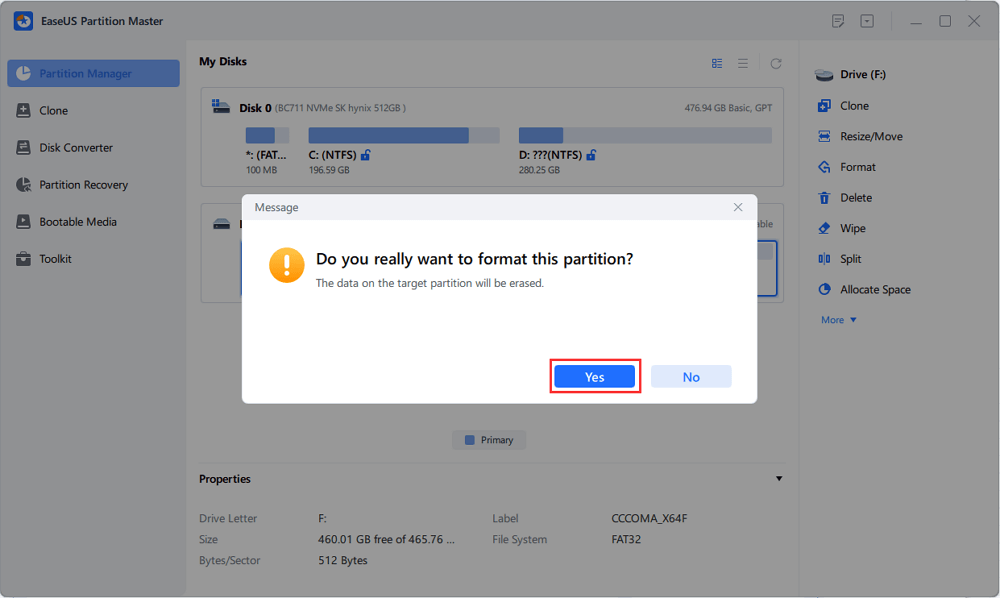
Step 3. Click "Yes" on the pop-up window to continue.
Step 4. Click the "Execute 1 Task(s)" button on the toolbar, then click "Apply" to start formatting your SD card.
Which Format Should You Use for a SanDisk SD Card
The right file system depends mainly on SD card capacity, file size, and device compatibility. FAT32 and exFAT are the most common choices for modern SD cards, while FAT16 is mainly associated with older, smaller-capacity cards. NTFS is better suited to Windows PCs than to cameras or other consumer devices.
| File System | Best For | Main Advantage | Limitation |
| FAT16 | Older, small-capacity SD cards | Good compatibility with legacy devices | Limited capacity and outdated for most modern SD cards |
| FAT32 | Older devices, cameras, game consoles | Broad compatibility | Individual files are limited to 4GB |
| exFAT | Large-capacity SD cards and SDXC/SDUC | Supports large files and larger storage capacities | Some older devices may not support it |
| NTFS | Windows PCs | Good Windows compatibility and advanced features | Limited support on cameras, phones, and other consumer devices |
Quick tip:
- Choose FAT32 when device compatibility is the priority.
- Choose exFAT when you need to store files larger than 4GB.
- Choose NTFS when you'll use the SD card with a Windows PC.
Bonus: How to Repair SanDisk SD Card Error
When you encounter SD card issues, you may think to format it. Formatting a SanDisk SD card can fix some partition problems, but it can't fix all errors. If the card suddenly becomes inaccessible, shows errors, or refuses to format, the issue may be a corrupted file system, bad sectors, or a damaged partition.
EaseUS SD card formatter can also help you check and repair common SD card errors before you decide to format the card. This is useful when you want to troubleshoot the card without immediately erasing your data.
For example, how to check for bad sectors?
If the SD card is extremely slow, files become corrupted, or formatting repeatedly fails, the card may have bad sectors.
Use the surface test feature in EaseUS Partition Master to scan the card for bad sectors. If the scan finds many errors, back up any accessible data and consider replacing the card rather than continuing to format it.
Step 1. Open EaseUS Partition Master. Go to Toolkit and select "Bad Sector Scan."
Step 2. Tick "Scan Disk" and choose the target disk from the drop-down menu.
Step 3. Click "Scan" to apply the bad sector scaning process.
Conclusion
A SanDisk SD card formatter can do more than simply erase a card. The right tool can help you choose a suitable file system, deal with partition problems, and prepare the card for its next device.
EaseUS Partition Master is a useful choice if you want a free Windows tool that combines SD card formatting with partition management. It supports FAT32 and exFAT formatting and provides additional tools to check file systems, manage partitions, and test storage problems.
FAQs
1. Is EaseUS Partition Master free for formatting SD cards?
EaseUS Partition Master has a Free edition that supports formatting partitions and wiping disks. It is suitable for common formatting tasks, including changing the file system and preparing an SD card for reuse.
2. How do I fix a SanDisk SD card that shows the wrong capacity?
If your SanDisk SD card doesn't show its full capacity, check the partition layout before formatting it. The missing space may be unallocated or assigned to another partition. Try these steps:
- Check the card in Disk Management.
- Check the card with EaseUS Partition Master.
- Delete and recreate partitions if necessary.
- Make sure your device supports the card's capacity.
- Test the card on another computer or card reader.
3. Why won't my SanDisk SD card format?
A SanDisk SD card may fail to format because of write protection, file system errors, partition problems, a faulty card reader, or physical damage to the card. If the card isn't detected correctly on multiple computers and readers, or it keeps developing errors after formatting, the SD card may be failing and shouldn't be trusted with important data.
4. Does formatting a SanDisk SD card erase everything?
Yes. Formatting normally removes the files stored on the selected partition. Before formatting, move any important photos, videos, documents, or other files to another storage device.
If you find this guide on the SanDisk SD card formatter, share it on:

How Can We Help You
About the Author
Updated by Joey Albert
Joey is an enthusiast of science and technology. With a passion for uncovering the latest tech innovations, she creates clear, engaging how-to guides that make technology accessible and enjoyable for all.
Product Reviews
-
I love that the changes you make with EaseUS Partition Master Free aren't immediately applied to the disks. It makes it way easier to play out what will happen after you've made all the changes. I also think the overall look and feel of EaseUS Partition Master Free makes whatever you're doing with your computer's partitions easy.
Read More -
Partition Master Free can Resize, Move, Merge, Migrate, and Copy disks or partitions; convert to local, change label, defragment, check and explore partition; and much more. A premium upgrade adds free tech support and the ability to resize dynamic volumes.
Read More -
It won't hot image your drives or align them, but since it's coupled with a partition manager, it allows you do perform many tasks at once, instead of just cloning drives. You can move partitions around, resize them, defragment, and more, along with the other tools you'd expect from a cloning tool.
Read More
Related Articles
-
Windows 10/11 Hello PIN: This Option Is Currently Unavailable
![author icon]() Cici/2026/10/22
Cici/2026/10/22 -
6 Best Hard Drive Disk Format Tool | Disk Format Tools
![author icon]() Tracy King/2026/10/22
Tracy King/2026/10/22 -
How to Convert exFAT to FAT32 in Windows 11/10/8/7
![author icon]() Jean/2026/10/22
Jean/2026/10/22 -
How to Run Micro SD Card Speed Test on Windows 10/11 [2026 New Guide]
![author icon]() Sherly/2026/10/22
Sherly/2026/10/22
 Cici/2026/10/22
  Tracy King/2026/10/22
  Jean/2026/10/22
  Sherly/2026/10/22









