







Content
Page Table of Contents
About the Author
Hot Topics

Updated on Oct 29, 2026
Windows 11 26H2 may fail to install when your C drive does not have enough free space. If your PC shows a low disk space warning during the Windows 11 26H2 installation, you don't need to upgrade to a larger SSD. You can free up space on the C drive, move unused capacity to the system partition, use external storage, or install Windows 11 26H2 with installation media. This guide shows several methods to help you install Windows 11 26H2 with low storage.
| Method | Best For | Pros |
| The C: drive contains unnecessary files | Simple and does not change partitions | |
| Another partition has enough free space | Adds usable space to the system partition | |
| Windows Update needs a little more space | Reduces the amount of internal free space required | |
| Windows Update cannot complete, or you need another installation path | Provides an alternative Windows installation method |
How Much Storage Does Windows 11 26H2 Need?
Windows 11 26H2 needs more free space than the 64 GB minimum storage requirement. Windows 11 requires a storage device with at least 64 GB of capacity, but you do not need 64 GB of free space to install a feature update.
Microsoft states that Windows feature updates typically need 6 GB to 11 GB or more of free space. The actual requirement can vary depending on your PC, installed features, language resources, drivers, and other update components.
| Storage Situation | What You Should Do |
| Your PC has less than 64 GB of total storage | Check whether the device meets the Windows 11 storage requirement. |
| Your C: drive has very little free space | Clean up unnecessary files before installing Windows 11 26H2. |
| Your C: drive is small but another partition has free space | Extend the C: drive by allocating available space from another partition. |
| Windows Update says more space is required | Use Windows Update's storage options or connect an external drive. |
| The entire SSD is nearly full | Consider moving personal data or upgrading to a larger SSD. |
Method 1. Free Up Space on the C Drive
Freeing up space is the simplest option when your C drive is full. Windows provides built-in storage tools that can remove temporary files and other unnecessary data.
1. Check What Is Using Space
Open Settings > System > Storage to see how your C drive space is being used.
Check categories such as:
- Temporary files
- Installed apps
- Documents
- Pictures
- Videos
- Downloads
- Other files
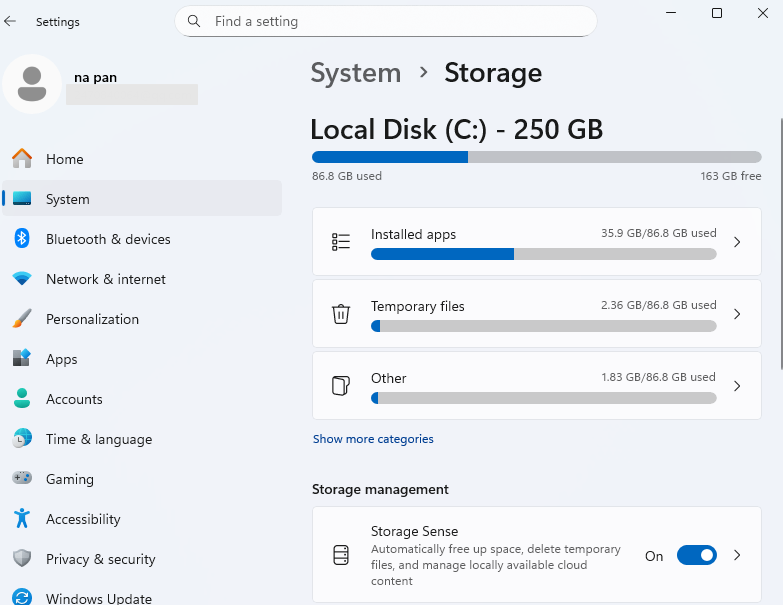
This check helps you avoid deleting files blindly. If temporary files take up most of the space, start with Windows cleanup tools. If large applications or personal files take up most of the space, removing or moving those files can free more storage.
2. Use Windows Cleanup Recommendations
Windows 11 includes "Cleanup recommendations" to help you identify files that can be removed. Go to:
Settings > System > Storage > Cleanup recommendations
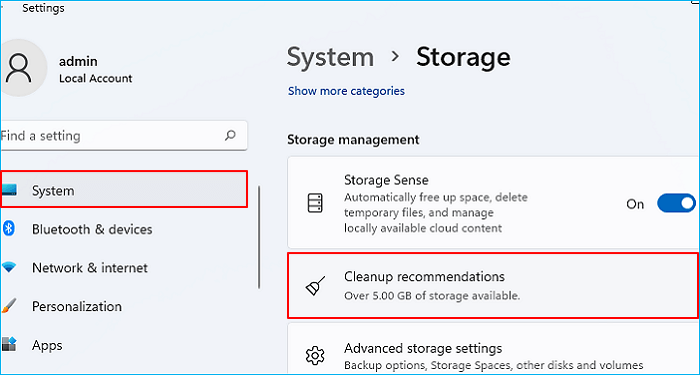
Review the suggested items and remove files that you no longer need. Windows also provides "Storage Sense," which can automatically clean up certain temporary files.
3. Remove or Move Large Files
Large videos, downloads, photos, and other personal files can quickly fill the C drive. You can:
- Delete files that you no longer need.
- Move large files to another internal drive.
- Move personal files to an external drive.
- Empty the Recycle Bin after deleting files.
- Uninstall applications that you no longer use.
Microsoft specifically recommends checking common folders such as Downloads, Videos, Music, and Pictures when a drive is running low on space. After cleanup, check the available C drive space again. If Windows 11 26H2 still reports that more space is needed, move to the next method.
Method 2. Extend the C Drive With EaseUS Partition Master
Cleaning files may not solve the problem when the C drive itself is too small.
| For example, your computer may have a 120 GB C drive with only 5 GB free, while the D drive has 100 GB of available space. Deleting files from C can help, but you may still run out of space later. In this situation, you can allocate some unused space to the C drive. |
EaseUS Partition Master can resize partitions and reallocate available disk space to the system partition. It can also use non-adjacent unallocated space in situations where Windows Disk Management cannot directly extend the C drive.
If your free space is currently inside another partition, such as D, EaseUS Partition Master can also help reallocate space from that partition to C. This approach is useful when the C drive is short on space, but the same physical disk still has unused capacity.
Here is how to extend C drive with EaseUS Partition Master:
Extend System C drive with unallocated space
- 1. Right-click on the System C: drive and select "Resize/Move".
- 2. Drag the system partition end into the unallocated space so to add it to the C: drive. And click "OK".
- 3. Click "Execute Task" and "Apply" to execute the operations and extend the C drive.
Method 3. Use External Storage
Windows 11 also supports using an external storage device when the internal drive does not have enough space for a feature update. Microsoft states that you need an external storage device with at least 10 GB of free space and an internet connection for this update option.
How to Use External Storage for the Update
Step 1. Connect an external storage device with at least 10 GB of free space.
Step 2. Open Settings > Windows Update.
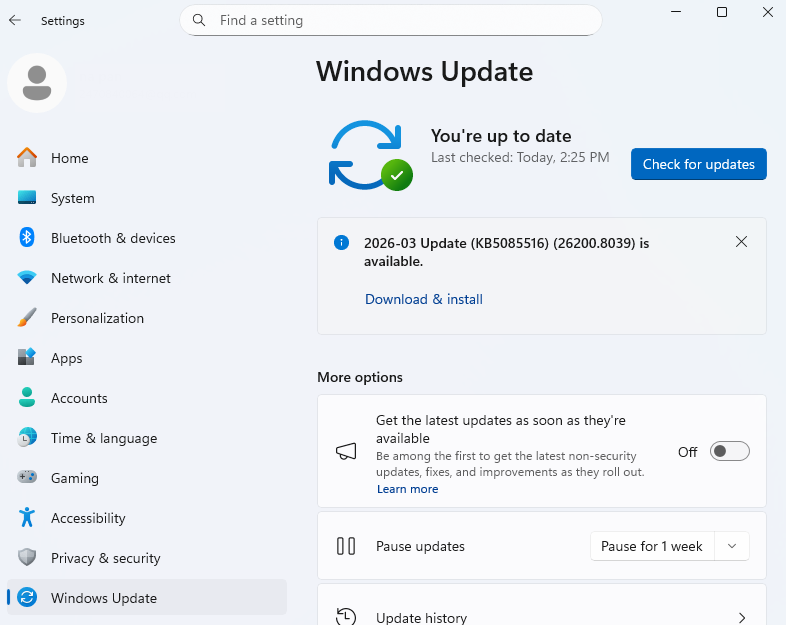
Step 3. If Windows detects insufficient space, select "Fix issues."
Step 4. Choose the option to use external storage.
- Notice:
- The "Use external storage" option in Windows Update always appears when the system detects insufficient space. If you don't see it, that update path doesn't support external storage. In this case, you can use other methods to install Windows 11 26H2.
Step 5. Select the connected storage device.
Step 6. Follow the Windows Update instructions to complete the installation.
Windows may still ask you to free up additional space on the internal drive. External storage reduces the amount of free space required on the system drive, but it does not necessarily remove the internal storage requirement completely.
You should also back up important files before using an external storage device for the update. This method works well when your C drive is only slightly short on space and you do not want to resize partitions or delete a large amount of data.
Method 4. Install Windows 11 26H2 Using Installation Media
You can use Windows 11 installation media when Windows Update cannot complete the 26H2 installation. Microsoft provides installation media that you can create on a USB flash drive. The USB drive should have at least 8 GB of available space.
Create Windows 11 Installation Media
Step 1. Download the Windows 11 installation media from Microsoft's official website.
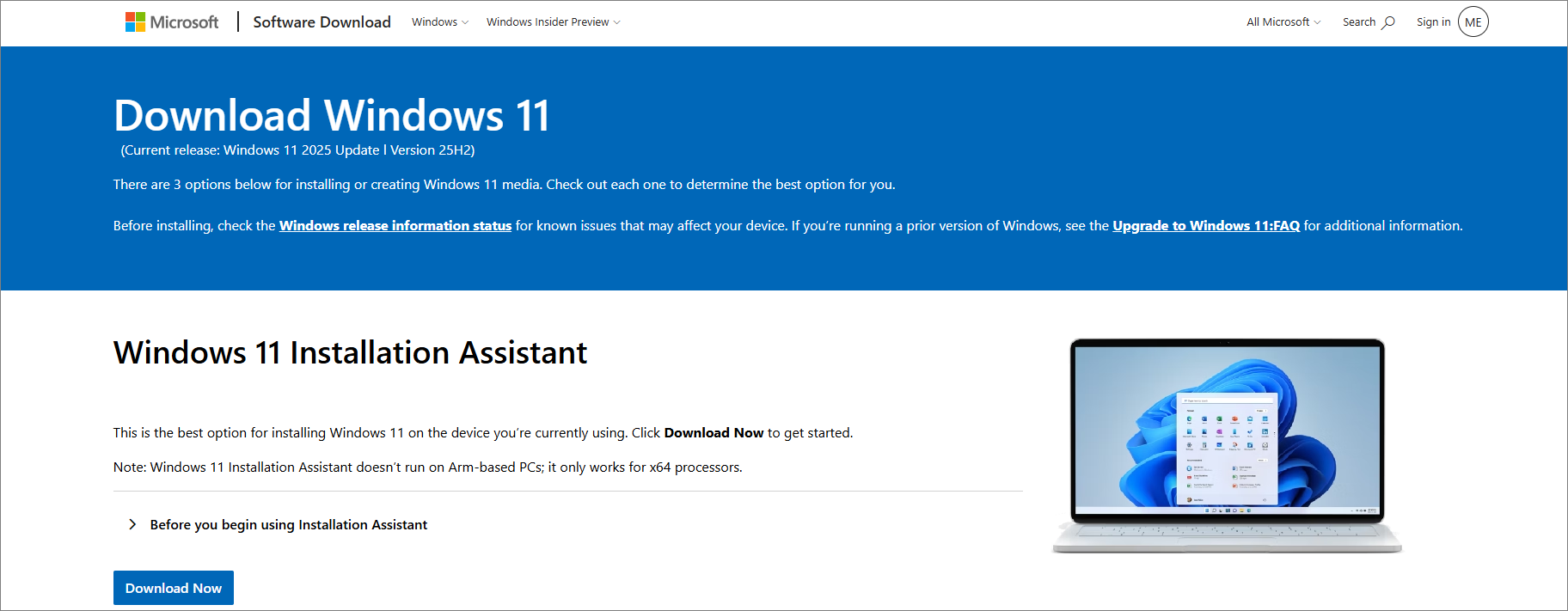
Step 2. Connect a blank USB flash drive with at least 8 GB of space.
Step 3. Run the Media Creation Tool and follow the on-screen instructions.
Step 4. Boot your PC from the USB drive or run Windows Setup from the media.
Step 5. Follow the setup instructions to install or upgrade Windows.
A clean installation is another option, but it can remove existing files, apps, and settings. Back up important data before choosing this option.
- Notice:
- Installation media does not completely bypass low-storage requirements on the system drive. An in-place upgrade can still require free space on the C drive to store temporary installation files. If your C drive is nearly full, free up space or extend the C drive before starting the upgrade.
Conclusion
A lack of free storage can prevent Windows 11 26H2 from installing, but you have several ways to make room for the update. This guide covers four ways to deal with insufficient storage: freeing up space on the C drive, extending the C drive with EaseUS Partition Master, using external storage, and installing Windows 11 26H2 with installation media. These methods can help you create enough space and complete the Windows 11 26H2 installation based on your storage situation.
FAQs
1. Can I install Windows 11 26H2 if my C drive has less than 10 GB free?
It depends on the PC and the installation method. Windows feature updates can require 6 GB to 11 GB or more of free space, and the exact requirement varies by device. If Windows Update reports that your PC needs more space, you should follow the space requirement shown by Windows rather than rely on a fixed number.
2. Does Windows 11 26H2 delete files when I install it?
A normal Windows feature update is designed to keep your personal files, apps, and settings. However, you should still back up important files before starting the update. A clean installation from installation media is different because it can remove existing files, apps, and settings depending on the installation options you choose.
3. Can I move Windows 11 26H2 installation files to another drive?
Windows does not let you simply move all system update files from the C drive to another internal partition. If the C drive is low on space, you can remove unnecessary files, extend the C drive when another partition has available capacity, or use an external storage device when Windows Update provides that option.
4. Will extending the C drive affect Windows 11 or my personal files?
Resizing a partition usually doesn't require reinstalling Windows, but partition operations always carry some risk if interrupted or done incorrectly. Back up important files before resizing partitions. A partition manager such as EaseUS Partition Master can help you resize and extend the C drive while keeping the existing Windows installation.
How Can We Help You
About the Author
Updated by Joey Albert
Joey is an enthusiast of science and technology. With a passion for uncovering the latest tech innovations, she creates clear, engaging how-to guides that make technology accessible and enjoyable for all.
Product Reviews
-
I love that the changes you make with EaseUS Partition Master Free aren't immediately applied to the disks. It makes it way easier to play out what will happen after you've made all the changes. I also think the overall look and feel of EaseUS Partition Master Free makes whatever you're doing with your computer's partitions easy.
Read More -
Partition Master Free can Resize, Move, Merge, Migrate, and Copy disks or partitions; convert to local, change label, defragment, check and explore partition; and much more. A premium upgrade adds free tech support and the ability to resize dynamic volumes.
Read More -
It won't hot image your drives or align them, but since it's coupled with a partition manager, it allows you do perform many tasks at once, instead of just cloning drives. You can move partitions around, resize them, defragment, and more, along with the other tools you'd expect from a cloning tool.
Read More
Related Articles
-
At Least 98GB! Marvel's Spider-Man 2 Storage Space Requirement on PS5
![Oliver]() Oliver/2026/10/29
Oliver/2026/10/29 -
How to Clone 1TB HDD to 2TB SSD on Windows 11/10/8/7
![Tracy King]() Tracy King/2026/10/29
Tracy King/2026/10/29 -
How to Upgrade Xbox 360 Hard Drive to SSD [Easy Tutorial]
![Sherly]() Sherly/2026/10/29
Sherly/2026/10/29 -
How to Enable Secure Boot for Fortnite - Fixed
![Sherly]() Sherly/2026/10/29
Sherly/2026/10/29
 Oliver/2026/10/29
  Tracy King/2026/10/29
  Sherly/2026/10/29









