







Content
Page Table of Contents
About the Author
Hot Topics
Several users have reported that their PCs are being locked by an administrator, preventing access to files, settings, or the desktop. If you're facing a similar issue as follows, please don't panic because there are reliable ways to regain access.
Disclaimer: not trying to get the account back, just want to know if I can do anything to simply use my computer
My Microsoft account was recently hacked, and now whenever I try to sign in to my computer, I get the message "this device is locked by an administrator. Have any of the administrators sign in to unlock it." Is there anything I can do besides factory resetting, and does the person who took my account control this?
from Reddit
This guide from EaseUS Software explains how to quickly and safely unlock a computer locked by an administrator.
Why Does This Computer Is Locked by the Administrator Appear
This issue commonly happens on Windows 11 and Windows 10. Here are some causes behind this issue. Please check them out below.
- Security Protection Measures: Multiple failed login attempts, an incorrect or forgotten password, or a locked Microsoft account can automatically restrict access. In some cases, account suspension due to policy violations may also prevent you from signing in.
- Find My Device Is Enabled: If the device was marked as lost or stolen using Microsoft's Find My Device feature, Windows may lock the system for security reasons. Unlocking the computer typically requires the correct Microsoft account credentials or a system reset.
- Work or School IT Restrictions: For company-managed or school-issued laptops, administrators may set policies that limit user access. Domain or group policy settings can prevent login without IT authorization.
- Windows System Errors or Glitches: Corrupted system files, registry errors, a malfunctioning screensaver, or a failed Windows update can sometimes trigger a lock screen error. In these cases, system repair or recovery options may resolve the issue.
- Malware or Scam Pop-Ups: Be cautious of fake alerts claiming Windows Defender has locked your PC. This is a common tech support scam designed to trick users into calling fraudulent phone numbers. Microsoft does not lock devices through pop-up warnings or request payment to unlock a PC.
Before proceeding, you're supposed to confirm the following items:
Is this your personal computer? Is it managed by a company or a school's IT department? If it is a work or school device, you may need to contact your administrator.
3 Ways to Unlock Computers Locked by Administrators
The following content depicts how to unlock computer locked by adminstrator? There are three solutions for your reference.
Way 1. Use EaseUS Partition Master🔥
How to unlock computer locked by administrators? With the right Windows password recovery tool, you can quickly regain access without losing your data. For example, EaseUS Partition Master includes a built-in Password Reset feature that allows you to unlock a Windows PC by removing or resetting login passwords and PINs.
This solution works even if you are completely locked out of your system. Before starting the password reset process, you'd better ensure you have a blank USB drive available to create a bootable USB.
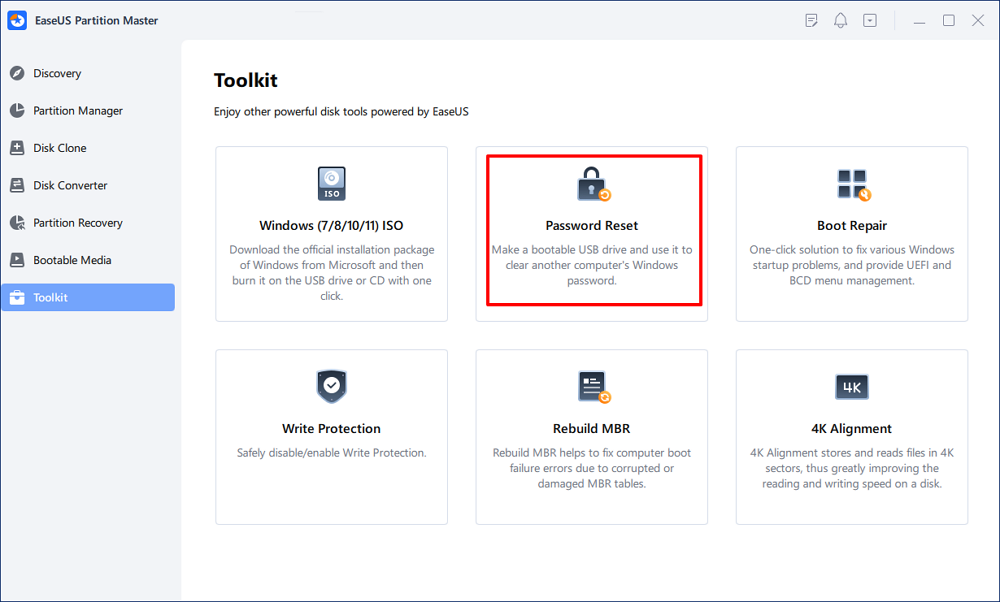
Step 1. Insert the target USB disk into the computer, download and run EaseUS Partition Master, and click "Toolkit" > "Password Reset."
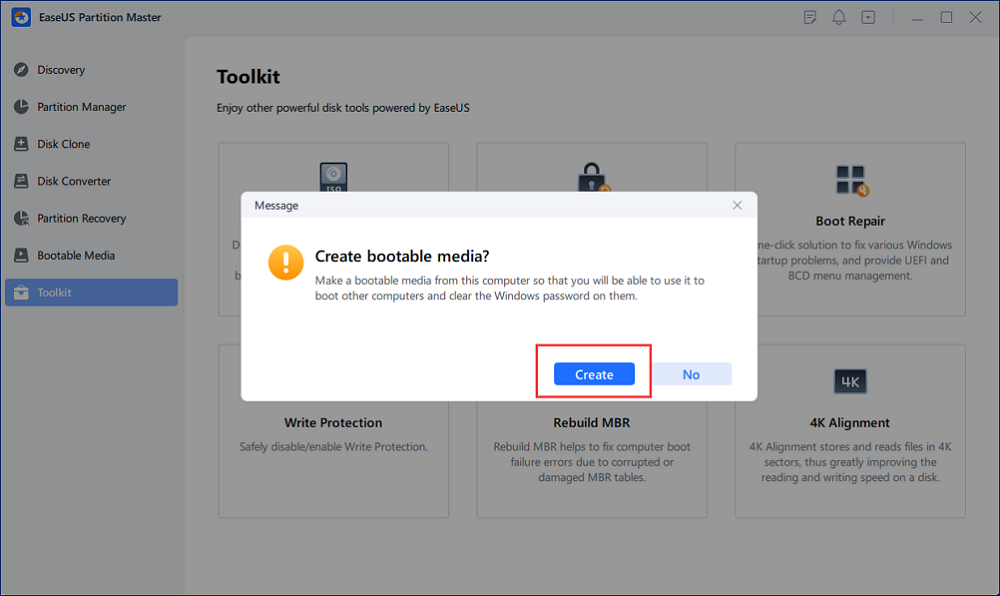
Step 2. A small window will pop up. After reading it carefully, click "Create".
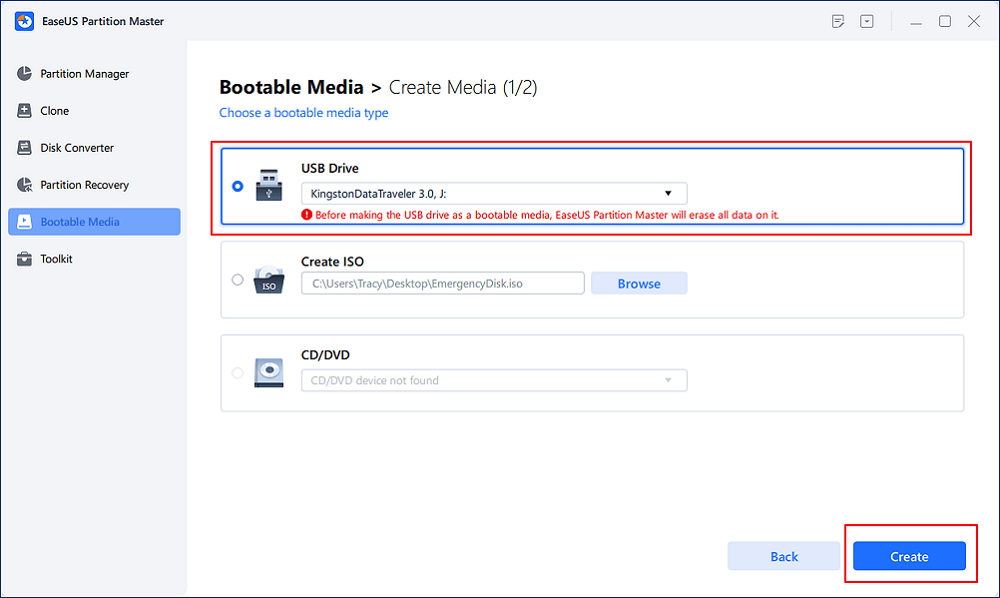
Step 3. Select the correct USB flash drive or external mobile hard disk and click "Create" again. Wait patiently. After the password reset USB flash drive is created, click "Finish."
Step 4. Remove the password reset USB, insert it into the locked PC, and restart. You will be asked to change the boot drive to boot the PC from USB. Once completed, the system will automatically boot from USB.
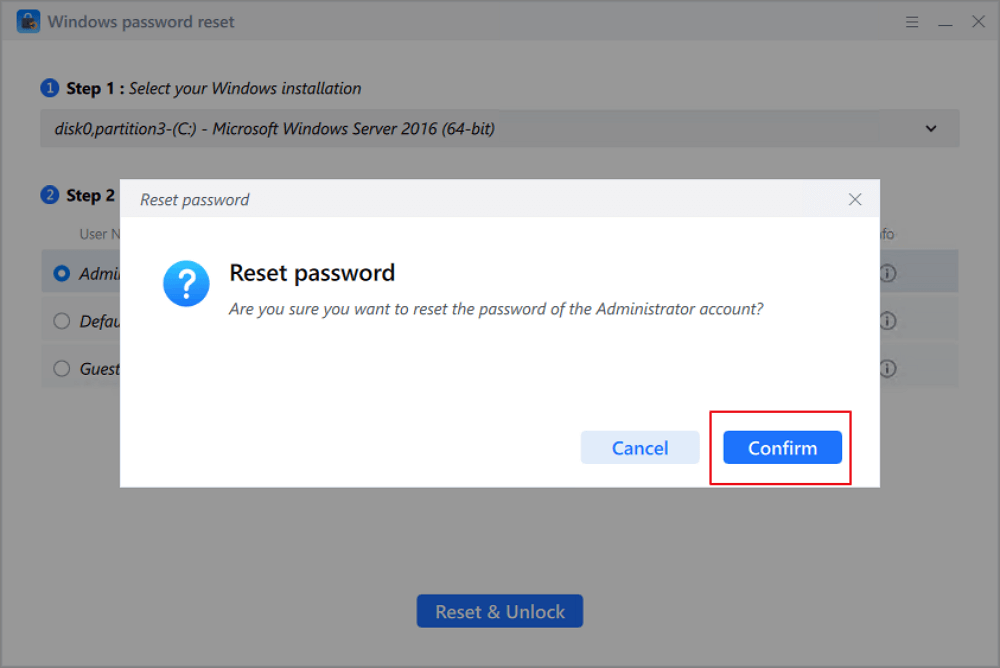
Step 5. After restarting, find EaseUS Partition Master again and go to "Password Reset." All accounts on the PC will be displayed in the interface; click on the target account and check "Reset & Unlock."
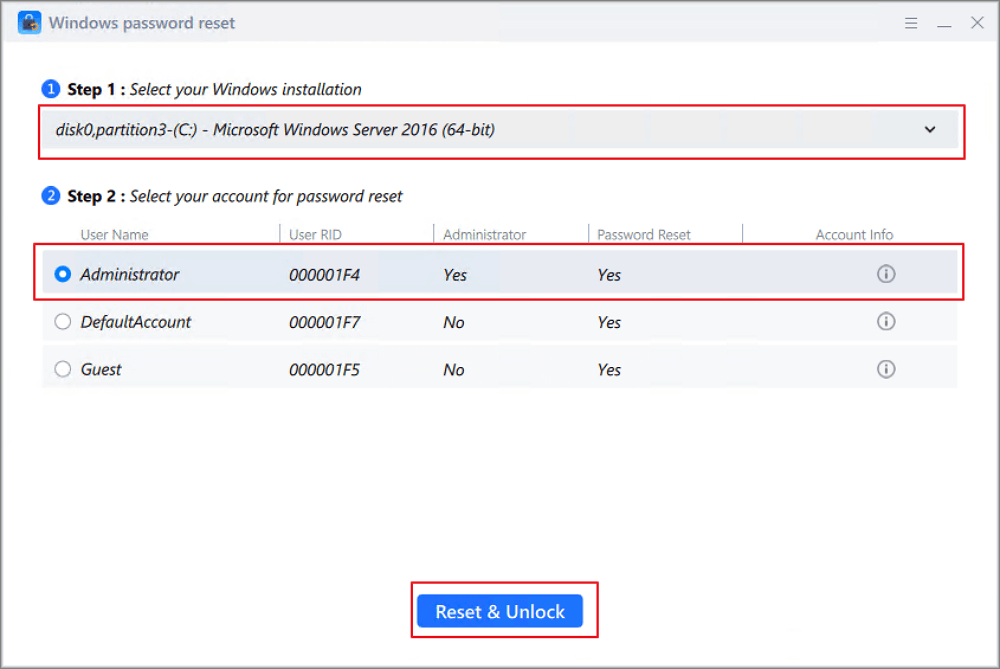
Step 6. When you receive this prompt, click "Confirm" to continue. Your password will be erased.
Way 2. Restart your PC and try Safe Mode
Using Safe Mode is an effective way to unlock a computer locked by an administrator. This built-in Windows diagnostic feature allows you to bypass user-level restrictions, enable the hidden Administrator account, and reset or recover a forgotten password.
When you start Windows in Safe Mode, the system loads only essential drivers and core services. By minimizing background processes and disabling third-party software, Safe Mode can help you bypass startup errors, software conflicts, or security restrictions that prevent normal login access.
Step 1. Power on your PC and forcefully interrupt the boot process 3 times by holding down the power button as Windows begins to load.
Step 2. On the Automatic Repair screen, choose Advanced options.
Step 3. Follow the on-screen instructions to select Troubleshoot > Advanced options > Startup Repair > Windows 10 or Windows 11.
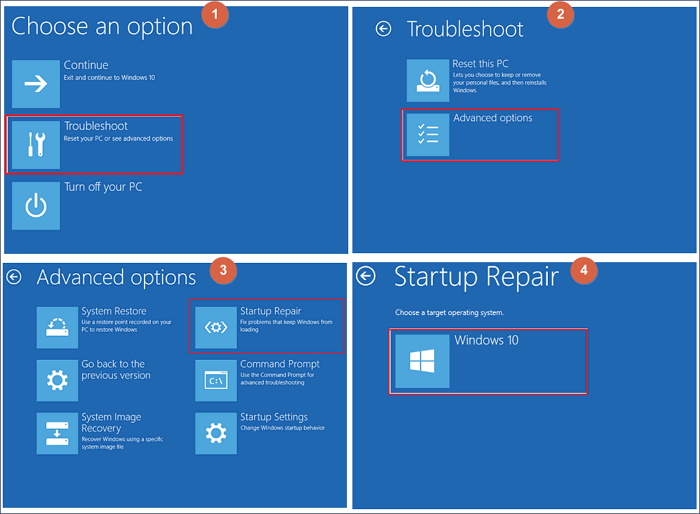
Step 4. Select your Windows account, enter the password if prompted, and let Windows automatically diagnose and repair startup issues.
Way 3. Reset the account password using CMD
If your computer displays the message "This computer is locked by the administrator", one effective built-in solution is to enable Windows' hidden Administrator account using CMD.
Windows operating systems such as Windows 11 and Windows 10 include a disabled, built-in Administrator account by default. This account has full system privileges and can be activated in recovery mode, even if your primary admin profile is locked, disabled, or inaccessible.
Step 1. Type cmd in the search bar > select Run as administrator to open the Command Prompt window.
Step 2. Once the Command Prompt opens, ensure you are logged in with administrative privileges. If you are unsure, run the following command to enable the hidden admin account.
- net user Administrator /active: yes
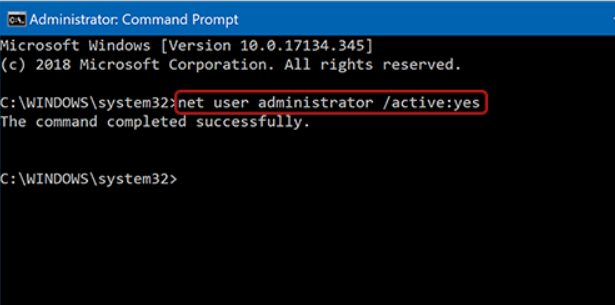
Step 3. Restart your computer. If successful, please log in to the newly enabled Administrator account and reset your locked profile password.
How to Prevent This Computer Is Locked by the Administrator
After fixing the issue, it's important to take preventive steps to avoid getting locked out again. Whether you're using Windows 11 or Windows 10, the following best practices can help keep your computer accessible and secure.
- Create a secondary administrator account: Without a doubt, only one admin account can increase the risk of total lockout. A backup admin account ensures you can regain access if your primary account is disabled or locked. Here are the steps. Go to Settings > select Accounts > Family & other users > Add a new user > Assign Administrator privileges.
- Set up a password reset risk: If you use a local account, please make a password reset disk. Here are the steps. Please insert a USB drive > search for Create a password reset disk in Windows > follow the setup wizard to continue.
- Use a Microsoft account with recovery options: Link your device to a Microsoft account, then add a recovery email, a phone number, and enable multi-factor authentication. If your account gets locked, you can recover it online instead of losing access to your PC.
- Enable Windows Hello (PIN or Biometrics): Using Windows Hello adds convenience and reduces password errors, as fewer failed login attempts mean a lower chance of account lockout. You can set up a PIN, enable fingerprint or face recognition.
- Keep Windows updated: System glitches or corrupted updates can sometimes cause login errors. Regular updates help prevent registry corruption, login screen bugs, and security vulnerabilities.
- Regularly back up important data: Even if your account becomes locked, cloud, external, or System Image backups can ensure your files remain safe.
Conclusion
How to unlock computer locked by administrators? If you encounter the message This computer is locked by the administrator, don't panic. In most cases, the issue can be resolved by reinstalling Windows without losing data.
If you want an easy and efficient way, EaseUS Partition Master is a reliable password reset tool. If you prefer free solutions, you can start with the built-in Windows features. By following the steps outlined above and taking preventive measures, you can resolve the issue quickly and avoid future administrator lockouts.
FAQs
Additionally, this section provides several useful tips on this topic. If you're interested, please check them out for practical guidance.
1. Why does my computer say This computer is locked by the administrator?
This message usually appears after multiple failed login attempts, a disabled administrator account, a locked Microsoft account, or security restrictions set by system policies. It may also occur on work or school devices managed by an IT department.
2. Can I unlock a Windows computer without the administrator password?
Yes, you can. If you have access to the Windows Recovery Environment, you can enable the built-in Administrator account or reset the password. However, if BitLocker encryption is enabled, you may need the recovery key to proceed.
3. Why is my administrator account disabled?
The administrator account can be disabled due to security policies, too many incorrect password attempts, system errors, or manual changes in account settings. In some cases, Windows updates or corrupted user profiles may also trigger account lock issues.
Please share this post to help more users learn more about how to unlock a computer locked by an administrator!

How Can We Help You
About the Author

Sherly joined EaseUS in 2022 and she has always loved writing articles and enjoys the fun they bring. She receives professional training here, focusing on product performance and other relative knowledge. She has written over 200 articles to help people overcome computing issues.

Cici is the junior editor of the writing team of EaseUS. She accepted the systematic training on computers at EaseUS for over one year. Now, she wrote a lot of professional articles to help people resolve the issues of hard drive corruption, computer boot errors, and disk partition problems.
Product Reviews
-
I love that the changes you make with EaseUS Partition Master Free aren't immediately applied to the disks. It makes it way easier to play out what will happen after you've made all the changes. I also think the overall look and feel of EaseUS Partition Master Free makes whatever you're doing with your computer's partitions easy.
Read More -
Partition Master Free can Resize, Move, Merge, Migrate, and Copy disks or partitions; convert to local, change label, defragment, check and explore partition; and much more. A premium upgrade adds free tech support and the ability to resize dynamic volumes.
Read More -
It won't hot image your drives or align them, but since it's coupled with a partition manager, it allows you do perform many tasks at once, instead of just cloning drives. You can move partitions around, resize them, defragment, and more, along with the other tools you'd expect from a cloning tool.
Read More
Related Articles
-
Can I Make a System Clone on Windows 11? Yes, Sure! Your Guide Is Here
![author icon]() Tracy King/2026/09/23
Tracy King/2026/09/23 -
Can't Initialize Disk: 5 Quick Fixes Here
![author icon]() Oliver/2026/09/24
Oliver/2026/09/24 -
How to Hide System Reserved Partition in Windows 11/10/8/7 [Step-by-Step Guide]
![author icon]() Sherly/2026/09/23
Sherly/2026/09/23 -
Computer Won't Boot? Causes & Fixes for PC Not Turning On
![author icon]() Tracy King/2026/09/23
Tracy King/2026/09/23
 Tracy King/2026/09/23
  Oliver/2026/09/24









