







Content
Page Table of Contents
About the Author
Hot Topics
Have you noticed how hard drive prices have been rising lately? You may be looking for ways to extend the lifespan of their SSDs or HDDs. Don't worry; you've come to the right place.
Whether you use your drive for daily work, gaming, or backups, keeping it healthy saves costs and prevents sudden data loss. Fortunately, by following a few simple tips, you can maintain good performance over time. This guide introduces six ways to extend the lifespan of your SSD or HDD. Share it to help more users extend disk lifespan.

How to Extend the Lifespan of SSD/HDD
Modern storage devices last a long time when treated properly. Simple daily habits and smart maintenance can add years to the lifespan of your storage devices. This saves money and reduces the need for frequent replacements. Follow the six tips to extend SSD life.
Tip 1. Keep SSD/HDD Cool
Heat is one of the main enemies of storage devices. High temperatures can damage an HDD's internal components. It also reduces the lifespan of SSD's memory cells. When a drive stays hot for long periods, it may slow down or even fail unexpectedly. Generally, keeping your drive at a temperature between 30°C and 50°C is ideal. If your SSD is overheated, it's crucial to cool it. There are some tips to keep SSD/HDD cool.
- Improve airflow inside your case.
- Add extra case fans if necessary.
- Keep drives away from hot components like the GPU or CPU.
- Mount HDDs with some space between them to allow air circulation.
- Use heatsinks on high-performance NVMe SSDs.
- Check temperatures regularly with tools like EaseUS Partition Master.

Tip 2. Leave Some Free Space
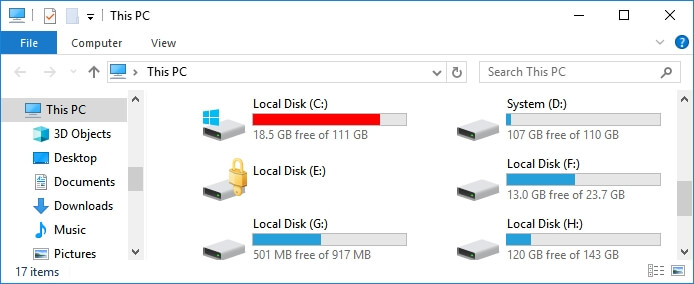
The next way to extend SSD lifespan is to leave some free space on it. Both SSDs and HDDs need free space to operate efficiently. When your drive is almost full, it becomes harder to manage files and store temporary data. For SSDs, lack of free space can also reduce the effectiveness of the wear-leveling process that spreads data evenly across memory cells.
To extend the lifespan of SSD/HDD, try to leave 10–20% of your drive's capacity empty. You can move large files, old backups, or rarely used data to another storage device or cloud service. Regular cleanup not only improves speed but also prevents unnecessary wear caused by constant rewriting in full areas.
Tip 3. Reduce Unnecessary Writes
Each write operation on an SSD slightly wears out its memory cells. While HDDs are less affected, too many frequent writes can still shorten their life by wearing out mechanical parts. Many small unnecessary writes come from system activities that users rarely notice.
You can limit automatic background tasks that repeatedly modify files. For example:
- Reduce Windows indexing frequency.
- Disable frequent log or cache files from software you do not use often.
- Avoid heavy download activity in the download folder.
When using SSDs, avoid defragmentation because it adds unnecessary write cycles. Instead, use built-in SSD-friendly optimization tools.
Tip 4. Check Disk Health Regularly
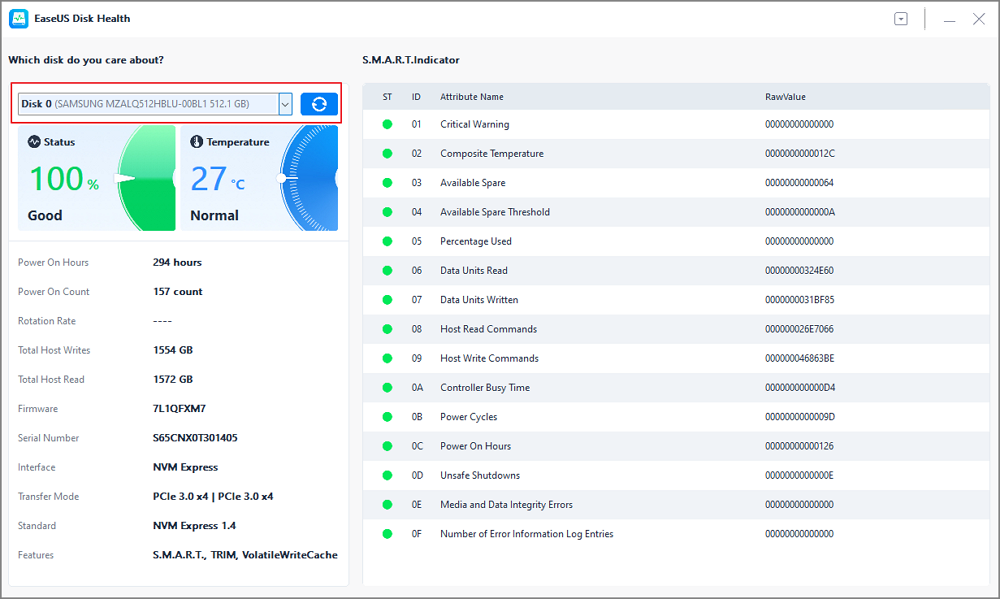
You cannot see the mechanical wear or NAND degradation inside your drive. However, monitoring tools can help you track indicators such as bad sectors, temperature, and read/write errors. Regular health checks give early warnings before any serious failure happens.
EaseUS Partition Master is a professional tool that helps check disk health. This software provides a clear S.M.A.R.T. status report and alerts you if the drive shows early signs of problems. Here is how to check disk health using EaseUS Partition Master.
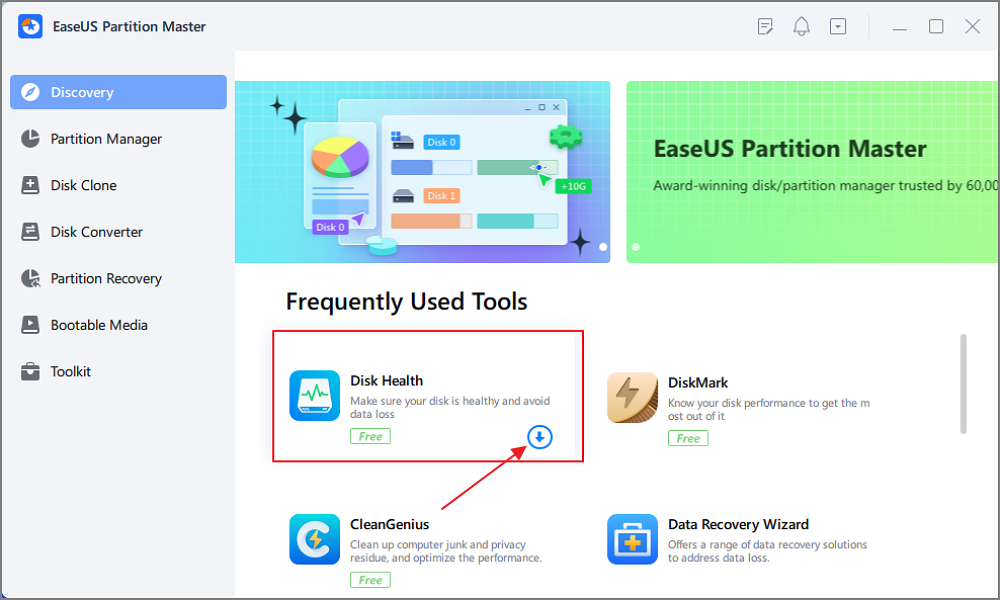
Step 1. Launch EaseUS Partition Master and click the blue arrow to activate the "Disk Health" feature under the "Discovery" section.
Step 2. Select the target disk and click the "Refresh" button. Then, you can see the health condition of your disk.
Tip 5. Keep Your Firmware Updated
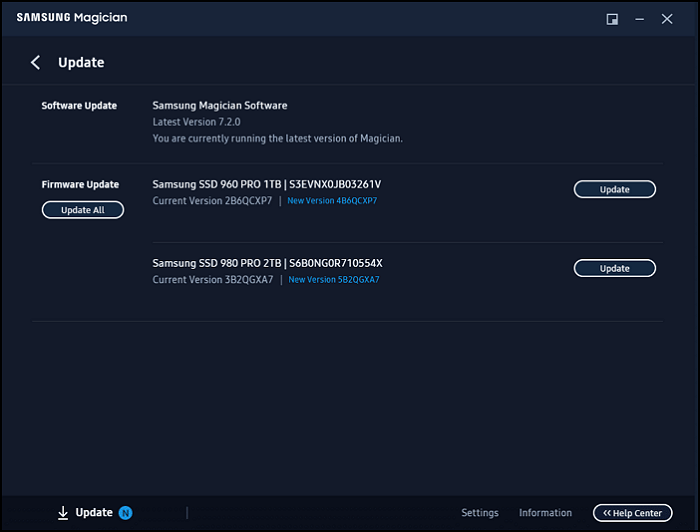
Drive manufacturers often release firmware updates to fix bugs, improve stability, and enhance compatibility with new hardware. Outdated firmware may cause random freezes, data errors, or slower performance. You can extend the disk lifespan by updating the firmware. Here is how to update the firmware of your SSD/HDD.
Step 1. Visit the official website of your SSD or HDD manufacturer to check the new firmware
Step 2. Follow their instructions carefully when updating.
- Notice:
- Note: Always back up your data before starting a firmware update. The process sometimes requires a system reboot or causes data loss in rare cases.
Tip 6. Enable TRIM
TRIM is a command that helps SSDs manage unused data blocks. When you delete a file, TRIM tells the SSD that certain data blocks are no longer needed, so the drive can erase them later and reuse the space efficiently. Without TRIM, an SSD may become slower over time as it struggles to handle old data.
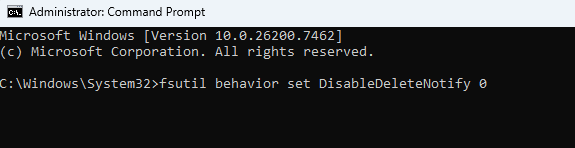
For many pre-installed computers, TRIM is enabled by default. If you have disabled the TRIM feature for any reason, you can enable it by following these steps.
Step 1. Open Command Prompt as an administrator.
Step 2. Type the following command and press Enter:
fsutil behavior set DisableDeleteNotify 0
Step 3. Wait for confirmation.
While SSDs have different wear patterns from traditional HDDs, many basic maintenance practices still apply. For a broader look at maintaining an aging storage drive, see our guide on how to make an old hard drive last longer.
All-in-one Disk Manager to Expand SSD/HDD Lifespan
If you want to extend the lifespan of your SSD/HDD, the easiest way is to use an all-in-one disk manager. EaseUS Partition Master is a powerful all-in-one disk management tool that can help extend the lifespan of both SSDs and HDDs. It not only checks the drive's health and monitors performance but also provides tools for partition resizing, migration, and space optimization.
See how EaseUS Partition Master helps in expanding SSD/HDD lifespan:
- S.M.A.R.T. Disk health monitoring
- Disk cleanup and space analysis
- Expands or shrinks partitions without data loss
- Bad sector check and repair
- SSD 4K alignment for faster read/write performance
- Clone data safely to a new drive
Here is a video guide on how to extend system drive with EaseUS Partition Master.
Extend System C drive with unallocated space
- 1. Right-click on the System C: drive and select "Resize/Move".
- 2. Drag the system partition end into the unallocated space so to add it to the C: drive. And click "OK".
- 3. Click "Execute Task" and "Apply" to execute the operations and extend the C drive.
Why Do you Need to Maximize Your SSD's Lifespan?
Maximizing your SSD's lifespan ensures reliable performance and protects your data over years of use. Every SSD has a rated TBW or DWPD value. Once this limit is reached, the memory cells begin to degrade. The controller and firmware use wear-leveling and TRIM to delay this process, but they cannot stop it entirely. That is why reducing unnecessary writes, keeping free space, and using proper management software are all essential for SSD longevity.
Even HDDs, though mechanically different, also wear out over years of spinning, moving, and reading data. Noise, vibration, and heat can lead to motor fatigue and bearing damage. By maintaining proper temperature, checking health regularly, and managing partitions wisely, both types of storage can remain reliable much longer.
Tip: You can also check this guide to hard drive management for more ways to diagnose and fix disk issues.
Conclusion
While no drive lasts forever, simple habits like leaving space can greatly extend their service life. With smart tools like EaseUS Partition Master, you can not only monitor and maintain your drive's health but also optimize its performance with just a few clicks. By giving your storage the attention it deserves, you ensure smoother system operation, safer data, and longer-lasting hardware.
FAQs on How to Extend SSD Lifespan
1. How Long Do SSDs Really Last?
Most SSDs can last between 5 and 10 years under normal use. Their lifespan depends on the total data written and usage patterns. Light users may see longer life, while heavy writers wear cells out faster.
2. Is SSD or HDD Better for Long-Term Storage?
HDDs are usually better for long-term offline storage because data on magnetic platters remains stable. SSDs are faster but may lose data if left unpowered for years. Regular backups keep both options reliable.
3. What Shortens SSD Lifespan?
Frequent write operations, constant large file transfers, high temperatures, and full disk usage shorten SSD lifespan. Avoid unnecessary writes, keep at least 10% free space, and maintain proper cooling to extend drive health.
How Can We Help You
About the Author

Sherly joined EaseUS in 2022 and she has always loved writing articles and enjoys the fun they bring. She receives professional training here, focusing on product performance and other relative knowledge. She has written over 200 articles to help people overcome computing issues.

Written by Joey Albert
Joey is an enthusiast of science and technology. With a passion for uncovering the latest tech innovations, she creates clear, engaging how-to guides that make technology accessible and enjoyable for all.
Product Reviews
-
I love that the changes you make with EaseUS Partition Master Free aren't immediately applied to the disks. It makes it way easier to play out what will happen after you've made all the changes. I also think the overall look and feel of EaseUS Partition Master Free makes whatever you're doing with your computer's partitions easy.
Read More -
Partition Master Free can Resize, Move, Merge, Migrate, and Copy disks or partitions; convert to local, change label, defragment, check and explore partition; and much more. A premium upgrade adds free tech support and the ability to resize dynamic volumes.
Read More -
It won't hot image your drives or align them, but since it's coupled with a partition manager, it allows you do perform many tasks at once, instead of just cloning drives. You can move partitions around, resize them, defragment, and more, along with the other tools you'd expect from a cloning tool.
Read More
Related Articles
-
How to Fix 'SD Card Is Blank or Has Unsupported File System' [100% Working Solutions]
![author icon]() Cici/2026/09/23
Cici/2026/09/23 -
Upgrade M3 MacBook Pro SSDs with Feasible Ways
![author icon]() Cici/2026/09/28
Cici/2026/09/28 -
2026 Magic Western Digital (WD) Partition Manager Software Free Download
![author icon]() Daisy/2026/09/21
Daisy/2026/09/21 -
How to Bypass BitLocker on Lenovo | 5 Easy Ways
![author icon]() Sherly/2026/09/28
Sherly/2026/09/28
 Cici/2026/09/23
  Daisy/2026/09/21









