







Content
Page Table of Contents
About the Author
Hot Topics
Recently, SSD and HDD prices have increased significantly. For many users, replacing a failed drive is no longer cheap. The real cost is not only the hardware. Data loss often costs more than the drive itself.
HDD and SSD store your most valuable data. This data includes work files, photos, videos, and system files. When an HDD or SSD fails, the result can be serious data loss. Knowing how to detect or predict HDD/SSD errors early can help you protect your files and avoid disaster.
This guide explains the common warning signs of HDD/SSD failure. It will show you how to extend drive life, predict potential issues, and decide when it's time to replace it.
Common Warning Signs of SSD Failure
Before you dive into the guide, you might ask, "How do I tell if my SSD is failing?" Yes, it's important to know what SSD failure is before you avoid it. Below is a table showing common SSD failure signs and what they mean.
| Warning Sign | Description | What It Means |
| Slow Performance | Programs take longer to load or respond | The drive controller or NAND cells may be degrading |
| Frequent crashes or freezes | The system locks up or restarts randomly | File system errors or firmware issues |
| Data corruption | Files go missing or cannot be opened | Sectors may be failing |
| Drive not detected | BIOS or OS cannot find the drive | Electrical or firmware failure |
| S.M.A.R.T. warnings | Health check shows caution status | Early signs of wear or bad blocks |
If your SSD is showing early warning signs but is still accessible, don't wait until it completely fails. You can also review these [maintenance tips for extending a drive's useful life] and prepare a migration plan if the condition worsens.
Recognizing these early helps you act before total drive failure occurs. Share them on your social media.

How to Check HDD/SSD Health
Checking drive health is one of the best ways to detect problems early. Most modern drives include a built-in system called S.M.A.R.T. It tracks temperature, reallocated sectors, and read/write errors.
You can check HDD/SSD health using reliable disk managers like EaseUS Partition Master. This all-in-one tool provides a quick way to run S.M.A.R.T. analysis, view health reports, and spot potential problems.
- Check SMART status for HDDs and SSDs
- Monitor disk temperature
- Check overall disk health
- Detect bad sectors and repair
Here is how to check disk health with EaseUS Partition Master.
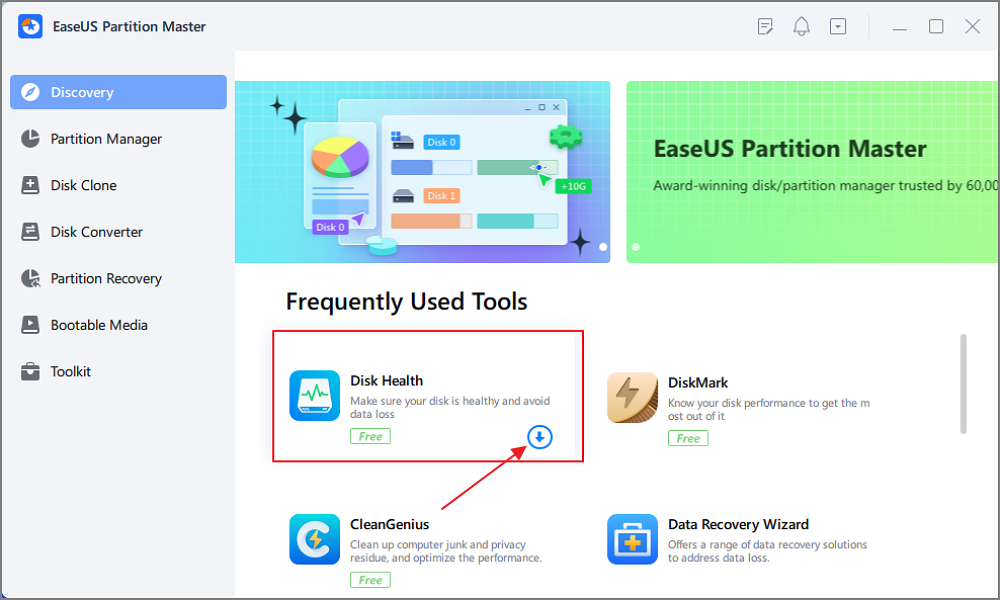
Step 1. Launch EaseUS Partition Master and click the blue arrow to activate the "Disk Health" feature under the "Discovery" section.
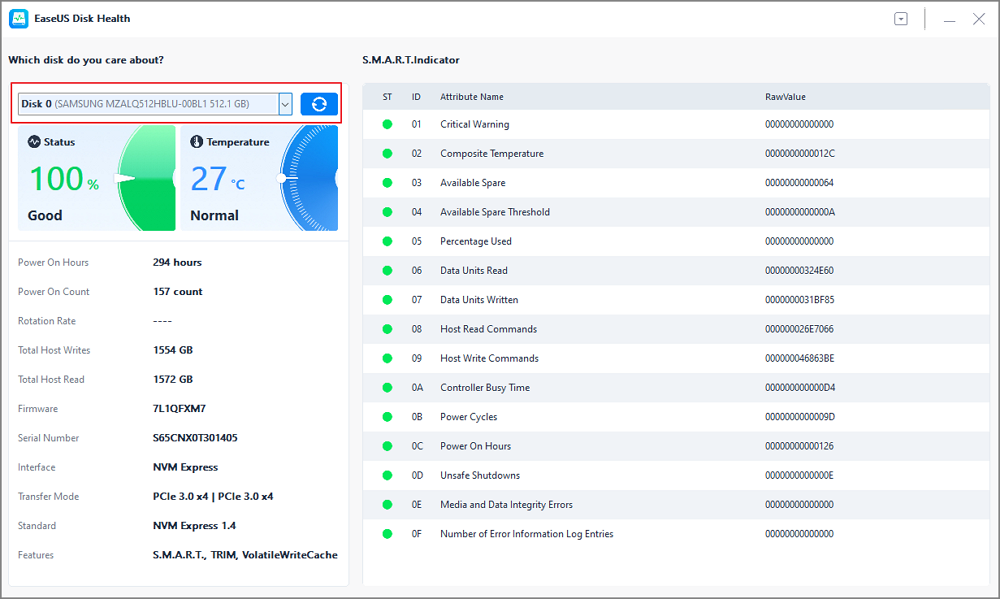
Step 2. Select the target disk and click the "Refresh" button. Then, you can see the health condition of your disk.
If you are dealing with an aging or problematic drive, see this hard drive management guide for practical solutions.
How to Avoid Data Loss of HDD and SSD
Failures happen due to different reasons on HDD/SSD. The most effective protection is proper backups, monitoring, and safe handling. There are some methods to help avoid data loss. Hope these methods can reduce the impact of drive failure.
1. Use Regular Backups
Backups are the most effective protection. The 3-2-1 backup rule is very popular for data storage. That means keep 3 copies of your data on 2 different types of media, with 1 copy stored offsite (like cloud or external drive).
It's very crucial to regularly back up your data. Keeping regular backups ensures your files are safe even if the drive suddenly fails. Schedule automatic backups daily or weekly, depending on how often your files change. Use both local and cloud solutions for better protection. For example, cloud backup services like Google Drive let you restore data quickly when something goes wrong.
2. Monitor Drive Health Regularly
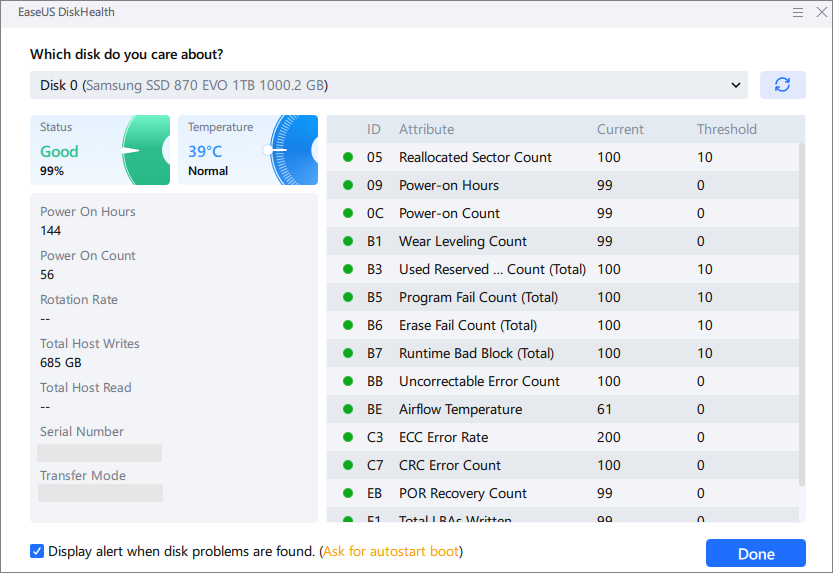
Many HDDs and SSDs fail without warning, but health monitoring can alert you early. Use tools like EaseUS Partition Master to check the S.M.A.R.T. status of your drive.
Watch for warning signs like increased read error rates, temperature spikes, and bad sectors. Regular health checks help you decide when it's time to clone your data or replace the drive before it fails.
3. Avoid Physical Damage
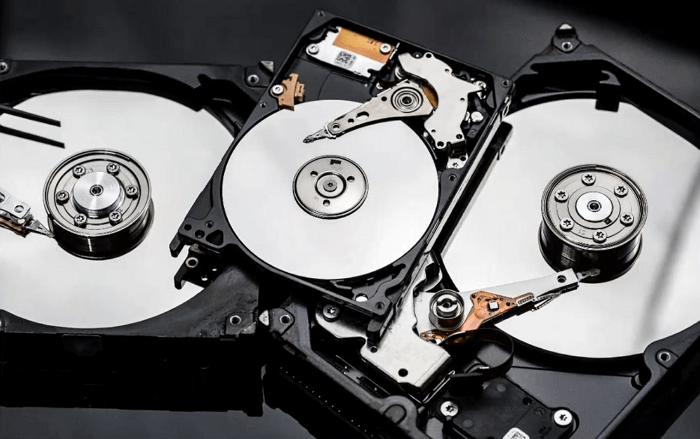
Drives can fail due to physical abuse, especially mechanical HDDs with spinning parts. SSDs are sturdier but still sensitive to static discharge and power issues.
Best Practices:
- Do not drop or shake your computer or external drive while it's running.
- Store drives in anti-static cases when not in use.
- Handle drives gently during installation or movement.
- Use protective padding when transporting portable drives.
4. Prevent Overheating
High temperatures shorten a drive's lifespan and increase the risk of sudden crashes. Both HDDs and SSDs perform best in a cool environment.
Some tips:
- Keep your PC or laptop in a well-ventilated area.
- Clean fans and vents every few months to prevent dust buildup.
- Use natural airflow or install additional cooling fans for desktop systems.
- Monitor drive temperature with S.M.A.R.T. tools.
5. Leave Free Space on Drive
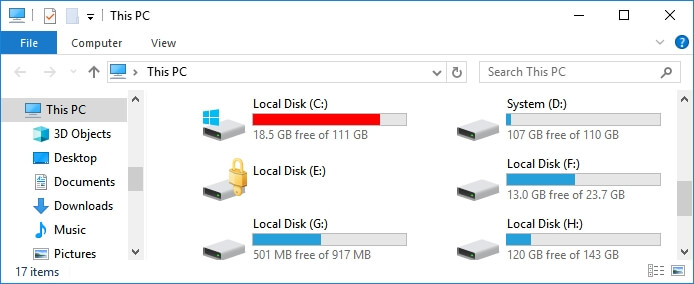
Full drives perform poorly and wear out faster, especially SSDs that rely on free space for wear leveling. Here are some storage management tips.
- Keep 10–20% free space on your drive.
- Move large, infrequently accessed files to an external disk or cloud storage.
- Delete junk files and temporary data regularly.
- Avoid using SSDs for constant writing-intensive tasks (like video rendering) without spare capacity.
6. Keep Firmware and Drivers Updated
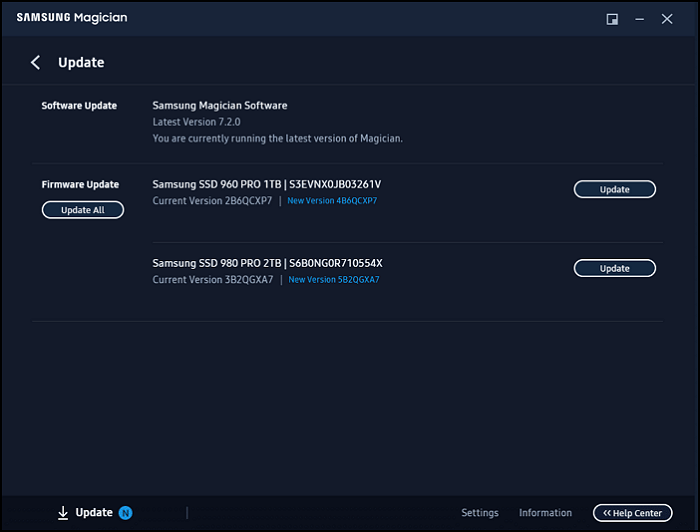
Drive manufacturers often release updates that fix bugs and improve stability. Outdated firmware can cause system freezes, read errors, or connection issues. Here is how to update drive firmware.
Step 1. Visit your drive manufacturer's official support website (e.g., Samsung, WD, Seagate).
Step 2. Find and download the latest firmware version for your model.
Step 3. Follow on-screen instructions or use management tools like Samsung Magician.
Step 4. Restart your system after updating to apply the changes.
Can You Predict HDD or SSD Failure?
Fortunately, you can't predict all the SSD/HDD failures. But you can estimate the risk. Indicators like high reallocated sector count, read errors, and slow performance often signal that failure is near.
SMART data helps identify disk at higher risk. Rising error counts, unstable sectors, and high SSD wear indicate problems. Performance drops can also signal trouble.
However, some HDD/SSD failures cannot be predicted:
- SSD controller failure
- Firmware bugs
- Sudden power damage
You can also review these disk problems to identify possible causes and find the right way to troubleshoot them.
What to Do If Your HDD or SSD Is Already Failing
If your drive is already failing, it's time to take steps. There are some things you can do:
- Stop all activity: Immediately stop using the drive to prevent it from overwriting recoverable data.
- Back up important files: Copy critical data first. Use another drive or cloud storage.
- Create a disk image: If possible, create a full disk image. This preserves data structure and system files.
- Avoid repeated scans: Repeated repairs can cause more damage. Run diagnostics only when needed.
- Consider professional recovery: If you can't access files. Professionals may have tools to recover data from failing drives.
Conclusion
HDD or SSD failure is unavoidable over time, but smart monitoring and routine care can delay it. Predicting failure isn't always perfect, but staying alert helps you act early. Whether you use hard drives or solid-state drives, prevention is key to keeping your data safe and your system running smoothly. Watch for warning signs, check S.M.A.R.T. data with tools like EaseUS Partition Master, and always back up important information.
FAQs About HDD and SSD Failure
1. How long do HDDs and SSDs usually last?
HDDs typically last 3–5 years, while SSDs can last 5–10 years depending on usage, quality, and workload.
2. Is SMART reliable for predicting disk failure?
S.M.A.R.T. is fairly accurate for traditional hard drives, but it may not detect all SSD issues. Use it as one of several monitoring tools.
3. Can bad sectors be fixed permanently?
Some bad sectors can be remapped by the drive's firmware, but ongoing growth in bad sectors means the drive is deteriorating. It's best to replace the drive.
4. Should I replace a drive even if it still works?
Yes, if you see frequent warnings, data corruption, or performance loss. Waiting too long risks total data failure.
How Can We Help You
About the Author

Sherly joined EaseUS in 2022 and she has always loved writing articles and enjoys the fun they bring. She receives professional training here, focusing on product performance and other relative knowledge. She has written over 200 articles to help people overcome computing issues.

Written by Joey Albert
Joey is an enthusiast of science and technology. With a passion for uncovering the latest tech innovations, she creates clear, engaging how-to guides that make technology accessible and enjoyable for all.
Product Reviews
-
I love that the changes you make with EaseUS Partition Master Free aren't immediately applied to the disks. It makes it way easier to play out what will happen after you've made all the changes. I also think the overall look and feel of EaseUS Partition Master Free makes whatever you're doing with your computer's partitions easy.
Read More -
Partition Master Free can Resize, Move, Merge, Migrate, and Copy disks or partitions; convert to local, change label, defragment, check and explore partition; and much more. A premium upgrade adds free tech support and the ability to resize dynamic volumes.
Read More -
It won't hot image your drives or align them, but since it's coupled with a partition manager, it allows you do perform many tasks at once, instead of just cloning drives. You can move partitions around, resize them, defragment, and more, along with the other tools you'd expect from a cloning tool.
Read More
Related Articles
-
Battlefield 6 Secure Boot not Enabled | How to Fix🔥
![author icon]() Cici/2026/09/29
Cici/2026/09/29 -
How to Fix Critical Process Died Error in Windows 10/8/7🔥
![author icon]() Tracy King/2026/09/22
Tracy King/2026/09/22 -
Acer Laptop Won't Turn On Blue Light On: How to Fix?
![author icon]() Cici/2026/09/24
Cici/2026/09/24 -
We Couldn't Update the System Reserved Partition Win 10/11
![author icon]() Brithny/2026/09/22
Brithny/2026/09/22
 Cici/2026/09/29
  Tracy King/2026/09/22
  Brithny/2026/09/22









