







Content
Page Table of Contents
About the Author
Hot Topics
Are you trying to change your external hard drive to exFAT without losing data, but worried that reformatting may erase everything? You're not alone. Many users, especially those who move files between Windows and macOS, eventually discover that FAT32's 4GB file limit and NTFS's restricted macOS support make both formats inconvenient. That's exactly where exFAT becomes the ideal choice: it eliminates size limits, works seamlessly across systems, and is lightweight for all storage devices.
Can I change it to exfat without formatting? So I have a 2 TB external hard drive. It's formatted in FAT32, but I want it to be exFAT. To do so, I would have to format it to exFAT. But the problem is, I have no other hard drive to back up all my files. So I was wondering if there's a way I can change my hard drive to exFAT without formatting it and losing all my data. - Reddit (r/Windows10)
If you want a way to convert or switch to exFAT safely, keep reading; this guide explains how to do it with and without formatting.
exFAT Partition Converter Free Download
If your goal is to convert FAT32 or NTFS to exFAT without losing files, the most reliable solution is EaseUS Partition Master. The new Version 20.0 introduces full exFAT support, enabling you to directly convert FAT32 to exFAT safely, no formatting, no data loss, no command lines required.
More than just a FAT32 to exFAT converter, it works as a complete exFAT management toolkit, letting you:
- Create exFAT partitions
- Delete exFAT partitions
- Format drives to exFAT
- Wipe exFAT volumes
- Clone exFAT disks and partitions
- And more
💡Why Choose EaseUS Partition Master?
- ✔️Full Windows compatibility: Works on Windows 11/10/8/7 and Server versions
- ✔️Beginner-friendly UI: No scripts or command lines; everything is visual
- ✔️Comprehensive exFAT support: Convert, manage, and optimize exFAT drives in one place
- ✔️Proven safety: Data-protected conversion technology; support up to 2TB
- ✔️Compatibility: Support HDD - Parallel ATA (IDE), Serial ATA (SATA), External SATA (eSATA), SCSI, IEEE 1394 (FireWire), SSD - SATA SSD, M.2 SSD, NVMe SSD, Large Capacity Hard Disk(GPT and MBR Disk)
Download it, try it, and share it with anyone who needs a reliable exFAT conversion tool.

How to Change External Hard Drive to exFAT Without Formatting?
If you want to switch your external hard drive to exFAT without reformatting, the safest method is using a specialized partition conversion tool - EaseUS Partition Master. It can convert an external hard drive or switch a USB flash drive to exFAT without formatting.
Guide 1. Convert External Hard Drive From FAT32 to exFAT
Step 1. Install and launch EaseUS Partition Master on your computer.
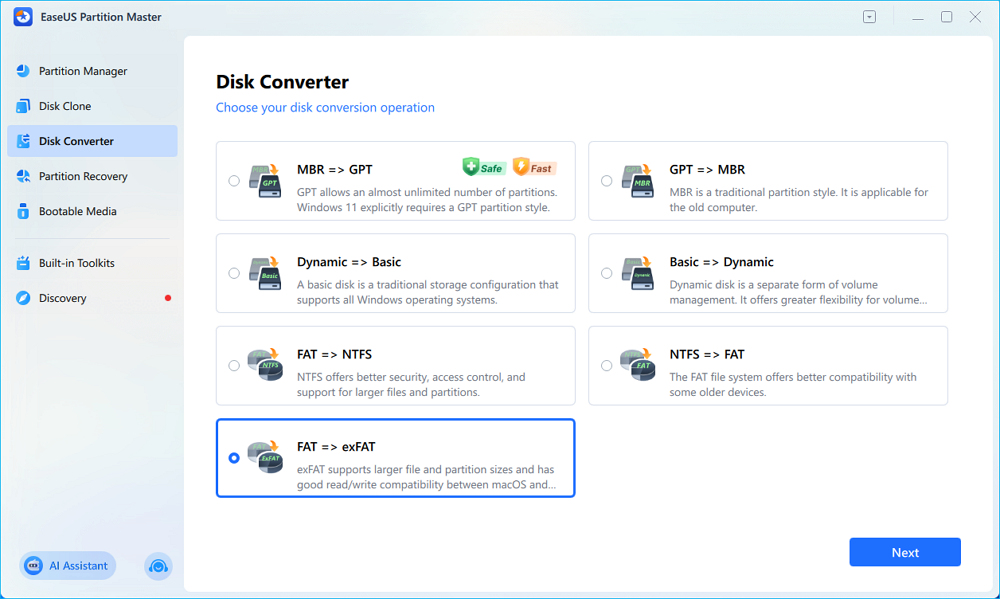
Step 2. In the "Disk Converter" window, select "FAT => exFAT" and click "Next."
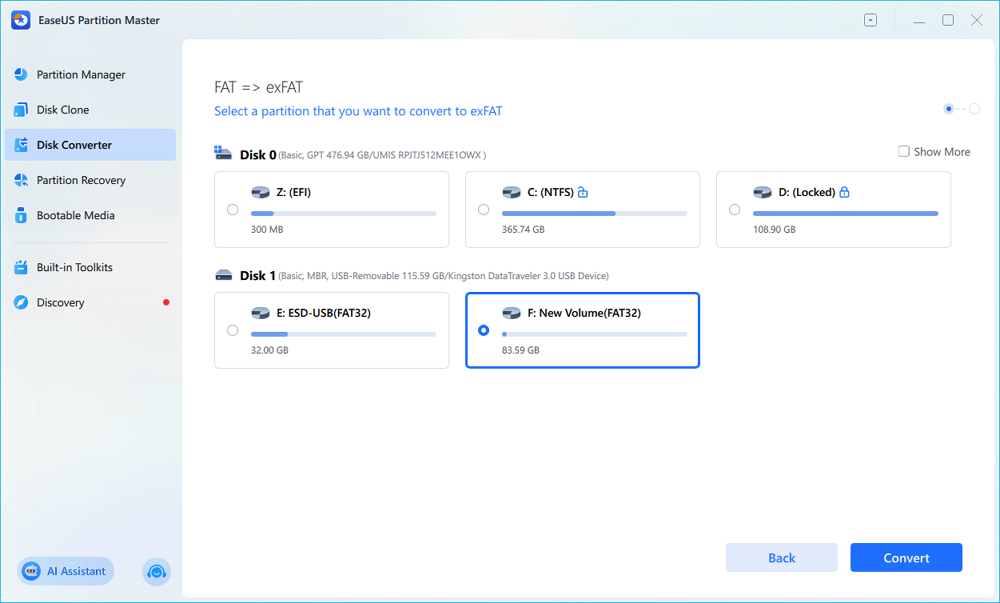
Step 3. In the new window, choose the partition you want to format to exFAT, and click "Convert."
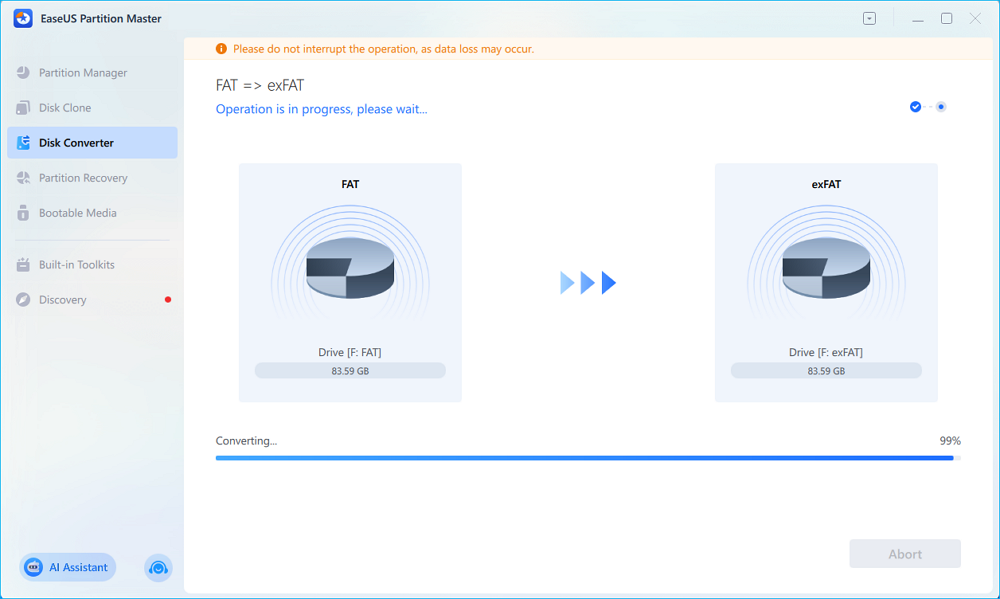
Step 4. During the process, do not interrupt the operation or turn off the program. Wait for it to finish, click "Done," and you can see the FAT32 partition has been switched to exFAT.
Guide 2. Format NTFS External Hard Drive to exFAT
If your external hard drive is using NTFS, you can back it up first and format external hard drive to exFAT with EaseUS Partition Master:
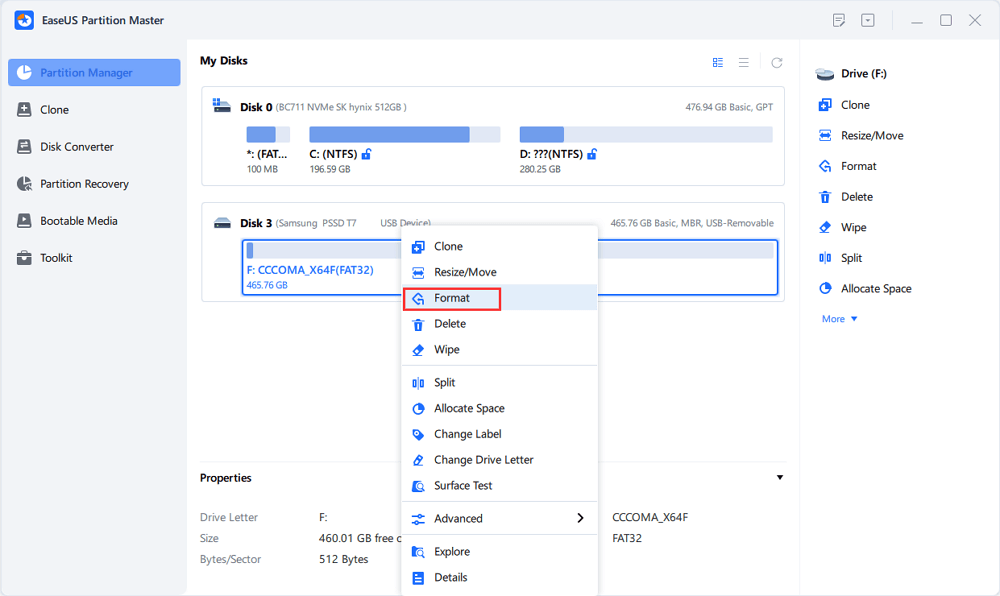
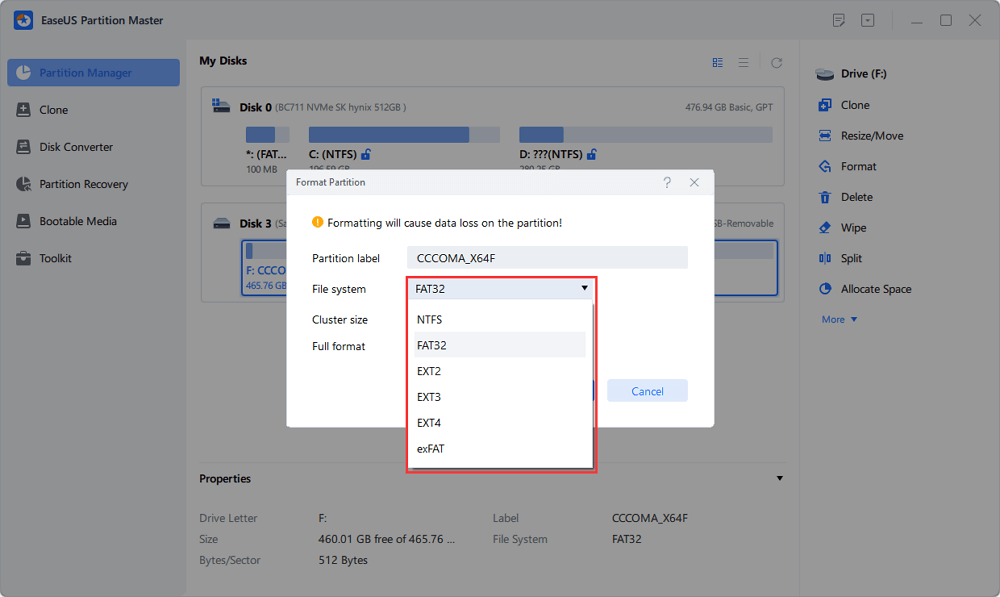
Step 1. Launch EaseUS Partition Master, right-click the partition on your external hard drive/USB/SD card which you want to format and choose the "Format" option.
Step 2. Assign a new partition label, file system (NTFS/FAT32/EXT2/EXT3/EXT4/exFAT), and cluster size to the selected partition, then click "OK".
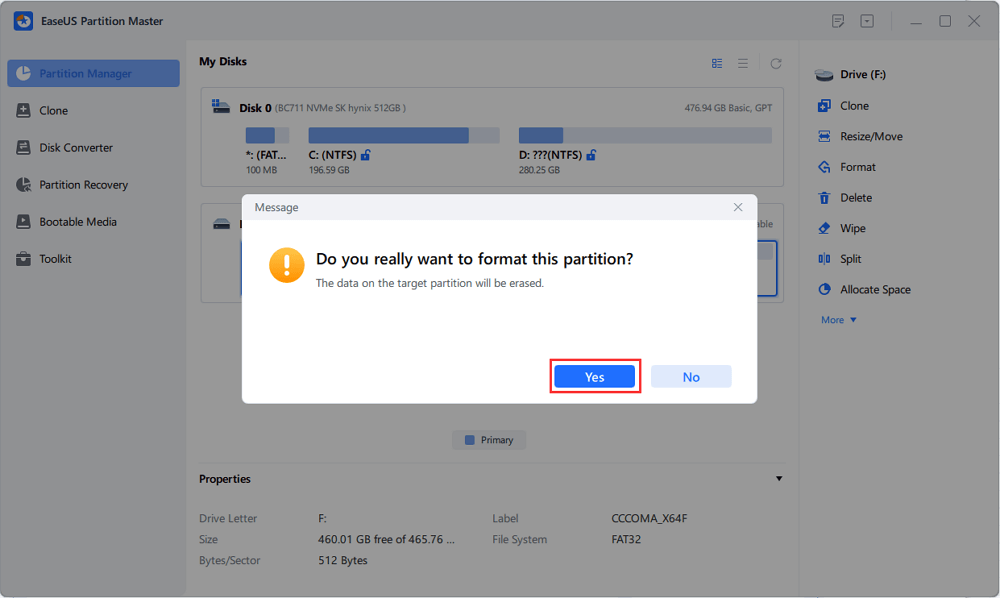
Step 3. In the Warning window, click "Yes" to continue.
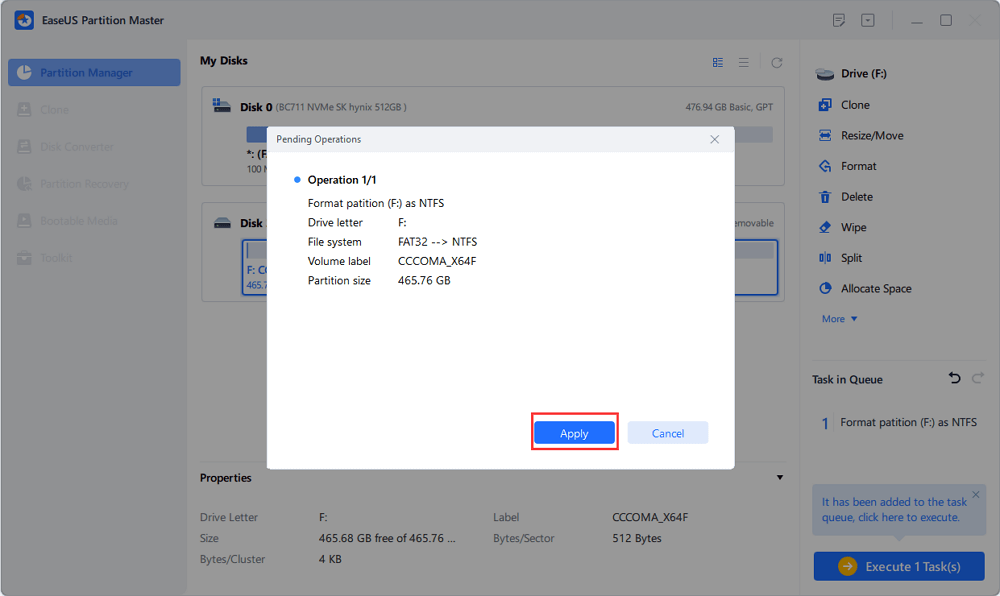
Step 4. Click the "Execute 1 Task(s)" button in the top-left corner to review the changes, then click "Apply" to start formatting your external hard drive/USB/SD card.
How to Format External Hard Drive to exFAT
If you don't mind erasing the drive, or you already have a backup, these formatting methods also allow you to reformat or change an external hard drive to exFAT. (⚠️ All methods below will delete existing data, so back up your files before proceeding.)
Method 1. Use File Explorer
File Explorer is a quick way for Windows users to format an external drive to exFAT. Without any software, you can change the format of your external hard drive to exFAT.
- Connect the external drive to your PC.
- Open File Explorer or click "This PC" > right-click the external hard drive.
- Select Format > Choose exFAT from the File System menu.
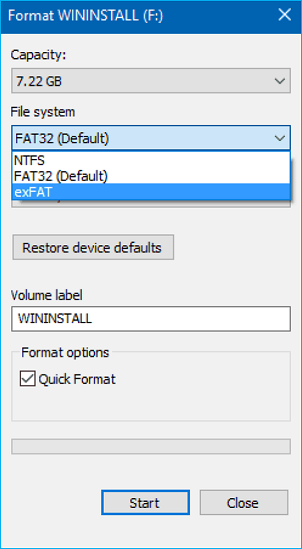
- Click Start to reformat it to exFAT.
Method 2. Use Disk Management
Disk Management is useful if File Explorer cannot open or format the drive. Follow the steps to switch to exFAT:
- Right-click Start (Windows icon) and choose Disk Management.
- Right-click the target volume > Format. Select exFAT as the file system.
- Confirm the operation to switch the drive to exFAT.
Method 3. Use Command Prompt
Command Prompt is ideal for advanced users who prefer using commands to reformat disks.
- Warning
- Command lines are sensitive. Double-check the drive letter before executing.
Here is how to format an external hard drive to exFAT with CMD:
Press Win + R, type cmd in the Run box, and press Enter.
Type diskpart and press Enter to launch DiskPart.exe.
Then, type the following command lines and press Enter after each:
- list disk
- select disk 1 (Replace 1 with the target disk number)
- list volume
- select volume 5 (replace 5 with the target partition number)
- format fs=exfat quick
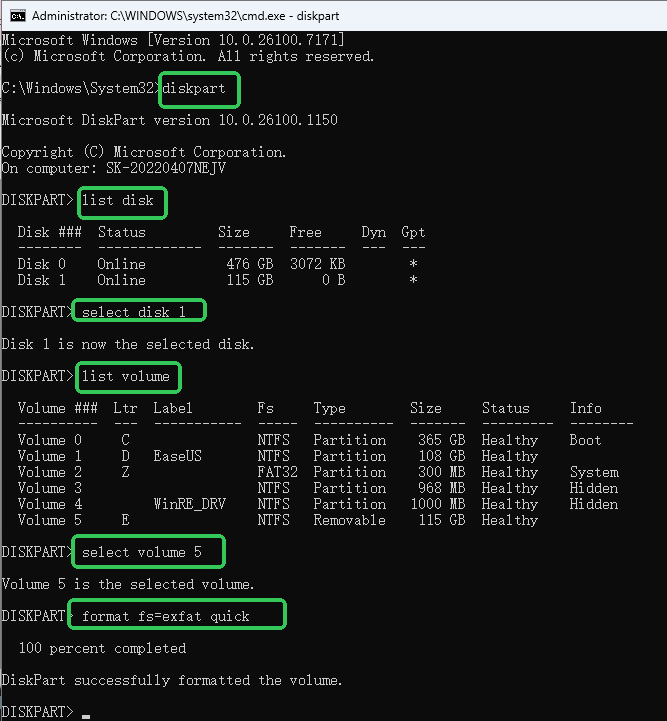
Press Enter and wait for the process to complete.
Should I Change My Hard Drive to exFAT?
In most cross-platform scenarios, yes, switching to exFAT is the best choice. Here's how to decide:
You Should Use exFAT If You:
- Transfer files between Windows and macOS regularly
- Store files larger than 4GB
- Use SSDs, SD cards, USB flash drives, or portable HDDs
- Need a lightweight, high-compatibility file system
- Want maximum flexibility without performance overhead
Here is a real case from Reddit:
Is formatting a hard drive to exFAT 32 safe? Reading some spooky stuff
byu/Powerful-Employer-20 inDataHoarder
exFAT vs FAT32 vs NTFS: Key Differences
| Feature | exFAT | FAT32 | NTFS |
|---|---|---|---|
| Max file size | Unlimited | 4GB limit | Unlimited |
| Max partition size | 128PB | Limited (32GB) | Very large |
| macOS support | Full read/write | Full read/write | Read-only (by default) |
| Best for | Cross-platform storage | Small devices | Windows system drives |
If you value simplicity, portability, and compatibility, exFAT is the clear winner. Feel free to share this guide with anyone deciding how to format or convert their external drives.
Conclusion
Choosing the right file system determines how smoothly your external hard drive works across devices and operating systems. For users who frequently move files between Windows and macOS, exFAT offers unmatched flexibility, no file size limits, no compatibility issues, and no unnecessary overhead. Whether you prefer to convert to exFAT without losing data or reformat the drive from scratch, this guide provides every option.
Tools like EaseUS Partition Master make the process easier, safer, and completely beginner-friendly, especially for those who want to avoid data loss or using command lines. With full exFAT support and cross-version Windows compatibility, it's one of the most reliable ways to migrate from FAT32 or NTFS.
FAQ About Changing the Format of External Hard Drive to exFAT
1. How do I convert to exFAT without losing data?
Use a professional partition converter such as EaseUS Partition Master, which can convert FAT32 to exFAT directly without formatting or losing any data.
2. Can I change the format of my external hard drive without losing files?
Yes, but only with a tool that supports non-destructive conversion, such as EaseUS Partition Master. Standard formatting will erase data.
3. How do I change my external hard drive to exFAT?
You can reformat using File Explorer, Disk Management, Command Prompt, or convert it directly without data loss using EaseUS Partition Master.
4. What are the downsides of exFAT?
exFAT has fewer security features than NTFS and is less optimized for system drives, but it excels for portable storage and cross-platform use.
How Can We Help You
About the Author

Updated by Larissa
Larissa has rich experience in writing technical articles and is now a professional editor at EaseUS. She is good at writing articles about data recovery, disk cloning, disk partitioning, data backup, and other related knowledge. Her detailed and ultimate guides help users find effective solutions to their problems. She is fond of traveling, reading, and riding in her spare time.

Sherly joined EaseUS in 2022 and she has always loved writing articles and enjoys the fun they bring. She receives professional training here, focusing on product performance and other relative knowledge. She has written over 200 articles to help people overcome computing issues.
Product Reviews
-
I love that the changes you make with EaseUS Partition Master Free aren't immediately applied to the disks. It makes it way easier to play out what will happen after you've made all the changes. I also think the overall look and feel of EaseUS Partition Master Free makes whatever you're doing with your computer's partitions easy.
Read More -
Partition Master Free can Resize, Move, Merge, Migrate, and Copy disks or partitions; convert to local, change label, defragment, check and explore partition; and much more. A premium upgrade adds free tech support and the ability to resize dynamic volumes.
Read More -
It won't hot image your drives or align them, but since it's coupled with a partition manager, it allows you do perform many tasks at once, instead of just cloning drives. You can move partitions around, resize them, defragment, and more, along with the other tools you'd expect from a cloning tool.
Read More
Related Articles
-
Something Happened and Your PIN Isn't Available (Solved)
![author icon]() Oliver/2026/10/22
Oliver/2026/10/22 -
[Fixed] There Is No exFAT Format Option in Windows 11/10/8.1/8/7
![author icon]() Jean/2026/10/23
Jean/2026/10/23 -
Top 10 Free Defrag Software |Tested Checklist
![author icon]() Sherly/2026/10/22
Sherly/2026/10/22 -
Kingston Format Utility Fail? Fix with Kingston Format Tool [2026 Guide]
![author icon]() Brithny/2026/10/22
Brithny/2026/10/22
 Oliver/2026/10/22
  Jean/2026/10/23
  Brithny/2026/10/22









