







Content
Page Table of Contents
About the Author
Hot Topics
Struggling to figure out how to convert a USB flash drive to exFAT without formatting or losing data? You're not alone. Many users hit restrictions when using FAT32 (4GB limit) or face macOS read-only issues when using NTFS. If you constantly move files between Windows PCs and Macs, exFAT is the ideal middle ground: fast, light, and universally compatible.
This guide explains exactly how to switch your USB to exFAT safely, what tools you need, and how to avoid data loss during the transition. Feel free to share this post if you find it helpful.

How to Convert USB Flash Drive to exFAT Without Formatting
To convert a USB drive to exFAT without formatting, you need EaseUS Partition Master, which offers non-destructive conversion and is now upgraded to Version 20.0 with full exFAT support.
This latest version allows you to:
- Convert external hard drive to exFAT without formatting (no data loss)
- Manage all exFAT partitions visually, such as deleting, resizing, creating, wiping, and formatting
- Avoid command lines, scripts, or risky formatting
- Works on all Windows versions (11/10/8/7 & Server)
- Support external devices such as USB 1.0/2.0/3.0, flash drive, memory card,memory stick, etc.
Guide 1. Steps to convert a USB drive from FAT32 to exFAT without formatting
Step 1. Install and launch EaseUS Partition Master on your computer.
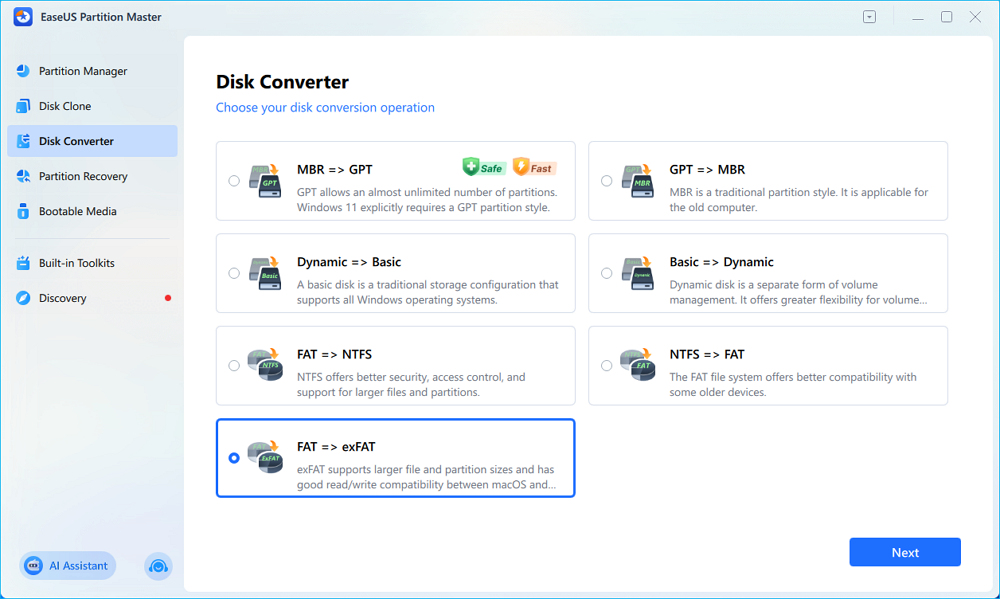
Step 2. In the "Disk Converter" window, select "FAT => exFAT" and click "Next."
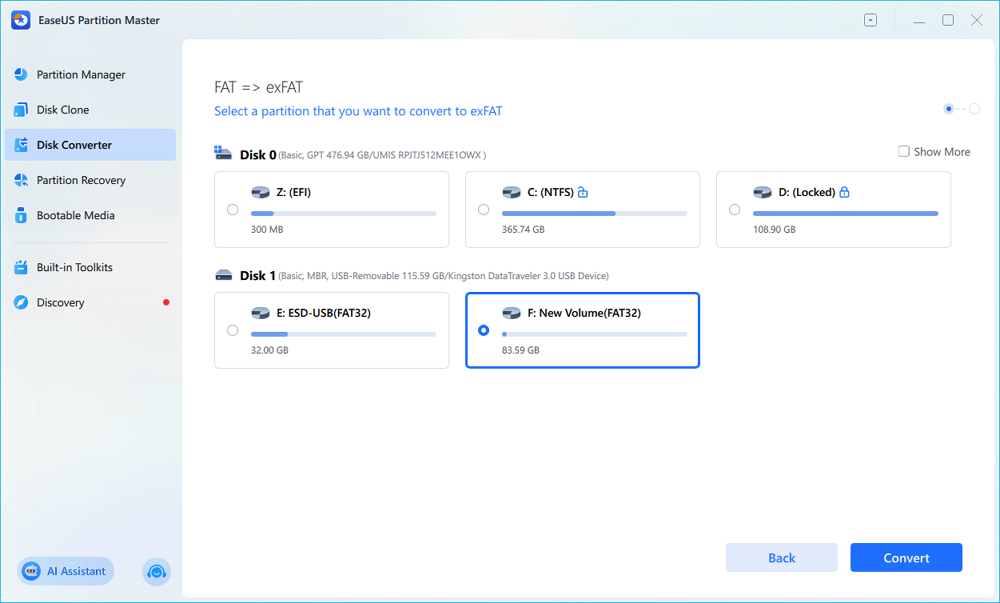
Step 3. In the new window, choose the partition you want to format to exFAT, and click "Convert."
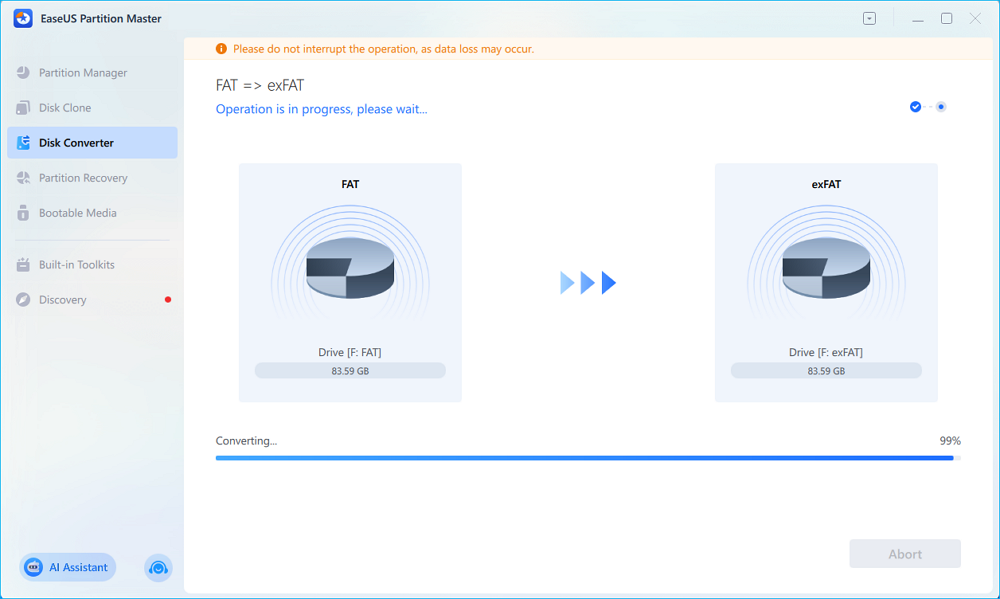
Step 4. During the process, do not interrupt the operation or turn off the program. Wait for it to finish, click "Done," and you can see the FAT32 partition has been switched to exFAT.
If your USB flash drive is using NTFS, you need to format it to change it to exFAT.
Guide 2. Steps to change a USB flash drive from NTFS to exFAT
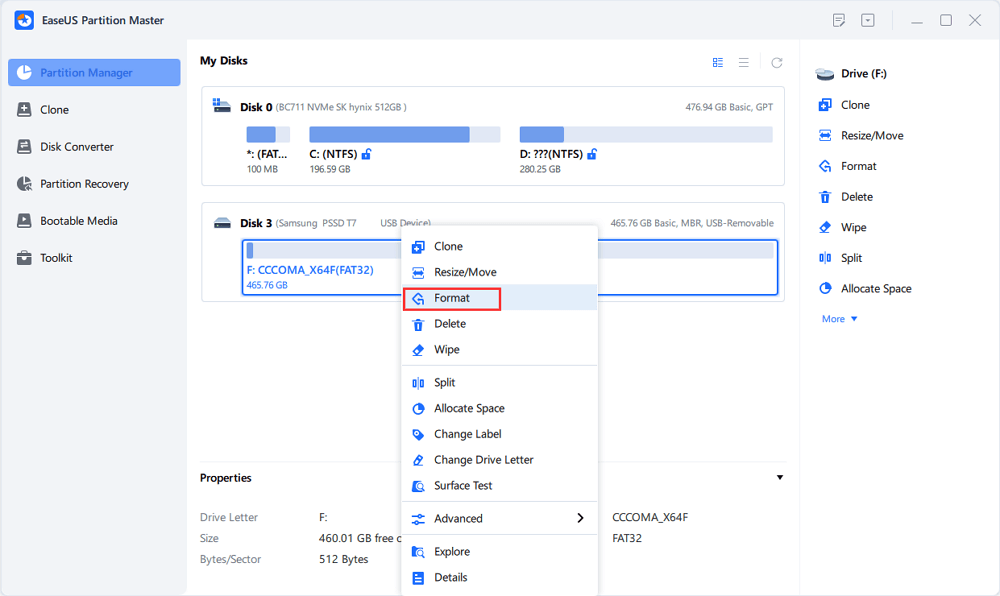
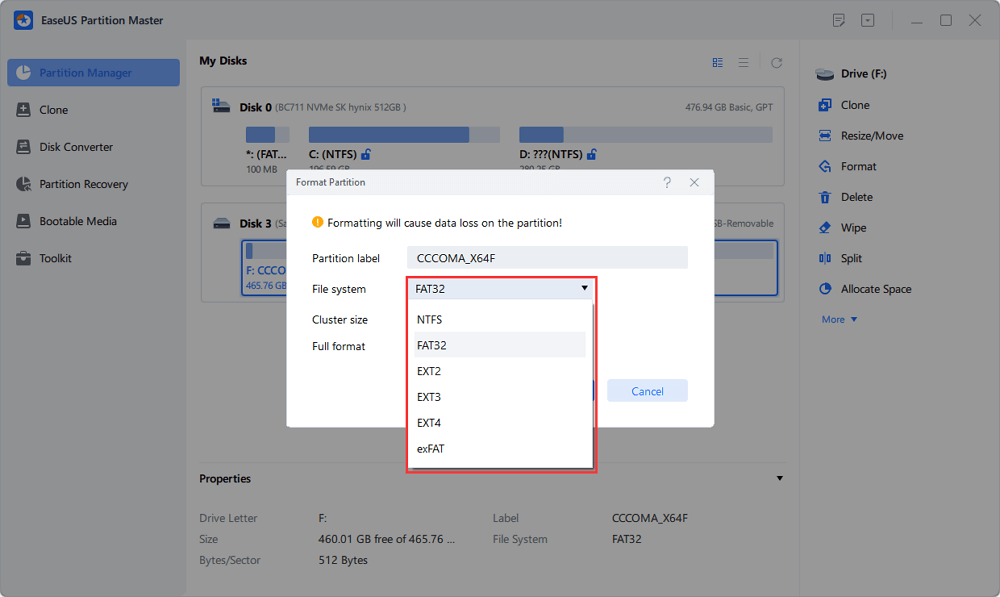
Step 1. Launch EaseUS Partition Master, right-click the partition on your external hard drive/USB/SD card which you want to format and choose the "Format" option.
Step 2. Assign a new partition label, file system (NTFS/FAT32/EXT2/EXT3/EXT4/exFAT), and cluster size to the selected partition, then click "OK".
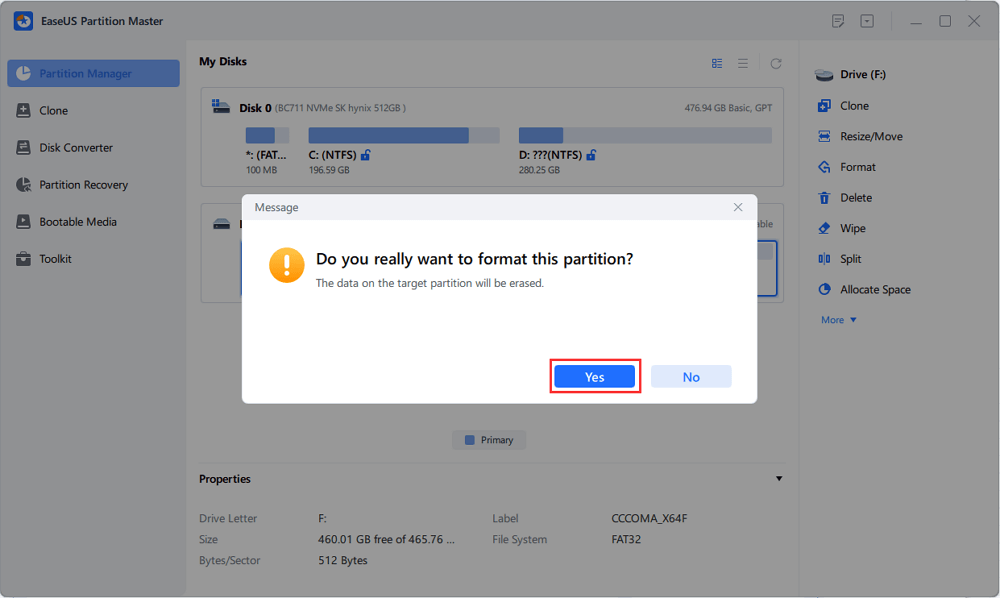
Step 3. In the Warning window, click "Yes" to continue.
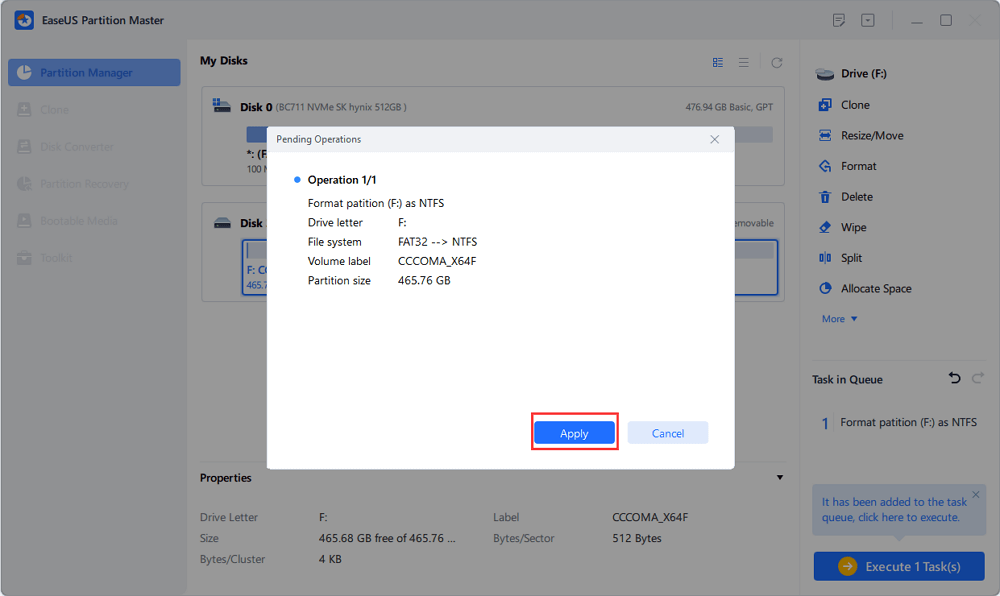
Step 4. Click the "Execute 1 Task(s)" button in the top-left corner to review the changes, then click "Apply" to start formatting your external hard drive/USB/SD card.
How to Format USB Flash Drive to exFAT (Data Will Be Erased)
If conversion isn't required or you don't mind erasing the drive, Windows provides multiple ways to reformat your USB flash drive to exFAT. Note that all methods below delete data.
- Warning
- Formatting will erase all existing data on your USB flash drive. If you still need the files, make sure to back them up to another disk or cloud storage before proceeding.
Method 1. Use File Explorer
File Explorer is the easiest and fastest way for most Windows users to reformat a USB drive. It requires no technical skills and is ideal when your USB drive is readable and accessible in the system. However, it offers fewer advanced options compared to other tools, making it best for simple, straightforward formatting tasks.
Steps:
- Insert your USB flash drive.
- Open File Explorer.
- Right-click the USB drive > Select "Format."
- Select exFAT under File System and click Start to complete the reformat.
Method 2. Use Disk Management
Disk Management is useful when File Explorer fails to open or format your USB, especially if the drive appears as RAW, unallocated, or reports errors. This method gives you greater control over volume structures, but the interface can feel less intuitive for beginners.
Steps:
- Right-click Start > Choose Disk Management.
- Right-click your USB volume in Disk Management and select "Format."
- Choose exFAT and confirm.
- Apply changes to reformat the USB stick to exFAT.
Method 3. Use Command Prompt
Command Prompt provides a more precise and script-friendly method of formatting, often used by advanced users or IT technicians. While powerful, it is also more error-prone—typing the wrong drive letter can result in accidental data loss, so extreme caution is required.
- Tip
- Command-line formatting is sensitive. Double-check the USB's drive letter before executing any commands.
Steps:
- Press WIN + R and type cmd in the Run box, and press Enter to launch Command Prompt.
- Type: format E: /fs:exfat
(Replace F with the correct letter of your USB flash drive; you can check it in File Explorer.)
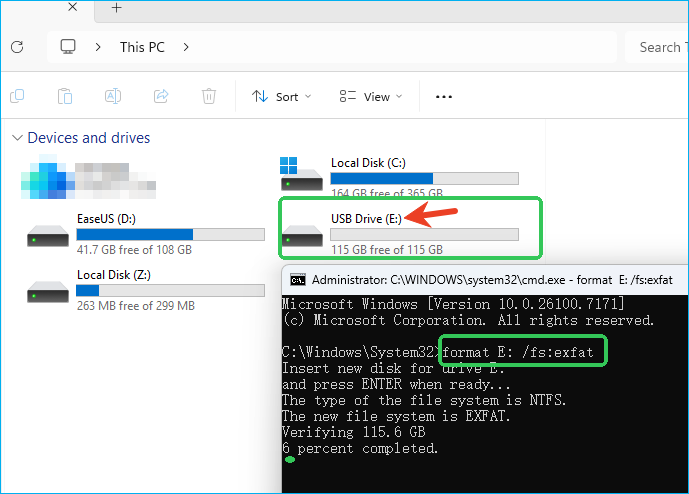
- Press Enter and wait for the formatting to complete.
Please share this post and let more users know how to format or convert USB disks to exFAT without losing data.
Should I Convert My USB Flash Drive to exFAT?
For most everyday usage, yes if you need to store large files (over 4GB) or use it across different operating systems (Windows, Mac, Linux), as exFAT offers great compatibility and removes FAT32's file size limit, making it ideal for flash drives.
Here is a table to show its advantages, disadvantages, and when to use it.
| Category | Summary |
|---|---|
| 👍Advantages of exFAT |
|
| 👎Disadvantages of exFAT |
|
| 💡Who Should Use exFAT |
|
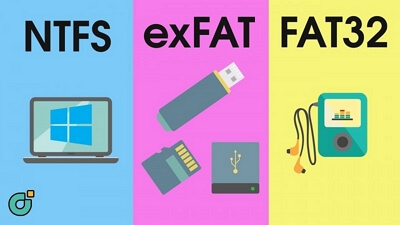
Read this post and learn more about the differences among NTFS, exFAT, and FAT32.

exFAT VS FAT32 VS NTFS: All You Need to Know
What do you know about the file system? Do you the differences between exFAT, FAT32, and NTFS? In this article, we will tell you everything you should know about exFAT VS FAT32 VS NTFS.
Conclusion
If you're trying to convert a USB flash drive to exFAT without formatting or losing data, the key is choosing the right tool. Since Windows cannot natively convert FAT32 to exFAT without erasing files, EaseUS Partition Master is the safest option, offering non-destructive conversion, full exFAT support, and reliable performance across all external storage devices. Whether you're solving the 4GB file limit, fixing NTFS read-only issues on macOS, or preparing your USB for cross-platform use, exFAT offers the ideal balance of speed, compatibility, and simplicity. With the right method, switching to exFAT is fast, safe, and effortless.
FAQ About Switching USB Flash Drive to exFAT
1. Can I convert a USB flash drive to exFAT without losing data?
Yes, if your USB is using FAT32. Use EaseUS Partition Master to convert FAT32 to exFAT without formatting or data loss. Windows does not support a native FAT32 to exFAT conversion.
2. How do I change a USB from NTFS to exFAT without formatting?
You cannot. NTFS to exFAT requires formatting. Back up your files first, then reformat the drive using File Explorer, Disk Management, or CMD.
3. Why should I use exFAT for USB drives?
exFAT removes the 4GB file size limit, works on Windows and macOS, and is optimized for flash storage ideal for videos, photos, and large files.
4. Is exFAT safe for daily use on USB flash drives?
Yes, exFAT is stable and widely supported. Just avoid unplugging the USB without safe eject, as it lacks journaling protection found in NTFS.
5. exFAT vs FAT32 vs NTFS, which file system should I choose for USB?
It depends on how to use the USB flash drive.
- exFAT: Best for cross-platform + large files
- FAT32: Best for older devices, but limited to 4GB files
- NTFS: Best for Windows-only use and permission features
How Can We Help You
About the Author

Sherly joined EaseUS in 2022 and she has always loved writing articles and enjoys the fun they bring. She receives professional training here, focusing on product performance and other relative knowledge. She has written over 200 articles to help people overcome computing issues.
Product Reviews
-
I love that the changes you make with EaseUS Partition Master Free aren't immediately applied to the disks. It makes it way easier to play out what will happen after you've made all the changes. I also think the overall look and feel of EaseUS Partition Master Free makes whatever you're doing with your computer's partitions easy.
Read More -
Partition Master Free can Resize, Move, Merge, Migrate, and Copy disks or partitions; convert to local, change label, defragment, check and explore partition; and much more. A premium upgrade adds free tech support and the ability to resize dynamic volumes.
Read More -
It won't hot image your drives or align them, but since it's coupled with a partition manager, it allows you do perform many tasks at once, instead of just cloning drives. You can move partitions around, resize them, defragment, and more, along with the other tools you'd expect from a cloning tool.
Read More
Related Articles
-
How to Defragment Your Hard Drive [Full Guide 2026]
![author icon]() Joey Albert/2026/09/29
Joey Albert/2026/09/29 -
How to Check NVMe Temperature in Windows 10/11 [100% Working Solutions]
![author icon]() Cici/2026/09/23
Cici/2026/09/23 -
2026 Magic Western Digital (WD) Partition Manager Software Free Download
![author icon]() Daisy/2026/09/21
Daisy/2026/09/21 -
New Disk Upgrade, Migration & Space Management
![author icon]() Joey Albert/2026/09/13
Joey Albert/2026/09/13
 Joey Albert/2026/09/29
  Cici/2026/09/23
  Daisy/2026/09/21









