







Content
Page Table of Contents
About the Author
Hot Topics

Updated on Oct 22, 2026
Stuck on the Windows 11 26H2 upgrade? Windows 11 26H2 is the latest Windows 11 feature update, bringing new features, security improvements, and system updates. However, installing the new version does not always go smoothly. Some users may get stuck during the update or encounter an error code. Windows 11 26H2 can fail to install for several reasons. Your PC may not have enough free space on the C drive, Windows Update may be stuck, or your hardware and drivers may not meet the upgrade requirements.
If you are having trouble installing Windows 11 26H2, this guide covers the common causes and practical fixes to help you install Windows 11 26H2 successfully.
Why Can't I Install Windows 11 26H2?
Windows 11 26H2 may fail to install for different reasons. Your PC may not have enough free space, a driver may block the upgrade, or Windows Update may have a problem.
| Possible Cause | Common Symptom |
| Not enough C drive space | Windows cannot complete the installation because there is not enough free space for the update files. |
| Driver incompatibility | The update fails, freezes, or rolls back after installing incompatible drivers. |
| Windows Update errors | The update gets stuck, fails to download, or repeatedly shows an error. |
| Corrupted system files | Windows Setup cannot complete because essential system files are damaged. |
| TPM or Secure Boot issue | Your PC does not meet Windows 11 requirements because TPM or Secure Boot is disabled. |
| Unsupported hardware | Windows blocks the upgrade because the PC does not meet hardware requirements. |
| Third-party software | The installation fails or rolls back because another program interferes with Setup. |
| External devices | Setup fails during the upgrade because connected devices cause hardware or driver conflicts. |
Microsoft recommends checking available disk space, Windows updates, drivers, third-party antivirus software, and other software when a Windows upgrade fails.
Before trying multiple fixes, check the error code if Windows shows one. An error code can point to the cause much faster than the general "Windows 11 26H2 won't install" message.
How to Fix Can't Install Windows 11 26H2
Windows 11 26H2 may fail to install because of low disk space, Windows Update errors, incompatible drivers, or system problems. You do not need to reset Windows or reinstall the system right away. Start with the basic checks below and move to the more advanced fixes if the update still fails.
Fix 1. Free Up Drive Space
Windows needs enough free space on the system drive to download update files and complete the installation. If the C drive is nearly full, Windows 11 26H2 may fail even when other drives have plenty of free space.
Start by checking how much free space is available on C. You can then remove unnecessary files or move some data to another drive. If the C drive is too small and you cannot free enough space, EaseUS Partition Master can help you increase its available space by managing your existing partitions.
If you need to install Windows 11 26H2 on C drive, you can use EaseUS Partition Master to:
- Extend the C drive: Add unallocated space to C when the disk has available space.
- Resize partitions: Reduce a larger partition to create more space for C.
- Move partitions: Move a partition when the unallocated space is not directly next to C.
- Merge partitions: Combine suitable partitions to make better use of the available disk space.
- Clean up disk space: Remove unnecessary files to free up additional storage before the upgrade.
Here is how to fix C drive low space using EaseUS Partition Master:
Step 1: Free up unallocated space for C drive.
If there is no unallocated space on the system disk, go to Partition Manager and right-click on a partition next to the C: drive and select "Resize/Move".
Drag left panel of the partition to shrink and leave unallocated space behind the system C: drive and click "OK".
Step 2: Increase C drive space.
1. Right-click on C: drive and select "Resize/Move".
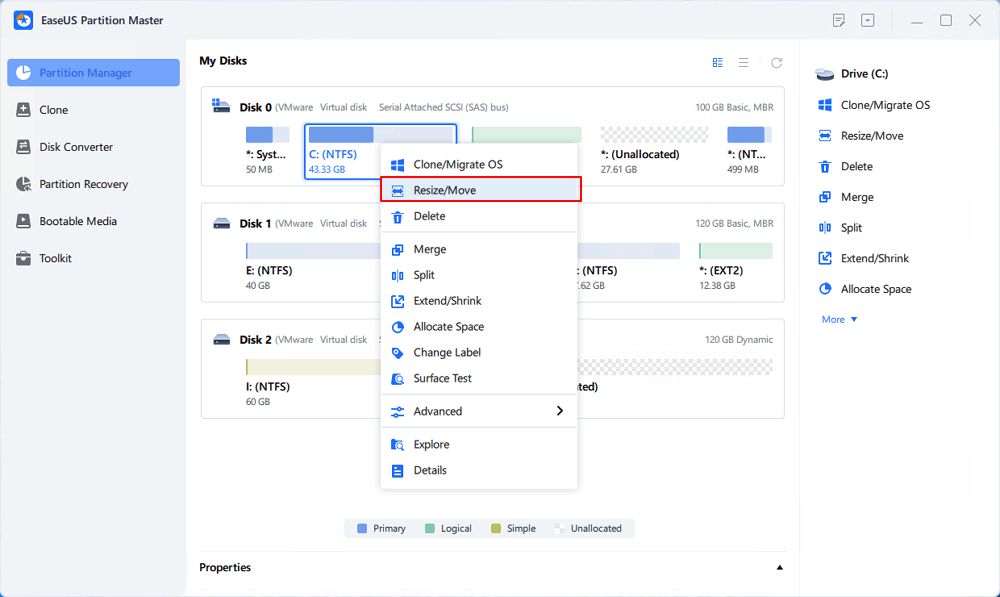
2. Drag the system partition end into unallocated space so to add space to C: drive, or click the "fill in all unallocated" and click "OK".
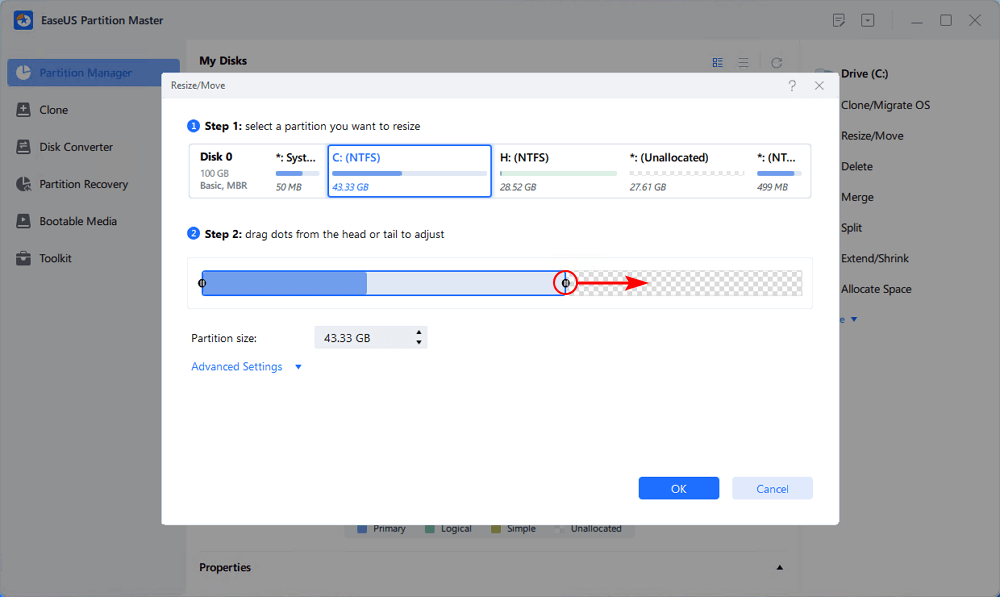
Step 3: Keep all changes to extend C: drive.
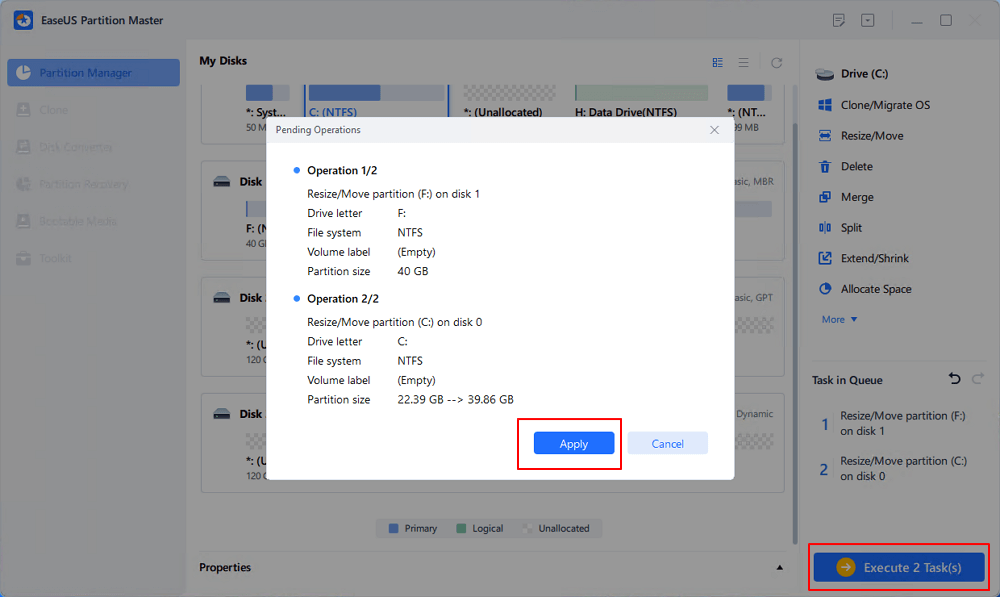
Click the "Execute Task" and click "Apply" to keep all changes so to extend the system C: drive.
Fix 2. Check Windows 11 System Requirements
Windows 11 26H2 still uses the same Windows 11 requirements. If your PC doesn't meet the basic hardware or firmware requirements, you can't complete the installation. Devices that already run Windows 11 24H2 or 25H2 remain fully compatible.
Minimum System Requirements of Windows 11 26H2:
| Requirement | Minimum |
| Processor | 1 GHz or faster with 2 or more cores |
| RAM | 4 GB |
| Storage | 64 GB or larger |
| System firmware | UEFI, Secure Boot capable |
| TPM | TPM 2.0 |
| Graphics | DirectX 12 compatible |
| Display | High-definition display |
Fix 3. Install Pending Windows Updates
An unfinished update might interfere with another Windows feature update. Installing all available updates can also make sure your current Windows installation has the latest fixes before you try 26H2 again.
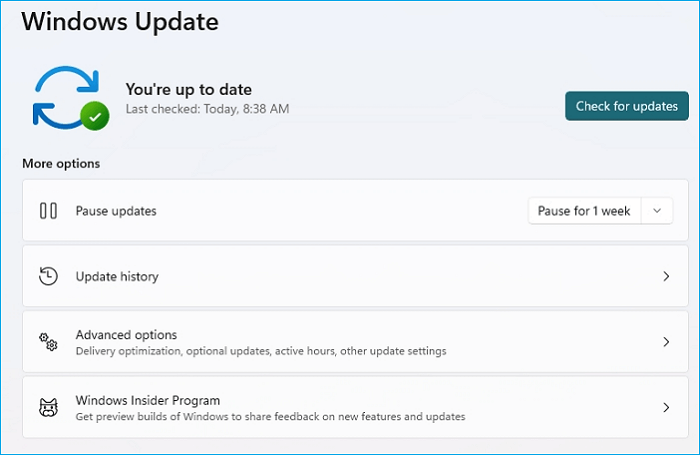
Step 1. Open Settings > Windows Update.
Step 2. Select Check for updates.
Step 3. Install any available updates and restart the PC when Windows asks you to.
Step 4. Return to Settings > Windows Update and select Check for updates again.
Step 5. Try installing Windows 11 26H2.
If the same update downloads repeatedly but fails during installation, stop retrying the update and continue with the fixes below.
Fix 4. Run the Windows Update Troubleshooter
The Windows Update Troubleshooter can detect common problems that prevent updates from downloading or installing. It is worth trying when Windows 11 26H2 gets stuck or repeatedly fails through Windows Update.
Step 1. Open Settings > System > Troubleshoot > Other troubleshooters.
Step 2. Find Windows Update in the list.
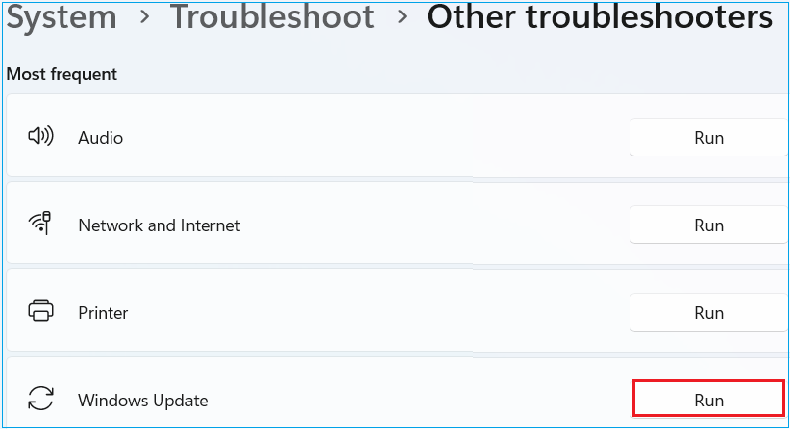
Step 3. Select Run and follow the instructions provided by Windows.
Step 4. Restart your PC after the troubleshooting process finishes.
Step 5. Open Settings > Windows Update and try the 26H2 update again.
Fix 5. Update Problematic Drivers
Driver conflicts can cause a Windows feature update to fail or roll back. The 0xC1900101 error family is particularly worth checking because Microsoft associates these errors with driver problems.
Step 1. Press Win + X and select Device Manager.
Step 2. Expand the hardware categories and look for devices.
Step 3. Right-click a problematic device and select Update driver.
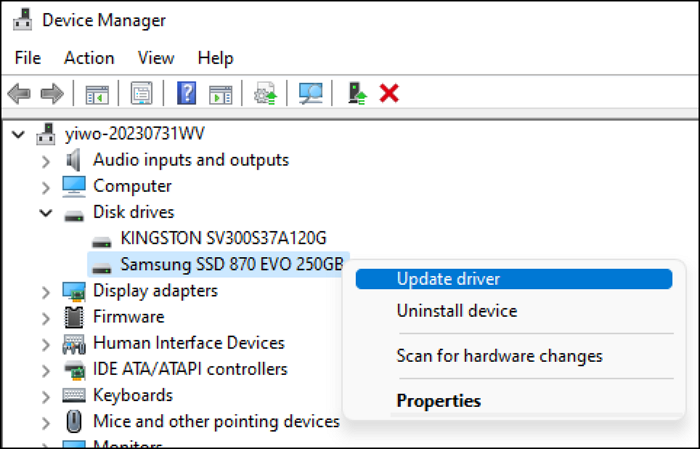
Step 4. Check the official website of your PC, motherboard, or hardware manufacturer if Windows cannot find a newer driver.
Step 5. Pay particular attention to these drivers:
- Graphics
- Storage controllers
- Chipset
- Network adapters
- Audio
Step 6. Restart the PC after updating the drivers and try the Windows 11 26H2 installation again.
Fix 6. Repair Corrupted Windows System Files
Damaged or missing system files can interfere with Windows Update and the feature upgrade process. You can use DISM and SFC to check and repair the current Windows installation.
Step 1. Type Command Prompt in the Windows search box.
Step 2. Right-click Command Prompt and select Run as administrator.
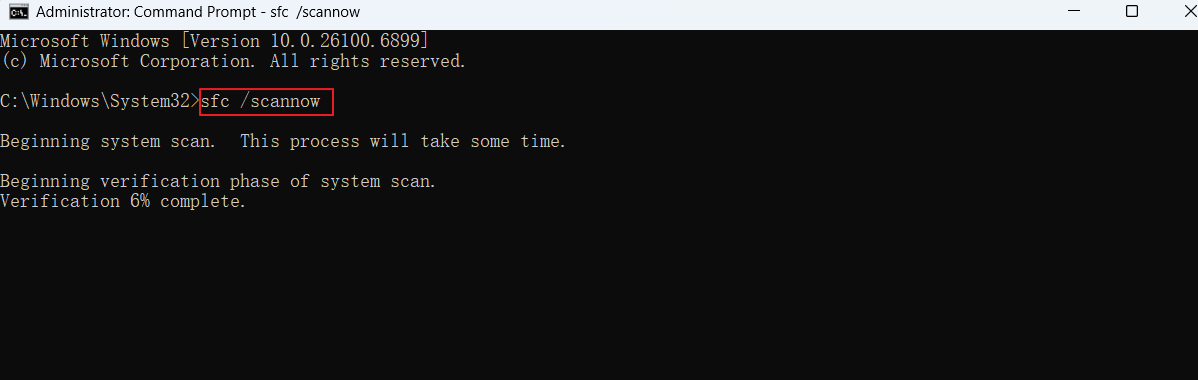
Step 3. Enter the following command and press Enter:
- DISM/Online/Cleanup-Image/RestoreHealth
Step 4. Wait for DISM to finish. The process can take some time.
Step 5. Enter the following command and press Enter:
- sfc/scannow
Step 6. Wait until the scan reaches 100%.
Step 7. Restart the PC and try installing Windows 11 26H2 again.
Fix 7. Disconnect Unnecessary External Devices
External hardware is another simple thing to rule out when a Windows upgrade keeps failing. USB storage devices, printers, hubs, and other peripherals can sometimes interfere with the installation process.
Step 1. Save your work and close all running applications.
Step 2. Disconnect unnecessary external devices, including:
- USB flash drives
- External HDDs
- External SSDs
- Printers
- Card readers
- USB hubs
- Docking stations
- Game controllers
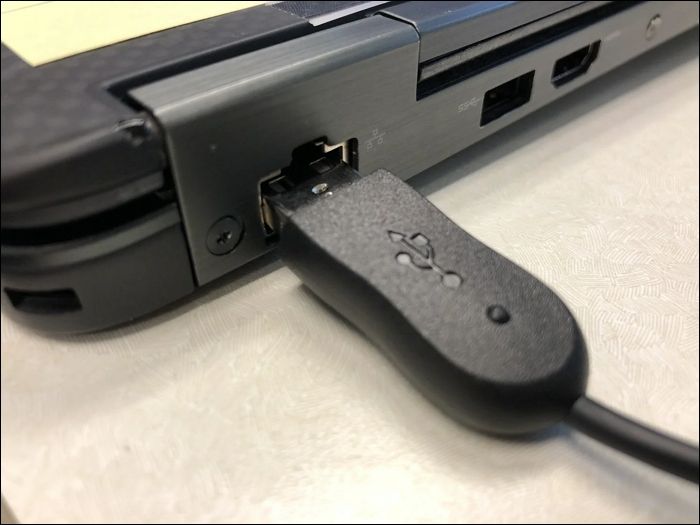
Step 3. Restart the PC.
Step 4. Open Settings > Windows Update and check for Windows 11 26H2 again.
Step 5. Reconnect your external devices after the upgrade finishes.
Fix 8. Check Third-Party Antivirus Software
Third-party antivirus and system utilities may sometimes interfere with Windows Setup. If the other fixes do not solve the problem, check whether your security software is compatible with the new Windows version.
Step 1. Open Settings > Apps > Installed apps.
Step 2. Look for third-party antivirus, security, system cleanup, or system management software.
Step 3. Visit the software manufacturer's official website and check whether the installed version supports Windows 11 26H2.
Step 4. If the manufacturer recommends uninstalling the software before an upgrade, remove it and restart the PC.
Step 5. Try installing Windows 11 26H2 again.
Step 6. Reinstall the software after the upgrade if the developer confirms that it is compatible.
Windows 11 26H2 Installation Errors
Windows 11 26H2 can fail at different stages of the installation. Some errors appear when Windows Update downloads the update, while others occur during installation, restart, or rollback. The error code can help you identify what is preventing the upgrade.
Check the error or symptom you see in the table below. Then use the suggested fix before trying to install Windows 11 26H2 again.
| Error Code/Problem | Possible Cause | What to Do |
| 0xC1900101 | Driver problem | Update or remove problematic drivers |
| 0x80070070 | Not enough disk space | Free up space on the C: drive |
| 0x800F0922 | Storage or Windows Update issue | Check available space and Windows Update |
| 0x80070057 | Corrupted files or system configuration | Run SFC and the Windows Update Troubleshooter |
| Update stuck at 0% or 100% | Update or storage problem | Restart the PC and check available free space |
| Update stuck at 51%–99% | Installation problem | Run the Windows Update Troubleshooter |
| Installation rolls back | Driver or compatibility issue | Check drivers and hardware compatibility |
| PC does not meet requirements | Hardware or firmware problem | Check TPM, Secure Boot, CPU, RAM, and storage |
Windows 11 26H2 Installation Checklist:
- C drive has enough free space.
- Windows 11 hardware requirements are met.
- TPM 2.0 is available.
- Secure Boot is configured correctly.
- Windows Update has no pending updates.
- Device drivers are up to date.
- Windows system files are repaired.
- Unnecessary USB devices are disconnected.
- Third-party antivirus software is not blocking the upgrade.
- You have recorded the Windows Update error code.
- Important files are backed up.
- You are using the correct Windows 11 26H2 build or ISO.
If all of these checks pass, try the installation again.
Conclusion
Windows 11 26H2 may fail to install due to a full C drive, incompatible drivers, Windows Update errors, system file problems, or hardware requirements. Start by checking the disk space and Windows 11 requirements. Then update Windows and your drivers, repair corrupted system files, and disconnect unnecessary devices.
If your C drive does not have enough free space, EaseUS Partition Master can help you manage disk space more easily. You can resize or move partitions and allocate available space to the C drive without reinstalling Windows. This can give Windows enough room to complete the 26H2 installation.
FAQs
1. Why does Windows 11 26H2 download but not install?
The download and installation stages can fail for different reasons. Driver problems, low C drive space, corrupted system files, and Windows Update errors can cause an installation to fail after the download finishes.
2. What should I do if Windows 11 26H2 is stuck at 100%?
Restart the PC if Windows Update remains stuck, then check the available C drive space and Windows Update history. Microsoft also recommends checking the network connection and running the Windows Update Troubleshooter for updates stuck at 0% or 100%.
3. Can I install Windows 11 26H2 with an ISO?
Yes. When the appropriate 26H2 ISO is available for your release channel, you can mount it and run 'setup.exe' for an in-place upgrade. Microsoft provides official instructions for using Insider Preview ISOs.
How Can We Help You
About the Author
Updated by Joey Albert
Joey is an enthusiast of science and technology. With a passion for uncovering the latest tech innovations, she creates clear, engaging how-to guides that make technology accessible and enjoyable for all.
Product Reviews
-
I love that the changes you make with EaseUS Partition Master Free aren't immediately applied to the disks. It makes it way easier to play out what will happen after you've made all the changes. I also think the overall look and feel of EaseUS Partition Master Free makes whatever you're doing with your computer's partitions easy.
Read More -
Partition Master Free can Resize, Move, Merge, Migrate, and Copy disks or partitions; convert to local, change label, defragment, check and explore partition; and much more. A premium upgrade adds free tech support and the ability to resize dynamic volumes.
Read More -
It won't hot image your drives or align them, but since it's coupled with a partition manager, it allows you do perform many tasks at once, instead of just cloning drives. You can move partitions around, resize them, defragment, and more, along with the other tools you'd expect from a cloning tool.
Read More
Related Articles
-
SSD System Reserved: How to Remove System Reserved Partition
![author icon]() Daisy/2026/10/22
Daisy/2026/10/22 -
How to Resize EFI System Partition on Windows 11/10/8/7
![author icon]() Daisy/2026/10/22
Daisy/2026/10/22 -
Top 7 Best Free SSD Cloning Software 2026 [Pros & Cons]🔥
![author icon]() Tracy King/2026/10/22
Tracy King/2026/10/22 -
Fix Windows PC Won't Boot After Enabling Secure Boot
![author icon]() Oliver/2026/10/22
Oliver/2026/10/22
 Daisy/2026/10/22
  Tracy King/2026/10/22
  Oliver/2026/10/22









