







Content
Page Table of Contents
About the Author
Hot Topics
When a computer displays a "No Hard Disk Installed" error, it means that the system cannot detect the installed hard drive or SSD. This usually happens when the drive has a connection problem, is not recognized by the BIOS, or has developed a hardware fault. In some cases, the drive is detected, but Windows cannot access its partition or file system properly.
Don't replace the hard drive right away. Start by checking the drive in BIOS and Windows. Follow this guide to learn how to fix the "No Hard Disk Installed" error. The six fixes below will help you find the cause and get the disk working again.
Why Does My Computer Say No Hard Disk Installed?
My computer randomly restarted, and the "Boot Device Not Found" message appeared. I followed the steps listed on the link shown which got me to a point of testing my hard drive or something. I then got a message that says "no hard drive installed" with no number. - From HP Community.
As this user experience shows, the "No Hard Disk Installed" error usually appears suddenly and often comes with other boot-related messages. The message appears when your computer cannot detect the storage device. The problem can come from the connection, BIOS, Windows, or the drive itself.
| Possible Cause | What Happens |
| Loose or faulty connection | The SATA cable, power cable, or drive connection is loose. |
| Drive not detected in BIOS | The HDD or SSD is not listed in BIOS/UEFI. |
| Failing HDD or SSD | The hard drive or SSD has developed hardware problems. |
| Partition or file system problem | Windows detects the disk but cannot read its partition or file system. |
| Storage controller problem | A faulty SATA port, controller, or motherboard affects disk detection. |
| BIOS settings changed | A BIOS reset or update changed the storage configuration. |
A "No Hard Disk Installed" message does not automatically mean the hard drive has failed. If the drive is still listed in BIOS, the problem can often be traced to Windows, the partition structure, or the file system.
How to Fix No Hard Disk Installed in Windows 10/11
In this section, we'll show you six ways to troubleshoot and fix the No Hard Disk Installed error in Windows 10/11. If the problem is caused by a loose connection or BIOS setting, a simple check may be enough. If the drive is detected but has partition or file system problems, you may need a disk management tool.
Way 1. Restart Your Computer and Check the Hard Drive
Start with a restart and a quick check of the drive connection. This is especially useful if the error appeared after moving the computer, installing a drive, or working inside the PC.
Step 1. Restart the computer. Check whether the "No Hard Disk Installed" message appears again.
Step 2. Check the drive connection.
🚩For a desktop PC:
- Shut down the computer and unplug the power.
- Open the computer case.
- Locate the HDD or SSD.
- Check the SATA data cable and power cable.
- Reconnect the cables firmly.
- Try another SATA cable or SATA port if available.
- Turn on the computer and check the result.
🚩For a laptop, check the manufacturer's instructions before opening the back cover. Some models have an easily accessible storage drive, while others require more extensive disassembly.
Way 2. Check, Update, or Reset BIOS/UEFI Settings
BIOS/UEFI detects the storage devices before Windows starts. Checking it can tell you whether the computer recognizes the hard drive at the hardware level.
Step 1. Enter BIOS/UEFI. Restart the computer and press the BIOS key during startup. Common keys include F2, F10, F12, Delete, and Esc.
Step 2. Find the storage information. Look under menus such as:
- Storage
- Drives
- System Information
- SATA Configuration
- NVMe Configuration
Step 3. Check the BIOS settings.
If the drive was working before a BIOS reset or update, review the storage settings and restore the manufacturer's recommended configuration.
Step 4. Update BIOS if necessary.
Check your computer manufacturer's support page for a BIOS/UEFI update. Only install a firmware update that matches your exact computer model, and do not turn off the computer during the update.
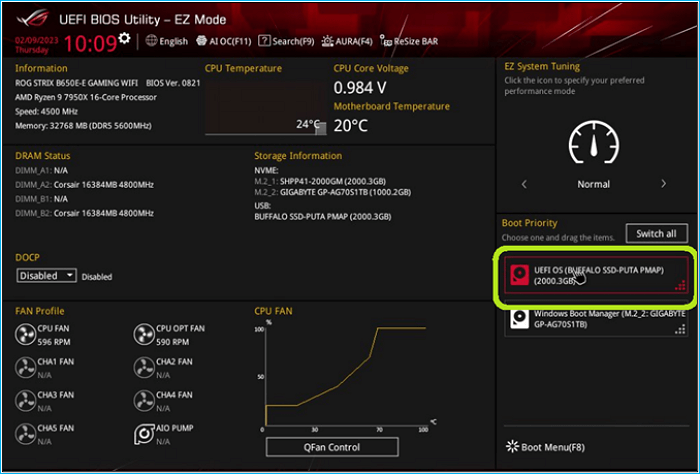
💡What if the drive is not listed in BIOS?
Check the connection again and run the manufacturer's hardware diagnostics. A drive that is missing from BIOS will not be accessible through Windows disk management tools.
Way 3. Run Windows Startup Repair
When the hard drive is detected in BIOS but Windows does not start, Startup Repair can check common boot problems.
Step 1. Enter Windows Recovery Environment.
You can reach WinRE from Windows or use Windows installation media when the system cannot boot normally.
Step 2. Open Startup Repair.
Go to: Troubleshoot > Advanced options > Startup Repair
Step 3. Follow the instructions.
Windows will check the startup configuration and attempt to repair problems that prevent the system from booting.
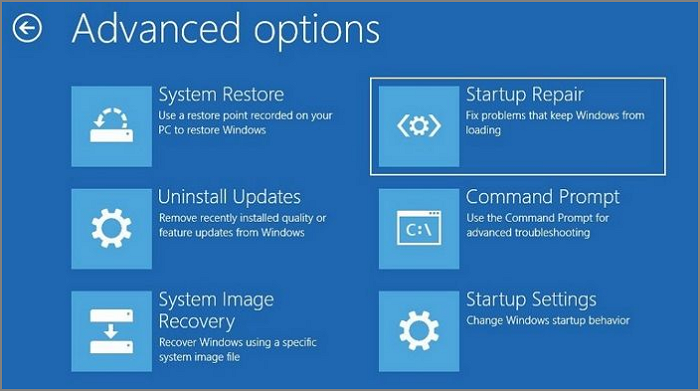
Startup Repair is designed for Windows boot problems. But it cannot fix a hard drive that the BIOS doesn't detect.
Way 4. Initialize the Hard Disk in Disk Management
If Windows detects a new hard drive but shows it as Unknown or Not Initialized, you can initialize it through Disk Management.
Step 1. Press Win + X and select Disk Management.
Step 2. Find the disk marked Unknown or Not Initialized.
Step 3. Right-click the disk and select Initialize Disk.
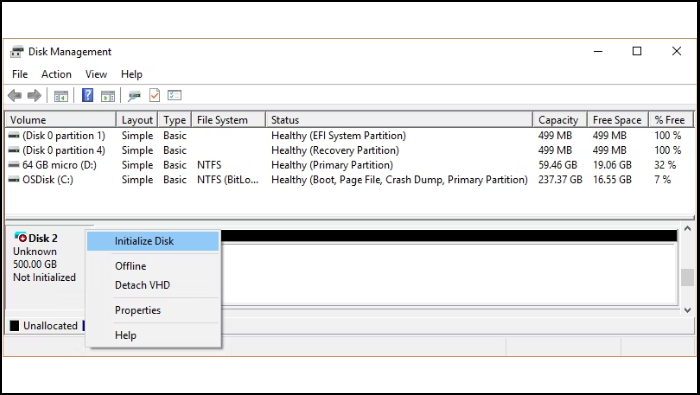
Step 4. Choose GPT or MBR.
Step 5. Click OK.
Step 6. Create a new volume and format it if necessary.
Be careful with this method. If the disk is an old drive containing important files, do not initialize it just to remove the error. The existing partition information can be important for accessing or recovering your data.
Way 5. Check and Repair the Disk with EaseUS Partition Master
If the hard drive is detected by Windows but you still cannot access it, EaseUS Partition Master is a practical tool to check the disk and find the problem. It combines disk health checks, surface tests, file system checks, and partition management in one place, so you can troubleshoot the drive before deciding whether to replace it.
EaseUS Partition Master can help you:
- Check HDD/SSD health
- Find bad sectors with a surface test
- Check the file system
- View and manage partitions
- Manage unallocated space
- Resize or extend partitions
To check for hard drive failures, EaseUS Partition Master helps you run a disk surface test:
Step 1. Open EaseUS Partition Master. Go to Toolkit and select "Bad Sector Scan."
Step 2. Tick "Scan Disk" and choose the target disk from the drop-down menu.
Step 3. Click "Scan" to apply the bad sector scaning process.
Way 6. Run Hardware Diagnostics or Replace the Hard Drive
When the drive still cannot be detected, check the hardware before making more changes to Windows.
Step 1. Run the manufacturer's storage test.
Restart the computer and open its hardware diagnostic tool. Look for a test named Hard Drive, SSD, or Storage.
Step 2. Check Device Manager.
In Windows:
- Press Win + X.
- Select Device Manager.
- Expand Disk drives.
- Check whether the HDD or SSD is listed.
- Expand Storage controllers and look for warning icons.
Step 3. Check the test results.
A failed storage test, repeated SMART warnings, or a drive that disappears from BIOS points to a possible hardware problem.
Step 4. Protect your data.
If the drive is still accessible:
- Back up important files immediately.
- Avoid unnecessary repair operations.
- Prepare a replacement drive if the health is declining.
If the HDD makes clicking, grinding, or other unusual noises, stop using it. For important data, professional data recovery is safer than repeatedly trying to repair a physically damaged drive. If the drive has failed and your data is already backed up, replacing the HDD or SSD is usually the most practical solution.
Conclusion
The "No Hard Disk Installed" error tells you that the computer cannot detect the expected storage device. It does not automatically mean that the HDD or SSD has failed.
Start with the physical connection and BIOS detection. If the drive is listed in BIOS, check Disk Management and look at its partition and file system status. For a drive that Windows can detect but has disk health or partition problems, EaseUS Partition Master can help you inspect and manage it.
FAQs
1. Why is my hard drive not showing in BIOS?
The most common reasons include a loose connection, a faulty cable or port, incorrect storage settings, controller problems, or a failed drive. If the drive is not listed in BIOS, Windows cannot access it either.
2. Should I replace my hard drive if I get this error?
Not immediately. First, check the connection, BIOS detection, and hardware diagnostics. Replace the drive when diagnostics confirm a hardware failure or the disk continues to fail after the basic fixes.
3. Why does my computer say "No Hard Disk Installed" but the drive is connected?
A connected drive is not always a detected drive. A loose cable, faulty SATA port, incorrect BIOS setting, storage controller problem, or drive failure can prevent the computer from recognizing it.
How Can We Help You
About the Author

Sherly joined EaseUS in 2022 and she has always loved writing articles and enjoys the fun they bring. She receives professional training here, focusing on product performance and other relative knowledge. She has written over 200 articles to help people overcome computing issues.

Written by Joey Albert
Joey is an enthusiast of science and technology. With a passion for uncovering the latest tech innovations, she creates clear, engaging how-to guides that make technology accessible and enjoyable for all.
Product Reviews
-
I love that the changes you make with EaseUS Partition Master Free aren't immediately applied to the disks. It makes it way easier to play out what will happen after you've made all the changes. I also think the overall look and feel of EaseUS Partition Master Free makes whatever you're doing with your computer's partitions easy.
Read More -
Partition Master Free can Resize, Move, Merge, Migrate, and Copy disks or partitions; convert to local, change label, defragment, check and explore partition; and much more. A premium upgrade adds free tech support and the ability to resize dynamic volumes.
Read More -
It won't hot image your drives or align them, but since it's coupled with a partition manager, it allows you do perform many tasks at once, instead of just cloning drives. You can move partitions around, resize them, defragment, and more, along with the other tools you'd expect from a cloning tool.
Read More
Related Articles
-
How to Partition A Hard Drive in Windows 11/10 [2026 New]
![author icon]() Brithny/2026/09/22
Brithny/2026/09/22 -
FIX: SSD Not Showing up in BIOS Boot Priority
![author icon]() Oliver/2026/09/06
Oliver/2026/09/06 -
How to Install Windows 11 on New SSD (SATA/M.2/NVMe) 🔥
![author icon]() Tracy King/2026/09/22
Tracy King/2026/09/22 -
Fix for Low System Reserved Partition on MBR/GPT Disk in Windows 7/8/10
![author icon]() Daisy/2026/09/21
Daisy/2026/09/21
 Brithny/2026/09/22
  Oliver/2026/09/06
  Tracy King/2026/09/22
  Daisy/2026/09/21









