







Content
Page Table of Contents
About the Author
Hot Topics
I'm trying to do a fresh install of Windows on a Dell OptiPlex that can't seem to boot up the os. I can't seem to install anything to the hard drive, so I can't figure out how to mount the iso to make the usb bootable. from Reddit
When your computer won't start, try to create a bootable USB drive. A bootable USB drive is often the fastest way to get your PC back to work. A reliable creator can create a working bootable USB in just a few clicks. In this guide, you will learn:
- What a bootable USB creator is and why you need one.
- How to free download the bootable usb creator.
- How to create a bootable USB step by step using EaseUS Partition Master, a powerful bootable usb creator.
What Is a Bootable USB Creator and Why Do You Need It?
A bootable USB creator is a software utility that converts a USB drive into a startup disk. It writes the installation files for an operating system onto a USB flash drive. Then, your computer can boot from. A bootable USB creator formats the drive correctly and writes the system files to it. It makes the USB drive bootable so your BIOS/UEFI firmware can recognize and start from it.
Bootable USB creators are essential tools when you want to:
- Install or reinstall Windows on a new PC.
- Repair a corrupted or failing Windows installation.
- Troubleshoot boot issues such as blue screens, endless restart loops, and forgotten Windows passwords.
- Run system utilities or recovery tools outside of Windows.
Bootable USB Creator Free Download
If you want a simple, safe, and reliable bootable USB creator, please try the tool - EaseUS Partition Master. It's a bootable USB creator that can save hours in emergency situations. With this tool, you can create a bootable USB in a few clicks. EaseUS Partition Master can create a bootable USB for another computer. It doesn't require you to create a Password Reset Disk in advance.
Unlike other ISO-burning tools, EaseUS Partition Master goes far beyond basic functionality. It generates a bootable USB flash drive containing its entire suite of advanced partition tools. For example, you can resize partitions and fix common boot issues like blue screens of death or startup failures.
🥇Why choose EaseUS Partition Master as your bootable USB creator:
- All‑in‑one disk toolkit: Helpful when you are already dealing with system or disk issues.
- WinPE Bootable Environment: The bootable USB runs a full-featured version of EaseUS tools offline.
- High compatibility: Support Windows 11/10/8/7/XP/Vista (32 Bit & 64 Bit).
- User-Friendly Interface: No need for complex setups.
Free download to explore its capabilities:
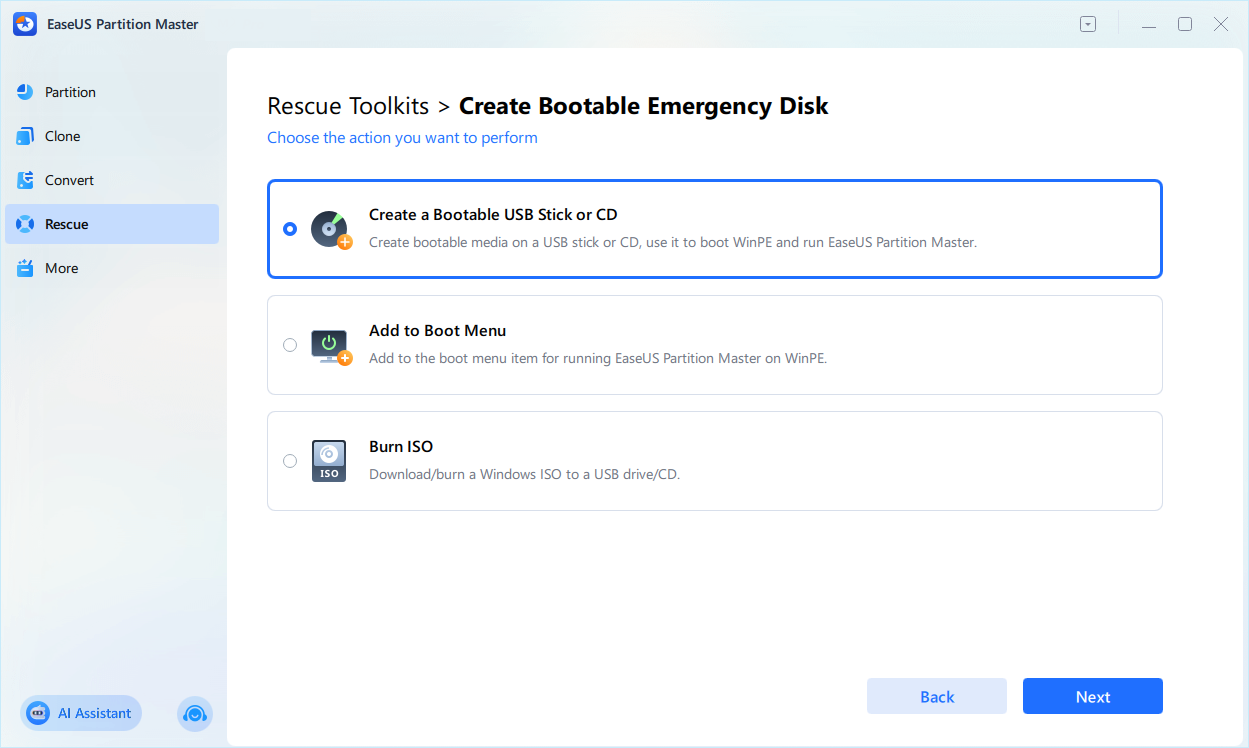
See how this bootable usb creator is trusted by millions for both daily maintenance and crisis recovery.
|
How to Use EaseUS Partition Master as a Bootable USB Creator
When your PC won't start, or you forget your Windows password, you can use EaseUS Partition Master to create a bootable USB drive. To create a bootable USB successfully, make sure you prepare the following items:
- A USB flash drive. (16 GB or more is recommended. Back up any important data on it because the creation process may format the drive.)
- A stable Windows PC.
- Sufficient power and time.
Follow the steps to create a bootable USB. Also, repair boot issues if needed.
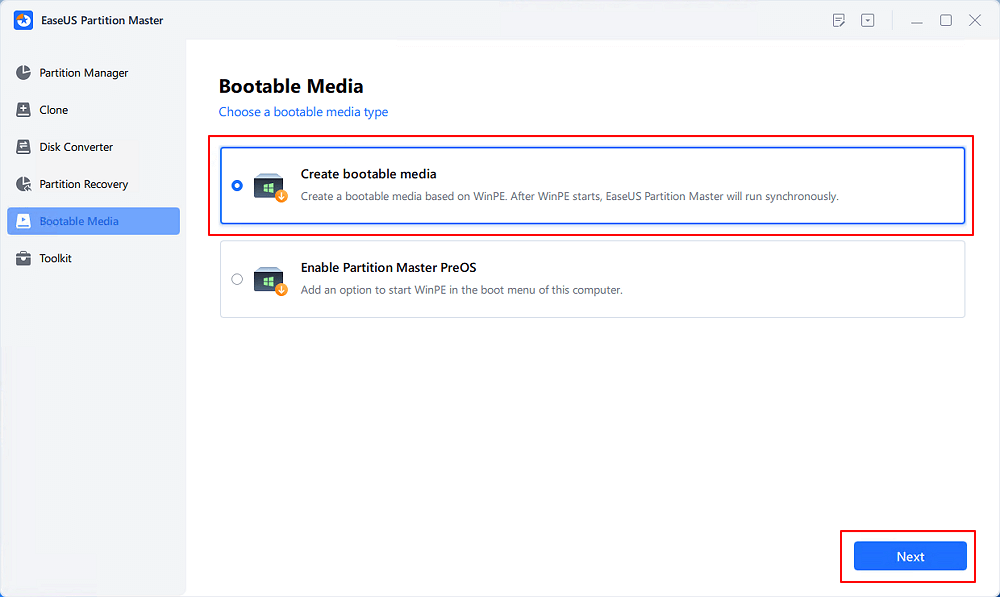
Step 1. Start EaseUS Partition Master after connecting the external drive/USB to your computer, go to "Bootable Media," and click "Create bootable media."
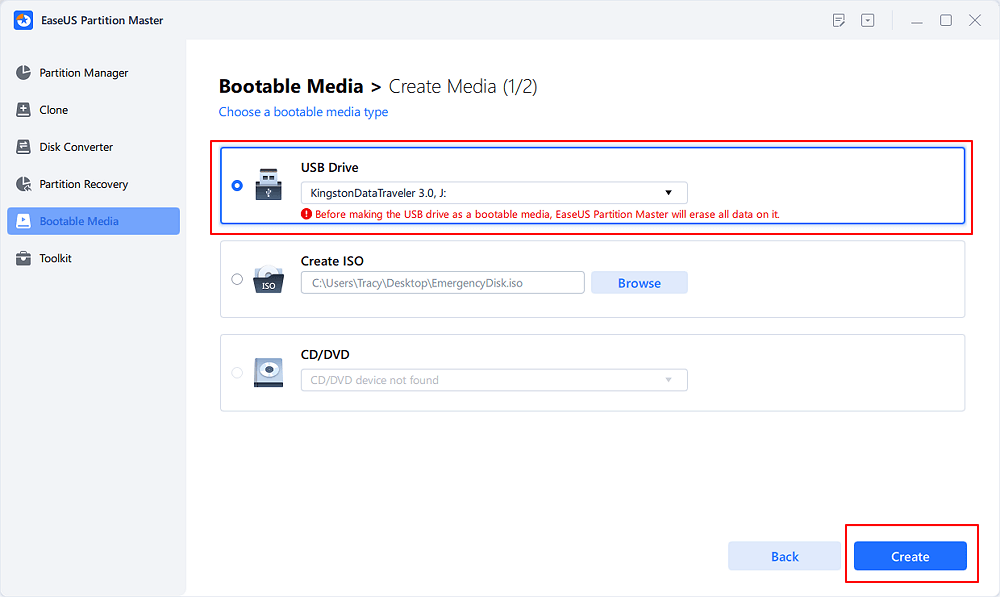
Step 2. Select an available USB Drive or CD/DVD and click "Create." You can also burn the Windows ISO file to the storage media.
Step 3. Connect the created bootable drive to the new computer and reboot the computer by pressing and holding F2/Del to enter the BIOS. Then, set the WinPE bootable drive as the boot disk and press F10 to exit.
Step 4. Boot the computer again and enter the WinPE interface. Then, open EaseUS Partition Master and click "Boot Repair" under the "Toolkit" option.
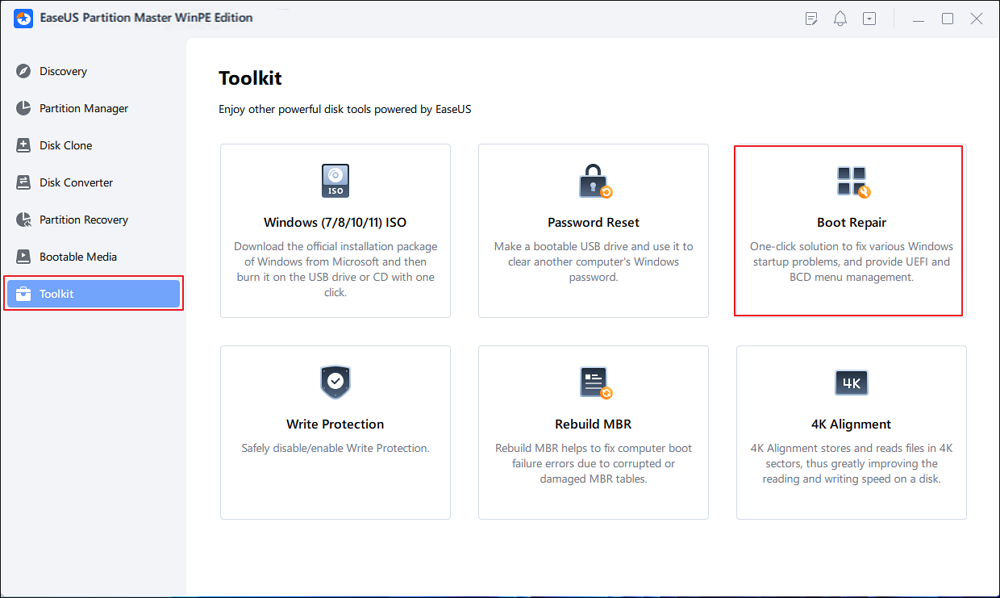
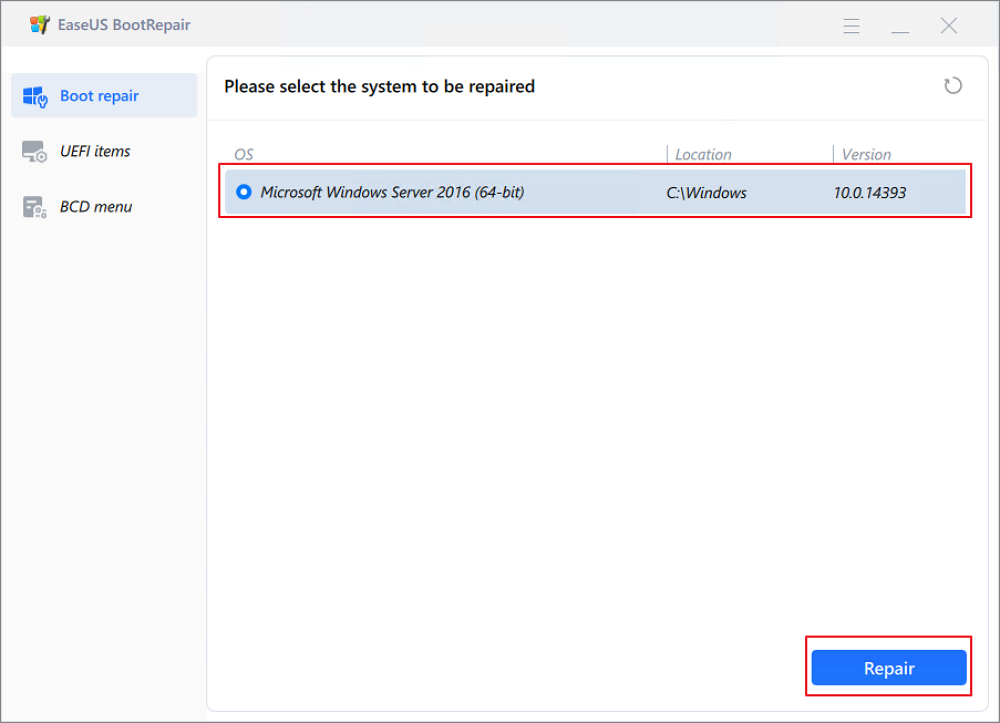
Step 5: Select the system you want to repair and click "Repair."
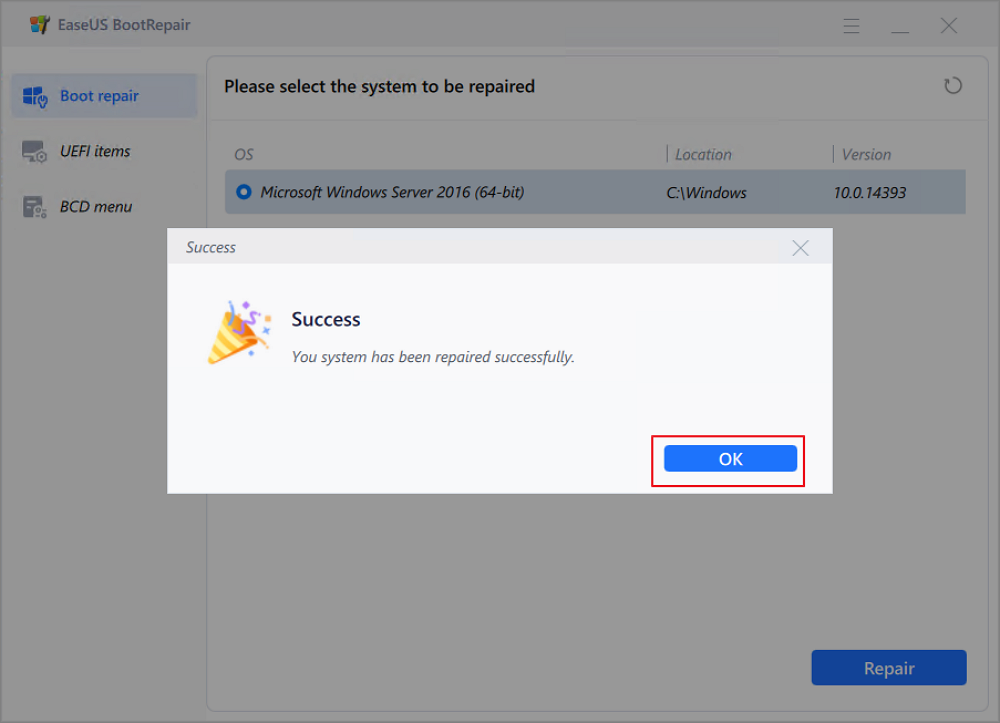
Step 6. Wait a moment, and you will receive an alert that the system has been successfully repaired. Click "OK" to complete the boot repair process.
Share this post so more users can learn how to create a bootable USB.

Common Bootable USB Creating Problems
When creating a bootable USB, you may run into a few issues. These issues are related to USB hardware, ISO images, or firmware settings. Below are some of the most common problems and how to fix them.
💡Issue 1: The computer does not recognize the USB drive in the BIOS
The USB drive does not appear in the boot menu or BIOS/UEFI. Or the PC always boots into the existing system instead of the USB.
How to fix:
- Make sure the USB is fully inserted.
- Try a different USB port.
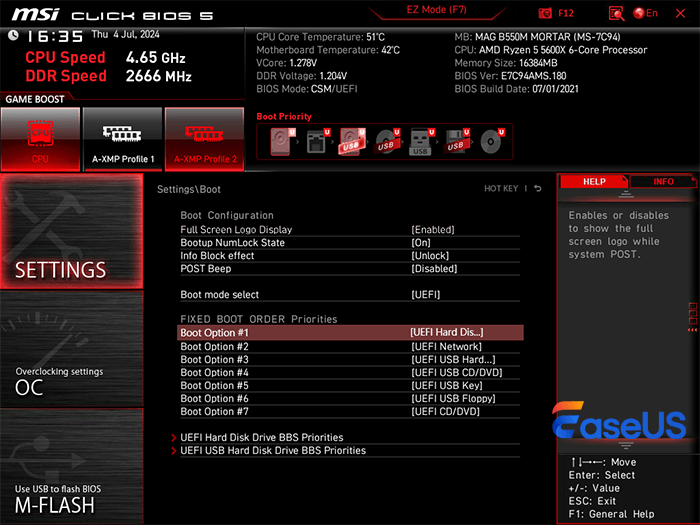
- Enter BIOS/UEFI and check that:
USB boot is enabled.
The USB drive is listed and moved to the top of the boot priority order.
- Use the boot menu key during startup and manually select the USB drive.
- Recreate the bootable USB. Test with another USB stick to exclude hardware failure.
💡Issue 2: Boot process starts but shows errors or fails.
The PC starts from the USB. But you see error messages during installation or recovery. For example, files are missing, or the process stops midway.
How to fix:
- Recreate the bootable USB from scratch:
- Check the integrity of the ISO file to ensure it's not corrupted.
- Try another high-quality USB drive.
- If the error occurs at the same step every time, search for the error message. This error may point to a specific driver or disk issue rather than the USB itself.
Conclusion
If you're searching for a bootable USB creator but want more than simple ISO-to-USB burning, consider EaseUS Partition Master. EaseUS Partition Master stands out for its all-in-one approach. It's not just a creator, but a comprehensive disk management solution. This bootable USB creator saves time and reduces complexity when you're dealing with urgent repairs or migrations.
FAQs
1. Is it safe to download EaseUS Partition Master?
Yes, it's safe to download EaseUS Partition Master. This software is regularly updated and free from malicious software. Avoid using unofficial mirrors to download the software.
2. Can I use the same bootable USB on different computers?
As long as its system is compatible with the Windows version or recovery environment on the USB, you can use the same bootable drive on multiple PCs. Just remember that it's designed for system setup and repair, so avoid storing personal files on it to keep things clean and predictable.
3. Will creating a bootable USB erase my data on the USB drive?
Creating a bootable USB usually involves formatting the drive, which wipes all existing files. Before you start, take a moment to copy any important documents, photos, or installers to another disk. Once the bootable USB is created, treat it mainly as a system tool rather than everyday storage.
How Can We Help You
About the Author

Updated by Tracy King
Tracy became a member of the EaseUS content team in 2013. Being a technical writer for over 10 years, she is enthusiastic about sharing tips to assist readers in resolving complex issues in disk management, file transfer, PC & Mac performance optimization, etc., like an expert.

Written by Joey Albert
Joey is an enthusiast of science and technology. With a passion for uncovering the latest tech innovations, she creates clear, engaging how-to guides that make technology accessible and enjoyable for all.
Product Reviews
-
I love that the changes you make with EaseUS Partition Master Free aren't immediately applied to the disks. It makes it way easier to play out what will happen after you've made all the changes. I also think the overall look and feel of EaseUS Partition Master Free makes whatever you're doing with your computer's partitions easy.
Read More -
Partition Master Free can Resize, Move, Merge, Migrate, and Copy disks or partitions; convert to local, change label, defragment, check and explore partition; and much more. A premium upgrade adds free tech support and the ability to resize dynamic volumes.
Read More -
It won't hot image your drives or align them, but since it's coupled with a partition manager, it allows you do perform many tasks at once, instead of just cloning drives. You can move partitions around, resize them, defragment, and more, along with the other tools you'd expect from a cloning tool.
Read More
Related Articles
-
The Boot Configuration Data Store Could Not Be Opened [6 Ways]
![author icon]() Cici/2026/08/14
Cici/2026/08/14 -
4 Solutions To Fix Bootmgr Is Missing Windows 11
![author icon]() Tracy King/2026/08/14
Tracy King/2026/08/14 -
Solved: Black Screen After Installing Windows 10
![author icon]() Cici/2026/08/13
Cici/2026/08/13 -
How to Check if BitLocker Is Enabled or Disabled? 5 Practical Methods
![author icon]() Joey Albert/2026/08/17
Joey Albert/2026/08/17
 Cici/2026/08/14









