







Content
Page Table of Contents
About the Author
Hot Topics
If you want to reinstall the operating system or run diagnostics, you might need to create a bootable USB drive. However, it often comes with frustrations: reformatting the drive repeatedly or dealing with ISO files that do not boot properly. Bootable USB tools, like Rufus and Ventoy, help solve these problems.
Rufus is known for being fast, lightweight, and highly reliable when creating a bootable USB drive quickly. Ventoy is built for flexibility because it lets you place multiple ISO files on a single drive and choose which one to boot later.
Rufus and Ventoy are both open-source tools for creating bootable USB drives. But they have different features. Which one is better? In this article, we'll compare Rufus and Ventoy in detail.
Rufus vs. Ventoy: What Is Rufus
Rufus is a free Windows tool for creating bootable USB drives from ISO images. It is especially popular among Windows users because it is small, fast, and easy to understand. You can use Rufus to install Windows, run Linux live environments, or create recovery drives.
Rufus Key Features
- Creates bootable USB drives from ISO files.
- Supports both BIOS and UEFI boot modes.
- Can format the USB drive automatically before writing.
- Offers advanced options for partition schemes and file systems.
- Helps create Windows installation media efficiently.
- Works well for recovery tools.
- Includes options that may help with Windows 11 installation requirements.
Pros & Cons
|
😆Pros:
|
😦Cons:
|
How to Use Rufus to Create a Bootable USB
Step 1. Download and open the program on a Windows PC.
Step 2. Connect your USB drive (back up any data first).
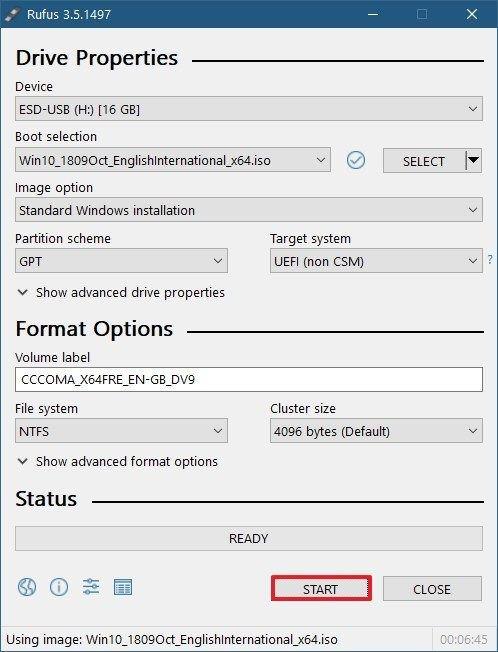
Step 3. In Rufus, choose the device from the list.
Step 4. Set "Boot selection" to "Disk or ISO image," then click the Select button. Browse and choose the ISO file you want to burn.
Step 5. For a standard Windows installation, keep Rufus's recommended Partition scheme.
Step 6. Confirm Volume label and other settings.
Step 7. Click the START button at the bottom.
Step 8. Wait a few minutes for the process to complete.
True user case and review of Rufus
1️⃣Rufus is widely regarded as a reliable, free tool for creating bootable USB drives. It supports various Windows versions, offers customization options, and is trusted by many users for clean OS installations. - From Quora
2️⃣When making a bootable USB drive using Rufus, should you choose FAT32 or NTFS as file system if you have Windows pre-installed with the hard-disk using GPT system and BIOS in UEFI mode? - From Reddit
3️⃣Rufus is safe right? - From Reddit

Rufus vs. Etcher: Which One Is a Better Option to Create Bootable USB Drive
Rufus and Etcher are both free and open-source utility tools to create a bootable USB drive. But which one is the better? Or, should you use a third option? Check out this Rufus vs. Etcher guide to get all the answers.

Rufus vs. Ventoy: What Is Ventoy
Ventoy is another open-source multi-boot USB tool. But it works a bit different form Rufus. It installs a lightweight bootloader on your USB drive. After that, you simply copy ISO files directly onto the drive. When you boot from the USB, Ventoy presents a menu to choose which image to load. If you often carry Windows installers, Linux distros, rescue tools, and diagnostics on the same flash drive, Ventoy is a good choice. It's useful for technicians, power users, and anyone who works with multiple operating systems.
Ventoy Key Features
- Support multiple ISO files on one USB drive.
- Let you boot by simply copying images to the drive.
- Reduce the need to format the USB repeatedly.
- Supports many operating systems and bootable tools.
- Support for 1100+ ISO files.
- Useful for IT maintenance, testing, and recovery tasks.
- Supports a large storage organization.
Pros & Cons
|
😆Pros:
|
😦Cons:
|
How to Use Ventoy to Create a Bootable USB
Step 1. Download Ventoy from the official website.
Step 2. Open the software on Windows or run the Ventoy script on Linux.
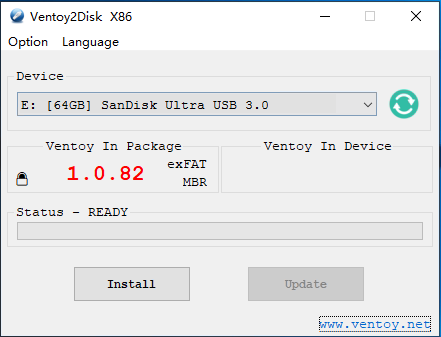
Step 3. Connect and select your USB drive.
Step 4. Click Install. This will erase the USB drive.
Step 5. After installation, copy your ISO file(s) directly onto the Ventoy USB drive.
Step 6. Restart your computer and boot from the USB drive.
True user case and review of Ventoy
1️⃣I second Ventoy. It's far more useful than Rufus. - From Reddit
2️⃣I've installed it on an external SSD. Loaded truck load of images. Works for its purpose of a boot disk to install/repair OS. - From Reddit
3️⃣I use ventoy as a drag&drop of isos that I currently want to install on a machine, because it just makes the process as simple as downloading the iso and dropping it into the ventoy USB stick. - From Reddit
Rufus vs Ventoy: Which One Is Better (Comparison Table)
Can someone explain Rufus and Ventoy to me?
by u/CHAMA300 in linux4noobs
The answer depends on how you use bootable USB drives.
- If you only need to create one installer quickly, Rufus is the better choice. It is simple, fast, and reliable. And it's good for regular Windows installation tasks or one-off USB preparation.
- If you often work with multiple ISO files, Ventoy is usually more practical. It saves time and reduces the need for repeated formatting. And it gives you a flexible boot menu on a single flash drive.
Let's compare Rufus vs. Ventoy in detail.
| Items | Rufus | Ventoy |
| Speed | Very fast for writing a single ISO | Fast for adding images after one-time install |
| Supported OS | Windows-focused | Windows, Linux, WinPE, rescue tools, many distros |
| Multiboot support | No | Yes |
| Primary purpose | Quick, single-image USB creation and Windows installs | Flexible multi-ISO boot platform for technicians and testers |
| Filesystem support | NTFS, FAT32, exFAT | NTFS, exFAT, FAT32 for payload storage; uses its own boot layout |
| Image formats supported | ISO, IMG, some compressed formats via workarounds | ISO, WIM, IMG, VHD/VHDX, EFI and many others |
| File size limits | Depends on chosen filesystem (FAT32 <4GB, NTFS/exFAT higher) | Large files (like 10GB) |
| Windows 11 support | bypass TPM/Secure Boot checks | Boot Windows 11 ISOs; bypass methods depend on the image |
| Boot menu customization | No | Menu supports theme and configuration files |
| Ease of use | Very simple UI and linear workflow | Requires more initial install steps |
| Best for | One-time Windows installs or single-image tasks | IT technicians, multi-OS toolkits, and users who need many boot images |
Alternative to Create a Bootable USB Drive
If you want a more all-in-one disk management solution, EaseUS Partition Master is a good alternative. This software offers a powerful way to create a bootable USB. What's more, EaseUS Partition Master combines an easy WinPE builder, full partition tools, and disk-recovery utilities in one package.
Key features of EaseUS Partition Master:
- Bootable media creator: build a Windows PE bootable USB (or CD/DVD).
- Partition management: resize, move, merge, create, delete, recover, and format partitions.
- Disk and partition clone: clone an entire disk or a single partition to another disk.
- Convert and optimize: convert MBR/GPT without data loss, convert file systems.
- Emergency tools offline: help run cloning, format, and recovery tasks without Windows.
Quick steps to make a bootable USB with EaseUS Partition Master:
Step 1. To create a bootable disk of EaseUS Partition Master, you should prepare a storage media, like a USB drive, flash drive or a CD/DVD disc. Then, correctly connect the drive to your computer.
Step 2. Launch EaseUS Partition Master, and find the "Bootable Media" feature on the left. Click on it.
Step 3. You can choose the USB or CD/DVD when the drive is available. However, if you do not have a storage device at hand, you can also save the ISO file to a local drive, and later burn it to a storage media. Once made the option, click the "Create" button to begin.
- Check the Warning message and click "Yes".
Step 4. When the process finishes, you'll see a pop up window, asking if you want to restart computer from the bootable USB.
- Reboot Now: it means you want to restart the current PC and enter EaseUS Bootable Media to manage your disk partitions without OS.
- Done: it means you don't want to restart the current PC but to use the bootable USB on a new PC.
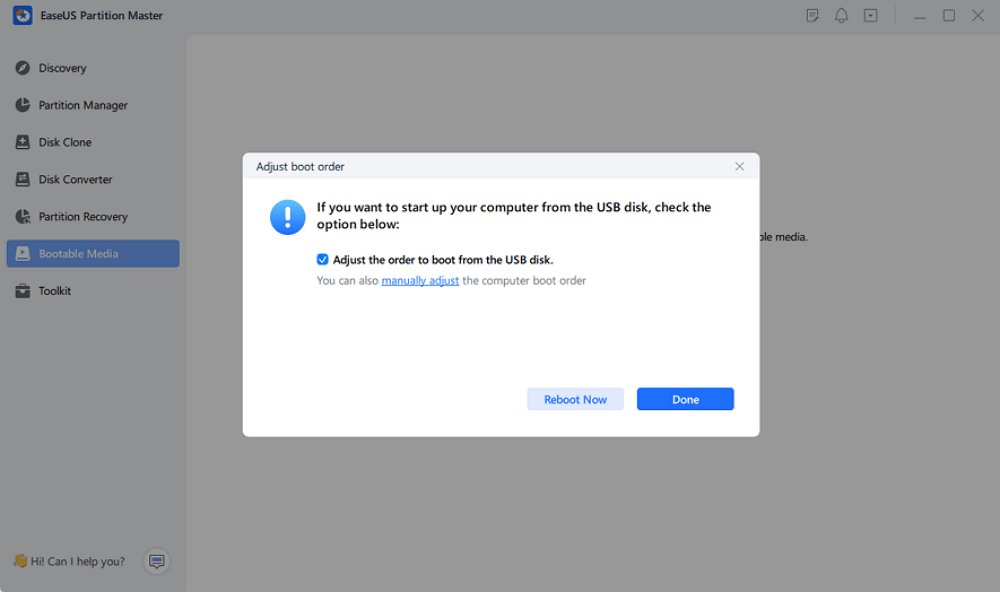
Note: To use the bootable disk on a new PC, you need to resart the target computer and press F2/F8/Del key to enter BIOS, and set the USB bootable disk as the first boot disk.
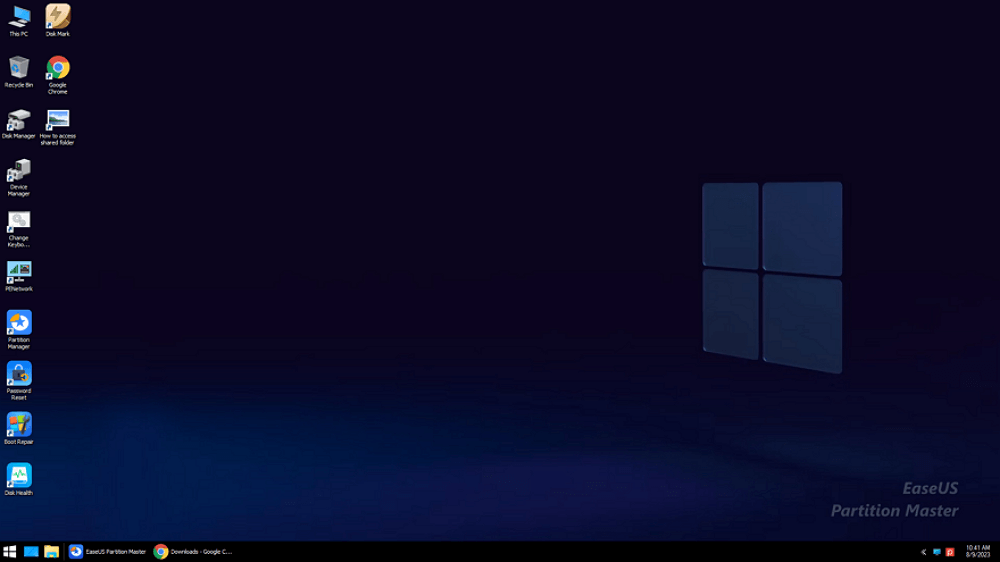
Wait patitiently and your computer will automatically boot up from the USB bootable media and enter EaseUS WinPE desktop.
Conclusion
Rufus and Ventoy are both excellent bootable USB tools. But they are built for different use cases. Rufus is the best fit when you want a fast, reliable, and simple way to create a bootable USB drive. Ventoy is better when you need flexibility and support for multiple ISOs.
If you want an all-in-one disk management software, EaseUS Partition Master is a good choice. It helps create a bootable USB in a few steps and offers many practical disk management features.
FAQs
1. What ISO files does Ventoy support?
Ventoy supports ISO, WIM, IMG, VHD(x), and EFI files. And it can boot most common OS images, including Windows, WinPE, and Linux distributions. Ventoy lists hundreds (1000+) tested images and broad BIOS/UEFI compatibility.
2. What is fast - Rufus vs Ventoy?
Rufus is faster for creating a single bootable drive because it writes the ISO directly. However, Ventoy is fast in a different way of saving time in the long run.
3. Is Ventoy safe to use?
Yes, Ventoy is widely used and trusted. But as with any boot tool, you should download it from the official source and verify your ISO files.
4. Can I use Ventoy for Windows and Linux ISOs together?
Yes, that is one of Ventoy's biggest advantages. It can store and boot multiple operating system images on the same USB drive.
5. Which one is better for IT technicians to use?
Ventoy is often the better choice for IT technicians because it supports multiple tools and operating systems on one drive.
Share it to help more users learn the difference between Rufus and Ventoy:

How Can We Help You
About the Author

Sherly joined EaseUS in 2022 and she has always loved writing articles and enjoys the fun they bring. She receives professional training here, focusing on product performance and other relative knowledge. She has written over 200 articles to help people overcome computing issues.

Written by Joey Albert
Joey is an enthusiast of science and technology. With a passion for uncovering the latest tech innovations, she creates clear, engaging how-to guides that make technology accessible and enjoyable for all.
Product Reviews
-
I love that the changes you make with EaseUS Partition Master Free aren't immediately applied to the disks. It makes it way easier to play out what will happen after you've made all the changes. I also think the overall look and feel of EaseUS Partition Master Free makes whatever you're doing with your computer's partitions easy.
Read More -
Partition Master Free can Resize, Move, Merge, Migrate, and Copy disks or partitions; convert to local, change label, defragment, check and explore partition; and much more. A premium upgrade adds free tech support and the ability to resize dynamic volumes.
Read More -
It won't hot image your drives or align them, but since it's coupled with a partition manager, it allows you do perform many tasks at once, instead of just cloning drives. You can move partitions around, resize them, defragment, and more, along with the other tools you'd expect from a cloning tool.
Read More
Related Articles
-
Top 4 GParted Alternatives for Windows
![author icon]() Cici/2026/08/06
Cici/2026/08/06 -
Best HDClone Alternative in 2026: A Complete Comparison
![author icon]() Sherly/2026/09/28
Sherly/2026/09/28 -
Best Diskpart Alternatives for Windows 11, 10, 8, 7 (New Guide 2026)
![author icon]() Tracy King/2026/08/13
Tracy King/2026/08/13 -
HDD Low Level Format Tool Review 2026: Is It Safe & the Best Alternative?
![author icon]() Sherly/2026/08/13
Sherly/2026/08/13
 Cici/2026/08/06
  Tracy King/2026/08/13









