







Content
Page Table of Contents
About the Author
Hot Topics
CrystalDiskMark is a popular disk speed test tool on Windows. It gives a quick snapshot of how fast your SSD or HDD can read and write data. However, many users encounter issues when using CrystalDiskMark. How to read its results? How accurate is CrystalDiskMark?
You will know the answers in this review. This review will help you decide whether CrystalDiskMark is the right tool for the job. And you can judge a drive's real-world performance or compare different storage devices.
What CrystalDiskMark Does?
As a free and reliable benchmark tool, CrystalDiskMark helps measure the read and write speeds of hard drives. It measures how a drive performs different types of read and write operations, including both sequential and random workloads.
CrystalDiskMark is commonly used by PC builders, SSD reviewers, system administrators, and everyday users. Its interface is clean, so even non-technical users can run a test within minutes. It is especially useful after installing a new SSD, cloning a drive, or troubleshooting a storage issue.
Here are the key features of CrystalDiskMark:
- Sequential read and write testing for large file transfers.
- Random read and write testing for smaller, mixed workloads.
- Adjustable test sizes and test counts.
- Support for different queue depths and thread settings.
- Simple interface that is easy to understand.
How to Read CrystalDiskMark Results? What Do The Numbers Mean?
CrystalDiskMark measures sequential and random read/write performance under different conditions. Its results appear in a simple table with speeds in MB/s.
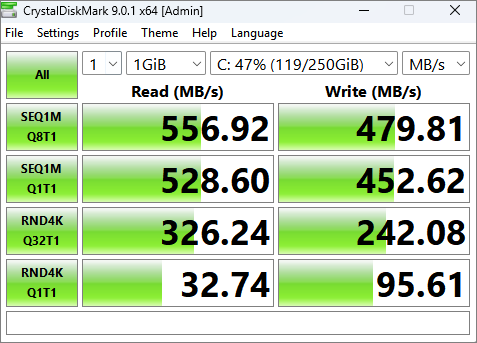
Many users search for CrystalDiskMark because they are unsure how to interpret the numbers. Here are some key notes:
| Item | Meaning | Notes / Typical Use |
| SEQ | Sequential read/write | Data is read/written in large, continuous blocks; high speeds |
| RND | Random read/write | Data is accessed in scattered locations; lower speeds; common in daily use |
| Block Size | Data unit size | Affects test behavior and results |
| Q# (Queue Depth) | I/O queue count | Number of simultaneous requests; higher improves SSD/NVMe performance |
| T# (Threads) | Parallel threads | Number of concurrent execution threads |
In my test:
- 1M (1 MiB): Large blocks > favor sequential throughput.
- 4K (4 KiB): Small blocks > simulate real-world small file operations.
- Q8 or Q32: Multi-queue (realistic for modern SSDs under load).
- Q1: Single request at a time (more like light desktop use).
- T1: Standard in default tests.
Common default tests explained:
- SEQ1M Q8T1: Peak sequential performance (marketing-like number). Best for large file transfers.
- SEQ1M Q1T1: Sequential with minimal queuing (more realistic for some workloads).
- RND4K Q32T1: Random 4K with deep queue. It shows maximum random IOPS capability (great for SSDs).
- RND4K Q1T1: Random 4K with no queue. It is often the most "real-world" for light desktop use.
Pros and Cons of CrystalDiskMark
CrystalDiskMark is free and easy to use. It's a good choice for several kinds of users. It has both strengths and weaknesses. Understanding its pros and cons is important before relying on its results.
✅Pros:
|
⚠️Cons:
|
What users say about CrystalDiskMark:
📖CNET review: CrystalDiskMark is a must-have for anyone wanting to evaluate storage device performance with minimal fuss. Its straightforward design and reliable results set it apart from many other benchmarking tools.
📖Reddit User Case: CrystalDiskMark: Are those results okay for my drive?
CrystalDiskMark Alternative to Benchmark Disk
If you want more than a basic disk benchmark, EaseUS Partition Master is an all-in-one choice. It not only helps you check disk speed, but also lets you check disk health and repair disk errors. With EaseUS Partition Master, you can also manage partitions, clone drives, migrate your OS, and optimize storage in one place.
Compared with a standard benchmark tool, EaseUS Partition Master is more useful for users who need to act on the results. Instead of just showing speed numbers, it gives you the tools to fix space issues, reorganize disks, and upgrade storage.
How to use EaseUS Partition Master to test SSD speed.
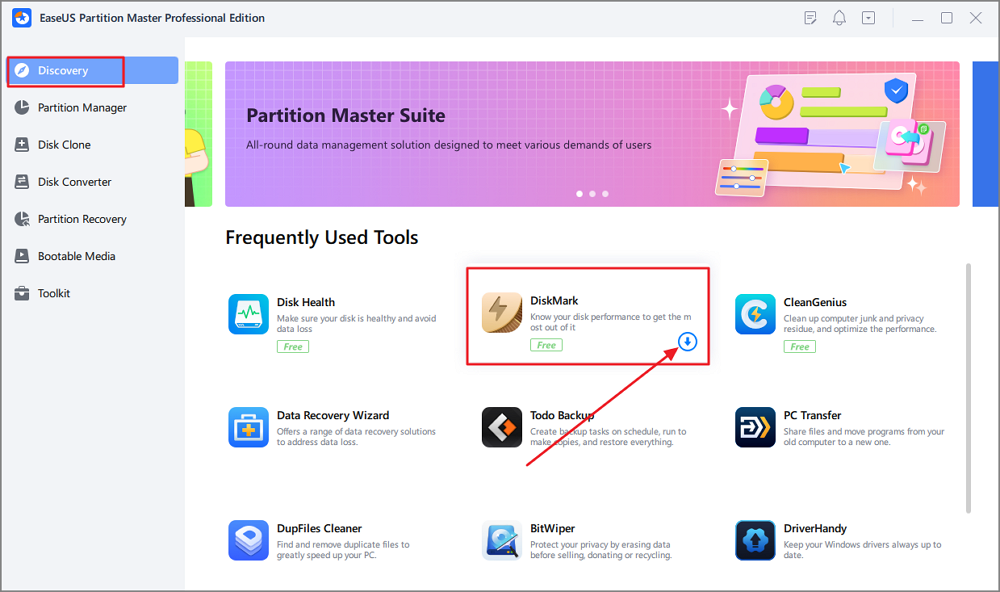
Step 1. Launch EaseUS Partition Master. And click the download button to activate the "DiskMark" feature under the "Discovery" section.
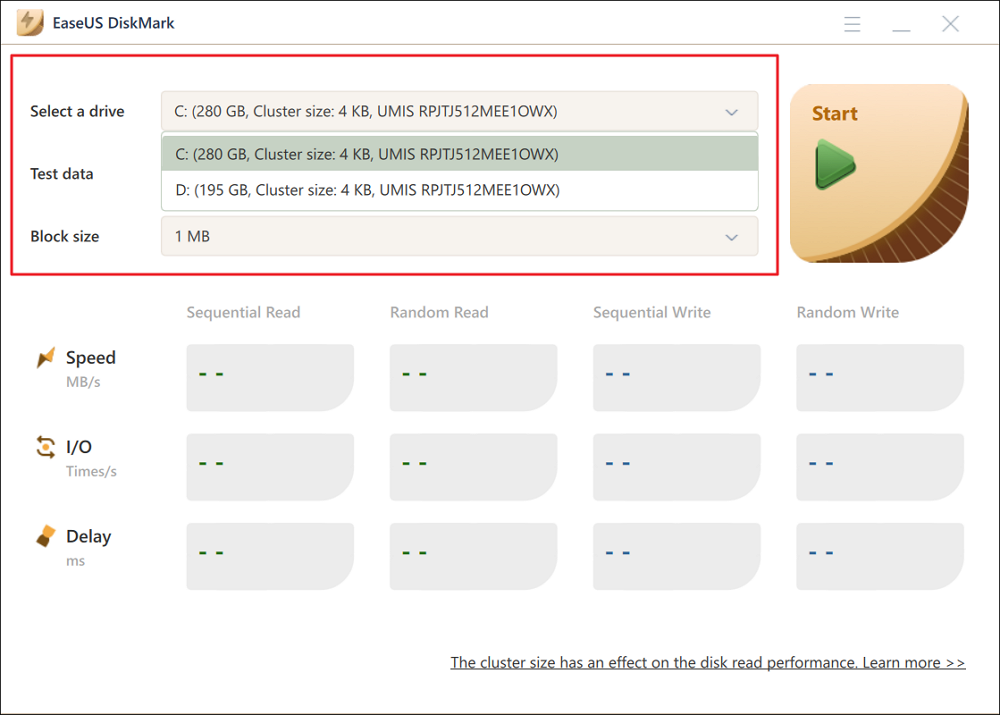
Step 2. Click on the drop-down box to choose the target drive, test data, and block size.
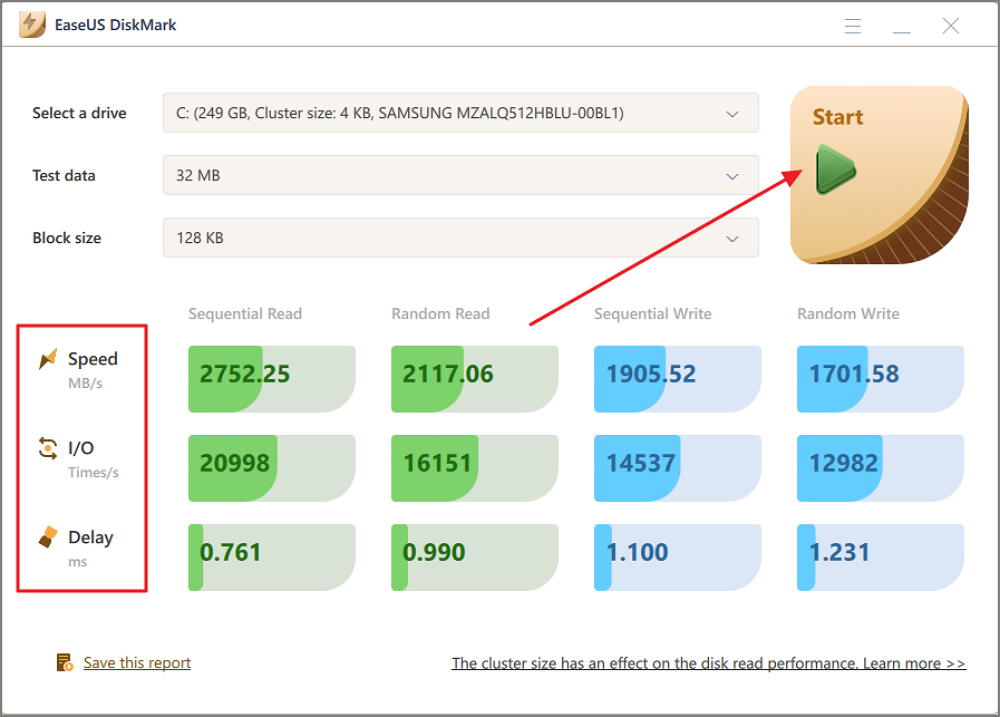
Step 3. Once everything is configured, click "Start" to begin the disk test. Then, you can see the Sequential or Random read/write speed, I/O, and Delay data.
Conclusion
CrystalDiskMark is a popular benchmark tool for checking SSD and HDD performance on Windows. When you want a quick performance snapshot or need to compare drives under the same conditions, you can use CrystalDiskMark. Its results are useful, but they work best when you understand the context behind the numbers. Please do not treat the results as the only measure of real-world performance.
If you need a more complete solution beyond benchmarking, EaseUS Partition Master offers more features, like disk management, cloning, and optimization.
More About CrystalDiskMark
1. Is CrystalDiskMark accurate for SSD benchmarking?
CrystalDiskMark gives consistent results for SSD benchmarking. But accuracy depends on settings and system conditions. It may not fully reflect real-world performance in all scenarios.
2. What is the difference between sequential and random speed?
Sequential speed measures large file transfers, while random speed handles small, mixed files. Random performance affects everyday system responsiveness more than sequential speed. Sequential numbers often look higher in benchmarks.
3. Is CrystalDiskMark safe to use on Windows?
Yes, CrystalDiskMark is safe on Windows. It does not modify your system or drive. It only reads data to measure performance and generate benchmark results. Please download it from a trusted source.
How Can We Help You
About the Author

Sherly joined EaseUS in 2022 and she has always loved writing articles and enjoys the fun they bring. She receives professional training here, focusing on product performance and other relative knowledge. She has written over 200 articles to help people overcome computing issues.

Written by Joey Albert
Joey is an enthusiast of science and technology. With a passion for uncovering the latest tech innovations, she creates clear, engaging how-to guides that make technology accessible and enjoyable for all.
Product Reviews
-
I love that the changes you make with EaseUS Partition Master Free aren't immediately applied to the disks. It makes it way easier to play out what will happen after you've made all the changes. I also think the overall look and feel of EaseUS Partition Master Free makes whatever you're doing with your computer's partitions easy.
Read More -
Partition Master Free can Resize, Move, Merge, Migrate, and Copy disks or partitions; convert to local, change label, defragment, check and explore partition; and much more. A premium upgrade adds free tech support and the ability to resize dynamic volumes.
Read More -
It won't hot image your drives or align them, but since it's coupled with a partition manager, it allows you do perform many tasks at once, instead of just cloning drives. You can move partitions around, resize them, defragment, and more, along with the other tools you'd expect from a cloning tool.
Read More
Related Articles
-
Best Rescuezilla Alternatives for Safe Disk Cloning and Backup
![author icon]() Joey Albert/2026/09/28
Joey Albert/2026/09/28 -
HDD Low Level Format Tool Alternative: 4 Best Alternatives
![author icon]() Sherly/2026/06/17
Sherly/2026/06/17 -
GParted Review: Is It Safe and Reliable for Disk Partitioning?
![author icon]() Joey Albert/2026/07/19
Joey Albert/2026/07/19 -
Hiren's Boot CD Review: Is It Still Worth Using for Windows 11?
![author icon]() Sherly/2026/09/27
Sherly/2026/09/27










