





 About the Author
 Reviews and Awards
 Mac SD Card Recovery
Why macOS Tahoe Won't Boot
I just downloaded macOS Tahoe 26.4 (I was running 26.3 before) and clicked "Install Now." As it started the restart process, my MacBook Pro (M2 Pro) suddenly shut off and now it won't turn back on at all. - from Reddit
This error may happen suddenly after updating macOS Tahoe. To help you learn more detailed information about the macOS Tahoe won't boot issue. Here's what usually goes wrong:
- A failed macOS Tahoe update: Sometimes the update stalls, gets interrupted, or just isn't compatible, and that can mess with your system files.
- Corrupted APFS file system: If the disk's structure gets damaged, macOS can't load properly.
- Startup disk errors: The system can't find or reach the startup drive, so your Mac won't get going.
- Software conflicts: Third-party extensions or old apps sometimes block the boot process.
- Not enough storage space: System updates need enough free space. Check the needed space before clicking the update button.
- Hardware trouble: If your SSD fails, or another key part breaks, your Mac might not boot at all.
Whatever's behind it, the risk is pretty straightforward: your files could get lost or overwritten during repairs. It's better to restore data from your unbootable macOS 26 Mac.
How to Recover Data from Unbootable macOS Tahoe Mac
If your Mac running Tahoe won't start up, don't panic, cause your files are still sitting on the Mac drive, even if you can't reach them in the usual ways. The important thing to recover data from a Mac that won't boot is this: before you try any repairs, like reinstalling macOS or running disk tools, get your data off that disk.
EaseUS Data Recovery Wizard for Mac comes in handy to help you rescue data from unbootable macOS 26 Macs.
A lot of fixes, whether it's running First Aid or reinstalling macOS, mess around with the file system. If your files are already in danger, these repairs could wipe them out for good.
With this Mac hard drive recovery software, you can recover lost data after the macOS Tahoe update, and rescue important data from a Mac that won't start.
Check the following steps to apply the EaseUS portable recovery program to recover data on a macOS Tahoe Mac:
Step 1. Launch EaseUS Software in Recovery Mode
Select "Utilities > Terminal" from the top menu, and enter the command sh <(curl https://d3.easeus.com/mac/boot.sh). Hit "Return". Wait for the application to open, and it will take several minutes.
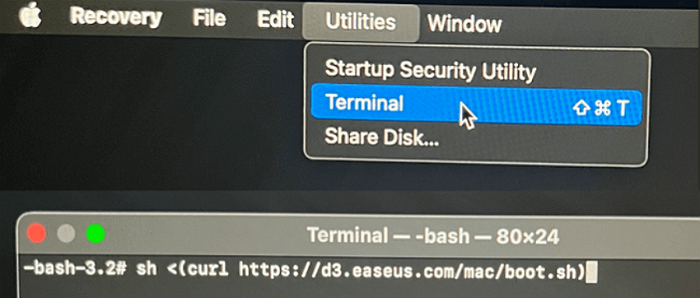
Note: If the Terminal displays either "No such file or directory" or "Could not resolve host," you should verify that the command line you entered is correctly spelled, ensure your Mac has a stable internet connection, and confirm that your macOS version is not lower than macOS 10.15.
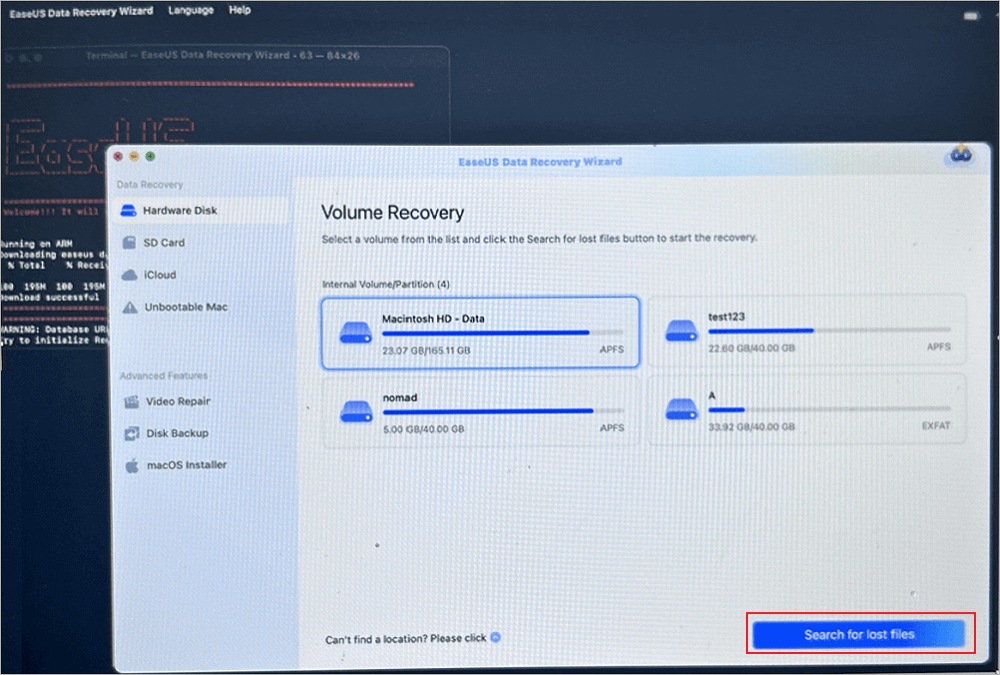
Step 2. Select the Volume on Your Mac Hard Drive
Select the volume where your lost data is stored, and click "Search for lost files". The EaseUS software will quickly locate all the recoverable data on the selected volume.
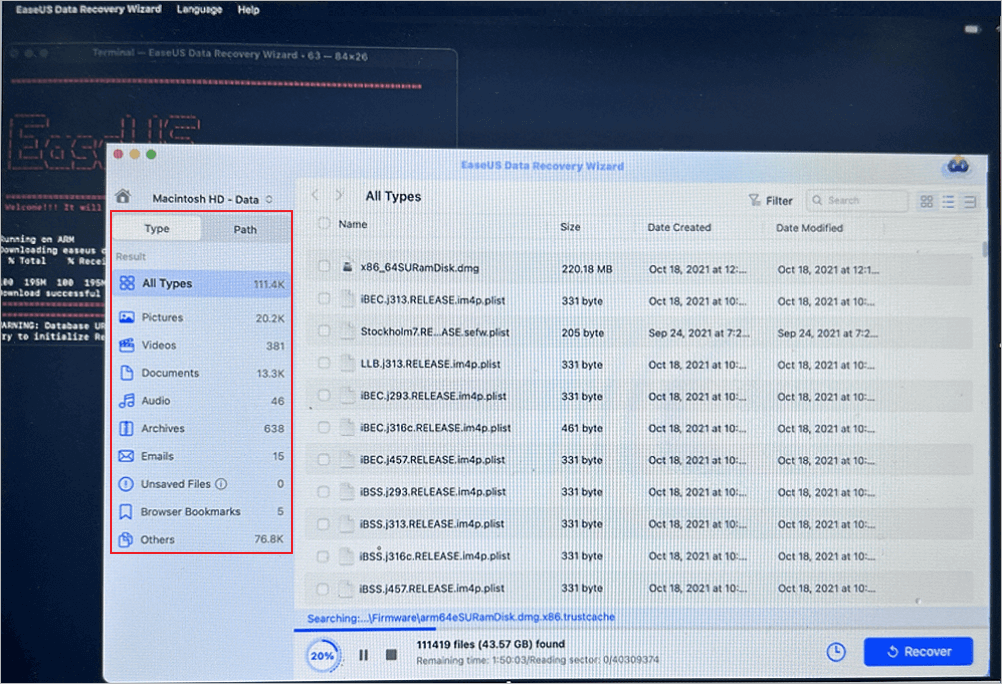
Step 3. Choose the Lost Data You Want
EaseUS software categorizes the scanned recoverable data by file type and storage path. Find the data you want by clicking "Type" or "Path" in the left panel. Then, check the boxes in front of the data you want to recover.
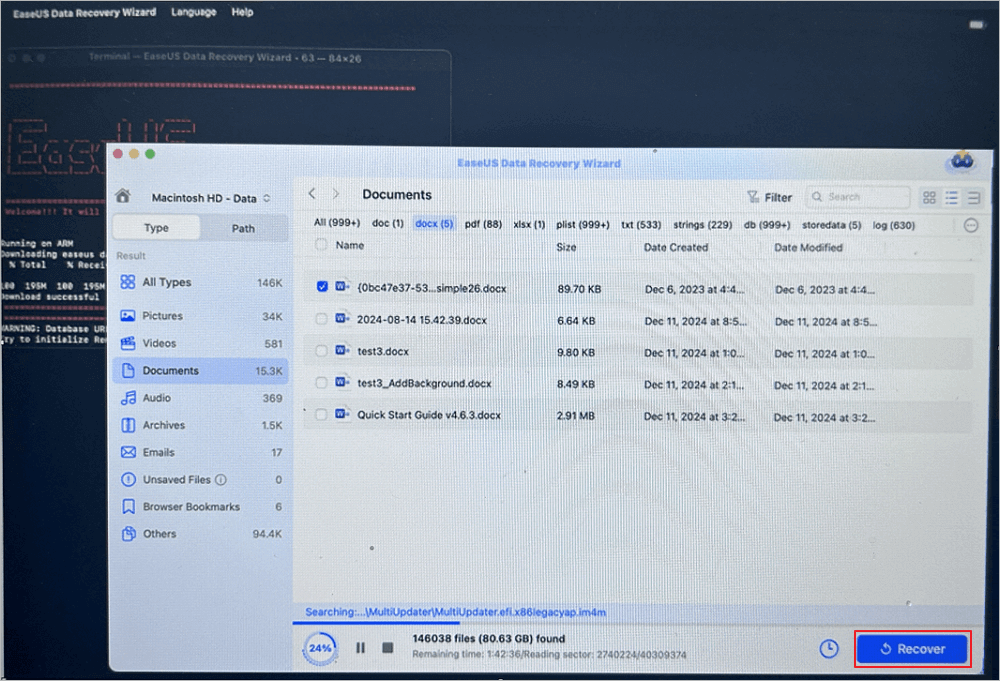
Step 4. Recover and Save Data on an External Disk
Click the "Recover" button, and a pop-up window will show up saying, "Please select a target location to save". Choose the external disk as the new storage location of your recovered data.
If you want to help more Mac friends, please share this professional recovery guide on social media.

How to Fix macOS Tahoe Won't Boot (3 Ways)
With your data safe, you're ready to dig into what's stopping your Mac from starting up. Let's start with the basics and work our way up.
How to Boot in Recovery Mode to Fix Boot Issues
Recovery Mode comes built into macOS and gives you a toolkit for repairs, even if your Mac refuses to start as it should. Check on how to start Mac in Recovery Mode:
Step 1. First, make sure your Mac is shut down.
Step 2. If you've got an Intel Mac, hold Command + R and power it on. If it's Apple Silicon, just hold the power button until you see something happen.
Step 3. Let go when the Apple logo or startup options appear.
Give it a few moments until the macOS Utilities window shows up. Now you'll see options like Disk Utility, Terminal, and the choice to reinstall macOS.
Fix 1. How to Run First Aid in Disk Utility
First Aid scans your disk for errors and fixes problems that might be stopping macOS Tahoe from starting up, especially if your startup disk is damaged.
Before you go any further, remember: running disk repair might change some data, so back up or recover anything important first.
Step 1. As the tutorial we've offered before, start your Mac in Recovery Mode.
Step 2. Open "Disk Utility".
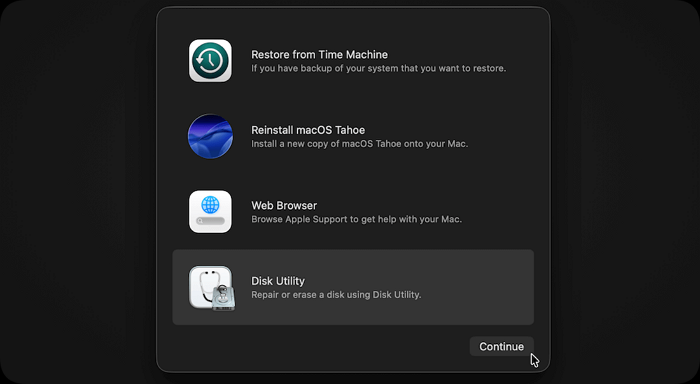
Step 3. Pick your startup disk (it's usually called "Macintosh HD").
Step 4. Hit "First Aid", confirm, then wait while it runs.
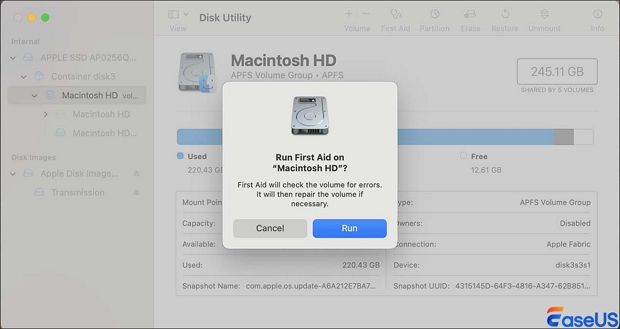
If First Aid finds and fixes errors, restart your Mac and see if it starts up normally.
Fix 2. Use Terminal to Fix Disk Errors
If you are familiar with Terminal, you get a lot more control when dealing with stubborn disk or file system problems. The fsck command comes in handy for digging up and fixing deeper issues that Disk Utility sometimes misses.
Step 1. Boot your Mac into Recovery Mode.
Step 2. Open Utilities, then launch Terminal.
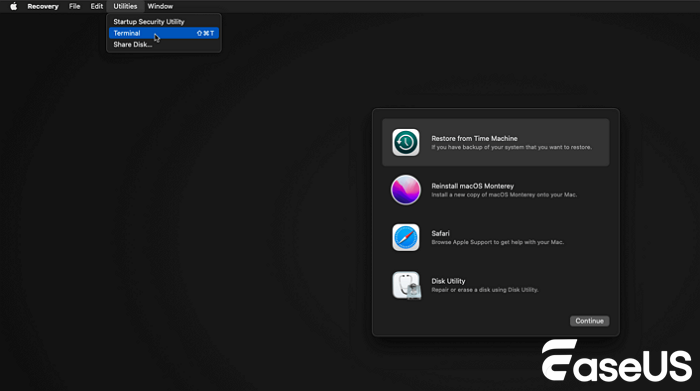
Step 3. Type in /sbin/fsck -fy command and hit return.
If it finds problems, it'll try to fix them. Keep running the command until you see the message "The volume appears to be OK."
Fix 3. Reinstall macOS Tahoe
If nothing else works, it's time for a clean slate. Reinstalling macOS Tahoe wipes away system corruption and brings everything back to normal again.
Only try this method if you've backed up everything you can't afford to lose.
Step 1. Boot into Mac Recovery Mode.
Step 2. Pick "Reinstall macOS Tahoe."
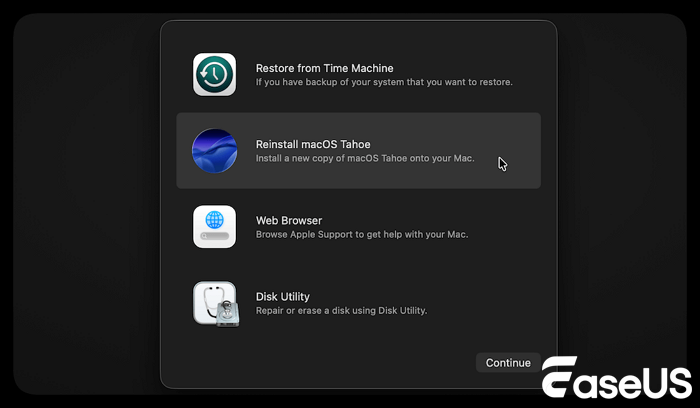
Step 3. Select the startup disk.
Step 4. Just follow the on-screen steps. The process is pretty straightforward.
After the install finishes, your Mac should start up like normal.
macOS Tahoe Stuck on Specific Screens
macOS Tahoe sometimes gets stuck during startup, and the symptoms can tell you a lot about what's wrong. Here's what you might see—and what usually fixes it:
⚠️macOS Tahoe MacBook stuck on the Apple logo. This one usually pops up when system files are messed up or an update failed. Most of the time, running First Aid or just reinstalling macOS gets things running again.
⚠️macOS Tahoe black screen. If you only see a black screen, it could be a display issue, a power problem, or even a system crash. Try booting into Safe Mode, or reset your NVRAM. One of those usually brings the Mac back to life.
⚠️Mac stuck on the loading screen. It's often a disk error if your Mac is stuck on the loading bar, or you're running out of storage. Running a disk repair or freeing up some space tends to solve this.
⚠️macOS Tahoe boot loop. If the Mac keeps restarting over and over and is stuck in a boot loop, you're probably dealing with software conflicts, or something's wrong with the startup sequence. Reinstalling macOS can be a good solution.
Don't forget to share these useful tips on social media to help more users!
Summary
If your Mac running macOS Tahoe refuses to start, here's what you should do: start by recovering your data with a solid recovery tool.
Once that's done, dig into what caused the problem. Begin troubleshooting in Recovery Mode, and only think about reinstalling macOS if nothing else works.
Tackling things in this order keeps your files safe and gives you the best shot at getting your Mac back to normal.
macOS 26 Cannot Boot FAQs
Can I fix macOS Tahoe without losing data?
Yes, but you should always recover your data first. While fixing macOS 26 issues, it's easy to lose data; some repair methods can even overwrite files.
Why won't my Mac boot after updating to macOS Tahoe?
If your Mac won't start up after updating to macOS Tahoe, it's often because of damaged system files, disk problems, or apps that don't play nice with the new system.
Does reinstalling macOS Tahoe delete everything?
Worried about your files? If you just reinstall macOS Tahoe, your data usually stays, but doing a clean install wipes everything. It's smart to back up or save anything important before you do anything else.
What is the safest way to fix a Mac that won't boot?
When your Mac refuses to boot, go for data recovery first. After that, open Recovery Mode and try out tools like First Aid. If things still aren't working, you can try reinstalling macOS.
Was This Page Helpful?

Finley is interested in reading and writing articles about technical knowledge. Her articles mainly focus on file repair and data recovery.

Dany is an editor of EaseUS who lives and works in Chengdu, China. She focuses on writing articles about data recovery on Mac devices and PCs. She is devoted to improving her writing skills and enriching her professional knowledge. Dany also enjoys reading detective novels in her spare time.
-
EaseUS Data Recovery Wizard is a powerful system recovery software, designed to enable you to recover files you’ve deleted accidentally, potentially lost to malware or an entire hard drive partition.
Read More -
EaseUS Data Recovery Wizard is the best we have seen. It's far from perfect, partly because today's advanced disk technology makes data-recovery more difficult than it was with the simpler technology of the past.
Read More -
EaseUS Data Recovery Wizard Pro has a reputation as one of the best data recovery software programs on the market. It comes with a selection of advanced features, including partition recovery, formatted drive restoration, and corrupted file repair.
Read More
Related Articles
-
If I Reset My Mac, Will I Lose Everything on iCloud
![author icon]() Jaden/Sep 28, 2026
Jaden/Sep 28, 2026 -
How to Recover Deleted Files on macOS Golden Gate | NEW
![author icon]() Dany/Sep 20, 2026
Dany/Sep 20, 2026 -
How to Recover Dashcam Recordings from BYD Atto 3 [with 3 Effetive Methods]
![author icon]() Brithny/Sep 28, 2026
Brithny/Sep 28, 2026 -
Macintosh HD not Mounted | Get Back Lost Files Without Data Loss
![author icon]() Brithny/Sep 29, 2026
Brithny/Sep 29, 2026
 Jaden/Sep 28, 2026
  Brithny/Sep 28, 2026

