





 About the Author
 Reviews and Awards
 Mac SD Card Recovery
Why Does My MacBook Pro Keep Restarting
I have a MacBook Pro 2020, and every time I go to use it, it crashes within a couple of minutes. I've tried everything, resetting the SMC and drive and cleaning the inside with an air duster. I saw a thread where someone said it could be a recently downloaded software that's messing up by computer, but my only recent installation is Sequins 15.1.1. I was told to redownload it, but my computer won't even stay on long enough for the download to process. What can I do - Reddit
If your MacBook Pro won't stop restarting itself, you're definitely not the only one dealing with this headache. This constant rebooting, people sometimes call it a "boot loop," makes it almost impossible to use your Mac or grab any files.
Before you try to fix anything, it's smart to figure out why your MacBook Pro keeps restarting.
Here's what usually triggers a restart loop:
- Failed macOS updates
- Corrupted system files
- Apps or drivers that just don't play nice with your system
- Disk errors or a messed-up startup disk
- Hardware issues like faulty RAM or logic board problems
You'll probably notice things like:
- The Apple logo pops up, then the screen goes black, and everything starts over
- MacBook stuck on loading screen
- You see scary kernel panic messages
- The Mac keeps rebooting over and over after you log in
If any of that sounds familiar, you're in the right place to get it sorted.
Recover Data from MacBook Pro Restart Loop
Don't try to fix anything before you recover your data. Some fixes, like reinstalling macOS, can wipe everything. If your Mac won't start up, a tool like EaseUS Data Recovery Wizard for Mac can help you pull your files out, even when it seems hopeless.
Why you should recover data first:
- It keeps you from losing files forever.
- It stops you from accidentally overwriting important stuff while you're fixing things.
- You'll be able to save documents, photos, videos, pretty much everything you care about.
This portable data recovery software can help you recover data from a MacBook that has boot issues. Follow these steps to rescue data from a MacBook Pro that is stuck in a restarting loop.
Step 1. Launch EaseUS Software in Recovery Mode
Select "Utilities > Terminal" from the top menu, and enter the command sh <(curl https://d3.easeus.com/mac/boot.sh). Hit "Return". Wait for the application to open, and it will take several minutes.
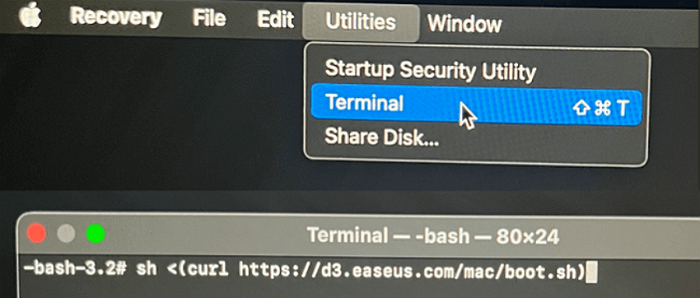
Note: If the Terminal displays either "No such file or directory" or "Could not resolve host," you should verify that the command line you entered is correctly spelled, ensure your Mac has a stable internet connection, and confirm that your macOS version is not lower than macOS 10.15.
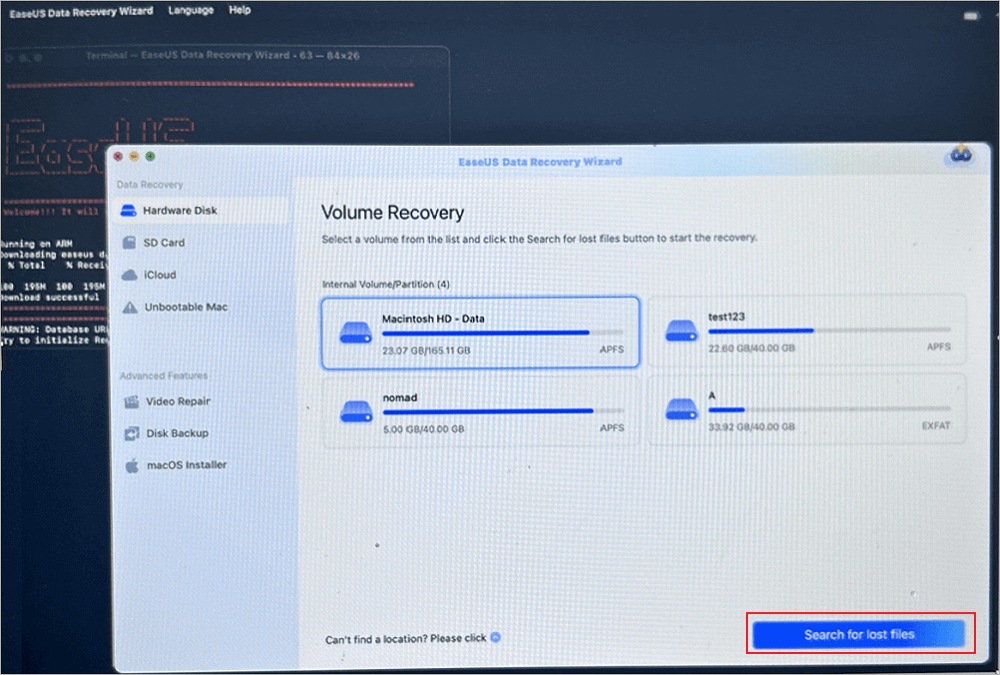
Step 2. Select the Volume on Your Mac Hard Drive
Select the volume where your lost data is stored, and click "Search for lost files". The EaseUS software will quickly locate all the recoverable data on the selected volume.
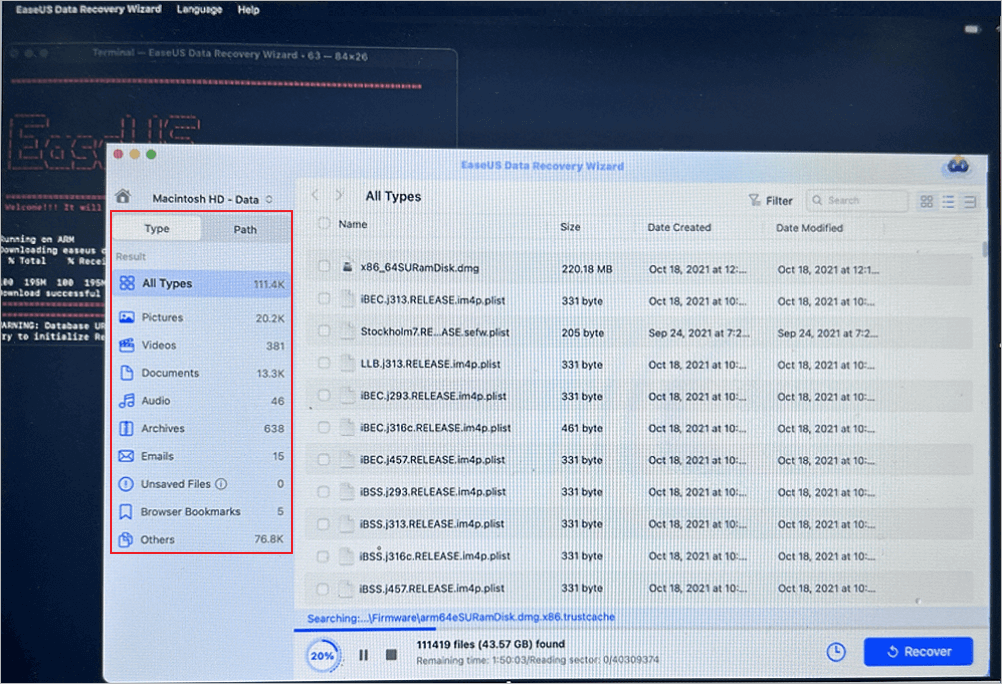
Step 3. Choose the Lost Data You Want
EaseUS software categorizes the scanned recoverable data by file type and storage path. Find the data you want by clicking "Type" or "Path" in the left panel. Then, check the boxes in front of the data you want to recover.
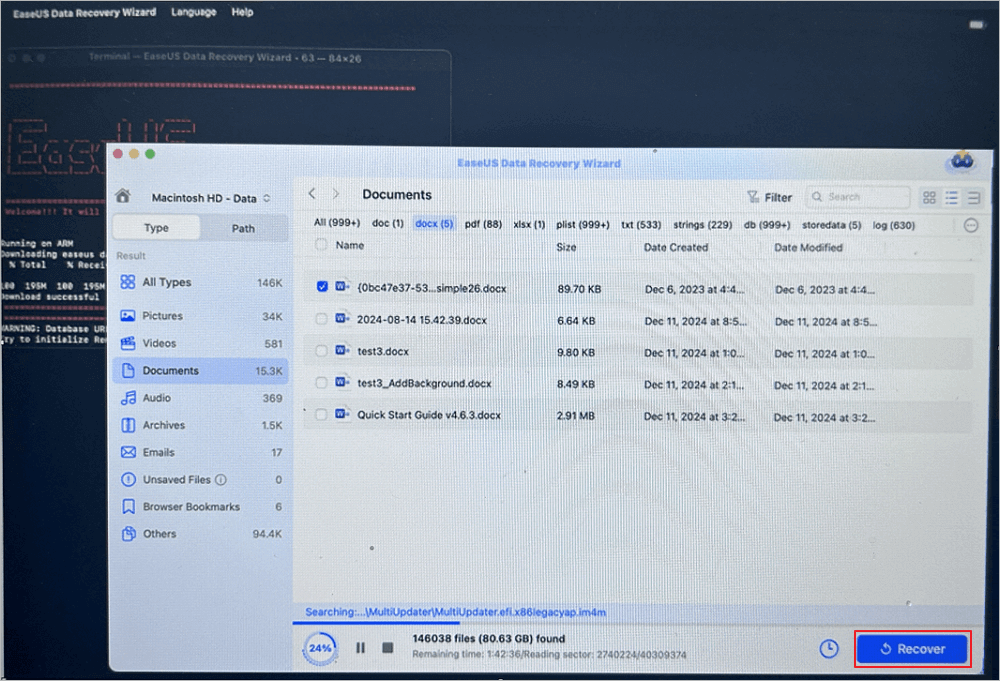
Step 4. Recover and Save Data on an External Disk
Click the "Recover" button, and a pop-up window will show up saying, "Please select a target location to save". Choose the external disk as the new storage location of your recovered data.
Don't forget to share this guide on social media and help more MacBook Pro users!

How to Stop MacBook Pro Restart Loop (4 Ways)
After recovering data from your MacBook Pro, you can try the fixes to resolve the restart loop. You can try simple solutions first before some advanced ones.
Fix 1. Boot Your MacBook Pro in Safe Mode
Mac Safe Mode kicks macOS into gear with just the basics, stripping out most system extensions and running a quick disk check:
- It knocks out troublemaking startup stuff.
- It wipes the system cache.
- It lets you figure out if software's causing problems.
Step 1. Turn off your MacBook Pro. Hold the power button down until the screen goes black and everything's off.
Step 2. Start up in Safe Mode.
- Apple Silicon: Keep holding the Power button, pick your startup disk, press Shift, then hit "Continue in Safe Mode."
- Intel Mac: Power it on, and as soon as you see it waking up, press and hold Shift.
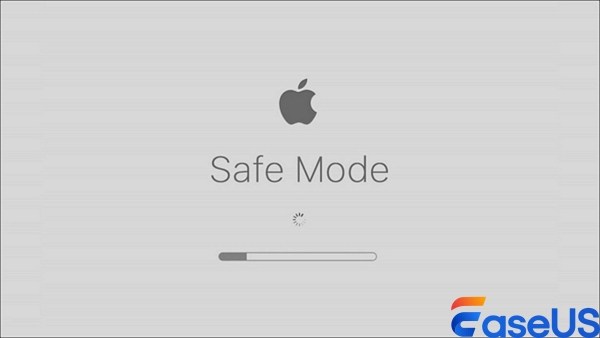
Step 3. You'll probably have to log in twice.
If your Mac stops looping or acting up, a third-party app or login item probably caused the mess.
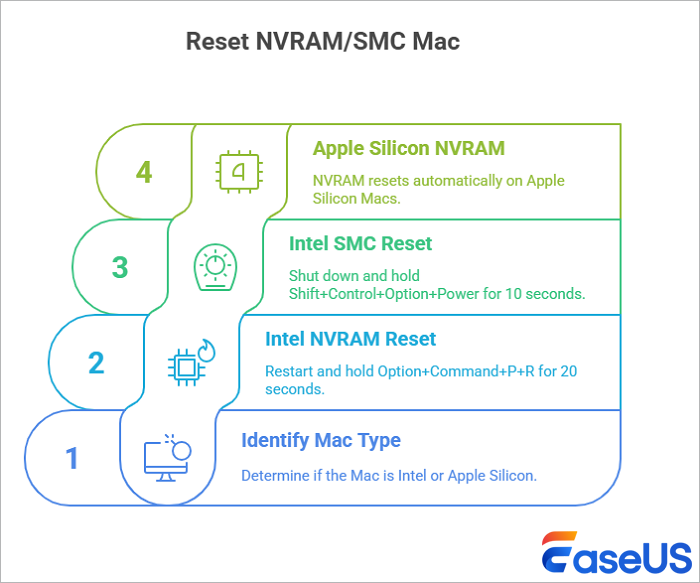
Fix 2. Reset NVRAM/PRAM and SMC
Resetting your system settings often clears up hardware issues that make your Mac get stuck in restart loops.
What these resets do:
- NVRAM/PRAM: Keeps track of things like your chosen startup disk and display settings.
- SMC: Manages power, your battery, and the computer's thermal system.
How to reset NVRAM/PRAM (Intel Macs only):
Step 1. Shut down your Mac.
Step 2. Turn it back on and, right away, hold down Option + Command + P + R for about 20 seconds. Let go, and your Mac will restart.
How to reset the SMC:
Step 1. Power down your MacBook Pro.
Step 2. Hold Shift + Control + Option, plus the Power button, for 10 seconds.
Step 3. Let go of all the keys, then turn your Mac back on.
Fix 3. Use Disk Utility to Repair Startup Disk
Disk corruption often causes Macs to get stuck in those endless restart loops. Here's why fix corrupted hard drive on Mac helps:
- It clears up file system errors.
- It fixes permission issues.
- It puts the disk structure back in order.
Step 1. Start by getting into macOS Recovery Mode.
- If you have an Apple Silicon Mac, just hold down the Power button until you see "Options."
- On an Intel Mac, restart and press Command + R as soon as it boots up.
Step 2. Once you're in Recovery Mode, launch Disk Utility.
Step 3. Find and select your startup disk. It's usually called "Macintosh HD."
Step 4. Hit the "First Aid" button.
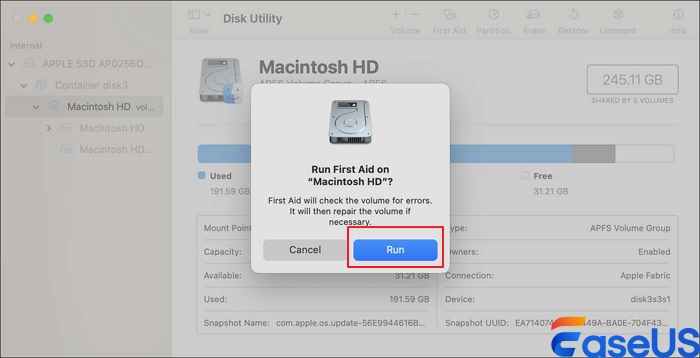
Step 5. Let the tool run its scan. If it finds problems, it'll fix them automatically. Just wait for it to finish.
Fix 4. Update or Reinstall macOS
When your Mac's system files get messed up, reinstalling macOS usually fixes things. Heads up: This wipes your data, so back it up first.
Step 1. Start your Mac in Recovery Mode.
Step 2. Open Disk Utility and erase your hard drive.
Step 3. Go back to the Recovery menu.
Step 4. Select "Reinstall macOS."
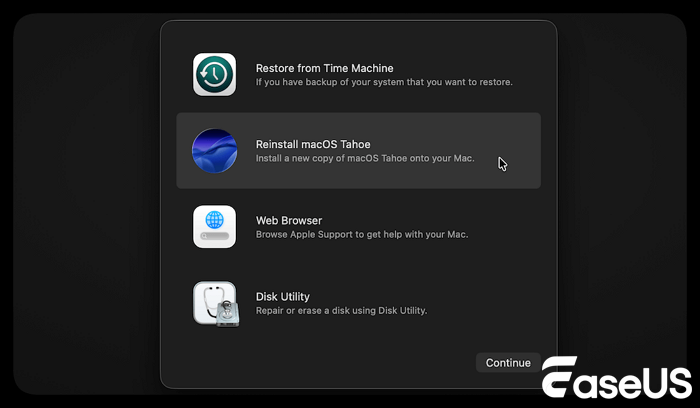
Step 5. Let the setup finish. That's it.
How to Prevent Mac Restart Loop in the Future
It's way easier to avoid a restart loop than to fix one. Here's how to keep your Mac running smoothly:
- Keep macOS updated. Just grab those official updates when they drop, so you don't get stuck with annoying bugs or weird compatibility problems.
- Don't force shutdowns. If you're constantly yanking the power or holding the power button, you risk messing up system files.
- Watch what apps you install. Stick with software you trust. Random downloads can really mess with your Mac.
- Back up your data regularly. Use Time Machine or some cloud service; just don't leave things to chance.
- Check your disk health now and then. Open Disk Utility and run a quick check. It only takes a minute and helps catch problems early.
MacBook Boot Loop Fix FAQs
Here are more questions and answers about this MacBook's boot loop issues:
1. Why is my MacBook Pro stuck in a restart loop?
A MacBook Pro or Air is stuck in a restart loop, usually due to operating system or hard disk corruption. Kernel panics, bad login items, or even hardware problems can all trigger this.
2. Does reinstalling macOS fix restart loops?
Reinstalling macOS can reset your operating system to its original state, which may fix certain system problems. You should know that reinstalling the OS will erase everything; back up the files in advance.
3. How do I fix an infinite boot loop on a MacBook Air?
To fix an infinite boot loop on a MacBook Air, you can try the following solutions:
- Boot MacBook Air in Safe Mode
- Reset NVRAM/SMC
- Fix Startup Disk in Disk Utility
- Reinstall macOS
Was This Page Helpful?

Finley is interested in reading and writing articles about technical knowledge. Her articles mainly focus on file repair and data recovery.

Dany is an editor of EaseUS who lives and works in Chengdu, China. She focuses on writing articles about data recovery on Mac devices and PCs. She is devoted to improving her writing skills and enriching her professional knowledge. Dany also enjoys reading detective novels in her spare time.
-
EaseUS Data Recovery Wizard is a powerful system recovery software, designed to enable you to recover files you’ve deleted accidentally, potentially lost to malware or an entire hard drive partition.
Read More -
EaseUS Data Recovery Wizard is the best we have seen. It's far from perfect, partly because today's advanced disk technology makes data-recovery more difficult than it was with the simpler technology of the past.
Read More -
EaseUS Data Recovery Wizard Pro has a reputation as one of the best data recovery software programs on the market. It comes with a selection of advanced features, including partition recovery, formatted drive restoration, and corrupted file repair.
Read More
Related Articles
-
How to Fix Video Format Is Not Supported on Mac: Causes and Solutions
![author icon]() Jaden/Jul 27, 2026
Jaden/Jul 27, 2026 -
Excel Scroll Not Working on Mac: Why and How to Fix It
![author icon]() Brithny/Jul 27, 2026
Brithny/Jul 27, 2026 -
How to Repair CR2 on Mac with Image Repair Tool
![author icon]() Jaden/Jul 27, 2026
Jaden/Jul 27, 2026 -
[Solved]This Document Is Either Deleted or Not Currently Accessible
![author icon]() Finley/Sep 22, 2026
Finley/Sep 22, 2026
 Jaden/Jul 27, 2026
  Brithny/Jul 27, 2026

