







Content
Page Table of Contents
About the Author
Hot Topics
Forgot your BitLocker recovery key and need to reuse your encrypted drive? Many users encounter this situation when an old hard drive, SSD, or USB drive is locked by BitLocker but the recovery key is no longer available.
Without the recovery key or password, you cannot unlock or decrypt the BitLocker-encrypted data. However, if you no longer need the files stored on the drive, you can still remove the existing partition and format the drive to make it usable again.
This guide explains how to format a BitLocker-encrypted drive without a recovery key, including both data drives and Windows system drives.
Can You Format a BitLocker Drive Without the Recovery Key?
Yes, you can format a BitLocker encrypted drive without the recovery key, but formatting does not unlock or recover the encrypted data. Instead, it removes the existing encrypted partition and creates a new file system, which makes the drive available for new data storage.
Before formatting, make sure you no longer need the files on the drive. Once the BitLocker partition is removed, recovering the original encrypted data is extremely difficult without the recovery key.
| Drive Type | Format Without Recovery Key | Difficulty | Data Loss |
|---|---|---|---|
| External HDD/SSD | Yes | Easy | Yes |
| USB Flash Drive | Yes | Easy | Yes |
| Internal Data Drive | Yes | Easy, requiring Administrator access | Yes |
| Current Windows System Drive | Yes | Medium, requiring Windows installation media (USB) | Yes |
| Drive with Important Data | No (if you need the files) | Impossible without key | / |
If this guide helps you solve your BitLocker formatting problem, consider sharing it with others who may face the same issue.

How to Format a BitLocker Drive Without the Recovery Key
Formatting the drive is an option to reuse the hard drive if you can't find the BitLocker recovery key or have forgotten the password. The method depends on what type of drive you want to format.
- For a regular data drive, including external hard drives, USB drives, and secondary internal disks, you can directly remove the BitLocker partition and format the drive.
- For a Windows system drive, Windows can't format the partition currently used to run the operating system. In this case, you need to boot from Windows installation media and delete the encrypted system partition before reinstalling Windows.
- Method 1. Use EaseUS Partition Master (Easy, supporting BitLocker recovery key retrieval before formatting)
- Method 2. Use Disk Management (Easy)
- Method 3. Use Diskpart (Suitable for advanced users)
- Another Case. Use Windows Installation Media (Format BitLocker encrypted system drive)
Case 1. Format BitLocker Encrypted Data Drive
Applies to: All data drives, including USB flash drives, internal secondary disks, external SSDs, and HDDs.
Method 1. Use EaseUS Partition Master
#Guide 1. Format BitLocker Drive without Recovery Key or Password
EaseUS Partition Master allows you to format a BitLocker-encrypted drive even when you do not have the password or recovery key. This is useful when you only want to erase the drive and reuse it.
🔴Important: Formatting permanently removes the existing data on the drive. If the files are important, try to find your BitLocker recovery key following Guide 2 before formatting.
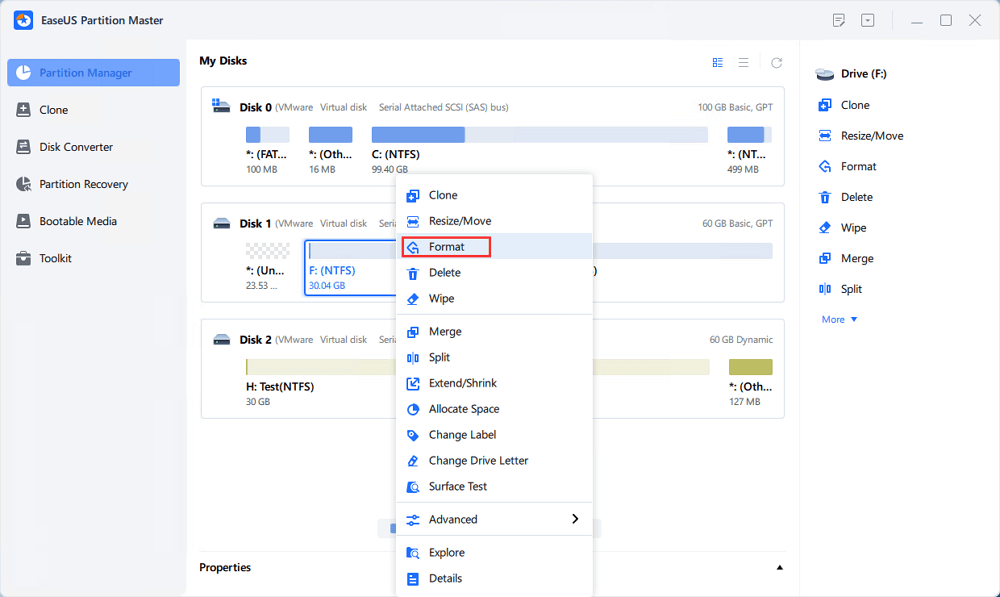
Step 1. Run EaseUS Partition Master, right-click the hard drive partition you intend to format and choose "Format".
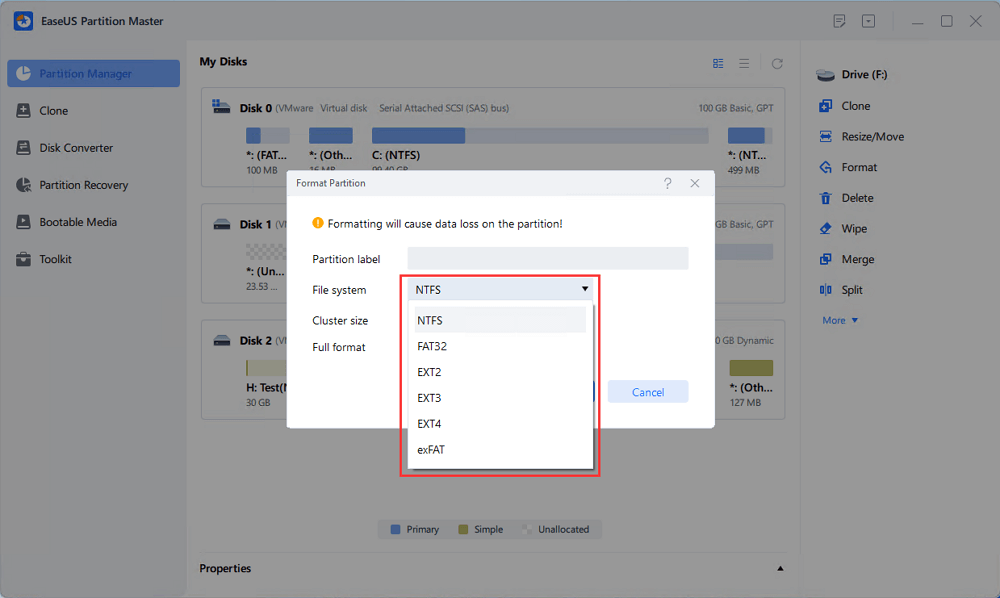
Step 2. In the new window, set the Partition label, File system (NTFS/FAT32/EXT2/EXT3/EXT4/exFAT), and Cluster size for the partition to be formatted, then click "OK".
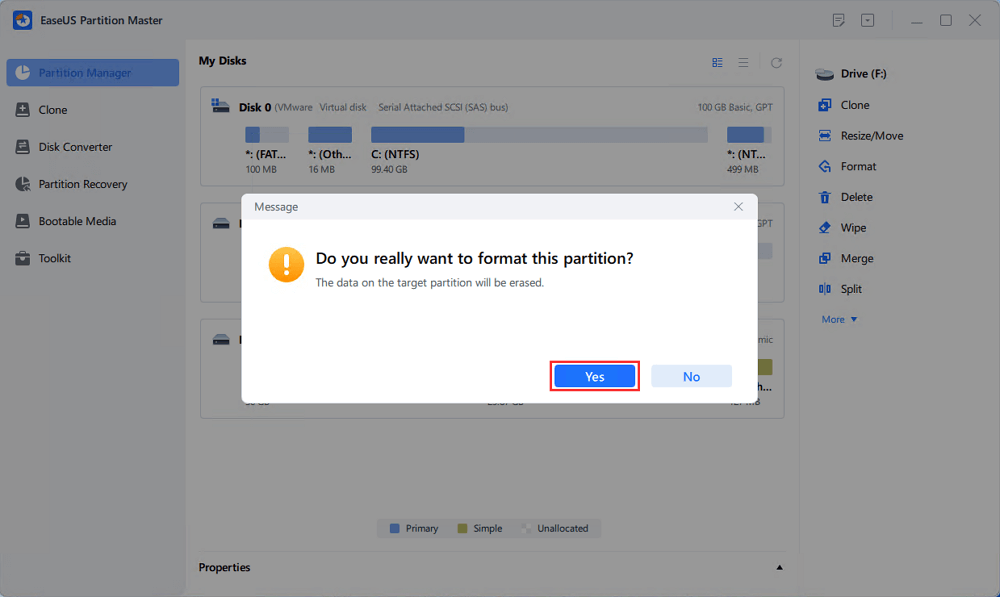
Step 3. Then you will see a warning window, click "Yes" in it to continue.
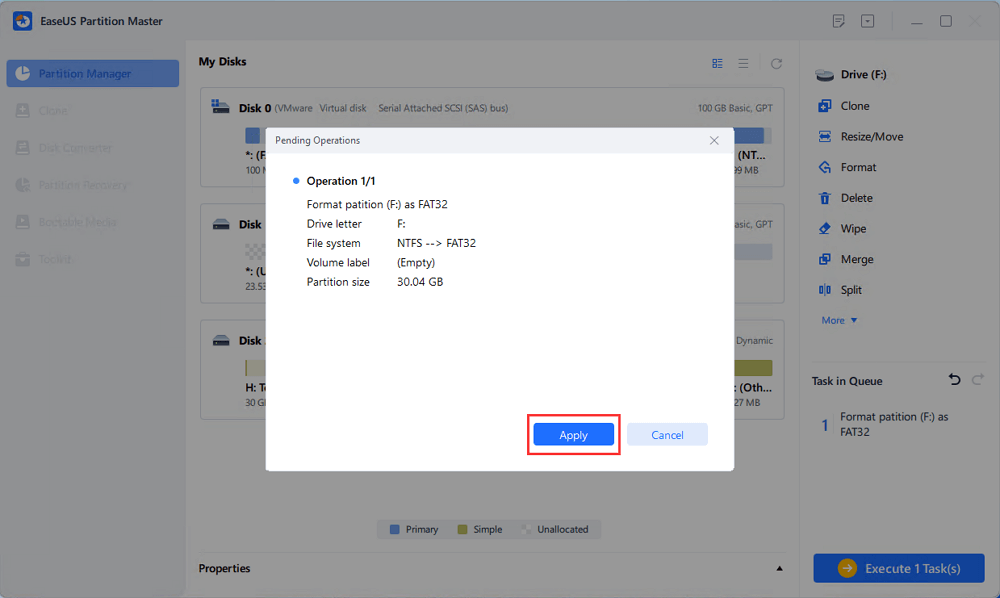
Step 4. Click the "Execute 1 Task(s)" button to review the changes, then click "Apply" to start formatting the partition on your hard drive.
#Guide 2. Retrieve BitLocker Recovery Key Before Formatting
Before deleting the encrypted partition, EaseUS Partition Master can help check whether a BitLocker recovery key is available from supported locations, including locally stored keys and Microsoft account recovery keys.
If the drive contains important files, retrieving the recovery key first is recommended because formatting cannot restore encrypted data afterward.
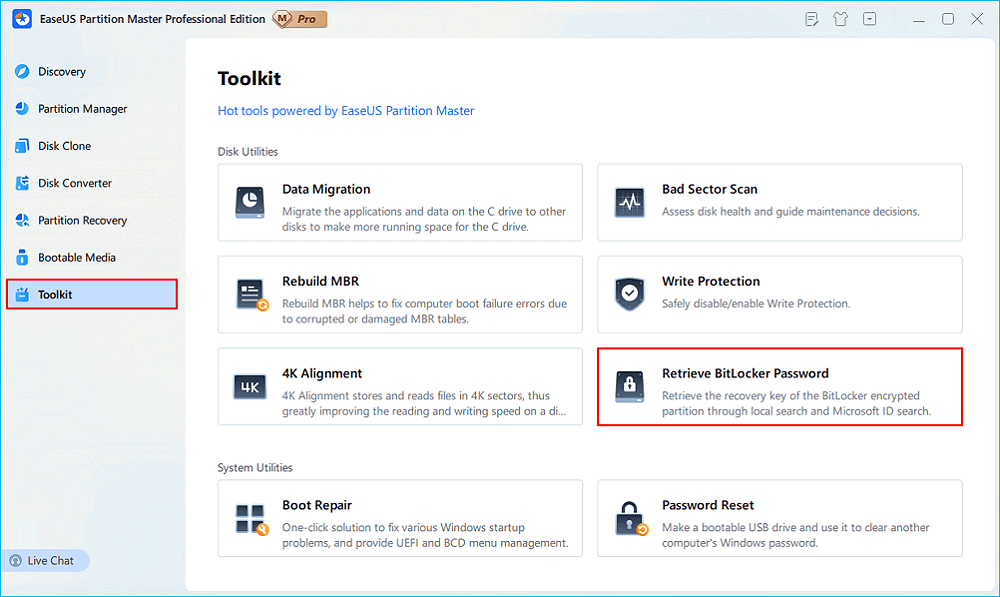
Step 1. Install and launch EaseUS Partition Master. Under the Toolkit tab, select the "Retrieve BitLocker Password" option.
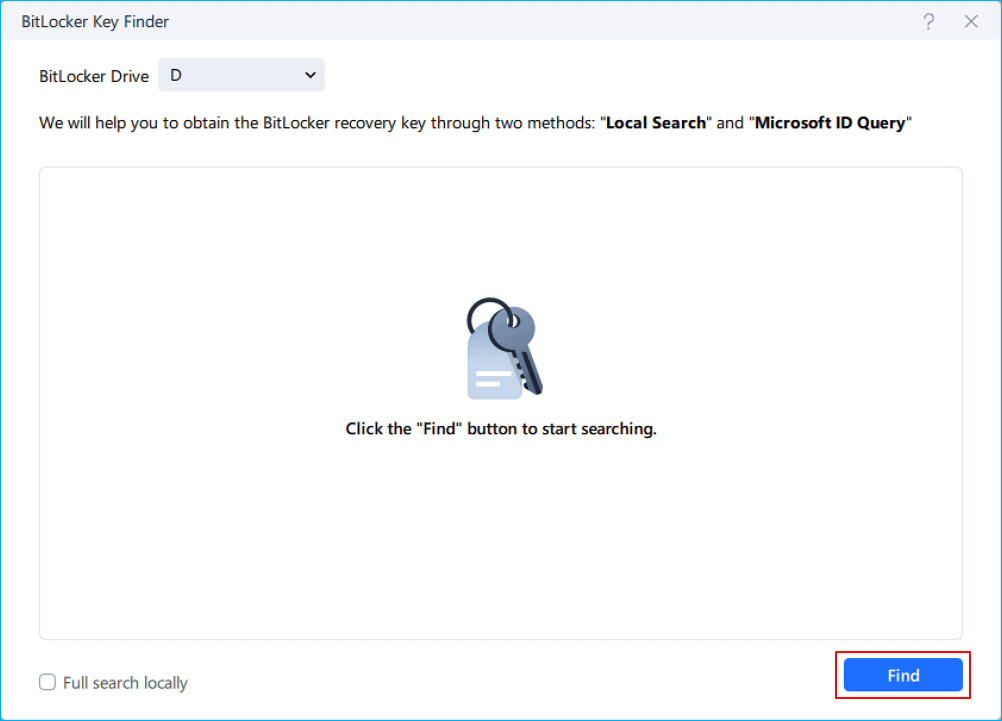
Step 2. It'll automatically detect your encrypted drive. Please click the "Find" button to search the BitLocker recovery key on your encrypted drive.
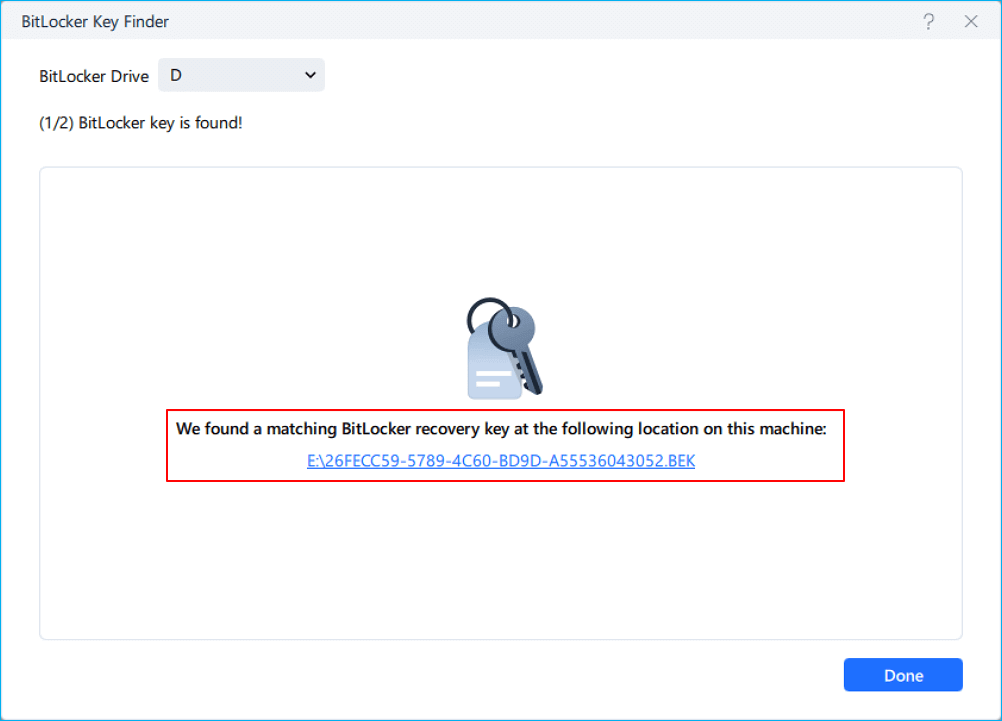
Step 3. In the next window, you'll see the retrieved BitLocker recovery key.
Method 2. Use Disk Management
Windows Disk Management provides a built-in way to remove a BitLocker partition and create a new volume. This method works well for external drives and secondary internal disks.
Steps:
1. Press Windows + X and select Disk Management.
2. Find the BitLocker-encrypted drive.
3. Right-click the encrypted partition and select "Format".
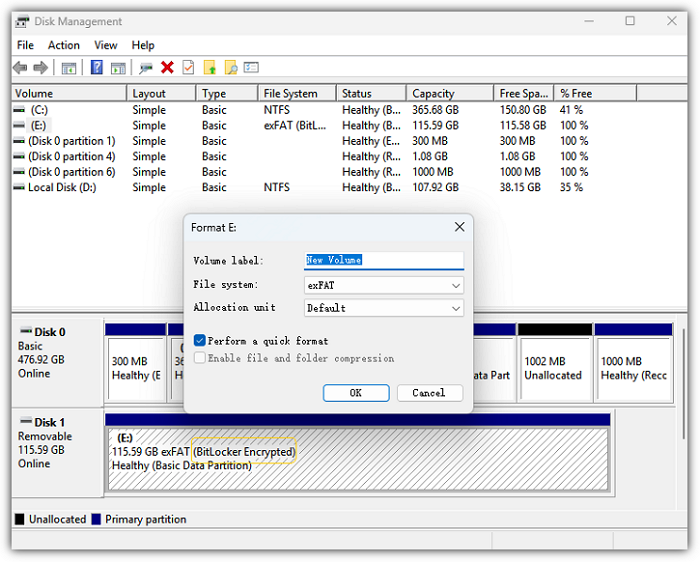
Select the file system type and click "OK" to confirm the format.
Method 3. Use DiskPart
If Disk Management cannot delete or format the BitLocker drive, DiskPart can force-remove the existing partition information.
Steps:
1. Open Command Prompt as Administrator.
2. Type the following commands:
- diskpart
- list disk
- select disk X (Replace X with the correct disk number)
- clean
- create partition primary
- format fs=ntfs quick (Replace ntfs with the target file system you want)
- assign
- exit
3. Wait for the process to finish.
The clean command removes the partition table, including the BitLocker-protected volume. Make sure you select the correct disk because this operation permanently deletes all partitions on the selected drive.
For a complete overview of BitLocker management, see our [BitLocker Management and Operations Guide].
Case 2. Format BitLocker Encrypted System Drive
Formatting a BitLocker-encrypted system drive is different from formatting a data drive. Windows does not allow you to directly delete the partition that is currently running the operating system. Therefore, Disk Management and regular formatting tools cannot format the active Windows system drive.
To erase a BitLocker system drive, you need to boot from Windows installation media.
Applies to:
- BitLocker-protected Windows installation drives
- Computers that cannot boot normally
- Drives where you want to reinstall Windows
Preparation:
You need a Windows installation USB drive. Microsoft provides Windows installation media for free, and you can create a bootable USB drive before starting.
Steps:
Step 1. Boot From Windows Installation Media
- Connect the Windows installation USB drive.
- Restart your computer.
- Enter BIOS/UEFI boot settings.
- Select the USB drive as the boot device.
- Start Windows Setup.
Step 2. Delete the BitLocker System Partition
- When you reach the Windows installation screen, select Install Now.
- Choose Custom: Install Windows only (advanced).
- Select the BitLocker-encrypted system partition.
- Click Delete to remove the partition.
- Select the unallocated space.
- Click Next to install Windows.
Windows will create new system partitions automatically and perform a clean installation.
Conclusion
You can format a BitLocker-encrypted drive without a recovery key if you no longer need the encrypted data. For data drives, you can remove the BitLocker partition using Disk Management, DiskPart, or EaseUS Partition Master.
For a BitLocker system drive, you need to use Windows installation media because Windows cannot format the active system partition.
Remember that formatting does not bypass BitLocker encryption or recover files. It only removes the encrypted partition and allows you to reuse the storage device.
If you need a comprehensive tool in manage and control your BitLocker partition or drives, refer to this link and get reliable BitLocker manager softwre for help.
FAQs About Formatting a BitLocker-Encrypted Drive Without Recovery Key
1. Can I format a BitLocker encrypted drive without the recovery key?
Yes. You can format the drive by deleting the BitLocker partition and creating a new volume. However, formatting will permanently remove the encrypted data, and you cannot access the original files afterward without the recovery key.
2. Does formatting remove BitLocker encryption?
Yes. Formatting removes the existing BitLocker-protected partition and creates a new file system. It does not decrypt the old data; it simply removes the encrypted volume structure.
3. Can I unlock a BitLocker drive without the recovery key by formatting it?
No. Formatting does not unlock BitLocker. It only erases the drive so it can be reused. If you need the files, you must find the BitLocker recovery key or password first.
4. Why can't I format my BitLocker drive in Windows?
Windows may prevent formatting when the drive is locked, protected, corrupted, or being used as the current system drive. In these cases, you can try DiskPart, partition software, or Windows installation media.
5. Can DiskPart format a BitLocker encrypted drive?
Yes. DiskPart can remove the BitLocker partition using the clean command and allow you to create a new partition and format the drive.
How Can We Help You
About the Author

Updated by Tracy King
Tracy became a member of the EaseUS content team in 2013. Being a technical writer for over 10 years, she is enthusiastic about sharing tips to assist readers in resolving complex issues in disk management, file transfer, PC & Mac performance optimization, etc., like an expert.

Sherly joined EaseUS in 2022 and she has always loved writing articles and enjoys the fun they bring. She receives professional training here, focusing on product performance and other relative knowledge. She has written over 200 articles to help people overcome computing issues.
Product Reviews
-
I love that the changes you make with EaseUS Partition Master Free aren't immediately applied to the disks. It makes it way easier to play out what will happen after you've made all the changes. I also think the overall look and feel of EaseUS Partition Master Free makes whatever you're doing with your computer's partitions easy.
Read More -
Partition Master Free can Resize, Move, Merge, Migrate, and Copy disks or partitions; convert to local, change label, defragment, check and explore partition; and much more. A premium upgrade adds free tech support and the ability to resize dynamic volumes.
Read More -
It won't hot image your drives or align them, but since it's coupled with a partition manager, it allows you do perform many tasks at once, instead of just cloning drives. You can move partitions around, resize them, defragment, and more, along with the other tools you'd expect from a cloning tool.
Read More
Related Articles
-
(Fixed) HAL INITIALIZATION FAILED BSOD Error
![Oliver]() Oliver/2026/10/29
Oliver/2026/10/29 -
Quick Fix: WDF_Violation Blue Screen Error
![Oliver]() Oliver/2026/10/29
Oliver/2026/10/29 -
Windows 11/10 Black Screen After Login (Solutions HERE)
![Sherly]() Sherly/2026/10/29
Sherly/2026/10/29 -
Windows 7 Password Reset USB Free Download | Safe
![Sherly]() Sherly/2026/10/29
Sherly/2026/10/29
 Oliver/2026/10/29









