

Content
Page Table of Contents
About the Author
Hot Topics
If your BitLocker drive encryption is enabled, how to unlock it? The answer is using a BitLocker recovery key, also known as a Windows or Microsoft recovery key, which is a special key generated automatically when enabling BitLocker to encrypt a disk or partition.
Wondering how to unlock BitLocker drive encryption with a BitLocker recovery key? To unlock a BitLocker-encrypted drive in Windows, open "File Explorer", right-click the locked drive, and select "Unlock Drive". Enter your BitLocker password or click "More Options" and enter the recovery key if you've forgotten the password.
This post will introduce how to unlock a BitLocker-encrypted drive using the recovery key or the EaseUS BitLocker unlock tool. Choose the suitable solutions for your cases!
- 👉Unlock BitLocker Drive Encryption with a Recovery Key: The BitLocker drive/partition is visible, and you only need a password or recovery key to unlock it.
- 👉Unlock BitLocker Drive Encryption with BitLocker Unlock Tool: The BitLocker drive/partition is corrupted, deleted, or lost, and you don't have the recovery key or password.
How to Unlock a BitLocker Drive with EaseUS Partition Master
If you frequently manage BitLocker-encrypted drives, EaseUS Partition Master provides a more convenient way to handle them. Its built-in BitLocker Manager lets you unlock encrypted partitions, lock them again, and turn off BitLocker without using command-line tools.
You can also use EaseUS Partition Master to manage BitLocker partitions and perform other disk management tasks. Follow the steps below to unlock your BitLocker drive.
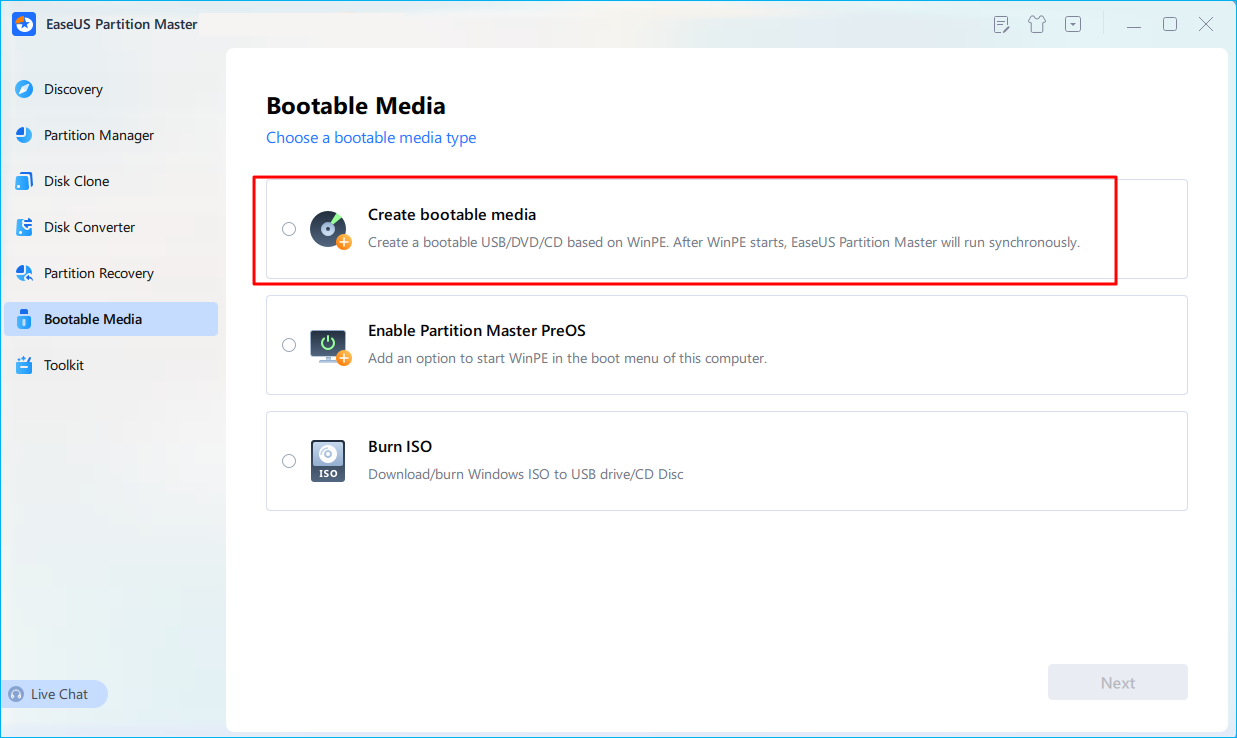
Step 1. First, connect a USB to the PC running properly. Launch EaseUS Partition Master, navigate to "Bootable Media" section, and click "Create bootable media" option. Click "Next" to continue.
Step 2. Select the target USB drive and click "Create" to continue. Please back up your data in advance since this will erase all data on the USB drive. Then, click "yes" to confirm when you see the warning. Do not exit EaseUS Partition Master until it's done.
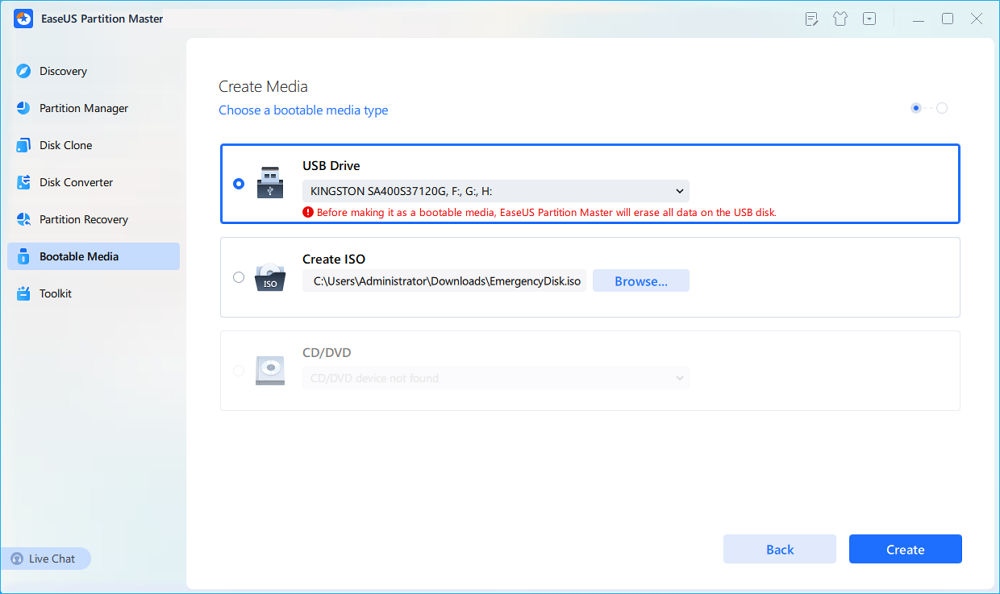
Step 3. Connect the bootable USB to the BitLocker encrypted PC and restart PC. During the reboot, press the BIOS key (F2/F8/F12/DEL/ESC) to access BIOS and set the bootable USB as the boot drive. This PC will automatically boot from the USB disk.
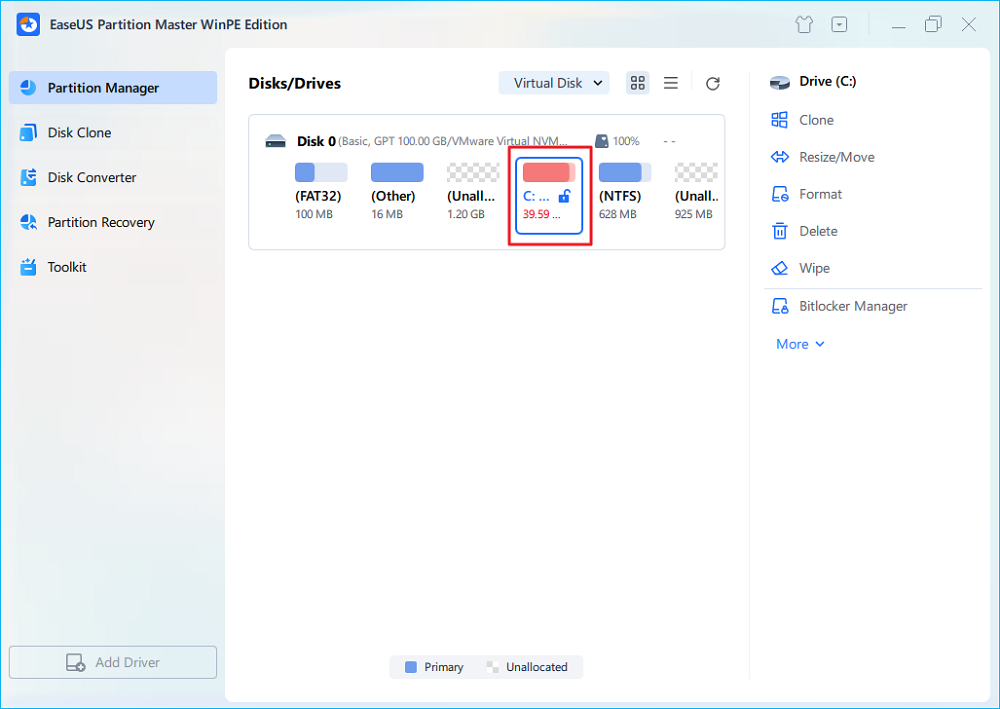
Step 4. EaseUS Partition Master will automatically unlock the BitLocker encrypted drive and you can see a "unlock" icon.
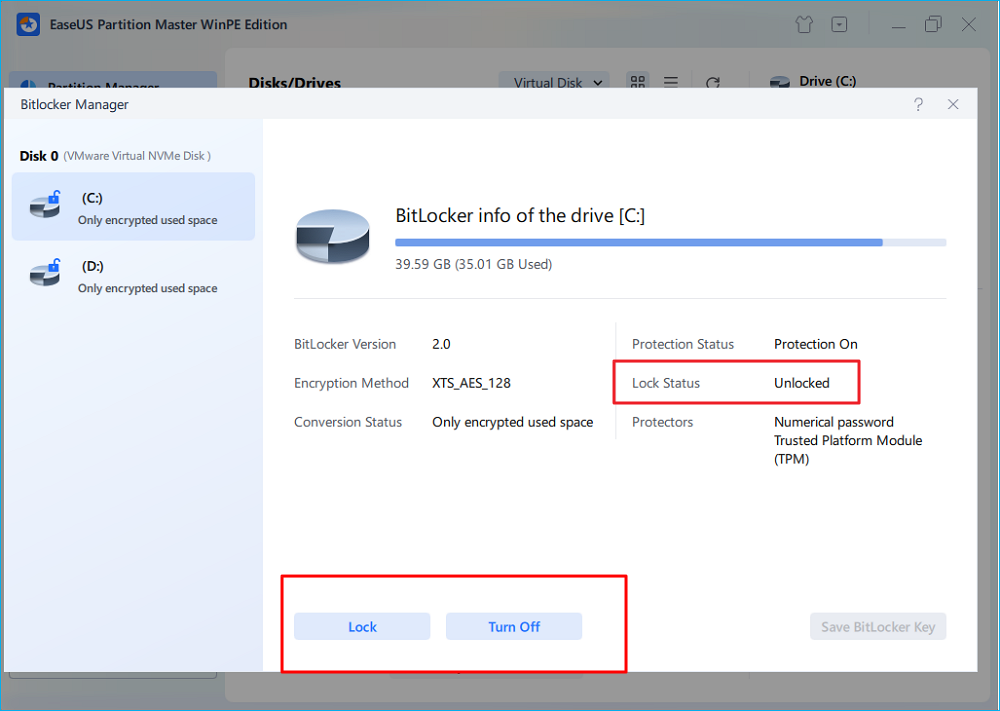
Step 5. Hover the mouse on the BitLocker partition; you can see more info of this partition and manage the BitLocker partition such as locking it or turning off BitLocker.
If this software's efficiency enchants you, kindly share the information with your friends on social media.

How to Unlock BitLocker Drive Encryption with a Recovery Key
Use the BitLocker recovery key to unlock your encrypted drive when the BitLocker drive/partition works properly. If you don't remember the recovery key, don't worry! Follow these 4 effective methods to locate your BitLocker recovery key.
- 👉Method 1. Find BitLocker Recovery Key via Microsoft Account
- 👉Method 2. Attach to Your Work/School Account to Find BitLocker Key
- 👉Method 3. BitLocker Recovery Key from a USB Flash Drive
- 👉Method 4. BitLocker Recovery Key on a Printout
Method 1. Find BitLocker Recovery Key via Microsoft Account
According to Microsoft, a BitLocker recovery key is an innovative 48-digit numerical password that can be used to unlock your PC if BitLocker can't confirm specifically that the attempt to access the PC is legitimate. One of the best ways to locate the BitLocker recovery key is via a Microsoft account. If you set up your system and enable BitLocker yourself, your recovery key will be in your MS account.
You must launch a web browser on a device and type this URL into the address bar:
| https://account.microsoft.com/devices/recoverykey |

Then, you will find your BitLocker recovery key for each device as follows:

- Warning
- Microsoft support can't access or reset a misplaced BitLocker recovery key ID. What would happen if someone else set up your PC or activated BitLocker? In that case, the recovery key should be stored in their MS account. If you can't find your recovery key in your MS account, you may consider chatting with the MS support person or an IT professional who set up the BitLocker.
If you think this post is helpful, share it with your friends on SNS to help them learn how to locate the BitLocker recovery key on a Windows PC when they forget the password.
Method 2. Attach to Your Work/School Account to Find BitLocker Key
In the event that your PC was ever logged into an organization with a work or school account, the company's account might include the recovery key. Your recovery key may be available to you immediately, or you might be required to get in touch with that company's IT assistance. Go through the steps below to attach to your work/school account to find the BitLocker key:
Step 1. Launch a web browser from another PC and head to:
| https://aka.ms/aadrecoverykey |
Step 2. Sign in with your school or work account.
Step 3. Opt for "Devices" and broaden the device for which you must restore the recovery key.

Step 4. Opt for the option "View BitLocker Keys".
Step 5. Find the related recovery key using the key ID and utilize it to unlock the drive using the key ID.
Method 3. BitLocker Recovery Key from a USB Flash Drive
Have you ever saved the BitLocker recovery key to a USB drive? If so, you can recover the key from that USB flash drive! Simply insert the USB flash drive into the encrypted device and adhere to the prompts displayed. After connecting the USB flash drive to your computer, you have no trouble finding the BitLocker recovery key in this way.

Method 4. BitLocker Recovery Key on a Printout
You might have considered printing your recovery key when BitLocker was activated. All you need to do is search for where you store vital device-related papers. For instance, the key ID and the relevant recovery key are shown in the printout that follows:

Conclusion
It might be unsettling to lose ownership of your protected BitLocker storage. However, you can quickly 👉find the BitLocker recovery key using the abovementioned methods, including using a Microsoft account, attaching it to your Work/School account or USB flash drive, and locating the key on a printout. If you have lost data while trying the fixes above, 👉EaseUS BitLocker Unlock tool is the all-in-one tool to restore the BitLocker recovery key in a jiffy!
How to Unlock BitLocker Drive Encryption FAQs
Here are questions people frequently ask when they want to unlock a BitLocker encryption drive on a Windows PC:
1. Can I unlock BitLocker encryption?
You can unlock fixed and removable BitLocker drives via the elevated command prompt, the control panel, File Explorer, and PowerShell using the password/PIN or recovery key.
2. How many attempts to unlock BitLocker?
For each of the 32 attempts, the TPM records whether the authorization value was correct or not. This inadvertently causes the TPM to enter a locked state after 32 failed attempts.
3. How do I turn off BitLocker drive encryption?
Launch Control Panel > Select BitLocker Drive Encryption > Select Turn off BitLocker, then follow the onscreen instructions to turn off your BitLocker drive encryption.
4. How do I open a BitLocker-encrypted drive on another computer?
If you want to open a BitLocker-encrypted drive, such as a USB flash drive, on another Windows computer, follow these steps:
step 1. Connect BitLocker USB drive to the Windows computer. Insert the BitLocker-encrypted USB drive into the Windows computer.
step 2. Unlock the BitLocker USB drive with your password.
step 3. Unlock the BitLocker-encrypted USB drive with the recovery key.
How Can We Help You
About the Author

Updated by Joey Albert
Joey is an enthusiast of science and technology. With a passion for uncovering the latest tech innovations, she creates clear, engaging how-to guides that make technology accessible and enjoyable for all.

Brithny is a technology enthusiast, aiming to make readers' tech lives easy and enjoyable. She loves exploring new technologies and writing technical how-to tips. In her spare time, she loves sharing things about her game experience on Facebook or Twitter.
Product Reviews
-
I love that the changes you make with EaseUS Partition Master Free aren't immediately applied to the disks. It makes it way easier to play out what will happen after you've made all the changes. I also think the overall look and feel of EaseUS Partition Master Free makes whatever you're doing with your computer's partitions easy.
Read More -
Partition Master Free can Resize, Move, Merge, Migrate, and Copy disks or partitions; convert to local, change label, defragment, check and explore partition; and much more. A premium upgrade adds free tech support and the ability to resize dynamic volumes.
Read More -
It won't hot image your drives or align them, but since it's coupled with a partition manager, it allows you do perform many tasks at once, instead of just cloning drives. You can move partitions around, resize them, defragment, and more, along with the other tools you'd expect from a cloning tool.
Read More
Related Articles
-
Unlock BitLocker Drive Without Recovery Key and Password Free [Full Guide]
![Brithny]() Brithny/2026/11/18
-
M3 BitLocker Recovery Alternative Free Download
![Brithny]() Brithny/2026/11/18
-
BitLocker Boot Loop? How to Fix It and Boot PC Properly
![Sherly]() Sherly/2026/11/18
-
No BitLocker Recovery Key Found for This Device? Fix Now
![Dany]() Dany/2026/11/18
 Sherly/2026/11/18
 Dany/2026/11/18