-
![]() Photoshop File Corrupted: How to Repair PSD File Without Any Effort
Photoshop File Corrupted: How to Repair PSD File Without Any Effort October 19,2026
 6 min read
 -
![]()
-
![]()
-
![]()
-
![]() Top 9 Ways to Recover Folders Disappeared from Desktop Mac and Windows 10/8/7October 19,20266 min read
Top 9 Ways to Recover Folders Disappeared from Desktop Mac and Windows 10/8/7October 19,20266 min read -
![]()
-
![]()
-
![]() 2 Ways to Recover Deleted or Lost Saved Game Files on Xbox OneOctober 19,20266 min read
2 Ways to Recover Deleted or Lost Saved Game Files on Xbox OneOctober 19,20266 min read -
![]()
-
![]() How to Repair Corrupted Files After Recovery [Windows & macOS]October 19,20266 min read
How to Repair Corrupted Files After Recovery [Windows & macOS]October 19,20266 min read
Page Table of Contents
If your lost files total less than 2GB (such as a few photos, videos, or Word/PDF documents), you don't need to purchase the paid version.
You can use the free version of EaseUS Data Recovery Wizard to recover and export up to 2GB of data at no cost.
Losing access to your BitLocker-encrypted disk due to forgetting the password and recovery key is irritating. BitLocker protects your data, but accessing your crucial files may be difficult if you forget the password. There are techniques to unlock BitLocker drives without passwords and recovery keys.
Enter your recovery key can unlock the BitLocker drive quickly. However, losing access to your BitLocker-encrypted disk due to forgetting the password and recovery key is irritating. This tutorial also provides step-by-step instructions for how to recover your BitLocker-encrypted drive. Follow these methods to unlock a BitLocker drive without recovery key and password for free.
How to Unlock BitLocker Drive Without Recovery Key Using Software
You may have heard that formatting a disk may decrypt it. However, this is generally the worst option, as formatting a disk will destroy all data stored on the disk - including important files, precious videos, photos, etc. Don't worry if you decide to format a BitLocker drive to make it workable again! Unlock the BitLocker drive and recover data using EaseUS Data Recovery Wizard!
This video tutorial details how to find recovery key and unlock the encrypted disk using this handy tool. If you're short on time, you can jump to the information node to watch it:
- ⏱️Time Stamp:
- 00:14 - Check BitLocker Status in File Explorer
- 00:24 - Turn off BitLocker
- 01:32 - EaseUS Data Recovery Wizard Introduction
- 01:53 - Unlock BitLocker via EaseUS Software
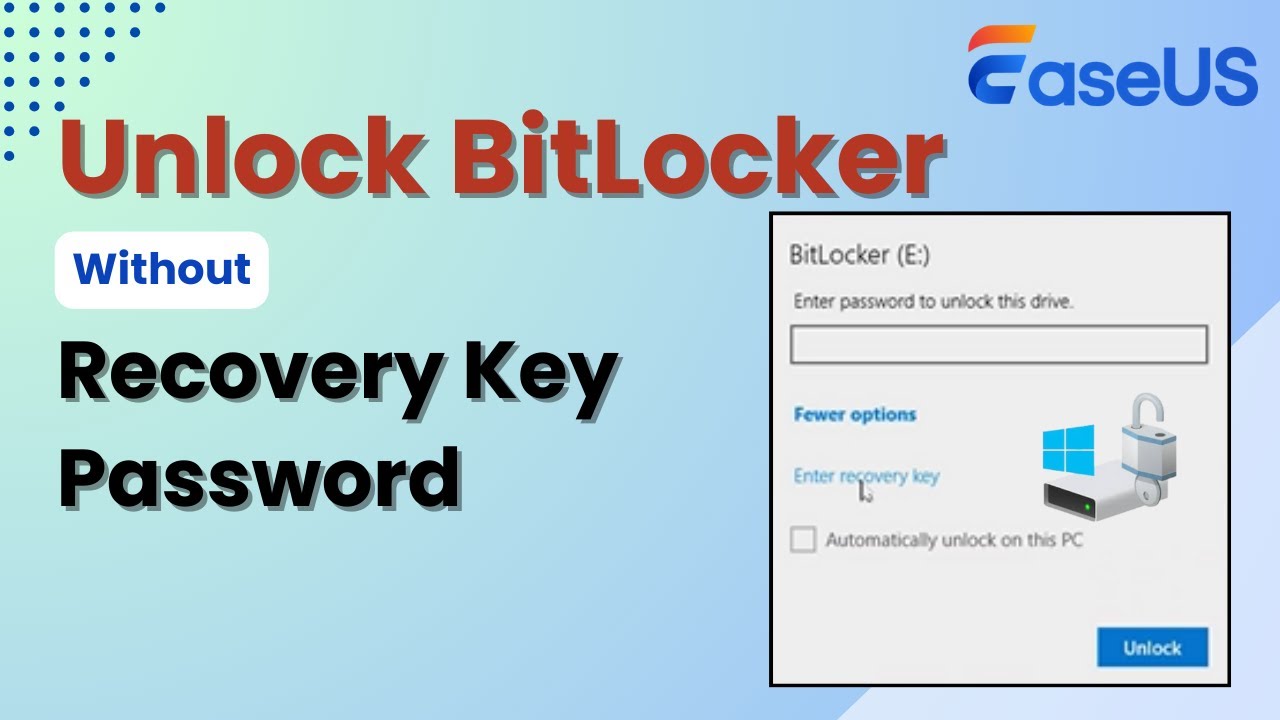
EaseUS data recovery tool helps retrieve crucial files from the encrypted disk before formatting. Even without the password or recovery key, this powerful and trusted tool can recover BitLocker-encrypted disk data. If the drive contains priceless data, this may save the day. Check out the following steps:
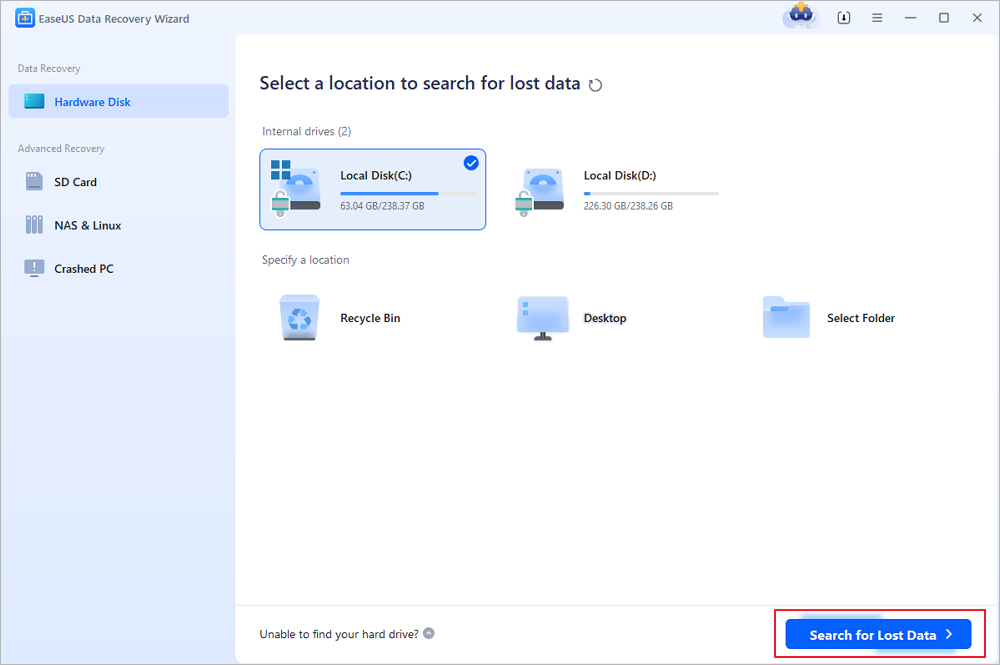
Step 1. Select a drive and scan for lost data
Start EaseUS Data Recovery Wizard and hover over the partition or storage device where the lost files were previously saved. Click "Search for Lost Data" to scan the selected location for recoverable data.
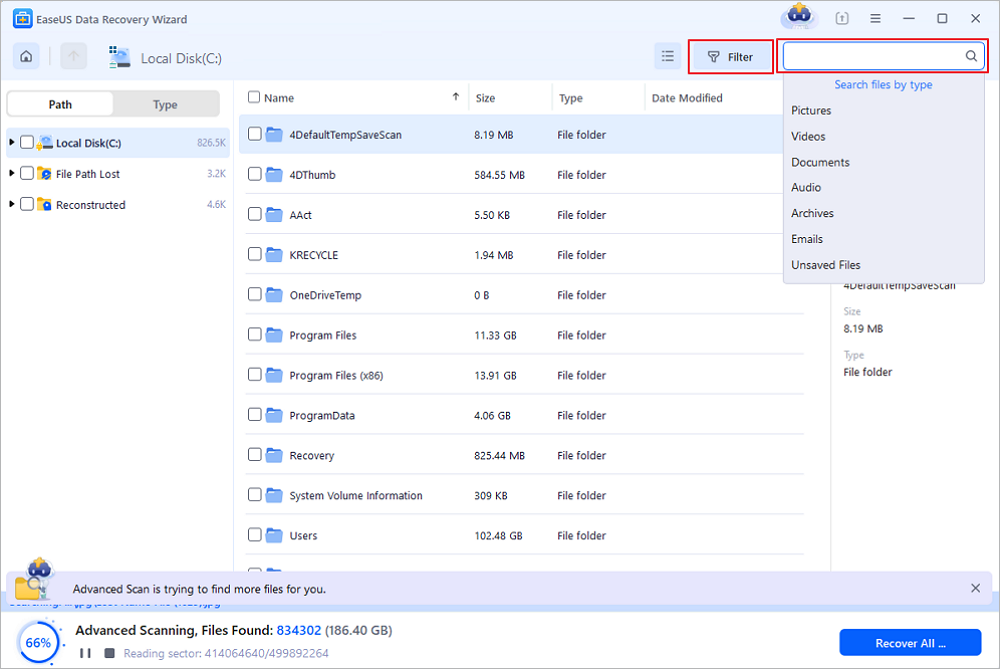
Step 2. Filter and select the files to restore
Once the scan is complete, browse the scan results and select the files (DOCX, XLSX, PDF, JPG, PNG, MP4, etc.) you want to recover. Apply the file type filter to narrow down the results, or use the search box to find files by name.
Step 3. Preview and save your recovered files
Preview the selected files to check whether they are the ones you need. Click "Recover" to restore them, then choose a safe destination different from the original drive. You can save the recovered files to another partition, an external hard drive, or a cloud service such as OneDrive or Google Drive.
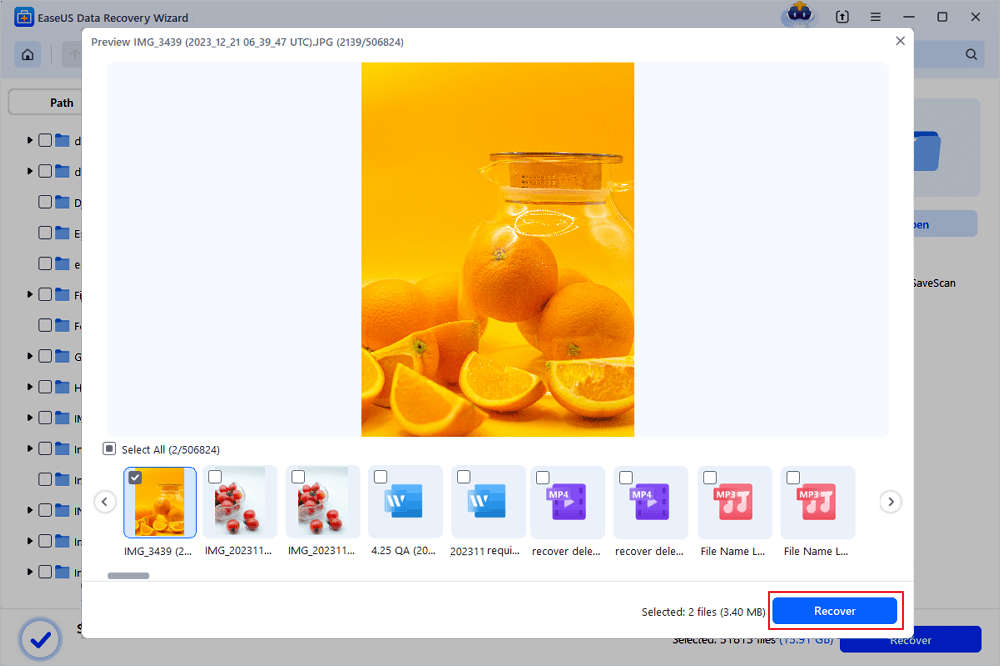
(Note: The free version allows you to recover up to 2GB of data. If your lost files fall within this limit, you can restore everyday documents, photos, and videos without purchasing a license. Select a destination folder to save your recovered files.)
The EaseUS Data Recovery Wizard can recover data from a BitLocker encrypted drive with key or without a recovery key and recover files from accidental deletion, formatting, and inaccessible disks. After recovering your data, you can utilize the following methods in this post to unlock a BitLocker drive without losing crucial data.
Following these instructions, you may deactivate BitLocker encryption and access your disk without a password or recovery key. Share this post to your friends on your SNS to help them learn how to unlock BitLocker drives without recovery keys and passwords for free!
3 Ways to Unlock BitLocker Without Recovery Key or Password [Free]
If you forget your BitLocker password and recovery key, opening your encrypted disk is difficult but achievable. Disabling BitLocker encryption lets you access the device without a password or recovery key. This method may take time, but it may unlock the disk and restore data. The instructions to deactivate BitLocker are below.
Fix 1. Disable the BitLocker Encryption Feature
If you wish to open a disk without the password or recovery key, disable BitLocker encryption first. This operation decrypts the whole disk, letting you access data without encryption. Depending on the disk size, it may take time, but this is a secure and reliable technique to return access. Follow the steps on how to Disable BitLocker:
Step 1. Open the "Control Panel" by pressing the Windows icon and typing Control Panel.
Step 2. Click "System and Security" in the Control Panel for further security options.
Step 3. Open "encryption management" settings by selecting "BitLocker Drive Encryption" from the list.
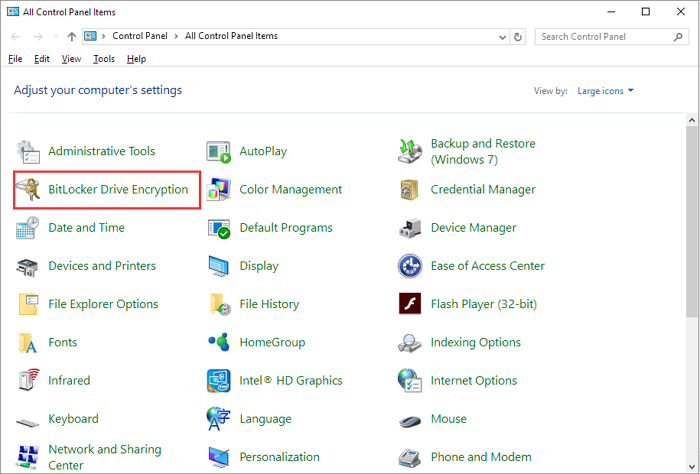
Step 4. Find the disk to deactivate encryption in BitLocker management. Choose "Turn Off BitLocker" under the drive's name.
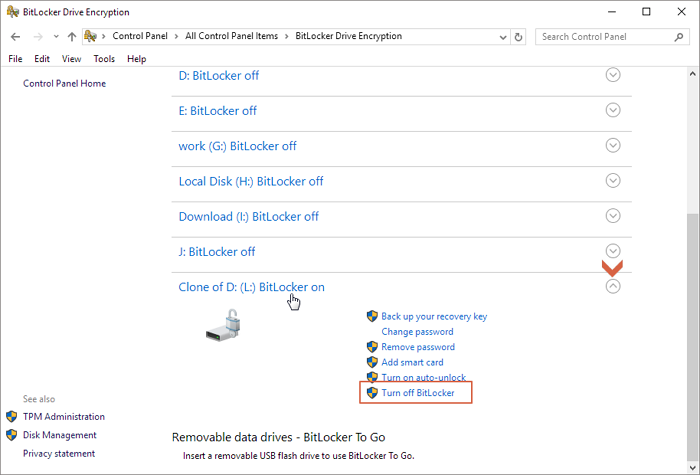
Step 5. System decryption begins. After decryption, your confirmation will be requested. To continue, click "Decrypt".
Step 6. Let the decryption finish. Depending on your disk size, this may take a while, but after it's done, BitLocker encryption will be disabled, allowing you to access your data without a password.
Fix 2. Format the Drive to Unlock BitLocker [Without Data Loss]
Format your disk if you've forgotten the BitLocker password and recovery key and can't unlock it. However, formatting a disk deletes all data. Data recovery software retrieves crucial files from the encrypted hard disk before formatting. Once your data is secure, format the disk to unlock it. File Explorer instructions for formatting BitLocker hard drives are below.
Step 1. Open "File Explorer" by pressing "Windows + E". This unlocks all system drives and folders.
Step 2. Locate the "BitLocker-encrypted disk" in File Explorer to unlock. Right-click the drive and choose "Format".
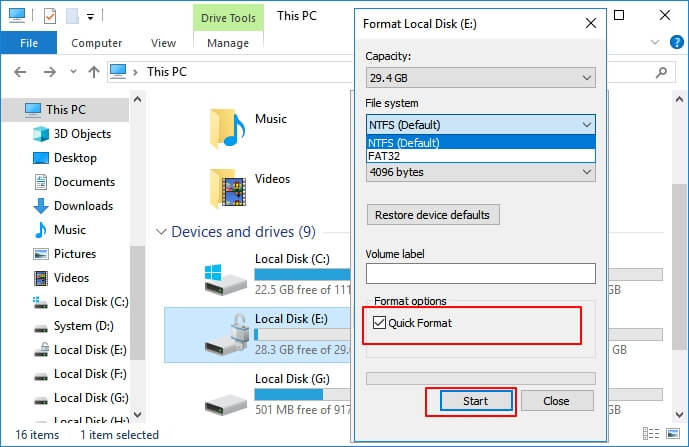
Step 3. Select "FAT32" from the File system menu. This file system is popular; however, "NTFS" is better for drives beyond 4GB.
Step 4. Enter a "custom Volume Label" to rename your drive. If you don't wish to rename it, keep the default label.
Step 5. Click "Start" to begin formatting. A notice will appear that all disk data will be deleted. Click OK to confirm and format your data if you have retrieved it or no longer require it.
After formatting, BitLocker encryption will be disabled, making the disk password—and recovery-free. However, formatting deletes all data, so you must recover it first.
Fix 3. Use CMD to Unlock BitLocker Without Recovery Key or Password
When you lose the recovery key or password, you may open your BitLocker-encrypted disk using Command Prompt (CMD). This method lets you manually manage partitions and clear the disk to remove BitLocker. Note that this will wipe all data; therefore, use EaseUS Data Recovery Wizard first. The CMD method to unlock BitLocker is below:
Step 1. Search for cmd in Start and choose Run as administrator. This grants drive and partition management rights.
Step 2. Enter the following command:
| diskpart |
Enter this command to list all available disks:
| list disk |
The list of system drives will appear. Find your BitLocker disk number.
Step 3. Select and Clean disk by entering the command below, substituting X with the drive number:
| Select disk X |
Then, type "clean" to erase all data from the specified disk.
Step 4. After cleaning, create a new partition by typing:
| Create partition primary |
Step 5. Type select partition X to format a new partition. Next, quickly format and label the drive (like C):
| format quick fs=NTFS assign letter C |
When done, restart your PC to apply the modifications. Without BitLocker, the drive should be accessible. This approach can unlock your BitLocker-encrypted disk, but you must back up or restore vital data first.
Conclusion
This article covers multiple ways to unlock BitLocker drives without a recovery key and password for free. Disabling BitLocker, formatting, or using Command Prompt may unlock your disk. Formatting or using CMD will lose data.
Before attempting to wipe your data, utilize a trusted data recovery program like EaseUS Data Recovery Wizard. Even when BitLocker is deactivated, EaseUS can recover crucial information from formatted or encrypted drives. Data loss sufferers need it since this tool is easy to use and trusted by millions.
Unlock BitLocker Drive Without Recovery Key and Password Free FAQs
Look at the FAQ answers to unlock BitLocker drive without the recovery key and password:
1. How do I unlock BitLocker if I forget my password and recovery key?
If you forget your BitLocker password and recovery key, you may open your disk in many ways. The Control Panel lets you deactivate BitLocker if the drive is available. If this fails, use Command Prompt or format the drive, which may erase data. Before starting, back up or recover your data using EaseUS Data Recovery Wizard.
2. How to recover data from BitLocker encrypted drive without password and recovery key?
Recovery from a BitLocker-encrypted disk without a password or key is difficult. However, the EaseUS Data Recovery Wizard can scan encrypted drives and retrieve lost information. This program recovers data if you can't access the disk. It efficiently recovers encrypted data before formatting or unlocking the disk.
Was this page helpful?

 Why Trust EaseUS
 Editor Reviews

20+
Years of experience

160+
Countries and regions

72 Million+
Downloads

4.9 +
Trustpilot Score