







Content
Page Table of Contents
About the Author
Hot Topics
You may search for BitLocker key recovery software when Windows asks for a recovery key or the PC will not start. The main purpose is to open the drive, find the right key, or recover your files.
If you are locked out of a BitLocker drive, don't worry. This guide explains what BitLocker key recovery software can do, and how to access a BitLocker drive without losing data on Windows 11/10. Keep reading if you are stuck on the BitLocker recovery screen, can't retrieve the recovery key, or need another way to unlock an encrypted drive after a BIOS update, hardware change, or system issue.
I'm having trouble finding my bitlocker recovery key
by u/AizakkuAdoman in WindowsHelp
What Is BitLocker Key Recovery Software?
BitLocker key recovery software is a tool that helps users find or access a saved BitLocker recovery key when a drive is locked. It helps users regain access to a BitLocker-encrypted drive by locating an existing recovery key or assisting in the recovery process. For example, a BitLocker key recovery can:
- Search for a saved BitLocker recovery key on your system.
- Create a bootable USB.
- Guide you through the steps to unlock an encrypted drive.
You need to know that BitLocker cannot be bypassed without a recovery key or password. BitLocker is built to protect data. It uses strong AES encryption designed to protect data. When users search for BitLocker key recovery software, they often mean BitLocker recovery software or a BitLocker unlock tool that helps them regain access.
BitLocker Key Recovery Software Free Download
If you forgot the BitLocker recovery key or want to bypass the BitLocker blue screen, EaseUS Partition Master is the main software to recommend. It helps you find the BitLocker recovery key or create a bootable USB to access the locked PC when Windows will not start. It supports Windows 11/10/8/8.1/7/XP/Vista.
EaseUS Partition Master is an excellent BitLocker manager software that helps users in the following cases:
- Find a saved BitLocker recovery key.
- PC is stuck on the BitLocker recovery screen.
- Windows will not boot after a BIOS update, hardware change, or system update.
- Create a bootable USB to access a locked computer.
- A simple way to manage BitLocker without random tools.
- Turn BitLocker on or off as part of disk management.
How to Use the BitLocker Key Recovery Tool
Guide 1. Find BitLocker Recovery Key Automatically
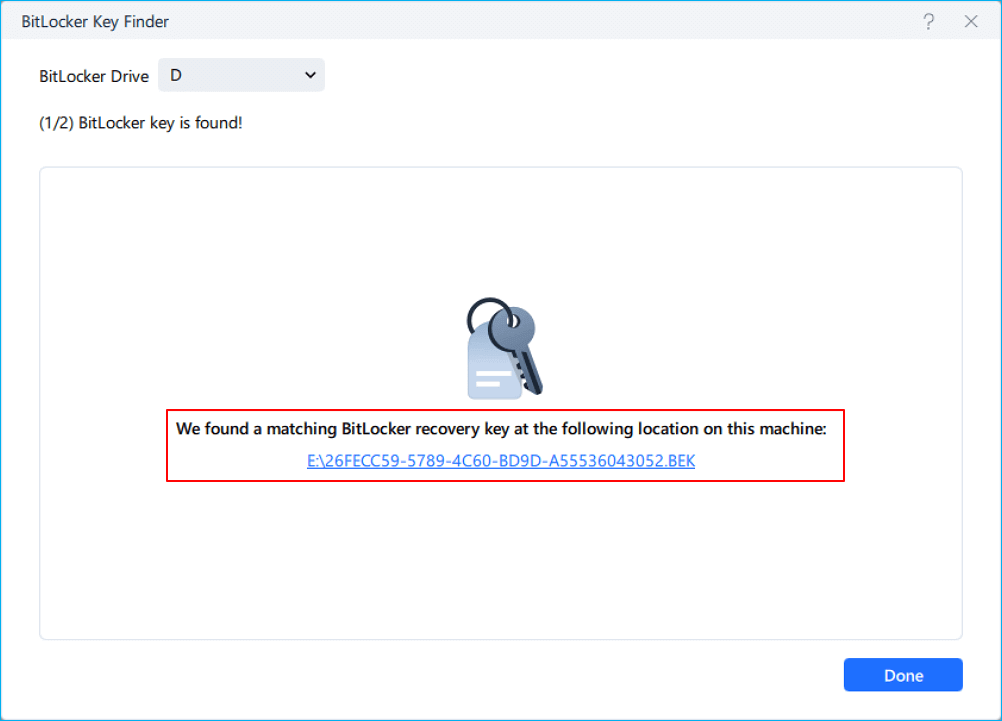
If your computer can still boot into Windows, EaseUS Partition Master can help you look for a saved BitLocker recovery key on the system. It includes a BitLocker key finder feature that scans the system for available recovery keys. This is useful when the key is already stored on the device, but you just cannot find it.
⚒️Apply to:
- Can still access Windows.
- Need to find the recovery key for an encrypted drive.
- Want a faster way to search for a saved key.
- Prefer not to check every place manually.
Step 1. Install and launch EaseUS Partition Master.
Step 2. Go to the "Built-in Toolkit" tab and choose "Retrieve BitLocker Password."
Step 3. The BitLocker key finder will automatically detect your encrypted drive. Click the "Find" button to search for the BitLocker recovery key on that drive.
Step 4. Once the search is complete, you can see the recovered BitLocker recovery key.
Guide 2. Bypass BitLocker Recovery Screen Without Logging In
Want to bypass the BitLocker recovery blue screen? If Windows will not start, the problem is harder. In that case, EaseUS Partition Master lets you create a bootable USB on another working Windows computer. You can then use it to start the locked PC and enter a recovery environment. This way, even if you don't have a BitLocker recovery key, you can access your computer.
⚒️Apply to:
- Stuck on the BitLocker recovery screen.
- Cannot log into Windows.
- Had a BIOS update, Windows update, or hardware change.
- Need another way to reach the recovery screen.
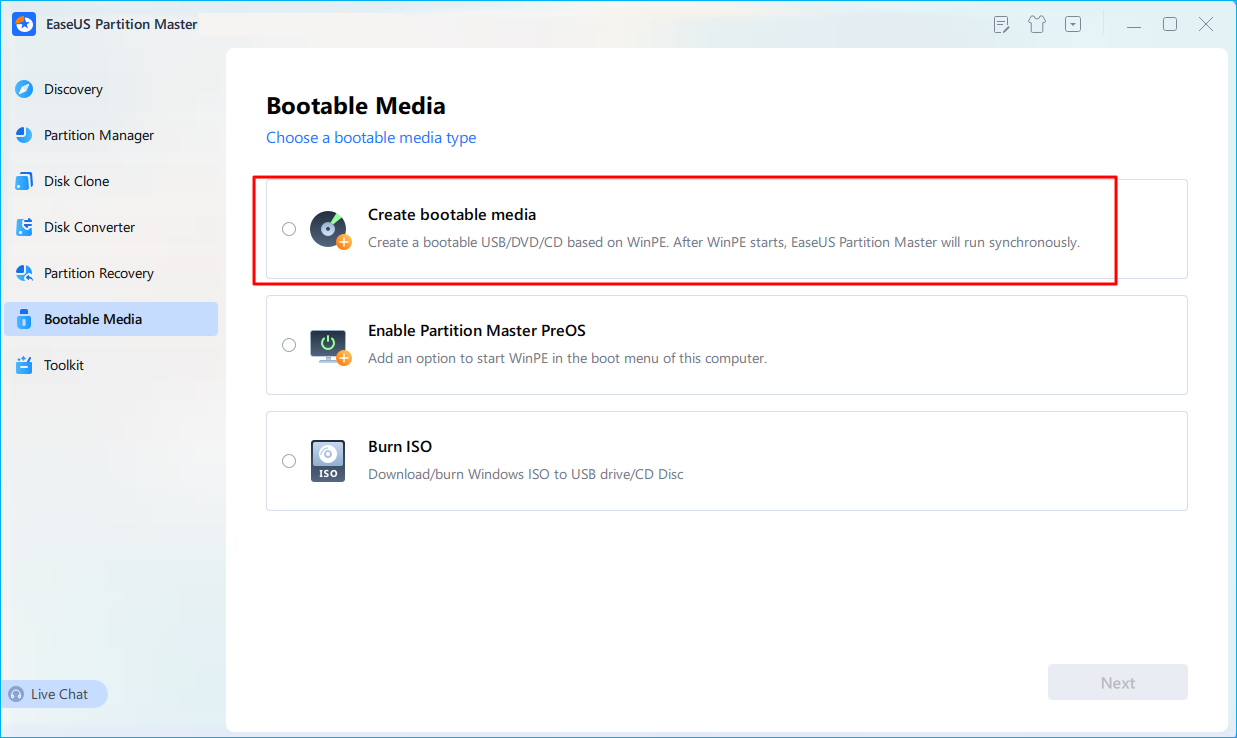
Step 1. First, connect a USB to the PC running properly. Launch EaseUS Partition Master, navigate to "Bootable Media" section, and click "Create bootable media" option. Click "Next" to continue.
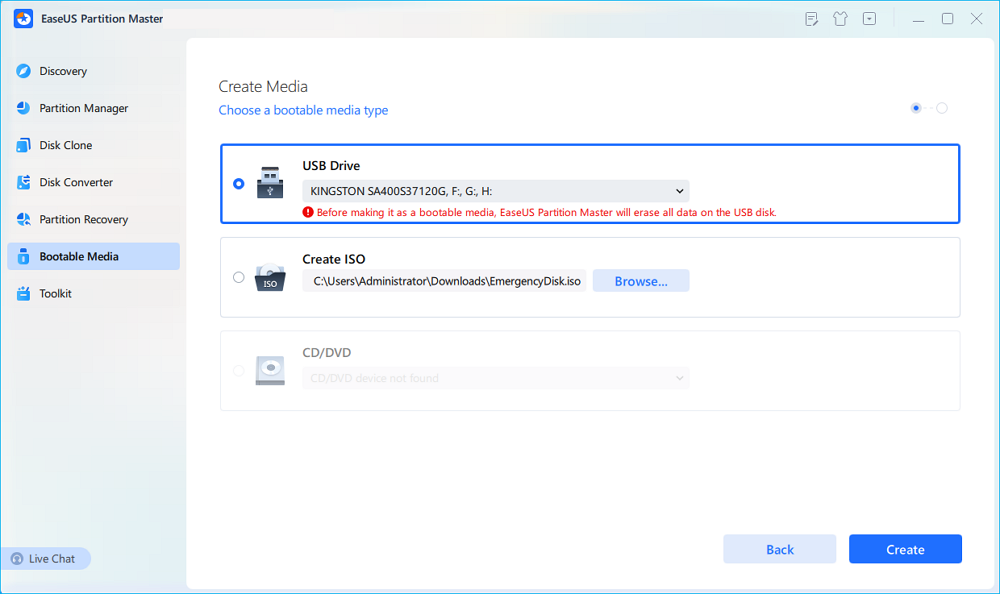
Step 2. Select the target USB drive and click "Create" to continue. Please back up your data in advance since this will erase all data on the USB drive. Then, click "yes" to confirm when you see the warning. Do not exit EaseUS Partition Master until it's done.
Step 3. Connect the bootable USB to the BitLocker encrypted PC and restart PC. During the reboot, press the BIOS key (F2/F8/F12/DEL/ESC) to access BIOS and set the bootable USB as the boot drive. This PC will automatically boot from the USB disk.
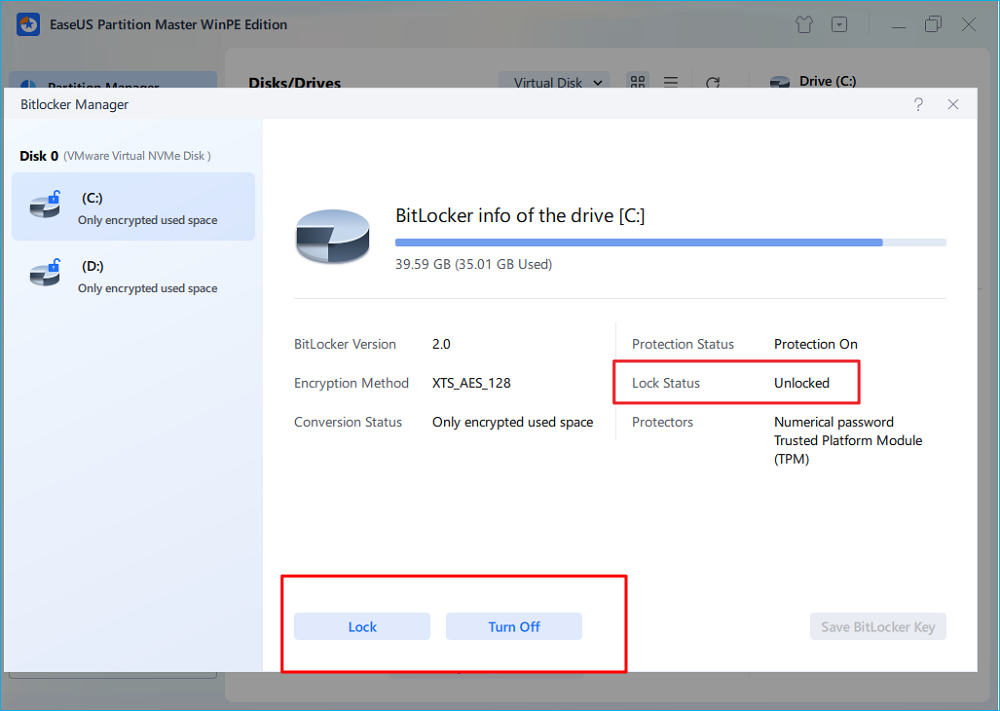
Step 4. EaseUS Partition Master will automatically unlock the BitLocker encrypted drive and you can see a "unlock" icon.
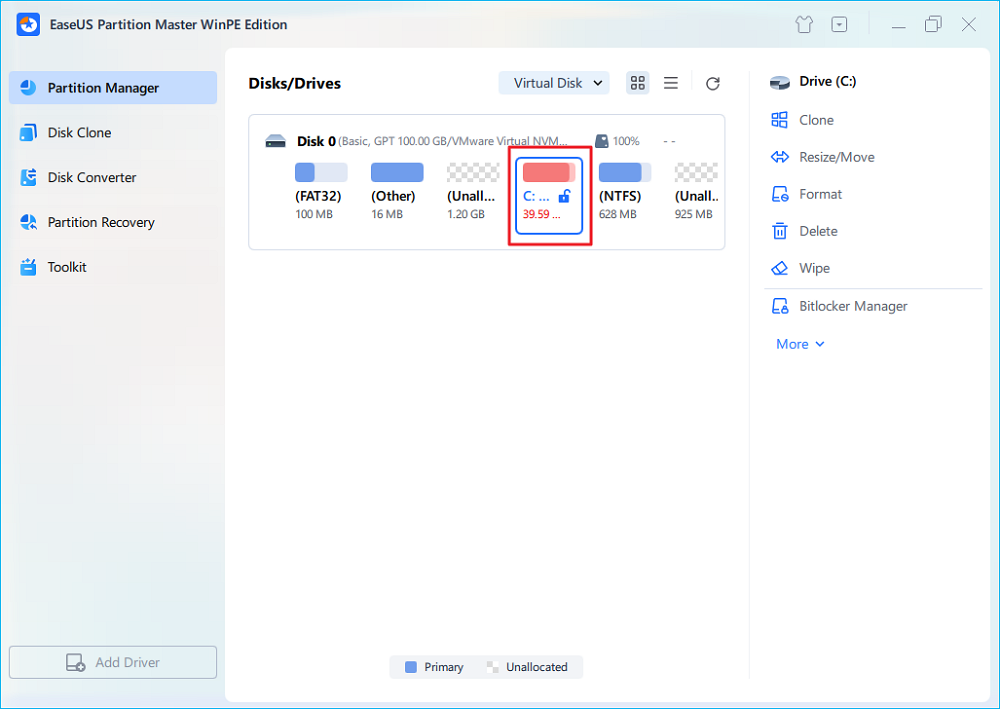
Step 5. Hover the mouse on the BitLocker partition; you can see more info of this partition and manage the BitLocker partition such as locking it or turning off BitLocker.
Bonus Tip: Where to Find BitLocker Recovery Key
When Windows fails to boot after a BIOS update, hardware change, or other system configuration change, it may start in the BitLocker recovery screen and ask for a recovery key. In many cases, the key is not lost. It may already be saved in a Microsoft account, a work or school account, a USB drive, a printed copy, or a file stored on the PC. You can also find the BitLocker recovery key manually.
The recovery key is the most direct way to unlock the drive. You can also find your BitLocker recovery keys in these ways:
- Microsoft account: Many personal devices save the recovery key here. So, this is often the first place to check if the PC belongs to one user.
- Work or school account: For work or school devices, the recovery key is often stored in the organization's directory. Contact your IT administrator or check your work account portal.
- Admin-managed devices: On corporate systems, the recovery key may be held by the organization, so contact the device administrator before trying other methods.
- USB drive or saved file: Some users back up the recovery key to a USB drive or export it as a text file for future use.
- Printed copy: Some users choose to print the recovery key and keep it physically.
To learn more about managing BitLocker and its recovery key, you may refer to the BitLocker troubleshooting help center.
Conclusion
Here, we discuss BitLocker key recovery software, which helps you regain access to a locked drive. In most cases, the best result comes from locating the recovery key or using a bootable recovery environment.
For users who want one practical tool, EaseUS Partition Master is a strong option. It can help retrieve a saved BitLocker recovery key and create a bootable USB when Windows will not boot. That makes it useful for common recovery cases.
FAQs
1. Can BitLocker be bypassed without a recovery key?
No, BitLocker cannot be bypassed without a valid recovery key or password. BitLocker uses strong AES encryption combined with hardware-based protection such as TPM. The safest path is to find the recovery key through Windows, a Microsoft account, a work or school account, or a saved file.
For a detailed guide, refer to this link: How to Unlock BitLocker Drive Without Recovery Key and Password.
2. Can I recover files from a BitLocker drive?
If you can unlock the drive, you can recover files from a BitLocker drive. The key point is to use the correct recovery method and avoid actions that could damage the disk.
3. Does BitLocker software work on system drives?
Some tools can help with recovery steps on system drives, but the result depends on whether you can access Windows or create a bootable recovery environment. EaseUS Partition Master is a professional tool for finding and unlocking BitLocker keys on system drives.
How Can We Help You
About the Author

Updated by Tracy King
Tracy became a member of the EaseUS content team in 2013. Being a technical writer for over 10 years, she is enthusiastic about sharing tips to assist readers in resolving complex issues in disk management, file transfer, PC & Mac performance optimization, etc., like an expert.

Written by Joey Albert
Joey is an enthusiast of science and technology. With a passion for uncovering the latest tech innovations, she creates clear, engaging how-to guides that make technology accessible and enjoyable for all.
Product Reviews
-
I love that the changes you make with EaseUS Partition Master Free aren't immediately applied to the disks. It makes it way easier to play out what will happen after you've made all the changes. I also think the overall look and feel of EaseUS Partition Master Free makes whatever you're doing with your computer's partitions easy.
Read More -
Partition Master Free can Resize, Move, Merge, Migrate, and Copy disks or partitions; convert to local, change label, defragment, check and explore partition; and much more. A premium upgrade adds free tech support and the ability to resize dynamic volumes.
Read More -
It won't hot image your drives or align them, but since it's coupled with a partition manager, it allows you do perform many tasks at once, instead of just cloning drives. You can move partitions around, resize them, defragment, and more, along with the other tools you'd expect from a cloning tool.
Read More
Related Articles
-
Windows 10 Boot Repair Tool: 2026 Best Pickes🔥
![Cici]() Cici/2026/10/29
Cici/2026/10/29 -
How to Unlock BitLocker in CMD Without Recovery Key
![Cici]() Cici/2026/10/29
Cici/2026/10/29 -
How to Reset Windows 7 Password with USB Drive - 3 Ways
![Sherly]() Sherly/2026/10/29
Sherly/2026/10/29 -
How to Wipe SSD without Windows
![Cici]() Cici/2026/10/29
Cici/2026/10/29
 Cici/2026/10/29
  Sherly/2026/10/29









