Page Table of Contents

How to Clone Hard Drive Without Technical Headaches
EaseUS Disk Copy and Clonezilla, both tools can clone a hard drive. But the real difference is how much time, setup, and troubleshooting the process actually takes.
🎯Quick Recommendation
| EaseUS Disk Copy | Clonezilla | |
| Interface | Graphical UI | Text-based |
| Best For | Windows users & beginners | Advanced / IT users |
| Setup | Easy | Easy Technical |
| Bootable USB | No Required | Optional Required |
| Clone to Smaller SSD | Simple & automated | Manual Configuration |
| Risk of Boot Issues | Low | Higher (if misconfigured) |
| Overall Experience | Fast & guided | Flexible but complex |
✅For Everyday Windows Users: EaseUS Disk Copy
- Upgrade an old HDD without reinstalling Windows
- Move everything to a new SSD with fewer steps
- Get a working boot drive quickly
- Easier for first-time cloning tasks
✅For More Technical Workflows: Clonezilla
- Popular among IT and power users
- Better suited for lab or deployment environments
- Flexible for advanced disk imaging tasks
- Preferred by users comfortable with manual setup
💻Quick Verdict: Which Tool Fits Your Workflow?
| 🎨If You Want To… | ➡️Better Choice |
| Upgrade HDD to SSD quickly | EaseUS Disk Copy |
| Use a completely free tool | Clonezilla |
| Avoid BIOS setup | EaseUS Disk Copy |
| Clone multiple enterprise machines | EaseUS Disk Copy |
| Clone a larger HDD to a smaller SSD | EaseUS Disk Copy |
| Use a beginner-friendly interface | EaseUS Disk Copy |
| Customize advanced deployment workflows | Clonezilla |
| Minimize setup and troubleshooting | EaseUS Disk Copy |
🧑🔬EaseUS Disk Copy vs Clonezilla: Real-World Experience Comparison
| EaseUS Disk Copy | Clonezilla | |
| Learning Curve | Beginner-friendly👍 | Steep |
| Interface Type | Graphical UI👍 | Text-based |
| Windows Compatibility | Optimized for Windows | Cross-platform👍 |
| Requires Bootable USB | No 👍 | Yes |
| SSD Alignment | Automatic👍 | Manual |
| Partition Resize During Clone | Automatic👍 | Manual |
| Clone HDD to Smaller SSD | Easier👍 | More Complex |
| Setup Time | Short👍 | Longer |
| Best for First-Time Users | Yes👍 | Not Ideal |
| Sector-by-Sector Clone | Supported | Supported |
📚How the Cloning Workflow Actually Feels
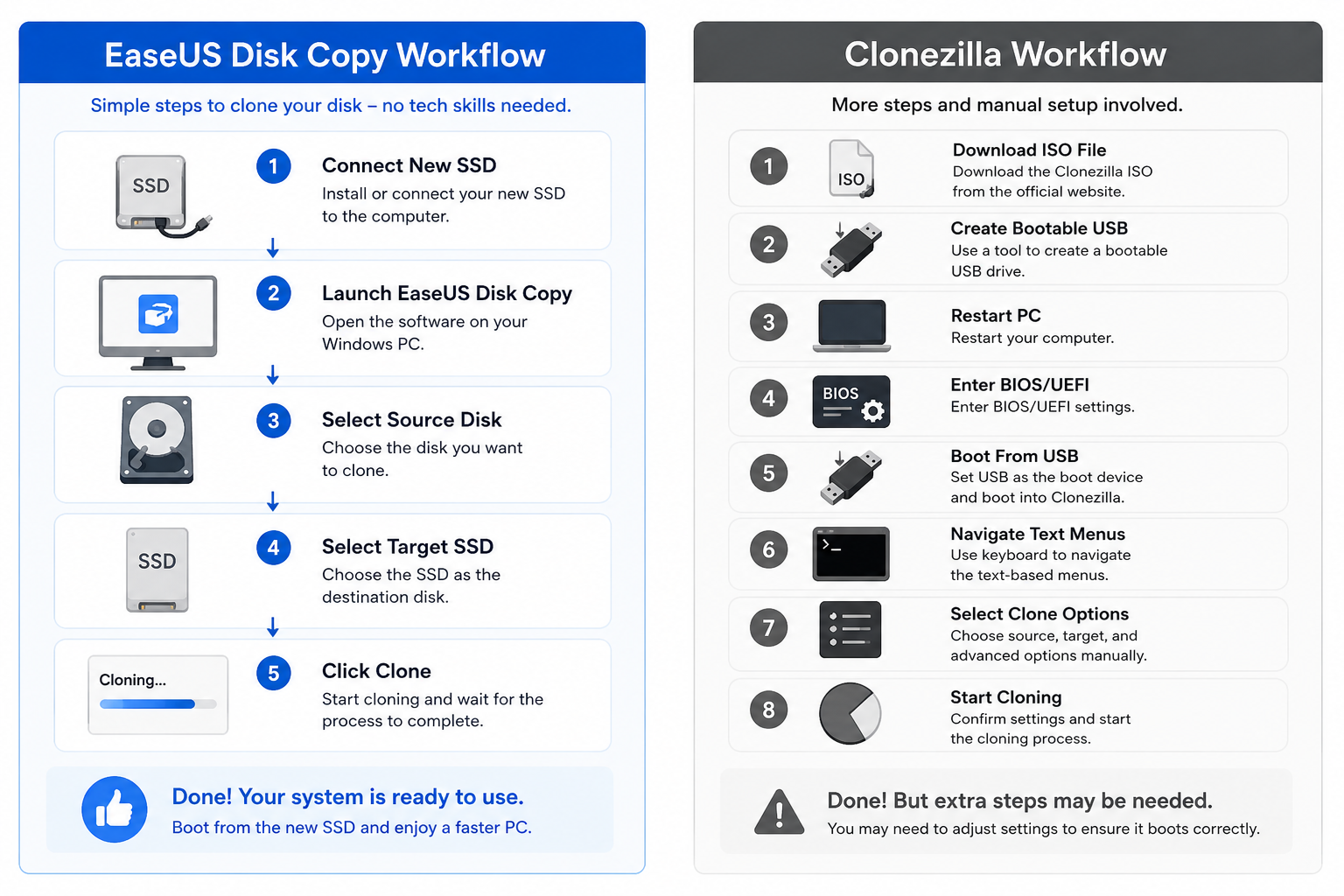
Disk cloning tools may achieve the same end result, but the actual migration experience can feel very different depending on the software you choose. Clonezilla requires bootable media, BIOS changes, and manual configuration, while EaseUS Disk Copy focuses on a simpler, more guided workflow. The comparison below shows what the real cloning process looks like with EaseUS Disk Copy and Clonezilla, from initial setup to completing the migration.
❓Why Some Users Look for a Clonezilla Alternative
Clonezilla is widely respected in the disk imaging and open-source community, especially among advanced users and IT professionals. However, for many everyday Windows users, the actual cloning process can feel more technical than expected. Tasks like creating bootable media, navigating text-based menus, or troubleshooting boot issues after cloning often become common pain points.
| Common Clonezilla Frustrations | |
| Issue | User Impact |
| Text-based interface | Difficult for beginners |
| BIOS/UEFI configuration | Extra setup complexity |
| Secure Boot conflicts | Failed startup issues |
| Manual partition resizing | Higher risk of mistakes |
| Boot failure after cloning | Extra troubleshooting |
| Limited beginner guidance | Longer learning process |
That's why many users start looking for alternatives with a simpler workflow and a more beginner-friendly experience.
| What EaseUS Disk Copy Simplifies | |
| Advantage | Benefit |
| Visual disk selection | Easier navigation |
| Simplified cloning steps | Faster workflow |
| Automatic SSD optimization | Better OS migration experience |
| Partition auto-adjustment | Easier smaller SSD cloning |
| Windows-focused workflow | Less technical setup |
| Cleaner onboarding | Lower learning curve |
🔍Can Both Tools Clone a Larger HDD to a Smaller SSD?
Yes, but the process is very different depending on the tool and how much manual configuration you're comfortable handling. Here are our test results using two tools to lcone a 1TB HDD to a 500GB SSD.
| Disk Cloning & Data Migration: 1TB HDD to 500GB SSD | ||
| EaseUS Disk Copy | Clonezilla | |
| Clone completed successfully | ✅ | ✅ |
| Automatic resize | ✅ | ❌ |
| Additional configuration needed | Minimal | More likely |
| Estimated setup time | Shorter | Longer |
💰Free vs Paid: What's the Real Cost?
At first glance, a free cloning tool may seem like the obvious choice. But in real-world disk migration scenarios, the actual cost often goes beyond the software itself. Setup complexity, failed boots, manual troubleshooting, and the time required to complete a successful clone can all impact the overall experience. For some users, paying for a simpler and more reliable workflow can ultimately save far more time and frustration during the migration process.
| Clonezilla | EaseUS Disk Copy | |
| Cost | Free | Paid |
| Time Required to Learn | Higher | Lower |
| Ease of Use | Technical | Beginner-friendly |
| Setup Complexity | Higher | Lower |
| Failed Clone Recovery Effort | More Likely | Less Likely |
| Overall User Convenience | Lower | Higher |
For many users, the biggest cost isn't the software itself, but the time spent troubleshooting failed boots, resizing partitions, or repeating the migration process.
⛳Final Verdict: EaseUS Disk Copy or Clonezilla?
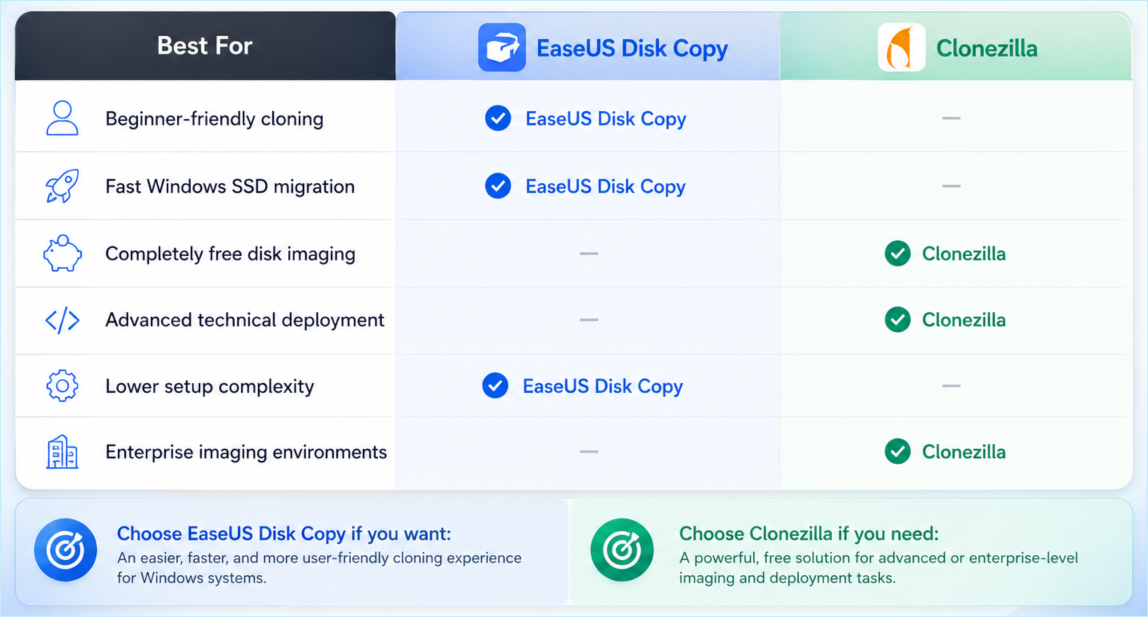
Clonezilla remains a powerful open-source cloning solution, especially for advanced users and deployment-heavy environments. But for many Windows users upgrading an HDD to SSD, EaseUS Disk Copy offers a significantly simpler workflow with less setup, fewer technical barriers, and a smoother migration experience overall.
Clone HDD to SSD With Less Setup and Fewer Risks. Start your disk migration with a simpler Windows-focused cloning workflow.
 Free Download
Windows 11/10/8/7
-
Updated by
![]()
Larissa
Larissa has rich experience in writing technical articles and is now a professional editor at EaseUS. She is good at writing articles about data recovery, disk cloning, disk partitioning, data backup, and other related knowledge. Her detailed and ultimate guides help users find effective solutions to their problems. She is fond of traveling, reading, and riding in her spare time.…Read full bio