Page Table of Contents

Upgrading to a new SSD or replacing an old hard drive usually means you'll need to move your Windows installation. 2 popular tools are Rescuezilla and EaseUS Disk Copy, but they're designed with different priorities in mind.
Rescuezilla is a free, bootable tool built for disk imaging, backup, and system recovery. EaseUS Disk Copy, by contrast, is designed specifically for disk cloning and Windows migration, making it easier to transfer your operating system to a new SSD without reinstalling Windows.
So which one is the better choice for your upgrade? In this comparison, we'll look at their features, ease of use, cloning performance, and the situations where each tool works best.
Rescuezilla vs EaseUS Disk Copy: Quick Answer
Rescuezilla and EaseUS Disk Copy can clone drives and migrate Windows to a new SSD, but they are designed for different types of users.
Rescuezilla is the better choice if you want a free, open-source tool with disk imaging and recovery capabilities. Its bootable environment makes it useful for system recovery as well as cloning.
EaseUS Disk Copy is better suited for users who want a simpler way to upgrade a drive. Its guided interface makes Windows migration easier, especially for beginners.
In short, choose Rescuezilla for flexibility and recovery features, or choose EaseUS Disk Copy for a more straightforward cloning experience.
EaseUS Disk Copy vs Rescuezilla at a Glance
| Feature | Rescuezilla | EaseUS Disk Copy |
| Pricing | Free/Open-source | Paid |
| Disk Cloning | Yes | Yes |
| System Migration | Yes | Yes |
| Hot Clone | No | Yes |
| Disk Imaging | Yes | Yes |
| SSD Alignment | Yes | Yes |
| Partition Resizing | Limited | Yes |
| Bad Sector Handling | Limited | Advanced |
| Backup & Restore | Yes | Limited |
| UEFI/GPT Support | Yes | Yes |
| Bootable Media | Required | Optional |
| WinPE Support | No | Yes |
| Technical Support | Community | Official Support |
| Ease of Use | Moderate | Easy |
| Best for | Free recovery, imaging, and cloning | Easy system migration and SSD upgrade |
Share this post to help others compare EaseUS Disk Copy and Rescuezilla!

Key Differences Between Rescuezilla and EaseUS Disk Copy
Although both tools can complete the same basic task-moving data from one drive to another-their designs are built around different user needs. Rescuezilla focuses on flexibility, recovery, and disk imaging, while EaseUS Disk Copy prioritizes a simpler migration or cloning experience. These differences become most noticeable when looking at how each tool handles the cloning process.
Workflow Comparison
The main difference between Rescuezilla and EaseUS Disk Copy is the way users start the cloning process.
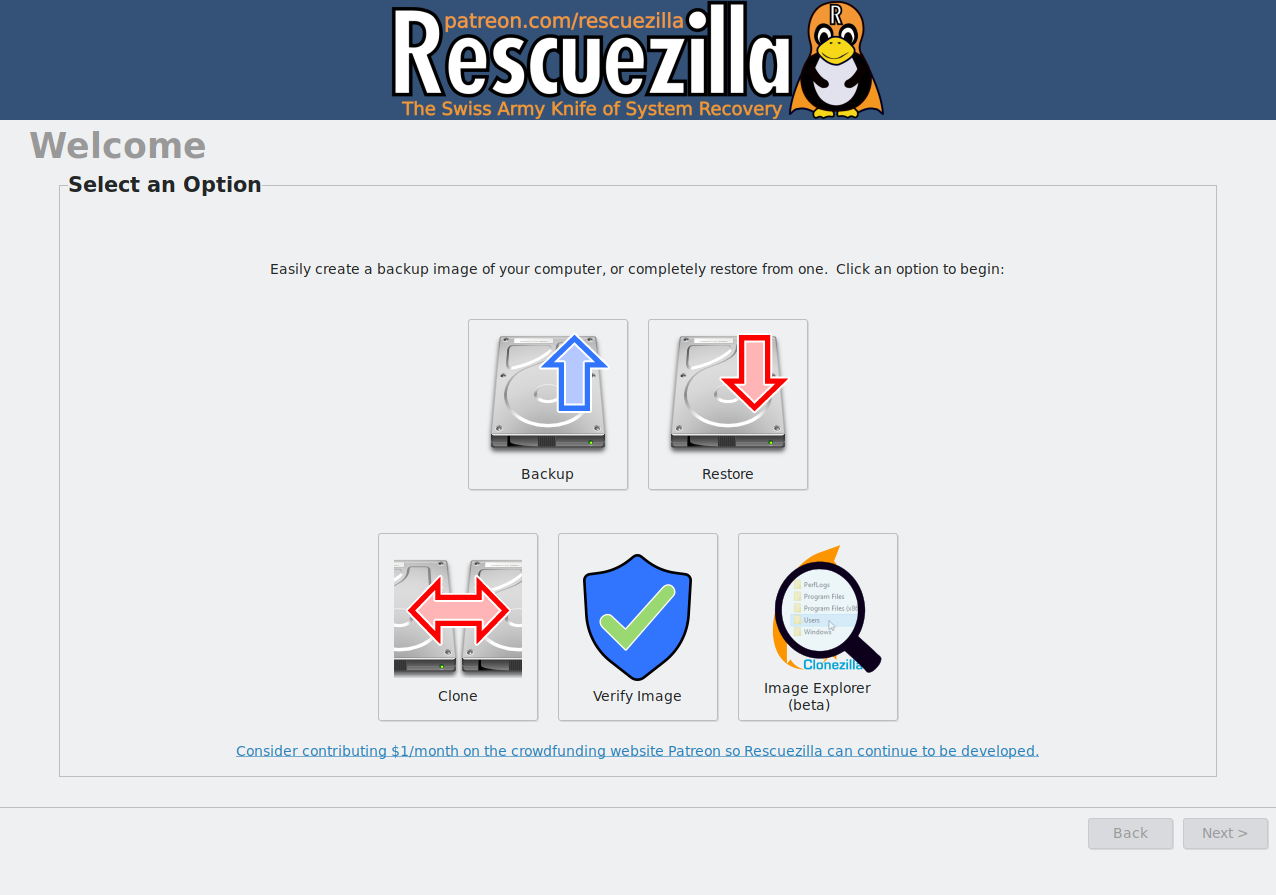
Rescuezilla runs from a bootable environment rather than directly inside Windows. Before cloning a drive, users need to download the Rescuezilla image, create a bootable USB drive, use it to restart the computer, and launch the tool from the USB device. This approach is similar to traditional recovery software and gives Rescuezilla access to drives even when the operating system cannot boot.
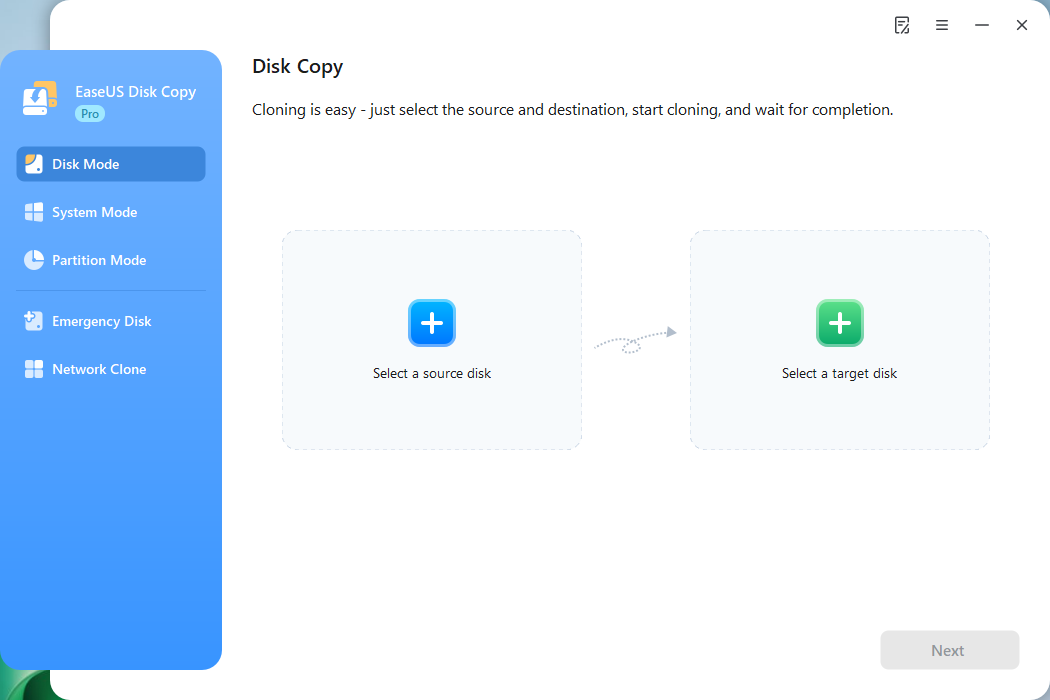
EaseUS Disk Copy takes a more familiar Windows-based approach. Users can install and launch the software, select the source and destination drives, and start the migration process through a graphical interface.
 Free Download
Windows 11/10/8/7
For experienced users who have worked with recovery tools before, Rescuezilla's workflow is straightforward. However, users upgrading an SSD for the first time may find EaseUS Disk Copy easier to understand because it follows a more typical Windows application experience.
Installation and Setup
The installation process reflects the different goals of each tool.
Rescuezilla does not require a traditional Windows installation. Instead, it runs as a portable recovery environment from a USB drive. This can be a major advantage when Windows is damaged, infected, or unable to start, since users can still access connected drives and perform cloning or recovery tasks.
EaseUS Disk Copy is designed for a simpler migration process. Most users can start with the Windows application without preparing bootable media first. If Windows cannot start, EaseUS also provides bootable media options for performing disk operations outside the normal operating system environment.
For regular SSD upgrades, EaseUS requires fewer preparation steps. For troubleshooting and recovery situations, Rescuezilla's bootable design provides more flexibility.
Ease of Use
Ease of use is one of the clearest differences between the two tools.
Rescuezilla is much more user-friendly than Clonezilla, which uses a text-based interface, but it still requires some basic knowledge of boot menus, BIOS/UEFI settings, and external boot devices. The interface is graphical, but the overall workflow is closer to a recovery tool than a standard Windows application.
EaseUS Disk Copy is designed for users who want a guided cloning process. The software provides step-by-step instructions, visual drive selection, and clearer migration options, making it easier for beginners to complete a disk upgrade.
For users who simply want to replace an old drive with a new SSD, EaseUS Disk Copy generally offers a smoother experience. Rescuezilla is better suited for users who also need backup, recovery, or imaging capabilities.
Share this post to help others compare EaseUS Disk Copy and Rescuezilla!
Disk Cloning Features: More Similar Than Different
When comparing the core cloning features, Rescuezilla and EaseUS Disk Copy are much closer than their different workflows might suggest.
Both tools can handle common migration tasks, including:
- Cloning HDD to SSD
- SSD to SSD migration
- Full disk cloning
- GPT and MBR partition styles
- UEFI-based systems
- SATA and NVMe SSDs
For a standard drive upgrade, such as replacing an old hard drive with a new SSD, either tool can complete the job successfully. The main difference is not what they can clone, but how they approach the task.
Rescuezilla treats cloning as part of a broader disk recovery workflow. In addition to cloning drives, it can create disk images, restore systems, and help recover data when Windows cannot boot.
EaseUS Disk Copy takes a more focused approach. It is built primarily for drive migration and replacement, with a simpler workflow designed to help users move an existing system to a new drive with minimal setup.
Performance and Reliability: Hardware Matters More
People often expect major speed differences between cloning applications, but the hardware involved usually has a much greater impact.
The read speed of the source drive, write speed of the destination drive, and connection interface often determine how quickly a clone can be completed. For example, a modern PCIe 4.0 NVMe SSD can typically transfer data much faster than an older SATA drive.
Under similar hardware conditions, the performance gap between Rescuezilla and EaseUS Disk Copy is usually less significant than the difference between the storage devices themselves.
Reliability depends heavily on the condition of the source drive and the compatibility of the target hardware. Rescuezilla benefits from the mature disk imaging technology behind the Clonezilla ecosystem, while EaseUS Disk Copy is designed around consistent system migration and drive replacement workflows.
Share this post to help others compare EaseUS Disk Copy and Rescuezilla!
Backup and Recovery: Where Rescuezilla Has the Edge
This is where the two tools differ the most.
Rescuezilla is more than a simple cloning application. It is a recovery-focused tool that combines disk cloning with disk imaging and restoration features. Users can:
- Create full disk images
- Restore previous images
- Recover systems when Windows cannot boot
- Work from offline recovery media
For users who need more than a one-time drive upgrade, these features make Rescuezilla a more flexible option.
EaseUS Disk Copy takes a more focused approach. It is designed mainly for disk cloning and system migration rather than ongoing backup management.
- Notice:
- Since Version 7.0, EaseUS Disk Copy lets users clone a disk to an image file and restore the image file to another drive.
Pricing: Free and Open Source vs Paid Software
Rescuezilla has a clear advantage when it comes to cost. It is completely free and open source, with no subscription or licensing fees.
EaseUS Disk Copy follows a commercial software model. While it provides a more guided user experience, full cloning features generally require a paid license.
For users who only need occasional cloning and are comfortable creating bootable media, Rescuezilla offers excellent value.
For users who prefer a simpler interface and official support, paying for EaseUS Disk Copy may be worthwhile.
Final Verdict: Which Tool Should You Choose?
Both Rescuezilla and EaseUS Disk Copy can handle drive cloning successfully, but they are designed for different types of users.
Choose Rescuezilla if:
- You prefer open-source software
- You need disk imaging and recovery features in addition to cloning
- You are comfortable using bootable recovery environments
- You want a free cloning solution
Choose EaseUS Disk Copy if:
- Your main goal is upgrading or replacing an SSD
- You want a guided and straightforward migration process
- You prefer a familiar Windows-based workflow
- You value convenience over advanced recovery features
For most users replacing an old drive with a new SSD, EaseUS Disk Copy offers the easier experience. For users who need a free recovery-focused tool with imaging capabilities, Rescuezilla is the more flexible choice.
Share this post to help others compare EaseUS Disk Copy and Rescuezilla!
FAQs on EaseUS vs Rescuezilla
1. Is Rescuezilla completely free?
Yes. Rescuezilla is free and open source. There are no subscription fees or paid licenses required to use the software.
2. Can Rescuezilla clone Windows to an SSD?
Yes. Rescuezilla can clone Windows installations to SSDs, including systems using GPT partitions and UEFI boot modes. It can also create and restore disk images when a full clone is not the preferred approach.
3. Does EaseUS Disk Copy require bootable media?
Not for most normal migration tasks. Users can usually start the cloning process from the Windows application. Bootable media is available for situations where Windows cannot start or offline disk operations are needed.
4. Which tool is better for beginners?
EaseUS Disk Copy is generally easier for first-time users because it provides a more guided workflow and does not require users to prepare a bootable environment before starting most cloning tasks.
5. Which software is better for backup and recovery?
Rescuezilla is the better choice for backup and recovery-related tasks because it focuses on disk imaging, restoration, and offline recovery workflows. EaseUS Disk Copy is primarily designed for cloning and migration, but it also has basic backup and restore functions since Version 7.0, which lets you clone a disk to image and restore that image.
-
Updated by
![Jerry]()
Jerry
"I hope my articles can help solve your technical problems. If you are interested in other articles, you can check the articles at the bottom of this page, and you can also check my Facebook to get additional help."…Read full bio