Page Table of Contents

When cloning encrypted hard drive, you might wonder if Clonezilla is up to the task. This guide from EaseUS covers everything you need to know about Clonezilla BitLocker drives and introduces an alternative method for cloning encrypted hard disks perfectly. Let's dive in!
PAGE CONTENT:
Can Clonezilla Clone an Encrypted Drive?
Clonezilla is a powerful, open-source disk cloning tool. Still, it has limitations regarding Windows encryption features or third-party encryption software like VeraCrypt, Secure IT, or AxCrypt.
By default, Clonezilla cannot clone a BitLocker-protected drive without decryption. When attempting to clone an encrypted hard drive, Clonezilla may recognize the drive as "unknown" or throw errors due to its inability to access encrypted data in its original format.
If you want to use Clonezilla to image or copy an encrypted HDD, SSD, USB drive, SD card, or other storage medium, you must temporarily disable BitLocker encryption. This ensures the data is accessible for cloning. Once the cloning is complete, you can re-enable BitLocker on the new drive to maintain its security.
However, if you cannot decrypt the drive - due to security concerns, time constraints, or not having access to the recovery key - you can use EaseUS Disk Copy. This software allows you to clone encrypted drives directly without requiring decryption.
 Free Download
Windows 11/10/8/7
Share this post to help more users with Clonezilla BitLocker drive!

How to Clonezilla BitLocker Drive Windows 11/10
Follow these steps to clone a BitLocker drive with Clonezilla. Keep in mind that encryption must be turned off first:
Step 1. Disable BitLocker encryption.
1. Click Start, type Control Panel, and open it.
2. Under System and Security, select BitLocker Drive Encryption from the list. (If you don't see this option, switch the view mode from Category to Large icons.)
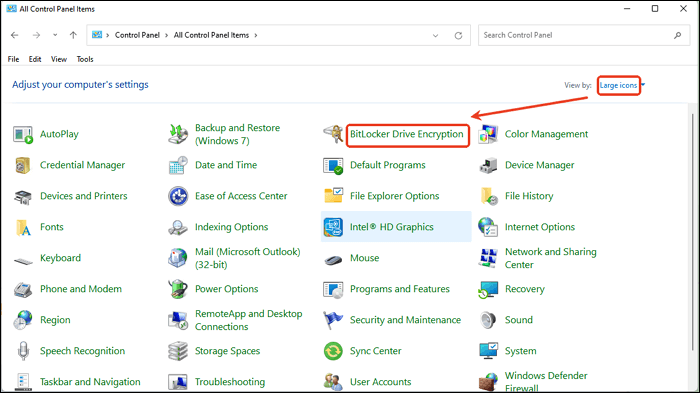
3. Choose the encrypted drive you want to clone and click Turn off BitLocker.
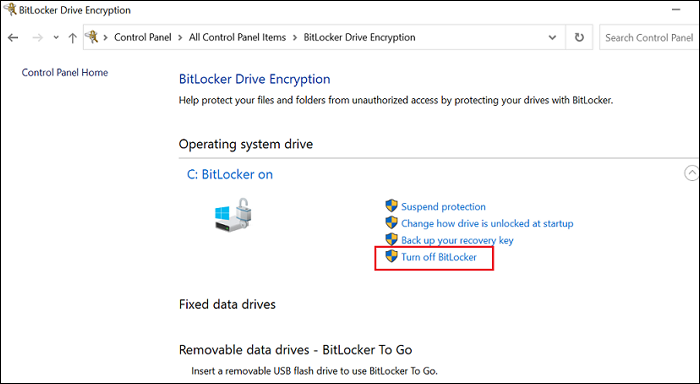
4. Wait for the decryption process to complete. This may take some time, depending on the size of the drive.
Step 2. Prepare Clonezilla.
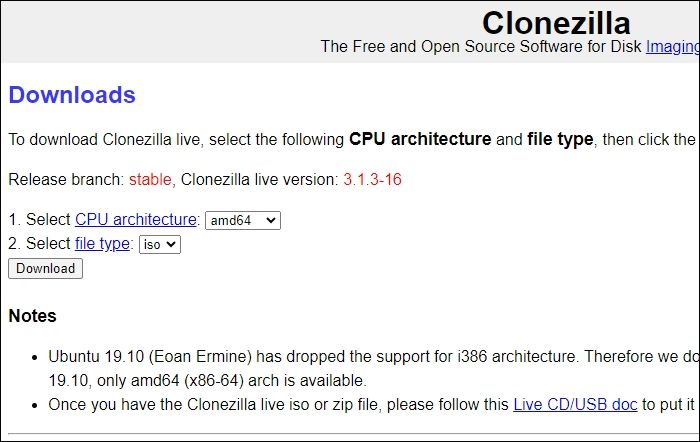
1. Download the Clonezilla ISO file from the official Clonezilla download website.
2. Create a bootable USB drive using tools like Rufus
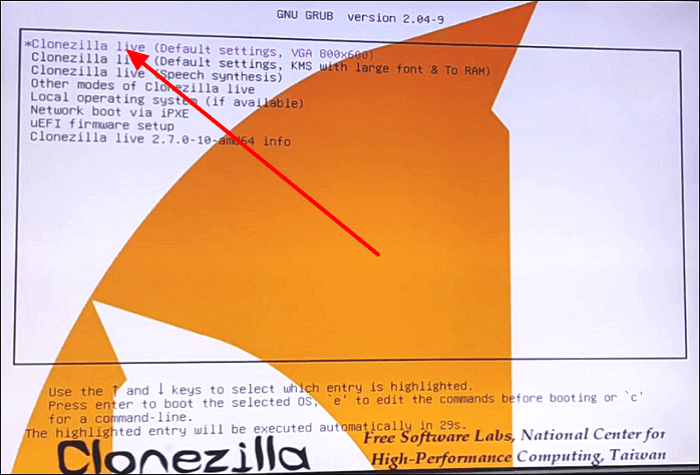
3. Boot your computer from the USB drive and select Clonezilla live from the menu.
Step 3. Clone the drive.
1. Follow the on-screen instructions in Clonezilla to choose the source (original drive) and destination (target drive).
2. Start the cloning process and wait for it to complete.
3. Reenable BitLocker encryption on the cloned drive if needed.
- Tip: For a step-by-step guide, refer to how to use Clonezilla to clone hard drive.
How to Clone Encrypted Hard Disk Without Decryption
If you'd rather clone an encrypted drive without turning off BitLocker, consider using EaseUS Disk Copy. This user-friendly Clonezilla alternative supports cloning encrypted drives without requiring passwords, fingerprints, or other decryption methods.
Free Download
Windows 11/10/8/7
EaseUS disk cloning software uses sector-by-sector clone technology to copy locked or encrypted drives to larger ones without data loss or boot issues.
Steps to clone an encrypted drive with EaseUS Disk Copy.
Before cloning:
- If your computer has only one slot, connect the target disk to your machine via a USB-to-SATA/NVMe adapter.
- If your computer has an extra slot, install the target disk into the empty slot properly, and make sure it is compatible.
Step 1. Launch EaseUS Disk Copy and choose Disk Mode.
Install EaseUS Disk Copy cloning software on your Windows computer, then launch it and select Disk Mode from the left panel.

Step 2. Select the source drive.
Select the drive you want to copy, then click Select.
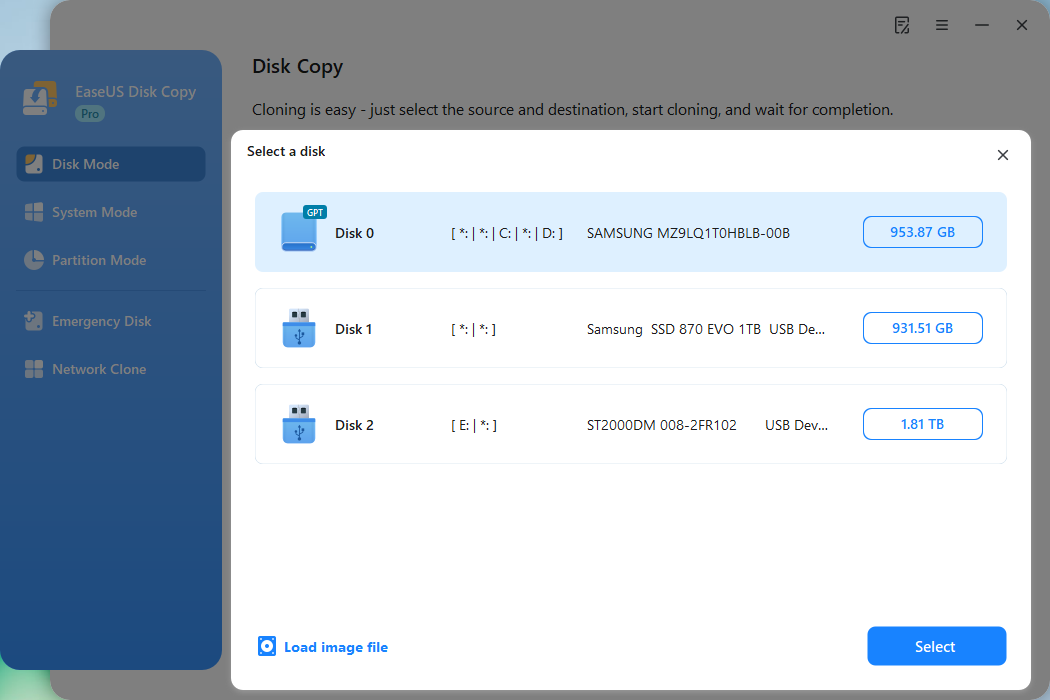
Step 3. Choose the target disk.
Choose the disk that you want to clone data to, and click Select. Note that the used space of the source disk should be less than the target disk capacity.
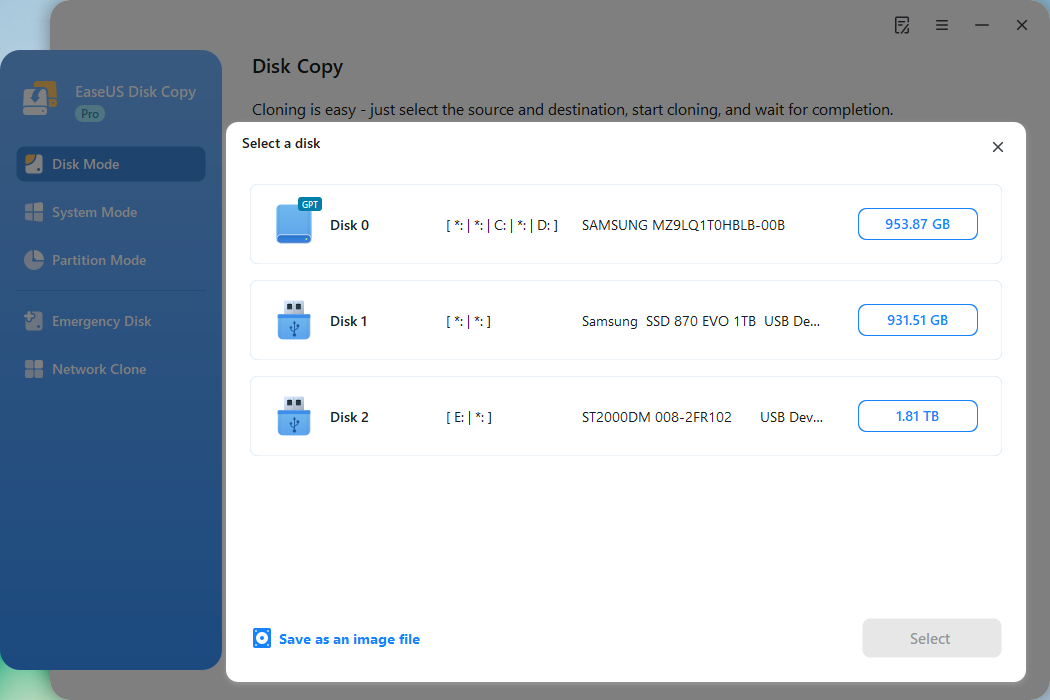
*At this step, you can also click the option "Save as an image file" to store your disk as a compressed image file, which can be restored without any data loss.
Step 4. Adjust disk layout.
Specify the target disk layout as your preference. You can choose among:
- Autofit the disk: makes some changes by default on the destination disk layout so that it can work at its best.
- Copy as the source: create a 1-to-1 copy of your source disk; the layout is the same as the source disk.
- Edit disk layout: allows you to manually resize/move the partition layout on this destination disk.
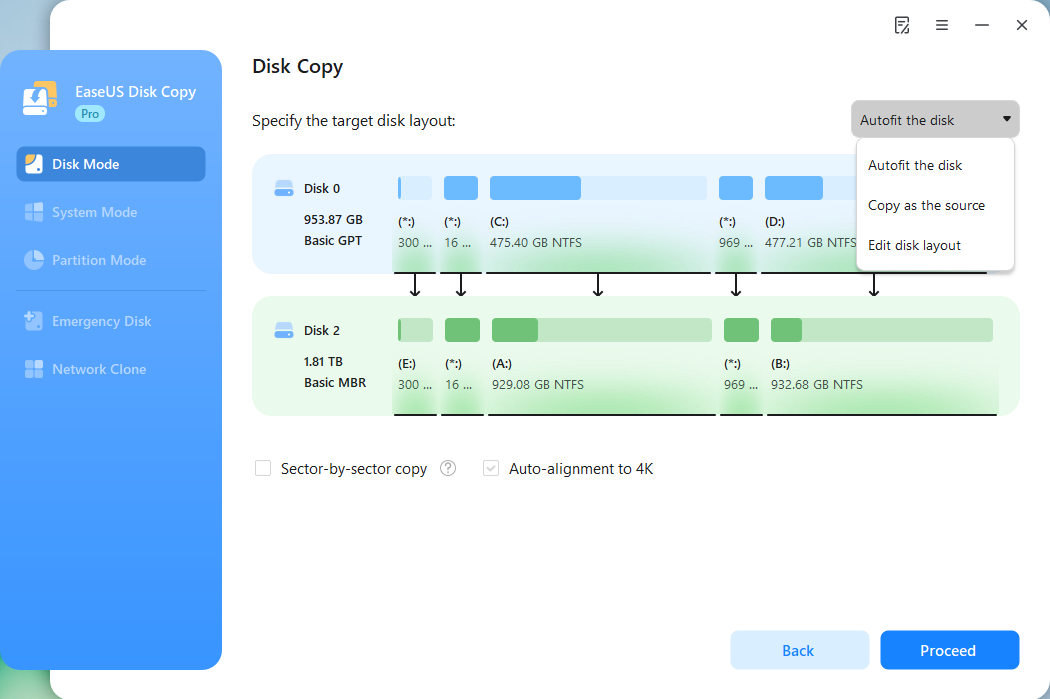
*If the target disk is an SSD, the option "Auto-alignment to 4K" will be checked automatically to optimize the performance of your SSD.
Step 5. Start cloning.
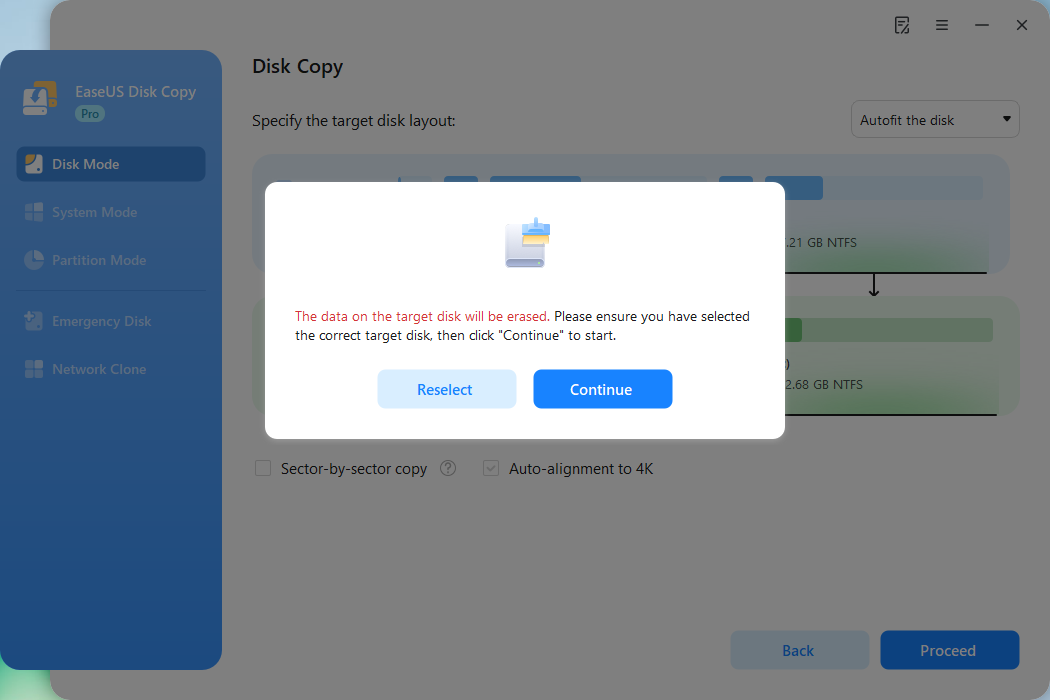
Click Proceed, and a message will appear, warning you that data will be lost. Confirm the message by clicking Continue.
Now, it will start executing the cloning task.
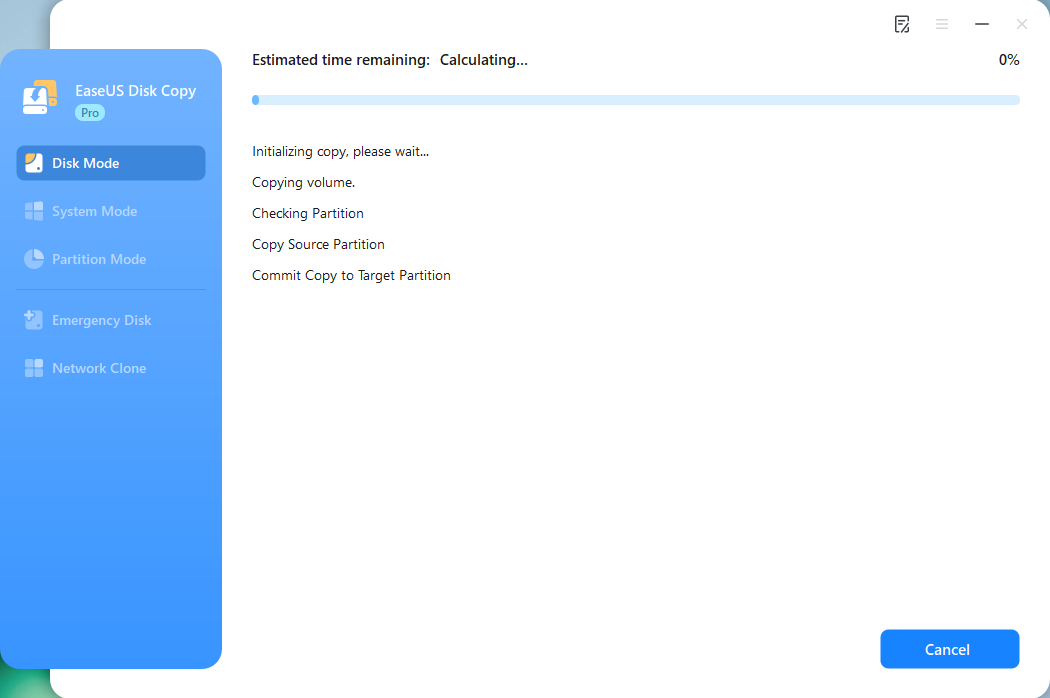
*The time it takes to clone a hard drive depends on how much data is on the source disk, and it will also be affected by the disk types, USB connection, etc.
- Notice: While EaseUS Disk Copy can clone encrypted drives, ensure the drive is decrypted if it contains an operating system. This will help avoid booting issues on the cloned drive.
Share this post to help more users with Clonezilla BitLocker drive!
Final Words
Cloning a BitLocker-encrypted drive can seem daunting, but it's entirely manageable with the right tools.
Clonezilla BitLocker drive works well if you're comfortable temporarily disabling encryption, while EaseUS Disk Copy offers a seamless option for cloning without decryption.
Choose the method that best suits your needs and ensure your data remains secure throughout the process.
Free Download
Windows 11/10/8/7
Clonezilla Encrypted Drive FAQs
There are three questions about how to image and clone a BitLocker drive. Please check for more details.
1. Is there a way to decrypt a BitLocker drive?
You can decrypt a BitLocker drive by turning off BitLocker encryption. To do so:
Step 1. Open the Control Panel.
Step 2. Click BitLocker Drive Encryption under System and Security. (If you don't see this option, switch the view mode to Large icons.)
Step 3. Select the BitLocker-protected drive and click Turn Off BitLocker.
Step 4. Follow the prompts to decrypt the drive.
2. Does formatting a drive remove BitLocker encryption?
Formatting a drive does not remove BitLocker encryption. If you format a BitLocker-encrypted drive without decrypting it first, the data remains inaccessible unless you have the recovery key.
3. How much time will it take to decrypt BitLocker?
The time it takes to decrypt a BitLocker drive depends on the drive's size and the speed of your computer. Typically, it can range from a few minutes to several hours for larger drives.
-
Updated by
Jean is recognized as one of the most professional writers in EaseUS. She has kept improving her writing skills over the past 10 years and helped millions of her readers solve their tech problems on PC, Mac, and iOS devices. …Read full bio