Page Table of Contents

A disk image is a copy of an entire hard drive saved as an image file, rather than transferred directly to another HDD or SSD. You can store it on an external drive and use it to restore your Windows system, recover data, or prepare for a hard drive replacement.
But how does disk imaging work, and how is it different from regular disk cloning? This guide covers the basics and explains how to clone a disk to an image and restore it later in Windows 11/10/8/7.
What Does It Mean to Clone a Disk to an Image?
Cloning a disk to an image means copying the contents of a hard drive into a single image file instead of transferring them directly to another physical drive. You can save this image file on an external HDD, SSD, or other storage device and use it later to restore the original disk.
For example, if your computer has a 1TB SSD with Windows, installed programs, personal files, and multiple partitions, you can image the entire drive and save it to an external hard drive. If the original SSD fails or needs replacing, you can use that image to restore your data to another drive.
What Is a Disk Image?
A disk image is a file that stores a copy of a storage device's contents and, depending on the imaging method, its partition structure. Typically, a disk image can include:
- Windows and its system files
- Installed applications and related data
- Personal files, folders, and documents
- Boot, system, and recovery partitions
- Partition layout and other disk information
Disk images are usually saved in a format specific to the disk imaging software. Some tools also compress image files to reduce storage requirements.
What Does a Disk-to-Image Actually Save?
What a disk image contains depends on the imaging method you choose.
Most imaging methods copy the used data on a disk while preserving its partition structure. Some tools also offer sector-by-sector imaging, which copies both used and unused sectors. This approach can take longer and requires more storage space.
For most users backing up Windows, applications, and personal files, a standard disk image is usually sufficient. Copying every sector is generally unnecessary unless you have a specific reason to preserve the entire disk at that level.
Can You Boot Directly from a Disk Image?
Generally, no. A disk image is a backup file stored on another storage device, not a bootable replacement for your original HDD or SSD. To use the image as a system drive, first restore it to a compatible physical disk. Once the restoration is complete, you can install the drive in your computer and boot from it.
In short, creating a disk image saves a copy of your drive for future use, while restoring it puts that data back onto a physical disk.
Share this article on social media to help others clone a disk to an image file!

How to Clone a Disk to an Image in Windows
Not all disk cloning tools support creating disk image files. With the right software, you can save an entire disk as a compressed image file on an external storage device instead of copying it directly to another drive.
For Windows users, EaseUS Disk Copy includes a "Save as an image file" option for this purpose. It lets you clone a disk to a compressed image file rather than copying the source disk directly to another physical drive.
 Free Download
Windows 11/10/8/7
Here is how to use EaseUS Disk Copy to clone a hard drive to an image file:
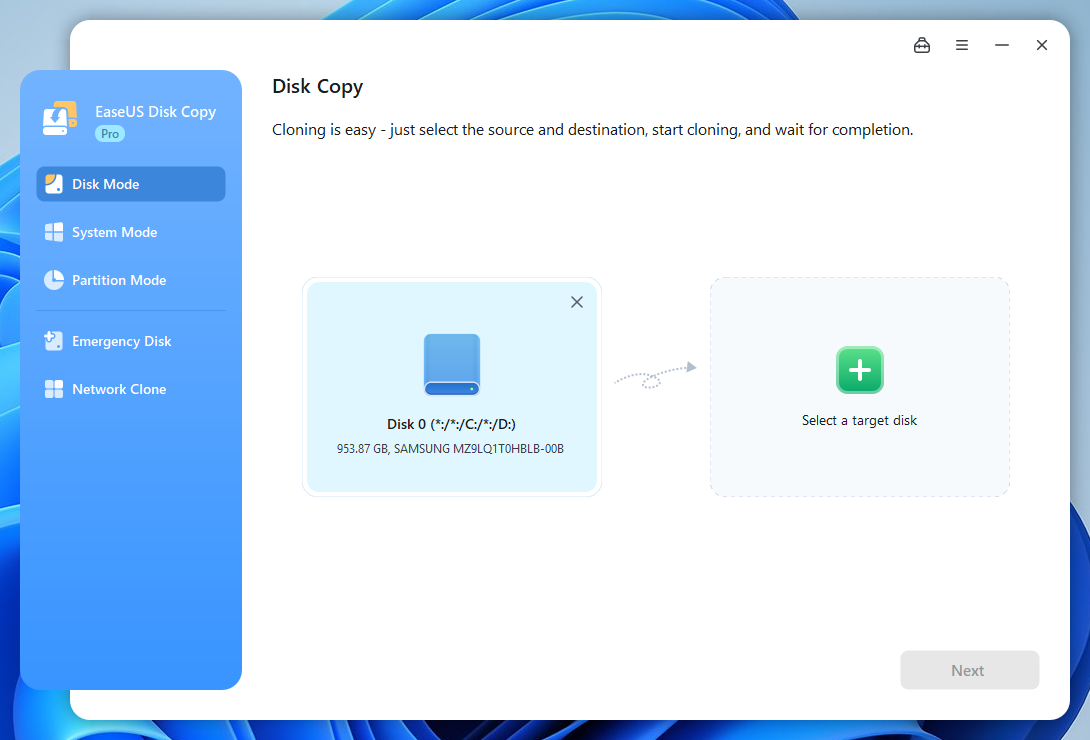
Step 1. Open EaseUS Disk Copy and Select the Source Disk
- Download and install EaseUS Disk Copy on your Windows PC. Launch the program and select Disk Mode.
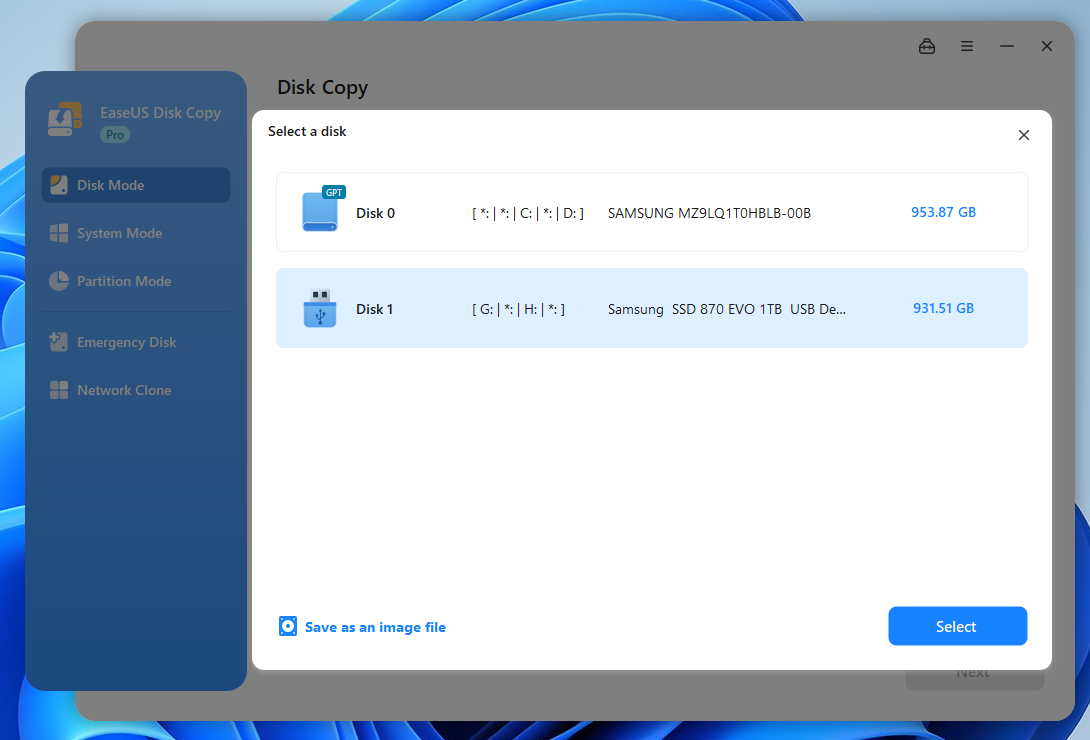
Step 2. Choose Save as an Image File
- After selecting the source disk, click "Select a target disk". Instead of selecting a physical drive, choose Save as an image file to save the disk contents as a compressed image file.
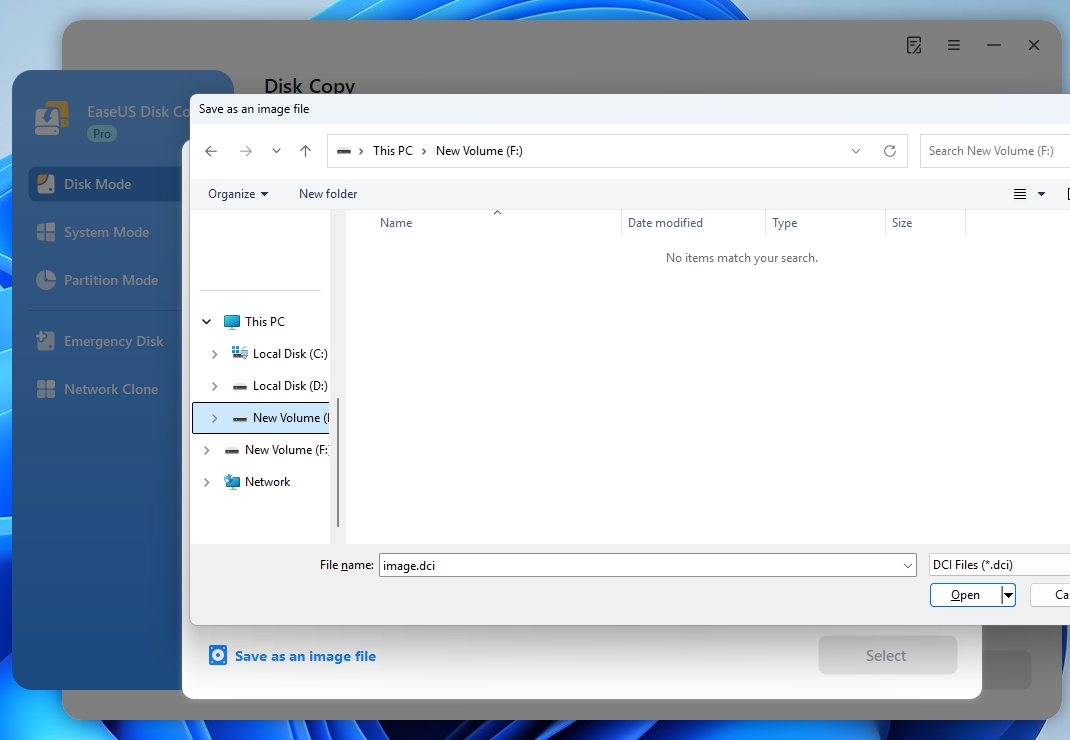
Step 3. Choose Where to Save the Disk Image File
- Select a location for the image file.
Step 4. Confirm the Settings and Clone Disk to Image
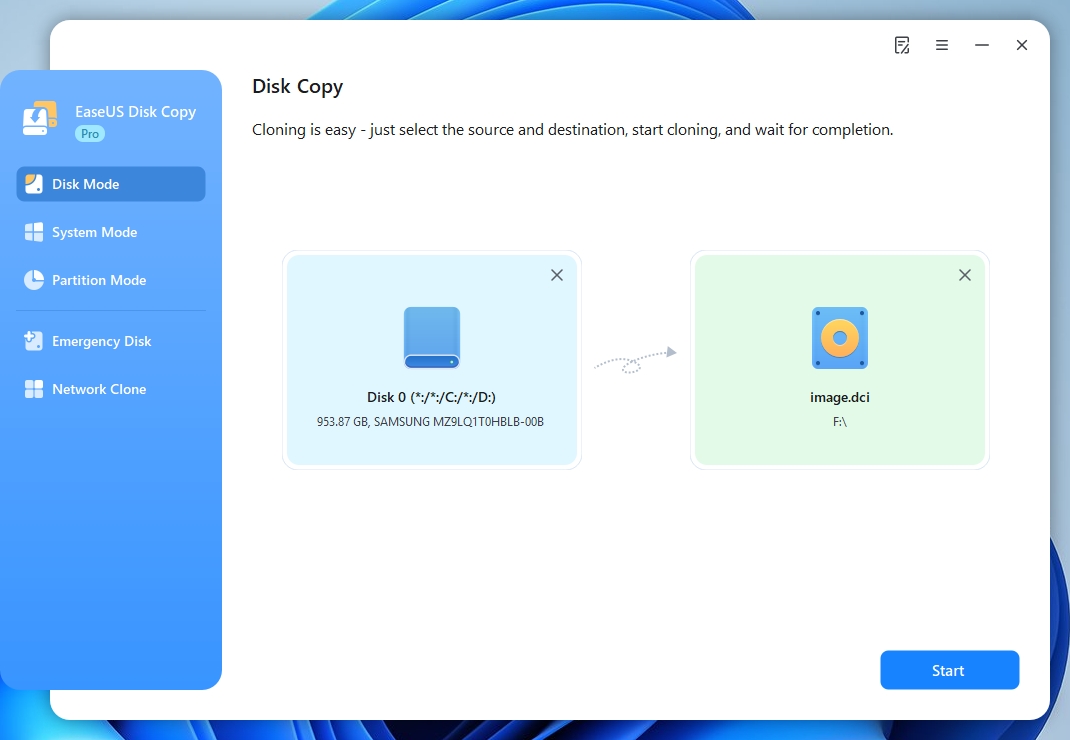
- Review your selections and follow the on-screen instructions. Click Start to clone a disk to an image file.
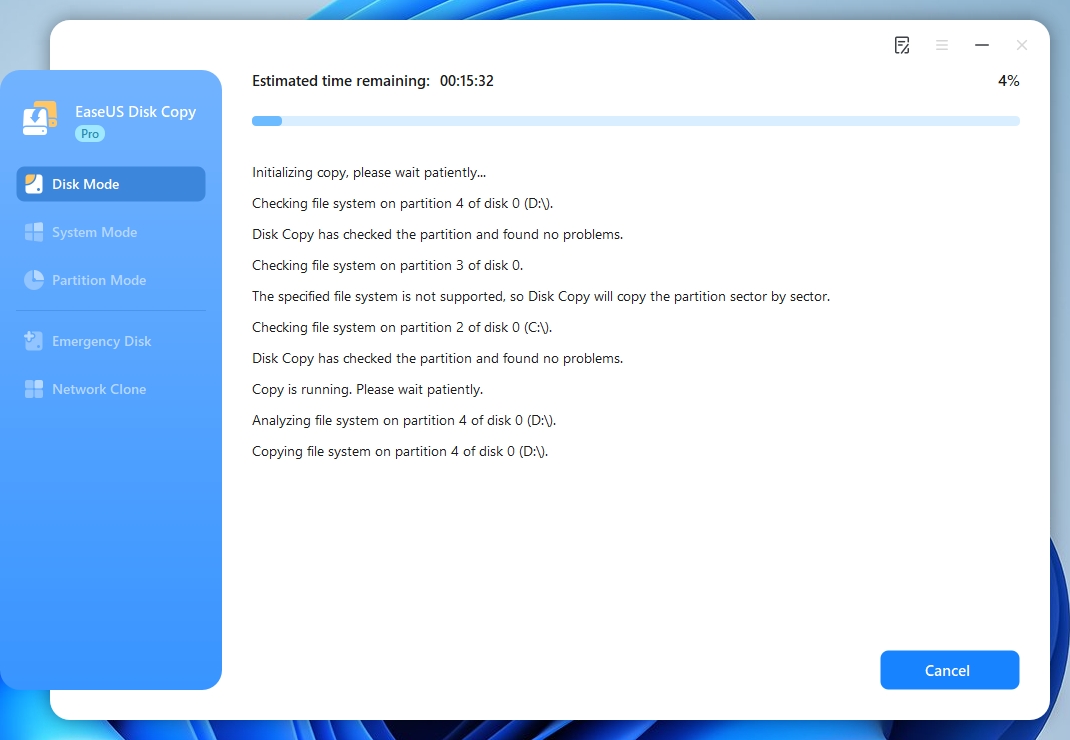
The process may take some time, depending on the amount of data, drive speed, and connection type. Disk Copy will show the status, such as the estimated time remaining and progress. (I spent about 20 minutes cloning my system disk (about 350 GB of data) to the image file.)
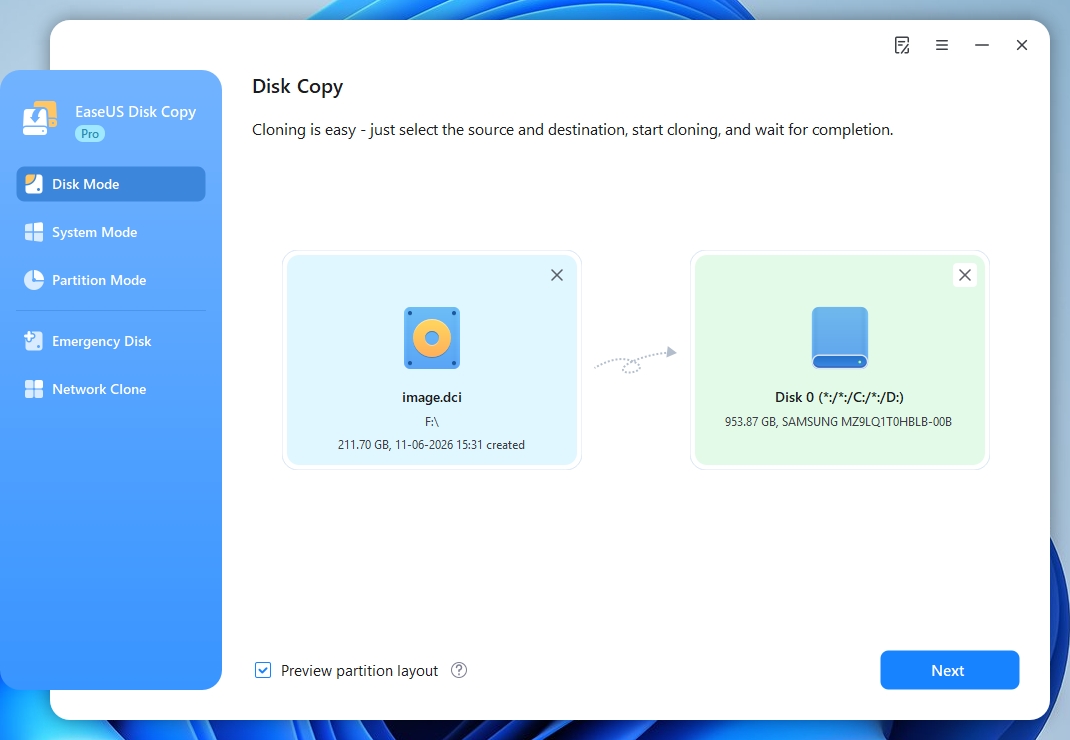
To restore the disk image file to a new HDD or SSD, choose "Load image file" after clicking "Select a source disk" in EaseUS Disk Copy. Then select the created image file and select the target disk. Then follow the on-screen instructions to restore the disk image to another drive and boot from the target disk.
Share this article on social media to help others clone a disk to an image file!
Disk-to-Image vs. Disk-to-Disk Clone vs. Regular Backup
Disk imaging, disk cloning, and regular file backup all help protect your data, but they serve different purposes. The main differences are how they copy data, where they store it, and how you restore it.
Disk-to-Image vs. Disk-to-Disk Cloning
The key difference is the destination.
Disk-to-image saves a copy of a drive as an image file (usually a compressed image file that is smaller than the source drive), which you can store on an external drive or another storage location for future recovery.
Disk-to-disk cloning copies data directly from one physical drive to another. Once cloning is complete, you can use the destination drive as a replacement, as long as the hardware and boot configuration are compatible.
| Comparison | Disk-to-Image | Disk-to-Disk Cloning |
| Destination | Image file | Physical HDD or SSD |
| Main purpose | Backup and recovery | Disk replacement or upgrade |
| Ready-to-use replacement drive | No | Yes, after successful cloning |
| Restore required | Yes | No |
If you plan to replace an HDD with an SSD right away, disk-to-disk cloning is usually more convenient. If you want to keep a copy of your current system for future recovery, disk imaging is a better option.
Disk Image vs. Regular File Backup
A regular file backup typically saves selected files and folders, such as documents, photos, and videos. A disk image can preserve a much broader set of data, including Windows, installed applications, and partition information.
| Comparison | Disk Image | Regular File Backup |
| Personal files | Yes | Yes |
| Windows system files | Yes, can be included | Usually not |
| Installed applications | Yes, can be included | Usually not |
| Partition information | Yes, can be preserved | No |
| Full system recovery | Yes | No |
For example, if Windows becomes corrupted, restoring individual files won't restore your previous Windows installation or installed programs. A suitable system disk image can help restore the system to its previous state.
Neither method replaces the other. A disk image is useful for full-system recovery, while regular file backups are better for protecting frequently updated personal files.
Share this article on social media to help others clone a disk to an image file!
Conclusion
Cloning a disk to an image is a practical way to keep a copy of your entire drive for future recovery. Whether you're preparing for a Windows update, replacing an aging HDD, or protecting your current system setup, a disk image lets you restore your data without starting from scratch.
If you want to save your drive as an image file, EaseUS Disk Copy offers a Save as an image file option that lets you create a compressed disk image. Choose a suitable storage location, keep your image file safe, and make sure you know how to restore it when needed.
Free Download
Windows 11/10/8/7
FAQs about Cloning a Disk to an Image
1. Is Cloning a Disk to an Image the Same as Creating a Backup?
Disk-to-image cloning is a type of backup that saves a copy of an entire drive as an image file. Unlike regular file backups, it can preserve Windows, installed applications, personal files, and partition information.
2. Can I Create a Disk Image While Windows Is Running?
Yes. Many disk imaging tools can image a Windows system drive while the operating system is running. They typically use snapshot technology to capture disk data without requiring you to shut down Windows. Some tools may require a bootable environment instead, so check the software's requirements before starting.
3. Can I Restore a Disk Image to a Different Computer?
Yes, but it depends on the imaging software and the target computer's hardware. Differences in storage drivers, boot modes, and hardware configurations may prevent Windows from starting after restoration. You may also need to install additional drivers or reactivate Windows.
4. Can I Use a Disk Image to Replace My Old SSD?
Yes. You can restore a disk image to a new SSD and use it to replace your old drive. Make sure the new SSD has enough usable capacity and that the restored system is compatible with your computer's hardware and boot configuration. Once restoration is complete, you can install the new SSD and boot from it.
5. What Is the Difference Between an ISO File and a Disk Image?
An ISO file is a type of disk image commonly used to store the contents of optical discs, such as Windows installation media. A hard drive image, on the other hand, can contain an entire HDD or SSD, including its partitions, system files, and personal data. Although both are image files, they serve different purposes and are not interchangeable in most cases.
-
Updated by
![Jerry]()
Jerry
"I hope my articles can help solve your technical problems. If you are interested in other articles, you can check the articles at the bottom of this page, and you can also check my Facebook to get additional help."…Read full bio