Page Table of Contents

If your Windows computer suddenly fails to boot or your hard drive crashes, reinstalling Windows and restoring your programs, settings, and files can be time-consuming. Creating a disk image in advance can help you recover your system without starting from scratch. In this guide, you'll learn how to clone Windows to an image file and restore it when needed.
What Does It Mean to Clone Windows to an Image File?
Cloning Windows to an image file means creating a backup of your existing Windows system and saving it as a disk image on another storage device.
Depending on the backup scope and software used, the image can include your Windows installation, installed programs, system settings, personal files, and essential system partitions required for recovery.
Unlike cloning Windows directly to another SSD or HDD, disk imaging saves the system as a single image file rather than transferring it directly to another drive. You can store this file on an external hard drive, another internal drive, or other supported storage media.
This makes it easier to preserve your current Windows environment and restore it later if your system becomes unbootable or your drive fails.
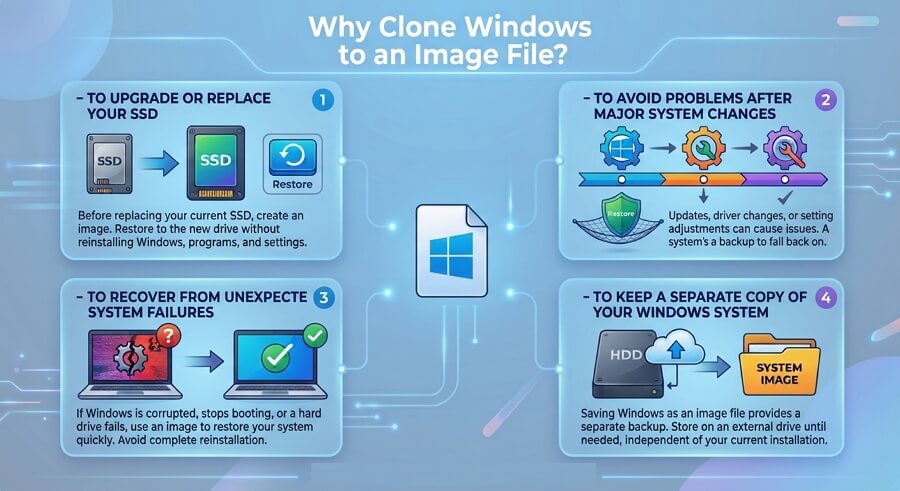
Why Clone Windows to an Image File?
Creating a Windows image can be useful in several situations, especially when you want to keep your current system safe or make recovery easier.
How to Clone Windows to Image Using EaseUS Disk Copy
If you want to save your Windows system as an image file, EaseUS Disk Copy is worth considering. It's one of the few disk cloning tools that offers a disk-to-image feature.
 Free Download
Windows 11/10/8/7
With its "Save as an image file" option, you can save your Windows system as an image file instead of cloning the entire disk directly to another drive. This gives you a backup that you can keep for future recovery.
Here is how to use EaseUS disk cloning software to clone Windows system to an image file:
Step 1. Open EaseUS Disk Copy and Select System Mode
- Install and open EaseUS Disk Copy on your Windows computer, then select System Mode.
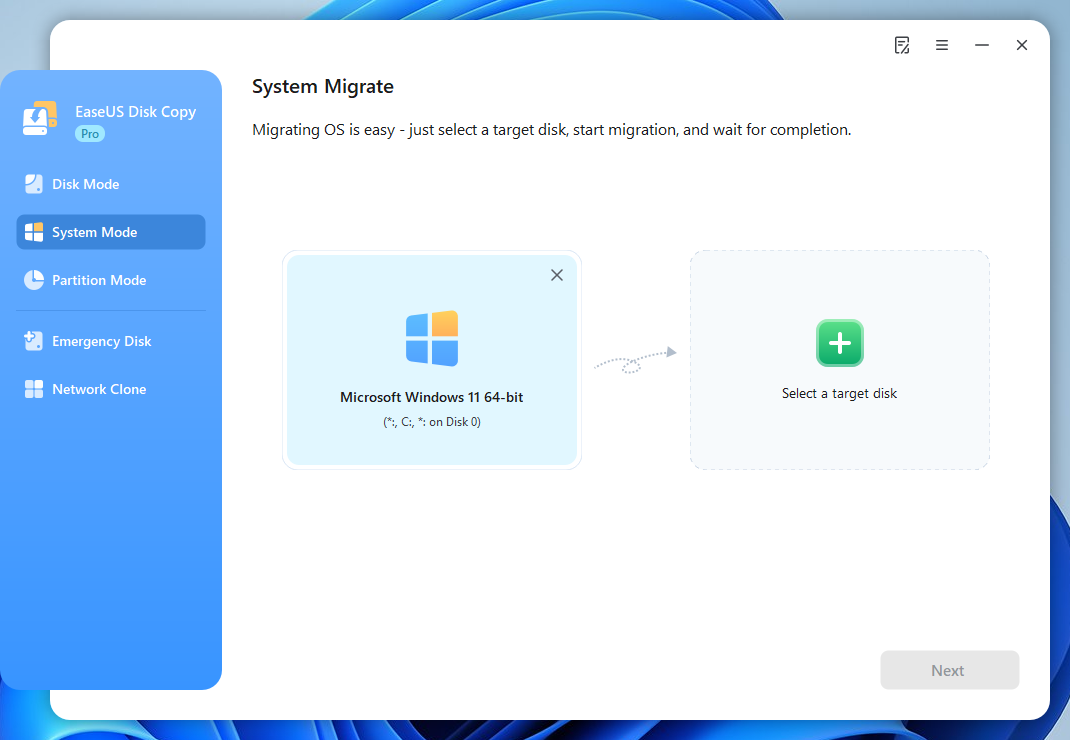
Note: The software automatically selects your current system and system-related partitions; if you use a dual-boot system, you can choose which Windows system to clone.
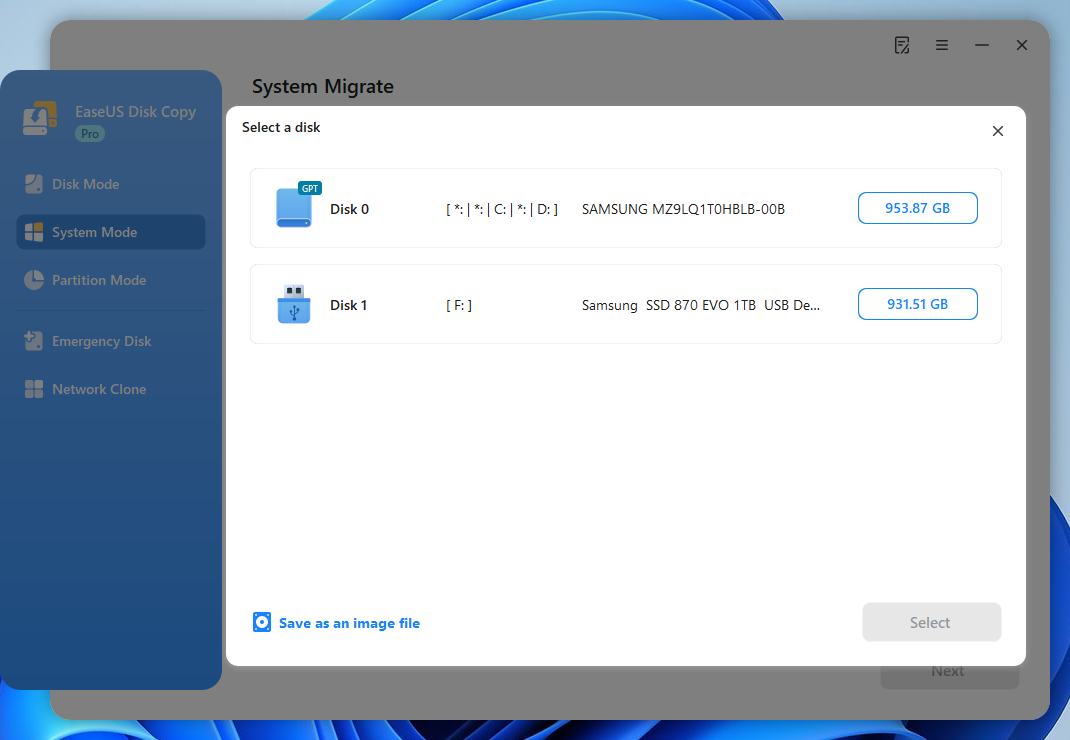
Step 2. Choose Save as an Image File
- Click "Select a target disk", choose Save as an image file to save the Windows system as a compressed image file.
Step 3. Choose Where to Save the System Image File
- Select a location for the image file.
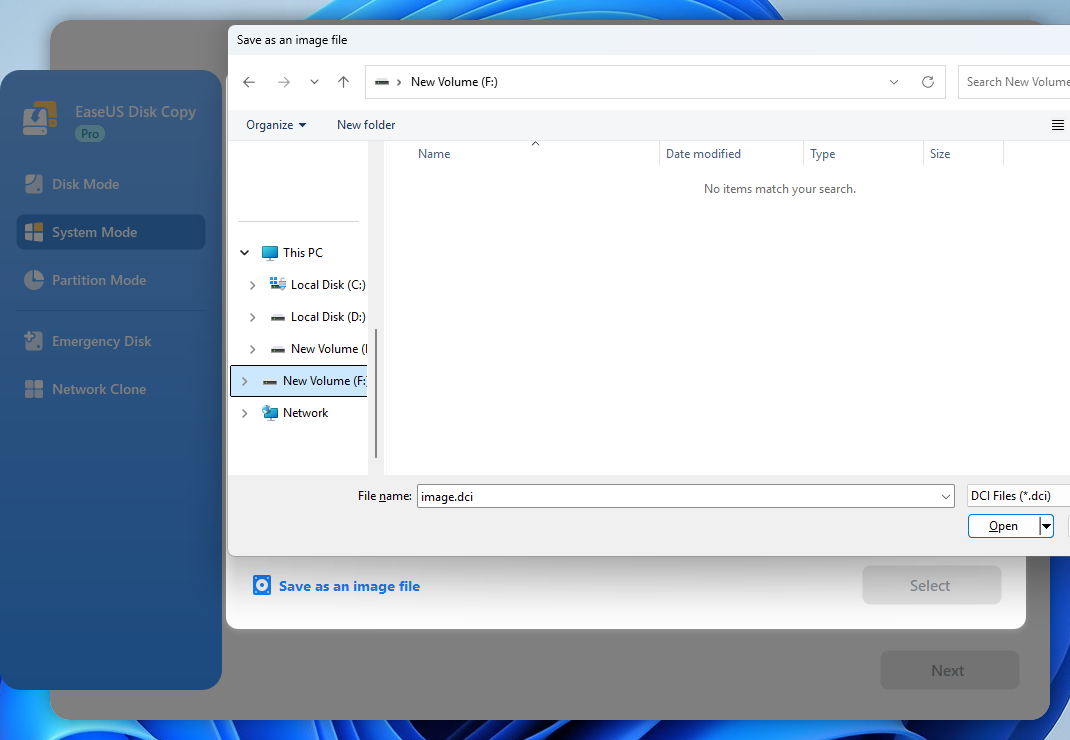
Step 4. Confirm and Clone System to Image
- Review your selections and follow the on-screen instructions. Click Start to clone your system to an image file.
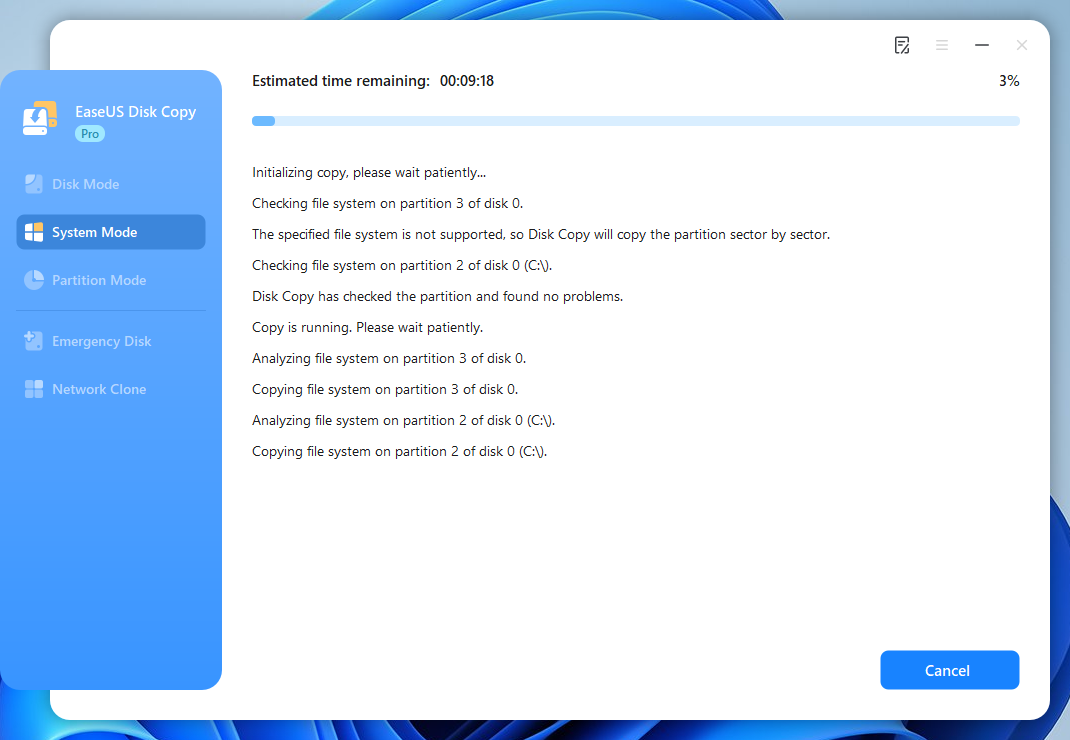
The cloning process may take some time, depending on the amount of data, disk speed, and connection type. EaseUS Disk Copy shows the status, including the estimated time remaining and progress. (I spent about 7 minutes cloning my system to a compressed image file.)
Share this article on social media to help others clone your Windows system to an image file!

Tips: How to Create System Image with Backup & Restore
Windows includes a traditional system image backup feature called Backup and Restore (Windows 7). If it's available on your computer, you can use it to create a backup of Windows and the partitions required for system recovery.
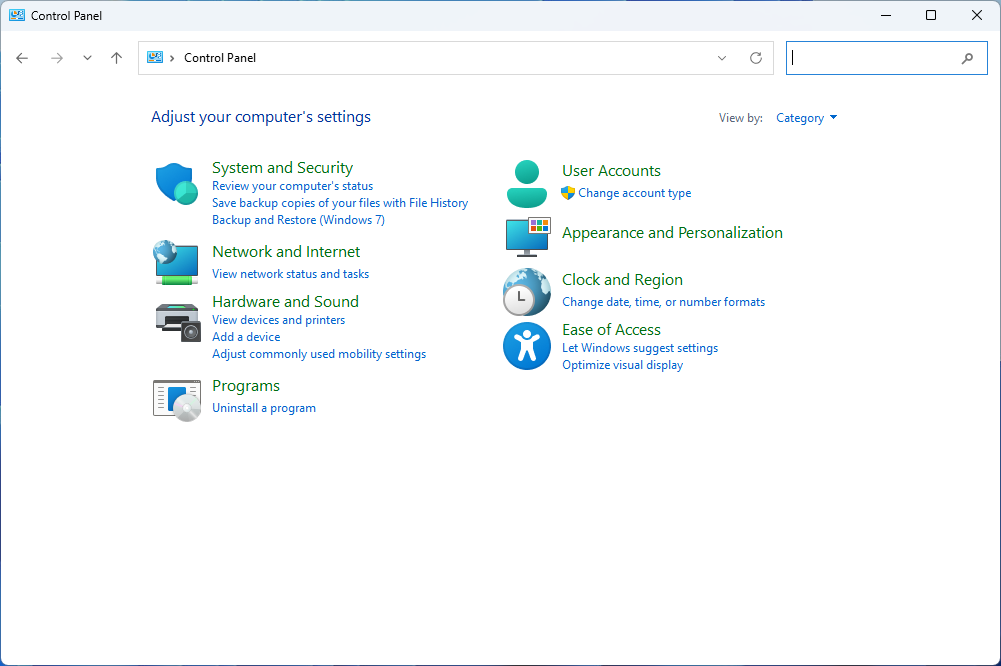
Step 1. Open Control Panel, go to System and Security, and select Backup and Restore (Windows 7).
Step 2. Click Create a system image on the left.
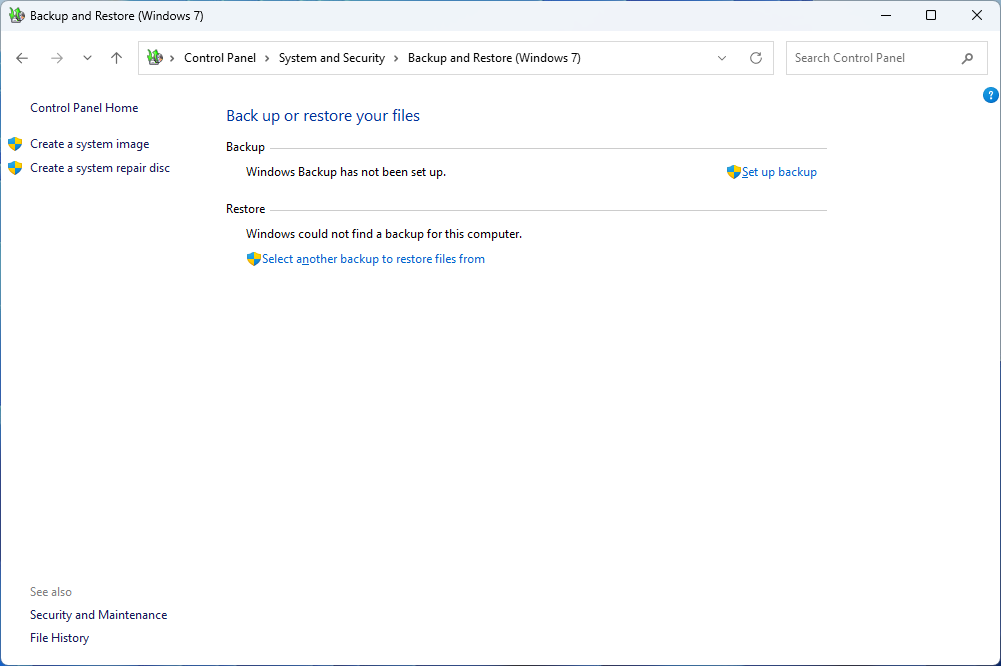
Step 3. Choose where to save the image, such as an external hard drive.
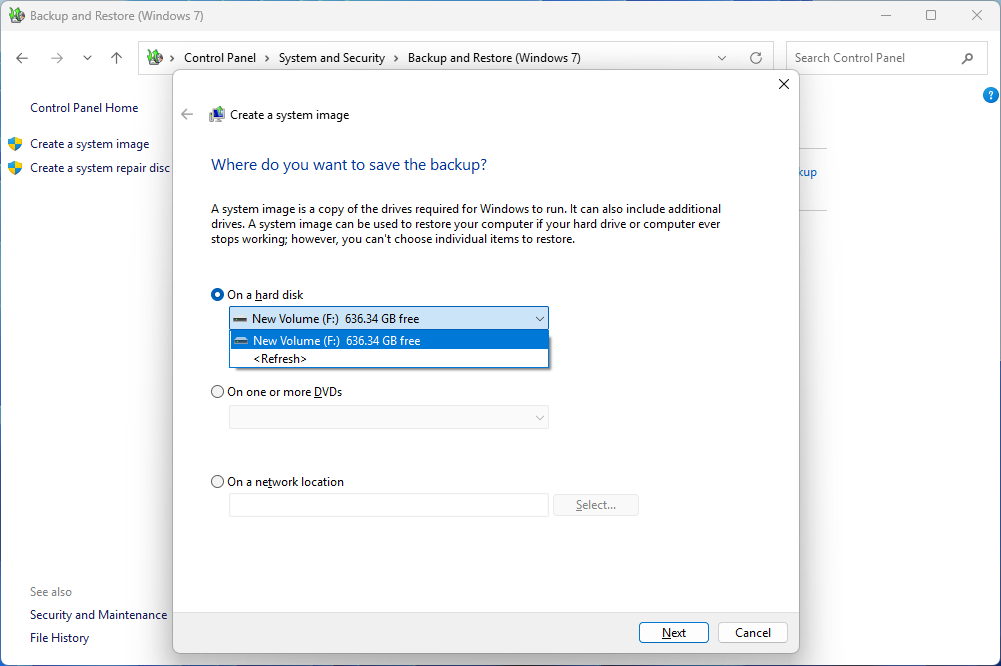
Step 4. Windows will automatically select the drives required to run Windows. You can also select additional drives if needed.
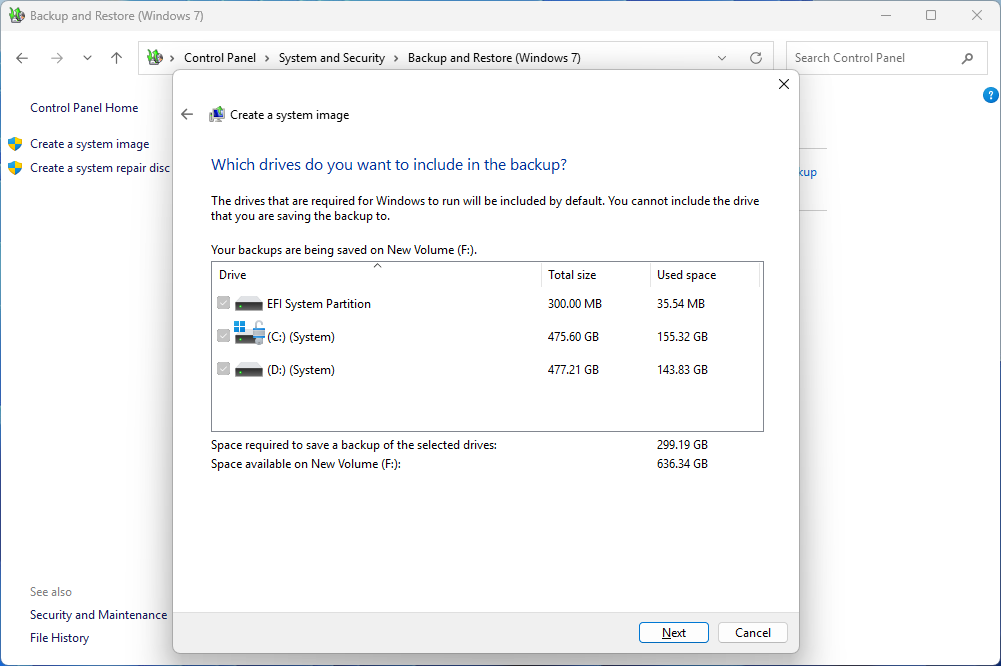
Step 5. Review the backup settings and click Start backup.
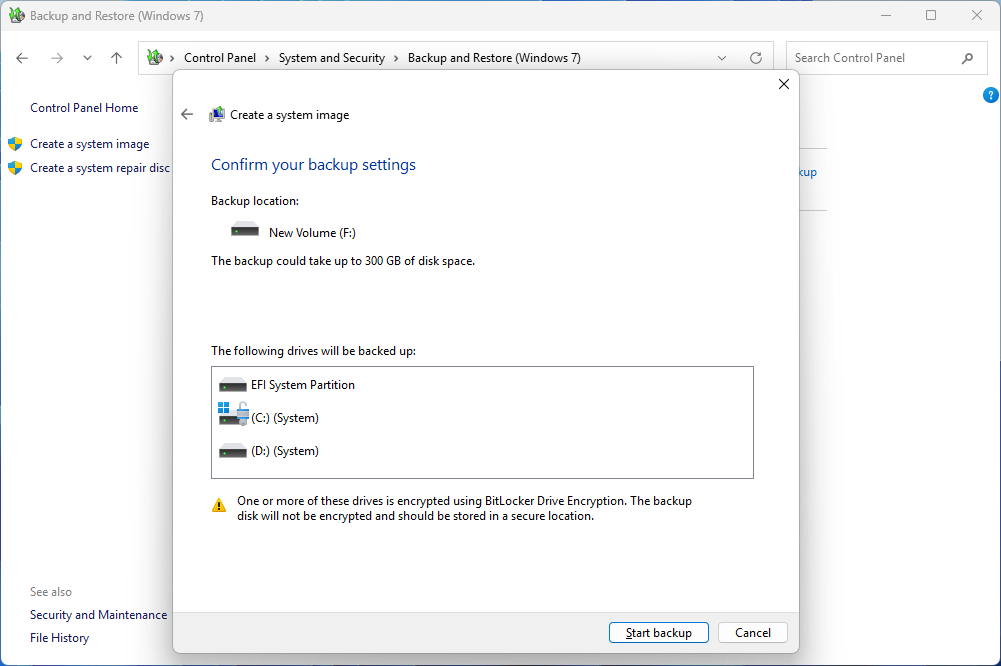
Windows will begin creating the system image. The time required depends on the amount of data being backed up and your storage device's speed.
Backup and Restore (Windows 7) is a legacy feature that Microsoft has deprecated. Although it may still be available on Windows 10 and Windows 11, Microsoft no longer actively develops or recommends it for full-disk backup. If you cannot find the option, encounter backup issues, or prefer a more direct disk-to-image cloning method, consider using EaseUS Disk Copy.
Share this article on social media to help others clone your Windows system to an image file!
How to Restore Windows from an Image File
Creating a system image is only part of the process. You also need to know how to restore it when something goes wrong. If your Windows installation becomes corrupted or you replace your existing SSD, you can use the image you created to restore your system without reinstalling everything from scratch.
If you're using EaseUS Disk Copy, you can select the previously created image file and restore the saved Windows system to a target drive. Before you start, make sure the destination drive has enough capacity and back up any important data stored on it. Restoring an image may overwrite existing partitions and files on the target drive, so double-check the selected destination before proceeding.
Here is how to use EaseUS Disk Copy to restore the system image to another HDD or SSD:
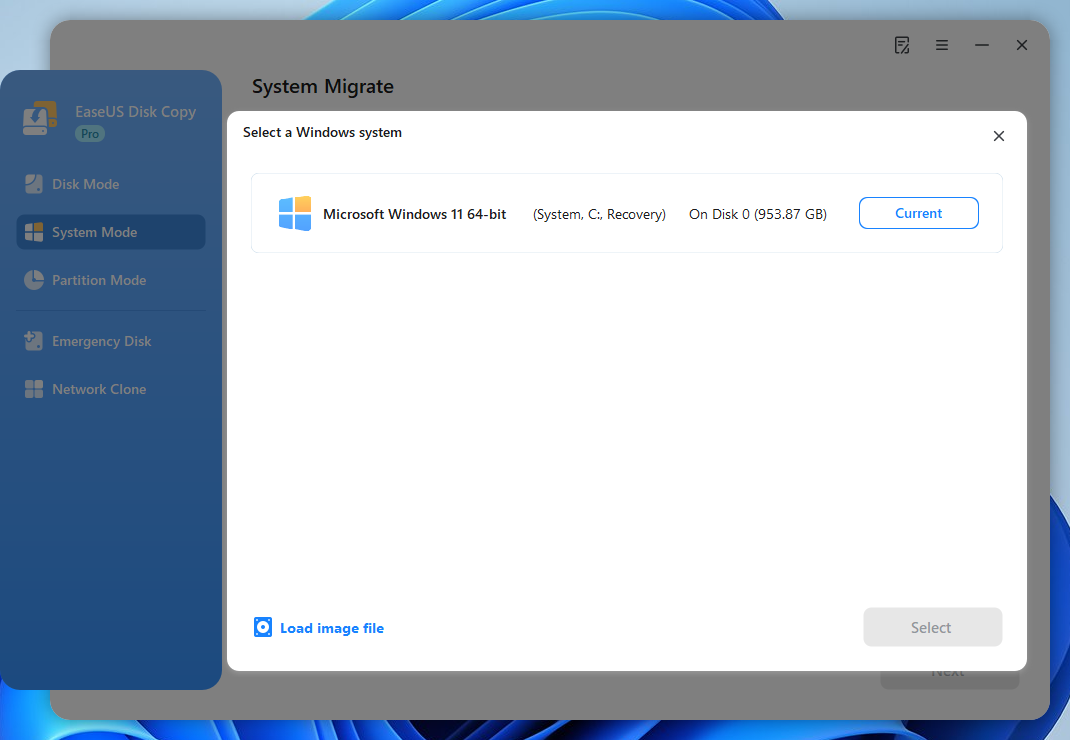
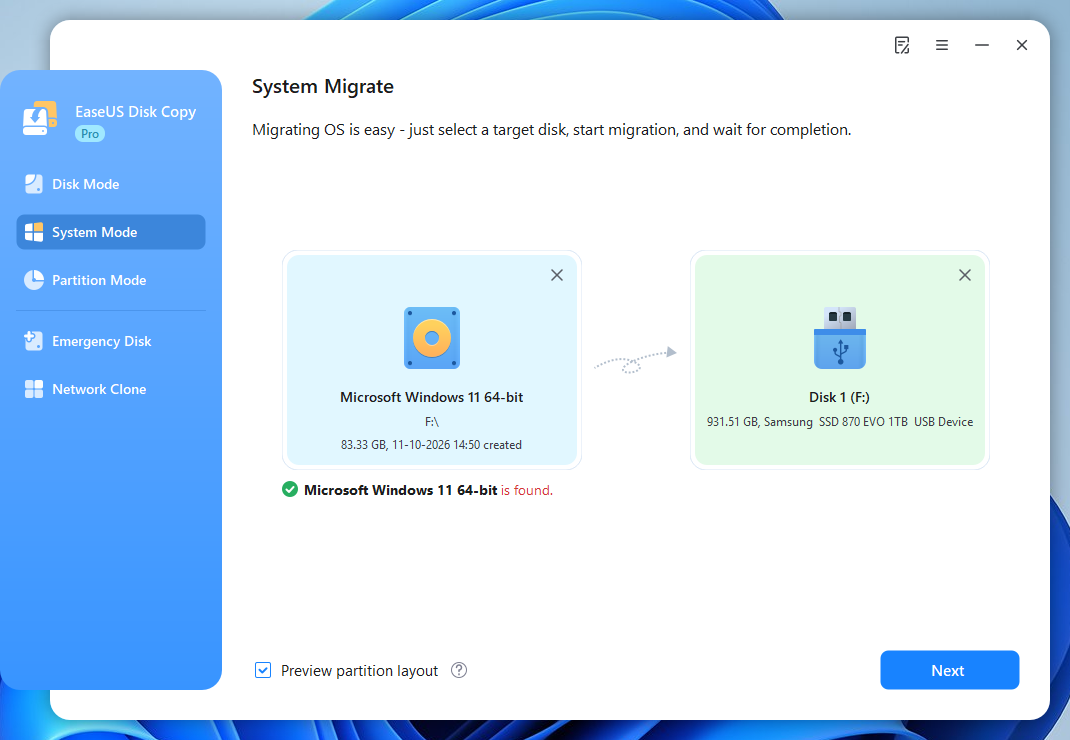
Step 1. Launch EaseUS Disk Copy and choose "Load image file" after clicking "Select a Windows system".
Step 2. Select the target disk to restore the system image file.
Step 3. Adjust the target disk layout. (Optional).
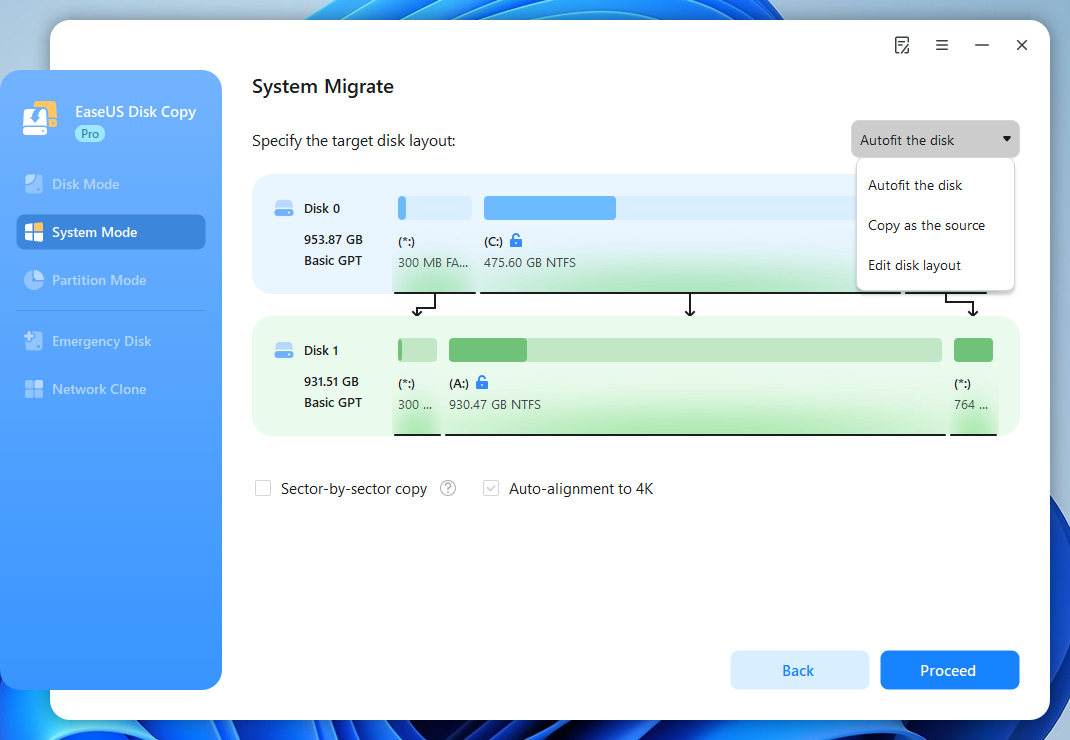
Then, follow the on-screen instructions to restore the system to the target disk.
If you've used Backup and Restore (Windows 7) to create a system image and you want to restore the system to a disk, follow the guide below:
When Windows is running normally:
- Go to Settings > System > Recovery.
- Under Advanced startup, click Restart now.
- After your computer restarts into the Windows Recovery Environment (WinRE), select Troubleshoot > Advanced options > System Image Recovery.
- Choose the previously created system image and follow the on-screen instructions to restore Windows.
When Windows cannot boot:
- Connect a Windows installation USB or recovery drive and boot from it.
- If using Windows installation media, select your language preferences and click Next, then choose Repair your computer.
- Go to Troubleshoot > Advanced options > System Image Recovery.
- Select the system image you created and follow the on-screen instructions to restore your system.
Note: Make sure your backup drive is connected before starting the recovery process. If your system drive is encrypted with BitLocker, you may also need your BitLocker recovery key to access the recovery options.
To Wrap Up
Creating a Windows disk image is a good way to prepare for unexpected problems, such as hard drive failure, system crashes, or an SSD upgrade. It gives you a backup of your existing system that you can restore when needed.
For basic system backups, Windows' built-in Backup and Restore (Windows 7) feature may be enough. However, if you want more flexibility when saving a disk as an image file and restoring it to another drive, a dedicated tool like EaseUS Disk Copy is worth considering.
Free Download
Windows 11/10/8/7
FAQs About Cloning Windows to an Image File
1. Can I clone Windows to an image file without cloning the entire disk?
Yes. You don't always need to image the entire physical disk. Some disk cloning tools like EaseUS Disk Copy let you save a Windows system or selected partitions as an image file, so you can back up your operating system without including every partition on the drive.
2. Can I save a Windows image to an external hard drive?
Yes. You can save a Windows image to an external HDD or SSD, as long as it has enough available space and the backup software supports it. An external drive is also a convenient way to keep your system backup separate from your computer.
3. Can I restore Windows from an image file to a new SSD?
Yes. You can restore a compatible Windows system image to a new SSD. Make sure the target drive has enough capacity and that the image includes the necessary system and boot partitions. You may also need to adjust the boot order or boot mode after restoration.
4. Can I use a Windows image file to recover a computer that won't boot?
Yes. If your computer cannot boot, you can use a previously created system image to restore Windows. You'll typically need to boot from a Windows installation USB or recovery drive, enter the Windows Recovery Environment, and select System Image Recovery.
5. Is cloning Windows to an image file the same as creating a system restore point?
No. A system restore point and a system image serve different purposes. A restore point saves certain system files, drivers, registry settings, and configuration information so you can roll Windows back to an earlier state. A system image saves a much broader copy of your Windows installation and selected partitions, allowing you to restore the system if it becomes corrupted or the drive fails.
6. What is the difference between cloning Windows to an image file and cloning Windows to another drive?
The main difference is where the cloned data is stored. Cloning Windows to another drive transfers the system directly to a second SSD or HDD, while cloning Windows to an image file saves the system as an image file that you can store on an external drive or another supported location. You can then use that image to restore Windows when needed.
-
Updated by
![Jerry]()
Jerry
"I hope my articles can help solve your technical problems. If you are interested in other articles, you can check the articles at the bottom of this page, and you can also check my Facebook to get additional help."…Read full bio