Page Table of Contents

PAGE CONTENT:
Have you often wondered, "Is C Drive SSD?" If you are also looking to determine if C Drive is the same as SSD, you are at the right place. The article from EaseUS discusses whether C Drive is SSD, how to find the location, media type, and where the C Drive is located, and it gives you a professional tool to migrate C Drive.
Is C Drive Same as SSD?
Whenever you come across C Drive, most people assume it to be an SSD, but that's incorrect. C drive is not equal to SSD. C Drive is a partition system that stores the operating system and boot data. An SSD is a solid-state drive and can be divided into multiple partitions. So, a C Drive is just a computer partition that can accumulate the entire SSD space or just a part of it. Similarly, if you have an HDD on your PC, the C Drive lies on the HDD and is a portion of the HDD.
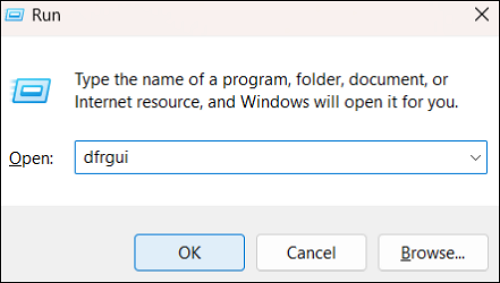
But how do you identify the media type when your computer has an HDD and SSD? The computer keeps track of C Drive information. You can invoke the Run app to find whether the C Drive is on SSD or HDD. Let us see the steps to determine where the C Drive exists.
Step 1. Press the Windows + R button. Type dfrgui and press OK.
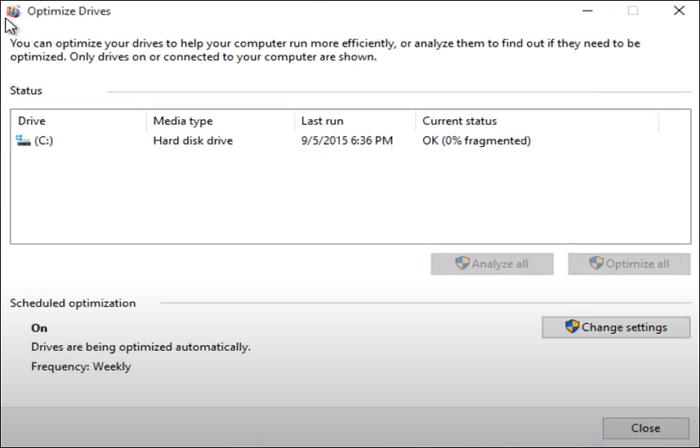
Step 2. A new window opens with all the Drive information.
Step 3. Find the C drive and the Media Type (HDD or SSD) in the list.
Share this article on social media to help more people!
Why Is SSD Better Than HDD?
To understand a computer's performance, you should know the difference between SSD and HDD and why SSD is better. This will help you understand why people prefer SSD over HDD and transfer content to a faster drive. SSDs and HDDs store data, and using binary ones and zeroes to read and write data makes SSDs faster than HDDs.
Solid-state drives (SSDs) contain an array of solid-state electronic memory chips that are compact and big on performance. SSDs store data using binary zeroes and ones, and the floating gate transistors help in reading and writing. On the contrary, HDDS consists of mechanical spinning platters with magnetic coatings to read and write data. The platters are divided into segments, each subsequently divided to help with reading and writing.
Due to the age-old mechanical spinning platters, HDDS work slower, and SSDs work faster. This makes SSDs highly appealing in modern times, especially when you have the power to perform high-end processes.
What to Do If C Drive Is HDD?
If your C Drive is on an HDD or the system's performance is declining, migrating the C Drive to the SSD greatly improves performance. The C Drive contains the operating system and boot data, so you need safe and efficient disk cloning software to migrate it because Windows lacks built-in cloning settings. EaseUS Disk Copy, a simple yet powerful cloning program, comes to help.
 Free Download
Windows 11/10/8/7
EaseUS Disk Copy employs advanced cloning algorithms to clone HDD to SSD to safely transfer all your C Drive data onto the new SSD. Disk Copy takes care of the cloning, partition, and boot files. You will also have a rescue disk option to safeguard data using external media. It can also help you install Windows on a second hard drive without USB and copy a hard drive bit for bit with its sector-by-sector clone technology.
To boost your PC performance, download EaseUS Disk Copy and use it to migrate C Drive from HDD to SSD:
Before cloning:
- If your computer has only one slot, connect the target disk to your machine via a USB-to-SATA/NVMe adapter.
- If your computer has an extra slot, install the target disk into the empty slot properly, and make sure it is compatible.
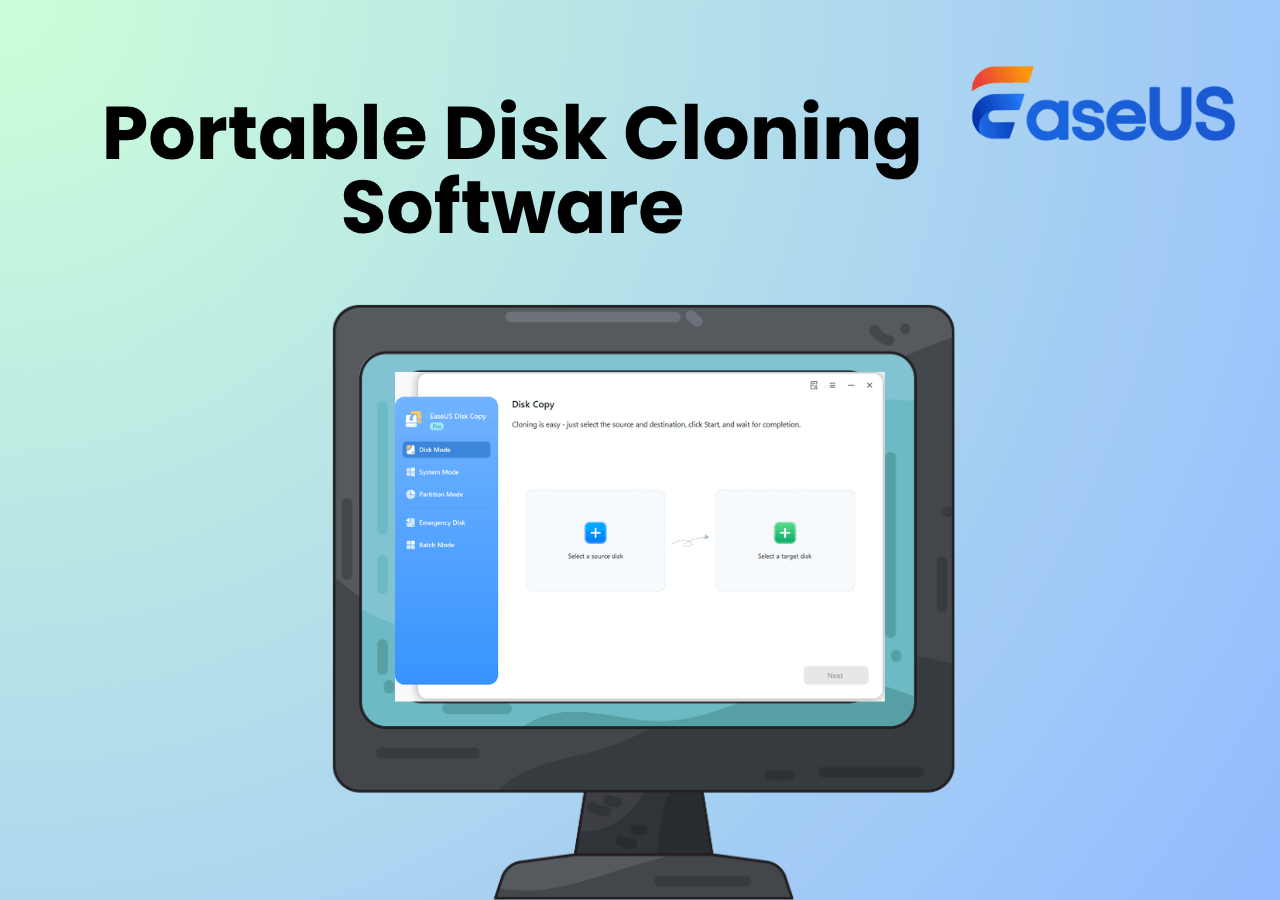
Step 1. Launch EaseUS Disk Copy and choose Disk Mode.
Install EaseUS Disk Copy cloning software on your Windows computer, then launch it and select Disk Mode from the left panel.

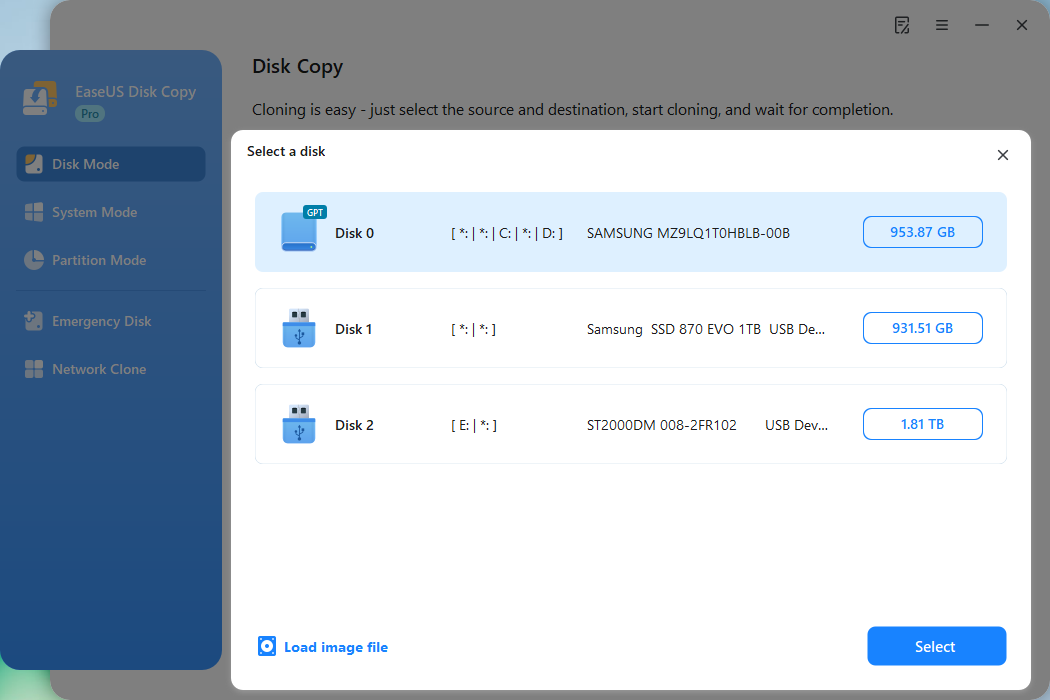
Step 2. Select the source drive.
Select the drive you want to copy, then click Select.
Step 3. Choose the target disk.
Choose the disk that you want to clone data to, and click Select. Note that the used space of the source disk should be less than the target disk capacity.
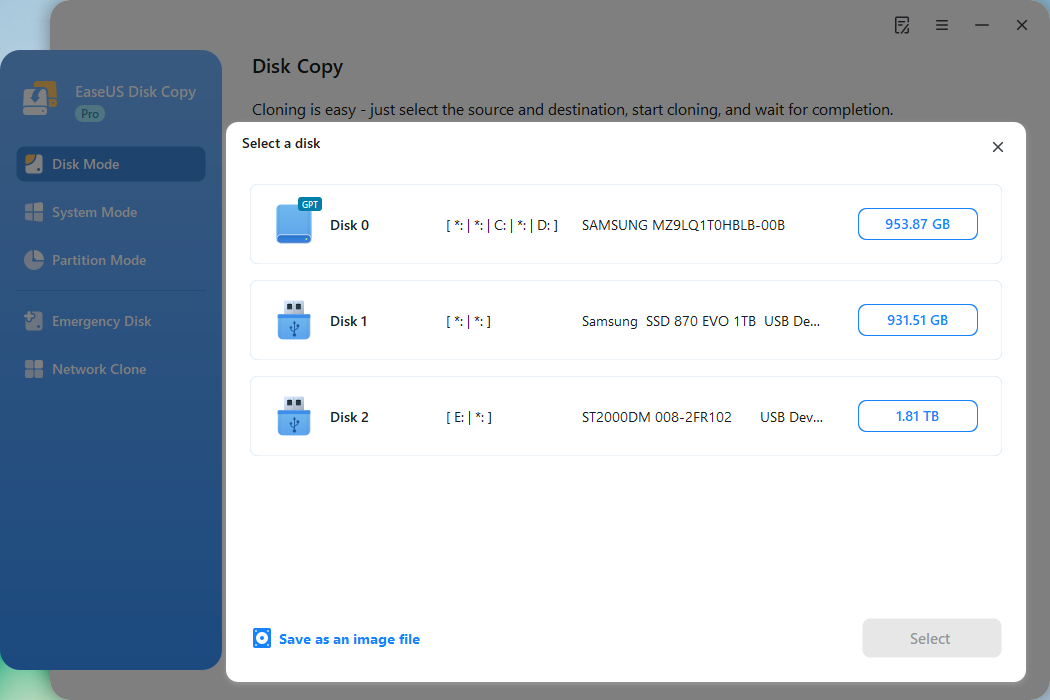
*At this step, you can also click the option "Save as an image file" to store your disk as a compressed image file, which can be restored without any data loss.
Step 4. Adjust disk layout.
Specify the target disk layout as your preference. You can choose among:
- Autofit the disk: makes some changes by default on the destination disk layout so that it can work at its best.
- Copy as the source: create a 1-to-1 copy of your source disk; the layout is the same as the source disk.
- Edit disk layout: allows you to manually resize/move the partition layout on this destination disk.
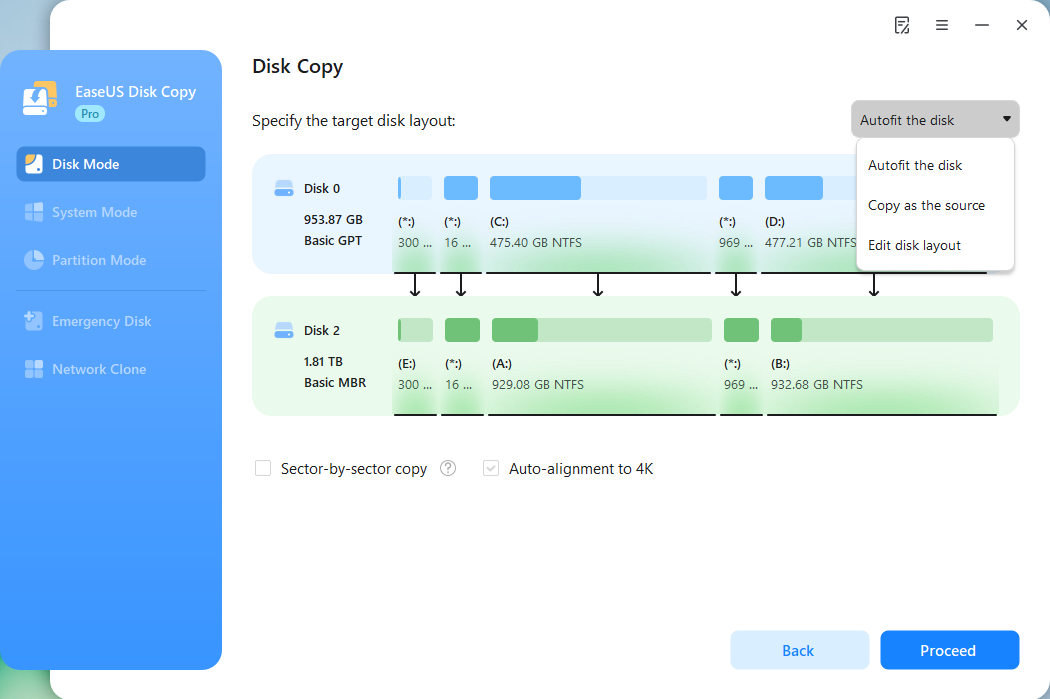
*If the target disk is an SSD, the option "Auto-alignment to 4K" will be checked automatically to optimize the performance of your SSD.
Step 5. Start cloning.
Click Proceed, and a message will appear, warning you that data will be lost. Confirm the message by clicking Continue.
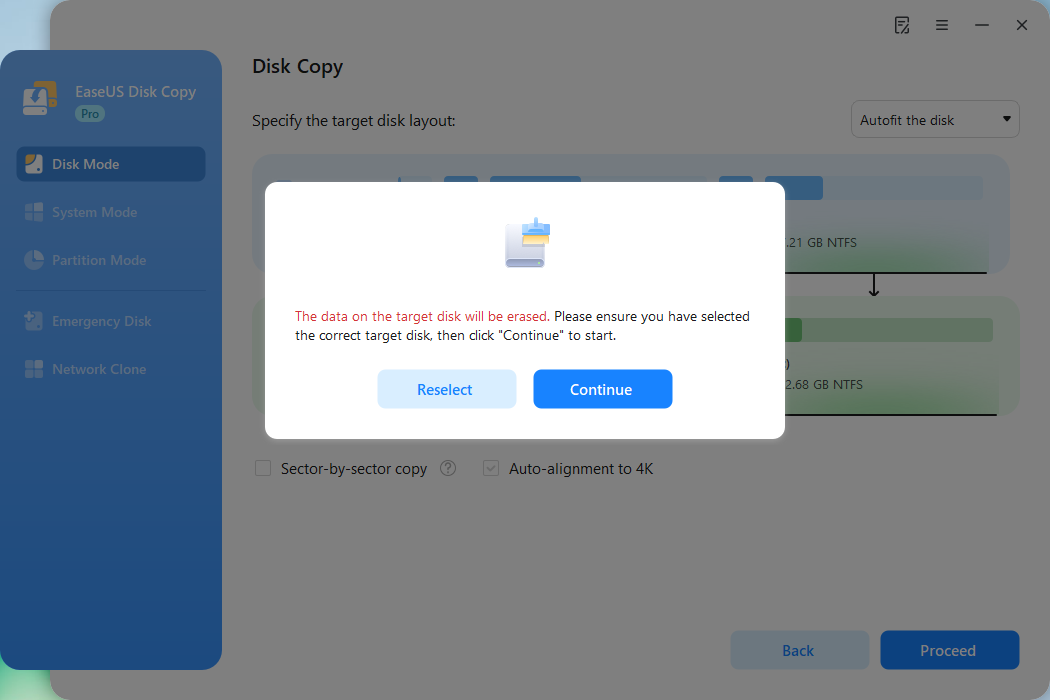
Now, it will start executing the cloning task.
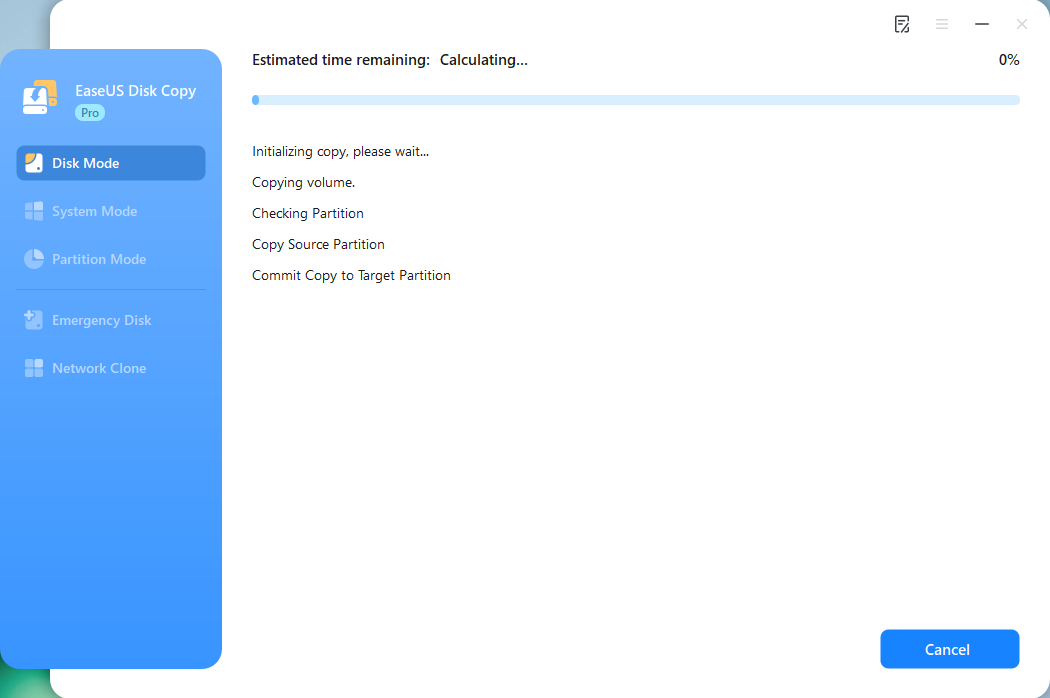
*The time it takes to clone a hard drive depends on how much data is on the source disk, and it will also be affected by the disk types, USB connection, etc.
Conclusion
To conclude, the C Drive is a partition responsible for storing operating systems, boot files, and important computer data. Whether the C Drive is SSD or HDD depends on your PC's disk type (SSD or HDD). The article tells you how to check is C drive SSD or HDD and how to migrate it from HDD to SSD for better performance.
EaseUS Disk Copy is an excellent choice for safely migrating a C Drive to an SSD or a new hard drive. You will have a ready-to-boot SSD with advanced cloning algorithms. Download and try it!
Free Download
Windows 11/10/8/7
FAQs on Is Windows C Drive SSD
Here are some frequently asked questions on "Is C Drive SSD."
1. Is it normal for C drive to be an SSD?
Yes, the C Drive partition exists mostly on SSDs. In modern computers, the C Drive, which stores the operating system (Windows), is located on SSDs. SSDs have the fastest storage possible and help improve booting speeds.
2. What is the difference between Local disk (C:) and (D:)?
The local disk (C:) consists of the operating system (Windows) and software programs. The local disk (D:) is reserved for personal data storage, such as documents, videos, files, and other data.
3. Is SSD C drive or D drive?
SSDs can be either a C Drive or a D drive on your PC. The C Drive is the main partition on the computer, storing the OS, and the D Drive is generally reserved for personal storage. If the SSD is the only drive installed on the PC, then you can call it a C Drive.
4. What is C Drive on my Computer?
The C Drive is the main partition and drive on the PC. It contains the Windows operating system. When people talk about the computer hard drive, they refer to the SSD or HDD, which contains the operating system.
-
Updated by
![]()
Jerry
"I hope my articles can help solve your technical problems. If you are interested in other articles, you can check the articles at the bottom of this page, and you can also check my Facebook to get additional help."…Read full bio