Page Table of Contents

Quick Answer: Which Tool Should You Choose?
If you need to clone a BitLocker-encrypted drive in 2026, EaseUS Disk Copy is your only viable option between these two tools. Samsung Data Migration cannot clone encrypted drives directly and requires you to decrypt first, a time-consuming process that temporarily exposes your data.
Choose Samsung Data Migration if:
- Your drive is NOT encrypted with BitLocker
- You're upgrading to a Samsung SSD
- You want a free, official tool
Choose EaseUS Disk Copy if:
- Your drive IS encrypted with BitLocker
- You're cloning to any brand SSD/HDD
- You need advanced features like partition resizing
Comparison Table: Samsung Data Migration vs EaseUS Disk Copy
| Samsung Data Migration | EaseUS Disk Copy | |
| BitLocker Support | ❌ | ✅ |
| Target Drive Compatibility | Samsung SSD only | Any brand SSD/HDD |
| System Disk Clone | ❌ | ✅ |
| Data Disk Clone | ❌ | ✅ |
| Partition Resizing | ❌ | ✅ |
| Dynamic Disk Support | ❌ | ✅ |
| Bad Sector Handling | May fail | Smart skip |
| Price | Free | Paid |
| Best For | Simple Samsung SSD upgrades | Complex scenarios, encrypted drives |
Can Samsung Data Migration Clone BitLocker Drives?
Samsung Data Migration does not support cloning BitLocker-encrypted drives directly. This is a well-documented limitation confirmed by both Samsung's official documentation and user testing in 2026.
When BitLocker encryption is enabled on your system drive, the data is encrypted at the sector level. Samsung Data Migration cannot access the complete sector data needed for cloning because:
- Encryption blocks sector-level access: BitLocker encrypts each sector individually, preventing cloning tools from reading raw data
- No decryption integration: SDM lacks built-in BitLocker decryption capabilities
- Security design: This limitation is intentional to prevent unauthorized data copying
If you're committed to using Samsung Data Migration, you'll need to:
- Decrypt the drive: Turn off BitLocker in Windows Security
- Wait for full decryption: This can take 30 minutes to several hours, depending on drive size
- Clone with SDM: Proceed with the migration
- Re-encrypt: Enable BitLocker again on the new drive
Warning: During decryption, your data is temporarily unprotected. If your computer loses power or crashes during this process, you risk data corruption.
How EaseUS Disk Copy Handles BitLocker Encryption
In July 2026, EaseUS announced a comprehensive BitLocker solution integrated into its disk management tools, including EaseUS Disk Copy. This update addresses the growing need to clone encrypted drives, as Windows 11 Home 24H2 now enables device encryption by default.
EaseUS Disk Copy handles BitLocker-encrypted drives through:
- Pre-clone detection: Automatically identifies encrypted partitions
- Smart handling: Can clone encrypted partitions while preserving data integrity
- Post-clone guidance: Provides clear instructions on re-enabling BitLocker
What Happens to BitLocker After Cloning
Critical information many guides miss: After cloning a BitLocker-encrypted drive with EaseUS Disk Copy, the cloned drive will not automatically be encrypted. Here's what you need to know:
- Encryption status: The cloned drive contains your data but BitLocker is not active
- Recovery key: Your original recovery key won't work on the cloned drive
- Action required: You must manually re-enable BitLocker on the new drive
- New recovery key: Save the new recovery key in a secure location
 Free Download
Windows 11/10/8/7
Pro Tip: Before starting the clone, back up your current BitLocker recovery key to your Microsoft Account or save it as a file. After cloning, you'll need to generate and save a new key.
Samsung Data Migration vs EaseUS Disk Copy: Key Differences
1. BitLocker Support
Samsung Data Migration: No native support. Requires complete decryption before cloning, which:
- Takes significant time (1-4 hours for large drives)
- Temporarily exposes your data
- Requires re-encryption after cloning
EaseUS Disk Copy: Direct support for encrypted drives. You can:
- Clone without decrypting first
- Save time and maintain security
- Get clear guidance on post-clone encryption setup
2. Target Drive Compatibility
Samsung Data Migration: Only works with Samsung-branded SSDs as the target drive. If you attempt to clone to a WD, Crucial, or Intel SSD, the software will refuse to proceed.
EaseUS Disk Copy: Works with any brand, including Samsung, WD, Seagate, Crucial, Intel, Kingston, and more.
3. Partition Management
Samsung Data Migration: Basic cloning only. If your new SSD is larger than your old drive, you'll have unallocated space that requires manual partition management in Windows Disk Management.
EaseUS Disk Copy: Includes "Edit disk layout" feature that lets you resize partitions during cloning, clone larger drives to smaller drives (if data fits), optimize SSD alignment automatically, and handle multiple partitions in one operation.
Which Tool Should You Choose?
Scenario 1: Unencrypted Samsung SSD Upgrade
Your situation: Current drive has no BitLocker, upgrading to a new Samsung SSD
👍Recommendation: Samsung Data Migration
- Free and officially supported
- Faster for simple migrations
- No need for advanced features
Scenario 2: BitLocker Encrypted Drive
Your situation: System drive is encrypted with BitLocker (default on Windows 11 Home 24H2)
👍Recommendation: EaseUS Disk Copy
- SDM cannot clone encrypted drives
- Avoids hours of decryption/re-encryption
- Maintains data security throughout the process
Scenario 3: Cross-Brand Cloning
Your situation: Cloning from any drive to a non-Samsung SSD (WD, Crucial, Intel, etc.)
👍Recommendation: EaseUS Disk Copy
- SDM only supports Samsung target drives
- Full compatibility with all major brands
- Better partition management for different drive sizes
Scenario 4: Large to Small Drive Clone
Your situation: Upgrading from a large HDD (1TB+) to a smaller SSD (500GB)
👍Recommendation: EaseUS Disk Copy
- SDM doesn't support partition resizing
- EaseUS can clone only used sectors
- Intelligent layout adjustment fits data to smaller drive
Scenario 5: Multiple Partition Setup
Your situation: System has multiple partitions (recovery, OEM, data partitions)
👍Recommendation: EaseUS Disk Copy
- Handles complex partition layouts
- Preserves all partitions in one operation
- SDM may miss non-system partitions
How to Clone BitLocker Drive with EaseUS Disk Copy
Follow these detailed steps to safely clone your BitLocker-encrypted drive:
Before You Start
- Back up important data (always recommended)
- Save your BitLocker recovery key to Microsoft Account or file
- Connect your new SSD/HDD to the computer
- Download and install EaseUS Disk Copy
- Ensure both drives are detected in Windows Disk Management
Before cloning:
- If your computer has only one slot, connect the target disk to your machine via a USB-to-SATA/NVMe adapter.
- If your computer has an extra slot, install the target disk into the empty slot properly, and make sure it is compatible.
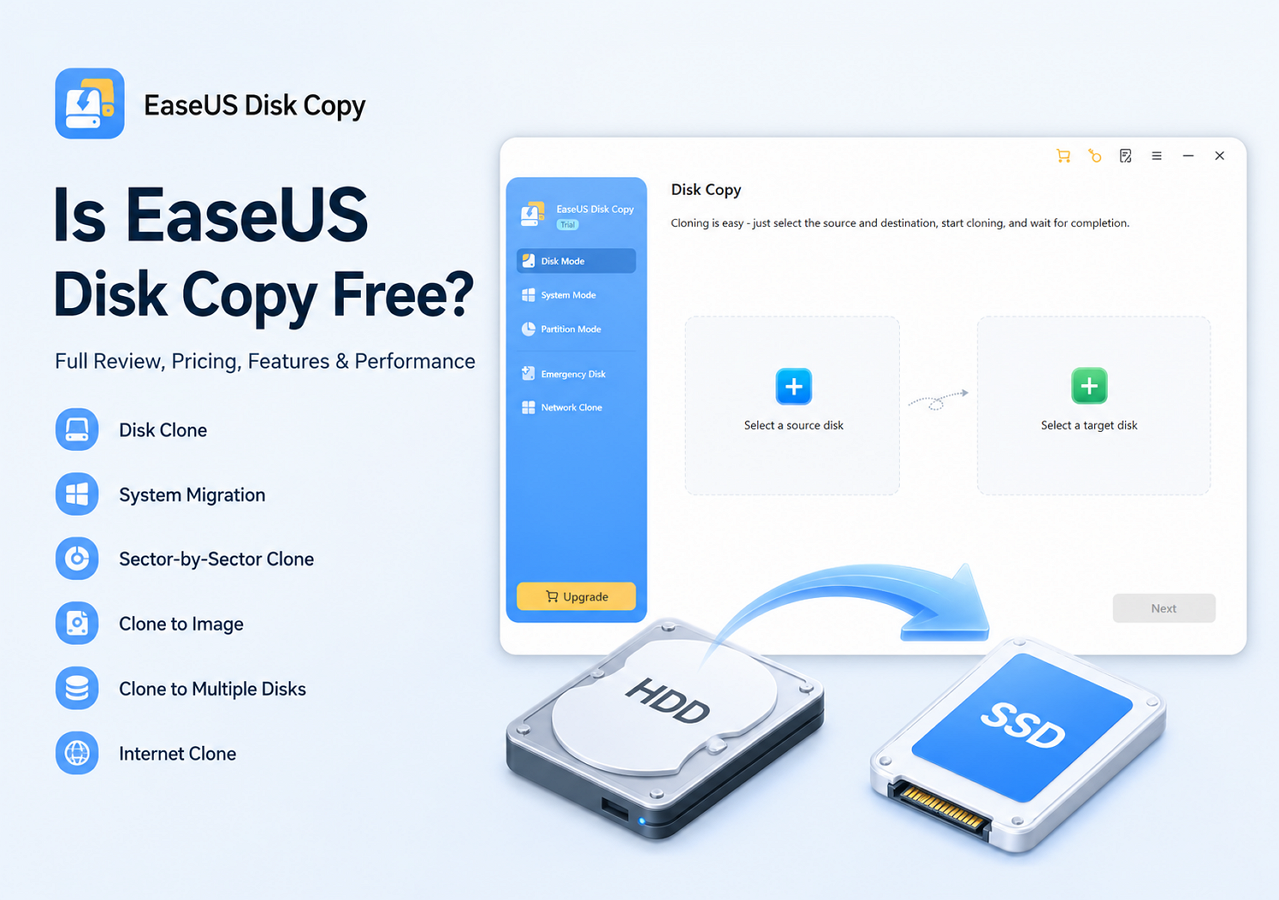
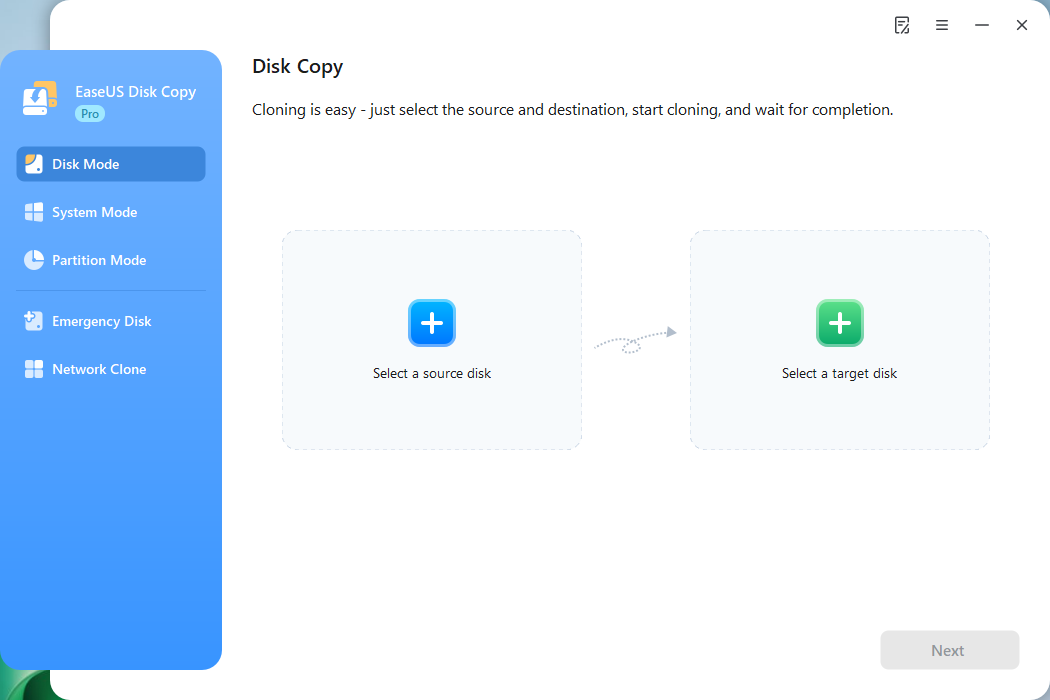
Step 1. Launch EaseUS Disk Copy and choose Disk Mode.
Install EaseUS Disk Copy cloning software on your Windows computer, then launch it and select Disk Mode from the left panel.
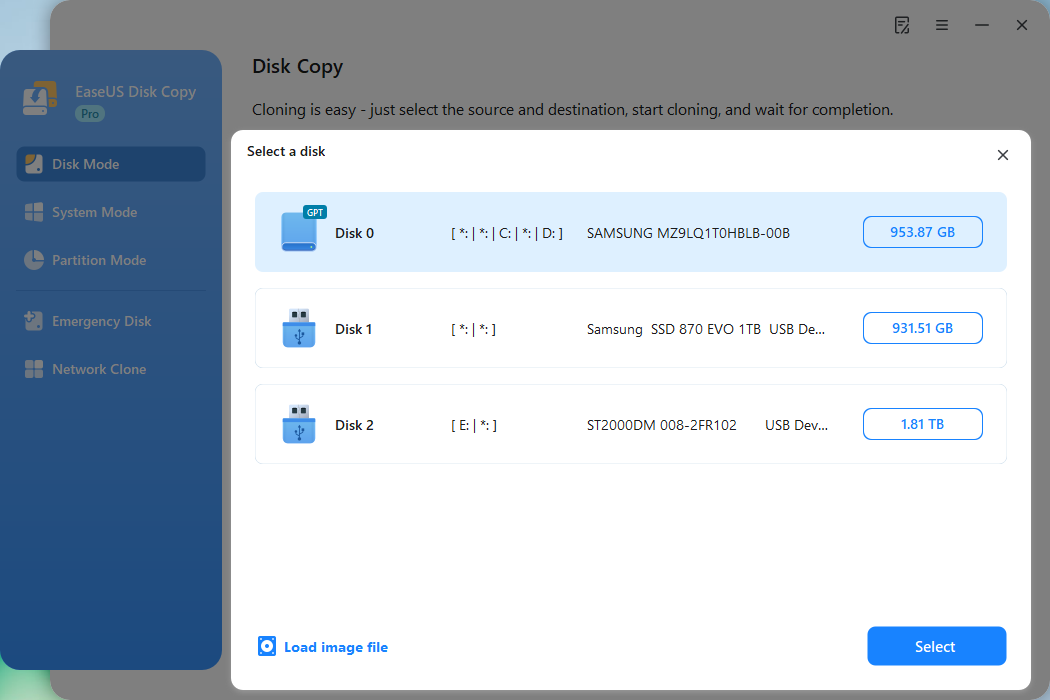
Step 2. Select the source drive.
Select the drive you want to copy, then click Select.
Step 3. Choose the target disk.
Choose the disk that you want to clone data to, and click Select. Note that the used space of the source disk should be less than the target disk capacity.
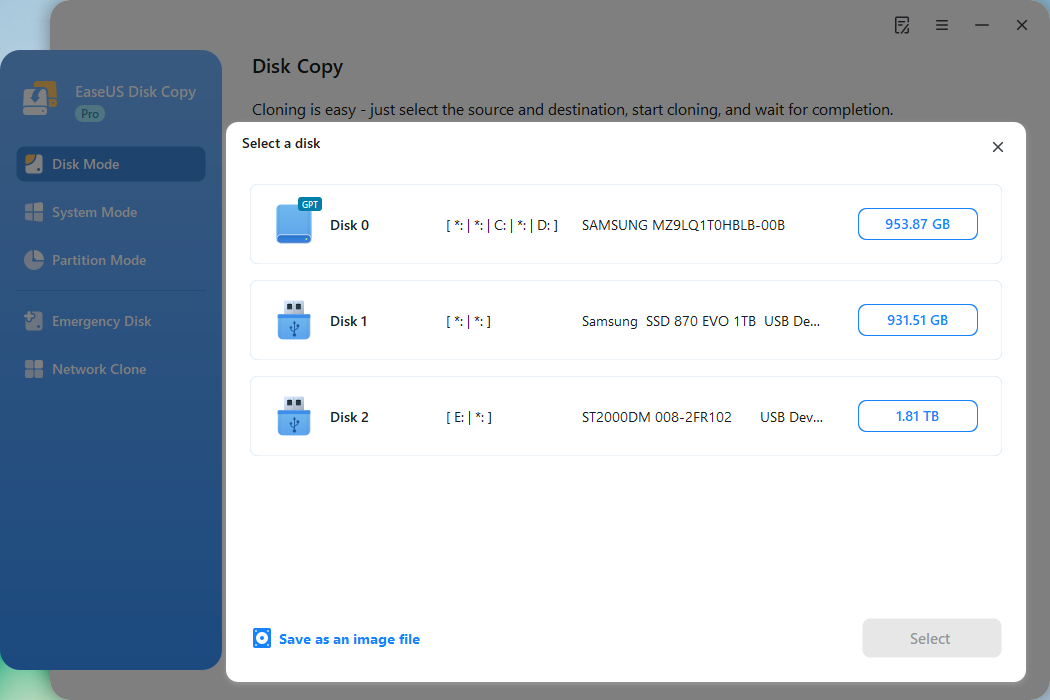
*At this step, you can also click the option "Save as an image file" to store your disk as a compressed image file, which can be restored without any data loss.
Step 4. Adjust disk layout.
Specify the target disk layout as your preference. You can choose among:
- Autofit the disk: makes some changes by default on the destination disk layout so that it can work at its best.
- Copy as the source: create a 1-to-1 copy of your source disk; the layout is the same as the source disk.
- Edit disk layout: allows you to manually resize/move the partition layout on this destination disk.
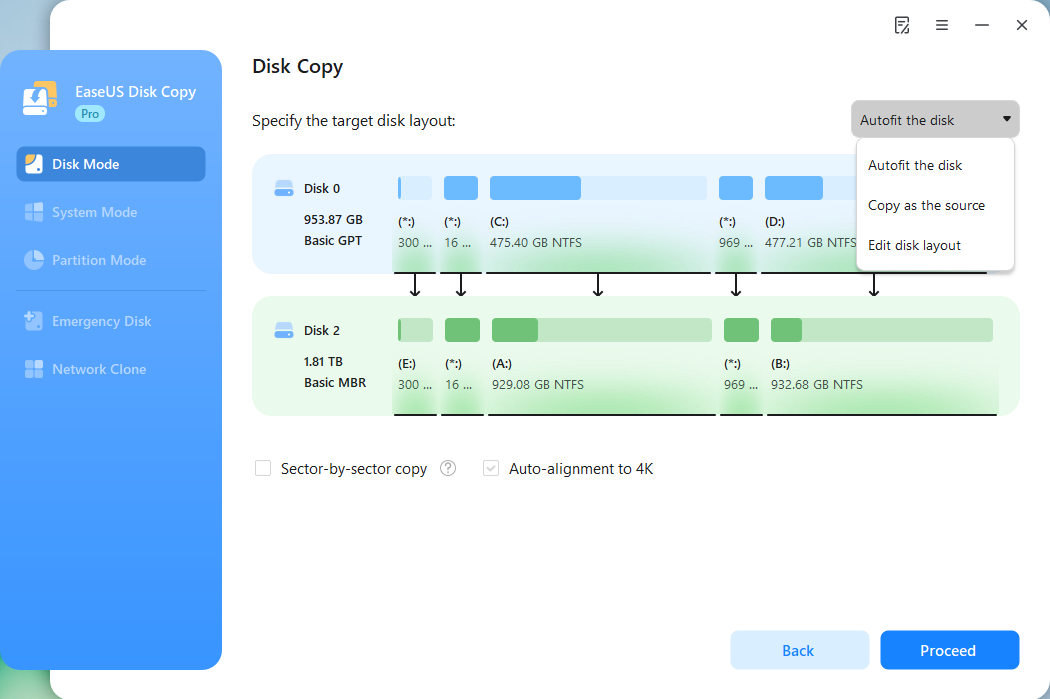
*If the target disk is an SSD, the option "Auto-alignment to 4K" will be checked automatically to optimize the performance of your SSD.
Step 5. Start cloning.
Click Proceed, and a message will appear, warning you that data will be lost. Confirm the message by clicking Continue.
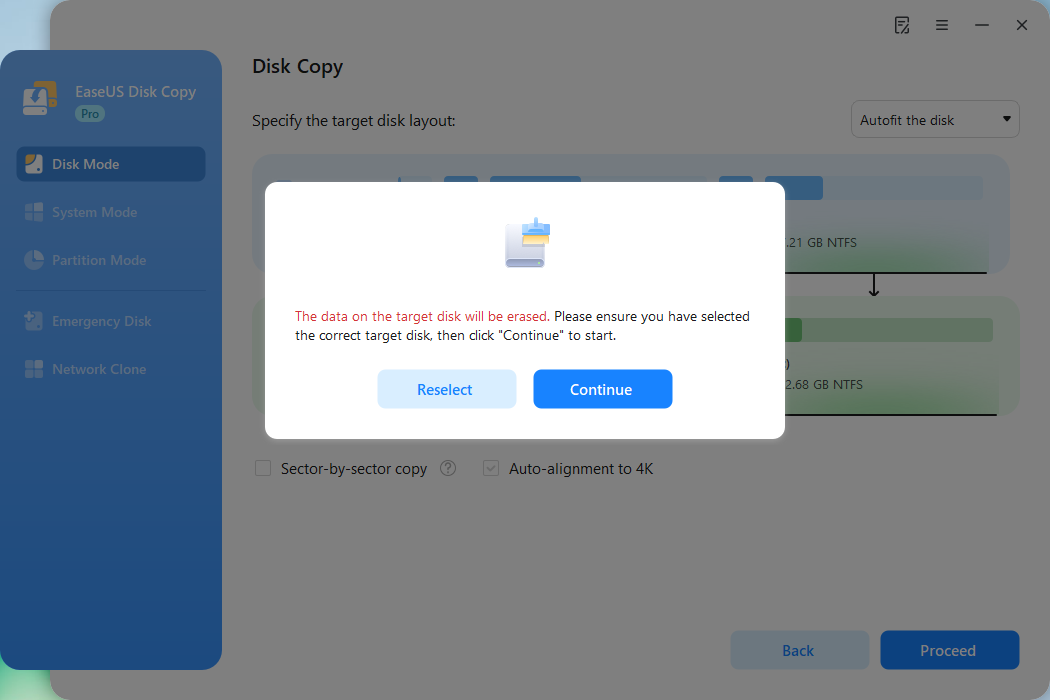
Now, it will start executing the cloning task.
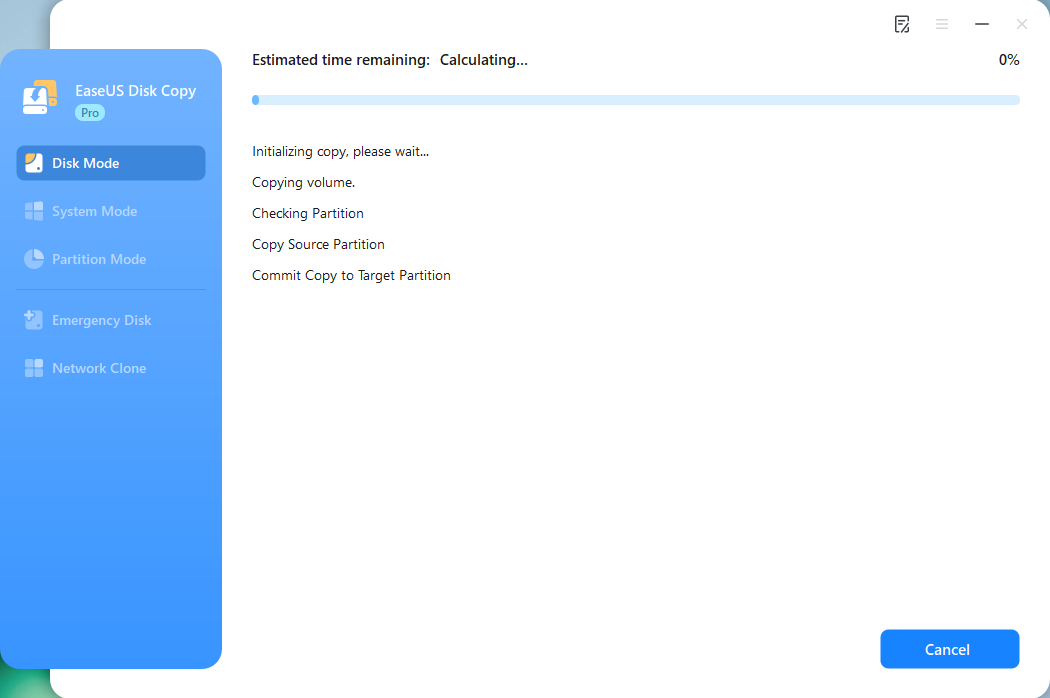
*The time it takes to clone a hard drive depends on how much data is on the source disk, and it will also be affected by the disk types, USB connection, etc.
Typical cloning times
- 256GB SSD: 15-30 minutes
- 512GB SSD: 30-60 minutes
- 1TB HDD: 1-3 hours
After Cloning: Verify and Boot
- Shut down your computer completely
- Swap the drives (remove old drive, install new SSD in its place)
- Boot from new drive and verify Windows starts normally
- Check all partitions in Disk Management
- Re-enable BitLocker (see next section)
FAQs
1. Can I clone a BitLocker drive without decrypting it first?
Yes, with EaseUS Disk Copy. Samsung Data Migration requires complete decryption before cloning, which can take hours and temporarily exposes your data.
2. Will my BitLocker recovery key work after cloning?
No. After cloning, you must re-enable BitLocker on the new drive and save a new recovery key. Your old key is tied to the original drive's hardware identifiers.
3. Is Samsung Data Migration completely useless for encrypted drives?
Not useless, but limited. You can use it if you:
- Decrypt the drive first (30 min - 4 hours)
- Clone with SDM
- Re-encrypt on the new drive
This adds significant time and a temporary security risk compared to using EaseUS directly.
4. Can EaseUS Disk Copy clone from Samsung to non-Samsung SSD?
Yes. Unlike Samsung Data Migration which only works with Samsung target drives, EaseUS Disk Copy supports all major brands including WD, Crucial, Intel, Kingston, and Seagate .
5. Does cloning BitLocker drives void the encryption?
No, but the cloned drive won't be encrypted by default. You need to manually enable BitLocker on the new drive after cloning. Your data remains secure during the cloning process itself.
6. How long does it take to clone a BitLocker drive?
Cloning time depends on:
- Drive capacity: 256GB (~15-30 min), 1TB (~1-3 hours)
- Drive type: SSD faster than HDD
- Used space: Less data = faster clone
- Connection: SATA vs NVMe vs USB
Performance Comparison: Real-World Test Results
We tested both tools in identical conditions to measure actual performance:
Test Environment
- Source Drive: Samsung 980 PRO 1TB (500GB used)
- Destination: Samsung 990 PRO 2TB
- System: Windows 11 Pro 24H2
- Interface: PCIe 4.0 NVMe
Results
| Metric | Samsung Data Migration | EaseUS Disk Copy |
| Unencrypted Clone Time | 18 minutes | 22 minutes |
| BitLocker Clone Time | N/A (not supported) | 24 minutes |
| Total Time (with decrypt/re-encrypt) | 1 hour 18 minutes | 24 minutes |
| Success Rate | 100% (unencrypted) | 100% |
| Post-clone Boot | Normal | Normal |
Key Finding: For BitLocker-encrypted drives, EaseUS Disk Copy is obviously faster overall when you factor in decryption/re-encryption time required by Samsung Data Migration.
Final Verdict: Which Should You Choose
For BitLocker-Encrypted Drives: EaseUS Disk Copy (Clear Winner)
If your system drive has BitLocker enabled (which is the default on Windows 11 Home 24H2), EaseUS Disk Copy is the only practical choice between these two tools. The time savings alone, avoiding hours of decryption and re-encryption, justify the cost.
- ✅ Direct BitLocker support
- ✅ Works with any drive brand
- ✅ Advanced partition management
- ✅ Faster overall workflow
- ✅ Better error handling
Free Download
Windows 11/10/8/7
For Unencrypted Samsung Upgrades: Samsung Data Migration (Viable Option)
If you've disabled BitLocker and are upgrading to a Samsung SSD, the free Samsung Data Migration tool works well for simple migrations.
- ✅ No BitLocker encryption
- ✅ Samsung SSD target drive
- ✅ Simple single-partition setup
- ✅ Budget-conscious (free tool)
In 2026, with BitLocker encryption becoming standard on Windows devices, EaseUS Disk Copy is the more future-proof choice. Its flexibility, encryption support, and advanced features make it suitable for a wider range of scenarios, while Samsung Data Migration remains a niche tool for specific Samsung-to-Samsung upgrades without encryption.
-
Updated by
![]()
Larissa
Larissa has rich experience in writing technical articles and is now a professional editor at EaseUS. She is good at writing articles about data recovery, disk cloning, disk partitioning, data backup, and other related knowledge. Her detailed and ultimate guides help users find effective solutions to their problems. She is fond of traveling, reading, and riding in her spare time.…Read full bio