Page Table of Contents

If you want to clone a Windows hard drive or SSD, you'll likely run into Clonezilla and dd. Both can make a full copy of a drive, but they work quite differently.
Clonezilla is designed for disk cloning and disk imaging. dd is a command-line tool for copying data directly from one location to another, including entire disks or partitions.
Clonezilla vs dd for cloning a disk: which do you prefer?
by u/Cute_Information_315 in cloningsoftware
If you're upgrading a Windows HDD or SSD, Clonezilla is usually the easier option. dd is better suited to users who are comfortable with the command line and need a straightforward block-by-block copy.
Clonezilla vs dd at a Quick Glance
| Feature | Clonezilla | dd Command |
| Windows disk cloning | Yes | Yes |
| Disk-to-disk cloning | Yes | Yes |
| Clone to a larger SSD | Yes, with appropriate options | Yes, but partition/filesystem expansion is manual |
| Disk Imaging | Yes | Yes |
| Interface | Guided menu-based workflow | Manual command-line workflow |
| File-system aware | Yes, for supported file systems | No |
| Sector-by-sector copying | Yes, when needed/for unsupported file systems | Yes |
| Partition resizing | Supported in cloning workflows | Manual |
| Beginner friendly | Moderate | Low |
| Best for | Disk migration, backup/imaging, deployment | Raw, low-level copying |
Clonezilla and dd Take Very Different Routes to the Same Result
The biggest difference between Clonezilla and dd is not whether they can copy or clone a disk. They both can.
It is how much they understand about the disk they are copying.
Clonezilla is a dedicated disk cloning and imaging tool. You boot into Clonezilla Live, choose a disk-to-disk cloning workflow, select the source and destination drives, and let Clonezilla handle the copying process. Its official documentation specifically provides a disk_to_local_disk workflow for cloning one disk to another.
dd is much more basic. GNU Coreutils describes it as a tool that copies input to output using configurable I/O block sizes. It does not provide a Windows migration wizard or automatically interpret the structure of a Windows installation.
That difference becomes important when the disk contains Windows, multiple partitions, and boot files.
Share this article on social media to help others compare Clonezilla and dd.

Can Clonezilla and dd Clone a Windows Disk?
Yes, but neither option works like a typical Windows cloning application.
Using Clonezilla to Clone Windows
Clonezilla can clone a Windows system disk, including the partitions needed for the operating system. The process takes place outside the running Windows installation because you normally boot the computer from Clonezilla Live.
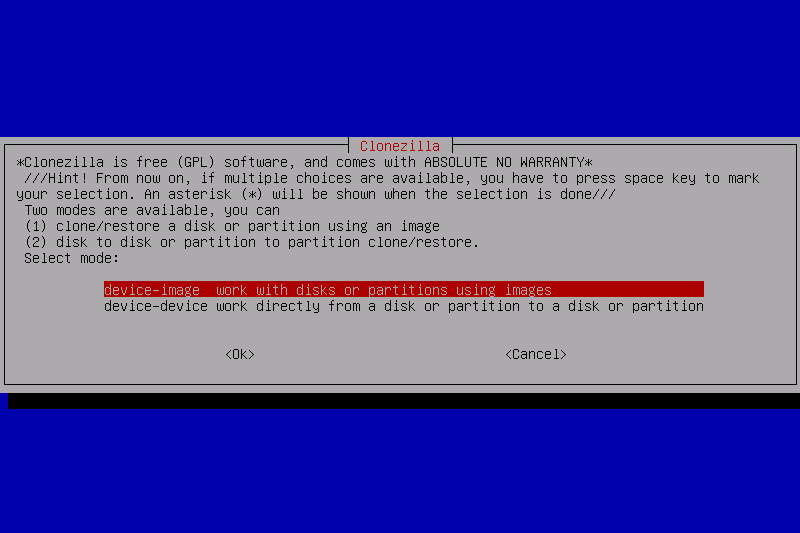
The basic workflow is:
- Create a Clonezilla Live USB.
- Boot the computer from the USB drive.
- Select Start Clonezilla.
- Choose the device-to-device option.
- Select disk_to_local_disk.
- Choose the Windows source disk.
- Select the destination disk.
- Start the cloning process.
Clonezilla's own documentation uses this workflow for disk-to-disk cloning and warns that the destination disk will be overwritten.
For a Windows migration, you also need to pay attention to the disk layout. A modern Windows installation may include an EFI System Partition, a Microsoft Reserved partition, the main Windows partition, and a recovery partition. Cloning the whole disk rather than just the C: drive is usually the safer approach when the goal is to make the new drive bootable.
Using dd to Clone Windows
dd can also copy a Windows disk, but the process is more hands-on.
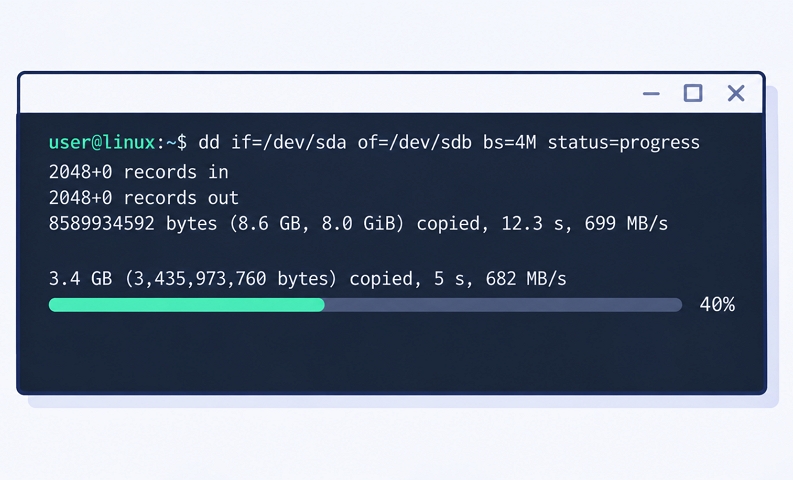
A typical raw disk copy has the basic form:
- dd if=/dev/sda of=/dev/sdb
The input device is the source and the output device is the destination.
The important point is that dd does not know that /dev/sda contains Windows. It sees a block device and copies its contents according to the parameters you provide. GNU's documentation describes if= as the input and of= as the output, with options such as bs= controlling the I/O block size.
For that reason, dd is better thought of as a raw copying method than a Windows cloning solution.
Also, you don't normally run dd from an ordinary Windows Command Prompt. In practice, Windows disk cloning with dd generally means booting into a Linux-based environment or another environment where the required dd utility and block-device access are available.
Share this article on social media to help others compare Clonezilla and dd.
Clonezilla vs dd: What Changes When You're Cloning Windows?
For a simple data disk, the difference between the two may not matter much. A Windows system disk is another story.
The Interface Is Only the Beginning
Clonezilla uses a text-based menu rather than a modern Windows GUI, but it still gives you a structured cloning workflow.
You choose the operation, source, and destination rather than constructing every part of the copy command yourself.
With dd, you are responsible for identifying the correct devices and building the command. That gives you more control, but leaves little room for a careless mistake.
If you accidentally use the wrong of= device, dd will not stop and ask whether you really meant to overwrite that drive.
For Windows users, Clonezilla is the easier of the two.
File Systems and Partitions Matter
Windows disks are rarely just one big C: partition.
A typical GPT-based Windows installation can contain several partitions, including boot and recovery partitions. When you clone the entire disk, those structures matter.
Clonezilla is designed around disk and partition cloning, and its cloning workflow can create the partition table on the destination disk as part of the process.
dd does not make those decisions for you. If you copy the entire device, it copies the partition table and data as raw data. But if the destination is larger, the extra space does not automatically become part of the Windows partition.
That is one of the biggest practical differences between the two.
What Happens When You Clone Windows to a Larger SSD?
This is where Clonezilla usually has the edge.
Suppose your Windows installation is currently on a 500GB SSD, and you want to move it to a 1TB SSD.
With Clonezilla, the cloning process can copy the source disk to the larger target. Clonezilla's documentation includes a specific example of cloning a smaller disk to a larger disk and provides options for making use of the additional target space.
However, you still need to check the resulting partition layout. Simply having a 1TB physical drive does not necessarily mean Windows will automatically use all 1TB.
With dd, the situation is more straightforward-and less convenient. A whole-device copy reproduces the source disk's layout. If you copy a 500GB disk to a 1TB SSD, the additional capacity will generally remain outside the original partition layout until you resize or extend the relevant partition yourself.
So if your goal is to upgrade an existing Windows installation to a larger SSD, Clonezilla is generally a better fit than dd.
What About Sector-by-Sector Cloning?
Both tools can be used for low-level copying, but this is where dd is particularly straightforward.
A raw dd operation copies blocks from the source to the destination. It does not care whether a block contains an active Windows file, unused space, or another part of the disk structure.
Clonezilla can also perform lower-level copying when required, but its normal disk cloning workflow gives you more choices than simply copying every block.
That distinction matters because sector-by-sector copying is not automatically better.
If a 1TB disk contains only 150GB of useful data, copying every sector can mean processing considerably more data than a file-system-aware cloning method needs to handle.
For a normal Windows SSD upgrade, you usually have little reason to choose a raw copy unless you need to reproduce the disk at the sector level.
Clonezilla vs dd for a Windows SSD Upgrade
If your goal is simply to replace an old Windows drive with a newer SSD, the choice becomes fairly easy.
Choose Clonezilla if you want a free, capable cloning tool
Clonezilla makes sense if you:
- Prefer open-source software
- Do not mind booting from a USB drive
- Want to clone an entire Windows disk
- Need disk-to-disk or disk-to-image operations
- Are comfortable checking partitions and boot settings
- Want more control than a typical consumer cloning tool provides
It is not particularly difficult once you understand the workflow, but it is also not a one-click Windows utility.
Choose dd if you need raw control
dd makes more sense when:
- You are already comfortable with Linux
- You need a raw block-level copy
- You want to script the process
- You need precise control over input and output
- You understand disk device naming and the risks involved
For a normal Windows-to-SSD migration, however, dd is usually more work than necessary.
Share this article on social media to help others compare Clonezilla and dd.
Is There a Simpler Way to Clone a Windows Drive?
If you do not need the low-level control of dd or the bootable environment used by Clonezilla, a dedicated Windows disk cloning application can make the process much simpler.
EaseUS Disk Copy is designed specifically for disk and partition cloning on Windows. It provides a graphical interface for selecting the source and destination drives, and supports common scenarios such as HDD-to-SSD and SSD-to-SSD migration.
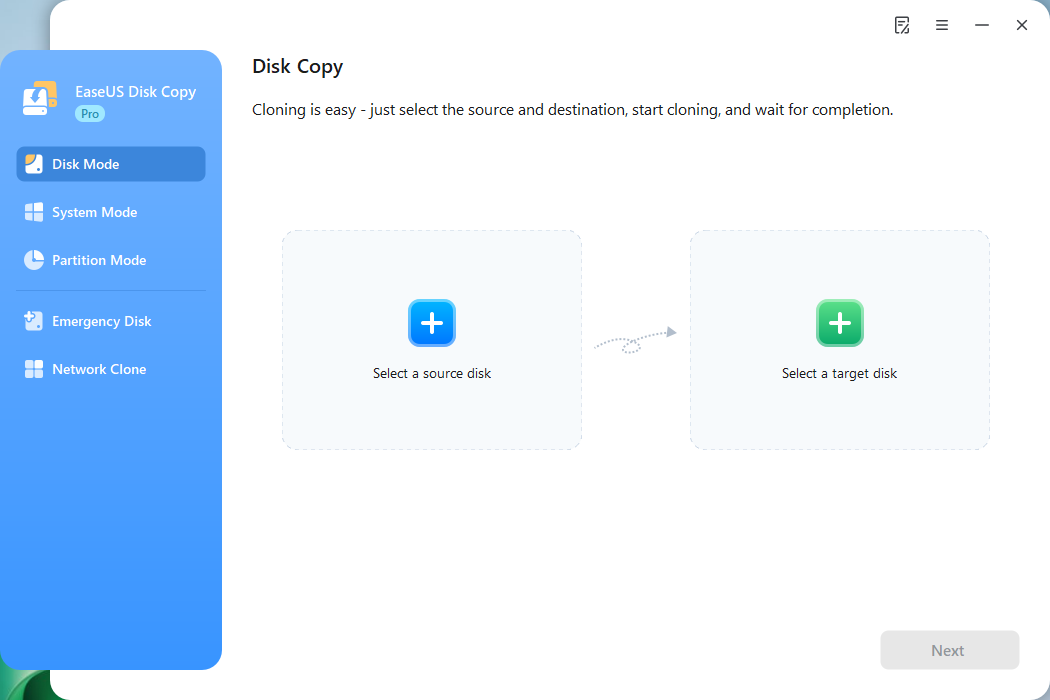
This is where a Windows-based cloning tool has a practical advantage: you do not have to build a dd command or navigate through Clonezilla's boot environment.
For example, if your goal is to move Windows to a larger NVMe SSD, the workflow can be as simple as selecting the old drive as the source, selecting the new SSD as the destination, adjusting the partition layout, and starting the clone.
EaseUS Disk Copy also supports sector-by-sector cloning when an exact sector-level copy is required, while its normal cloning mode can resize the destination layout for different drive sizes.
 Free Download
Windows 11/10/8/7
Of course, the same basic rule applies: the destination drive will be overwritten, so check the source and target carefully before starting.
The Bottom Line
Clonezilla and dd can both clone a Windows disk, but they solve the problem in different ways.
Clonezilla is the better pick for most advanced Windows disk cloning jobs. It provides a dedicated cloning workflow, handles disk and partition structures, and works well for SSD upgrades when you are comfortable booting from external media.
dd is better suited to users who specifically need raw, low-level disk copying. It is powerful and flexible, but it assumes that you already understand the disks and commands involved.
And if the main goal is simply moving Windows from one drive to another, without dealing with Linux commands or a bootable cloning environment, a Windows-based tool such as EaseUS Disk Copy offers a more straightforward route.
Frequently Asked Questions
1. Is Clonezilla better than dd for Windows?
For most Windows disk cloning jobs, yes. Clonezilla provides a dedicated disk cloning workflow, while dd is a general-purpose low-level copying utility.
2. Can I use Clonezilla to clone Windows to a larger SSD?
Yes. Clonezilla supports disk-to-disk cloning from a smaller disk to a larger one. Still check the destination partition layout afterward to make sure the additional capacity is available as expected.
3. Will Windows boot after cloning with dd?
It can, as long as you copy the full disk structure and boot-related data correctly and configure the system to boot from the new drive. However, dd does not troubleshoot Windows boot problems for you.
4. Is Clonezilla easier than dd?
Generally, yes. Clonezilla provides a guided menu-based workflow, while dd requires you to identify the correct source and destination devices and construct the command yourself.
5. Is there an easier alternative to Clonezilla?
Yes. If you want to clone a Windows disk from a graphical interface without using a command-line tool or booting into Clonezilla, a dedicated Windows cloning application such as EaseUS Disk Copy can be a simpler option.
-
Updated by
![]()
Jerry
"I hope my articles can help solve your technical problems. If you are interested in other articles, you can check the articles at the bottom of this page, and you can also check my Facebook to get additional help."…Read full bio