Page Table of Contents

When it comes to disk cloning, sector-by-sector cloning is an option that you may have heard of but don't know exactly what it is or when to use it. Do you have the same question: sector-by-sector clone or not?
This guide explains what sector-by-sector cloning is, when to use sector-by-sector cloning, and when not to use it.
Sector-by-Sector Clone or Not? Quick Answer
The right choice depends on what you are trying to accomplish.
| Situation | Sector-by-sector clone? | Why |
| HDD → SSD upgrade | ❌ | You normally only need the actual data and system structure |
| SSD → larger SSD | ❌ | Extra unused space does not need to be copied |
| Move Windows to a new drive | ❌ | A standard clone is designed for OS migration |
| Move files to another drive | ❌ | File copy or backup is much easier |
| Create an exact replica of a disk | ✅ | Copies sectors, including unused areas |
| Preserve hidden or unallocated data | ✅Potentially | Data outside normal files may need to be retained |
| Data recovery or forensic work | ✅Potentially | Deleted/unallocated data may still matter |
| Unsupported or unusual filesystem/partition layout | ✅Potentially | File-level cloning may not capture everything |
| Drive has a few bad sectors | ⚠️ Not automatically | First determine whether important files are affected |
| Drive is rapidly failing | ⚠️ Not necessarily | Prioritize important data and consider recovery-oriented tools |
The key idea is simple: Use sector-by-sector cloning when you need the sectors themselves. Don't use it simply because you want a better clone.
What Is Sector-by-Sector Cloning?
A standard disk clone generally works with the file system and the data needed to make the destination drive functional. Depending on the cloning software and configuration, unused space may be skipped.
A sector-by-sector clone takes a lower-level approach. It copies the source drive sector by sector, including areas that may not currently contain normal user files. That can include:
- Used disk space
- Unused space
- Partition structures
- File-system metadata
- Boot-related information
- Hidden or unallocated areas
- Data that is not represented as ordinary files
Because it tries to reproduce the source drive at a lower level, a sector-by-sector clone takes longer and generally requires a destination drive with enough capacity to match the source layout.
Sector-by-Sector Clone vs. Standard Clone
The main difference is how much of the source disk it reproduces.
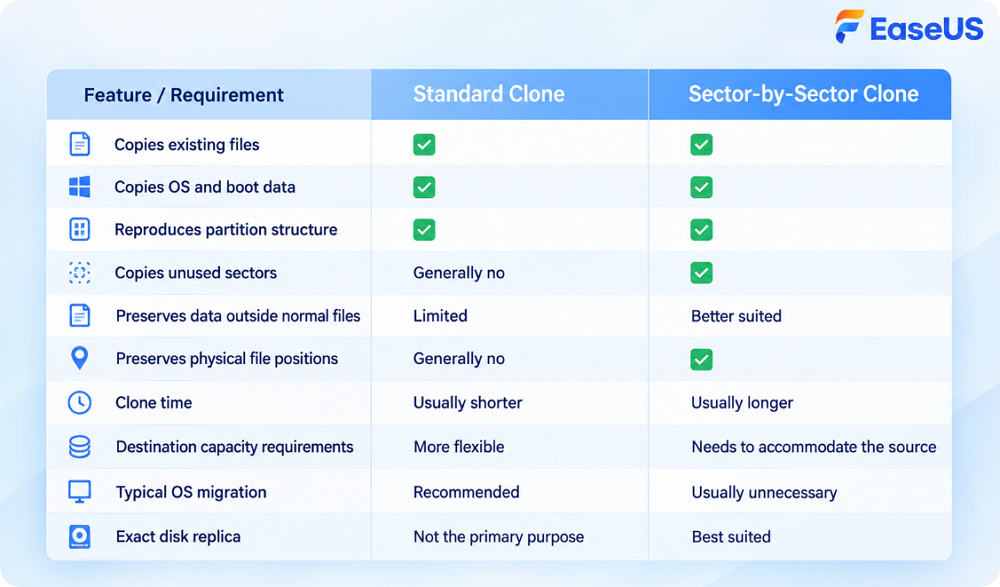
A standard clone is designed around the practical goal of making the destination drive usable. A sector-by-sector clone is designed around the goal of reproducing the source disk as completely as possible at the sector level.
When Should You Use Sector-by-Sector Cloning?
Sector-by-sector cloning is a specialized feature. It makes the most sense when the exact physical organization or low-level contents of the source drive matter.
1. You Need an Exact Replica of the Source Drive
If your goal is to reproduce the source drive as closely as possible, sector-by-sector cloning can be appropriate.
For example, you may be working with a legacy computer, an industrial or specialized system, a proprietary storage device, an old workstation, or asystem with an unusual partition layout. In these cases, you may not know whether important information exists outside the normal file system.
A Reddit user described using sector-by-sector cloning for specialized equipment where license information was stored in hidden or unpartitioned space. Another example involved a recovery partition and additional restore data outside the normal user-accessible areas.
2. You Need to Preserve Hidden or Unallocated Data
Not everything stored on a disk necessarily appears as a normal file. Depending on the device and its configuration, information may exist in areas such as unallocated space or hidden partitions. If that information matters to your use case, a standard file-aware clone may not be sufficient.
3. You Are Working With Data Recovery
Sector-level copying can be useful in certain data recovery workflows because unused or unallocated areas may contain remnants of deleted data. For recovery work, creating a copy and working from it can reduce the need to operate on the original drive repeatedly.
Community discussions commonly identify data recovery and forensic work as situations where sector-by-sector cloning can make sense. If the source drive is physically failing, however, a specialized recovery-oriented imaging tool may be more appropriate than treating the situation as a normal disk migration.
Related post: Forensic Disk Cloning: How to Create Forensic Image of Hard Drive
4. You Need to Preserve the Physical Organization of Files
This can matter more with traditional HDDs than with SSDs. For example, an HDD may have accumulated file fragmentation over time. Files created at different times can be physically distributed across the disk. A sector-level copy preserves that organization rather than reorganizing the files during the cloning process.
Does Sector-by-Sector Cloning Make Sense for SSDs?
Usually, not for the reason it does on some HDD workflows.
On a traditional HDD, physical location can affect performance because the drive has mechanical components. Seek time and the physical position of data on the platters can influence how quickly data is accessed.
SSDs work differently. They have no mechanical read/write heads moving across a platter, so the traditional idea that files should be placed at a particular physical position for faster access does not apply in the same way.
As one Reddit discussion put it, SSD performance is not determined by whether a file is located at the beginning or end of the drive in the same way as an HDD.
Therefore, if you are simply upgrading from one SSD to another, preserving the exact physical position of every file is generally not a compelling reason to use sector-by-sector cloning.
When Shouldn't You Use Sector-by-Sector Cloning?
For many users, this section is more important than the list of use cases.
1. You Are Upgrading From an HDD to an SSD
If your goal is simply: "I want my Windows installation, applications, and files on my new SSD." You generally don't need to copy every sector of the old HDD.
A standard clone can transfer the operating system, applications, files, and required disk structures while avoiding unnecessary copying of unused space, so the partitions autofit the new disks.
2. You Are Moving From a Smaller SSD to a Larger SSD
For example: clone 500GB SSD to 1TB SSD
If the source contains 250GB of actual data, there is usually little practical value in reproducing all of the source drive's unused sectors. A standard clone is usually the better choice for a routine upgrade.
3. You Only Need to Transfer Files
A file copy or backup is simpler and gives you more control over what is transferred.
4. You Want a Faster Clone
Because sector-by-sector cloning processes the entire source disk rather than focusing only on the data that needs to be migrated, it can take longer. If the source drive is large but mostly empty, the difference can be significant.
For example, there is little reason to copy hundreds of gigabytes of unused space simply because the source disk has that capacity.
5. You Are Cloning a Failing Drive
Sector-by-sector cloning is not a repair method for bad sectors. It does not:
- Repair physically damaged sectors
- Restore corrupted data
- Make a failing drive healthy
- Guarantee that unreadable data can be recovered
If a drive shows signs of physical failure, prioritize protecting important data, not simply choosing the most complete cloning mode.
How to Perform a Sector-by-Sector Clone
If you have determined that a sector-level copy is actually necessary, you can use a disk cloning tool that supports this mode. EaseUS Disk Copy is a reliable and easy-to-use tool that supports sector-by-sector cloning.
 Free Download
Windows 11/10/8/7
Here are the steps:
-
Step 1. Connect the Destination Drive
Make sure the destination drive has sufficient capacity and is correctly detected by Windows. For a true sector-by-sector copy, the destination generally needs enough capacity to accommodate the source disk's sectors.
-
Step 2. Open EaseUS Disk Copy
Launch EaseUS Disk Copy and select the Disk Mode.
-
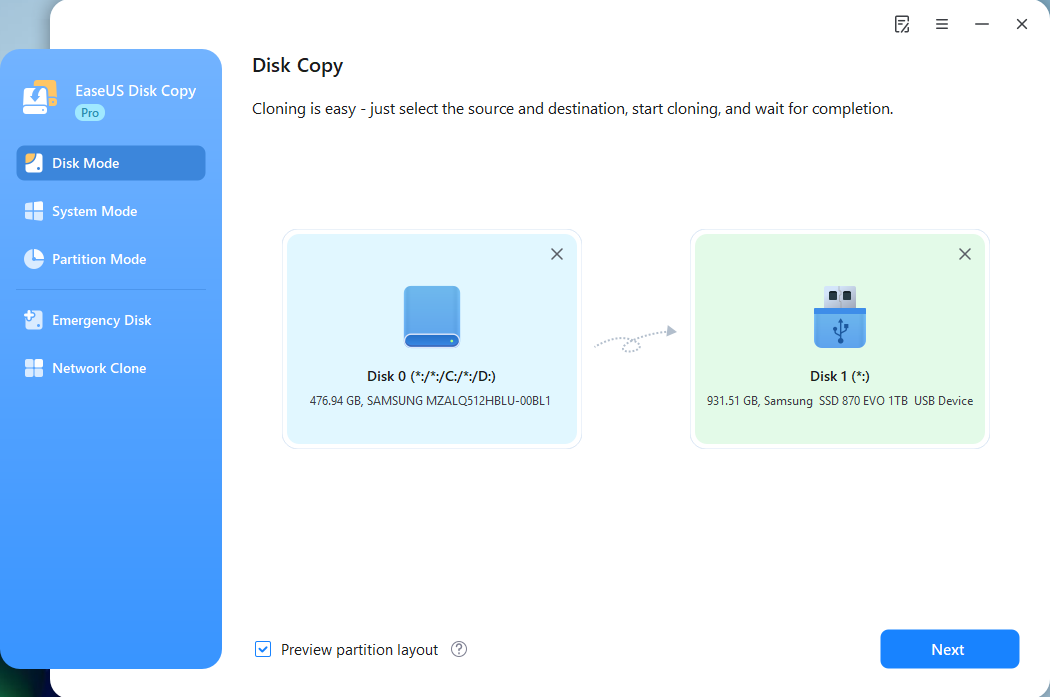
Step 3. Select the Source & Target Disk
Choose the disk you want to duplicate and the destination drive. Be aware that existing data on the destination may be overwritten during the cloning process.
-
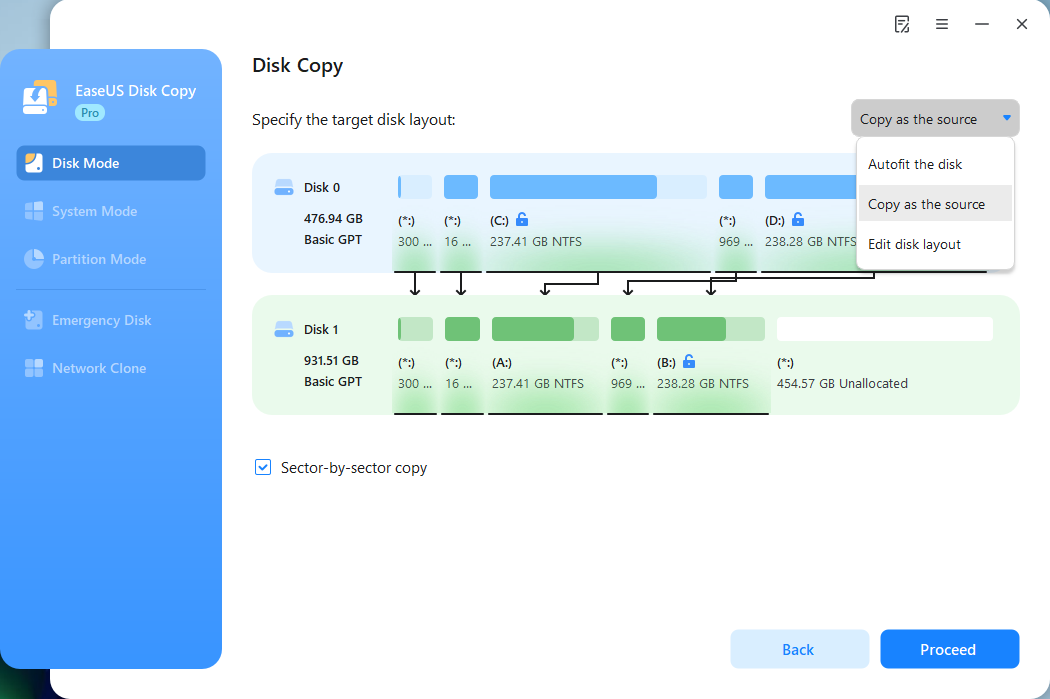
Step 4. Enable Sector-by-Sector Clone
Select the Sector-by-sector copy option when you specifically need a sector-level replica.
-
Step 5. Proceed Cloning
When checked, click the Proceed button to start the cloning process.
Frequently Asked Questions
1. Is sector-by-sector cloning better than normal cloning?
Not necessarily. It is more complete at the sector level, but that does not make it better for every use case. For a standard Windows migration or HDD-to-SSD upgrade, standard cloning is usually more efficient.
2. Do I need sector-by-sector cloning for an SSD?
Usually not. If you are moving Windows from one SSD to another, a standard clone is generally sufficient. Preserving the exact physical position of files offers little practical advantage on SSDs because they lack the mechanical seek behavior of HDDs.
3. Does sector-by-sector cloning fix bad sectors?
No. It is a copying method, not a disk-repair method. If the source contains unreadable sectors, the outcome depends on the drive's condition and the cloning or recovery software's capabilities.
4. Does sector-by-sector cloning take longer?
Usually, yes. Because it processes the source disk at the sector level, it may copy large amounts of unused space that a standard clone can skip.
Final Verdict: Sector-by-Sector Clone or Not?
For most everyday users, the answer is: No, not unless you have a specific reason to copy the disk sector by sector.
Choose a standard clone:
✔
Upgrading an HDD to an SSD
✔
Moving Windows to a new drive
✔
Upgrading to a larger SSD
✔
Migrating your applications and files
✔
Replacing a normal working drive
Consider sector-by-sector cloning:
●
Create a highly exact replica of a disk
●
Preserve hidden or unallocated areas
●
Retain low-level disk organization
●
Work with unusual or proprietary storage
●
Support certain recovery or forensic workflows
Sector-by-sector cloning is a specialized tool, not a setting you need to turn on just because it sounds more complete. Use EaseUS Disk Copy to make your sector-by-sector easily.
Free Download
Windows 11/10/8/7
-
Updated by
![Larissa]()
Larissa
Larissa has rich experience in writing technical articles and is now a professional editor at EaseUS. She is good at writing articles about data recovery, disk cloning, disk partitioning, data backup, and other related knowledge. Her detailed and ultimate guides help users find effective solutions to their problems. She is fond of traveling, reading, and riding in her spare time.…Read full bio