Page Table of Contents

Digital forensics experts and legal investigators often face a critical challenge: how to extract and analyze electronic evidence without damaging the original data. Forensic disk cloning technology solves this problem by creating an exact bit-by-bit copy of a hard drive. EaseUS Disk Copy lets users create forensic copies of hard drives, ensuring the original evidence remains completely intact while providing a complete data image for investigative analysis.
What Is Forensic Disk Cloning
The fragility of digital evidence requires investigators to adopt special handling procedures. Forensic disk cloning, also known as forensic imaging, is the process of creating a complete and exact copy of a storage device through sector-by-sector copy.
This cloning method differs fundamentally from traditional data backups. It copies not only visible files but also encompasses deleted data not yet overwritten, file fragments, and unallocated areas of the hard drive. This comprehensiveness allows forensic images to capture all digital traces that might become crucial evidence.
In judicial practice, the integrity of a forensic image is verified using hash values, such as MD5, SHA-1, or SHA-256. Investigators calculate the hash values of the original device and the image file before and after creation. Consistency comparison ensures the image has not been tampered with, thereby meeting the strict court requirements for evidence admissibility.
Benefits & Methods of Forensic Cloning
Forensic cloning primarily contains 2 technical paths:
- Disk-to-Disk Cloning is the most direct physical copying method. This method duplicates all data from the source hard drive, including hidden partitions and unused space, completely onto another physical hard drive.
- Disk-to-Image File is a more flexible and commonly used forensic method. It packages the entire hard drive contents into a single image file, stored on another storage medium.
Here are the benefits of forensic disk cloning:
- Evidence Preservation: Investigators need to protect the original evidence from accidental modification. Therefore, a forensic clone is created as a working copy for analysis.
- Data Integrity: The cloning process ensures that every bit of information, including bad sectors and unallocated space, is completely copied and preserved.
- Chain of Custody: Forensic procedures require documented proof that data has not been tampered with. Disk clones provide verifiable hashes to confirm authenticity.
Share this article on social media to help others create a forensic image of a hard drive!

Download Forensic Disk Cloning Software
To create a forensic disk cloning, you must use professional and third-party disk cloning software, since Windows does not have a built-in cloning solution. EaseUS Disk Copy, one of the best software known for disk cloning and sector-by-sector copy, comes to help.
It can help you clone a hard drive from different manufacturers with different sizes on Windows 11/10/8/7. It has a simple interface and advanced cloning algorithms, which means you can clone a disk to another easily without compromising forensic standards or destroying your data on the source disk.
Best Forensic Disk Imaging Software to Create Disk Image
- Disk Mode: Clone disk to disk or clone disk to image file.
- Partition Mode: Copy a volume from one disk to another.
- System Mode: Transfer Windows OS to SSD for migration.
- Sector-by-Sector Copy: Clone an HDD/SSD with bad sectors.
- SSD Alignment: Auto 4K alignment for better performance.
 Free Download
Windows 11/10/8/7
Whether you want to clone an entire disk to another or clone an entire disk to an image file (the 2 methods to achieve forensic disk cloning), EaseUS Disk Copy can meet your needs. Cloning a disk to an image file is also a feature that makes Disk Copy stand out from other cloning software. Just download it on your computer and use it to perform a forensic disk cloning!
How to Create Forensic Disk Image Using Disk Copy
After downloading Disk Copy on your computer, you can use it to clone a disk to another disk or clone a disk to an image file. Here is how to clone a disk to an image file using EaseUS Disk Copy:
Step 1. Prepare New Drive
- Backup data: If the target disk contains data, back it up before cloning because the cloning process will wipe all data on the target disk.
- Connect the disk to your PC: For desktops, install it internally. For a laptop with only one slot, use an external hard drive enclosure or a SATA-to-USB adapter to attach the new drive externally to the PC.
Step 2. Run Disk Cloning Software
- Download, install, and open EaseUS Disk Copy.
- Choose Disk Mode.
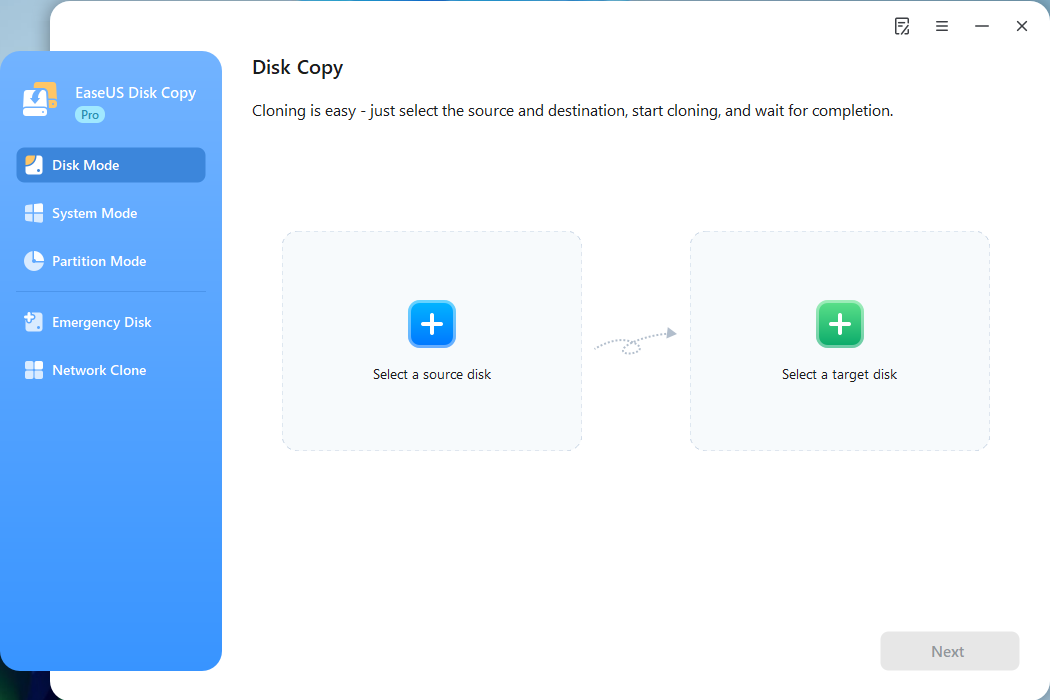
Step 3. Select Source and Target Drives
- Select your old drive as the source.
- Select the new drive as the destination.
- Enable "Preview partition layout" to get the advanced feature.
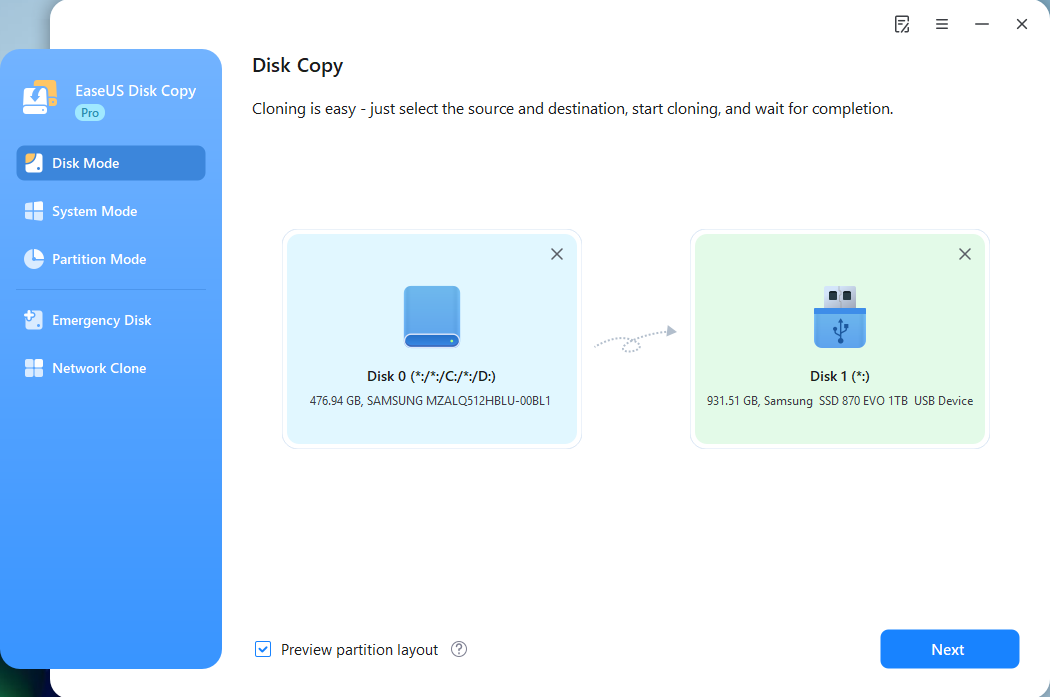
Note: Adjust disk layout if needed.
- Choose "Autofit the disk" to make full use of the larger capacity on the target disk.
- Choose "Copy as the source" to use the "Sector-by-sector copy" feature.

Step 4. Start Cloning
- Confirm the warning message (data on the destination disk will be erased) and start cloning.
- Wait for cloning to be complete.
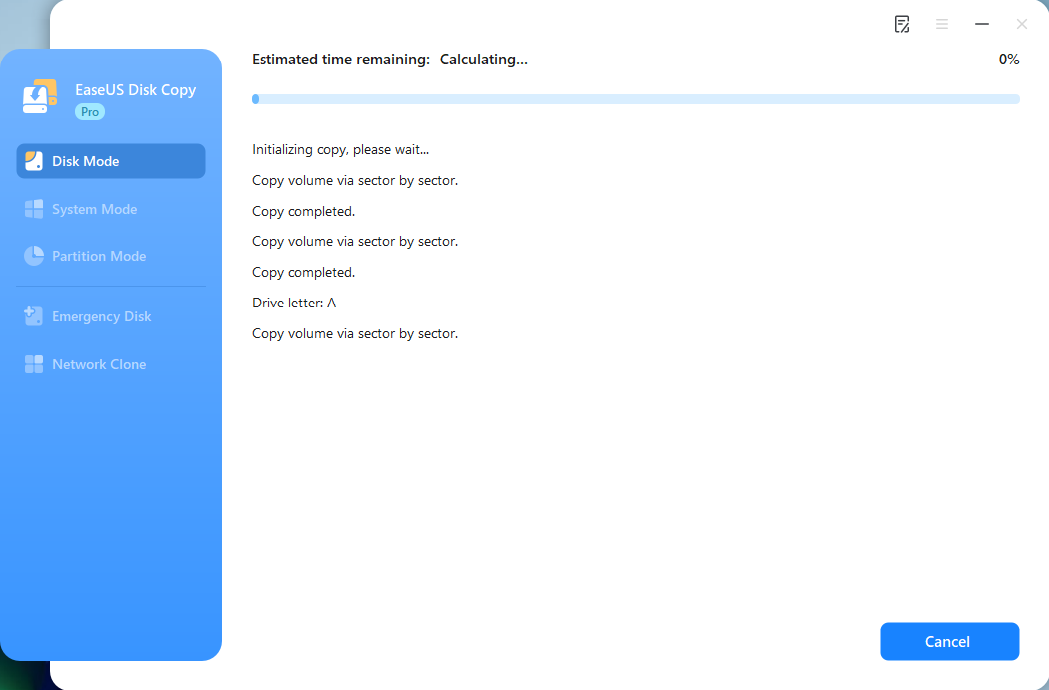
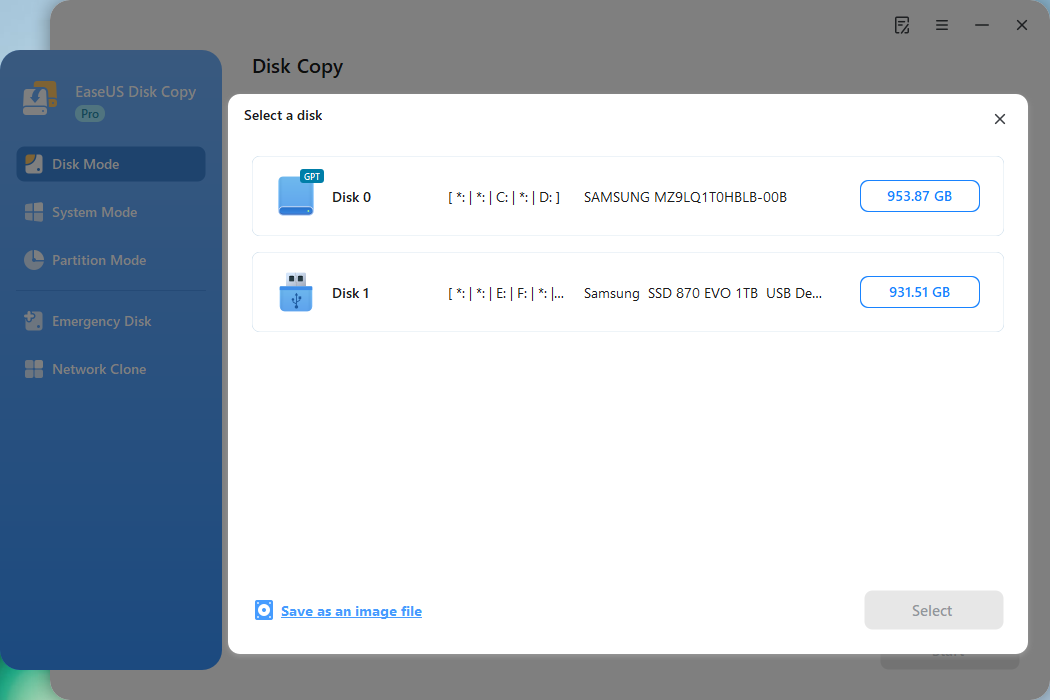
If you want to clone a disk to an image file, select "Save as an image file" after clicking "Select a target disk". You can save the disk image on your PC if you have enough storage space. You can also save the disk image on the target disk.
Share this article on social media to help others create a forensic image of a hard drive!
To Wrap Things Up
Forensic disk cloning is the cornerstone of digital investigations, centered on creating complete disk replicas to preserve the integrity of original evidence. Whether you are addressing a corporate data breach, conducting internal inquiries, or handling other scenarios requiring electronic evidence preservation, selecting the appropriate tools and methods is crucial.
EaseUS Disk Copy is a reliable and user-friendly solution well-suited for properly safeguarding digital evidence. It employs sector-by-sector cloning technology to fully replicate all data from the source disk, offers convenient validation features to help verify the accuracy of cloned results, and maintains broad compatibility with various storage devices, making it a practical choice for disk cloning tasks.
Free Download
Windows 11/10/8/7
FAQs on How to Make a Forensic Disk Image
1. How to make a forensic copy of a hard drive?
To make a forensic copy (or image) of a hard drive, use a dedicated forensic disk imaging tool, connect the source drive and target drive to a PC, run the forensic hard disk duplicator, select the physical drive as the source, choose the target disk or specify a destination for the image, and start the imaging process to create a bit-for-bit replica.
2. Which tool is commonly used for creating forensic images of hard drives?
FTK Imager is a widely used forensic tool for creating forensic images of hard drives. It is designed for digital investigations and evidence collection, allowing investigators to acquire, analyze, and report on digital evidence in a forensically sound manner. You can also use professional cloning software like EaseUS Disk Copy to clone a hard drive to another one or clone a hard drive to an image file.
3. What is a forensic duplicate of a hard drive?
A forensic duplicate is a replicated copy of a hard drive created for forensic analysis to prevent any changes to the original evidence. This copy of a hard drive ensures that any issues during examination do not affect the original data.
-
Updated by
![]()
Jerry
"I hope my articles can help solve your technical problems. If you are interested in other articles, you can check the articles at the bottom of this page, and you can also check my Facebook to get additional help."…Read full bio