- EaseUS Solution
- Free Data Recovery Software
- Free Backup Software
- Free Partition Manager

Updated on Mar 29, 2018 by Tracy King to Backup and Recovery
- Summary:
- Need a method to keep all files in OneNote? It’s no longer a complex issue to backup and restore OneNote in Windows 10. Effective tips for OneNote backup and restore on Windows 10 are available in this article now.
Are you feeling fascinated about the wonderful capacity of OneNote which allows you to use it on all your devices and share files via it boundlessly. You can also work with your friends, family, classmates and colleagues together and get things done efficiently. Don't wanna lose any files on OneNote? Effective tips for OneNote backup and restore on Windows 10 are available here now.
How to backup and restore OneNote?
So why it's necessary to create backups of OneNote? Though OneNote might sound no longer new to you at all since it has complied with Office users for quite a long period. And the latest version of OneNote even allows you to clip any web pages online or offline. With this feature, you can connect and capture any amazing ideas or pics or even fabulous websites and view them later through OneNote.
In order not to lose precious files such as website clips, important emails on notebook or wonderful photos, it's highly necessary to create OneNote backups and restore them when unexpected problems happen.
How? Do you have any ideas to backup and restore OneNote? Don't bother if you don't have ideas about OneNote backup and restore. Here EaseUS will provide two free methods to backup OneNote on Windows 10 or other OS for you now.
Method 1. Manually backup and restore OneNote
Advantage: Free
Disadvantage: Backup files will take exact same space as original files. Enough storage space is highly necessary.
Microsoft provide OneNote users a great feature that users can create backups for OneNote as what Word, Excel and PowerPoint users can do.
Backup OneNote:
1. Launch OneNote > Click File > Click Option > Tap OneNote Options and click Save & Backup.
2.On the right, under Save, click Backup Folder > Modify.
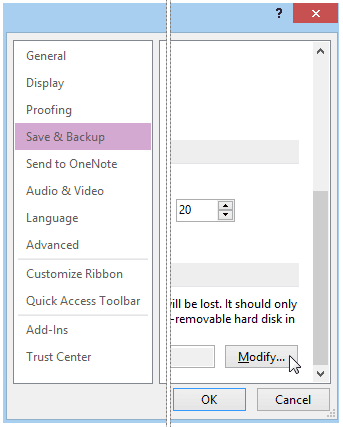
3. In Select Folder, you can choose to backup OneNote files into a local spot on your network or an external hard drive.
4. Then click Select to accept the new location and click OK.
OneNote will automatically backup your files each week as default. You can also set the backup frequency more often.
Restore OneNote from backup files:
1. Launch OneNote, on the File menu, click Open Backup.
2. In the Open Backup dialog box, in the Backup folder, double-click the notebook folder that contains the file or files that you want to restore.
3. Select one or more backup files to restore, and then click Open.
Method 2. 3 steps to backup & restore OneNote with backup and recovery software
If you prefer an easier and simple solution for OneNote backup and recovery, EaseUS Todo Backup Home should help. It's fully compatible with Windows 10 and other Windows systems, allowing you to backup whatever you need within 3 simple clicks. Free download and follow next steps to backup OneNote files now:
Backup OneNote files with EaseUS Todo Backup
1. Launch EaseUS Todo Backup Free and then choose "File Backup".
Choose OneNote files that you need to backup.
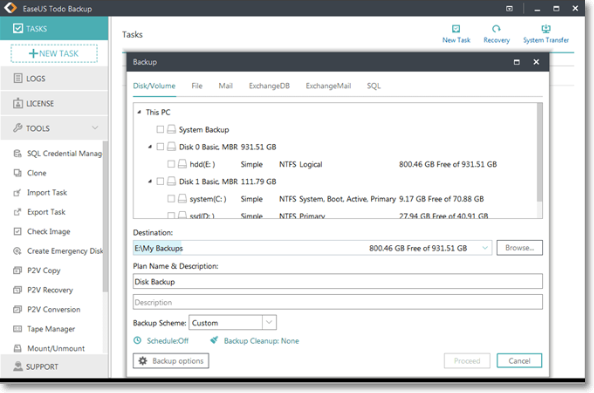
2. Select the backup destination, or it will choose the most suitable location by default.
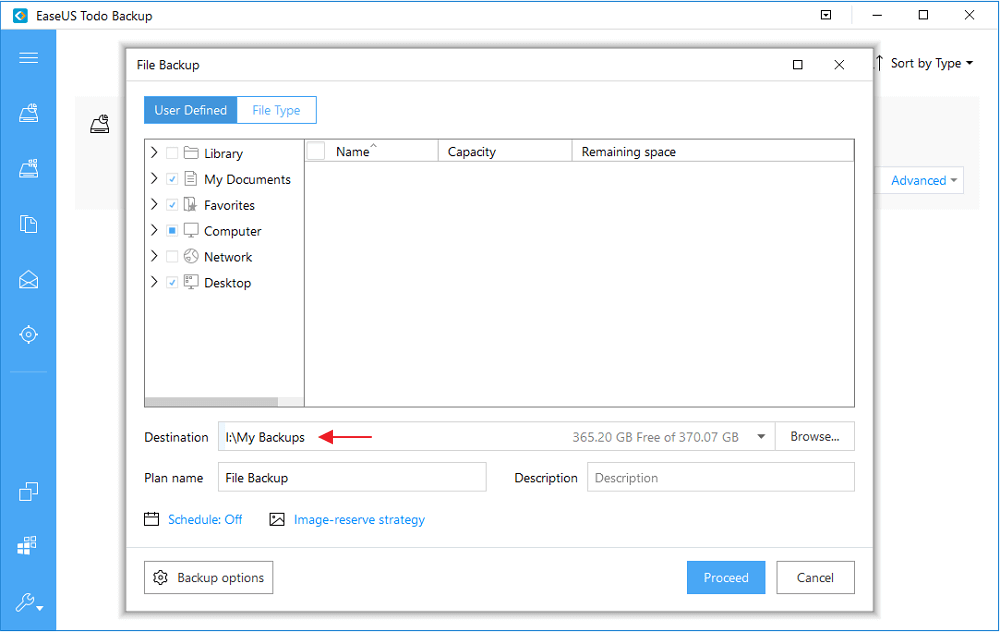
3. After making all the settings, click "Proceed" to complete the whole process.
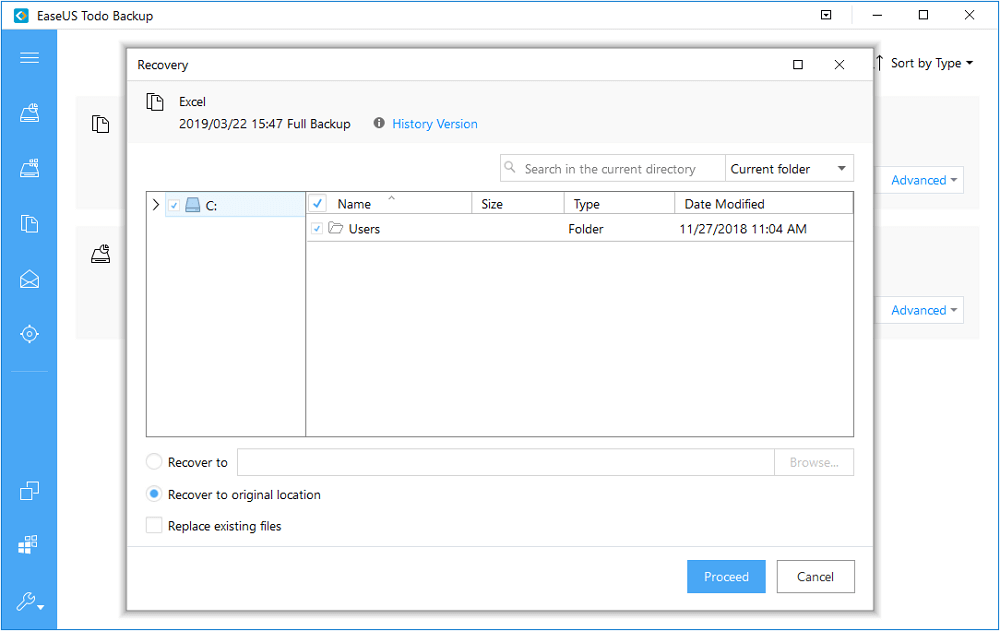
3 clicks to restore OneNote files with EaseUS Todo Backup
When you need to restore the OneNote backup files, 3 simple clicks will also bring your OneNote backups back:
1. Launch EaseUS Todo Backup, click Brows to recover.
2. Select the OneNote backup image file and click OK.
3. Select the OneNote backup files to recover and you can choose recover to original location or specify a recovery location, then click Proceed.
About the Autor
 Alan
AlanRelated Articles - ALSO ON EaseUS SOFTWARE
-
Backup Surface Pro 4/3/2/1 System and Data
2015-11-25 14:08:49

Abby Haines - Try EaseUS Surface Pro backup software to backup Surface Pro 4 and its predecessors Surface Pro 3/2/1. It is the best wa…
-
Download Best Windows Deployment Tool
2016-05-06 14:43:08
Abby Haines - Download the best Windows deployment tool to deploy system, package/application, security patches (both Microsoft's and …
-
Download WinPE Builder for All Windows
2017-11-08 17:14:44

Jean - This recommended WinPE builder is especically for all Windows from Windows XP to Windows 10, to help users create a Wind…
-
How to Fix Windows 10 Problems with System Restore
2016-02-26 14:57:38
Abby Haines - Encountered problems while updating or installing Windows 10? This page tells you how to fix Windows 10 problems by roll…
 Jean Liu900+ Articles
Need a method to keep all files in OneNote? It’s no longer a complex issue to backup and restore OneNote in Windows 10. Effective tips for OneNote backup and restore on Windows 10 are available in this article now.
Top 10 Hot Articles
- Create Portable Windows 10/8/7 USB Drive in 3 Steps
- Clone Windows 10 Hard Drive to New Computer
- Best SSD Cloning Software | HDD to SSD Cloning Software
- How to Restore Windows System Image to New Computer with Dissimilar Hardware?
- How to Clone Hard Drive to USB Flash Drive
- Time Machine alternative for Windows 10/8/7/XP/Vista
- Create Windows 10 Backup System Image for Free
- Free Windows 10/8/7 Incremental Backup
- Will You Choose Lenovo OneKey Recovery or Backup And Recovery Software
- How to Backup Files to OneDrive with OneDrive Backup Software