






| Workable Solutions | Step-by-step Troubleshooting |
|---|---|
| 1. Activate Windows with CMD | Run it as administrator > Type the command > Press enter to activate your Windows 10/11...Full steps |
| 2. Activate Windows with Product Key | Using Command Prompt is a way. But you do not necessarily have to rely on this method to activate your Windows 10 or 11...Full steps |
| 3. Check Windows Activation Status | Click on the start button and click on settings > Go to "Update and security"...Full steps |
| 4. Can I use unactivated Windows |
Pros of using Windows Without Activation...Full steps Cons of using Windows Without Activation...Full steps |
No matter which Windows OS you install, its activation is essential. An activated version of Windows lets you explore all its features without any issues. Further, to complete your purchase, it is also necessary to activate your Windows.
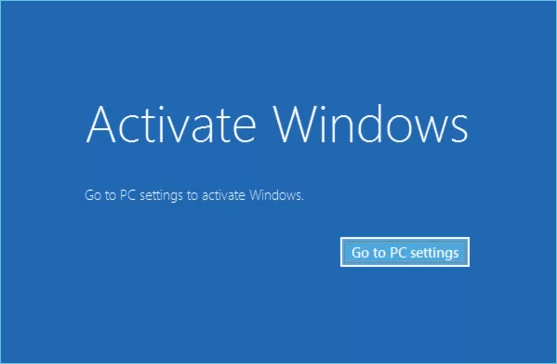
Now, how to activate Windows? Well, there are many methods. One simple and hassle-free way is to use the Command Prompt. Do not worry! we will guide you through all the steps of activating your Windows through CMD. So, let us get started!
How to Activate Windows 10/11 with CMD
Windows can be activated through Command Prompt using a valid product key or an authorized Key Management Service (KMS) setup.
Before using CMD, make sure you have a valid Windows license. KMS activation is intended for organizations with volume licensing agreements and requires access to an authorized KMS host provided by the organization's IT administrator. It is not a general-purpose method for activating personal Windows installations.
If you have a personal Windows license, using the Activation settings or entering your product key is usually the simplest option.
Step 1. You have to open the command prompt on your system first. Then, click and start and type "CMD". Now, run it as administrator.
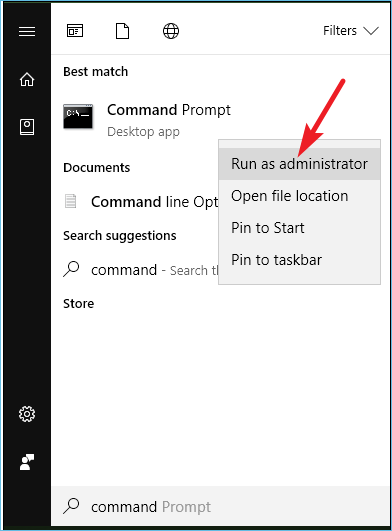
Step 2. Type the following command.
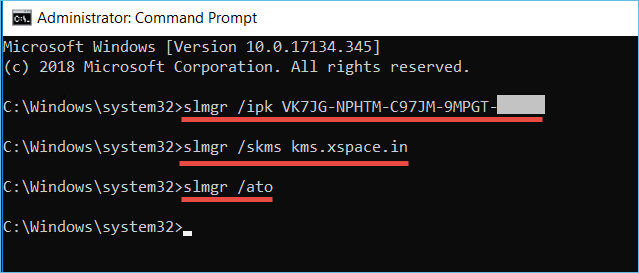
- slmgr /ipk
- Slmgr /ato
Now press enter. This command will activate your Windows 10/11. In case of any troubleshooting, you can take help from Windows repair services.
Note: Windows 10 reached the end of support on October 14, 2025. Although Windows 10 devices can still run, Microsoft no longer provides regular security updates, feature updates, or technical support. Eligible users can check Microsoft's Extended Security Updates (ESU) program for continued security coverage.
Activate Windows 10/11 with Product Key
Using Command Prompt is a way. But you do not necessarily have to rely on this method to activate your Windows 10 or 11. You can also use the Windows product key to activate your Windows OS. It seems quite simple, but it does require some steps to follow. So, for your ease, we have explained the whole process in various steps.
Before entering a product key, make sure it comes from a legitimate source. You can obtain a genuine Windows license through:
- Microsoft Store or Microsoft's official website.
- An authorized Microsoft retailer.
- Your PC manufacturer, if Windows was included with your device.
- Your organization's IT administrator, if your device is covered by a volume licensing agreement.
Avoid purchasing unusually cheap keys from unverified sellers, as they may be invalid, unauthorized, or unsuitable for your Windows edition.
Step 1. Open the Activation settings page on your PC:
- For Windows 11: Press Win + I to open Settings, go to System > Activation, and click Change next to Change product key.
- For Windows 10: Press Win + I to open Settings, go to Update & Security > Activation, and click Change product key.
Step 2. Enter your 25-character product key in the pop-up window and click Next.
Step 3. Follow the on-screen prompts and click Activate. Once verified, the activation status on the page will update to show that Windows is activated.
How to Check Windows Activation Status
If you want to verify whether your Windows OS is activated, you can follow a simple process. Below, we have broken down the whole process into steps for your ease.
Step 1. Click on the start button and click on settings.
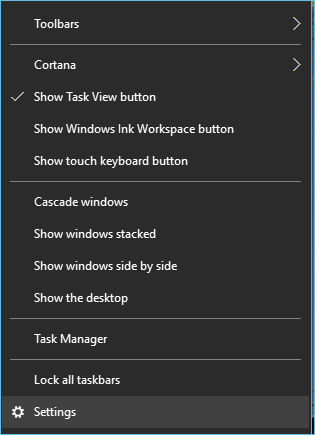
Step 2. Go to "Update and security". Under this menu, you have to click on "Activation". Here, your Windows activation status will be displayed.
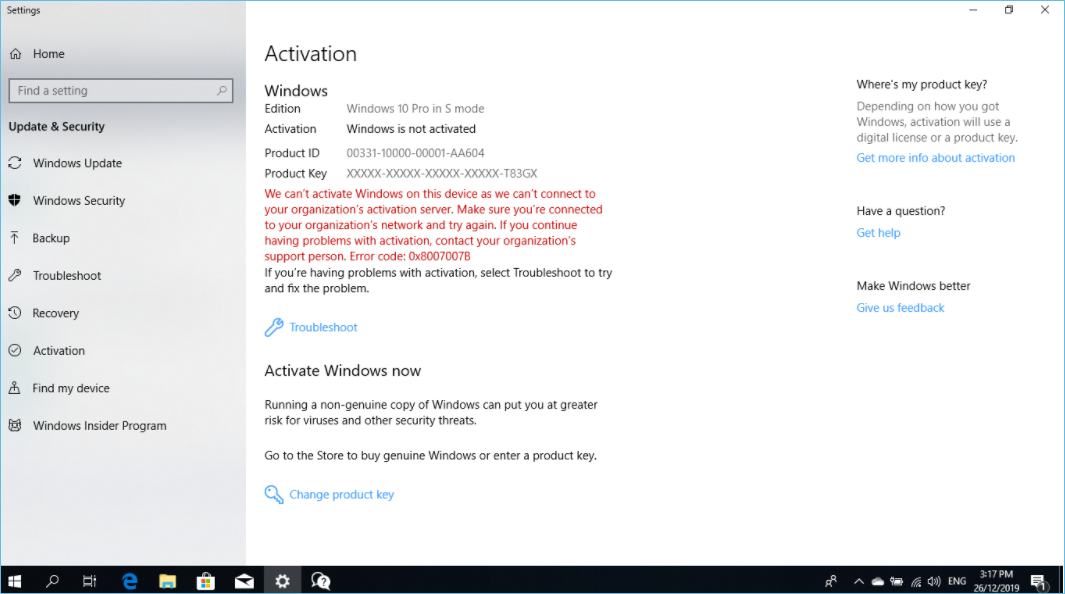
For short:
- Windows 11:Settings → System → Activation
- Windows 10:Settings → Update & Security → Activation
Can I Use Windows Without Activation
Yes. Windows 10 and Windows 11 can continue to run without activation, but some features and personalization options may be limited.
An unactivated copy of Windows may display an activation watermark and recurring activation reminders. You may also be unable to access certain personalization settings, such as changing the desktop background through the usual Settings interface.
Pros of using Windows Without Activation
1. It Doesn't Affect Your PC's Performance
Some people think that if they have an inactive copy of Windows on their computer, it will affect its performance. But this is not true! In fact, you may not even notice any difference.
So why bother activating Windows? In reality, there are many benefits to doing so. For one, you'll have access to all the latest updates and features that Microsoft releases. Additionally, you'll be able to personalize your copy of Windows with custom themes and settings.
Overall, whether or not you activate your copy of Windows is up to you. Just know that it won't impact your computer's performance either way.
2. You Can Try A Certain Windows OS
For instance, you want to try Windows 11, and you can install it without activating it. Similarly, you can use a Windows OS without activation for some days. However, it would give you an idea of the overall features of that particular OS.
If you wish to continue with that version, you can activate it as we mentioned.
Cons of using Windows Without Activation
Here are some cons of using Windows without activation.
1. You Keep On Getting Reminders
If you don't activate Windows 10, you'll see a watermark on your desktop. This is Microsoft's way of reminding you that you need to pay for the copy of Windows 10 that you're using. The watermark will also include the build number of the operating system, so if you see it, you'll know that your Windows is not activated.
2. Personalization will be limited
Another consequence of not activating Windows 10 is that you won't be able to personalize your PC as much as possible if it were activated. For example, you won't be able to change your wallpaper or lock screen, and you'll see a message on your personalization settings page that says, "Your organization manages some settings."
Conclusion
So, now you know how to activate Windows 10/11 using various methods. We have listed activating Windows OS through CMD and the product key. You can choose the way that feels convenient to you.
However, you can also use an inactivated Windows copy. However, it is recommended to activate it using any of the above methods.
To keep your data backed up, it is recommended to use a reliable third-party tool such as EaseUS Todo Backup Free. It is one easy-to-use tool and lets you create backups of the system files for free. You can download it to try its convenient features.
Secure Download
FAQ on Activate Windows 10/11 Using CMD
1. Is activating Windows with cmd safe?
Using Command Prompt to activate Windows is not inherently unsafe, but the commands and activation source matter.
Installing a valid product key with the slmgr command is a standard Windows license management operation. However, connecting to an unknown third-party KMS server may expose your system to security risks, and unauthorized activation may violate Microsoft's licensing terms.
If you use a personal Windows license, activate Windows through Settings with a valid product key. For organization-managed devices, follow the KMS instructions provided by your IT administrator.
2. Can I activate Windows through cmd?
Yes. You can use Command Prompt to activate Windows with a valid product key.
Open Command Prompt as an administrator and enter the following command, replacing the placeholder with your actual 25-character product key: slmgr /ipk XXXXX-XXXXX-XXXXX-XXXXX-XXXXX
Then run: slmgr /ato
Windows will attempt to activate using the installed key. Activation is not guaranteed and depends on the validity of the license, the Windows edition, and the device's activation status.
If your device is managed by an organization using KMS, contact your IT administrator for the correct activation instructions.
Was This Page Helpful?

Updated by Jerry
I hope my articles can help solve your technical problems. If you are interested in other articles, you can check the articles at the bottom of this page, and you can also check my Facebook to get additional help.

Jean is recognized as one of the most professional writers at EaseUS. She has continually improved her writing skills over the past 10 years and has helped millions of readers solve tech problems on PC, Mac, and iOS devices.
Related Articles
-
Fix Startup Disk Cannot Be Partitioned Or Restored To A Single Partition
![Daisy]() Daisy/2026-11-18
-
PowerShell Get Disk Space on Windows 10/11 [Full Tutorial]
![Sherly]() Sherly/2024-06-21
-
Fix Windows (11/10/8/7) Won't Boot From USB Error
![Tracy King]() Tracy King/2026-10-30
-
How to Fix 'the Archive Is Either in Unknown Format Or Damaged'
![Cici]() Cici/2026-11-18
 Daisy/2026-11-18
 Sherly/2024-06-21
 Tracy King/2026-10-30
 Cici/2026-11-18
EaseUS Data Recovery Services
EaseUS data recovery experts have uneaqualed expertise to repair disks/systems and salvage data from all devices like RAID, HDD, SSD, USB, etc.


