





-
![]() USB Data Recovery Software Full Version Free Download (2026 Guide)
USB Data Recovery Software Full Version Free Download (2026 Guide) October 14,2026
 6 min read
 -
![]()
-
![]()
-
![]() Lexar USB Format Tool 2026 Guide: Download & Repair in 2026October 14,20266 min read
Lexar USB Format Tool 2026 Guide: Download & Repair in 2026October 14,20266 min read -
![]()
-
![]()
-
![]() How to Show Hidden Files on USB Drive (4 Proven Methods)October 14,20266 min read
How to Show Hidden Files on USB Drive (4 Proven Methods)October 14,20266 min read -
![]() How to Recover Data from Corrupted USB Drive [Pen Drive]October 14,20266 min read
How to Recover Data from Corrupted USB Drive [Pen Drive]October 14,20266 min read -
![]() USB Device Not Recognized | Windows 10 USB Driver Error Solved!October 14,20266 min read
USB Device Not Recognized | Windows 10 USB Driver Error Solved!October 14,20266 min read -
![]()
Page Table of Contents
PAGE CONTENT:
What Does "USB Drive Not Formatted" Mean
When Windows tells you a USB drive isn't formatted, it's really saying, "Your Disk in Drive X Is Not Formatted," and Windows may ask you to format your USB now.
Some of the messages you'll see are things like the following:
- You need to format the disk before using it
- USB drive is not accessible
- The drive shows up as RAW instead of NTFS
- Or just the File system is not recognized
Usually, flash drives use file systems like FAT32, exFAT, or NTFS. If something messes up that file system, Windows just can't open the drive; it might pop up all kinds of errors.
When you are asked to format your USB flash drive, you should not click the Yes button. No matter what caused it, try to recover any important files before doing anything else. That's the safest move.
Recover Data from USB Drive Before Formatting
If you can't open your USB drive, your files are probably still sitting on the storage chip. But here's the catch: trying to repair the drive first can actually overwrite your data and make recovery harder.
So, always try to recover your files before you attempt any repairs.
One tool that works well for this is EaseUS Data Recovery Wizard. It's designed to help you get files back from USB drives that are corrupted, RAW, inaccessible, or have been accidentally formatted.
With this USB data recovery software, you can recover data from a USB drive that shows RAW or retrieve files from a formatted USB. After data loss, you should move fast and apply a recovery solution as soon as possible; the longer you wait, the less data you can recover.
Follow the steps below to recover deleted files from USB drive:
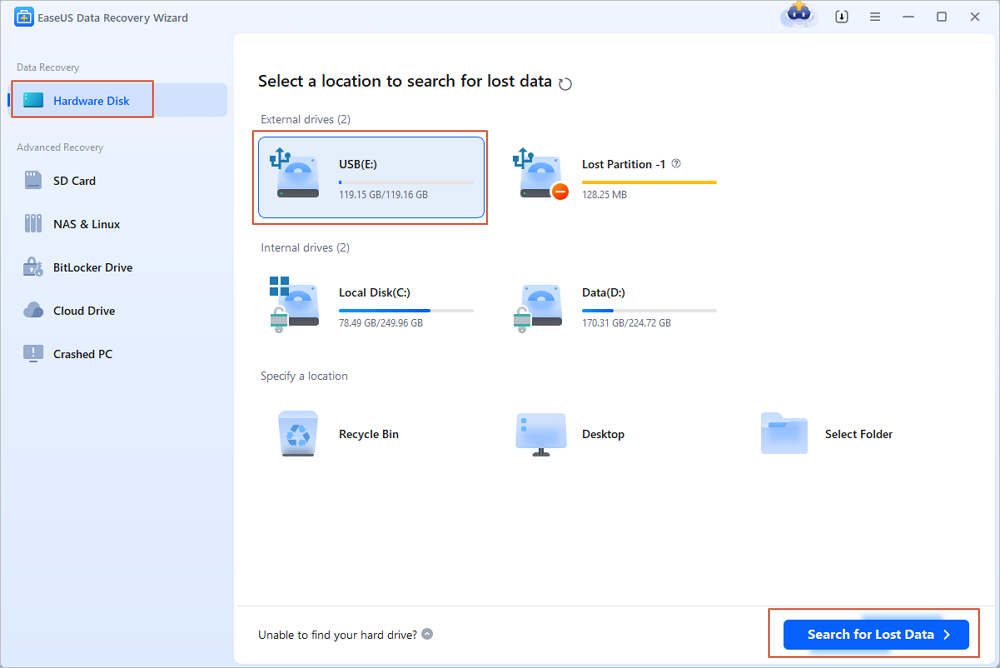
Step 1. Choose the USB drive to scan
Launch EaseUS Data Recovery Wizard and choose your USB drive where you lost important files. Click "Scan for lost data" to start.
Step 2. Check and preview USB drive data
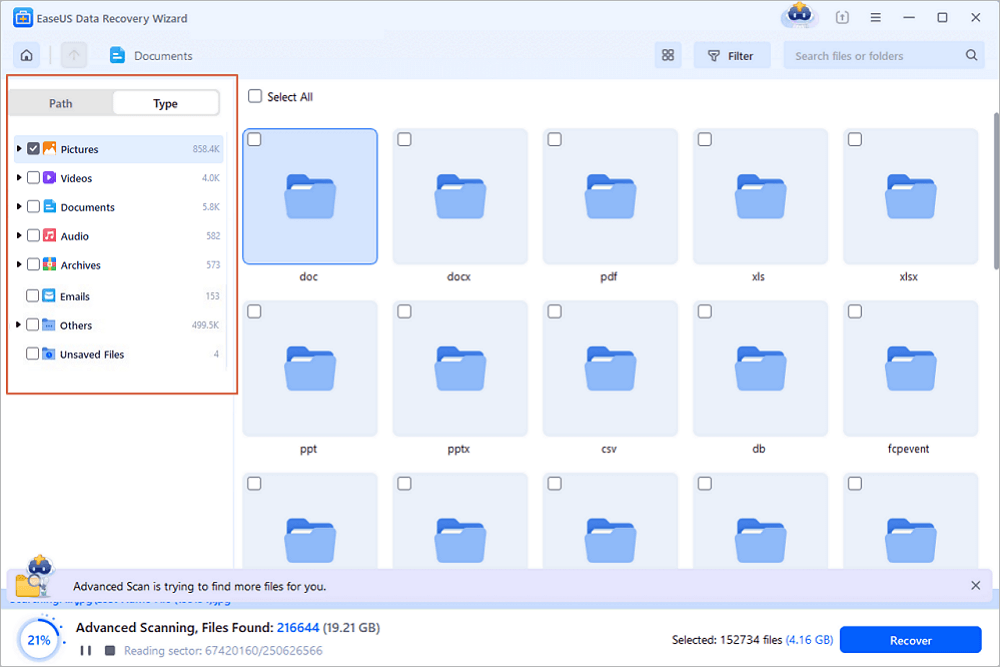
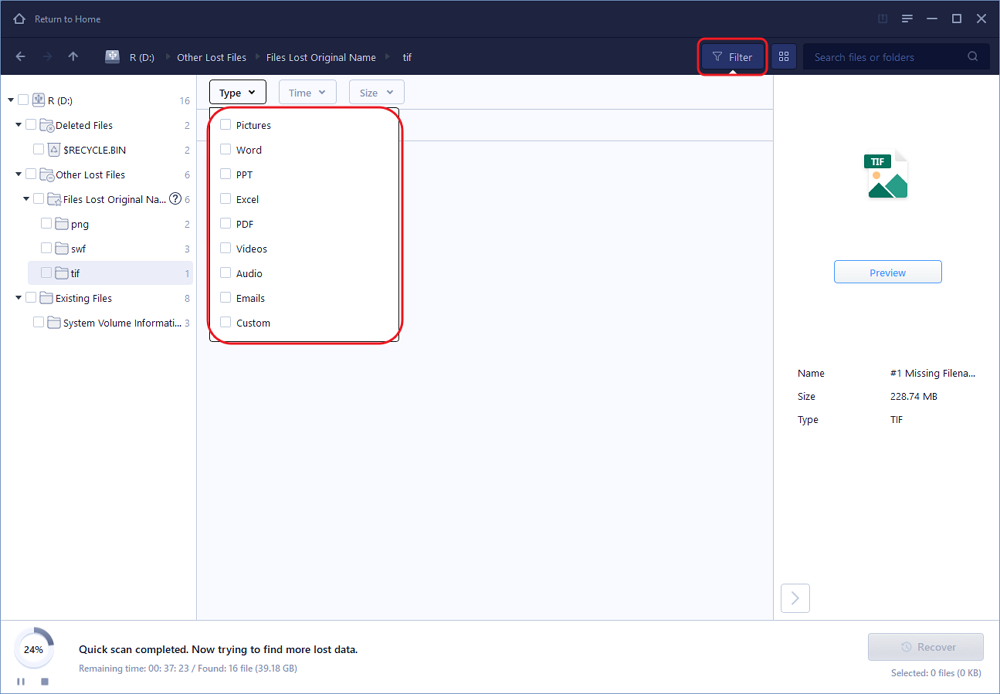
When the scanning is finished, you can quickly locate a specific type of file by using the Filter feature as well as the Search option.
Step 3. Restore flash drive data
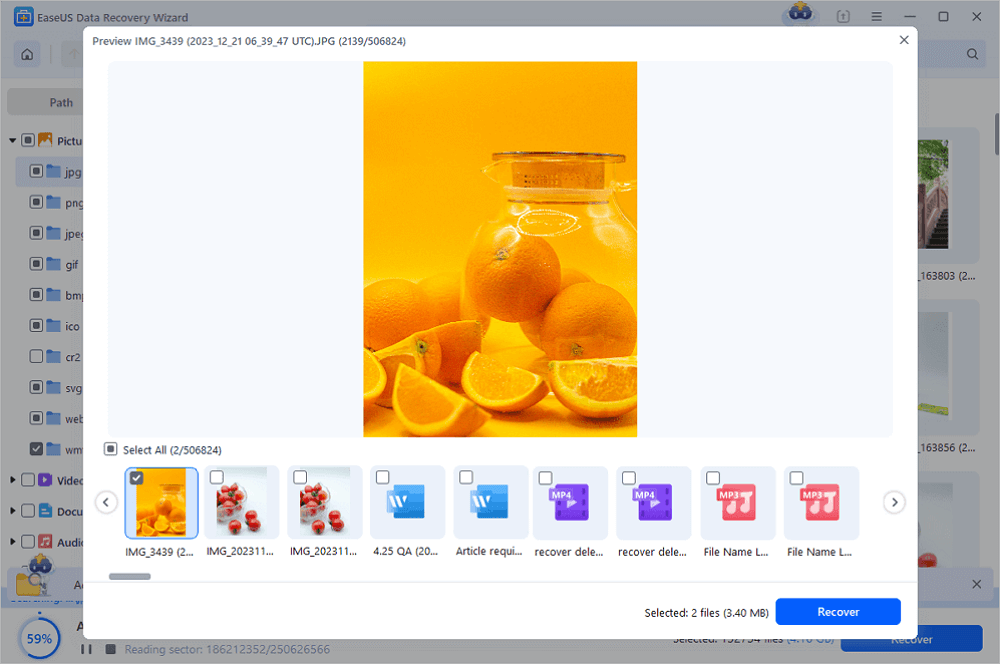
After checking and finding lost USB drive files, click "Recover" to restore them. You shall save the found files to a safe location on your PC rather than to your USB drive.
💡Tip: You can restore data on the local disks, external hard drives, and also the cloud storage.
Please share this USB recovery guide on social media and help more users!

How to Fix a USB Drive Not Formatted | 4 Ways
Now that you've got your important files back, it's time to figure out what's wrong with your USB drive.
There's no one-size-fits-all solution here. Sometimes, fixing file system errors does the trick. Other times, you might have to deal with malware or even wipe and reformat the drive completely.
Here are four effective ways to tackle the problem. Try them out, one by one.
Method 1. Repair Not Formatted USB with CHKDSK
If your USB drive's acting up because of file system errors or a few bad sectors, there's a good chance Windows' CHKDSK tool can sort it out; there's no need to erase anything.
Here's how to do it:
Step 1. Stick your USB drive into your computer. Give it a moment and make sure Windows gives it a drive letter (like E: or F:).
Step 2. Hit Windows + S, type "Command Prompt," right-click it, and pick "Run as administrator."
Step 3. Type this (swap out E for your USB's actual letter) and hit Enter: chkdsk E: /f /r /x
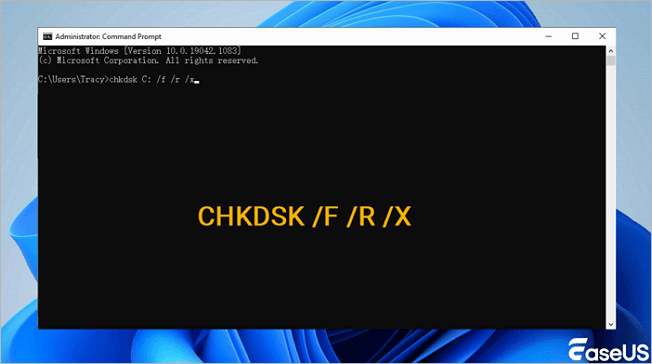
Step 4. Wait until it's completely done. Once CHKDSK finishes, unplug and replug your USB, then see if it works normally again.
Still getting the error? Move on to the next method.
Method 2. Assign a New Drive Letter for the USB
Sometimes, Windows detects your USB device but refuses to open it because it's assigned to a drive letter that's already taken or is somehow in conflict with another device.
Switching the drive letter usually does the trick and lets Windows recognize the USB properly.
Here's how you do it in Disk Management:
Step 1. Press Windows + X, then click Disk Management.
Step 2. Look for the USB by checking its storage size and spotting the one with the problem.
Step 3. Right-click the USB, select "Change Drive Letter and Paths," and pick a new letter that's not in use.
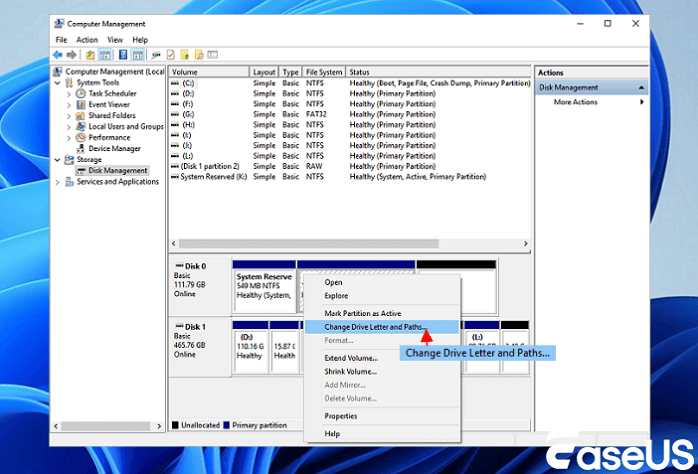
Step 4. Safely eject the drive, plug it back in, and see if Windows can read it now.
If it's still not working, you're probably dealing with malware.
Method 3. Scan USB Drive for Malware
Sometimes, viruses or malware mess with your USB drive. They can damage the file system, hide your files, or make Windows refuse to read the device.
A full malware scan helps kick out those troublemakers and gets your USB working again. Windows Defender does the job just fine.
Here's how you can do it:
Step 1. Press Windows + S, type "Windows Security," and open the app.
Step 2. Once you're in, find and click "Virus & Threat Protection." That's where you'll see scanning options.
Step 3. Click "Scan Options," pick "Full Scan," then hit "Scan Now." Defender checks your whole system and the USB drive for sneaky malware.
Step 4. If Defender finds anything, remove or quarantine the threats. Restart your computer, plug your USB drive back in, and see if it works.
If the problem sticks around even after cleaning up the malware, you'll probably need to format the drive.
Method 4. Format USB Flash Drive
This is the final solution you can try, and you'll lose all the data on your USB drive after formatting the USB flash drive:
Step 1. Press Windows + E to bring up This PC. Look through the list for the USB drive that's giving you trouble.
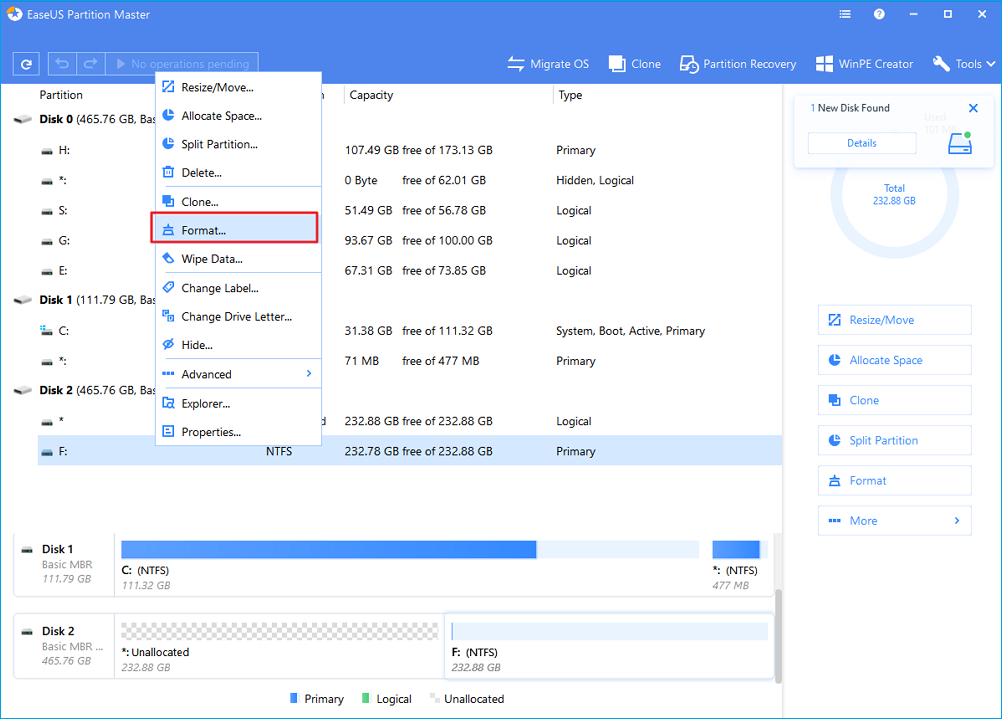
Step 2. Right-click the USB drive, then pick Format from the list.
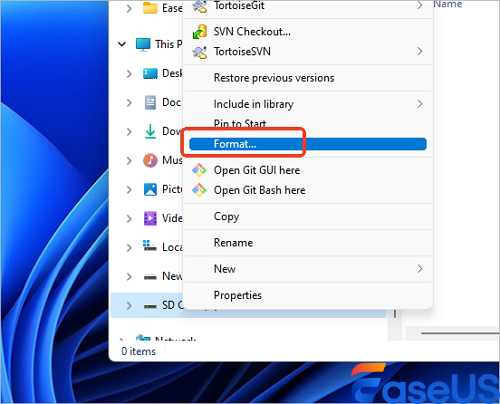
Step 3. You'll see options like FAT32, exFAT, or NTFS. Pick the one that fits your storage needs and what devices you'll use the drive with.
Step 4. Make sure Quick Format is checked. Hit Start, let it finish, unplug and reconnect your USB drive, and check if it works normally.
Most of the time, this fixes the "USB not formatted" problem for good.
Conclusion
When you see a "USB not formatted" error, it means Windows recognizes your USB stick but can't interpret its file system.
This typically happens because of things like corrupted files, malware, bad sectors, an unexpected power outage, or yanking the USB out without properly ejecting it.
Before you try to fix anything, make sure you get your important files off that drive first. That's what really matters.
Unable to Format USB Drive FAQs
1. Why does my USB say it needs to be formatted?
If your computer tells you the USB needs formatting, chances are the drive's either corrupted or its file system has gone RAW. Windows and Mac usually throw up this warning when they can't read the way files are organized.
2. Can reformatting fix the "USB not formatted" error?
Yeah, reformatting will clear that error fast. Just keep in mind, it wipes everything on the drive, so you'll lose all your files.
3. Is there a way to fix a USB without formatting it?
Absolutely. Start by recovering any important files from the USB. After that, you can try running CHKDSK to repair the drive. Sometimes, simply changing the drive letter sorts things out, too.
Was this page helpful?
-
Dany is an editor of EaseUS who lives and works in Chengdu, China. She focuses on writing articles about data recovery on Mac devices and PCs. She is devoted to improving her writing skills and enriching her professional knowledge. Dany also enjoys reading detective novels in her spare time. …

 Why Trust EaseUS
 Editor Reviews

20+
Years of experience

160+
Countries and regions

72 Million+
Downloads

4.9 +
Trustpilot Score





