





-
![]()
-
![]() RAW USB Recovery | How to Recover Data from RAW USB Drive
RAW USB Recovery | How to Recover Data from RAW USB Drive October 20,2026
 6 min read
 -
![]()
-
![]()
-
![]()
-
-
![]() How to Recover Data from Corrupted USB Drive [Pen Drive]October 20,20266 min read
How to Recover Data from Corrupted USB Drive [Pen Drive]October 20,20266 min read -
![]()
-
![]() Best USB Repair Tool: Fix Corrupted Flash Drives Without Data LossOctober 20,20266 min read
Best USB Repair Tool: Fix Corrupted Flash Drives Without Data LossOctober 20,20266 min read -
![]()
Page Table of Contents
PAGE CONTENT:
What does formatting a USB do? Formatting a USB drive erases all existing data and creates a new file system (such as FAT32, exFAT, or NTFS) to organize how data is stored. It is used to free up space, remove malware, repair corruption, and ensure compatibility across different operating systems.
"I have been tasked with recovering data from a drive that says that Windows needs to format it to use it. If I do the quick format, will it delete or damage any files? I'm trying to recover the files, but it still says I must format first..." A user in the superuser forum is facing the issue and asked: Will a quick format delete files on a flash drive?
Suppose the question "Does formatting a USB wipe it?" confuses you. You are in the right place where we will discuss what formatting a USB does, whether formatting it deletes data, whether it is possible to recover data from a formatted USB drive, etc.
✨Whether you have formatted your USB drive or not, if you need to consider data recovery, go to 💎Is It Possible to Recover Files from a Formatted USB Drive and use reliable EaseUS USB software to retrieve your lost data after formatting.
Does Formatting a USB Wipe It
You've probably encountered this before: your USB drive or Memory Stick asks you to format it before it can be used. If it's a new USB, nothing happens; you just follow the instructions and format it. But if your USB drive already has important files on it and you're just switching to another device to read them, you get the message "You need to format the disk in the drive before you can use it". Things are stuck in a loop: if you format it, you lose the data.
Therefore, here comes the question: Does formatting a USB wipe it? Will formatting a USB drive delete everything? Yes, formatting a USB drive wipes it, but the method determines if the data is gone forever or just hidden. A quick format erases the file index, making data recoverable with USB data recovery software, while a full format overwrites the drive with zeros, making data recovery almost impossible.
If your USB drive is formatted, try EaseUS USB data recovery tool to restore deleted files in clicks!
What Does Formatting a USB Do
Formatting a USB drive usually involves four aspects, including:
- 1. Erases All Data: Removes all files and folders permanently (especially with a full format).
- 2. Sets File System: Defines how the OS reads/writes data, such as allowing files larger than 4GB (exFAT/NTFS).
- 3. Fixes Errors: Resolves issues with corrupted drives or "read-only" errors.
- 4. Renames Drive: Allows you to assign a new label to the device.
How to Format a USB Flash Drive
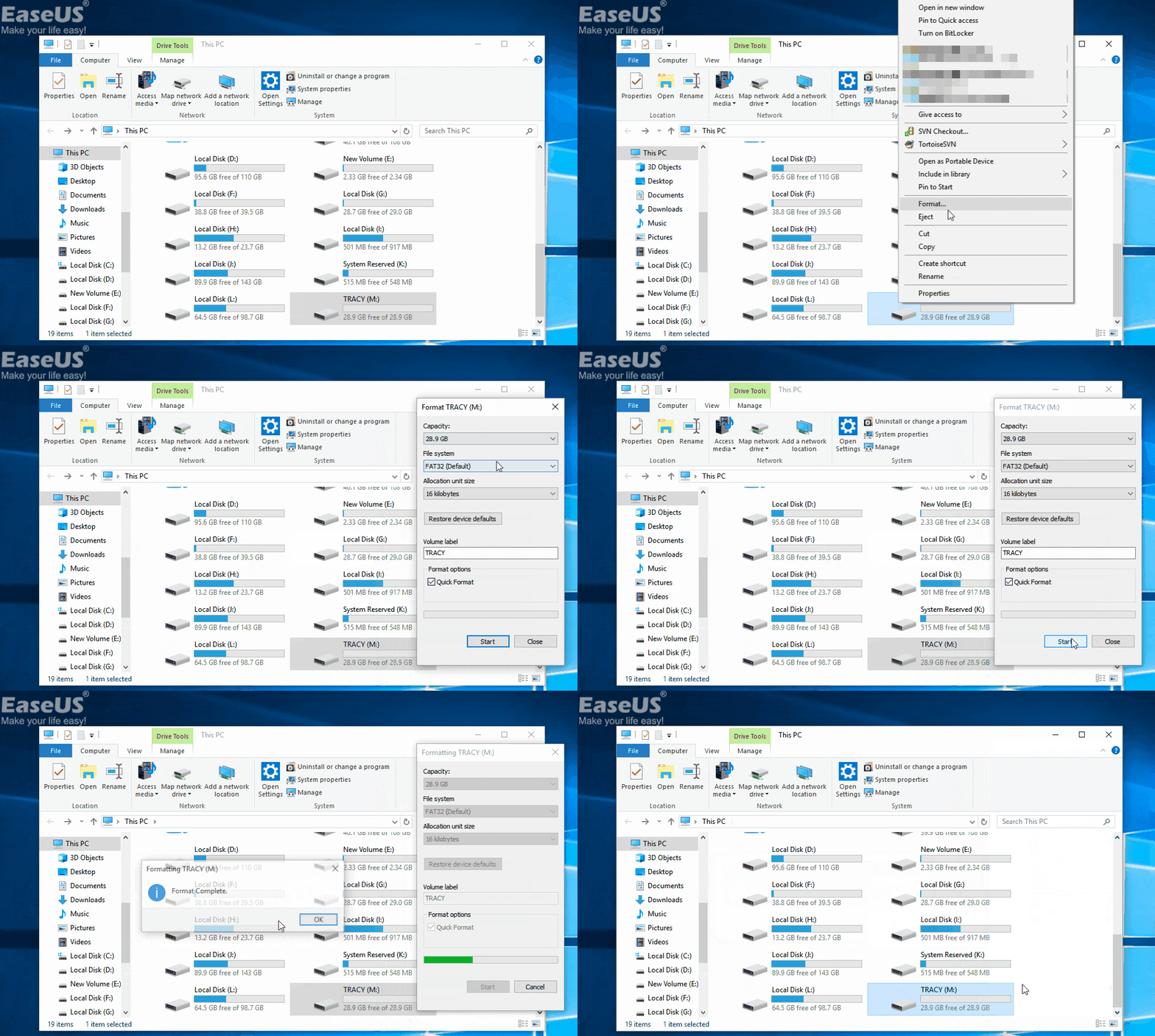
Formatting a USB flash drive or memory stick is quite simple. Open This PC, and you can see a list of all drives connected to the computer. Find and right-click on the USB flash drive, select "Format". Then, reset the file system to NTFS or FAT32, click "Start", and click "OK" to confirm.
What Do Formatting Options Mean
When a hard drive or other storage device needs to be formatted so that it can be reused, sold, or donated. Formatting the drive permanently removes all data from the drive. There are two main options in Windows for erasing data:
1️⃣Quick Format: takes less time. To speed up formatting, bad sectors will not be checked. Anyone looking at the hard drive or storage device would see no data and assume the drive was erased. Actually, the files are still there, and the volume can be rebuilt to regain access to them. If you plan to reuse the drive and it's working, a quick format is sufficient since you are still the owner.
2️⃣Full Format: takes a longer time than a Quick Format. It runs an additional step to check the storage disk for any bad sectors. This check is what makes the Full Format so much longer than a Quick Format. Unfortunately, as with the Quick Format, the files still exist, and the volume could be rebuilt to regain access. If the drive has problems, a full format is a good way to ensure there are no issues.
To sum up, no matter whether you have run a Quick Format or a Full Format, you can always recover data with the EaseUS file recovery software.
Format Tips: How to Choose a Suitable File System
As you can see, you will be asked to select the file system during the formatting process. There are three options: FAT32, NTFS, and exFAT. FAT32 is mainly used on older computers due to its size limitations. NTFS is used on modern computers.
If you think this post is informative, share it with your friends and help more people learn what formatting a USB does.

Is It Possible to Recover Data from a Formatted USB Drive
Yes, it is possible to recover files from a formatted USB drive. Data remains on the drive after a quick format, as only the file system table is erased, allowing software like EaseUS Data Recovery Wizard. It is professional data recovery software that works well in any situation, retrieving data after formatting, recovering deleted files, and restoring files after a system crash.
Install this powerful USB data recovery tool now! You can refer to this video tutorial to get back important files from a formatted USB drive!
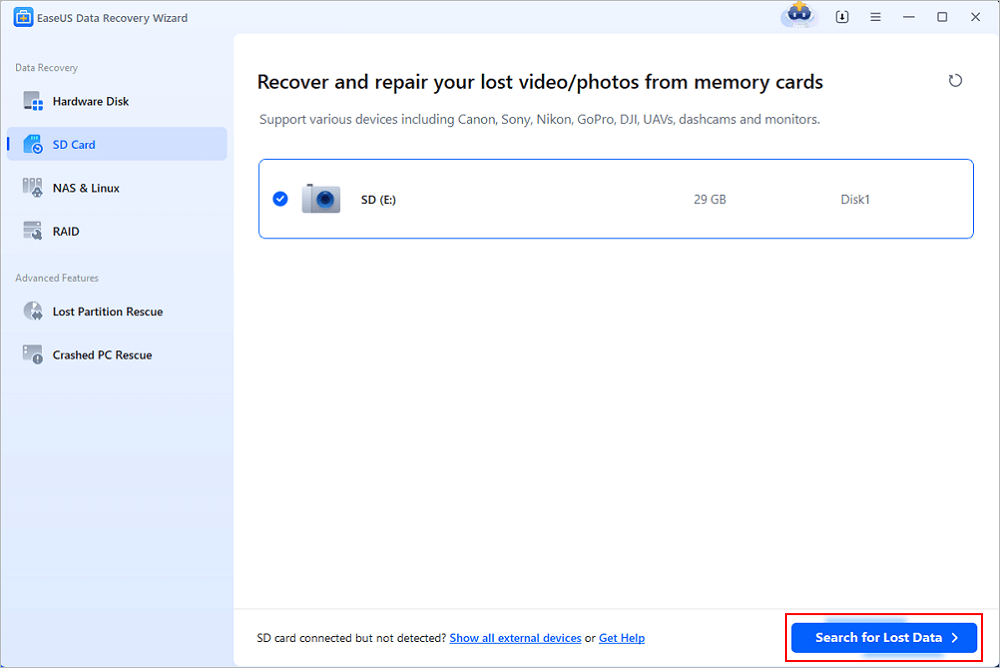
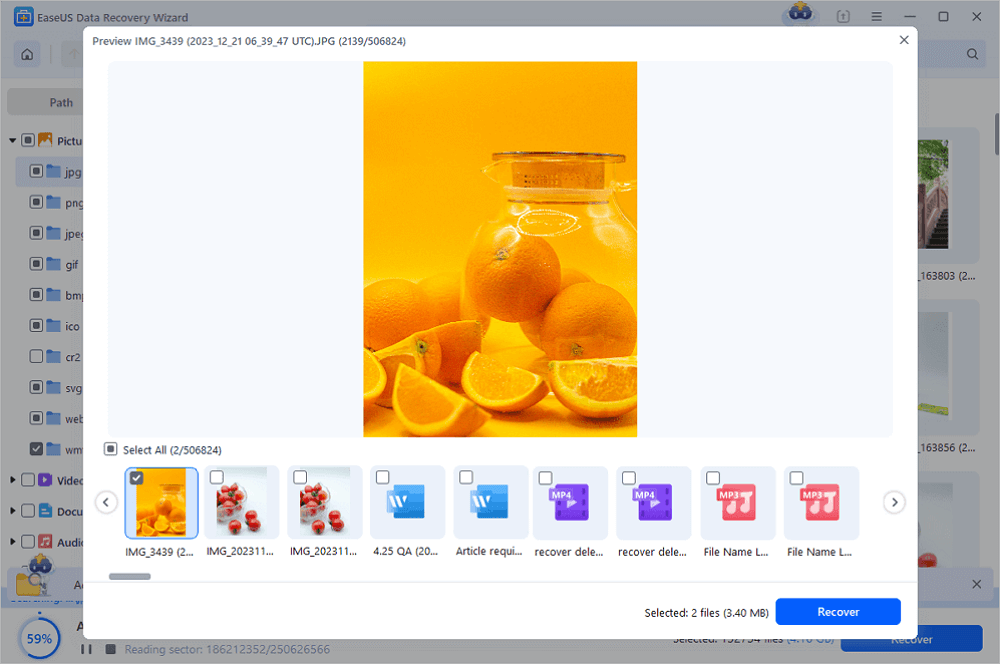
Step 1. Connect the USB drive to your computer. Launch EaseUS Data Recovery Wizard. Select the formatted SD card, USB flash drive, or Pen drive from which you what to restore lost files and then click "Search for Lost Data".
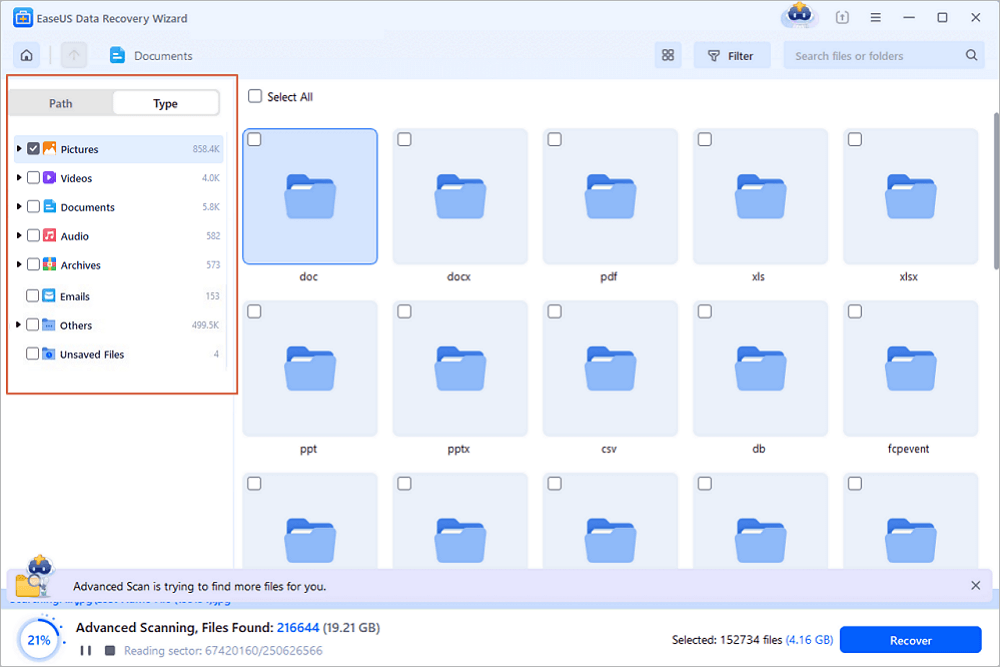
Step 2. After the scan completed, all scan results will be displayed on the screen. Use the "Filter" or "File Type" feature to find your target files. If you remember the file name, you can also search in the search box, which is the fastest way to find the target file.
Step 3. Choose the files you want to recover from your formatted external drive and click "Recover". A new window will appear, you need to choose a local storage or Cloud drive to store the files. Then, click "OK" to confirm.
💡Want to know more about SD card data recovery? For example, what is the best SD card data recovery software? How to recover a damaged SD card? How to recover data from an unreadable SD card...Go for SD Card Data Recovery FAQs and restore your precious lost files.
How to Protect Your Data Before Formatting
Protect your data before formatting by backing up all critical files to an external drive or cloud service (Google Drive, OneDrive), deauthorizing software licenses (Adobe, Office), and signing out of all accounts. Ensure you have a full system image or manual file copy, and verify the backup was successful before proceeding.
To reduce the risk of data loss after formatting, you are advised to back up your data. As you can see, formatting a USB removes everything. You can manually back up wanted files or make an automatic backup with EaseUS backup freeware.
Conclusion
Formatting a USB drive wipes it by removing the file system index, making the data invisible, and freeing space for new files. A "Quick Format" leaves data intact for potential recovery, while a "Full Format" overwrites data with zeros, making recovery highly unlikely.
Although formatting a USB flash drive deletes everything, there's no need to worry about it. If you have a backup, you can retrieve lost data from it. Otherwise, you need to use data recovery software to restore lost data after formatting. EaseUS Data Recovery Wizard helps restore deleted data from a formatted USB drive with ease!
Was this page helpful?


 Why Trust EaseUS
 Editor Reviews

20+
Years of experience

160+
Countries and regions

72 Million+
Downloads

4.9 +
Trustpilot Score





