






-
![]() How to Recover Data from Corrupted USB Drive [Pen Drive]
How to Recover Data from Corrupted USB Drive [Pen Drive] October 14,2026
 6 min read
 -
![]()
-
![]() Fix Error Code 43 USB Error | Recover Data from USB DriveOctober 14,20266 min read
Fix Error Code 43 USB Error | Recover Data from USB DriveOctober 14,20266 min read -
![]()
-
![]() USB Data Recovery Software Full Version Free Download (2026 Guide)October 14,20266 min read
USB Data Recovery Software Full Version Free Download (2026 Guide)October 14,20266 min read -
![]()
-
![]() Fix Virtual Disk Service Error: There Is No Media in the DeviceOctober 14,20266 min read
Fix Virtual Disk Service Error: There Is No Media in the DeviceOctober 14,20266 min read -
![]() Fix 'USB No Media' Error in Disk Management (6 Practical Ways)October 14,20266 min read
Fix 'USB No Media' Error in Disk Management (6 Practical Ways)October 14,20266 min read -
![]() Free | How to Recover Files from Formatted USB/Pen DriveOctober 14,20266 min read
Free | How to Recover Files from Formatted USB/Pen DriveOctober 14,20266 min read -
![]() What Does Formatting a USB Do | Does Formatting USB Wipe ItOctober 14,20266 min read
What Does Formatting a USB Do | Does Formatting USB Wipe ItOctober 14,20266 min read
Page Table of Contents
PAGE CONTENT:
Can You Recover Data from a Dead USB Drive
You can often recover data from a USB drive that seems dead, but what matters most is why the drive isn't working. Sometimes the problem is just a corrupted file system, a missing drive letter, a bad partition, or even an outdated driver. In those cases, your files are probably still on the drive, waiting to be recovered.
But if the USB has real physical damage, maybe the connector is busted, the controller inside died, or the memory has failed, then things get a lot trickier. At that point, it's usually best to turn to a professional data recovery service.
In this tutorial, we'll offer 5 different solutions to help you recover data from a "dead" USB drive.
How to Recover Data from a Dead USB Flash Drive
Before you pick a recovery method, first check if your computer actually sees the USB drive. If it shows up in File Explorer (even if you can't open it), that's a very different situation than a drive that doesn't show up anywhere.
Here's what to do:
- Stop using the dead USB drive.
- Try a different USB port or another computer.
- Check if Windows sees the USB in Disk Management.
- If it's detected, use USB recovery software right away.
- If it only has a drive letter problem, assign a new letter.
- If the file system's corrupted but your files are safe elsewhere, try CHKDSK.
- If the USB is physically broken or nothing can detect it, think about professional recovery.
Method 1. Recover a Dead USB Drive with USB Recovery Software
If your USB drive shows up in Windows but you can't access the files, try USB data recovery software first. This is especially useful if you formatted the USB by accident, deleted files, the file system is corrupted, or the drive appears as RAW.
One solid choice is EaseUS Data Recovery Wizard. It scans the drive for lost files and lets you preview recovered data before you save it, so you know what you're getting back. Recovering files before you try to repair or reformat is always safer.
If Windows doesn't detect it right away:
- Try a different USB port.
- Don't use a USB hub; plug directly into the computer.
- See if another computer can detect it.
- Listen for the little connection sound Windows makes.
- Check File Explorer and Disk Management for the drive.
If the USB shows up with the right (or almost right) capacity, there's a good chance recovery software can see your files.
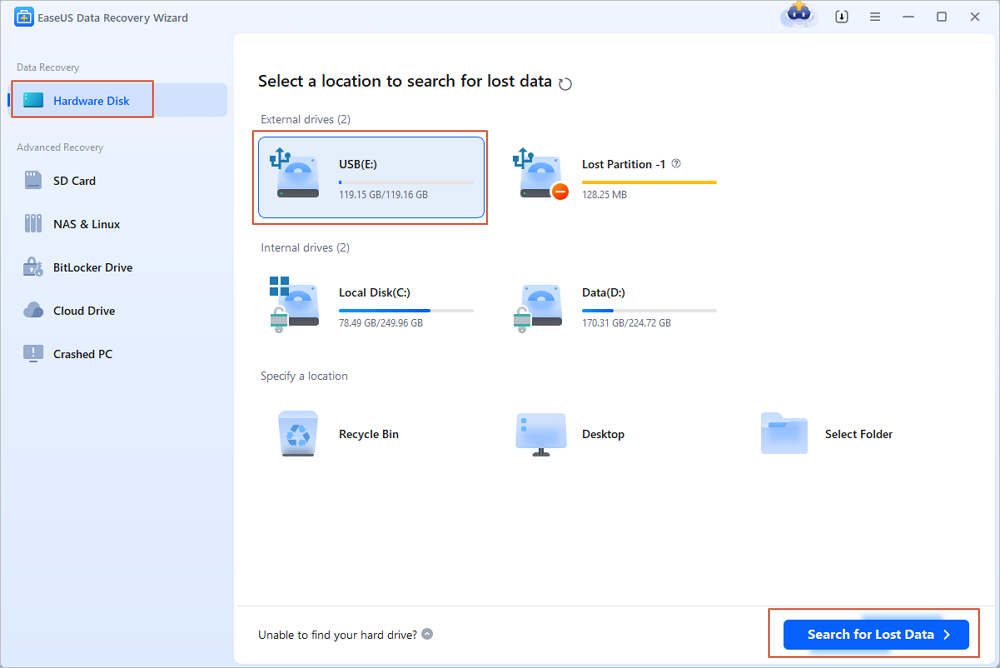
Step 1. Choose the USB drive to scan
Launch EaseUS Data Recovery Wizard and choose your USB drive where you lost important files. Click "Scan for lost data" to start.
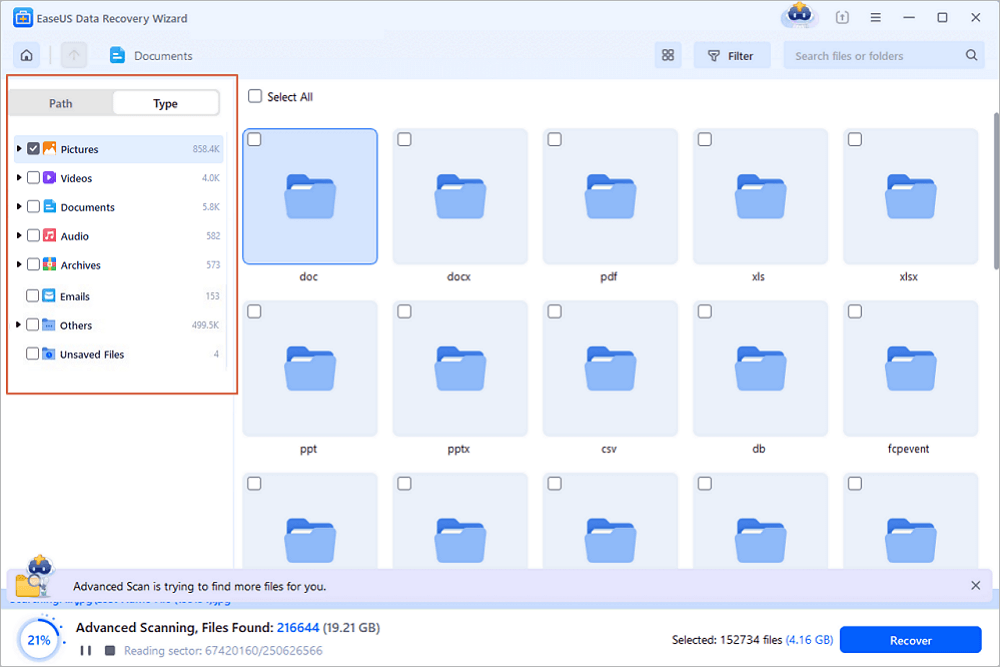
Step 2. Check and preview USB drive data
When the scanning is finished, you can quickly locate a specific type of file by using the Filter feature as well as the Search option.
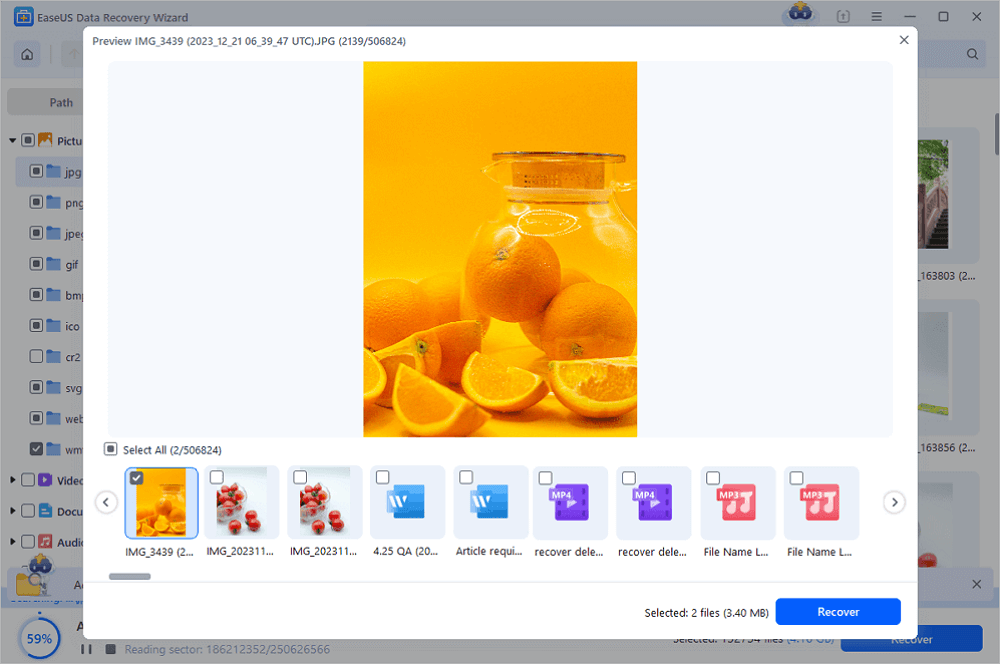
Step 3. Restore flash drive data
After checking and finding lost USB drive files, click "Recover" to restore them. You shall save the found files to a safe location on your PC rather than to your USB drive.
💡Tip: You can restore data on the local disks, external hard drives, and also the cloud storage.
Feel free to share this USB data recovery guide on social media to help more friends!

Method 2. Check Whether the Dead USB Drive Is Detected in Disk Management
Disk Management can tell you if your operating system still "sees" the USB. Sometimes a USB drive is not showing up in File Explorer but shows up in Disk Management.
This helps you figure out if it's just a missing drive letter, RAW file system, unallocated space, or a deeper hardware problem.
Step 1. Hit Windows + X, and choose "Disk Management". Or press Windows + R, type `diskmgmt.msc`, and hit "Enter".
Step 2. Scroll through the list of disks and partitions. Match the USB's capacity to what you see in Windows. Careful, don't make changes if you're unsure which disk is your USB drive.
Step 3. Possible statuses include:
- Healthy: Windows recognizes the partition.
- RAW: File system can't be read (usually means corruption).
- Unallocated: Storage exists, but there's no partition for Windows to read.
- Disk Not Initialized: Partition info is missing or damaged.
- No Media: Windows "sees" a device but not actual storage.
- 0 bytes: Usually a sign of dead hardware.
Don't format, initialize, or delete anything if those options pop up, not before recovery.
If you can see the full capacity, try recovery software. If it says "No Media," "0 bytes," or doesn't show up at all (even on other computers), you might have a hardware failure. Software alone probably won't save you here.
Method 3. Assign a New Drive Letter to the USB
Sometimes Windows just doesn't give your USB drive a letter, so it doesn't show in File Explorer. You can fix this by assigning a new drive letter, and it doesn't hurt your files.
But if the USB asks to be formatted, appears RAW, or acts glitchy, recover your data first.
Step 1. Open Disk Management.
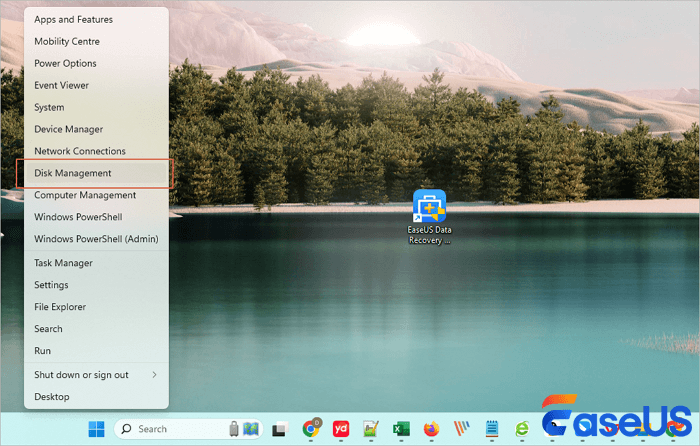
Step 2. Right-click the USB partition, pick "Change Drive Letter and Paths."
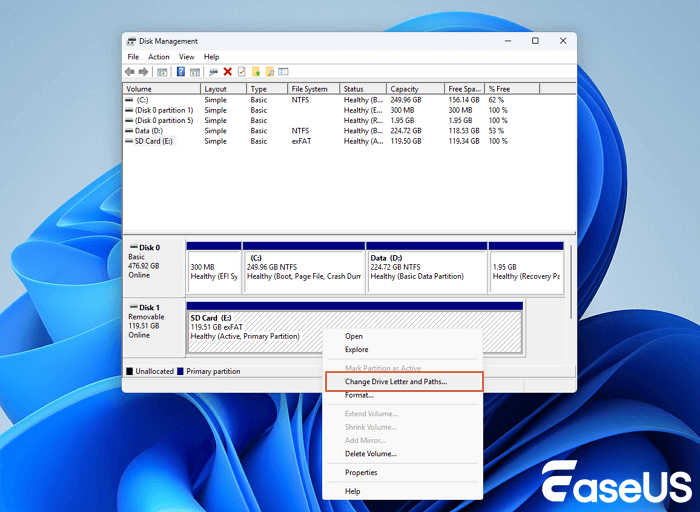
Step 3. Click "Change" (or Add, if none exists), pick a new letter (like F: if E: was already used), and click "OK".
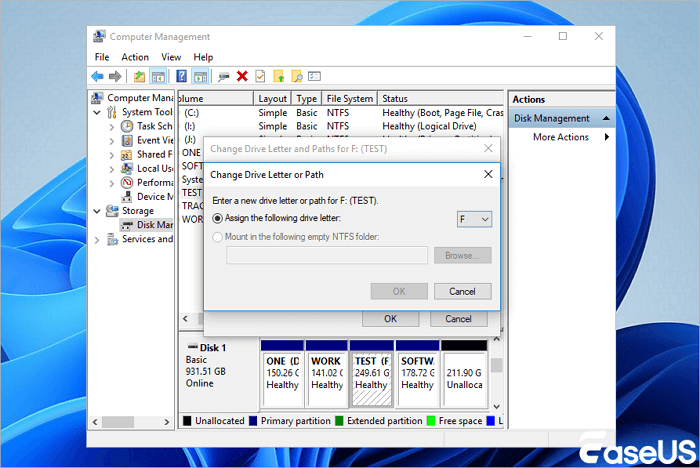
Step 4. See if the drive appears. If you can access your files, grab them and save them to a safer place right away.
If you still can't open it, try recovery software instead of futzing around with more settings.
Method 4. Use CHKDSK to Repair a Corrupted USB Drive
CHKDSK can sometimes fix logical errors. Don't use this as your first move if the USB has valuable data and you haven't recovered it yet. Data recovery comes first.
Step 1. Get the USB's current drive letter (like E:).
Step 2. Right-click Command Prompt and select "Run as administrator".
Step 3. Type the command: chkdsk g: /f (swap out g: for your drive). This checks and tries to fix file system errors.
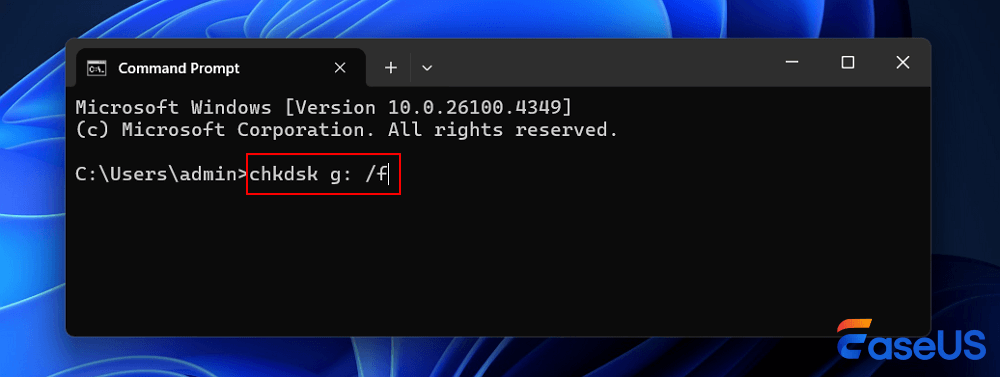
Step 4. Let Windows do its thing; don't unplug the drive while CHKDSK is working.
Step 5. If the drive works again, copy your important files off of it ASAP.
Skip CHKDSK if:
- The USB has files you absolutely can't lose.
- The drive keeps disconnecting.
- You suspect hardware damage.
- It shows "No Media" or "0 bytes."
- The computer never recognizes it.
- You haven't tried real data recovery yet.
When your goal is getting data back from a dead USB, always try recovery first and avoid risking your files.
Method 5. Apply Professional USB Data Recovery Services
If the drive is physically messed up, maybe the connector broke off, it's water-damaged, or it just gets super hot, software won't help. You'll need to ask a pro, like local data recovery labs or online data recovery services. If you suspect hardware failure, stop plugging it in repeatedly; you could make things worse.
Consult with EaseUS data recovery experts for one-on-one manual recovery service. We could offer the following services after a FREE diagnosis
- Repair corrupted RAID structure, unbootable Windows OS, and corrupted virtual disk files
- Recover/repair lost partitions and re-partitioned drives
- Unformat hard drives and repair RAW drives(Bitlocker encrypted drives)
- Fix disks that become GPT-protected partitions
Conclusion
Just because a USB drive seems dead doesn't mean you've lost everything. If your system still sees the USB, recover your data first before you try any repairs or formatting.
Professional USB recovery software like EaseUS Data Recovery Wizard can scan for and help recover files, assign a new drive letter if that's missing, or let you preview what you can recover. CHKDSK is there if you just want to fix file system errors, but be careful using it before your files are safe.
If the drive shows "No Media," "0 bytes," or isn't detected anywhere, don't try to fix it yourself. Find professional USB data recovery services and restore your data safely!
Dead USB Drive Data Recovery FAQs
1. Can I recover data from a completely dead USB drive?
If your computer still sees the device and its real storage size, recovery software often works. If the hardware inside (controller, memory, etc.) is totally fried, you'll need professional help.
2. How do I recover data from a USB drive that isn't detected?
Start by trying other USB ports and a different computer. Check Disk Management or Device Manager. If you see the right capacity, try recovery software. If none of that works and the drive isn't detected anywhere, it's probably a hardware problem.
3. What should I do if Windows says, "You need to format the disk"?
Don't format if you still need the files. That message pops up when Windows can't read the file system. Try data recovery software first, rescue important data, and then try to fix the corrupted USB drive.
Was this page helpful?
-
Dany is an editor of EaseUS who lives and works in Chengdu, China. She focuses on writing articles about data recovery on Mac devices and PCs. She is devoted to improving her writing skills and enriching her professional knowledge. Dany also enjoys reading detective novels in her spare time. …


 Why Trust EaseUS
 Editor Reviews

20+
Years of experience

160+
Countries and regions

72 Million+
Downloads

4.9 +
Trustpilot Score





