





-
![]() USB Pen Drive Not Showing Data, Files, and Folders [Solved]
USB Pen Drive Not Showing Data, Files, and Folders [Solved] October 20,2026
 6 min read
 -
![]() How to Fix Corrupted Flash Drive in 6 Ways | No Data LossOctober 20,20266 min read
How to Fix Corrupted Flash Drive in 6 Ways | No Data LossOctober 20,20266 min read -
![]()
-
![]() USB Device Not Recognized | Windows 10 USB Driver Error Solved!October 20,20266 min read
USB Device Not Recognized | Windows 10 USB Driver Error Solved!October 20,20266 min read -
![]() Fix Error Code 43 USB Error | Recover Data from USB DriveOctober 20,20266 min read
Fix Error Code 43 USB Error | Recover Data from USB DriveOctober 20,20266 min read -
![]() The Disk Is Write Protected: How to Remove Write Protection HDDOctober 20,20266 min read
The Disk Is Write Protected: How to Remove Write Protection HDDOctober 20,20266 min read -
![]()
-
![]() Free | How to Recover Files from Formatted USB/Pen DriveOctober 20,20266 min read
Free | How to Recover Files from Formatted USB/Pen DriveOctober 20,20266 min read -
![]()
-
![]()
Page Table of Contents
PAGE CONTENT:
Fixing the "USB over current status detected" error can be difficult, especially if you suspect a burnt component. Sometimes, the error persists despite having all USB devices unplugged. This guide will delve into the details of this error to offer comprehensive solutions.
Additionally, it will provide straightforward steps for data recovery in case of any loss incurred during this error occurrence.
Recover Data from USB Not Detected
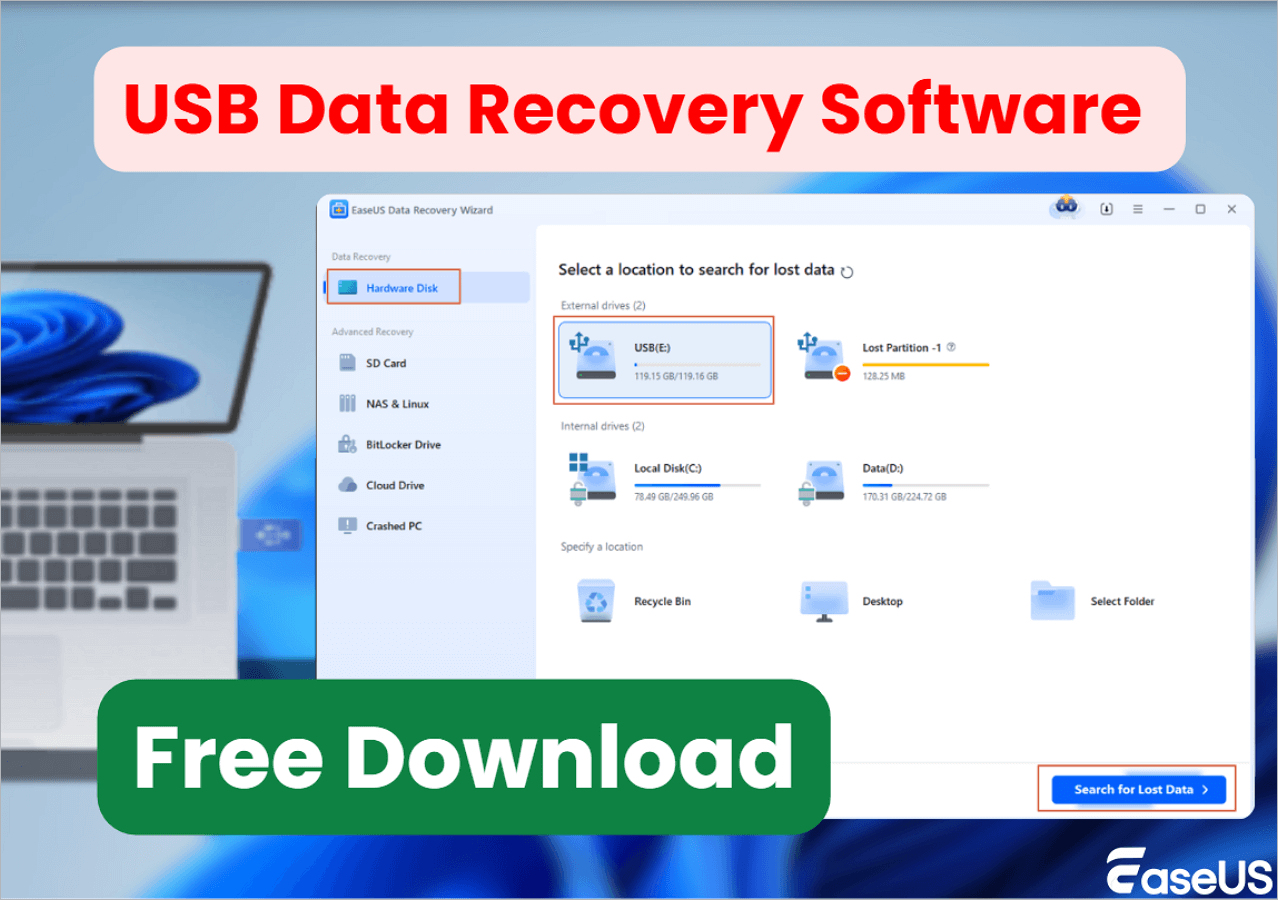
EaseUS Data Recovery Wizard is a great data recovery tool made to assist users in recovering deleted files caused by various factors such as file system errors, system crashes, or accidental deletion.
This powerful tool has advanced features to ensure efficient data recovery even in challenging scenarios.
These include:
- Comprehensive data recovery: EaseUS Data Recovery Wizard can recover many file types from the USB, including documents, photos, videos, audio files, emails, and more.
- Deep scan technology: Utilizing advanced scanning algorithms, the software thoroughly scans the USB device to locate and recover lost data effectively.
- WinPE bootable USB support: When the computer fails to boot up, users can create a WinPE bootable USB using EaseUS Data Recovery Wizard Pro, enabling them to recover data from inaccessible or dead USB drives.
Here are the steps:
Step 1. Run USB Data Recovery Software
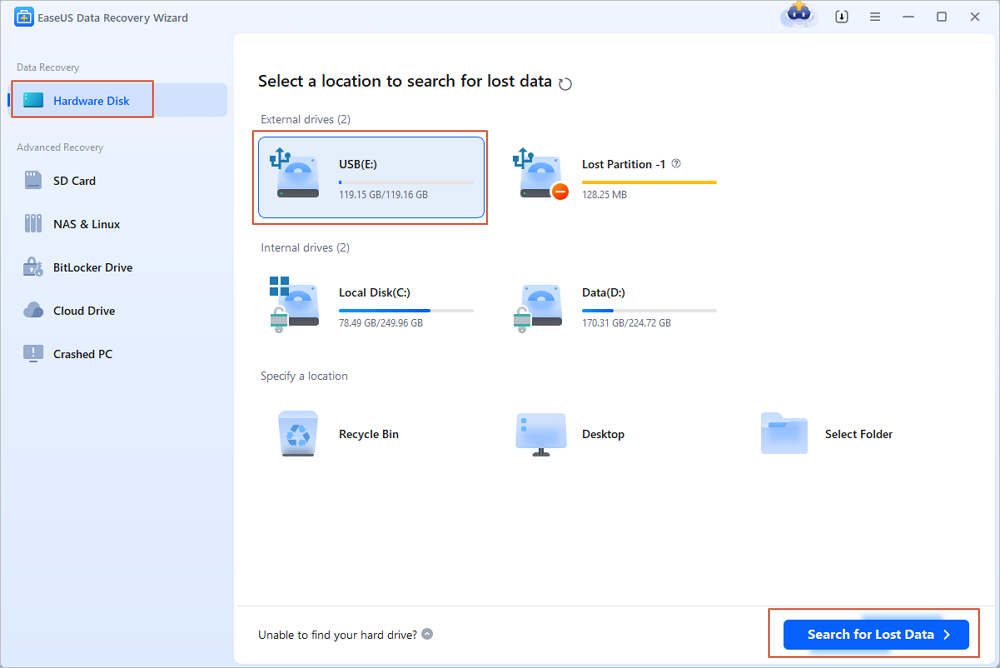
Connect the USB drive or pen drive to your computer and launch EaseUS USB data recovery software on your PC. Select the drive which is labeled as a External drives, and click "Scan for lost data" to start looking for lost files.
Step 2. Scan and Search Lost Files on a USB Drive
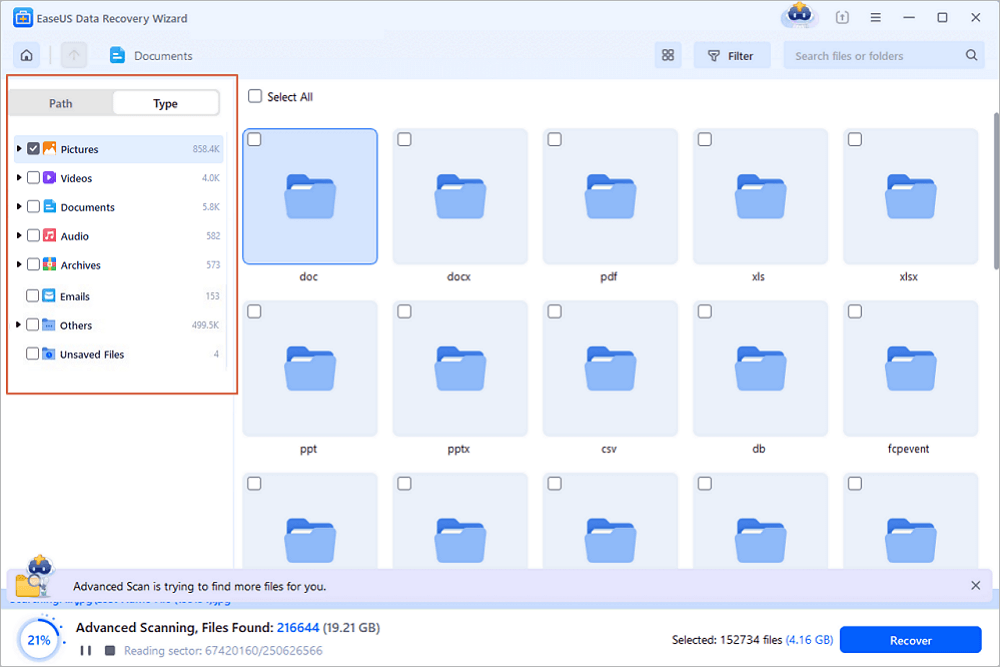
EaseUS Data Recovery Wizard will thoroughly scan your USB flash drive/pen drive and find all your lost data on it. When the scan process completes, use the Filter feature to find wanted files.
Step 3. Restore All Lost Files from USB
A double-click will allow you to preview the files. Select the target files to restore and click "Recover" to save them to a secure location on your PC or other external storage devices.

If you find this information helpful, please share it with others on social media to assist them in overcoming this common challenge.
Fix USB Over Current Status Detected [5 Ways]
Let's look at some methods you can use to fix this error.
- Method 1. Assess Your USB Devices
- Method 2. Update the USB Driver
- Method 3. Scan for Missing Jumpers
- Method 4. Consider Motherboard Replacement
- Method 5. Update Your BIOS without USB
Method 1. Assess Your USB Devices
Examine all USB peripherals linked to your system to address the 'USB device over current status detected' problem. Start by disconnecting all USB devices, including those connected via hubs. Next, check the USB cables for signs of damage.
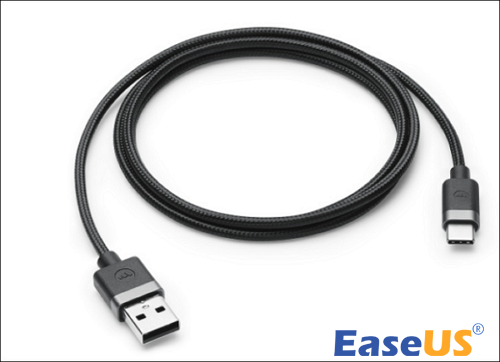
As a result, reconnect the USB devices individually and check if the error occurs. This method aids in isolating any specific device responsible for the overcurrent problem.
Method 2. Update the USB Driver
An outdated USB driver can lead to unexpected errors and hinder user experience. The 'USB device over current status detected' problem may also arise due to this outdated driver.
To resolve this problem, follow these steps to update the USB driver:
Step 1. If your computer fails to boot successfully, initiate "Safe Mode."
Step 2. Reboot the computer to access "Automatic Repair."
Step 3. After that, turn the computer off and on again; repeat this process until Automatic Repair initiates. Then, click on "Advanced options" and enter WinRE.
Step 4. Navigate to "Troubleshoot" > "Advanced options" > "Startup Settings" > "Restart," and then press "F5" to restart Windows 10 in Safe Mode.
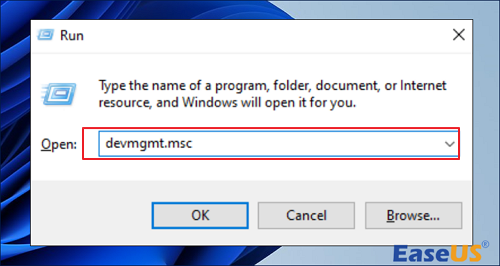
Step 5. Once in Safe Mode, press "Win+R" to launch the Run dialog box.
Step 6. Type devmgmt.msc and select "Enter" to open "Device Manager."
Step 7. Expand the "Universal Serial Bus" controllers.
Step 8. Right-click on the USB driver and select "Update driver."
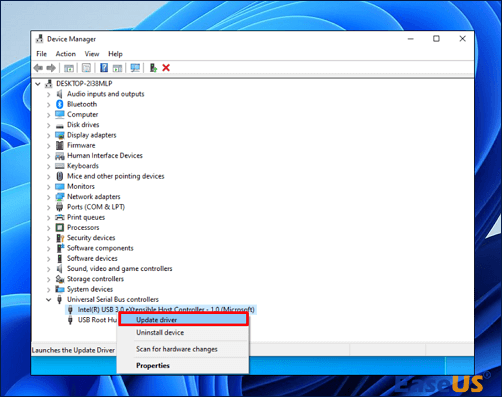
Step 9. Then, search automatically for updated driver software.
Step 10. Restart your computer to verify if the "USB device over current status detected" issue has been resolved.
Method 3. Scan for Missing Jumpers
The communication between your USB connector and the motherboard relies on jumpers. If any jumpers are absent, it triggers the "USB device over current status detected" error.
To check for missing jumpers, adhere to the following procedure:
Step 1. Power down your computer and access the system casing.
Step 2. Inspect the area around the internal USB ports for any jumpers that may be missing.
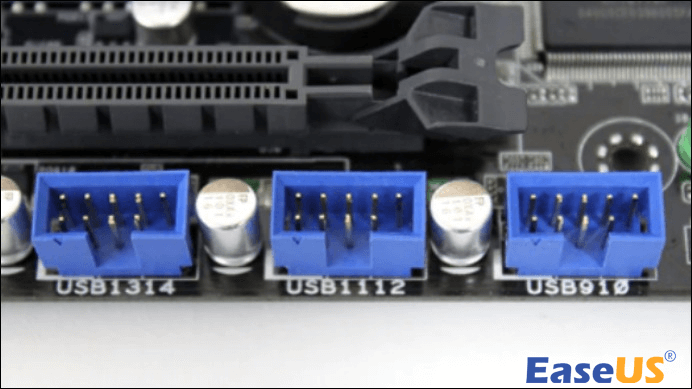
Step 3. If any jumpers are indeed missing, replace them accordingly.
Step 4. After restarting the computer, if the issue resolves, it indicates that the problem stemmed from the absence of jumpers.
Method 4. Consider Motherboard Replacement
Certain modules may have incurred damage in cases where a recently installed motherboard exhibits malfunctions.
- Feedback from users suggests instances where motherboards failed to operate upon initial installation.
- Seeking assistance from the support team of your motherboard manufacturer is recommended.
They can offer tailored guidance pertaining to your specific motherboard model and may be knowledgeable about any existing issues relevant to your circumstance.
Alternatively, you may replace the motherboard entirely or install a temporary one to assess the functionality of other components within your system.
Method 5. Update Your BIOS without USB
Updating the BIOS (Basic Input/Output System) can occasionally rectify hardware-related issues like the "USB device over current status detected Reddit" error.
Typically, BIOS updates require a USB flash drive, but using MSI Center software can circumvent this requirement. Here's a straightforward method:
Step 1. Access the "Microsoft Store" and locate "MSI Center." Download and install the application.

Step 2. Upon launching the app, navigate to the "Support" menu and select "Advanced."
Step 3. Locate the BIOS update option and initiate the process. Then, wait until the update is complete.
What Causes USB Over Current Status Detected
Several factors can lead to the 'USB device over current status detected' error:
- Defective USB device: Internal malfunctions or faults within a USB device can cause it to draw excessive power, surpassing the capacity of the USB port and resulting in the 'USB device over current status detected nothing plugged in' error.
- Faulty USB cable: A damaged USB cable can disrupt the flow of power, leading to irregularities and triggering the overcurrent error.
- Short circuit in USB port: The presence of a short circuit or physical damage within the USB port can disrupt the normal flow of power, consequently causing the 'USB device over current status detected' error.
- Power supply problems: Issues with the computer's power supply can result in inadequate distribution of power to USB ports, thus activating the 'USB device over current status detected' error.
- Driver or software conflicts: Compatibility issues or outdated USB drivers and software can occasionally instigate power-related problems.
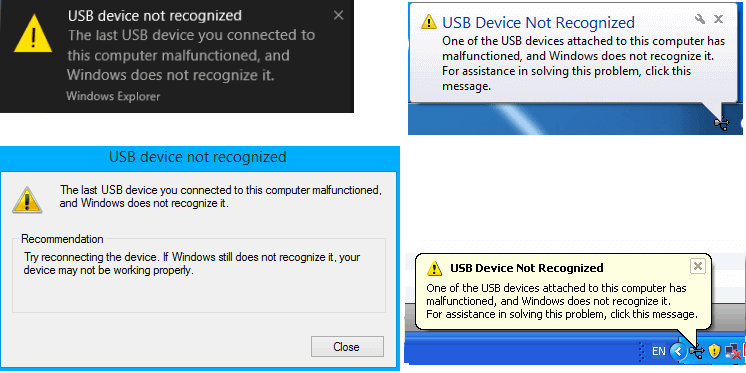
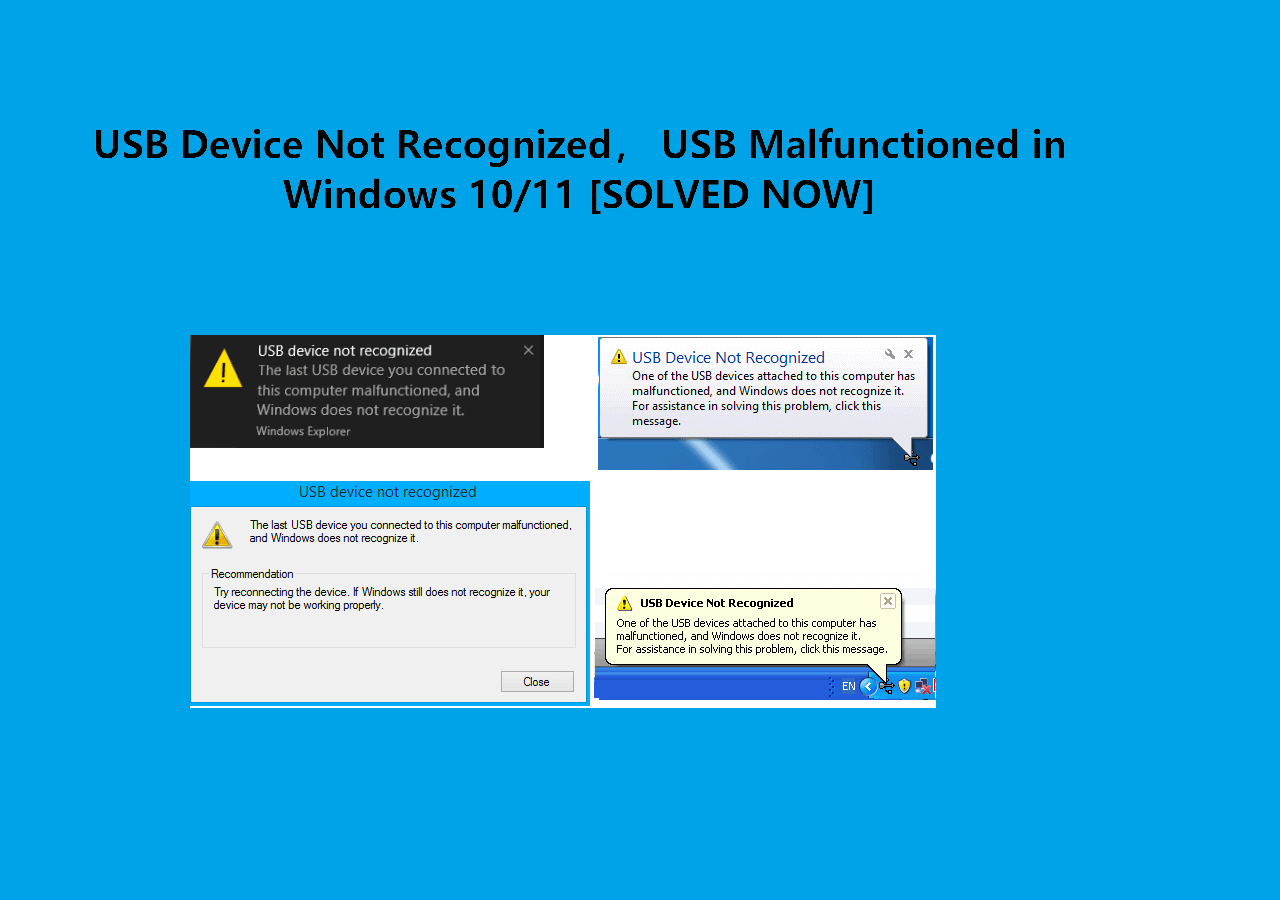
Fixed: USB Device Not Recognized in Windows
This page offers six solutions to fix the issue of a USB device not being recognized in Windows 10. Read more >>
To Wrap It Up
To wrap up, this article has provided valuable insights into addressing the "USB device over current status detected" error, offering methods ranging from checking USB devices to updating BIOS.
Additionally, it highlighted the importance of USB data recovery in scenarios of USB detection issues and recommended EaseUS Data Recovery Wizard as a reliable solution.
For users seeking efficient data retrieval amidst such challenges, downloading our recovery software effectively safeguards against potential data loss.
USB Over Current Status Detected FAQs
The questions and answers below address the "USB over current status detected" error in depth.
1. What does USB overcurrent mean?
When you encounter the 'USB device over current status detected' message, it signifies an issue with the power supply to a USB device connected to a computer or USB hub. This error suggests that the USB device is attempting to draw more electrical current than the USB port or system can safely provide. It is a protective mechanism in modern computer systems to prevent damage from excessive power usage. This error activates when the current flowing through the USB port surpasses the safe threshold.
2. How do you fix overcurrent faults?
Here's how to fix this error:
- Assess your USB devices
- Update the USB Driver
- Scan for missing jumpers
- Consider motherboard replacement
- Update your BIOS without USB
3. What can damage a USB port?
USB ports and cables are susceptible to damage from various sources, including dust accumulation and physical harm. If you observe dust or debris in the port or connector, utilizing compressed air can aid in cleaning them. Common factors leading to USB port damage include physical trauma, dirt buildup, software or driver complications, and power issues.
4. What is the most common overcurrent protection?
Fuses stand out as the predominant form of overcurrent protection. These devices are designed to safeguard against the hazardous consequences of overcurrents, such as overload or short-circuit currents, which generate fault currents.
Was this page helpful?

 Why Trust EaseUS
 Editor Reviews

20+
Years of experience

160+
Countries and regions

72 Million+
Downloads

4.9 +
Trustpilot Score





