






Page Table of Contents
Reviews and Awards


When transferring files from Windows to Windows, you might need to move your data between different Windows versions or from an old PC to a new one. Common scenarios include:
- Transfer files from Windows 10 to Windows 10: Move documents, photos, videos, and other personal files between two Windows 10 PCs.
- Move your files when upgrading from an older Windows 10 computer to a new Windows 11 PC.
- Transfer files from Windows 11 to Windows 11: Transfer data between two Windows 11 computers when replacing or setting up a new PC.
- Transfer files from old Windows 10 to Windows 11: Move important files and folders from an old Windows computer to a new Windows PC.
- Transfer files from old PC to new PC: Migrate your personal data when switching to a new computer without losing important files.
- Transfer data to a new Windows PC: Move documents, photos, videos, and other data as part of a new PC setup.
Fortunately, you don't need to manually copy every file one by one. Depending on the amount of data, distance between the two computers, and whether you have an external storage device, you can transfer files using PC transfer software, Windows sharing features, an Ethernet cable, an external hard drive, or cloud storage.
In this guide from EaseUS, we'll explain five practical ways to transfer files from one Windows PC to another and show you how to choose the right method.
Quick Comparison: 5 Ways to Transfer Files from Windows to Windows
| Method | Best For | Internet Required | Difficulty |
| Large amounts of files and PC migration | No, for local transfer | Super Easy | |
| A few files between nearby PCs | No | Easy | |
| Large file transfers | No | Moderate | |
| Large data collections | No | Easy | |
| Files you access from different locations | Yes | Easy |
If you're moving to a new computer and want a simple way to transfer files, EaseUS Todo PCTrans can transfer selected files and folders directly between two PCs on the same network. It can also migrate applications, accounts, and settings when you need more than simple file copying.
Way 1. Use EaseUS Todo PCTrans to Transfer Files from Windows to Windows
✅Pros:
- Easy-to-follow transfer process
- Supports files and folders
- Can transfer data directly between two PCs
- Can also migrate applications, accounts, and settings
- Supports Windows 11 and Windows 10
🚨Cons:
- Requires software installation
- Some advanced transfer features require a paid version
EaseUS Todo PCTrans is designed for users who want to move data from an old Windows computer to a new one without manually copying everything.
For a direct transfer, both PCs can run Todo PCTrans and connect through the same local network. You can then select the files and folders you want to move instead of transferring your entire drive. Here's the detailed tutorial:
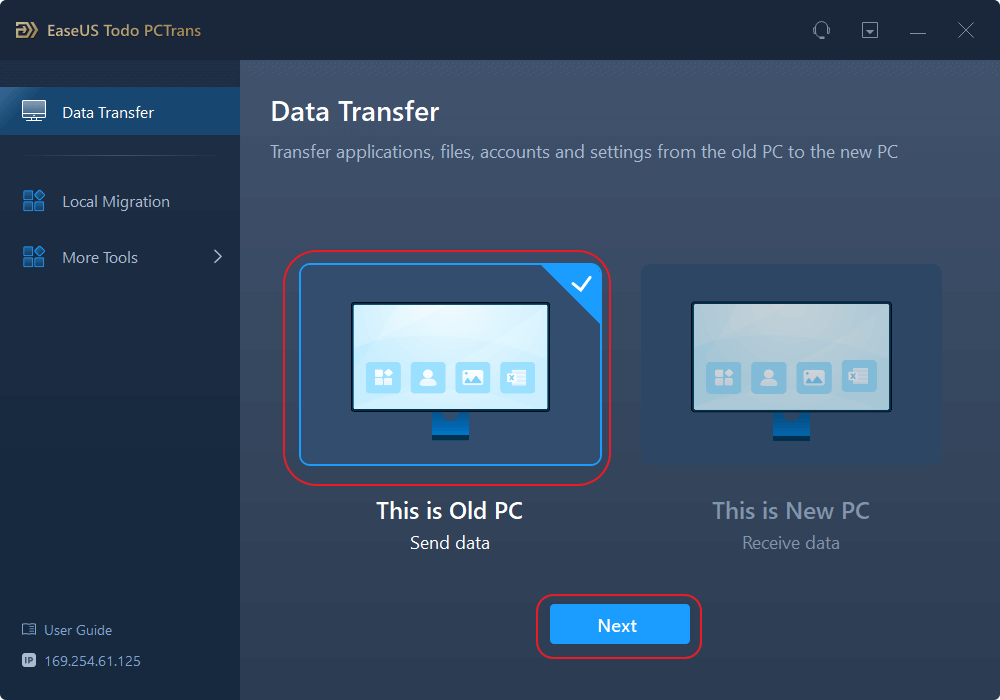
Step 1. Set Up the Old PC
- First, install and launch EaseUS Todo PCTrans and select Data Transfer on the left panel of the main interface.
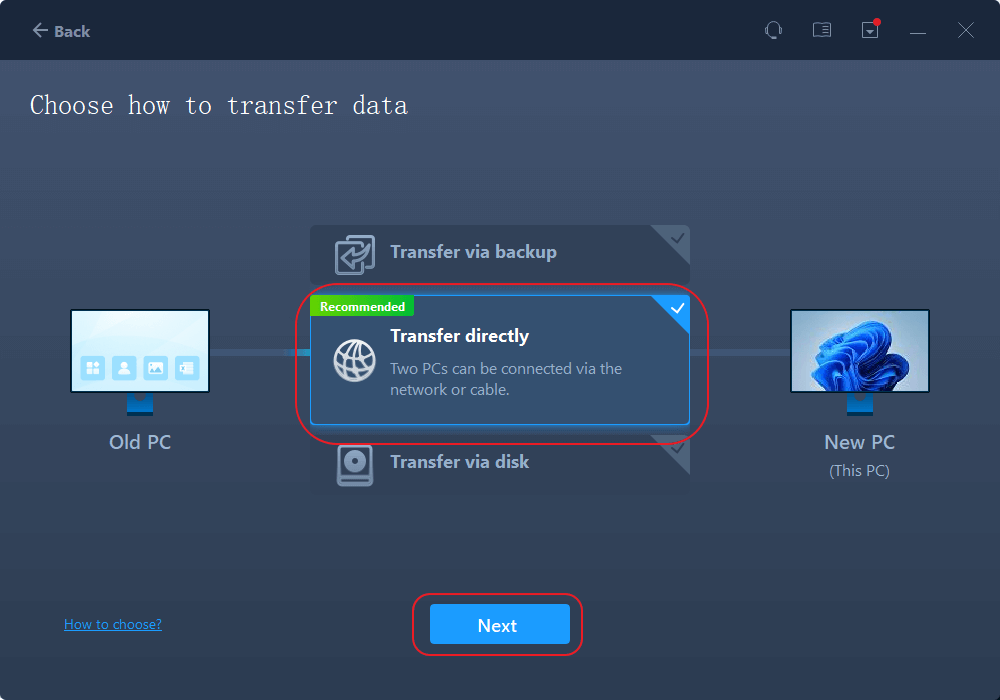
- Select "Transfer Directly" and click "Next" to continue.
Step 2. Set Up the New PC
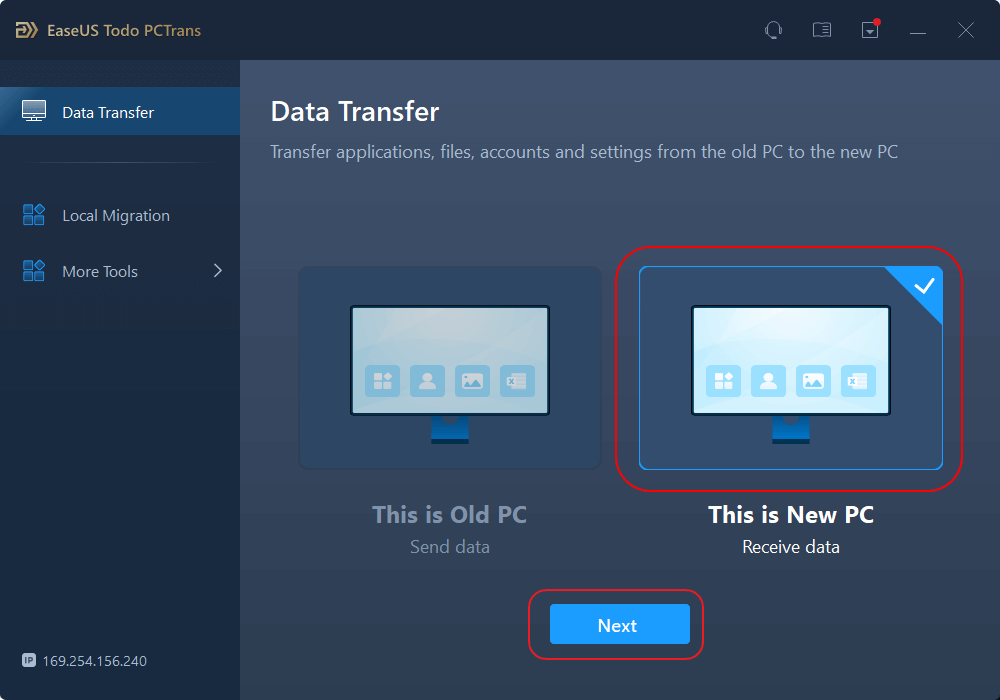
- Download and launch EaseUS Todo PCTrans on the new computer; select "This is New PC" and click "Next".
- Select "Transfer directly" and click "Next" to continue.
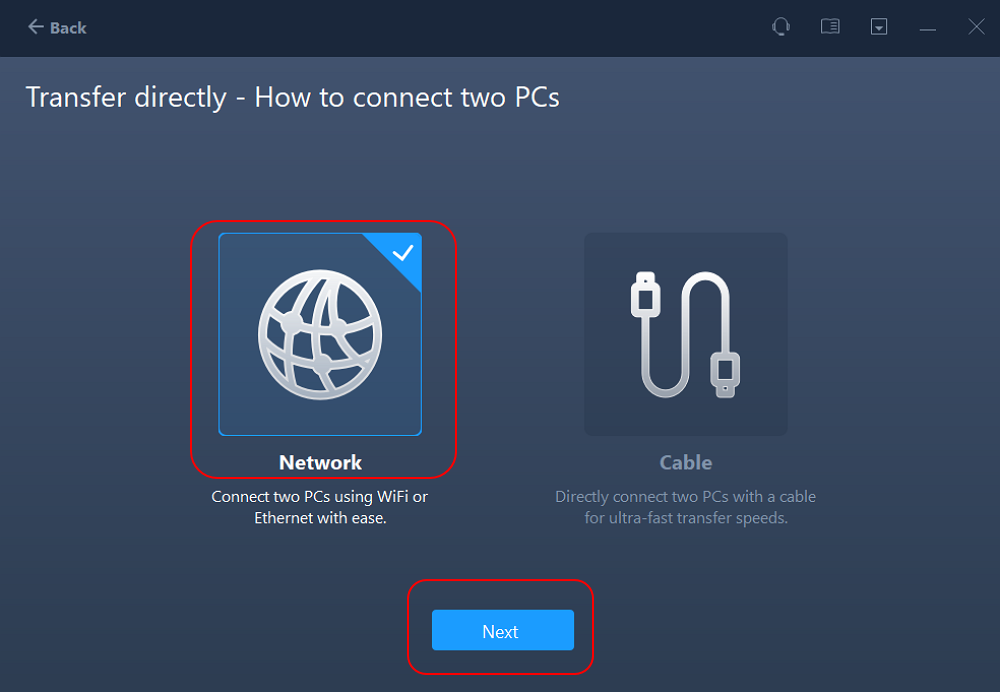
- Select "Network" and click Next to continue. This will automatically scan the old PC. (Make sure the two PCs are connected to the same LAN.)
- Select the target PC and click Connect. Then, it will take some time to scan and analyze the data in old PC.
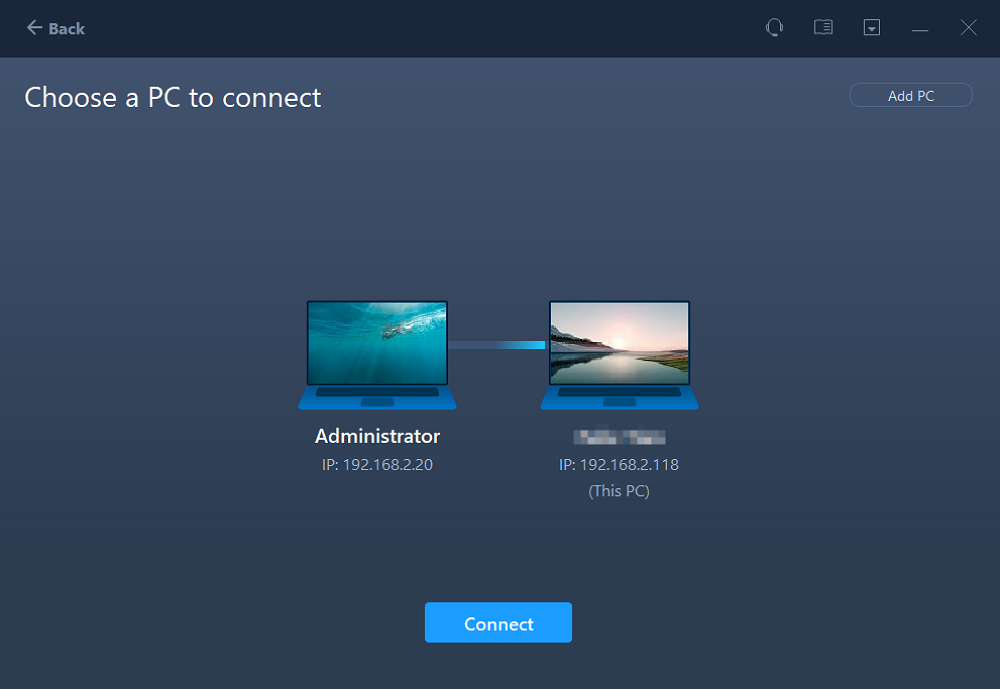
Step 3. Select the Files to Transfer
- Finally, on the new PC, select the Files tab, select the files you need to transfer. Then, click "Transfer" to start.
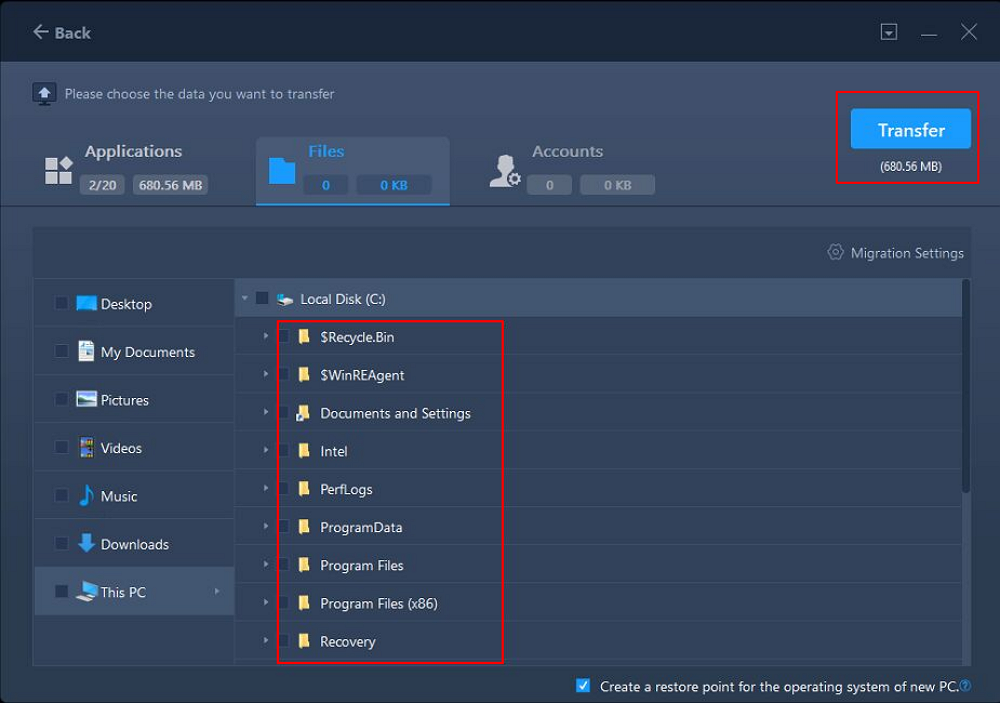
- Tip
- If you're replacing an old computer, don't erase or reset it immediately. Keep the old PC intact until you've confirmed that your important files and other required data have transferred successfully.
Way 2. Transfer Files with Windows Nearby Sharing
If you only need to move a few documents, photos, or other small files, Windows' built-in Nearby Sharing feature can be convenient. It works well when the two Windows PCs are physically close to each other. Here's how to transfer data from Windows to Windows with it:
Step 1. Open Settings on both Windows PCs.
Step 2. Enable Nearby Sharing.
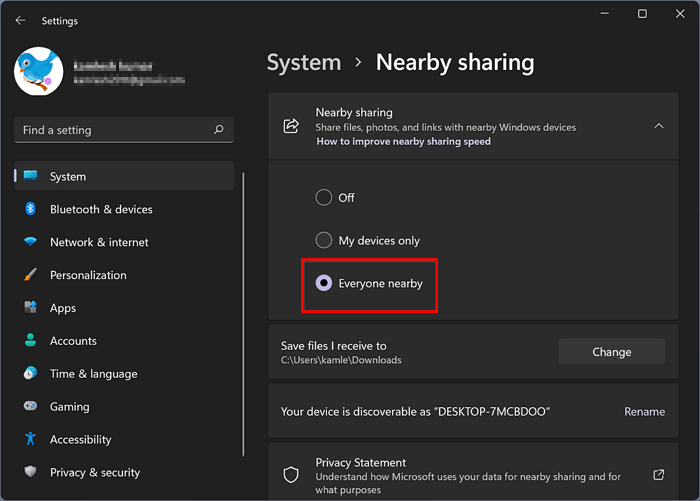
Step 3. Choose who can share files with the PC.
Step 4. Open File Explorer and locate the file you want to send.
Step 5. Right-click the file and select Share.
Step 6. Select the nearby Windows PC.
Step 7. Accept the transfer on the destination computer.
Nearby Sharing is convenient for occasional file sharing, but it may not be the most practical choice when you're moving hundreds of gigabytes or a large collection of folders.
Nearby Sharing Not Working Windows 11? Fix It Now!
Is the Nearby Sharing feature on your Windows 11 not working as it should? Find out how to fix Nearby Sharing not working in Windows 11 in this article. Read more >>
Way 3. Transfer Files Using an Ethernet Cable
An Ethernet connection can provide a direct connection between computers and is useful when you need to move a large amount of data without relying on the internet.
This method can be helpful for transferring large folders, videos, photos, and work files.
However, setting up Windows network sharing manually may require more technical steps. You'll typically need to configure network discovery and file sharing, share the required folders, and access them from the other PC.
For users who are comfortable with Windows network settings, this can be an inexpensive solution, while for beginners, dedicated PC transfer software can reduce the number of settings you need to configure manually.
Way 4. Transfer Files with an External Hard Drive or USB Drive
An external HDD, SSD, or sufficiently large USB drive is another straightforward way to transfer files from Windows to Windows.
The basic process is simple:
Step 1. Connect the external drive to the old Windows PC.
Step 2. Copy the files and folders you need.
Step 3. Safely eject the drive.
Step 4. Connect it to the new Windows PC.
Step 5. Copy the data to the desired location.
This method doesn't require both computers to be connected at the same time.
It is particularly useful when the two PCs are in different locations. However, the transfer speed depends on the drive, USB port, and amount of data being copied. You also need enough free storage space on the external drive.
Way 5. Transfer Files with Cloud Storage
Cloud services such as OneDrive, Google Drive, or Dropbox can also help you move files between Windows computers. Here's how to transfer data from Windows to Windows via cloud services:
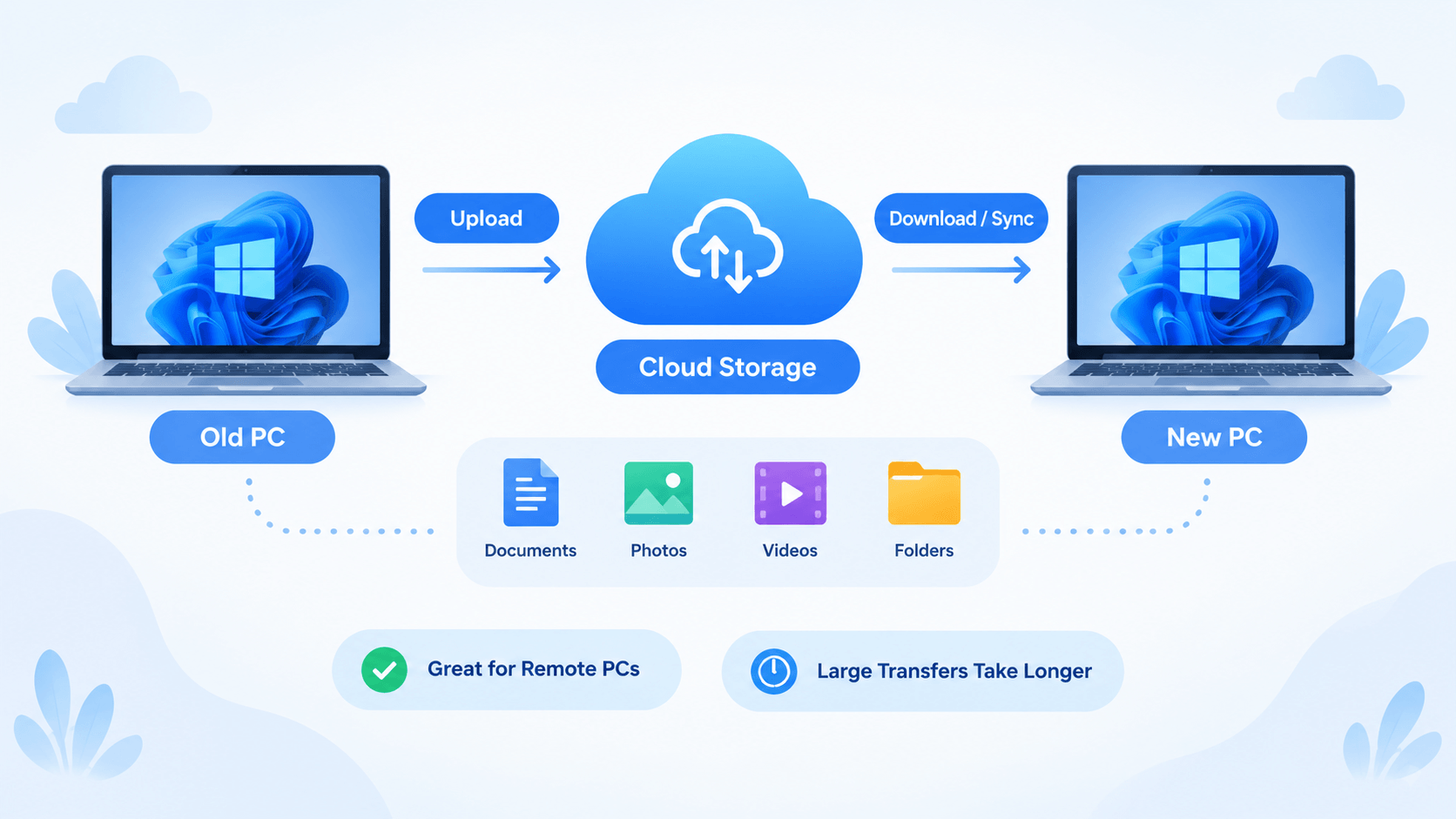
Step 1. Upload files from the old PC, sign in to the same account on the new PC, and download or synchronize the files.
Step 2. Cloud storage is convenient when the two computers are far apart, but large transfers can take considerable time. Upload and download speeds also depend on your internet connection and available cloud storage.
Also read: How to Transfer Files from iCloud to OneDrive
Which Method Should You Choose?
The right method depends mainly on how much data you need to transfer.
- Moving files to a new Windows PC: Use EaseUS Todo PCTrans.
- Sharing a few files nearby: Use Nearby Sharing.
- Transferring a large amount of data locally: Consider PC transfer software, Ethernet, or an external SSD.
- Moving files between different locations: Cloud storage can be convenient.
- No reliable network connection: Use an external hard drive or PCTrans backup transfer.
If you're migrating to a new computer rather than simply sharing a few files, our free PC transfer software can be more convenient because it can handle files together with other PC migration tasks. For several hundred gigabytes or more, a direct PC-to-PC transfer or external storage may be more practical.
Does this article help you out? If yes, share them with others who might have the same problem:

FAQs About Transferring Files from Windows to Windows
Can I transfer files from Windows 10 to Windows 11?
Yes. You can use several methods, including external storage, Windows sharing features, cloud storage, or dedicated PC transfer software. If you're moving to a new Windows 11 computer, check the compatibility and requirements of your chosen transfer method first.
What is the easiest way to transfer files from one PC to another?
For users who want to move a large number of files without manually configuring Windows sharing, a dedicated PC transfer tool such as EaseUS Todo PCTrans can simplify the process. You can connect the two computers, select the files you need, and start the transfer.
Can I transfer files between two PCs without the internet?
Yes. You can use a local network, Ethernet connection, USB drive, external hard drive, or a PC transfer tool that supports direct local transfer. An internet connection is not required for many PC-to-PC transfer methods.
Can I transfer more than just files?
Yes. If you're moving to a new computer, you may also need to migrate applications, user accounts, and settings. EaseUS Todo PCTrans provides PC migration features designed for these scenarios, in addition to transferring personal files.
Final Thoughts
There are several ways to transfer files from Windows to Windows, and the best option depends on your data volume, available hardware, network connection, and technical experience.
For a few files, Windows Nearby Sharing may be enough. An external drive works well for offline transfers, while cloud storage is convenient when the computers are in different locations.
If you're moving from an old Windows PC to a new one and want a more streamlined migration process, EaseUS Todo PCTrans provides a direct way to transfer selected files and folders between computers, with additional options for migrating applications, accounts, and settings.
About the Author

Cici is the junior editor of the writing team of EaseUS. She accepted the systematic training on computers at EaseUS for over one year. Now, she wrote a lot of professional articles to help people resolve the issues of hard drive corruption, computer boot errors, and disk partition problems.
Reviews and Awards
-
EaseUS Todo PCTrans Free is a useful and and reliable software solution created to serve in computer migration operations, be it from one machine to another or from an earlier version of your OS to a newer one.
Read More -
EaseUS Todo PCTrans is by the folks at EaseUS who make incredible tools that let you manage your backups and recover your dead hard disks. While it is not an official tool, EaseUS has a reputation for being very good with their software and code.
![]() Read More
Read More
-
It offers the ability to move your entire user account from your old computer, meaning everything is quickly migrated. You still get to keep your Windows installation (and the relevant drivers for your new PC), but you also get all your apps, settings, preferences, images, documents and other important data.
Read More

Related Articles
-
How to Move Valorant to Another Drive | 2026 Easiest
![author icon]() Cici/2026/10/07
Cici/2026/10/07 -
How to Transfer Opera with Bookmarks to a New PC [2 Ways]
![author icon]() Tracy King/2026/10/07
Tracy King/2026/10/07 -
How to Copy MS Office from Laptop to Pen Drive/USB
![author icon]() Jean/2026/08/23
Jean/2026/08/23 -
Can I Transfer My Adobe Programs to a New Computer [Tutorial]
![author icon]() Sherly/2026/01/29
Sherly/2026/01/29
 Tracy King/2026/10/07
  Jean/2026/08/23
  Sherly/2026/01/29

