






Page Table of Contents
Reviews and Awards


What's the best way to send and receive large video files? I'm planning on editing videos for a few clients. I don't want them to have to spend money on a service that allows for this, and I don't want them to see each other's videos.
Large video files often exceed the size limits of email or messaging apps—platforms that typically compress videos automatically, thereby compromising resolution and audio quality.
How can you send large video files without losing quality or enduring long wait times?
In this guide, we explain how to quickly send large video files from a PC to another without losing quality, covering cloud storage, file transfer services, and tips for avoiding common pitfalls.
Quick Answer
If you're transferring large videos between two Windows PCs, EaseUS Todo PCTrans is a convenient option because it lets you transfer files between PCs without first uploading them to cloud storage or sending them through a compression-heavy messaging platform.
Other options work better in different situations:
- Cloud storage: Best for remote access and collaboration
- File transfer services: Best for one-time remote sharing
- YouTube/Vimeo: Best for viewing and feedback
- USB/SSD: Best for offline transfer of extremely large files
Whether you are migrating to a new PC or sending large video files directly to a team or clients, EaseUS Todo PCTrans is a more practical choice compared to services designed merely for sharing individual files.
3 Common Issues When Sending Large Video Files
Sharing large video files is often challenging because most platforms impose file size limits to maintain performance and reduce bandwidth usage. For instance, many email services cap attachment sizes at around 25 MB—which is plenty for documents and photos but far too small for high-definition (HD) videos that can easily span several gigabytes (GB).
-
1. File Size Is Too Large
Email attachment limits are typically around 25 MB, while a single HD or 4K video file can easily reach hundreds of MBs or even several GBs.
File sizes become even more massive with long recordings, raw camera footage, 8K projects, or entire video libraries. Choose a transfer method based on file size; as files grow, cloud storage or physical media often becomes more practical.
With extremely large files, the challenge goes beyond simply finding a service that supports the upload; you must also consider the time required for uploading, the storage space consumed, and how the recipient will download the files.
Further Reading: How to Send Files Over 100GB Easily and Quickly?
-
2. Upload and Download Speeds Are Too Slow
Even if a platform supports large video files, transferring them can be extremely time-consuming.
The biggest bottleneck is often the upload speed. A user's download connection might be fast, but their upload connection is often much slower, making cloud-based file sharing particularly time-intensive.
For example, if you need to transfer 100 GB of video footage, the process might look like this:
"Upload 100 GB → Wait for upload to complete → Share link → Download 100 GB"
As a result, transferring the same large file may need to undergo two complete transfer processes over the internet.
If you simply want to move files from one computer to another, a direct transfer can eliminate the step of uploading the entire video library to the cloud.
-
3. Video Compression Can Reduce Quality
Many instant messaging and media-sharing platforms compress videos to reduce bandwidth usage and speed up transfers. Consequences may include:
- Reduced resolution
- Lowered bitrate
- Loss of detail
- Softer or blurred images
- Reduced
- Degraded audio quality
We strongly recommend using alternatives—such as cloud links, AirDrop, Quick Share, or sending the video as a "document" where supported—to avoid image quality loss caused by automatic media compression.
Convenient Method to Transfer Large Video Files without Losing Quality: EaseUS Todo PCTrans (No Registration)
If you need to transfer large video files between two Windows PCs, EaseUS Todo PCTrans offers a more direct solution than uploading files to cloud storage and downloading them again.
The standout feature of this tool is its ability to transfer files directly between computers. It is the ideal choice for moving large video editing projects, massive game folders, or even an entire system to another PC. Best of all, you don't need a technical background to use it; the clean, intuitive interface lets you complete the transfer with just a few clicks and selections.
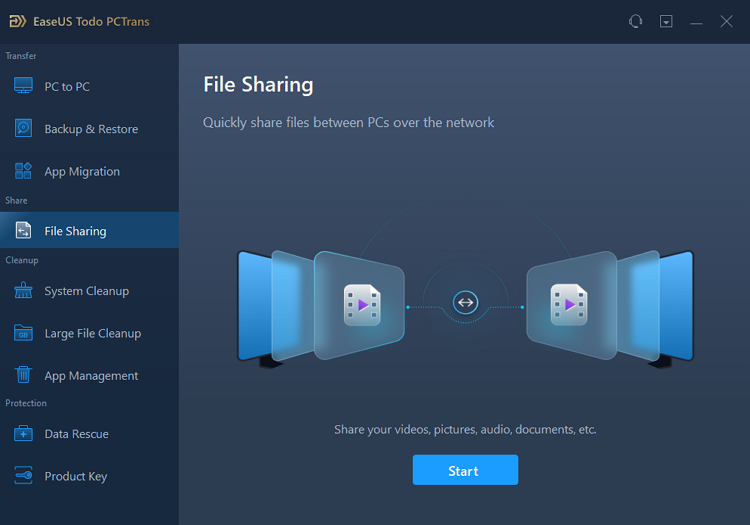
Step 1: Install and launch EaseUS Todo PCTrans on both the source and destination computers. Then, navigate to the "File Sharing" tab and click the "Start" button to begin the process.
Step 2: To establish a connection between two computers, ensure that both belong to the same network. Then, select the target computer's icon or click "Add PC" and enter the connection code for the other computer.
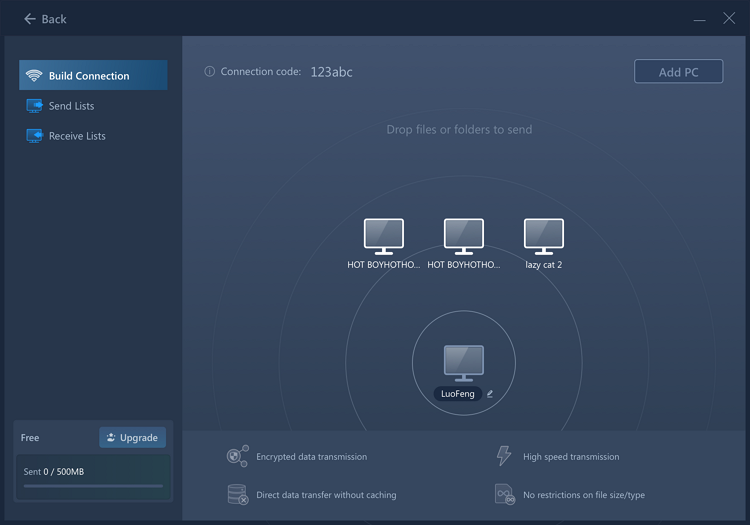
Step 3: Drag and drop the large files you want to transfer into the designated area. You will then see these files in the receiving list on the target computer.
- Tip
- Transfer speed depends on factors such as the network connection, computer hardware, and other programs running during the transfer. EaseUS recommends using the Backup method if a PC-to-PC network transfer is too slow.
There's even more! EaseUS Todo PCTrans does more than just transfer videos. This tool can also assist with a wide range of other data migration and transfer tasks:
- Migrate Applications and User Accounts: Got a new computer? You can transfer your favorite programs and Windows user accounts to it.
- Migrate Applications: Move programs to a different drive to free up disk space.
- System Cleanup: Clean up junk files on the system drive.
- Find Product Keys: Export activation keys for Windows, Adobe, and Office.
EaseUS Todo PCTrans vs. Other Methods for Transferring Large Video Files
| Method | Best For | Original File | Cloud Upload Required | Main Limitation |
|---|---|---|---|---|
| EaseUS Todo PCTrans | PC migration & large file transfer | ✓ | Direct transfer, cable, or backup | Designed primarily for PC-to-PC workflows |
| Google Drive | Cloud sharing | ✓ | Yes | Upload/download time and storage limits |
| Dropbox | Collaboration | ✓ | Yes | Cloud storage required |
| WeTransfer | One-time sharing | ✓ | Yes | Upload required; plan limits vary |
| YouTube/Vimeo | Video viewing | No (can't be downloaded directly) | Yes | Videos are processed for streaming |
| USB/SSD | Offline transfer | ✓ | No |
Physical device required |
5 Alternative Methods for Transferring Large Video Files
EaseUS Todo PCTrans is not the only way to transfer large videos. Depending on your specific situation, other methods may also be suitable.
Method 1. Cloud Storage
Cloud storage is one of the most common ways to share large files. Services like Google Drive, Dropbox, and OneDrive allow you to upload videos and share them via links.
Cloud storage is one of the most common ways to share large files, making it an ideal choice for long-term sharing, collaboration, client delivery, and cross-device access. Services like Google Drive, Dropbox, and OneDrive allow you to upload videos and share them via links.
- Google Drive: 15 GB of free storage, link sharing with granular permission controls, deep integration with Android and Google Workspace, and accessible on desktop and mobile devices.
- OneDrive: 5 GB of free storage, tight Windows integration, automatic desktop and file backup, and built-in Microsoft Office support.
- Dropbox: 2 GB of accessible storage, reliable cross-device synchronization, shared folders for team collaboration, and smart version history and file recovery tools.
PROS
CONS
Method 2. File Transfer Services
File transfer services are designed specifically for sending large files. These services are particularly useful for quick, one-time transfers and time-sensitive deliveries.
- WeTransfer
- Send Anywhere
- Smash
- Wormhole
- MASV
The typical workflow is: "Upload → Generate Link → Send Link → Recipient Downloads."
PROS
CONS
Method 3. Video Hosting Platforms
If your goal is for the recipient to watch the video rather than download the original file, video hosting is a convenient option.
Platforms such as YouTube and Vimeo process uploaded videos for streaming and can provide privacy controls such as unlisted links. BroadbandNow recommends this approach for viewing, marketing, presentations, and private viewing.
Method 4. Video Compression and ZIP Files
Another option is to reduce the file size before sending. However, it is crucial to distinguish between ZIP compression and video re-encoding.
ZIP Compression
ZIP compression is lossless. Placing a video into a ZIP archive does not re-encode the video, so the quality remains unchanged.
However, since video formats like MP4 are already compressed, ZIP compression typically yields only a minimal reduction in file size. BroadbandNow notes that ZIP compression is better suited for bundling multiple files together rather than significantly shrinking the size of already compressed video.
Video Re-encoding
Re-encoding can reduce video file size much more significantly. For example, you may:
- Use a more efficient codec
- Lower the bitrate
- Change the resolution
- Adjust encoding settings
But unlike ZIP, re-encoding can change the video's quality.

Method 5. USB, SSDs, and SD Card Transfer
Of course, one of the most straightforward ways to transfer large video files is to ship them physically.
When dealing with a massive 8K video file under a tight deadline, simply copying it onto a storage device and shipping it out is a simple, direct solution.
- USB flash drives
- External SSDs
- External hard drives
- SD cards
You may also like: How to Transfer Data From One External Hard Drive to Another?
The Bottom Lines
The best way to send large video files depends on your specific needs.
- If you simply want to send a single video to someone, using cloud storage or a file transfer service is usually sufficient;
- If the recipient only needs to watch the video, a video hosting platform might be more convenient.
However, if you need to transfer large video files between Windows PCs, using a dedicated PC transfer tool avoids the hassle of repeatedly uploading and downloading large files.
EaseUS Todo PCTrans supports various methods for sharing videos and meets broader PC migration needs beyond just video files.
Instead of sending large videos as email attachments or uploading your entire media library to the cloud, you can move data directly between computers while keeping the original files intact.
For video transfer tasks that are part of a larger PC migration, EaseUS Todo PCTrans offers a more comprehensive solution compared to tools designed solely for sending download links.
FAQs about Sending Large Video Files without Losing Quality
1. What is the fastest way to send a 10 GB video?
The fastest transfer method depends on whether the recipient is nearby or remote. If the recipient is nearby, using EaseUS Todo PCTrans, Quick Share, or an external SSD is often much faster than uploading a large file to the cloud. EaseUS Todo PCTrans can transfer large videos directly between PCs without requiring a cloud upload.
For remote file sharing, cloud storage platforms such as Google Drive and Dropbox are generally more reliable than traditional email or messaging apps. Browser-based file transfer services can also work well for one-time transfers, but uploading extremely large files may take longer on slower home broadband connections.
2. What happens if I compress a video into a ZIP file?
When you compress a video into a ZIP file, the video itself is not re-encoded or degraded. Instead, the file is packaged more efficiently for storage and transfer, so the video quality remains unchanged.
However, because video formats such as MP4 are already highly compressed, ZIP compression usually does not reduce the file size significantly. The main advantage is convenience: you can package multiple files into a single ZIP archive, add password protection, and upload them all at once instead of uploading each file separately.
3. Is it safe to upload private videos to Google Drive and free file transfer services?
Yes, Google Drive can be used to store private videos securely when you use its sharing and access controls properly. Files are private by default until you share them. You can restrict access to specific people, set files to view-only, and revoke access at any time. For sensitive content, consider using password protection where available, verifying recipient permissions, and avoiding public sharing links.
Reputable services such as WeTransfer, Smash, and Wormhole use encryption and temporary download links, along with security features designed for large-file sharing. Before uploading sensitive files, check whether the service supports features such as password protection, link expiration, and encrypted transfers.
About the Author

Oliver is an EaseUS professional writer who dares explore new areas. With a passion for solving tech issues with straightforward guides for common users, Oliver keeps honing his writing craft by developing in-depth solutions for disk and partition management, computer boot-up issues, file transfer, etc.
Reviews and Awards
-
EaseUS Todo PCTrans Free is a useful and and reliable software solution created to serve in computer migration operations, be it from one machine to another or from an earlier version of your OS to a newer one.
Read More -
EaseUS Todo PCTrans is by the folks at EaseUS who make incredible tools that let you manage your backups and recover your dead hard disks. While it is not an official tool, EaseUS has a reputation for being very good with their software and code.
![]() Read More
Read More
-
It offers the ability to move your entire user account from your old computer, meaning everything is quickly migrated. You still get to keep your Windows installation (and the relevant drivers for your new PC), but you also get all your apps, settings, preferences, images, documents and other important data.
Read More

Related Articles
-
How to Move Microsoft Teams to Another Drive - 3 Quick Ways
![author icon]() Tracy King/2026/07/01
Tracy King/2026/07/01 -
How to Move User Folder to Another Drive on Windows 11🔥
![author icon]() Tracy King/2026/09/27
Tracy King/2026/09/27 -
How to Move AppData to Another Drive Windows 11 - 2026
![author icon]() Sherly/2026/08/14
Sherly/2026/08/14 -
How to Transfer Files from iCloud to External Hard Drive on PC
![author icon]() Tracy King/2026/04/19
Tracy King/2026/04/19
 Tracy King/2026/07/01
  Sherly/2026/08/14

