
Content
Page Table of Contents
About the Author
Hot Topics

Updated on Nov 12, 2026
Is your OneDrive folder taking up too much space on C drive? By default, OneDrive stores synced files in your user profile, which can use up a lot of space if you have many files, photos, or videos. This folder is usually stored in your user profile on C drive.
Moving OneDrive to D drive is one way to free up space on the system partition. You can use EaseUS Partition Master to move OneDrive directly. The manual method also works through OneDrive settings.
How do I change the location of my OneDrive backed folder? I want to shift the location of the documents folder from C to D. However when I try to do so it simply doesn't let me. - From r/Windows11.
Why Move OneDrive Folder to Another Drive?
OneDrive is Microsoft's cloud storage service. It lets you save files, photos, and folders online, access them from any device with internet access, and share or collaborate on them with others. OneDrive keeps a local copy of synced files on your PC. As you add more files, the folder takes up more disk space.
Here are some common reasons to change its location:
- C drive is full: OneDrive files leave less free space for Windows updates and installed programs.
- OneDrive uses too much storage: Large folders, photos, and videos take up space on the system partition.
- Another drive has more free space: Moving OneDrive to D drive makes better use of available storage.
- You want to keep files separate from Windows: Saving OneDrive data on another partition keeps personal files away from the system drive.
How to Move OneDrive Folder to Another Drive
There are two ways to move the OneDrive folder from C drive to another partition. EaseUS Partition Master provides a direct migration option. The manual method uses OneDrive's built-in settings.
Method 1. Move OneDrive Folder Using EaseUS Partition Master
EaseUS Partition Master includes a data migration feature. It transfers installed applications and their related files to another drive. This method is useful when you want to move OneDrive from C drive to D drive without manually moving its folders.
EaseUS Partition Master is a disk and partition management tool for Windows PCs. It helps users manage disk space, move installed apps, and organize files across different drives.
Key features of EaseUS Partition Master include:
- Move Apps: Transfer installed applications and related data from one drive to another.
- Resize/Move Partitions: Adjust partition sizes and change their positions to make better use of disk space.
- Clone Disk or Partition: Copy an entire disk or a selected partition to another drive.
- Extend C Drive: Add available space to the system partition when storage is low.
- Convert Disk: Convert between MBR and GPT, or change supported file systems.
If you want to move OneDrive to another partition, follow the steps:
Note:
- Close OneDrive before starting the migration.
- Make sure the destination drive has enough free space.
- Do not interrupt the transfer while EaseUS Partition Master is moving the application data.
- Check that OneDrive opens and syncs normally after the migration.
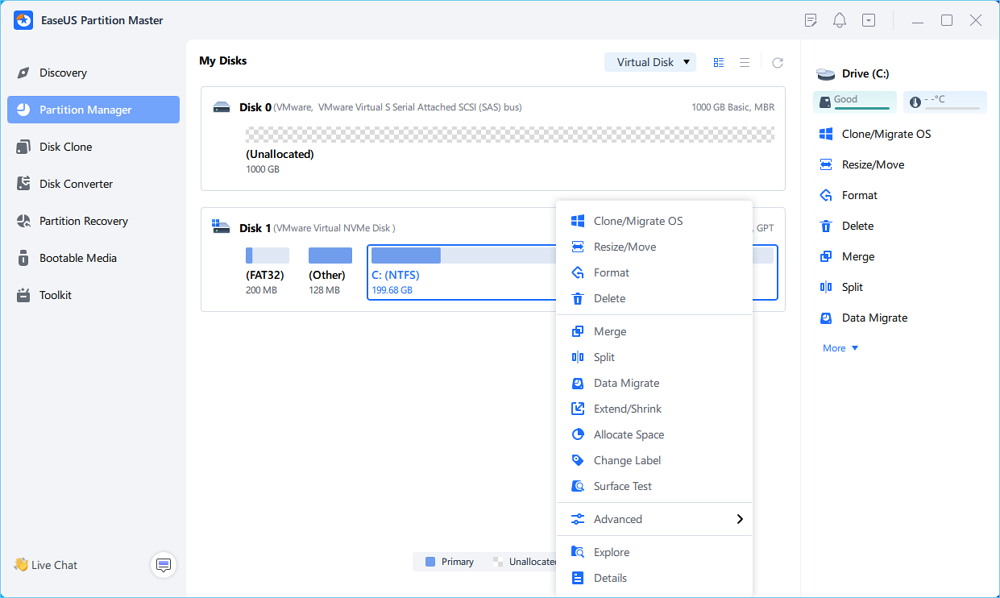
Step 1. Launch EaseUS Partition Master, navigate to "Partition Manager," right click the C drive, and select "Data Migration."
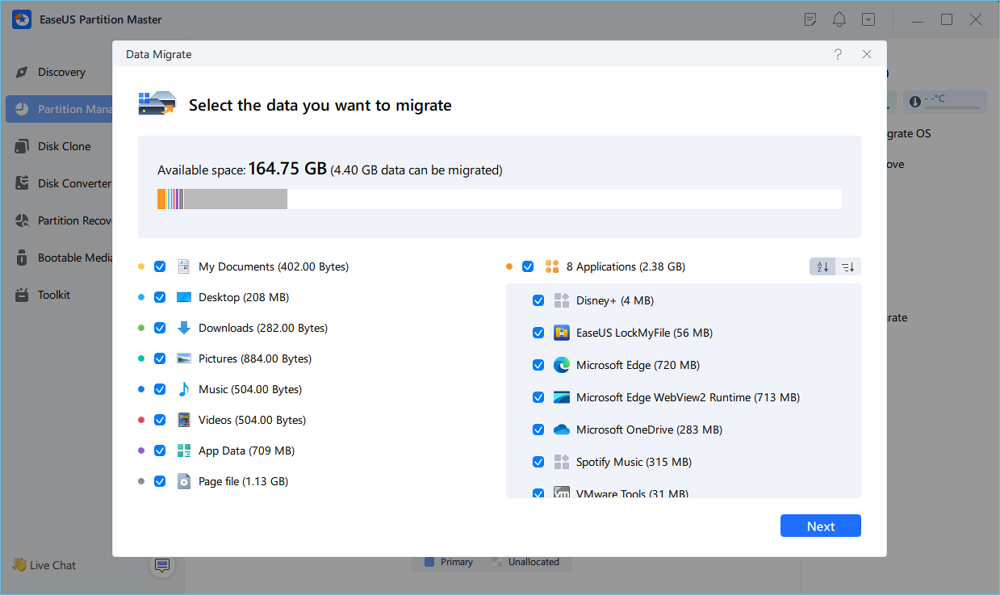
Step 2. Select the data you want to migrate and click "Next" to continue.
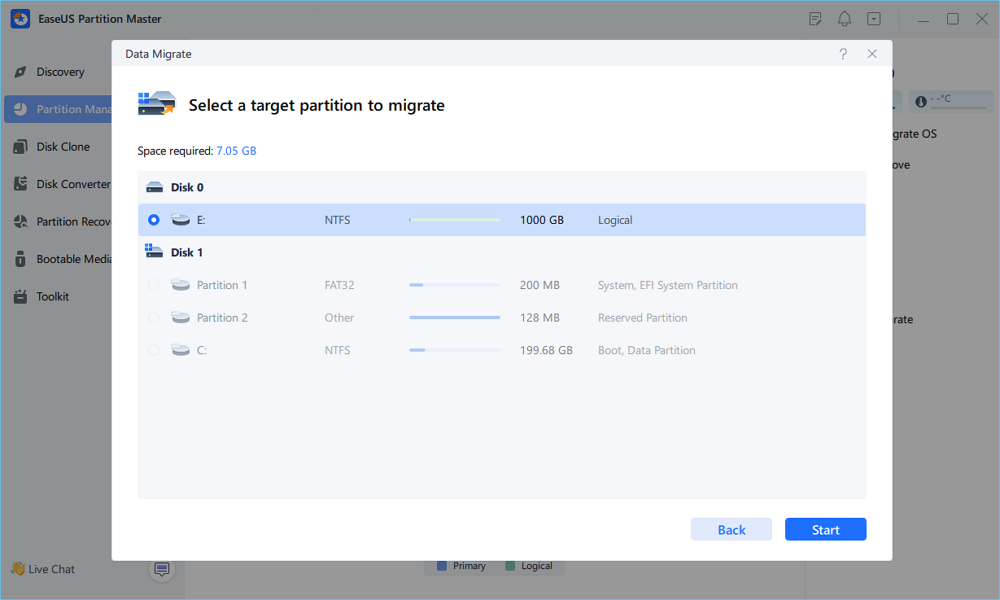
Step 3. Select a target partition to migrate and click "Start" to execute the task.
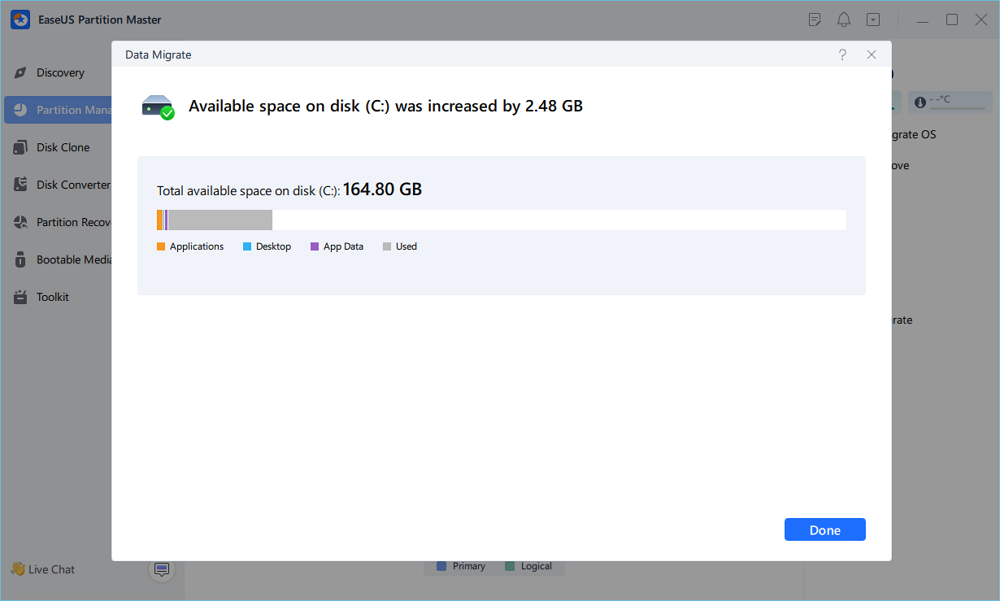
Step 4. After the migration, the available space on the C drive will be increased.
Method 2. Move OneDrive Folder Manually
OneDrive also has a built-in way to change the folder location. You need to unlink your PC first, move the existing folder, and then reconnect your account.
Tips before you move OneDrive using this method:
- Make sure OneDrive has finished syncing before moving the folder.
- Do not delete the moved folder until OneDrive reconnects and syncs successfully.
- Make sure the destination drive has enough free space.
- Wait for OneDrive to check files and resume syncing.
- Check your selected folder settings after reconnecting your account.
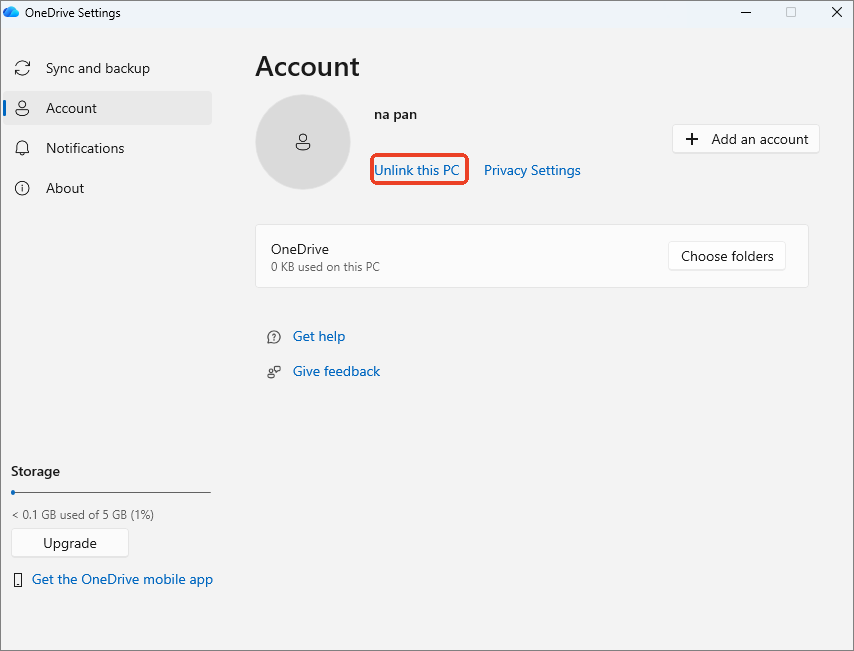
Step 1. Unlink OneDrive from Your PC.
- Click the OneDrive cloud icon in the system tray.
- Go to Settings.
- Open the "Account" tab.
- Click "Unlink this PC" and confirm.
Step 2. Move the OneDrive Folder to Another Drive.
- Open File Explorer and find the OneDrive folder on C drive.
- Right-click the folder and select "Cut."
- Open D drive or another destination partition.
- Right-click an empty area and select "Paste."
Wait for Windows to finish moving the folder.
Step 3. Set Up OneDrive in the New Location.
- Open OneDrive and sign in with your Microsoft account.
- Follow the setup instructions.
- When OneDrive asks where to save the folder, select "Change Location."
- Browse to the OneDrive folder you moved to D drive.
- Select "Use this location" if OneDrive detects the existing folder.
- Finish the setup and check the sync status.
What to Do If OneDrive Does Not Work After Moving?
OneDrive sometimes fails to open or sync after a folder move. Check the folder location and account connection first. Try the following fixes if the problem continues.
Fix 1. Restart OneDrive
Restarting OneDrive helps resolve temporary app problems.
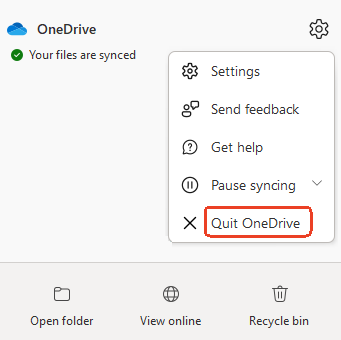
Step 1. Click the OneDrive icon in the system tray.
Step 2. Select Settings > Quit OneDrive.
Step 3. Open the Start menu.
Step 4. Search for OneDrive and launch it again.
Fix 2. Relink Your OneDrive Account
OneDrive needs the correct account and folder location to resume syncing.
Step 1. Open OneDrive Settings > Account.
Step 2. Click Unlink this PC.
Step 3. Start OneDrive and sign in again.
Step 4. Select Change Location during setup.
Step 5. Choose the OneDrive folder on your new drive.
Fix 3. Check the OneDrive Folder Location
An incorrect folder path is another possible cause of sync problems.
Step 1. Open File Explorer.
Step 2. Check whether the OneDrive folder is saved on the new drive.
Step 3. Open OneDrive settings and check its folder location.
Step 4. If OneDrive points to the old path, unlink the account and select the correct folder again.
Fix 4. Reset OneDrive
Reset OneDrive if the app still fails to sync. This process resets the sync client settings.
Step 1. Press Win + R to open the Run dialog.
Step 2. Copy and paste this command:
- %localappdata%\Microsoft\OneDrive\onedrive.exe /reset
Step 3. Press Enter and wait for the reset.
Step 4. If OneDrive does not restart automatically, open it from the Start menu.
- Notice:
- Resetting OneDrive does not delete files stored in the cloud. The app might need time to check your files and sync them again.
Conclusion
You can keep the OneDrive folder on C drive or move it to another partition if local storage is becoming an issue. EaseUS Partition Master offers an application migration option, while the manual method lets you reconnect OneDrive to an existing folder on D drive. Whichever option you use, check the folder location and sync status before deleting any old files.
FAQs
1. Will moving the OneDrive folder delete my files?
No. Moving the local folder does not delete files stored in your OneDrive cloud account. Check that the files are still available and syncing before deleting any local copies.
2. Can I move OneDrive to an external hard drive?
Yes, but the external drive needs to meet OneDrive's requirements. Microsoft recommends an NTFS-formatted drive. Keep the drive connected while OneDrive is syncing.
3. Will OneDrive sync normally after moving to another drive?
Yes. OneDrive resumes syncing after you reconnect your account and select the new folder location. Check the cloud icon in the system tray for the current sync status.
4. Do I need to unlink OneDrive before moving the folder?
Yes. For the manual method, unlink your PC before moving the OneDrive folder. This prevents OneDrive from accessing the folder during the transfer. Reconnect your account after moving it.
How Can We Help You
About the Author
Updated by Joey Albert
Joey is an enthusiast of science and technology. With a passion for uncovering the latest tech innovations, she creates clear, engaging how-to guides that make technology accessible and enjoyable for all.
Product Reviews
-
I love that the changes you make with EaseUS Partition Master Free aren't immediately applied to the disks. It makes it way easier to play out what will happen after you've made all the changes. I also think the overall look and feel of EaseUS Partition Master Free makes whatever you're doing with your computer's partitions easy.
Read More -
Partition Master Free can Resize, Move, Merge, Migrate, and Copy disks or partitions; convert to local, change label, defragment, check and explore partition; and much more. A premium upgrade adds free tech support and the ability to resize dynamic volumes.
Read More -
It won't hot image your drives or align them, but since it's coupled with a partition manager, it allows you do perform many tasks at once, instead of just cloning drives. You can move partitions around, resize them, defragment, and more, along with the other tools you'd expect from a cloning tool.
Read More
Related Articles
-
How to Reset Windows Vista Password | All Situations
![Cici]() Cici/2026/10/30
-
How to Check USB Read and Write Speed on Mac - Full Guide
![Sherly]() Sherly/2026/10/30
-
How to Check If a Disk Is MBR or GPT in Windows - 5 Ways
![Joey Albert]() Joey Albert/2026/11/08
-
Best SSD Repair Tool Free Download | 100% Safe
![Sherly]() Sherly/2026/10/30
 Cici/2026/10/30
 Sherly/2026/10/30