







Content
Page Table of Contents
About the Author
Hot Topics

Updated on Oct 29, 2026
Can't install games to the C drive on Windows? Low disk space is one possible cause, but the problem could also come from the game launcher, installation folder, or Windows permissions.
This guide covers the common reasons for game installation failures and how to fix them. You'll also find ways to free up C drive space or extend the partition when storage is the problem.
Why Can't I Install Games to the C Drive?
Sometimes, games fail to install to the C drive. The exact cause depends on the error message and the platform you use. Here are the most common reasons why games won't install to C drive:
| Problem | Why It Happens |
| Not enough free space | The C: drive does not have enough space for game files, updates, and temporary installation data. |
| Incorrect installation location | The game library folder is missing or invalid. |
| Folder permission issues | Windows or the installer lacks permission to write files in the target folder. |
| Unsupported file system or drive errors | The drive uses an unsupported file system or contains file system errors. |
| Game launcher problems | The launcher is outdated, has corrupted cache files, or contains damaged app data. |
| Windows compatibility issues | Windows is outdated, a restart is pending, or the game version is incompatible. |
Check the error message before changing disk settings. A low-storage warning points to a different problem than an error about folder access or an unavailable installation location.
How to Fix Games That Won't Install to C Drive
Several fixes can help resolve game installation problems on the C drive. The following methods cover common errors and disk space issues.
- Fix 1. Check Available Space on the C Drive - Not Enough Disk Space
- Fix 2. Check the Game Installation Location - Wrong Installation Location
- Fix 3. Check Folder Permissions and Run the Installer Again - Permission Denied
- Fix 4. Check the C Drive for File System Errors - File System Errors
- Fix 5. Repair the Game Launcher or Microsoft Store - Launcher or Store Issues
- Fix 6. Free Up or Extend C Drive Space - Need More C Drive Space
Fix 1. Check Available Space on the C Drive
A full C drive is one of the first things to check when a game won't install. The installer needs enough room for the game files and temporary data. Some games also need extra space to unpack downloaded files or apply updates.
Step 1. Open File Explorer.
Step 2. Select "This PC" in the left pane.
Step 3. Check the free space displayed under the C drive.
Step 4. Compare the available space with the game's storage requirements on its official store page.
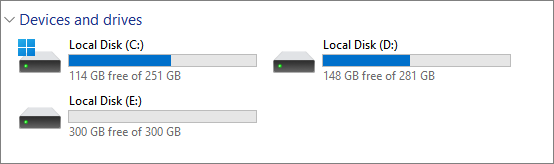
If the C drive is almost full, remove unnecessary downloads, temporary files, or apps you no longer use. Empty the Recycle Bin after checking its contents.
If the C drive has enough free space, move on to the next fix instead of repeatedly cleaning files.
Fix 2. Check the Game Installation Location
The game launcher might be using an invalid folder or a different drive than the one you selected. Check the installation settings before reinstalling the game.
For Steam:
Step 1. Open Steam and select Steam > Settings > Storage.
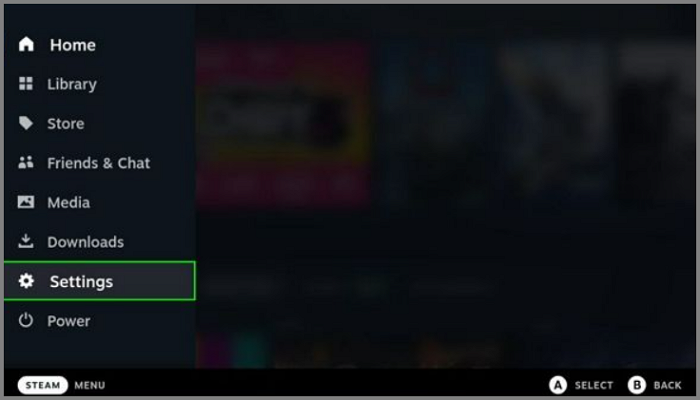
Step 2. Review the available storage drives and library folders.
Step 3. If the C drive is missing, use the storage management options to add a library folder on that drive, if supported by your Steam version.
Step 4. Return to the game installation screen and select the correct library.
For the Xbox app or Microsoft Store:
Step 1. Open Windows Settings.
Step 2. Go to "System > Storage > Advanced storage settings > Where new content is saved." The exact menu labels can vary by Windows version.
Step 3. Check the drive selected for new apps, where the setting is available.
Step 4. Open the Xbox app or Microsoft Store again and check whether the game offers an installation location option.
Some Microsoft Store games use managed installation folders. The launcher might not let you choose an arbitrary directory, so follow the options provided by the app.
If the C drive is available but installation still fails, continue with the next fix.
Fix 3. Check Folder Permissions and Run the Installer Again
Windows needs permission to write game files to the installation folder. A custom folder with restricted permissions may cause an installation error.
Step 1. Open the game installation folder.
Step 2. Right-click the folder and select Properties > Security.
Step 3. Check whether your Windows account has the permissions required to create and modify files.
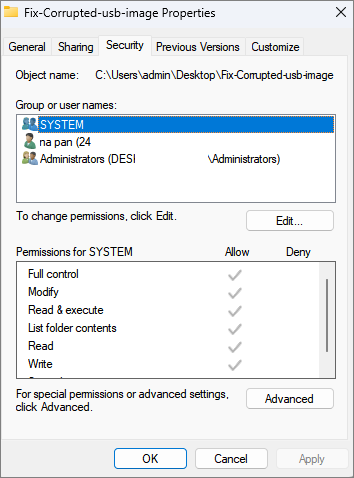
Step 4. If the installer is a standalone desktop program, close it and reopen it. You can choose "Run as administrator" if the publisher recommends it.
Do not change permissions on the entire C drive or protected Windows folders. Broad permission changes can expose system files and create security problems.
Fix 4. Check the C Drive for File System Errors
File system errors sometimes interfere with file creation and installation. Windows includes a built-in tool that checks a drive for logical errors.
Step 1. Open File Explorer and select "This PC."
Step 2. Right-click the C drive and select "Properties."
Step 3. Open the "Tools" tab.
Step 4. Select "Check" under Error checking, and follow the instructions.
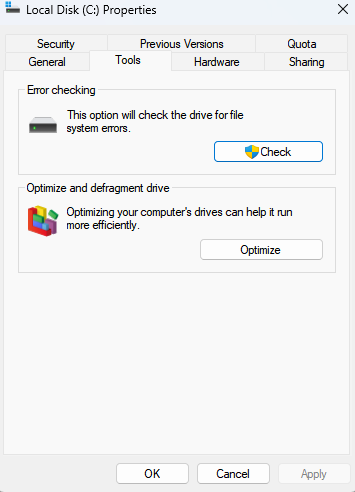
You can also run the following command in an administrator Command Prompt:
- chkdsk C: /scan
This command scans the C drive for file system errors. Follow Windows' instructions if it reports problems that need further repair.
- Tip
- Back up important files before running repair operations. Do not format the C drive to fix a game installation problem. Formatting the system drive can erase Windows and your personal data.
If the drive is healthy and the installation still fails, the game launcher itself could be the cause.
Fix 5. Repair the Game Launcher or Microsoft Store
A broken launcher might prevent games from downloading, preparing files, or completing installation. Repair the app before attempting a full reinstall.
For Microsoft Store or the Xbox app:
Step 1. Open "Settings > Apps > Installed apps."
Step 2. Find Microsoft Store or the Xbox app.
Step 3. Select the three-dot menu, then choose "Advanced options" if available.
Step 4. Select "Repair" and test the installation again.
Step 5. If the problem continues, consider "Reset." Resetting an app helps remove its local app data or settings, so check for relevant account or game data first.
You can open Windows Update and install any relevant pending updates.
For Steam or another game launcher:
Close the launcher completely and reopen it. Check for launcher updates and confirm that the game library folder is still available. If the launcher reports a specific error, follow the publisher's instructions for that error instead of deleting library files at random.
Microsoft also recommends updating, repairing, or resetting affected Store apps when installations fail. See the official Microsoft Store troubleshooting guide for more details.
Fix 6. Free Up or Extend C Drive Space
If the game cannot install because the C drive is too small, you have two main options: free up existing space or increase the partition size.
Option 1. Free up space
Remove unnecessary files, uninstall unused applications, or move personal files to another drive. Check the size of large folders before deleting anything.
Option 2. Extend the C drive
If another partition on the same physical disk has available space, you might be able to reallocate some of that space to C. The result depends on the disk layout and where the available space is located.
EaseUS Partition Master provides flexible ways to manage partition sizes. Its partition management features can help you resize partitions and reallocate available space when the disk layout supports the operation.
To extend C drive with EaseUS Partition Master:
Extend System C drive with unallocated space
- 1. Right-click on the System C: drive and select "Resize/Move".
- 2. Drag the system partition end into the unallocated space so to add it to the C: drive. And click "OK".
- 3. Click "Execute Task" and "Apply" to execute the operations and extend the C drive.
Conclusion
A game that won't install to the C drive does not always need more storage. Check the available space, installation path, folder permissions, drive health, and game launcher to find the cause.
If the problem comes from a small C drive, remove unnecessary files or consider extending the partition. EaseUS Partition Master offers partition management tools for users who need to reallocate disk space without starting over with a new Windows installation.
FAQs
1. Can I install games directly to the C drive?
Yes. Games can be installed on C:, especially smaller titles or games you play often. Just make sure the drive has enough free space and that the installation folder is not read-only or permission-restricted.
2. Why won't a game install even though my C drive has enough space?
The issue could involve folder permissions, file system errors, a damaged launcher, a pending Windows restart, or game compatibility. Check the exact error message and test the launcher before changing the partition size.
3. Why is my C drive full after installing a game on D?
The main game files aren't always the only files taking up space. Launchers, saved games, shader caches, and temporary downloads may still end up on C. Check the folders used by the game and its launcher if the C drive keeps losing space.
How Can We Help You
About the Author
Updated by Joey Albert
Joey is an enthusiast of science and technology. With a passion for uncovering the latest tech innovations, she creates clear, engaging how-to guides that make technology accessible and enjoyable for all.
Product Reviews
-
I love that the changes you make with EaseUS Partition Master Free aren't immediately applied to the disks. It makes it way easier to play out what will happen after you've made all the changes. I also think the overall look and feel of EaseUS Partition Master Free makes whatever you're doing with your computer's partitions easy.
Read More -
Partition Master Free can Resize, Move, Merge, Migrate, and Copy disks or partitions; convert to local, change label, defragment, check and explore partition; and much more. A premium upgrade adds free tech support and the ability to resize dynamic volumes.
Read More -
It won't hot image your drives or align them, but since it's coupled with a partition manager, it allows you do perform many tasks at once, instead of just cloning drives. You can move partitions around, resize them, defragment, and more, along with the other tools you'd expect from a cloning tool.
Read More
Related Articles
-
Ender 3 SD Card Format: Fix Ender 3 Not Reading SD Card
![Tracy King]() Tracy King/2026/10/29
Tracy King/2026/10/29 -
Windows 11 GPT or MBR | How to Convert MBR to GPT
![Tracy King]() Tracy King/2026/10/29
Tracy King/2026/10/29 -
How to Install Windows 11 on New SSD - SATA/M.2/NVMe
![Tracy King]() Tracy King/2026/10/29
Tracy King/2026/10/29 -
Clone Linux Drive | Clone EXT4/EXT3/EXT2 Partitions in Windows 10/11
![Tracy King]() Tracy King/2026/10/29
Tracy King/2026/10/29
 Tracy King/2026/10/29









