







Content
Page Table of Contents
About the Author
Hot Topics
Is your hard drive suddenly running slowly, refusing to open files, or showing strange errors in Windows 11? You may be dealing with a corrupted file system, bad sectors, a RAW partition, a damaged MBR, or a read-only disk. In some cases, these problems can be fixed with software. In others, they may indicate that the hard drive is physically failing.
If you're looking for a free hard drive repair tool download for Windows 11, the first step is to identify what is actually wrong with the drive. Windows 11 includes several built-in utilities for troubleshooting common disk problems, while third-party disk management software can provide a more guided way to diagnose and fix logical hard drive errors.
In this review, we'll take a closer look at EaseUS Partition Master as a hard drive repair tool for Windows 11. We'll explain what problems it can help with, how it handles common HDD errors, where its limitations are, and how it compares with Windows' built-in repair utilities. Feel free to share this post if you found it helpful.

How to Tell If the Hard Drive Is Going to Fail
Before trying to repair a hard drive, you should determine whether the problem is a software-related disk error or a sign of physical drive failure.
A corrupted file system, damaged partition information, or a write-protection issue can often be addressed with disk repair software. However, software cannot repair a physically damaged HDD.
Here are some common warning signs to watch for:
Unusually Slow Hard Drive Performance
- If your HDD suddenly takes much longer to open files, copy data, or load applications, it may be experiencing read/write problems or developing bad sectors.
Files Become Corrupted or Inaccessible
- Repeated file corruption, missing folders, or errors when opening files can indicate file system corruption or problems with the storage media.
The Hard Drive Becomes RAW
- When Windows shows a partition as RAW instead of NTFS, exFAT, or another recognized file system, the operating system can no longer properly identify its file system structure.
Windows Reports Disk or File System Errors
- Error messages such as "The file or directory is corrupted and unreadable" may indicate logical file system problems that can sometimes be repaired without replacing the drive.
Bad Sectors Appear
- Bad sectors are damaged areas of a hard drive that can cause slow performance, read/write errors, or corrupted data. A growing number of bad sectors can be an important warning sign of HDD deterioration.
The Drive Frequently Disconnects
- If an external or internal HDD repeatedly disappears from Windows 11, freezes File Explorer, or causes the system to hang when you access it, the problem may involve the drive, connection, controller, or driver.
The HDD Makes Clicking or Grinding Sounds
- Unusual mechanical noises are much more concerning than ordinary Windows disk errors. Repeated clicking, grinding, or other abnormal sounds may indicate mechanical failure.
Important: Software-based hard drive repair tools can address many logical disk problems, but they cannot repair physically damaged HDD components. If a hard drive is making unusual mechanical noises, repeatedly disconnecting, or showing serious SMART warnings, back up or recover important data before attempting further repairs.
Best Hard Drive Repair Tool Free Download for Windows 11
Among the available hard drive repair tools for Windows 11, EaseUS Partition Master is a versatile option for diagnosing and troubleshooting common HDD problems. Its graphical interface makes disk repair tasks easier for users who do not want to rely entirely on command-line utilities, while its partition management features provide additional control over problematic drives.
Depending on the type of disk problem, EaseUS Partition Master can check and repair file system errors, scan a hard drive for bad sectors, repair damaged MBR information, remove software-level write protection, and format problematic partitions. It can also help users manage lost partitions and unallocated disk space.
This makes the software useful for a range of logical hard drive problems. For example, if Windows detects your HDD but you cannot access a partition, a file system check may help. If the drive appears as RAW, formatting may make the partition usable again after important data has been recovered. If an MBR becomes damaged, an MBR repair can help restore the disk's boot information.
However, EaseUS Partition Master is not a physical hard drive repair utility. It cannot repair a damaged read/write head, motor, platter, or other failed mechanical components.
Features
- ⚒️ Check and Repair File System Errors: Detect and repair logical file system errors that may prevent Windows from accessing or managing a hard drive normally.
- 🔍 Check for Bad Sectors: Scan the surface of an HDD to identify bad sectors and help you evaluate whether the drive may be developing storage problems.
- 🛠️ Repair Damaged MBR: Repair the Master Boot Record when MBR-related corruption causes boot problems or prevents a disk from working normally.
- 🔓 Remove Write Protection: Remove software-level write protection when an internal or external hard drive is stuck in read-only mode and prevents users from modifying data.
- 💽 Format a Hard Drive: Format a corrupted, RAW, or otherwise problematic partition to NTFS, exFAT, FAT32, or another supported file system when formatting is appropriate.
- 📦 Manage Lost Partitions: Search for lost partitions and manage unallocated or incorrectly configured disk space when partition information has been lost or changed.
EaseUS Partition Master is best viewed as a hard drive troubleshooting and disk management tool, rather than a utility that can repair every type of HDD failure.
Its main advantage is the range of logical disk problems it can address from a graphical interface, including file system errors, bad-sector detection, damaged MBR information, write protection, RAW partitions, and formatting.
For users who want a guided alternative to Windows command-line tools, it is a convenient option. However, if an HDD has clear signs of physical failure, software repair should not replace data backup, recovery, or drive replacement.
How to Use the Hard Drive Repair Tool
Different hard drive problems require different repair methods. Instead of applying the same fix to every HDD, identify the symptom first and then choose the appropriate tool.
Guide 1. Check and Fix File System Errors
File system errors can occur after an improper shutdown, interrupted file transfer, malware infection, or other unexpected events. They may cause Windows to report that a drive needs to be repaired or prevent you from accessing certain files and folders. EaseUS Partition Master can check the file system and attempt to correct detected logical errors through a graphical interface.
Suitable for: HDDs that are detected by Windows but show file system errors, inaccessible folders, corrupted directory structures, or other logical disk problems.
Step 1. Right-click the target partition that may have a problem.
Step 2. Choose "Check" > "Check File System".
Step 3. In the Check File System window, check the "Try to fix errors if found" option by clicking the "Start" button.
Step 4. Please wait patiently. After the process, you can click the "Finish" button to exit the window.
Guide 2. Check Bad Sectors
Bad sectors can cause slow read/write performance, file corruption, and unexpected errors when Windows tries to access an HDD. A surface scan can help identify problematic areas and give you a better understanding of the drive's condition.
If the number of bad sectors continues to increase, however, the drive may be deteriorating and should not be relied on for important data.
Suitable for: HDDs with unusually slow performance, read/write errors, corrupted files, system freezes during disk access, or suspected bad sectors.
Step 1. Open EaseUS Partition Master. Go to Toolkit and select "Bad Sector Scan."
Step 2. Tick "Scan Disk" and choose the target disk from the drop-down menu.
Step 3. Click "Scan" to apply the bad sector scaning process.
Guide 3. Fix a Damaged MBR
The Master Boot Record contains important partition and boot information on an MBR-partitioned disk. If it becomes corrupted, the computer may fail to boot or display errors related to the boot device or operating system.
EaseUS Partition Master provides a graphical way to repair MBR-related problems without requiring users to perform the entire process through Command Prompt.
Suitable for: MBR-partitioned hard drives experiencing boot failures, missing operating systems, or errors caused by a corrupted Master Boot Record.
Step 1. Create a WinPE bootable disk
- Launch EaseUS Partition Master, and click "Bootable Media" on the toolbar. Select "Create bootable media".
- Click "Next" to finish the process.
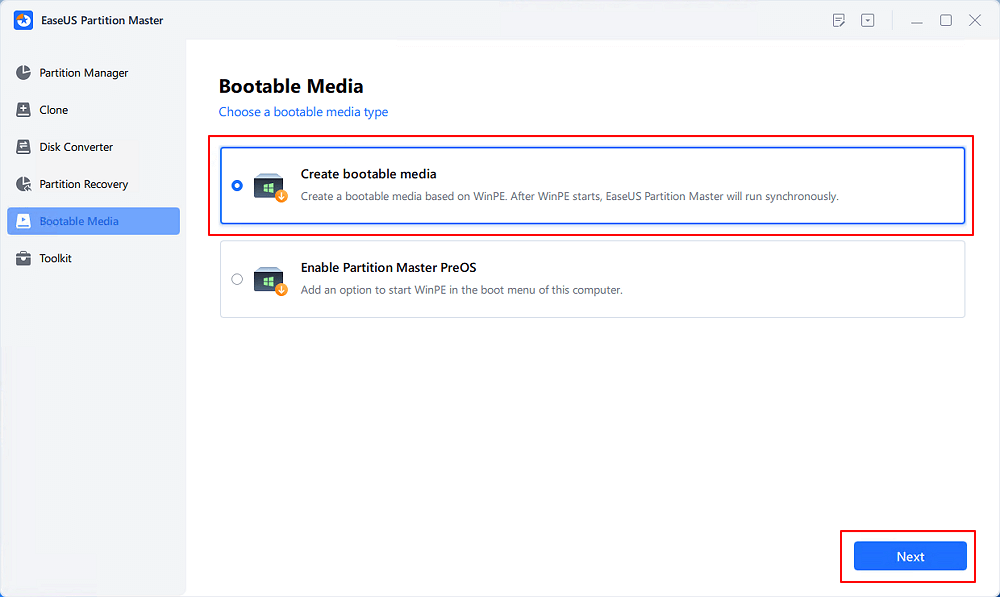
Step 2. Boot EaseUS Partition Master Bootable USB
- Connect the bootable USB or CD/DVD to your PC.
- Press F2 or Del when you restart the computer to enter the BIOS screen. Set and boot your computer from "Removable Devices" or "CD-ROM Drive". And then EaseUS Partition Master will run automatically.
Step 3. Rebuild MBR
- Click "Toolkit" and choose "Rebuild MBR".
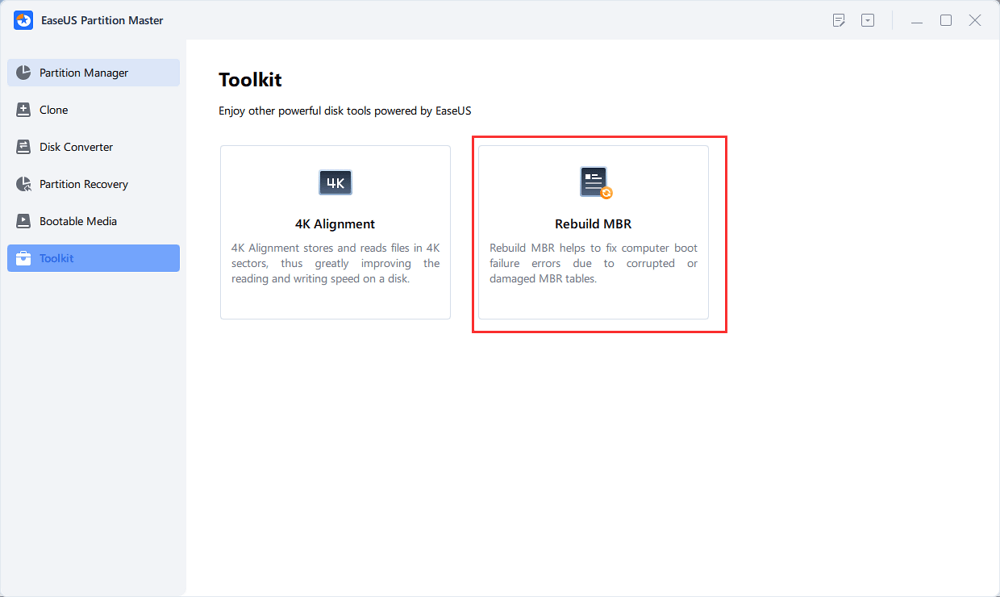
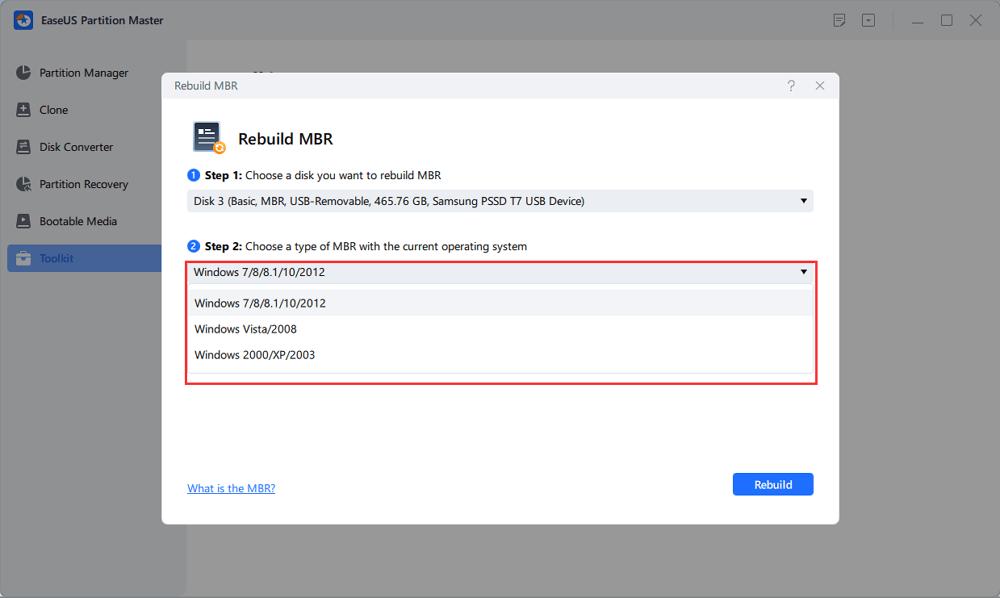
- Select the disk and the type of MBR. Then, click "Rebuild".
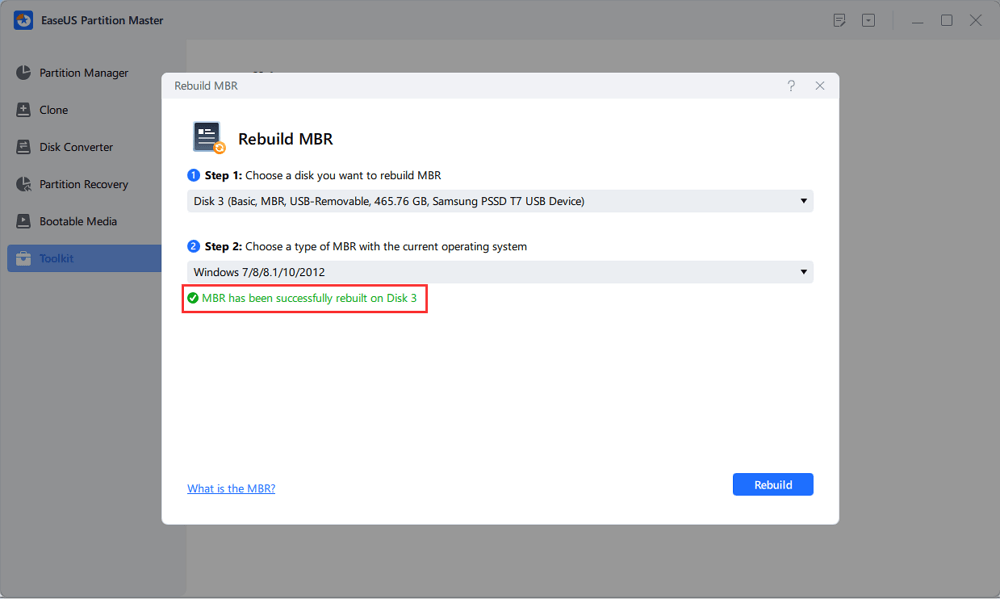
- After that, you can see "MBR has been successfully rebuilt on Disk X".
Guide 4. Fix the "Disk Is Read Only" Error
A hard drive that suddenly becomes read-only can prevent you from copying, editing, deleting, or formatting files. In some cases, the problem is caused by software-level write protection rather than physical damage to the drive.
Removing the write protection can restore normal read/write access when the HDD itself is functioning correctly.
Suitable for: Internal or external HDDs that are detected normally but display "Disk is write protected," "read-only," or similar messages when you try to modify or format the drive.
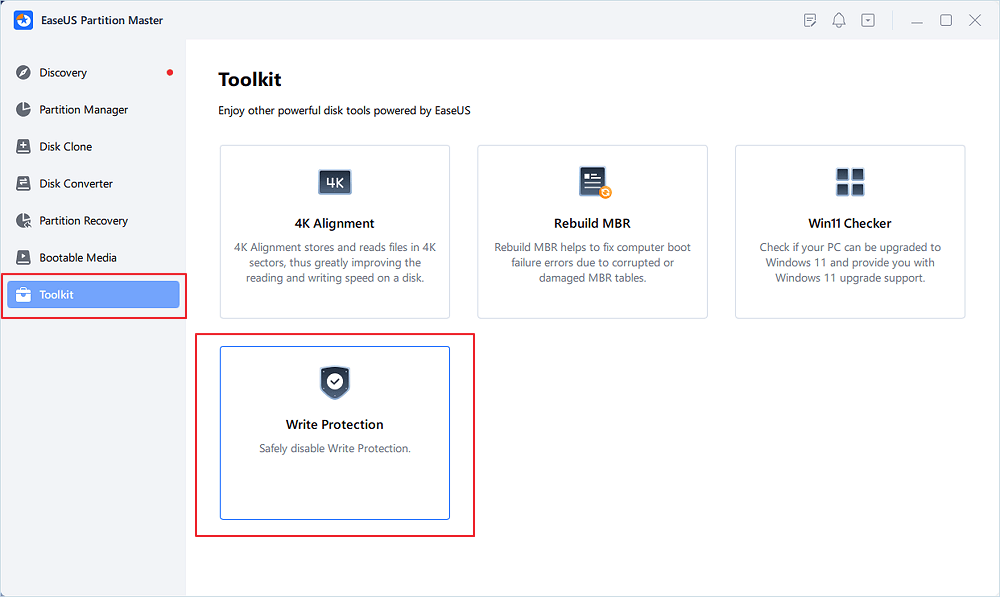
Step 1. Download and install EaseUS Partition Master, go to the Toolkit section, and click "Write Protection".
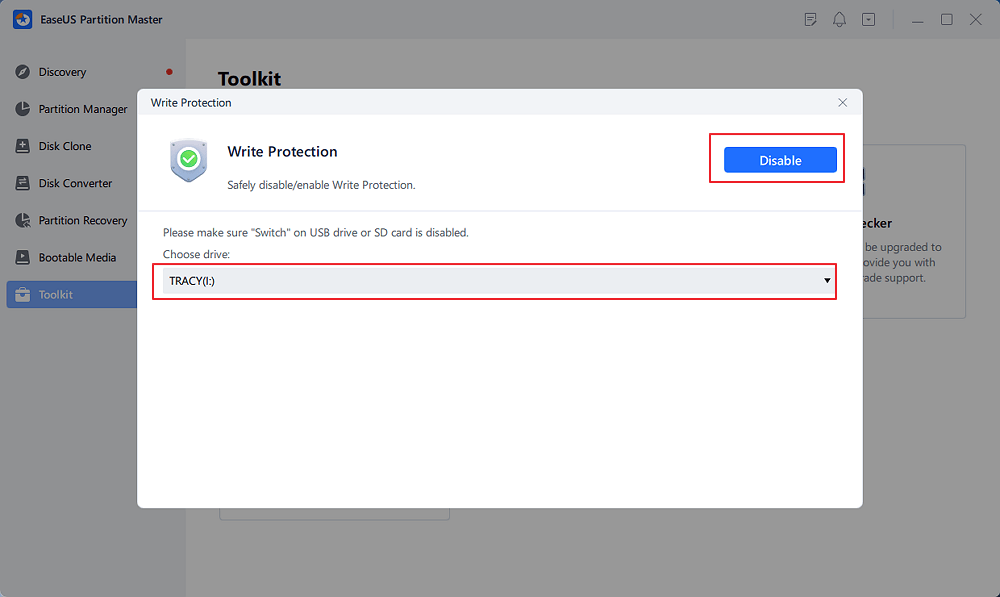
Step 2. Select your write protected USB, USB external disk or SD card, and click "Disable".
Guide 5. Format a Hard Drive
Formatting is sometimes necessary when a hard drive has a severely corrupted file system, appears as RAW, or needs to be prepared for a new purpose. However, formatting is not the same as repairing physical damage. It recreates the file system on the selected partition and can erase existing data, so make sure your important files have been backed up or recovered before formatting.
Suitable for: HDDs that have become RAW or severely corrupted, drives being prepared for reuse, or partitions that need to be formatted with a new file system.
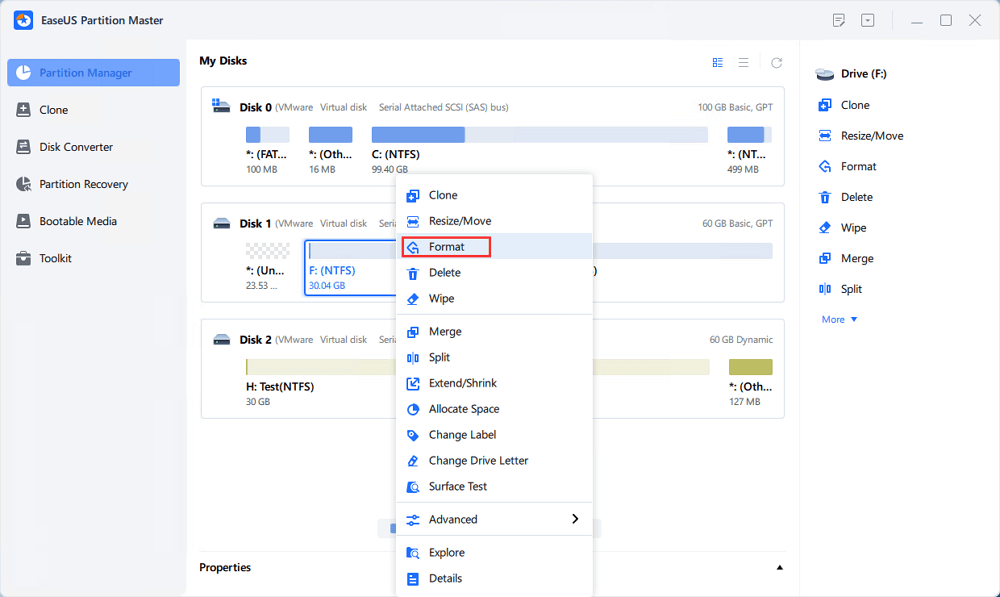
Step 1. Run EaseUS Partition Master, right-click the corrupted hard drive partition you intend to format and choose "Format".
Step 2. In the new window, set the Partition label, File system (NTFS/FAT32/EXT2/EXT3/EXT4/exFAT), and Cluster size for the partition to be formatted, then click "OK".
Step 3. Then you will see a warning window; click "Yes" to continue.
Step 4. Click the "Execute 1 Task(s)" button to review the changes, then click "Apply" to start formatting the partition on your hard drive.
How to Fix a Corrupted Hard Drive With Windows 11 Built-in Tools
You don't always need a third-party hard drive repair tool to troubleshoot a corrupted HDD. Windows 11 includes several built-in utilities that can diagnose and address file system errors, disk problems, driver-related issues, and other common software-level failures.
These methods are particularly useful if you prefer manual troubleshooting or want to try Windows' built-in solutions before installing additional software.
Before You Start
1️⃣ Windows built-in utilities are a good first choice for simple problems.
They are already integrated into Windows 11 and can help with file system errors, disk checks, driver problems, and other minor logical disk issues.
2️⃣EaseUS Partition Master can be useful when you need a more guided interface or when the problem involves multiple partitions, RAW volumes, MBR issues, or other disk-management tasks.
For example, consider using a third-party tool when:
- The HDD contains multiple problematic partitions.
- CHKDSK cannot complete, gets stuck, or fails to resolve the problem.
- The drive has become RAW.
- You need to perform several disk-management operations from one interface.
- You prefer a graphical, guided workflow instead of manually entering commands.
In short:
- Windows built-in tools: Best for straightforward troubleshooting and users who are comfortable with manual commands.
- Third-party hard drive repair tools: More suitable for guided troubleshooting, broader disk management, and users dealing with more complicated logical disk problems.
Fix 1. Run CHKDSK
CHKDSK (Check Disk) is a built-in Windows command-line utility that checks a drive's file system for logical errors. With the appropriate parameters, it can also attempt to repair file system problems and locate bad sectors.
The /f parameter tells CHKDSK to fix detected file system errors, while /r looks for bad sectors and attempts to recover readable information from them.
Suitable for: HDDs that are recognized by Windows and are experiencing file system corruption, directory errors, inaccessible files, or other logical disk problems. CHKDSK is not designed to repair physically failing hard drives.
Step 1. Press Win + S, type cmd, right-click Command Prompt, and select Run as administrator.
Step 2. Enter the following command: chkdsk C: /f /r
Replace C: with the actual drive letter of the hard drive you want to check.
Step 3. Press Enter and wait for Windows to complete the scan and repair process.
Fix 2. Update the Disk Driver
A hard drive problem is not always caused by the HDD itself. An outdated, corrupted, or incompatible disk or storage controller driver can prevent Windows 11 from communicating with the drive correctly. Updating the relevant driver through Device Manager is therefore a simple troubleshooting step worth trying before assuming that the hard drive has failed.
Suitable for: HDDs that suddenly stop being recognized, frequently disconnect from Windows, show device-related errors, or start experiencing problems after a Windows update or hardware change.
Step 1. Press Win + X and select Device Manager.
Step 2. Expand Disk drives, right-click the affected hard drive, and select Update driver.
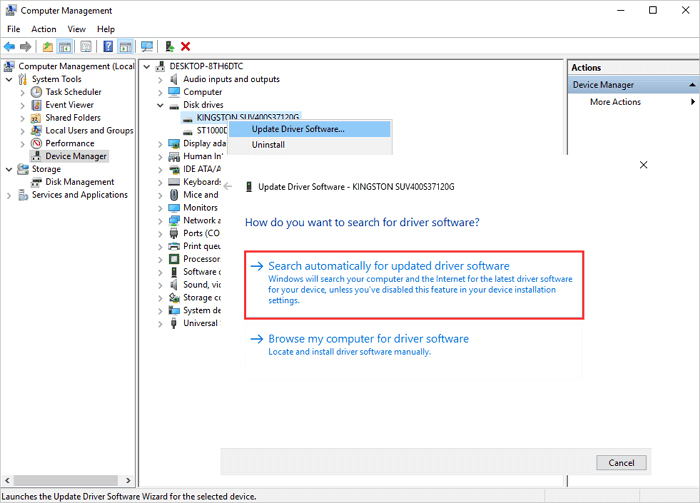
Step 3. Select Search automatically for drivers and follow the on-screen instructions to install an available driver.
Step 4. Restart your computer and check whether Windows can access the hard drive normally.
Fix 3. Run Windows Error Checking
Windows 11 also provides a graphical Error Checking feature that can scan a drive for file system problems. Unlike CHKDSK, it does not require you to enter commands manually, making it a convenient option for users who prefer a simpler troubleshooting process.
The tool is most useful when the hard drive is still visible in File Explorer, but Windows reports errors when you try to access files or folders.
Suitable for: HDDs that are detected and accessible in File Explorer but show file system errors, corrupted files, or other minor logical disk problems.
Step 1. Open File Explorer, right-click the affected hard drive, and select Properties.
Step 2. Open the Tools tab.
Step 3. Under Error checking, click Check.
Step 4. Select Scan drive if Windows prompts you to confirm the disk check.
Step 5. Wait for Windows to complete the scan and follow any recommended repair instructions.
Fix 4. Check the Hard Drive in Disk Management
Disk Management is another built-in Windows 11 utility that can help you determine whether Windows detects the hard drive correctly. It provides a different view of the storage device than File Explorer and can reveal problems such as missing drive letters, unallocated space, offline disks, or RAW partitions.
This makes Disk Management especially useful when a hard drive appears missing in File Explorer even though Windows can still detect the physical disk.
Suitable for: HDDs that are missing from File Explorer, showing as unallocated or RAW, marked offline, or missing a drive letter.
Step 1. Press Win + X and select Disk Management.
Step 2. Find the affected hard drive in the list of available disks.
Step 3. Check whether the disk is shown as Offline, Unallocated, RAW, or without a drive letter.
Step 4. If the partition does not have a drive letter, right-click it and select Change Drive Letter and Paths.
Step 5. Click Add, select an available drive letter, and click OK.
Step 6. If the disk is marked Offline, right-click the disk label and select Online.
Warning: Do not initialize, delete, or format a partition simply because it appears as RAW or unallocated if it contains important files. These operations can make existing data more difficult to recover. Recover or back up important data first.
What If Windows Built-in Tools Cannot Repair the Hard Drive?
If CHKDSK, Error Checking, Device Manager, and Disk Management fail to resolve the problem, the issue may be more complicated than a simple file system error.
For example, the HDD may have multiple partition problems, a corrupted MBR, a RAW partition, or software-level write protection. In these situations, a dedicated hard drive repair tool can provide additional options through a graphical interface.
However, if the drive is making unusual clicking or grinding sounds, repeatedly disconnecting, or showing serious SMART warnings, the priority should shift from software repair to data backup or recovery. A software tool cannot repair mechanical HDD failure.
Conclusion
A hard drive problem does not necessarily mean that the HDD is physically dying. File system corruption, bad sectors, damaged MBR information, write protection, RAW partitions, and driver problems can all prevent Windows 11 from accessing a drive normally.
If you're looking for a hard drive repair tool for Windows 11, EaseUS Partition Master is worth considering for common logical disk problems. It combines file system checking, bad-sector scanning, MBR repair, write-protection removal, formatting, and partition management in one graphical interface.
For straightforward problems, Windows 11's built-in tools, such as CHKDSK, Error Checking, Device Manager, and Disk Management, may be enough. For more complicated disk-management tasks or users who prefer a guided workflow, a dedicated hard drive repair and partition management tool can make troubleshooting easier.
FAQs About Hard Drive Repair Tool
What is the best free software for repairing a hard drive?
The best free hard drive repair software depends on the problem. CHKDSK is a useful built-in Windows utility for common file system errors, while EaseUS Partition Master provides a graphical interface and additional disk and partition management functions. For problems involving RAW partitions, MBR errors, write protection, or complex partition configurations, a dedicated disk management tool may be more convenient.
What is the best free repair tool for Windows 11?
Windows 11 includes several useful repair utilities, including CHKDSK, Windows Error Checking, Device Manager, and Disk Management. These tools are suitable for many basic disk and system problems. If you need a graphical third-party solution with broader hard drive and partition management features, EaseUS Partition Master is another option.
How do I repair a corrupted hard drive in Windows 11?
First, identify the type of corruption. If Windows detects the HDD but reports file system errors, try CHKDSK or Windows Error Checking. If the problem involves a RAW partition, damaged MBR, write protection, or partition configuration, a dedicated disk management tool such as EaseUS Partition Master may provide a more suitable workflow.
Can I use CHKDSK to repair my hard drive?
Yes. CHKDSK can repair certain logical file system errors and scan for problematic sectors. However, it cannot physically repair a damaged HDD. If the drive is making clicking or grinding noises, repeatedly disconnecting, or showing serious SMART warnings, stop treating CHKDSK as a hardware repair solution and prioritize data recovery or replacement.
Can I repair a hard drive without formatting it?
In many cases, yes. File system errors, some MBR problems, and software-level write-protection issues can potentially be addressed without formatting the drive. However, if a partition has become severely corrupted or RAW, formatting may eventually be necessary. Always back up important data before performing an operation that could modify the file system.
How do I fix a RAW hard drive in Windows 11?
A RAW hard drive usually means that Windows cannot recognize the existing file system. If the drive contains important data, recover or back up the files before formatting it. Once the data is safe, you can format the affected partition to a compatible file system such as NTFS or exFAT and reuse the drive.
How do I fix a write-protected hard drive?
First determine whether the drive is protected at the software level or whether the problem may be related to hardware failure. If it is a software-level write-protection issue, you can try removing the protection through Windows tools or a disk management utility. If the drive remains read-only after multiple troubleshooting attempts, the HDD may have a hardware or firmware problem.
Can software repair bad sectors on a hard drive?
Software can detect bad sectors and help manage the resulting disk problems, but it cannot physically restore damaged magnetic media. If a scan finds bad sectors, back up important files and monitor the drive. If the number of bad sectors increases or other failure symptoms appear, replacing the HDD is generally safer.
How can I tell if my hard drive is failing?
Common warning signs include increasing bad sectors, unusually slow performance, corrupted files, frequent freezes or disconnections, repeated read/write errors, and unusual clicking or grinding sounds. SMART warnings can also indicate that an HDD may be approaching failure.
Can I repair a failing hard drive without losing data?
It depends on the cause of the problem. Logical file system errors may sometimes be repaired without deleting the data. However, physical HDD failure is different. If the drive is deteriorating, repeated repair attempts may put additional stress on the disk. Back up or recover important data before performing further troubleshooting whenever possible.
How Can We Help You
About the Author

Sherly joined EaseUS in 2022 and she has always loved writing articles and enjoys the fun they bring. She receives professional training here, focusing on product performance and other relative knowledge. She has written over 200 articles to help people overcome computing issues.
Product Reviews
-
I love that the changes you make with EaseUS Partition Master Free aren't immediately applied to the disks. It makes it way easier to play out what will happen after you've made all the changes. I also think the overall look and feel of EaseUS Partition Master Free makes whatever you're doing with your computer's partitions easy.
Read More -
Partition Master Free can Resize, Move, Merge, Migrate, and Copy disks or partitions; convert to local, change label, defragment, check and explore partition; and much more. A premium upgrade adds free tech support and the ability to resize dynamic volumes.
Read More -
It won't hot image your drives or align them, but since it's coupled with a partition manager, it allows you do perform many tasks at once, instead of just cloning drives. You can move partitions around, resize them, defragment, and more, along with the other tools you'd expect from a cloning tool.
Read More
Related Articles
-
How to Fix Disk Management Console Is Not Up to Date Error [7 Effictive & Quick Methods]
![author icon]() Sherly/2026/09/23
Sherly/2026/09/23 -
Can't Initialize Disk: 5 Quick Fixes Here
![author icon]() Oliver/2026/09/24
Oliver/2026/09/24 -
Fix 'Invalid Partition Table' Error Dell Computers [100% Working]
![author icon]() Tracy King/2026/09/23
Tracy King/2026/09/23 -
Windows Was Unable to Complete the Format? Fixed!🔥
![author icon]() Tracy King/2026/09/22
Tracy King/2026/09/22
 Oliver/2026/09/24
  Tracy King/2026/09/23









