







Content
Page Table of Contents
About the Author
Hot Topics

Updated on Oct 29, 2026
A game update usually fails when there is not enough disk space. However, it can fail even when your PC still has several gigabytes of free space. Some updates need extra room to unpack files, replace existing game data, and complete installation. The problem becomes more frustrating when your C drive is full or you don't want to uninstall games to make room.
Not enough disk space to update a game - From Steam Community
I have a 40 gb game. There's a 5 gb update for it. I noticed the 'downloading' folder suddenly became 40+ gb and I ran out of disk space. I had to free up space to make the update happen. But what the hell, it was just a 5gb update? So why does Steam need all that extra space? - From Reddit
This guide explains why the error appears and shows practical ways to fix it. You can extend the game drive, clear temporary files, move the game, repair its library, or reinstall it.
Why Does a Game Update Need So Much Disk Space?
Have you encountered a 5 GB game update asking for 15 GB or more of free space? It feels excessive, but it shows the launcher does more than download new files. Why does a game update need so much disk space?
Here are the most common reasons.
- Temporary update files take up extra space. A game launcher downloads and unpacks update files before applying them. These files can require additional storage during installation.
- The update replaces large game files. Some games rebuild or rewrite large archives instead of changing only a few files. A small download can trigger a much larger installation process.
- The game drive is nearly full. Windows and the game launcher need working space to process files. A drive with very little free space can prevent an update from completing.
- The C drive is running out of space. Some launchers, caches, configuration files, and temporary data are stored on the system drive. A game installed on D drive can still use space on C drive.
- The launcher has an update or file-management issue. A stuck download, damaged library folder, or incomplete update can cause installation errors even after you free up space.
No single free-space requirement applies to every game update. Check the game's update message and the free space on the drive where the game is installed. If the launcher still reports insufficient space, try the fixes below.
How to Fix a Game Update That Needs More Disk Space
If a game update needs more disk space than your PC has available, you need to free up storage or make more room on the affected drive. The following fixes will help you complete the update without unnecessarily uninstalling your games.
Fix 1. Extend the Game Drive or C Drive
If your game drive or C drive is running out of space, extending the partition provides a longer-term solution. This is useful when you have available space elsewhere on the same disk but cannot assign it to the partition that needs it.
EaseUS Partition Master provides partition management features that help you resize partitions and reallocate available space. You can consider it when Windows Disk Management can't extend the target partition because of the disk layout.
EaseUS Partition Master is useful when a game update won't fit on your drive:
- Increase C drive or the partition where the game is installed.
- Use spare space on another partition to give the game drive more room.
- Resize partitions when Windows Disk Management won't extend the drive.
- Make room for large patches without uninstalling games to clear storage.
Step 1: Free up unallocated space for C drive.
If there is no unallocated space on the system disk, go to Partition Manager and right-click on a partition next to the C: drive and select "Resize/Move".
Drag left panel of the partition to shrink and leave unallocated space behind the system C: drive and click "OK".
Step 2: Increase C drive space.
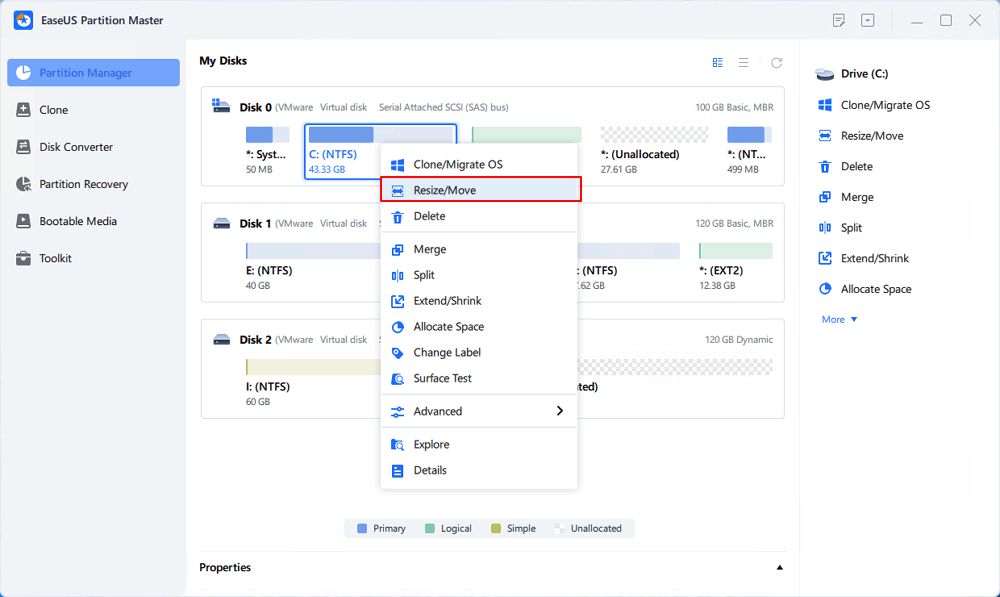
1. Right-click on C: drive and select "Resize/Move".
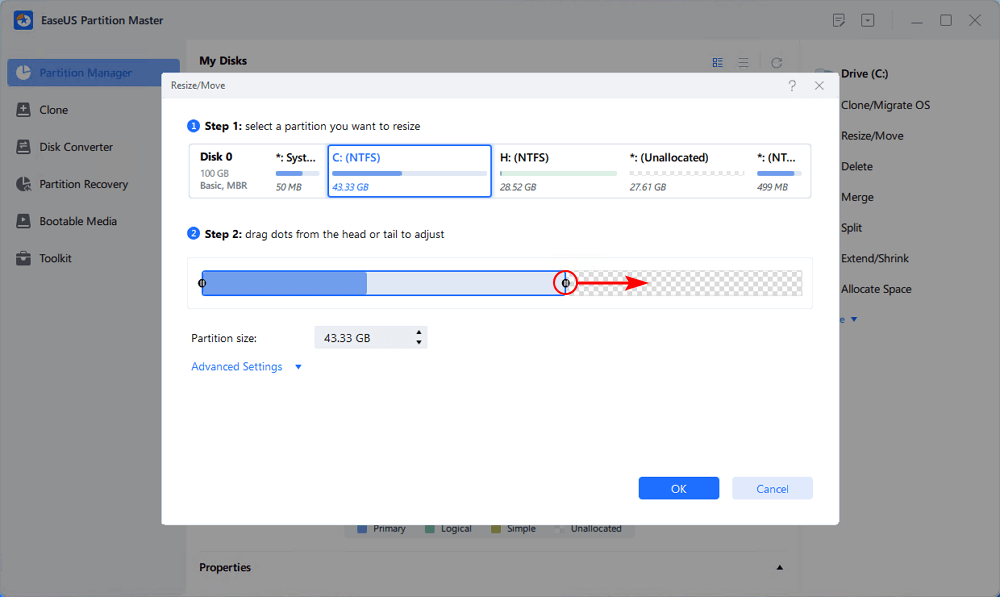
2. Drag the system partition end into unallocated space so to add space to C: drive, or click the "fill in all unallocated" and click "OK".
Step 3: Keep all changes to extend C: drive.
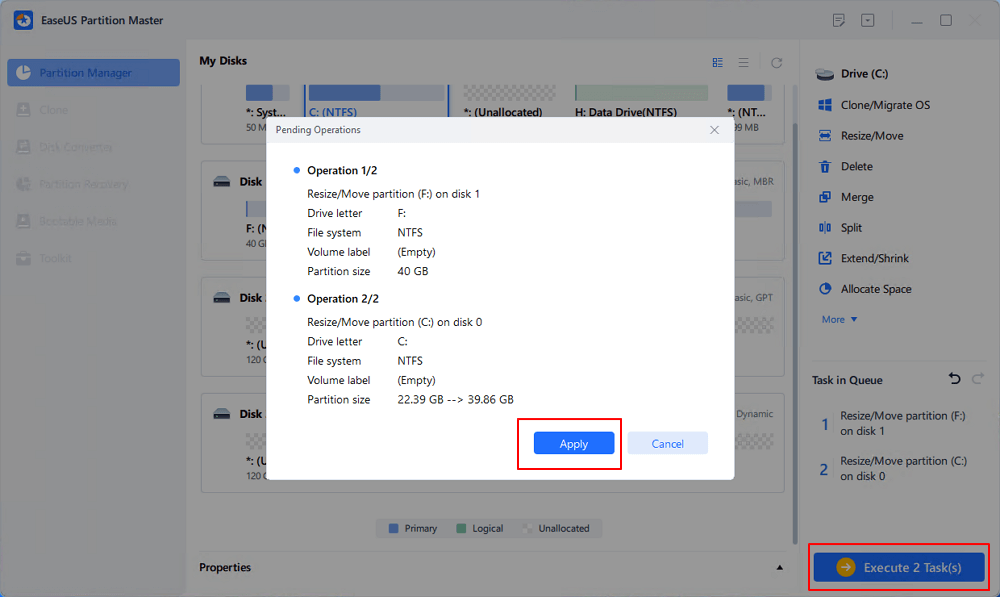
Click the "Execute Task" and click "Apply" to keep all changes so to extend the system C: drive.
This method is particularly useful when you want to keep your installed games and avoid deleting personal files. It does not fix every update error, so check the launcher's error message if the update still fails.
Fix 2. Delete Temporary Files and Unused Files
Temporary files, old downloads, unused applications, and large personal files take up valuable disk space. Removing unnecessary data is often the quickest way to free up space for a game update.
Windows includes built-in cleanup tools. Follow these steps to free up disk space.
Step 1. Press Windows + I to open Settings.
Step 2. Go to System > Storage. Wait for Windows to calculate the storage usage.
Step 3. Open Temporary files or Cleanup recommendations.
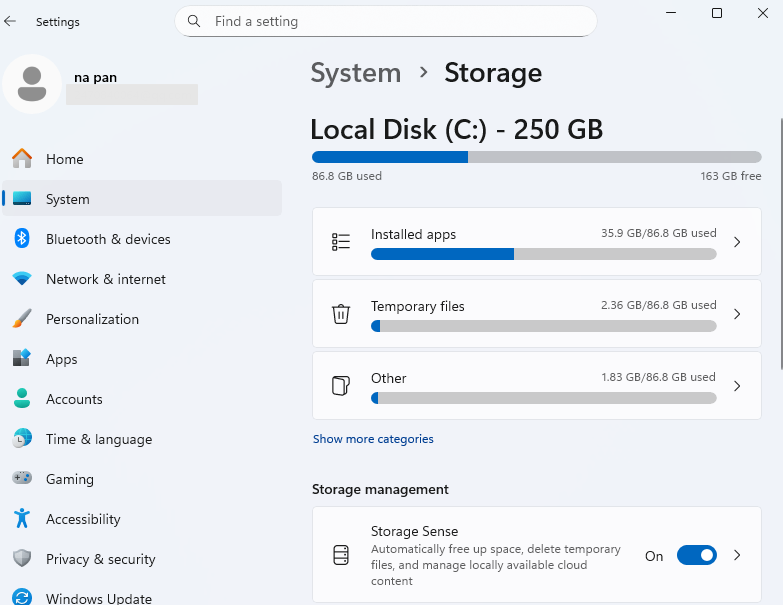
Step 4. Review the file categories and select items you no longer need. Check the Downloads folder carefully before deleting anything.
Step 5. Remove the files you don't need.
Step 6. Open File Explorer, select This PC, and check the available space on the game drive and C drive.
- Tip
- Don't manually delete unfamiliar files from Windows, Program Files, or a game's installation folder. Don't remove saved games or configuration folders unless you know they are no longer needed. Some games keep save files in Documents, Saved Games, or the AppData folder.
If the C drive is the problem, check its storage usage separately. Windows Storage Sense primarily manages the system drive, so you should inspect other drives independently when a game is installed elsewhere.
Fix 3. Move the Game to Another Drive
Moving a game to another drive with more free space is another option when the current installation drive cannot accommodate an update. This approach is useful if your PC has a second SSD or hard drive with enough capacity.
Use the launcher's built-in move feature whenever possible. Manually dragging a game folder to another drive can break the installation path or cause the launcher to download the game again.
For Steam games:
Step 1. Open Steam and go to Settings > Storage.
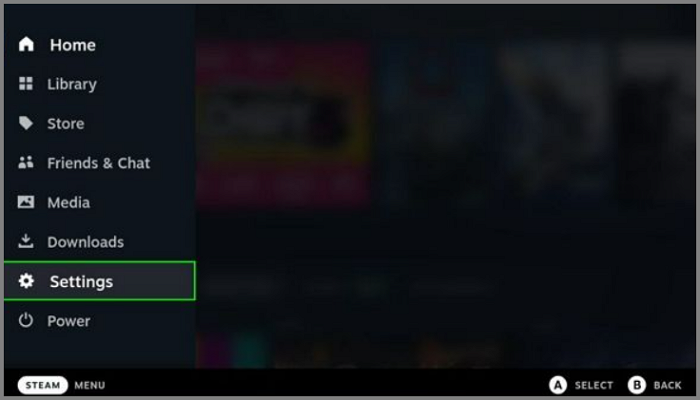
Step 2. If you haven't already, add a library folder on a drive with more free space.
Step 3. Select the game you want to move.
Step 4. Use Steam's move option to transfer the game to the new library location. The exact menu layout can vary by client version.
Step 5. Wait for the transfer to finish, then launch the game and try the update again.
For other launchers, check their game-management settings for a move or installation-location option. Epic Games Launcher supports choosing a different installation directory, but the process for moving an already installed game can differ. Follow your launcher's current instructions before changing the game folder.
Keep these points in mind:
- The destination drive needs enough free space for the installed game and its update.
- Moving the game won't automatically free up space on C drive if the launcher cache or temporary files are stored there.
- Don't format the old drive or delete the original game files until you confirm the moved game works.
If your PC has only one drive, or the other drive is also nearly full, extending the existing partition might be a better option.
Fix 4. Check or Repair the Game Library and Update Files
Sometimes a game update still fails after you free up enough space. A damaged library folder, stuck download, or incomplete update could be responsible.
Restart the launcher first. If that doesn't help, use its built-in repair options.
For Steam games:
Step 1. Exit Steam completely and reopen it. Restart your PC if the update remains stuck.
Step 2. Open Steam > Settings > Downloads and select Clear Download Cache if the download appears stuck or corrupted.
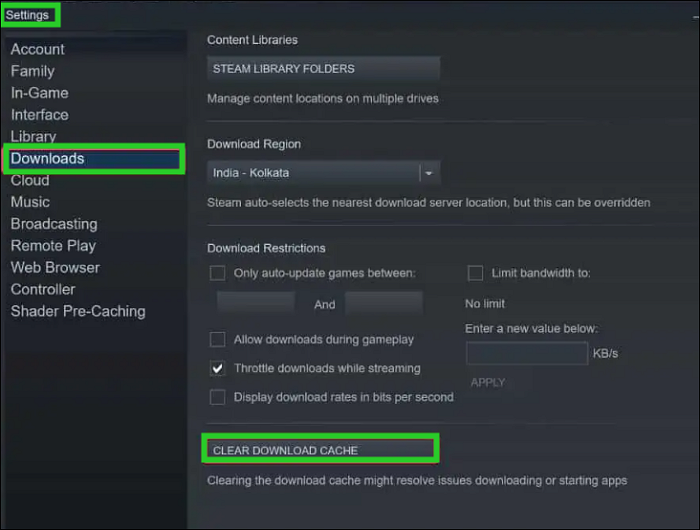
Step 3. Return to Settings > Storage and open the menu for the library containing the game. Select the repair option if it is available.
Step 4. Retry the update and check whether the disk-space error has disappeared.
Clearing the download cache does not remove your installed games, but Steam may require you to sign in again.
- Tip
- For Epic Games Launcher and other platforms, look for options such as Verify, Repair, or Manage in the game's library. The available options depend on the launcher and game.
Repairing a library helps fix game installation problems, but it won't create extra disk space. If the drive is genuinely full, free up more room before retrying the update.
Fix 5. Verify or Reinstall the Game
If the game still won't update, check its installed files. A corrupted or incomplete file might prevent the launcher from finishing an update. Verification is usually a better first step than reinstalling the entire game.
For Steam games:
Step 1. Open Steam and go to your Library.
Step 2. Right-click the affected game and select Properties.
Step 3. Open Installed Files and select Verify integrity of game files.
Step 4. Wait for Steam to finish checking the installation. Retry the update when the process is complete.
How to Prevent Game Update Disk Space Errors
A game that updates without problems today might run out of space after a few large patches. Keeping an eye on your storage helps you avoid last-minute cleanup when you just want to play.
| What to do | Why it helps |
|---|---|
| Leave extra space on the game drive | Gives updates room to replace and unpack files. |
| Install large games on a roomy drive | Keeps C drive from filling up too quickly. |
| Clean up old downloads and temporary files | Frees up space for new patches. |
| Check C drive before major updates | Some launchers store temporary files on the system drive. |
| Expand a partition if space is always tight | Provides more room without uninstalling games. |
EaseUS Partition Master helps you resize partitions and allocate available space to the drive that needs it. Back up important files before changing your disk layout.
Conclusion
A game update runs out of space? Try cleaning up the drive first. If that doesn't help, moving the game or making the partition larger are other options. You don't have to uninstall a game just because an update won't fit.
EaseUS Partition Master is worth a look if your drive needs more room and another partition has space to spare. You can use it to resize partitions without removing your entire game library.
FAQs
1. Can I update a game on an external hard drive?
Yes. The launcher needs to support the drive, and the drive must stay connected during the update. An external SSD is usually faster than a traditional hard drive, especially when loading large games.
2. Will a failed game update delete my saves?
Usually, no. But save locations differ from game to game. Some progress is synced online, while other saves stay on your PC. Back up local saves before reinstalling a game or deleting its folders.
3. Why is C drive full when my game is on D drive?
Check the launcher's cache and temporary files. They might be stored on C drive even though the game itself is on D drive. Windows also uses C drive for temporary data, so check both drives before cleaning anything up.
4. My game update is 10 GB. Is 10 GB of free space enough?
Not always. The launcher might need extra room to unpack the download or replace existing files. Check the space requirement shown by the game or launcher before starting the update.
5. I've deleted files, but the game still says there's not enough space. Why?
Start by checking the free space in File Explorer. The Recycle Bin still holds deleted files until you empty it. If there's enough room, restart the launcher and check which drive the error refers to. The game might need space on C drive rather than its installation drive.
How Can We Help You
About the Author
Updated by Joey Albert
Joey is an enthusiast of science and technology. With a passion for uncovering the latest tech innovations, she creates clear, engaging how-to guides that make technology accessible and enjoyable for all.
Product Reviews
-
I love that the changes you make with EaseUS Partition Master Free aren't immediately applied to the disks. It makes it way easier to play out what will happen after you've made all the changes. I also think the overall look and feel of EaseUS Partition Master Free makes whatever you're doing with your computer's partitions easy.
Read More -
Partition Master Free can Resize, Move, Merge, Migrate, and Copy disks or partitions; convert to local, change label, defragment, check and explore partition; and much more. A premium upgrade adds free tech support and the ability to resize dynamic volumes.
Read More -
It won't hot image your drives or align them, but since it's coupled with a partition manager, it allows you do perform many tasks at once, instead of just cloning drives. You can move partitions around, resize them, defragment, and more, along with the other tools you'd expect from a cloning tool.
Read More
Related Articles
-
Hard Disk Bad Sector Repair Software Free Download
![Sherly]() Sherly/2026/10/29
Sherly/2026/10/29 -
Best Hard Disk Speed Test Software Free Download
![Tracy King]() Tracy King/2026/10/29
Tracy King/2026/10/29 -
How to Fix Current Read-Only State Yes [Tested & Safe Ways]
![Jean]() Jean/2026/10/29
Jean/2026/10/29 -
5 Ways | Reset Windows 10 Password Without a Disk 🔥
![Sherly]() Sherly/2026/10/29
Sherly/2026/10/29
 Sherly/2026/10/29
  Tracy King/2026/10/29
  Jean/2026/10/29









