







Content
Page Table of Contents
About the Author
Hot Topics
If your hard drive is showing read errors, becoming unusually slow, or reporting corrupted files, bad sectors may be the reason. A reliable bad sector repair tool can help you scan the drive, locate problematic sectors, and fix related file system errors before the problem gets worse.
In this guide, we'll show you how to check and repair bad sectors on a hard disk in Windows 11/10 using EaseUS Partition Master and Windows' built-in CHKDSK utility. We'll also explain an important point that many “bad sector repair” guides overlook: software cannot physically repair a damaged disk surface. If a drive is failing, protecting your data and replacing the drive should take priority.
Quick Answer: What Is the Best Free Bad Sector Repair Software?
EaseUS Partition Master Free is a practical choice if you need to check a hard drive for bad sectors and troubleshoot related disk errors without using complicated command-line operations. Its disk testing and file system checking tools let you:
- Scan a hard drive for bad sectors.
- Locate problematic areas on the disk.
- Check and repair file system errors.
- Test internal and external drives.
- Manage partitions after resolving disk errors.
- Clone or migrate data when you need to move away from a failing drive.
However, there is an important limitation: a physical bad sector cannot be repaired by partition software. If a surface test finds many bad sectors or their number continues to increase, back up your files and consider replacing the drive.
Editor's Note: Bad sector repair software is most useful for diagnosing a drive and fixing logical/file-system problems associated with bad sectors. It should not be treated as a way to restore physically damaged storage media.
What Is a Bad Sector on a Hard Drive?
A bad sector is a storage sector that can no longer reliably read or write data. On a traditional HDD, sectors are located on magnetic platters. Physical damage, aging, mechanical problems, overheating, power issues, or other hardware failures can make some areas unreadable.
Bad sectors can generally be divided into two categories:
| Type | What It Means | Can Software Fix It? |
|---|---|---|
| Logical or soft bad sector | Data or file system information is inconsistent, making a sector appear unusable | Sometimes |
| Physical or hard bad sector | The storage media itself is physically damaged or deteriorating | No |
Windows can identify problematic sectors and mark them so that the file system avoids using them. CHKDSK can also locate bad sectors and attempt to recover readable information. Microsoft documents the /r option as locating bad sectors and recovering readable information.
That is different from physically repairing the damaged storage media.
Common Signs of Bad Sectors
You may need to check your hard drive for bad sectors if you notice:
- Files suddenly become corrupted or inaccessible.
- Windows takes unusually long to open files.
- The computer freezes during disk-intensive operations.
- You receive read/write or I/O errors.
- An external hard drive frequently disconnects.
- CHKDSK reports bad sectors.
- The HDD makes unusual clicking or grinding sounds.
- The drive becomes increasingly slow.
If the drive is making mechanical noises or repeatedly disappearing from Windows, do not keep running intensive repair scans. Prioritize data backup or professional data recovery.
Want to make sure your hard disk is working as expected? Follow these [Disk Health and Diagnostic Checks] to identify potential issues early.
How to Repair Bad Sectors on a Hard Drive in Windows 11/10
There are two practical approaches:
- Use EaseUS Partition Master to scan the disk and check file system errors through a graphical interface.
- Use CHKDSK from Windows Command Prompt.
For most users, EaseUS Partition Master is easier because you don't need to remember command-line parameters.
Method 1. Use EaseUS Partition Master to Check and Repair Bad Sectors
EaseUS Partition Master is a Windows disk and partition management utility that includes tools for checking disk surfaces and file system errors. Its advantage here is that you can perform the diagnostic process from a graphical interface instead of manually entering CHKDSK commands.
Why Choose EaseUS Partition Master?
- Easy for beginners: You don't need to work with complicated CMD commands to start a disk surface test or file system check.
- Supports internal and external drives: You can use it to diagnose HDDs, SSDs, external hard drives, USB storage devices, and other supported storage media.
- Combines diagnosis and disk management: After checking the drive, you can also use EaseUS Partition Master for tasks such as partition resizing, disk cloning, OS migration, and other storage management operations.
- Useful when a drive needs to be replaced: If a drive is showing signs of physical failure, disk cloning can help you migrate accessible data to a healthy drive before the old disk becomes completely inaccessible.
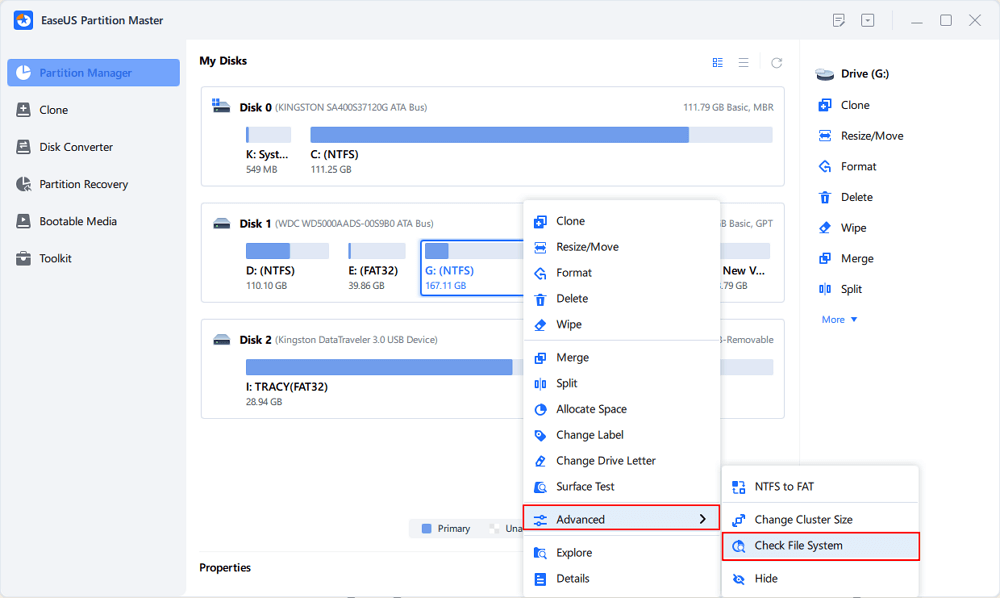
Step 1. Open EaseUS Partition Master on your computer. Then, locate the disk, right-click the partition you want to check, and choose "Advanced" > "Check File System".
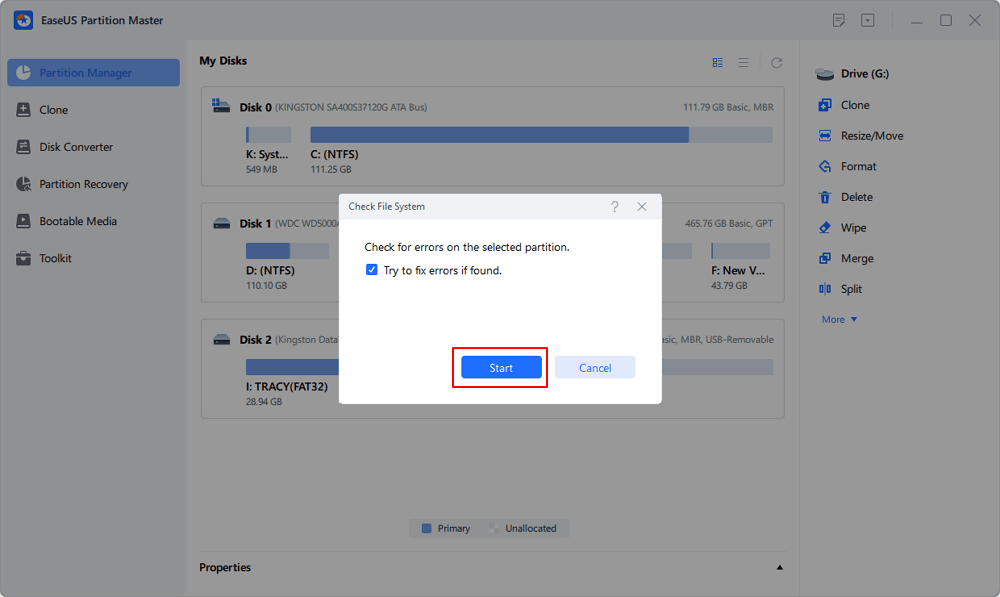
Step 2. In the Check File System window, keep the "Try to fix errors if found" option selected and click "Start".
Step 3. The software will begin checking your partition file system on your disk. When it completes, click "Finish".
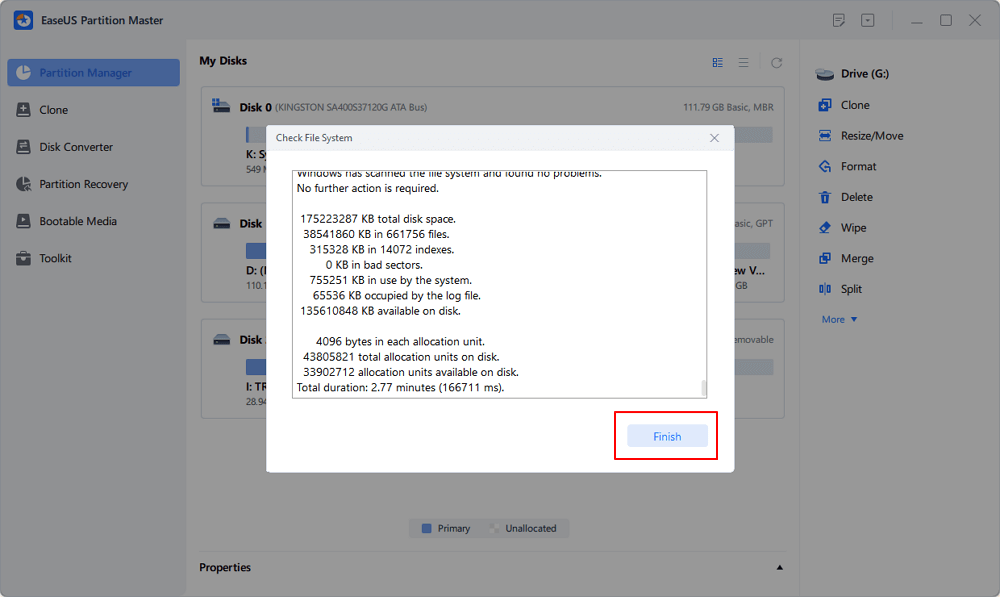
If the scan finds only a small number of errors and the file system check completes successfully, monitor the drive afterward.
If the number of bad sectors continues to increase, however, do not rely on repair software as a permanent solution.
Method 2. Repair Disk Errors with CHKDSK
Windows includes a built-in command-line utility called CHKDSK. Microsoft documents CHKDSK as a tool for checking the file system and disk metadata. With the appropriate parameters, it can fix errors and locate bad sectors while attempting to recover readable information.
Step 1. Open Command Prompt as Administrator
- Press Windows + S, search for: Command Prompt
- Right-click it and select Run as administrator.
Step 2. Run CHKDSK
- For example, if the problematic drive is D:, enter: chkdsk D: /f /r
- Replace D: with the actual drive letter.
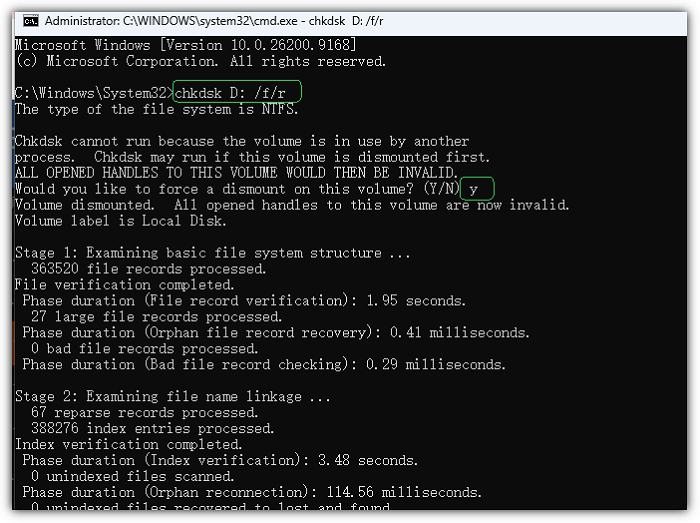
The parameters mean:
- /f — fixes file system errors.
- /r — locates bad sectors and attempts to recover readable information.
Microsoft notes that /r performs a more extensive operation because it reads the disk to locate bad sectors. On large HDDs, this can take considerable time.
Step 3. Wait for the scan to finish
Do not interrupt CHKDSK while it is running. If the drive contains a large amount of data or has significant disk problems, the process may take a long time.
Can Bad Sectors Really Be Repaired?
It depends on what caused them. This is one of the most important points to understand before downloading any "bad sector repair software."
Logical bad sectors
If the problem is caused by file system corruption or inconsistent disk information, Windows or third-party disk utilities may be able to correct the associated errors. In this situation, a disk checking tool can be useful.
Physical bad sectors
If the storage medium itself is physically damaged, software cannot restore the damaged surface or NAND cells. A disk utility may identify the bad area and help the operating system avoid using it, but the underlying hardware problem remains.
If bad sectors continue appearing, the drive should be considered unreliable.
What to Do If Your Hard Drive Has Many Bad Sectors
If a scan finds a large number of bad sectors, don't simply run the repair tool repeatedly.
1. Back up important data first: If the drive is still accessible, copy critical files to another healthy storage device immediately.
2. Check whether the problem is getting worse: A few isolated errors and a rapidly increasing number of bad sectors are very different situations. If new bad sectors keep appearing, the drive may be deteriorating.
3. Clone the drive if normal copying is difficult: For a failing HDD, cloning can be preferable to repeatedly opening and copying individual files. A disk cloning tool designed to work around unreadable sectors may be useful when migrating data from a failing drive. EaseUS Partition Master, for example, provides options designed for cloning drives with bad sectors.
4. Replace the drive: A drive that continues developing bad sectors should not be trusted for important files, even if a software scan temporarily makes it usable again.
How to Prevent Bad Sector Problems
You cannot completely prevent storage hardware from aging, but you can reduce the risk of data loss.
1️⃣Keep backups: A backup is the most important protection against disk failure. Do not rely on a single HDD to store irreplaceable files.
2️⃣Monitor disk health: Periodically check your HDD or SSD for abnormal behavior, read errors, and other warning signs.
3️⃣Avoid overheating: Excessive heat can contribute to hardware degradation, especially in poorly ventilated systems.
4️⃣Handle external hard drives carefully: Avoid dropping, bumping, or disconnecting an external HDD while it is actively reading or writing data.
- Replace drives that show progressive failure.
- Repair software should not be used to extend the life of a clearly failing drive indefinitely.
Frequently Asked Questions
1. What is the best free hard disk bad sector repair software?
EaseUS Partition Master Free is a convenient option for Windows users who want to scan a disk for bad sectors and check or repair related file system errors through a graphical interface. However, no software can physically repair a damaged disk surface.
2. Can CHKDSK repair bad sectors?
CHKDSK can fix file system errors and, with /r, locate bad sectors and attempt to recover readable information. It does not physically repair damaged storage media.
3. Can I repair bad sectors without losing data?
It depends on the condition of the drive. If the issue is logical or related to the file system, repair may be possible without intentionally deleting your files. However, if the disk is physically failing, any repair operation carries risk. Back up important data before attempting repairs.
4. How do I check my hard drive for bad sectors in Windows 11?
You can use EaseUS Partition Master to perform a disk surface test, or use CHKDSK from an elevated Command Prompt. A surface scan is useful for identifying where bad sectors are located.
5. Should I replace a hard drive with bad sectors?
If bad sectors are increasing, the drive is becoming unstable, or you are experiencing repeated read/write failures, replacement is strongly recommended. A repair utility cannot make physically damaged hardware reliable again.
6. Can bad sectors be removed permanently?
Not in the sense of physically restoring damaged media. Windows and disk utilities can mark problematic sectors or repair related file system errors, but persistent physical bad sectors are a sign that the storage device may need replacement.
Final Verdict
If you are looking for hard disk bad sector repair software with a free download for Windows 11/10, EaseUS Partition Master is a practical starting point. It can help you scan for bad sectors, identify problematic areas, and check and repair file system errors through an easier graphical workflow than Command Prompt.
But don't confuse disk repair software with a hardware repair solution. Logical disk errors may be fixable; physical bad sectors are not. If a scan shows widespread or increasing bad sectors, protect your data first, clone or back up what you can, and replace the failing drive.
How Can We Help You
About the Author

Sherly joined EaseUS in 2022 and she has always loved writing articles and enjoys the fun they bring. She receives professional training here, focusing on product performance and other relative knowledge. She has written over 200 articles to help people overcome computing issues.
Product Reviews
-
I love that the changes you make with EaseUS Partition Master Free aren't immediately applied to the disks. It makes it way easier to play out what will happen after you've made all the changes. I also think the overall look and feel of EaseUS Partition Master Free makes whatever you're doing with your computer's partitions easy.
Read More -
Partition Master Free can Resize, Move, Merge, Migrate, and Copy disks or partitions; convert to local, change label, defragment, check and explore partition; and much more. A premium upgrade adds free tech support and the ability to resize dynamic volumes.
Read More -
It won't hot image your drives or align them, but since it's coupled with a partition manager, it allows you do perform many tasks at once, instead of just cloning drives. You can move partitions around, resize them, defragment, and more, along with the other tools you'd expect from a cloning tool.
Read More
Related Articles
-
How to Repair Windows 11 with Command Prompt | 2026🔥
![author icon]() Cici/2026/09/27
Cici/2026/09/27 -
Fixed: WD My Passport Ultra Not Showing Up in Windows 11/10
![author icon]() Brithny/2026/09/27
Brithny/2026/09/27 -
How to Check Total Hard Disk Space in Windows 10/8/7🔥
![author icon]() Jean/2026/09/22
Jean/2026/09/22 -
Can I Make a System Clone on Windows 11? Yes, Sure! Your Guide Is Here
![author icon]() Tracy King/2026/09/23
Tracy King/2026/09/23
 Cici/2026/09/27
  Brithny/2026/09/27
  Jean/2026/09/22
  Tracy King/2026/09/23









