







Content
Page Table of Contents
About the Author
Hot Topics
Do you want to know how well your SSD or HDD is really performing? Is it running at a fast, slow, or average speed? You may know the read and write speeds listed by the manufacturer, but those numbers do not always match what you see on your PC. A quick disk benchmark can show you how fast your drive reads and writes data and whether its current performance is close to what you expect.
With the right disk benchmark software, you can test an SSD or HDD on Windows 11/10/8/7. This guide covers the free disk benchmark software, how to benchmark an SSD or HDD, and how to understand the test results.
What Is Disk Benchmark?
Disk benchmarking is a way to measure the performance of a storage device under a set of read and write tests. The results show how quickly a drive can handle different types of data operations.
A disk benchmark can help you:
- Check SSD or HDD read and write speed.
- Test an NVMe, SATA, or external drive.
- Compare actual performance with the manufacturer's specifications.
- Check whether a new SSD is performing as expected.
- Compare two storage devices.
- Find possible performance bottlenecks.
- Monitor changes in disk performance over time.
When to Run SSD/HDD Benchmark:
- After installing a new SSD or HDD: Check its actual read and write performance.
- After upgrading your storage drive: Compare the new drive with the previous one.
- When your PC is slow: Determine whether storage performance is contributing to the problem.
- When file transfers seem slow: Check the drive's read and write speeds.
- Before and after system optimization: Measure whether the changes have improved performance.
- When comparing two storage drives: Identify which drive performs better under the same test conditions.
SSD/HDD Benchmark Software Free Download
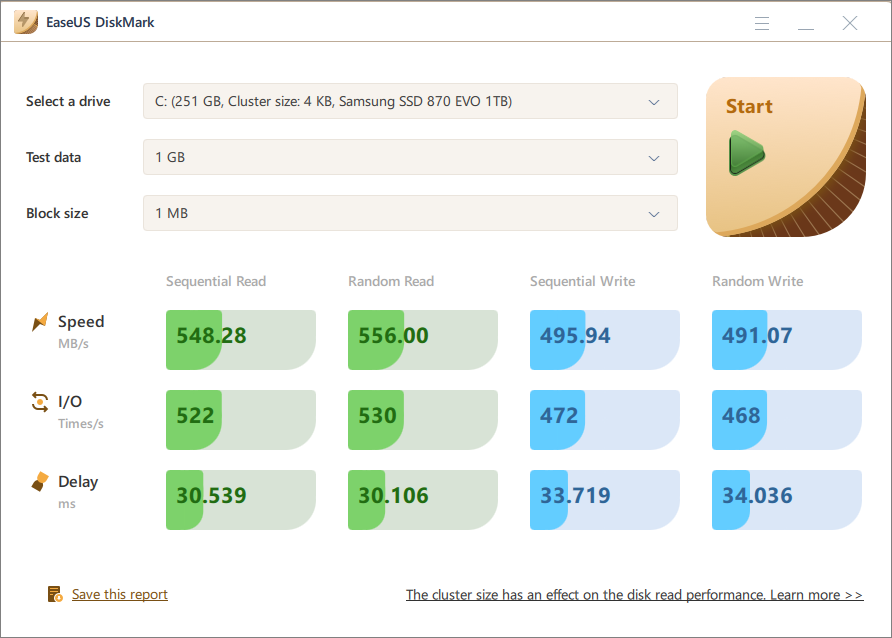
If you need free disk benchmark software for Windows, EaseUS Partition Master is a practical option. Its DiskMark feature is designed to test the read and write performance of SSDs and HDDs and provides detailed benchmark results.
This free disk benchmark software supports speed tests on SSD, HDDs, and external hard drives. You can check sequential and random performance, I/O performance, and delay. The results give you a quick way to compare drives or see whether your storage is performing as expected.
SSD/HDD Benchmark Software Free Download:
What EaseUS Partition Master Can Help You Do :
| Feature | What It Helps You Do |
| Disk Benchmark | Test SSD/HDD sequential read/write, random read/write, I/O performance, overall storage performance and read/write speed |
| Disk Health Check | Check SMART status, temperature, disk health, and other drive indicators |
| Partition Management | Create, resize, move, merge, split, format, and delete partitions |
| File System Check | Find and repair common file system errors and partition problems |
| Bad Sector Check | Scan a drive for bad sectors and identify potentially unreadable areas |
| Space Management | Check low disk space, find large files, and free up storage space |
| 4K Alignment | Optimize SSD partition alignment to help maintain proper SSD performance |
EaseUS Partition Master Review from Experts & Users:
📖TheSweetBits Review: We also checked out the entire toolkit from the EaseUS Partition Master package. You can use these tools to manage your disks and devices better. All these options are great from a productivity point of view.
📖TheWindowsClub Review: It is a good tool for viewing and managing partitions on all your hard disks, and with support for larger disks, the tool becomes even better.
📖G2 Review: I love how EaseUS Partition Master is very easy to use and extremely reliable, always providing a solution. The software works really well and is very convenient.
How to Benchmark a Disk on Windows [SSD/HDD]
You can use the same basic process to benchmark an SSD or HDD. Before starting, close large downloads, games, video editors, and other programs that are heavily using the drive. This helps reduce background disk activity during the test.
Tips for More Consistent Disk Benchmark Results:
Benchmark numbers might change from one test to another. For a more useful comparison, here are some tips before you run the Benchmark:
- Keep the same test settings.
- Close programs that are heavily using the disk.
- Avoid running large file transfers during the test.
- Make sure the drive has enough free space.
- Let an SSD cool down if it has been under heavy load.
- Run the test more than once if a result looks unusual.
- Compare the result with the specifications for your exact drive model.
1. Benchmark SSD or HDD
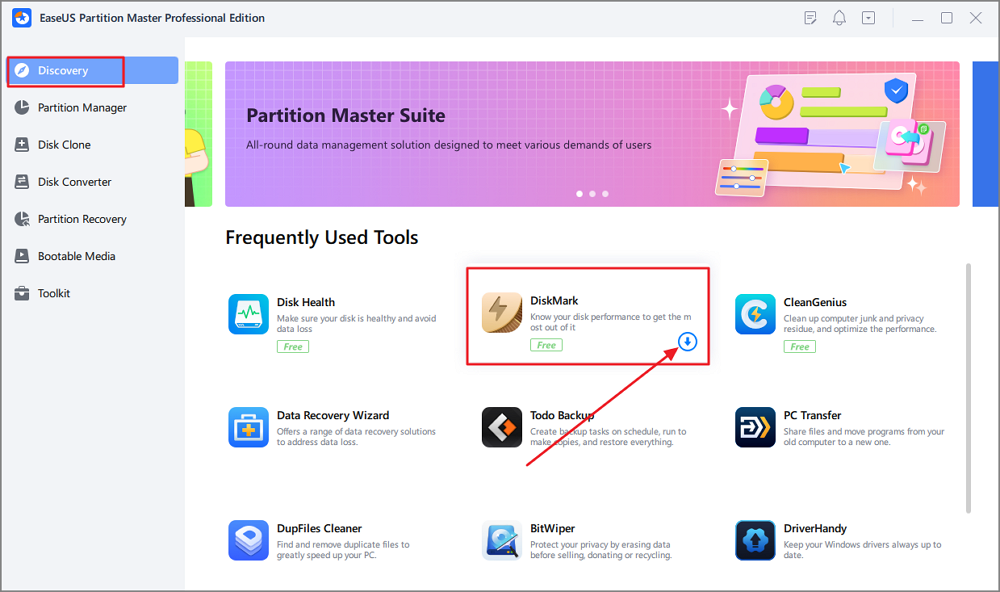
Step 1. Launch EaseUS Partition Master. And click the download button to activate the "DiskMark" feature under the "Discovery" section.
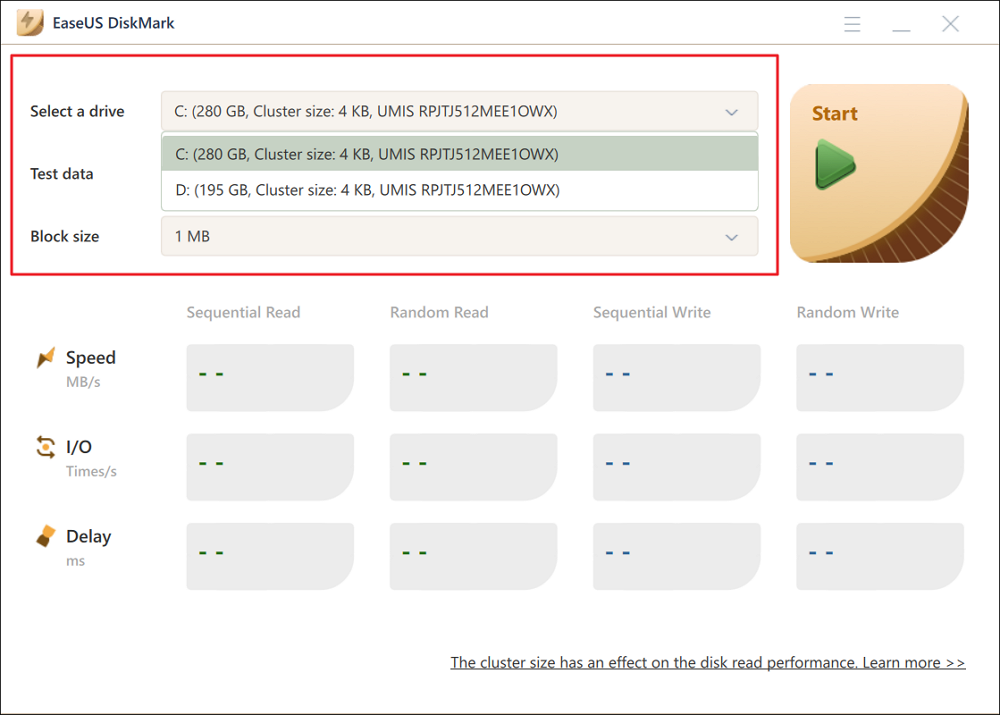
Step 2. Click on the drop-down box to choose the target drive, test data, and block size.
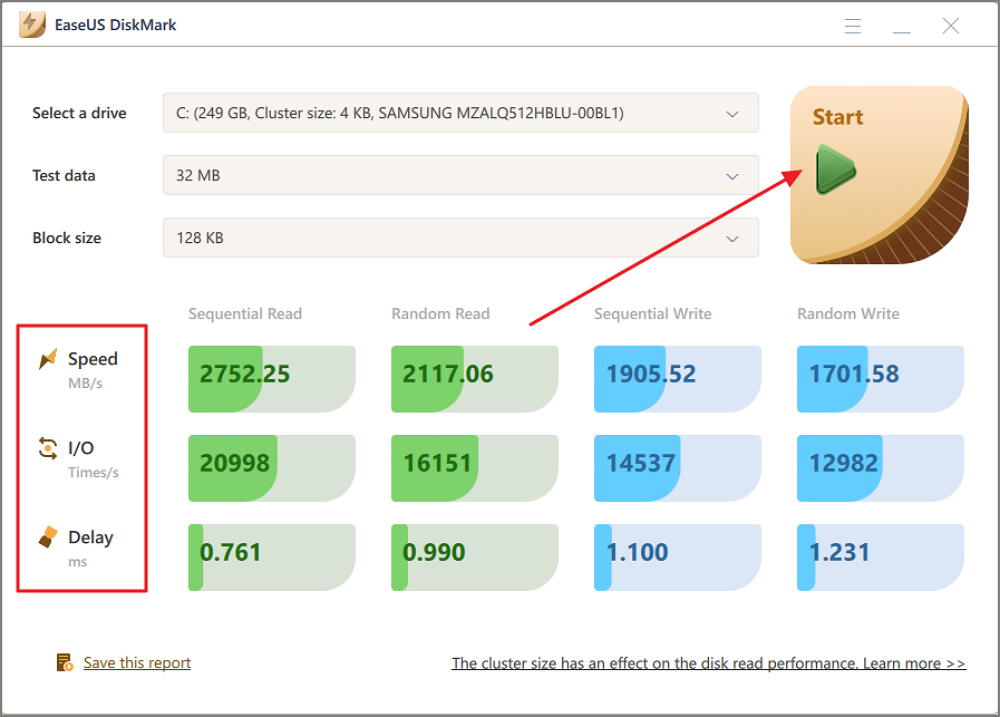
Step 3. Once everything is configured, click "Start" to begin the disk test. Then, you can see the Sequential or Random read/write speed, I/O, and Delay data.
2. Check Disk Health
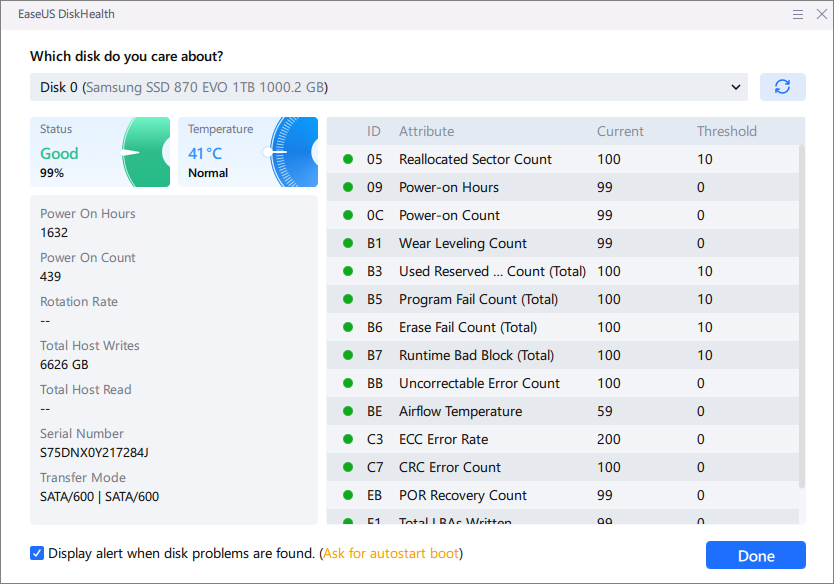
After running a disk benchmark, you may want to check the drive's health if the results are unexpectedly low or inconsistent. A benchmark shows performance, while a health check can reveal signs of potential drive problems.
With EaseUS Partition Master, you can continue checking the same SSD or HDD with tools such as SMART Health Check, File System Check, and Surface Test.
Step 1. Download and open EaseUS Partition Master on your Windows PC.
Step 2. Find the disk you want to check and click the disk icon at the top right.
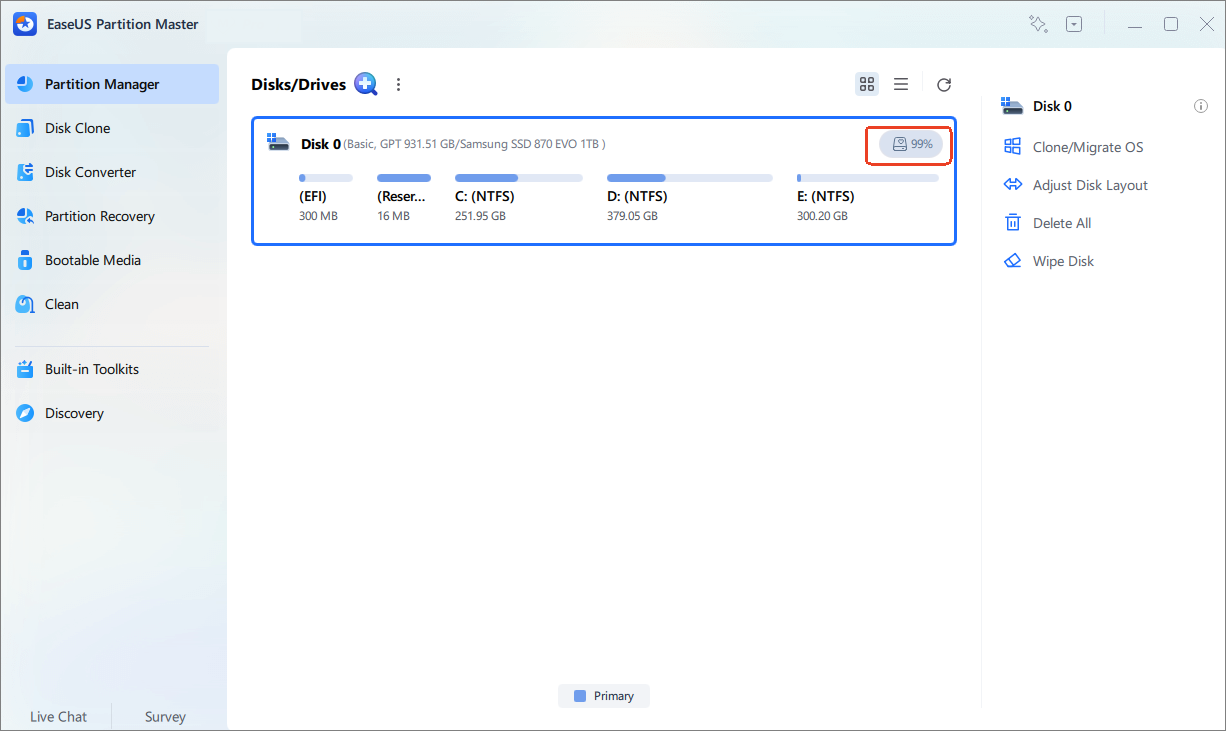
Step 3. Here, you can review the health condition of your hard drive.
How to Read Disk Benchmark Results
Your disk benchmark will show several numbers after the test. Some of them are easy to understand, while others can be confusing at first. The table below breaks down the main disk benchmark results and what they mean.
| Result | What It Measures | Why It Matters |
| Sequential Read | Speed of reading large blocks of continuous data | Useful for large file transfers and some media workloads |
| Sequential Write | Speed of writing large blocks of continuous data | Important for large file copies and sustained writes |
| Random Read | Speed of handling scattered read requests | More relevant to many everyday workloads |
| Random Write | Speed of handling scattered write requests | Can affect application and system responsiveness |
| I/O / IOPS | Number of input/output operations handled in a period | Useful for comparing small-file and random workloads |
| Delay / Latency | Time taken to respond to an operation | Lower delay generally means faster response |
Here are some examples to read disk benchmark results.
1. Sequential Read and Write
Sequential speed is usually shown in MB/s or GB/s. For example, if an NVMe SSD shows a sequential read speed of 6,500 MB/s, it can theoretically move large blocks of data at a very high rate under the test conditions.
Do not use sequential speed alone to judge how fast a PC feels. Everyday workloads often involve many smaller and random operations. Professional SSD benchmark testing also uses random I/O to better represent system responsiveness.
2. Random Read and Write
Random performance measures smaller data requests that are not stored in one continuous sequence. Random results are often reported as IOPS, or input/output operations per second.
A drive with very high sequential speeds is not automatically going to feel dramatically faster in every everyday task. Random performance and latency also play a role.
Conclusion
Disk benchmark software can help you determine whether your SSD or HDD is delivering the performance you expect.
For Windows users, EaseUS Partition Master is a convenient choice if you want more than a basic disk speed test. Its DiskMark feature tests SSD and HDD read/write performance and shows sequential, random, I/O, and delay results. You can also use the same software for disk health checks, partition management, cloning, and other storage tasks.
FAQs
1. Is it free to benchmark a disk with EaseUS Partition Master?
Yes, it's completely free to benchmark a disk with EaseUS Partition Master. You can use the DiskMark feature in EaseUS Partition Master Free to benchmark your SSD or HDD.
2. What storage devices does EaseUS Partition Master support?
- HDDs: IDE (Parallel ATA), SATA, eSATA, SCSI, and IEEE 1394 (FireWire)
- SSDs: SATA SSD, M.2 SSD, NVMe SSD, and large-capacity MBR or GPT disks
- Removable devices: USB 1.0/2.0/3.0 drives, flash drives, memory cards, and memory sticks
3. What is the best disk benchmark software for Windows?
EaseUS Partition Master is one of the best disk benchmark tools if you want to test SSD or HDD performance and manage your disks from the same application. Its DiskMark feature provides sequential and random read/write results, along with I/O and delay information.
4. Can I benchmark an NVMe SSD?
Yes. You can use a compatible disk benchmark tool to test an NVMe SSD. Keep the PCIe generation and interface in mind when comparing the results with the manufacturer's advertised speed.
5. What is a good SSD benchmark speed?
There is no single speed that is considered good for every SSD. SATA SSDs, PCIe 3.0 NVMe drives, PCIe 4.0 SSDs, and PCIe 5.0 SSDs have very different performance ranges. The best approach is to compare your results with the specifications for your exact SSD and use the same benchmark settings when comparing results.
How Can We Help You
About the Author

Sherly joined EaseUS in 2022 and she has always loved writing articles and enjoys the fun they bring. She receives professional training here, focusing on product performance and other relative knowledge. She has written over 200 articles to help people overcome computing issues.

Written by Joey Albert
Joey is an enthusiast of science and technology. With a passion for uncovering the latest tech innovations, she creates clear, engaging how-to guides that make technology accessible and enjoyable for all.
Product Reviews
-
I love that the changes you make with EaseUS Partition Master Free aren't immediately applied to the disks. It makes it way easier to play out what will happen after you've made all the changes. I also think the overall look and feel of EaseUS Partition Master Free makes whatever you're doing with your computer's partitions easy.
Read More -
Partition Master Free can Resize, Move, Merge, Migrate, and Copy disks or partitions; convert to local, change label, defragment, check and explore partition; and much more. A premium upgrade adds free tech support and the ability to resize dynamic volumes.
Read More -
It won't hot image your drives or align them, but since it's coupled with a partition manager, it allows you do perform many tasks at once, instead of just cloning drives. You can move partitions around, resize them, defragment, and more, along with the other tools you'd expect from a cloning tool.
Read More
Related Articles
-
WD External Hard Drive Won't Format? How to Fix?
![author icon]() Sherly/2026/09/23
Sherly/2026/09/23 -
2026 Top 3 USB Format Tools For Mac Are Here to Help
![author icon]() Tracy King/2026/09/21
Tracy King/2026/09/21 -
How to Convert Simple Volume to Primary Partition
![author icon]() Jean/2026/09/21
Jean/2026/09/21 -
How to Format M.2 SSD? [Easy Instructions]
![author icon]() Tracy King/2026/07/09
Tracy King/2026/07/09
 Tracy King/2026/09/21
  Jean/2026/09/21









