







Content
Page Table of Contents
About the Author
Hot Topics
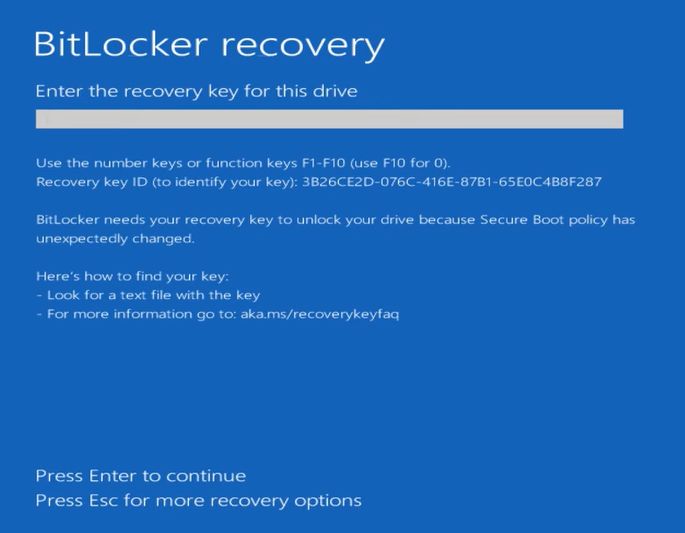 Being locked out of your laptop by the BitLocker recovery screen can be frustrating, especially when you don't remember enabling BitLocker or cannot find the 48-digit recovery key. This usually happens after a hardware change, BIOS/UEFI update, firmware upgrade, TPM reset, or other security-related changes that trigger BitLocker protection. Instead of your normal Windows login screen, you may suddenly see a blue BitLocker Recovery screen asking for a recovery key.
The important thing to know is:
- Your files are still encrypted and protected.
- Without the correct BitLocker recovery key, Windows cannot unlock the encrypted drive.
However, the recovery key is often saved in several locations, and many users can recover it successfully.
This guide explains where to find your BitLocker recovery key, how to retrieve it when you are locked out of your laptop, and what you can do if the recovery key cannot be found.
How to Find the BitLocker Recovery Key When Locked Out
When you are locked out of your laptop, do not immediately reset your PC. In many cases, the BitLocker recovery key was automatically backed up when BitLocker was enabled.
Depending on how your device was configured, the recovery key may be stored in:
- Your Microsoft account
- Your work or school account
- A printed copy or saved file
- The locked computer itself through a WinPE recovery environment
Try the following methods to locate your 48-digit BitLocker recovery key.
Way 1. Check Your Microsoft Account
If you signed into Windows with a Microsoft account, your BitLocker recovery key may have been automatically saved to your account.
Use another computer or your phone to access your Microsoft account and sign in with the same account linked to your locked laptop. If a recovery key is available, compare the Key ID shown on the BitLocker recovery screen with the Key ID listed online to find the correct key.
- On the BitLocker recovery screen, note the Recovery Key ID.
- Use another device to visit https://aka.ms/myrecoverykey and sign in to your Microsoft account.
- Open the BitLocker recovery key page.
- Find the recovery key with the matching Key ID.
- Enter the 48-digit recovery key on your locked laptop.
- Windows should unlock the drive and continue booting.
Share this post to let more users know how to get a BitLocker recovery key with Microsoft Account.

Way 2. Check Your Work or School Account
If your laptop belongs to a company, school, or organization, the BitLocker recovery key may be managed by your IT department. Organizations often store recovery keys through Microsoft Intune or Microsoft Entra ID, allowing administrators to retrieve them when needed. If you cannot access the key, contact your organization's IT administrator for assistance.
Way 3. Look for Printed or Saved Copies
When BitLocker was first enabled, Windows provided options to save the recovery key. Many users choose to print the key or save it to a USB flash drive but forget where it was stored.
Check common backup locations before considering other solutions.
Way 4. Find the BitLocker Recovery Key on the Locked Device
If you cannot find the recovery key manually, you may still be able to retrieve it from the locked computer. EaseUS Partition Master provides a BitLocker Recovery Key Finder that works from a bootable WinPE environment. Instead of manually searching through multiple accounts and storage locations, it can automatically scan supported locations and help locate available recovery keys.
- This method is especially useful for users who are locked out of Windows and do not know where the recovery key was saved.
Why Use EaseUS Partition Master?
- Automatically searches for available BitLocker recovery keys
- Works even when Windows cannot boot
- Avoids manually checking multiple locations
- Easy-to-use interface for beginners
- Helps locate recovery keys from supported sources
Prepare: A USB flash drive, another working computer, EaseUS Partition Master
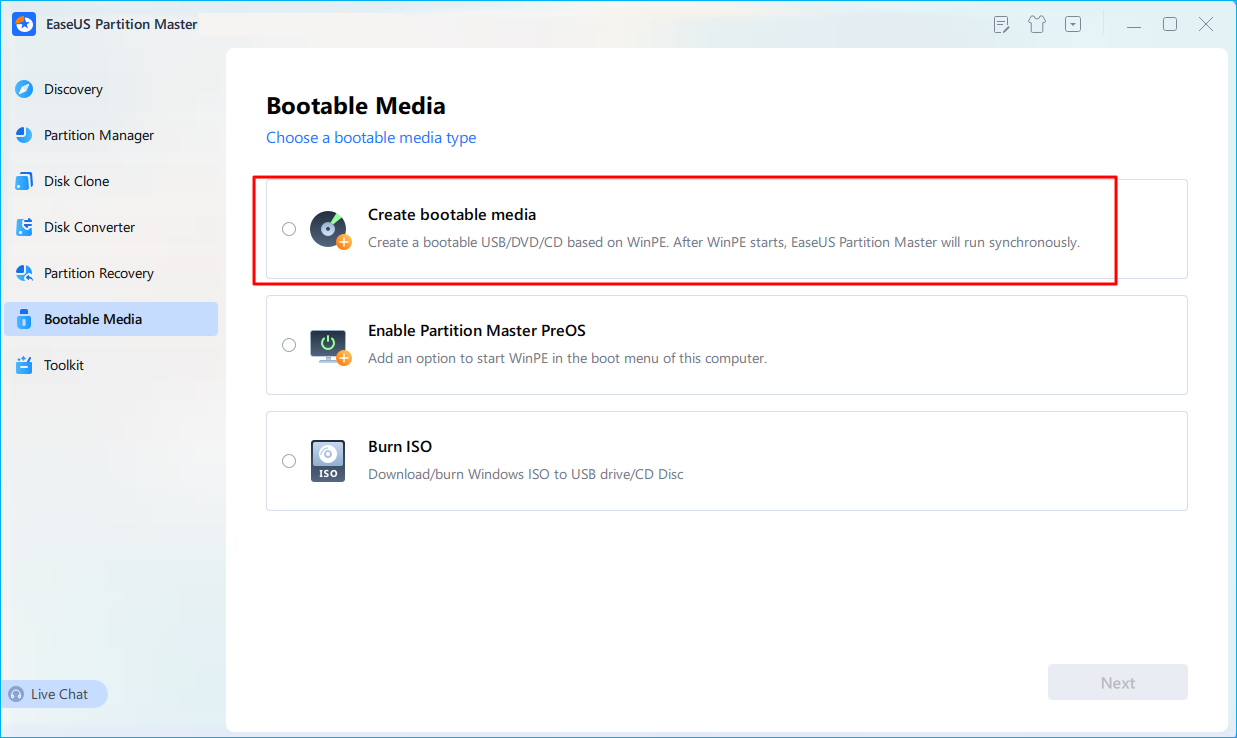
Step 1. First, connect a USB to the PC running properly. Launch EaseUS Partition Master, navigate to "Bootable Media" section, and click "Create bootable media" option. Click "Next" to continue.
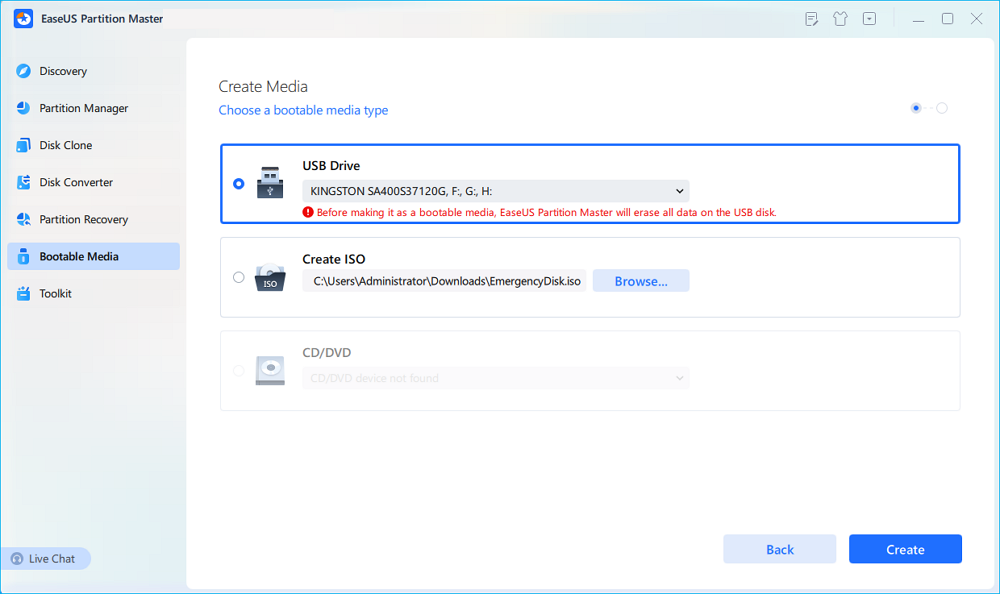
Step 2. Select the target USB drive and click "Create" to continue. Please back up your data in advance since this will erase all data on the USB drive. Then, click "yes" to confirm when you see the warning. Do not exit EaseUS Partition Master until it's done.
Step 3. Connect the bootable USB to the BitLocker encrypted PC and restart PC. During the reboot, press the BIOS key (F2/F8/F12/DEL/ESC) to access BIOS and set the bootable USB as the boot drive. This PC will automatically boot from the USB disk.
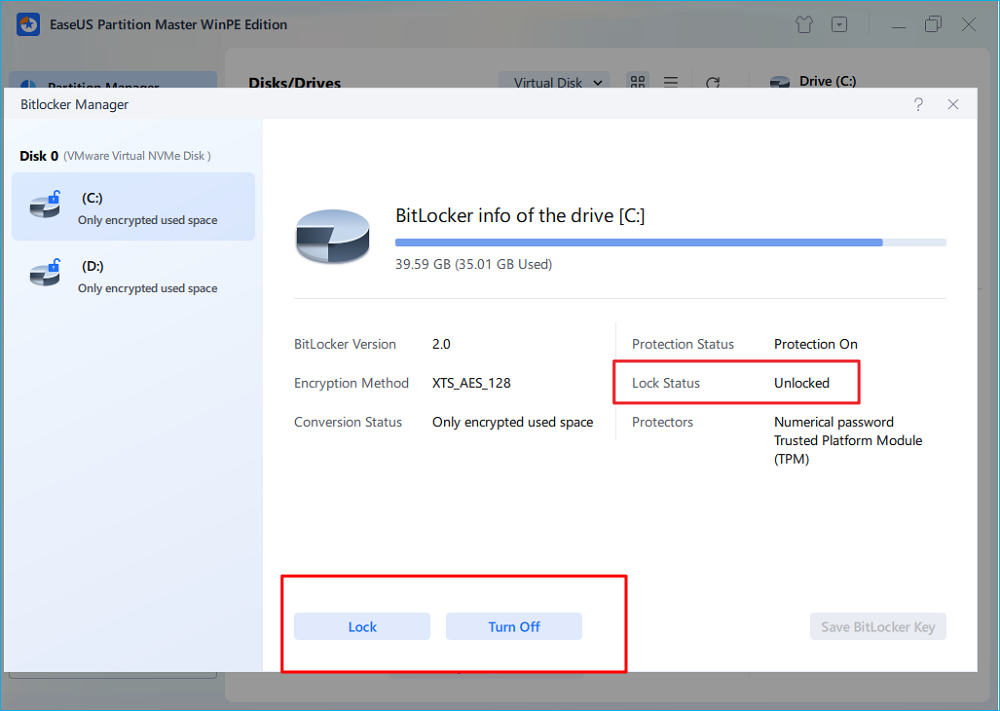
Step 4. EaseUS Partition Master will automatically unlock the BitLocker encrypted drive and you can see a "unlock" icon.
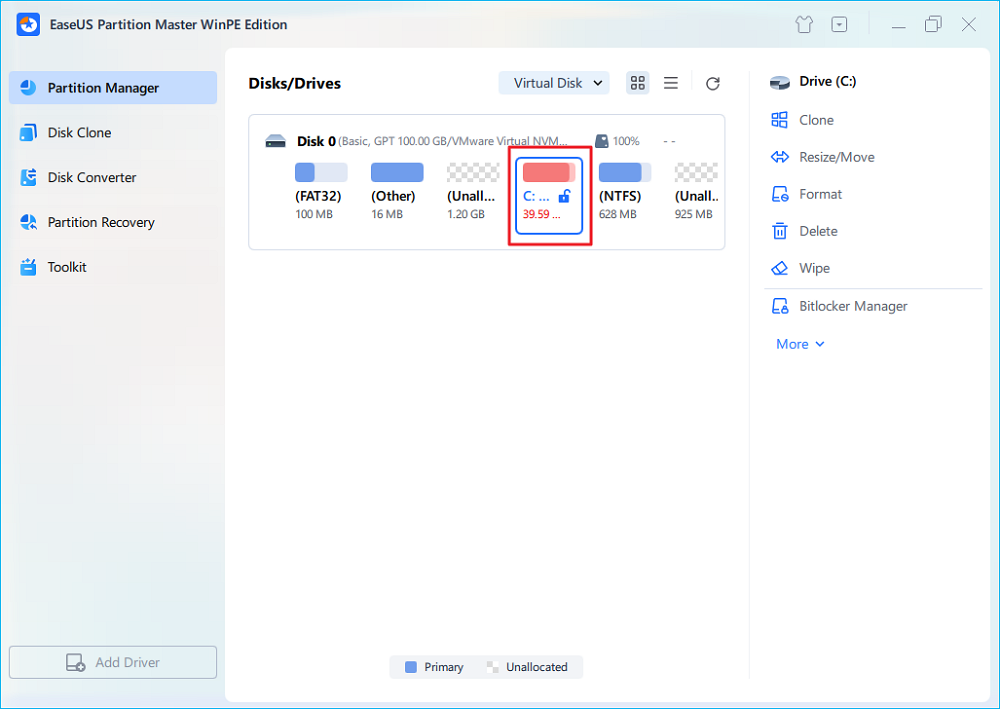
Step 5. Hover the mouse on the BitLocker partition; you can see more info of this partition and manage the BitLocker partition such as locking it or turning off BitLocker.
What to Do If You Fail to Find the BitLocker Recovery Key
After checking your Microsoft account, work or school account, backups, and other possible locations, you may still be unable to find the correct BitLocker recovery key.
Unfortunately, there is no legitimate way to bypass the BitLocker recovery screen without the correct 48-digit recovery key. BitLocker encryption is designed to prevent unauthorized access, even if someone has physical access to the device.
If recovering the encrypted data is no longer possible or necessary, your remaining options are to reset the PC or reinstall Windows. Both methods remove BitLocker by deleting the encrypted drive, but they will also permanently erase your files.
- Warning
- Do not reset or reinstall Windows if you still need the files stored on the encrypted drive. Once the encrypted partition is removed, the data cannot be recovered through normal methods.
Option 1. Reset This PC
If you no longer need the files stored on the encrypted drive, Reset this PC is the easiest way to restore your laptop to a working state. This process removes the existing Windows installation and reinstalls Windows, which removes BitLocker protection from the drive.
However, because the encrypted partition is erased, all personal files, installed applications, and settings will be permanently deleted.
Best for
- You do not need the data stored on the encrypted drive.
- You want the fastest way to make your laptop usable again.
- You have already tried all possible recovery key retrieval methods.
- On the BitLocker recovery screen, select Skip this drive if this option is available.
- Select Troubleshoot.
- Choose Reset this PC.
- Select Remove everything.
- Choose Cloud download or Local reinstall.
- Follow the instructions shown on the screen.
Wait while Windows removes the encrypted installation and reinstalls the operating system.
Complete the Windows setup process after the reset finishes.
Option 2. Reinstall Windows
If Reset this PC is unavailable or fails, you can perform a clean Windows installation instead. During the installation process, you will delete the existing BitLocker-encrypted partitions and install a fresh copy of Windows. This removes BitLocker completely but also permanently deletes all data stored on the drive.
Best for
- Reset This PC does not work.
- Windows cannot start normally.
- You want a completely clean Windows installation.
- You have confirmed that the encrypted data is no longer needed.
Here is how to remove BitLocker screen by reinstalling Windows:
- On another working computer, download the Windows Media Creation Tool from Microsoft.
- Create a bootable Windows installation USB drive.
- Connect the USB drive to the locked laptop.
- Start the laptop and boot from the USB installation media.
- Select your language, time, and keyboard settings.
- Click Install now.
- Choose Custom: Install Windows only (advanced) when asked for the installation type.
- Delete the existing BitLocker-encrypted partitions.
- Select the unallocated space and click Next.
- Wait for the Windows installation to complete.
- Follow the setup instructions to configure Windows as a new device.
Note: Deleting BitLocker-encrypted partitions permanently removes all protected data. Make sure you have tried every possible recovery key location before performing a clean installation.
Conclusion
Being locked out of your laptop by the BitLocker recovery screen does not always mean your data is lost. In many cases, the recovery key has already been saved to your Microsoft account, work or school account, or another backup location. If you cannot find the key manually, EaseUS Partition Master can help search for available BitLocker recovery keys from a bootable WinPE environment, making the recovery process easier for users who are unfamiliar with BitLocker.
However, if the recovery key cannot be found anywhere, BitLocker cannot be bypassed. The only remaining options are to reset your PC or reinstall Windows, both of which remove the encrypted drive and permanently erase the stored data.
FAQs About Being Locked Out of a Laptop Without a BitLocker Recovery Key
1. Where can I get the BitLocker recovery key if I forgot it?
You can find the BitLocker recovery key in your Microsoft account, work or school account, a printed copy, or a saved file on external storage. If Windows cannot boot, you can also use a WinPE-based recovery tool to search supported locations.
2. Where is the lost 48-digit BitLocker recovery key?
The 48-digit BitLocker recovery key cannot be regenerated after it is lost. You need to locate the original backup copy. It may be stored in your Microsoft account, organization account, printed documents, or a USB drive.
3. Can I reset my PC without a BitLocker key?
Yes. You can reset your PC without entering the BitLocker recovery key, but the process removes the encrypted drive and permanently deletes all existing files. If you need the data, try to recover the key before resetting.
4. How do I force BitLocker off?
You cannot force BitLocker off while the drive is locked. The drive must first be unlocked using the correct BitLocker password or 48-digit recovery key. If the recovery key is unavailable, the only way to remove BitLocker is to erase the encrypted drive and reinstall Windows.
How Can We Help You
About the Author

Updated by Tracy King
Tracy became a member of the EaseUS content team in 2013. Being a technical writer for over 10 years, she is enthusiastic about sharing tips to assist readers in resolving complex issues in disk management, file transfer, PC & Mac performance optimization, etc., like an expert.

Sherly joined EaseUS in 2022 and she has always loved writing articles and enjoys the fun they bring. She receives professional training here, focusing on product performance and other relative knowledge. She has written over 200 articles to help people overcome computing issues.
Product Reviews
-
I love that the changes you make with EaseUS Partition Master Free aren't immediately applied to the disks. It makes it way easier to play out what will happen after you've made all the changes. I also think the overall look and feel of EaseUS Partition Master Free makes whatever you're doing with your computer's partitions easy.
Read More -
Partition Master Free can Resize, Move, Merge, Migrate, and Copy disks or partitions; convert to local, change label, defragment, check and explore partition; and much more. A premium upgrade adds free tech support and the ability to resize dynamic volumes.
Read More -
It won't hot image your drives or align them, but since it's coupled with a partition manager, it allows you do perform many tasks at once, instead of just cloning drives. You can move partitions around, resize them, defragment, and more, along with the other tools you'd expect from a cloning tool.
Read More
Related Articles
-
Reset Forgotten Password on Lenovo Laptop Without Disk
![author icon]() Cici/2026/09/22
Cici/2026/09/22 -
How to Remove Windows 10 Password - 3 Ways
![author icon]() Cici/2026/09/22
Cici/2026/09/22 -
Blue Screen and Restart Windows 11 [Solutions HERE]
![author icon]() Oliver/2026/09/22
Oliver/2026/09/22 -
Windows 7 Repair Tool Free Download | Fix System Errors Easily
![author icon]() Joey Albert/2026/09/22
Joey Albert/2026/09/22
 Cici/2026/09/22
  Oliver/2026/09/22
  Joey Albert/2026/09/22









