







Content
Page Table of Contents
About the Author
Hot Topics
You may see a recovery key ID on a BitLocker recovery screen. What does it mean? How do you use it to match the BitLocker recovery key? If you have no idea what to do next, don't worry. Once you understand how the recovery key ID works, you can use it to find the right BitLocker recovery key.
This guide explains the BitLocker recovery key ID and how to get BitLocker recovery key with key ID from your Microsoft account, work account, USB backup, or saved files.
What Does BitLocker Recovery Key ID Mean
A BitLocker recovery key ID is a short label tied to one specific recovery key. It is not the BitLocker recovery key itself. Instead, it helps you identify which saved key belongs to the locked device.
BitLocker uses this ID to match the recovery screen to the correct key backup. This matters because many people have more than one key saved over time. For example, if a device was set up by someone else, it is easy to mix them up.
Why do you encounter a BitLocker recovery screen with a recovery key ID? It often occurs when Windows detects a change in the PC's security state. Common triggers include:
- A BIOS or firmware update.
- A TPM or hardware change.
- A change in boot order.
- Moving the drive to another computer.
- Too many failed sign-in attempts.
When this happens, BitLocker locks the drive until the correct key is entered. The recovery key ID helps you find the right key faster. If you prefer a complete BitLocker setup, management, and troubleshooting guide, refer to the BitLocker Troubleshooting Center.
How the Key ID Helps Match the Right BitLocker Recovery Key
You need the recovery key to bypass the BitLocker recovery screen. The recovery key itself is long and easy to confuse with another one. The ID gives you a clean match. It also saves time when you are checking Microsoft accounts, work accounts, printed papers, or USB backups. If you have multiple saved keys, you should always compare the ID shown on the recovery screen with the ID in your backups.
Basic idea to match the BitLocker recovery key ID and unlock your drive:
1️⃣Look at the recovery key ID on the BitLocker recovery screen.
2️⃣Open the place where you stored your recovery keys.
3️⃣Find the recovery key with the same ID.
4️⃣Enter that recovery key to unlock the device.
If you want the exact steps to retrieve the BitLocker recovery key with key ID, move on to the next part.
How to Get BitLocker Recovery Key with Key ID
Method 1. Check Your Microsoft Account
- Most common path for home users.
- Fastest if the account was set up correctly during BitLocker activation.
For many personal devices, the recovery key is saved in a Microsoft account.
Step 1. Search for "Microsoft account" on Google.
Step 2. Sign in with the Microsoft account you use on the locked computer.
Step 3. Go to Devices.
Step 4. Find your Windows PC and click "Info & support."
Step 5. Choose "Manage recovery keys."
Step 6. Look for the Key ID shown on your BitLocker screen with the list of keys on the webpage.
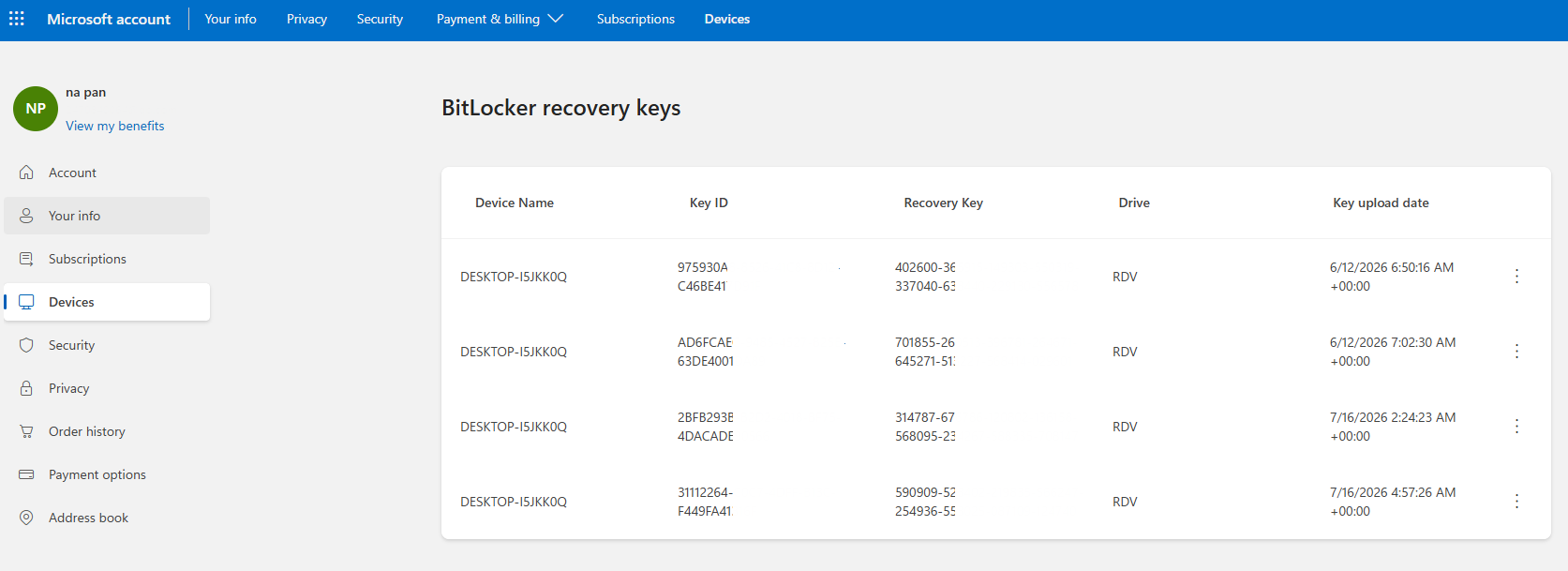
Step 7. Once matched, copy the 48-digit recovery key and enter it into your locked device.
Bonus Tip: You can go directly to this site: account.microsoft.com/devices/recoverykey to access the recovery key page.
Method 2. Check Work or School Account
- Common for business laptops, shared devices, and school-managed computers.
Does your company manage security settings centrally? In many cases, the organization stores the BitLocker recovery key in its own management system. How to get the BitLocker recovery key with the Key ID using a work account:
Step 1. Contact the IT team and give them the recovery key ID shown on the screen.
Step 2. They can retrieve the BitLocker recovery key for you. They may also ask for the device name or your account details before they release the key.
Method 3. Check a USB Backup
- Use this if you like offline backups.
- Good when you remember using a USB for recovery information.
Some users save the recovery key on a USB drive. If you used this method, plug the USB drive into another computer and look for the key file.
If you have more than one saved file, the key ID helps you choose the right one. That is useful when the same USB drive has been used for more than one device.
Method 4. Search Other Saved Files
- Use this if you work with several devices or keep old backups from past PCs.
- Use this if you are not sure where it was stored.
You might also store the BitLocker recovery key in a text file, a cloud folder, a backup drive, or a shared network folder. If you are not sure where you saved it, search for terms like BitLocker, recovery key, or the device name.
When you find a file, compare its recovery key ID with the one on the locked screen. If they match, you have found the right key.
How to Get BitLocker Recovery Key with Key ID Using A BitLocker Manager
If you want a simpler way to find the BitLocker recovery key, a BitLocker manager tool can help. EaseUS Partition Master includes a Retrieve BitLocker Password feature that can search for the recovery key on your local computer and related Microsoft account records. It is a good option for users who do not want to check everything manually.
What's more, if you still can't find the BitLocker recovery key with the key ID, EaseUS Partition Master can help. It lets you create a bootable USB on another working computer and use it to access the locked PC. That makes it easier to work with BitLocker drives even when the system will not start as usual.
Here is how to get a BitLocker recovery key with EaseUS Partition Master.
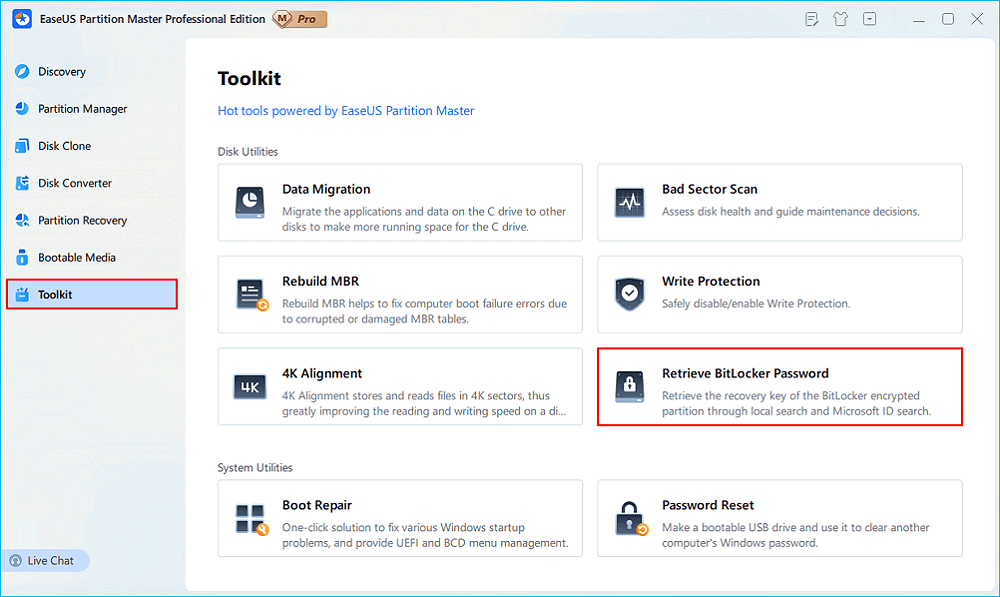
Step 1. Install and launch EaseUS Partition Master. Under the Toolkit tab, select the "Retrieve BitLocker Password" option.
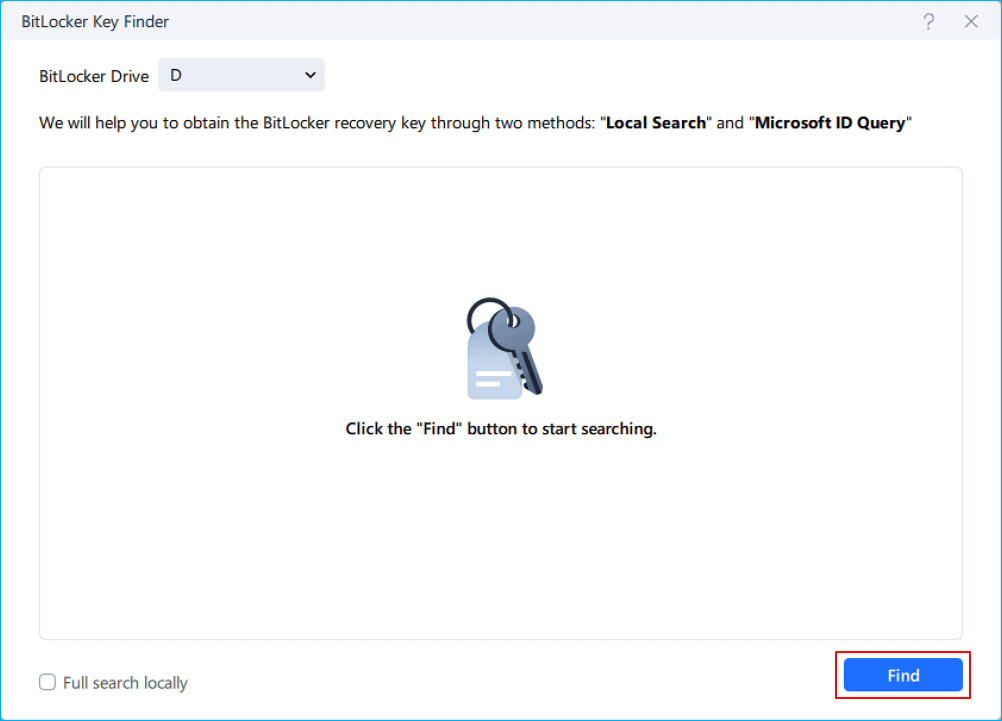
Step 2. It'll automatically detect your encrypted drive. Please click the "Find" button to search the BitLocker recovery key on your encrypted drive.
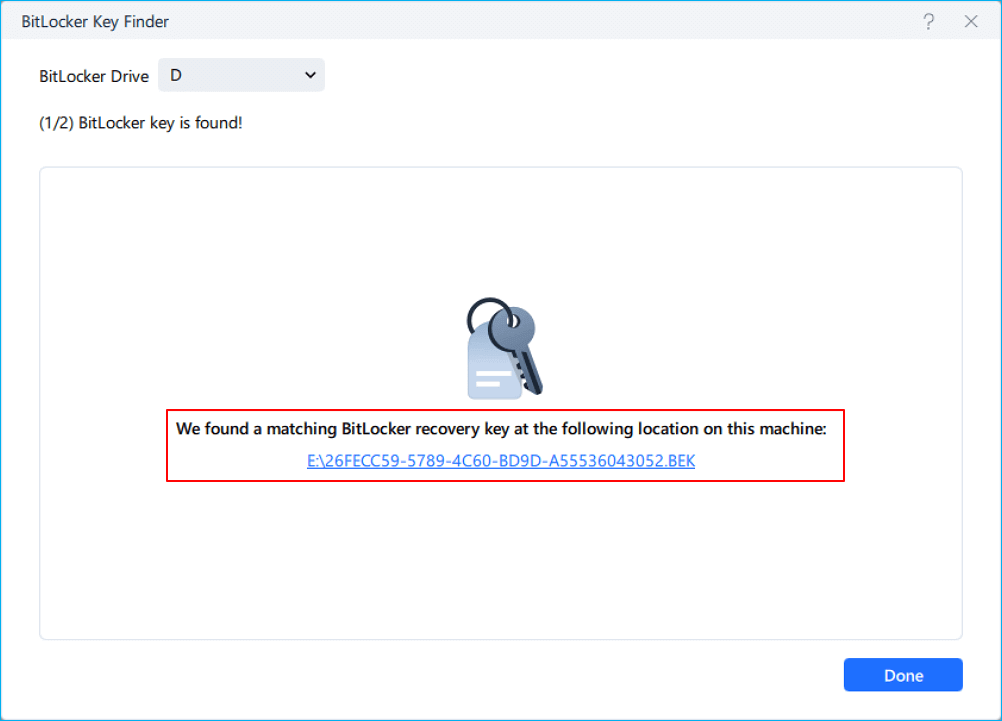
Step 3. In the next window, you'll see the retrieved BitLocker recovery key.
Conclusion
BitLocker recovery key ID is not the unlock key itself. It is a matching label that helps you find the right recovery key when the PC is locked and you are not sure which backup record to use.
To get the BitLocker Recovery Key with the key ID, check your Microsoft account if this is a personal PC. Check your work or school account if the device is managed by an organization. If you saved the key in a printed copy, a USB drive, or another file, compare the key ID carefully and use the matching record. EaseUS Partition Master can also help you locate the recovery key more easily. This tool is especially useful when you do not want to search every backup by hand.
FAQs
1. Where can I find my BitLocker recovery key?
If you are using a personal PC, the Microsoft account is often the first place to check. If it is a company laptop, the IT team may already have the recovery information. Most users keep the recovery key in one of these places:
- A Microsoft account.
- A work or school account.
- A printed copy.
- A USB flash drive.
- A saved file on another device or drive.
- An IT-managed system, if the device belongs to a company.
2. What is the difference between a BitLocker recovery key ID and a recovery key?
The recovery key ID is only a label used to identify the correct key. The recovery key is the long number you enter to unlock the drive.
3. Why does BitLocker ask for a recovery key?
BitLocker may ask for a key after hardware changes, firmware updates, boot changes, or other security-related events.
4. Can I unlock BitLocker without the recovery key?
Usually no. If BitLocker asks for recovery, the correct recovery key is needed to access the drive. But if you can't find your recovery key, you can create a bootable USB and turn off BitLocker in the boot environment.
5. What should I do if I have several recovery keys?
Compare the recovery key ID on the lock screen with the ID in each backup record. Use the one that matches exactly.
6. Who can help if the key is on a work computer?
Your IT department or system admin should be the first place to ask. They may already have the recovery key saved.
If you think this post is helpful, share it on:

How Can We Help You
About the Author

Updated by Tracy King
Tracy became a member of the EaseUS content team in 2013. Being a technical writer for over 10 years, she is enthusiastic about sharing tips to assist readers in resolving complex issues in disk management, file transfer, PC & Mac performance optimization, etc., like an expert.

Written by Joey Albert
Joey is an enthusiast of science and technology. With a passion for uncovering the latest tech innovations, she creates clear, engaging how-to guides that make technology accessible and enjoyable for all.
Product Reviews
-
I love that the changes you make with EaseUS Partition Master Free aren't immediately applied to the disks. It makes it way easier to play out what will happen after you've made all the changes. I also think the overall look and feel of EaseUS Partition Master Free makes whatever you're doing with your computer's partitions easy.
Read More -
Partition Master Free can Resize, Move, Merge, Migrate, and Copy disks or partitions; convert to local, change label, defragment, check and explore partition; and much more. A premium upgrade adds free tech support and the ability to resize dynamic volumes.
Read More -
It won't hot image your drives or align them, but since it's coupled with a partition manager, it allows you do perform many tasks at once, instead of just cloning drives. You can move partitions around, resize them, defragment, and more, along with the other tools you'd expect from a cloning tool.
Read More
Related Articles
-
2 Ways to Change Another User's Password on Windows 10
![Sherly]() Sherly/2026/10/29
Sherly/2026/10/29 -
How to Create EaseUS WinPE Bootable Disk in Windows 10/8/7
![Daisy]() Daisy/2026/10/29
Daisy/2026/10/29 -
Samsung Magician Clone Boot Drive | Step-by-Step Tutorial
![Sherly]() Sherly/2026/10/29
Sherly/2026/10/29 -
Change Windows Password Using Command Prompt - 2 Ways
![Sherly]() Sherly/2026/10/29
Sherly/2026/10/29
 Sherly/2026/10/29
  Daisy/2026/10/29









