



Page Table of Contents
Reviews and Awards


Getting a new computer doesn't mean you have to rebuild your Lightroom library from scratch. If you want to transfer Lightroom catalog to new computer, you can move your catalog, photos, and related files with a migration tool or an external drive.
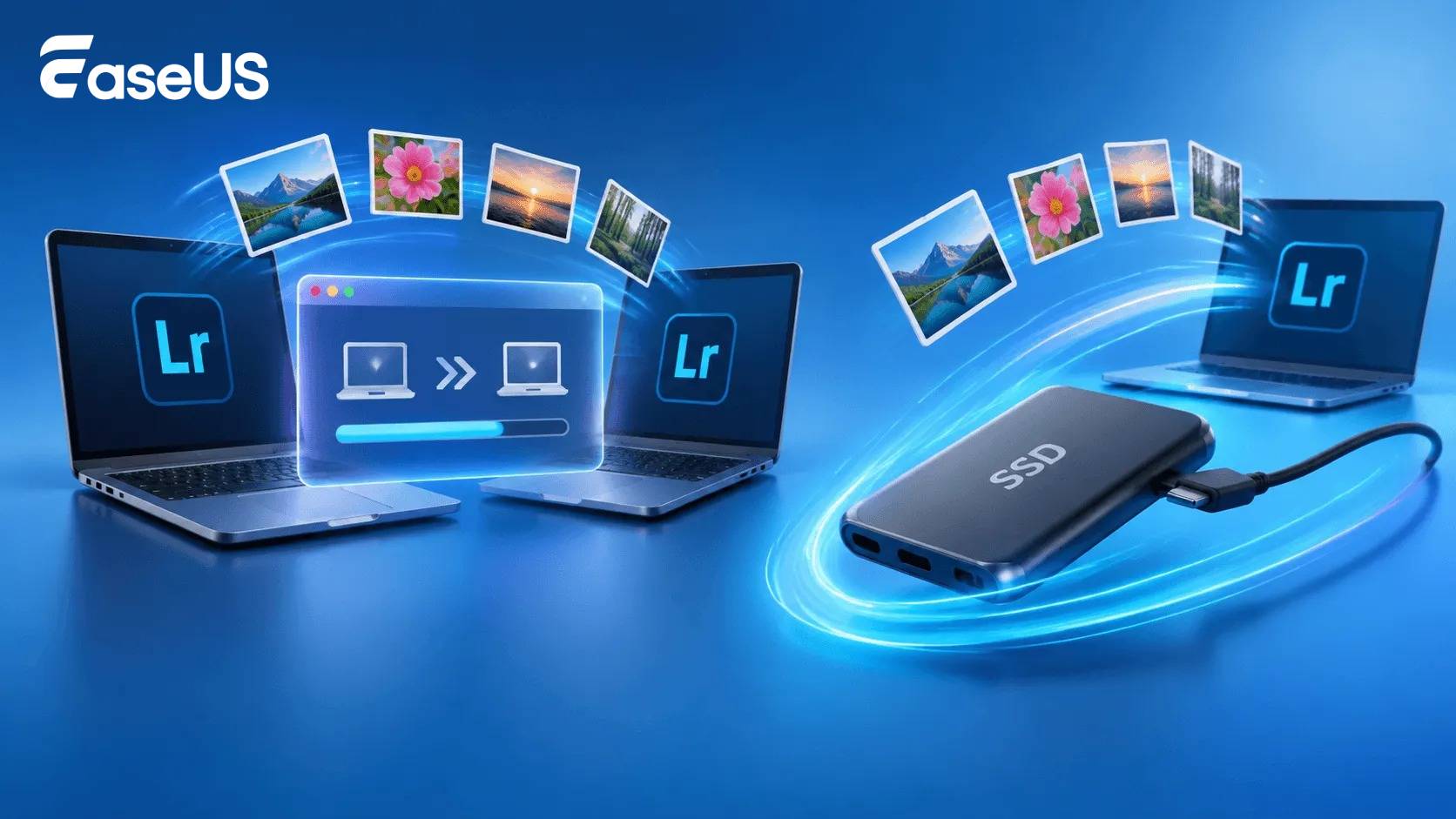
This guide covers two simple methods to help you move your Lightroom workflow safely and continue editing on your new computer.
What You Need to Transfer
Before moving your Lightroom catalog, make sure you know which files you need.
| Data | What it contains | Should you transfer? |
|
.lrcat catalog |
Edits, metadata, collections, and photo locations | Yes |
| Original photos | RAW and other image files | Yes, if needed |
| Previews | Lightroom-generated previews | Recommended |
| Catalog backups | Previous catalog backups | Optional |
| Lightroom Classic | The application itself | Install on the new PC |
- Warning
- Your Lightroom catalog does not contain the original photos. It stores information about your photos, including edits, metadata, and their file locations.
Method 1: Transfer Lightroom Catalog with EaseUS Todo PCTrans
If you want the easiest way to transfer Lightroom catalog to new computer, EaseUS Todo PCTrans can simplify the migration by transferring files and applications between two PCs.
Step 1. Set Up the Old PC
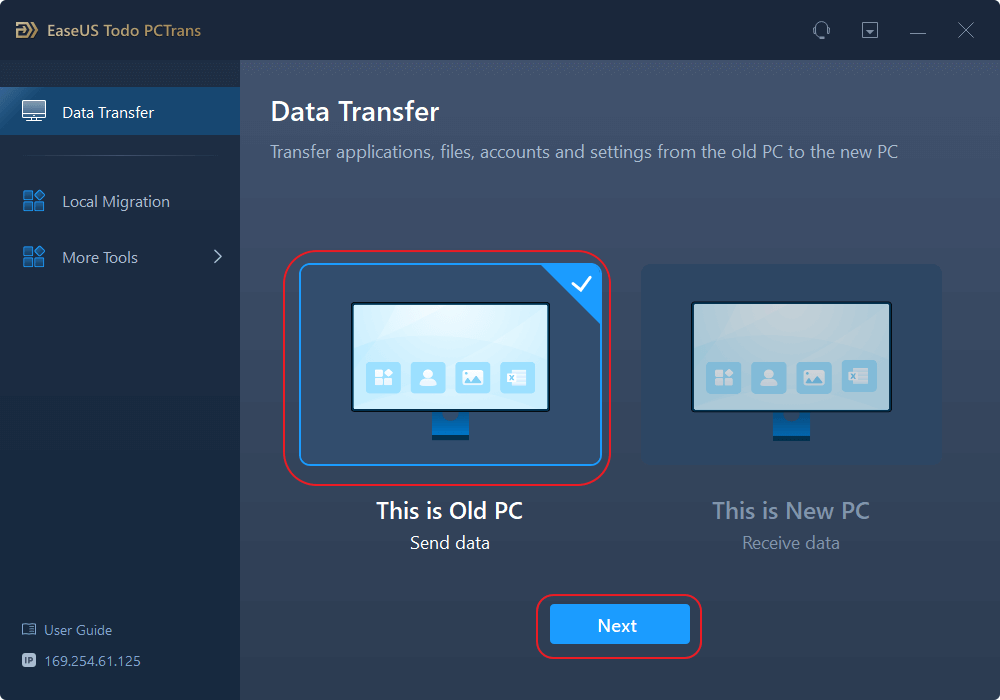
- First, install and launch EaseUS Todo PCTrans and select Data Transfer on the left panel of the main interface.
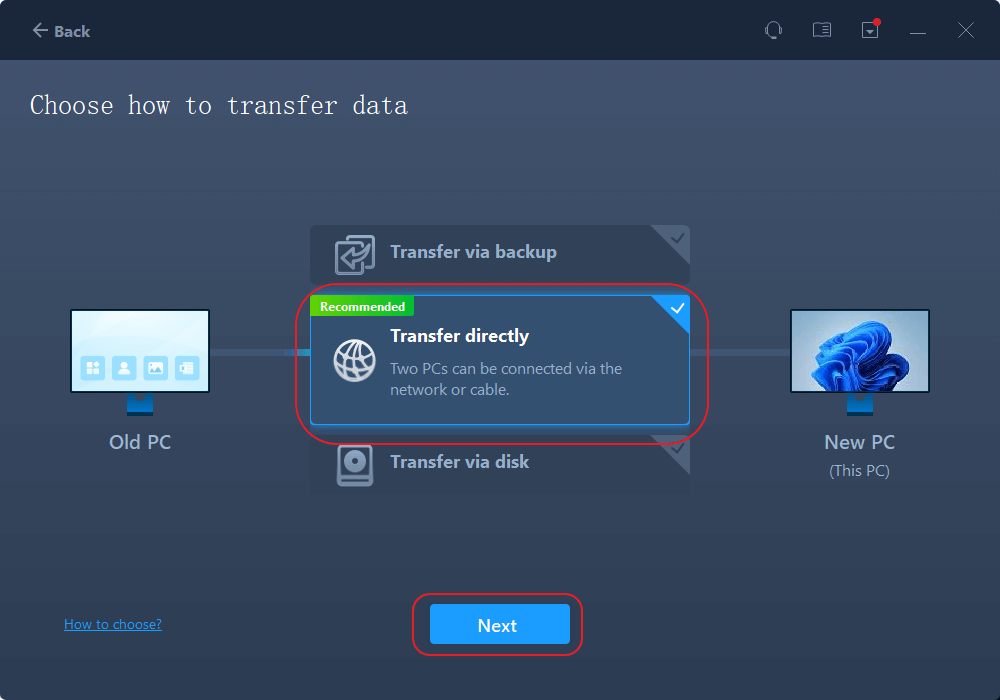
- Select "Transfer Directly" and click "Next" to continue.
Step 2. Set Up the New PC
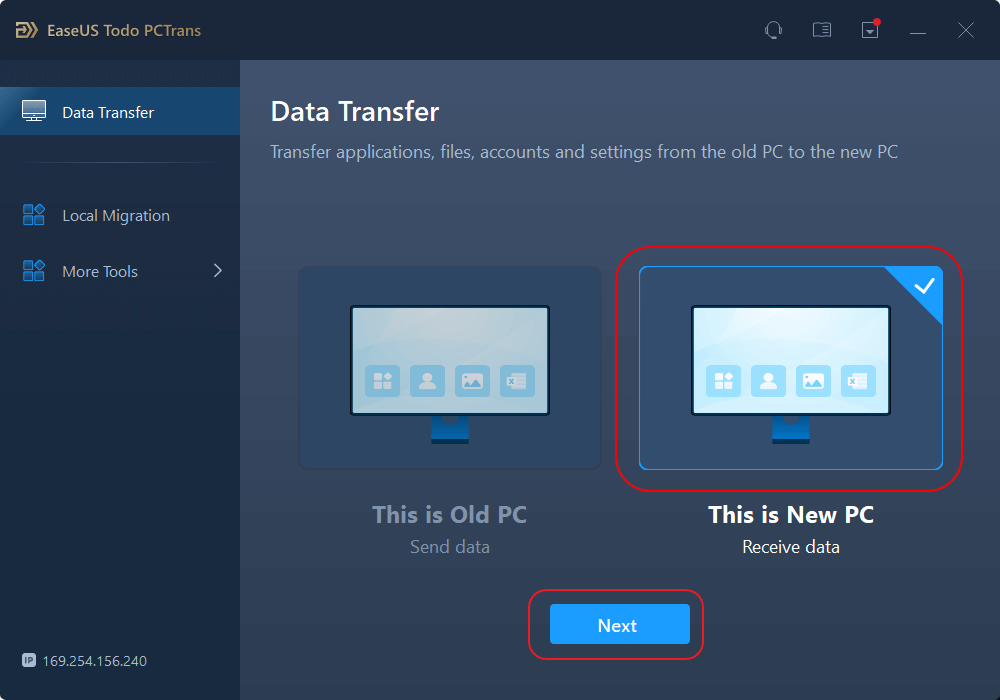
- Download and launch EaseUS Todo PCTrans on the new computer; select "This is New PC" and click "Next".
- Select "Transfer directly" and click "Next" to continue.
- Select "Network" and click Next to continue. This will automatically scan the old PC. (Make sure the two PCs are connected to the same LAN.)
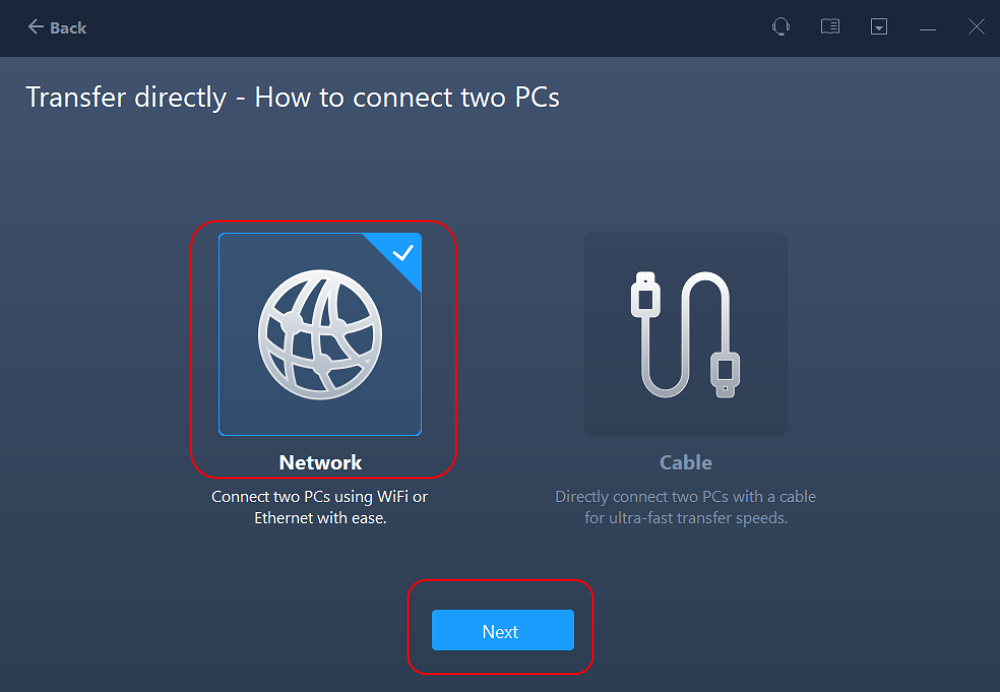
- Select the target PC and click Connect. Then, it will take some time to scan and analyze the data in old PC.
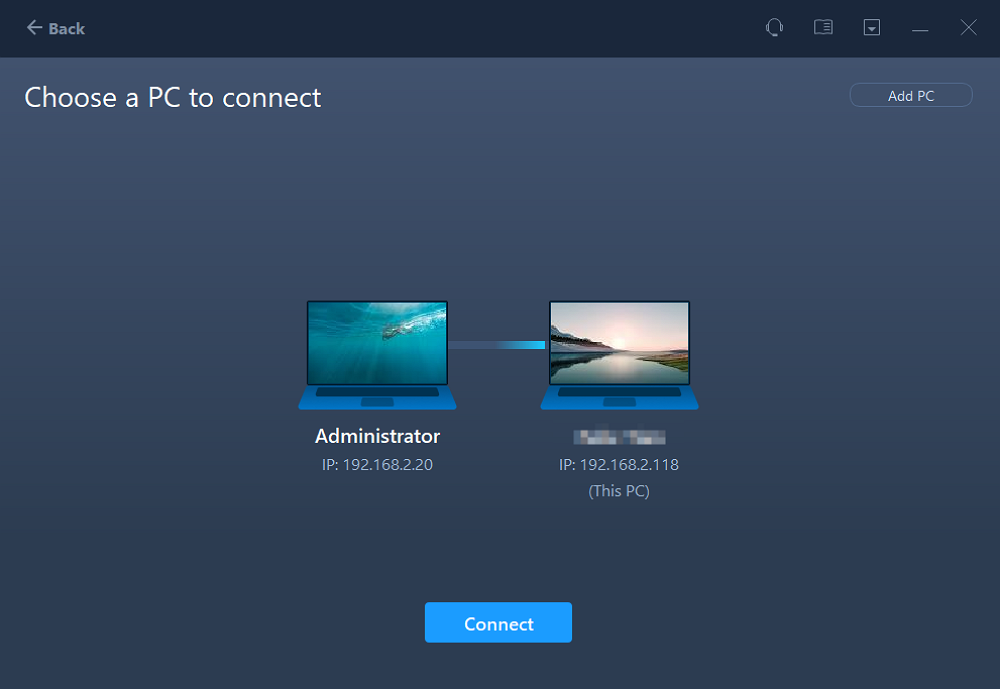
Step 3. Select the Apps to Transfer
- On the new PC, select the applications you want to transfer. Then, click "Transfer" to start.
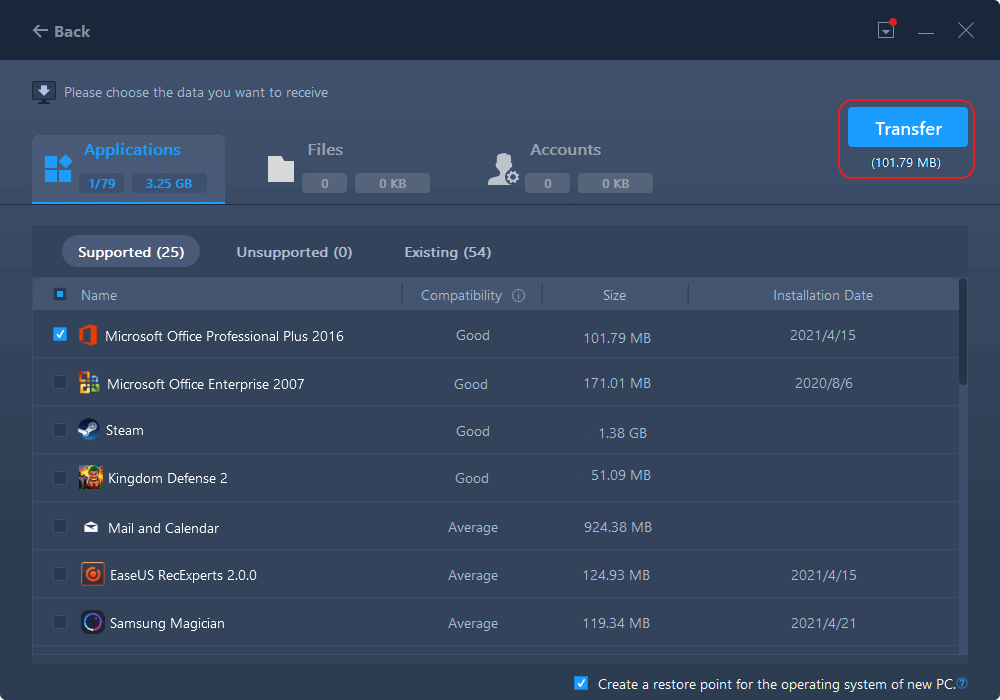
After the transfer finishes, open Lightroom Classic on the new PC and check that your catalog and photos are available.
Method 2: Transfer Lightroom Catalog with an External Drive
An external HDD or SSD gives you more control over the migration. This method can also be useful when you have a large Lightroom photo library. Here'sa quick shot for this method:
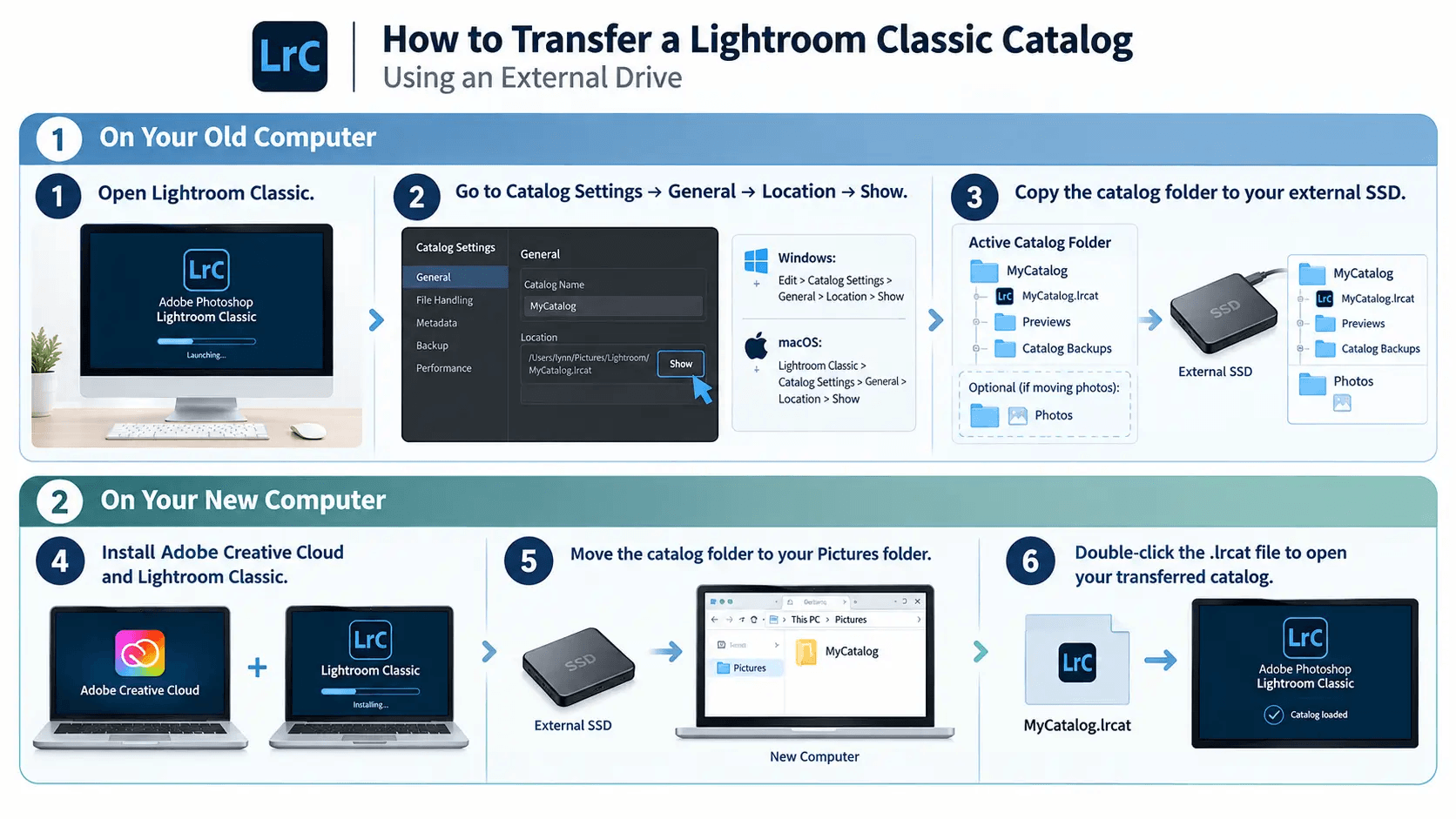
On Your Old Computer
1. Open Lightroom Classic.
Launch Lightroom Classic and make sure you know which catalog you are currently using.
2. Find your catalog.
Go to:
- For Windows: Edit > Catalog Settings > General > Location > Show
- For macOS: Lightroom Classic > Catalog Settings > General > Location > Show
This opens the folder containing your active catalog.
3. Copy the catalog folder.
Connect your external drive and copy the complete Lightroom catalog folder.
Include:
- .lrcat catalog file
- Previews
- Catalog backups, if needed
If you also want to move your photos, copy the corresponding photo folders to the external drive.
On Your New Computer
4. Install Lightroom Classic.
Install Adobe Creative Cloud and Lightroom Classic on your new computer.
5. Copy the catalog to the new PC.
Move the Lightroom catalog folder from the external drive to your preferred location, such as the Pictures folder.
6. Open the catalog.
Find the .lrcat file and double-click it to open the catalog in Lightroom Classic.
- Tip
- If Lightroom displays a question mark next to a folder, the photo folder may have been moved or renamed. Right-click the missing top-level folder and select Find Missing Folder. Then select its new location.
EaseUS Todo PCTrans vs. External Drive
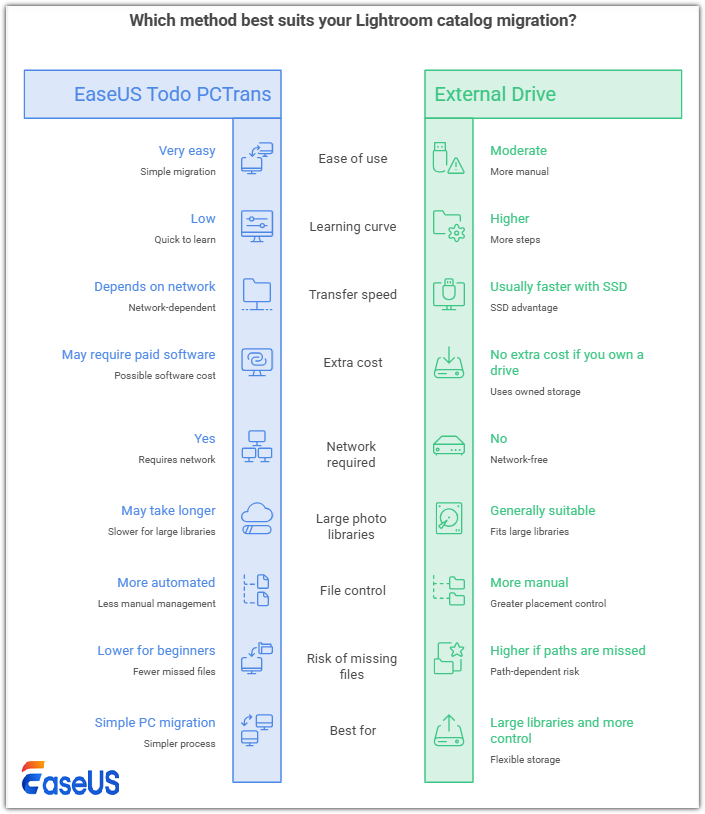
Both methods can help you move a Lightroom catalog, but they suit different workflows.
| Feature | EaseUS Todo PCTrans | External Drive |
| Ease of use | Very easy | Moderate |
| Learning curve | Low | Higher |
| Transfer speed | Depends on network | Usually faster with SSD |
| Extra cost | May require paid software | No extra cost if you own a drive |
| Network required | Yes | No |
| Large photo libraries | May take longer | Generally suitable |
| File control | More automated | More manual |
| Risk of missing files | Lower for beginners | Higher if paths are missed |
| Best for | Simple PC migration | Large libraries and more control |
Choose EaseUS Todo PCTrans if you want a simpler migration process with less manual file management. For those who have a large photo library, already own suitable storage, or want more control over where your files are placed, an external SSD or hard drive is a better choice. Meanwhile, if you have large RAW libraries, an external SSD might also make it easier to move both the catalog and photo files together.
Final Thoughts
If you need to transfer Lightroom catalog to new computer, you have two practical options. EaseUS Todo PCTrans is convenient when you want a simpler PC-to-PC migration. An external drive gives you more direct control and can be particularly useful for large photo libraries.
Whichever method you choose, back up your catalog first and verify that Lightroom can access your catalog and photos before deleting anything from your old computer.
FAQs About Transfer Lightroom Catalog to New Computer
Can You Move a Lightroom Catalog to an External Hard Drive?
Yes. Close Lightroom, back up your catalog, and copy the complete catalog folder to the external drive. Then open the .lrcat file from its new location and confirm that everything works correctly. For better performance, many users prefer keeping the catalog on an internal SSD while storing large photo files on an external drive.
How Do I Export My Entire Lightroom Catalog?
To export the entire Lightroom Classic catalog:
- Open the Library module.
- Select All Photographs.
- Go to File > Export as Catalog.
- Choose a destination and catalog name.
- Decide whether to include original files and previews.
- Click Export Catalog or Save.
Including original files creates a more complete migration package, but it also requires considerably more storage space.
Where Are Lightroom Classic Catalogs Stored?
By default, Lightroom Classic catalogs are usually stored in the Pictures/Lightroom folder. To find your active catalog:
- Open Lightroom Classic.
- Go to Catalog Settings.
- Select the General tab.
- Check the Location field.
- Click Show to open the catalog folder.
You can also search your computer for files ending in .lrcat.
Do I Need to Keep Old Lightroom Catalogs?
You usually don't need to keep every old catalog. Keep your current active .lrcat file because it contains your latest edits, keywords, collections, and other catalog information. For backups, keeping the three or four most recent copies, or monthly backups for about a year can provide a reasonable balance between safety and storage space.
Can I Use the Same Lightroom Catalog on Two Computers?
Yes, but the same Lightroom Classic catalog should not be open on two computers at the same time. If you store the catalog and photos on an external SSD, you can connect the drive to whichever computer you are using. For cloud-synced storage such as Dropbox, make sure synchronization is completely finished before opening the catalog on another computer.
About the Author

Cici is the junior editor of the writing team of EaseUS. She accepted the systematic training on computers at EaseUS for over one year. Now, she wrote a lot of professional articles to help people resolve the issues of hard drive corruption, computer boot errors, and disk partition problems.
Reviews and Awards
-
EaseUS Todo PCTrans Free is a useful and and reliable software solution created to serve in computer migration operations, be it from one machine to another or from an earlier version of your OS to a newer one.
Read More -
EaseUS Todo PCTrans is by the folks at EaseUS who make incredible tools that let you manage your backups and recover your dead hard disks. While it is not an official tool, EaseUS has a reputation for being very good with their software and code.
![]() Read More
-
It offers the ability to move your entire user account from your old computer, meaning everything is quickly migrated. You still get to keep your Windows installation (and the relevant drivers for your new PC), but you also get all your apps, settings, preferences, images, documents and other important data.
Read More

Related Articles
-
How to Move Programs Between Hard Drives [2026 Full Guide]
![Cici]() Cici/2026/11/03
-
How to Uninstall Battle.net from Your PC (Quick Guide)
![Oliver]() Oliver/2026/11/03
-
How to Move Overwatch to Another Drive [No Reinstalling]
![Cedric]() Cedric/2026/11/03
-
How to Transfer TurboTax to New Computer | Step-by-Step👣
![Tracy King]() Tracy King/2026/11/03
 Oliver/2026/11/03
 Cedric/2026/11/03
 Tracy King/2026/11/03


