








Page Table of Contents
Reviews and Awards


Need to transfer Lenovo to Lenovo but can't use Lenovo Migration Assistant anymore? Don't worry! There are still several ways to migrate files, applications, and other important data between Lenovo PCs. This EaseUS guide covers four effective methods with step-by-step instructions to help you complete the transfer smoothly.
What to do when you need to transfer Lenovo to Lenovo. Although Lenovo Migration Assistant is out of service, you can still find some methods to transfer your data between your Lenovo devices. In this post from EaseUS, we will walk you through 4 ways step by step for you.
How to Transfer Lenovo to Lenovo?
Each method of transferring files from Lenovo to Lenovo comes with its own advantages and limitations. Whether you prioritize transfer speed, convenience, offline access, or migrating installed programs, the comparison below will help you choose the most suitable solution for your needs.
|
Comparison |
USB / External Drive |
Windows Network Sharing |
EaseUS Todo PCTrans |
Cloud Storage |
|
Supported OS |
Windows 10/11 | Windows 10/11 | Windows versions supported by the software | Windows 10/11 & other supported devices |
|
Transfer files |
Yes | Yes | Yes | Yes |
|
Transfer programs |
No | No | Yes, supported apps | No |
|
Transfer settings |
No | No | Selected supported settings/data | No |
|
Internet required |
No | No, local network only | Depends on transfer method | Yes |
|
Extra hardware |
USB drive / HDD / SSD | No | No USB required for network transfer | No |
|
Large file transfer |
Excellent with sufficient storage | Good, network dependent | Depends on connection and transfer volume | Limited by upload/download speed & storage |
|
Transfer speed |
Depends on USB & drive speed | Depends on network speed | Depends on transfer method & connection | Depends on internet speed |
|
Difficulty |
Easy | Moderate | Easy | Easy |
|
Best for |
Offline transfer & backups | Direct file sharing | Files, programs & supported data | Wireless file transfer & syncing |
Solution 1: Cloud Storage
When you need to transfer files between two Lenovo devices, cloud storage services like Google Drive, OneDrive, or Dropbox are also a good option due to ease of use and no hardware or software downloads needed. Here, we take Google Drive as an example. Follow these steps:
On your Old Lenovo:
Step 1. Open Google Drive and search for Google Drive.
Step 2. Log in to your Google account and confirm.
Step 3. Click on the New button in the top left to create a new folder and name it.
Step 4. Open this folder and hit File upload in the left panel and then select the files you want to migrate.
Step 5. Click Open and then your files will be uploaded to Google Drive automatically.
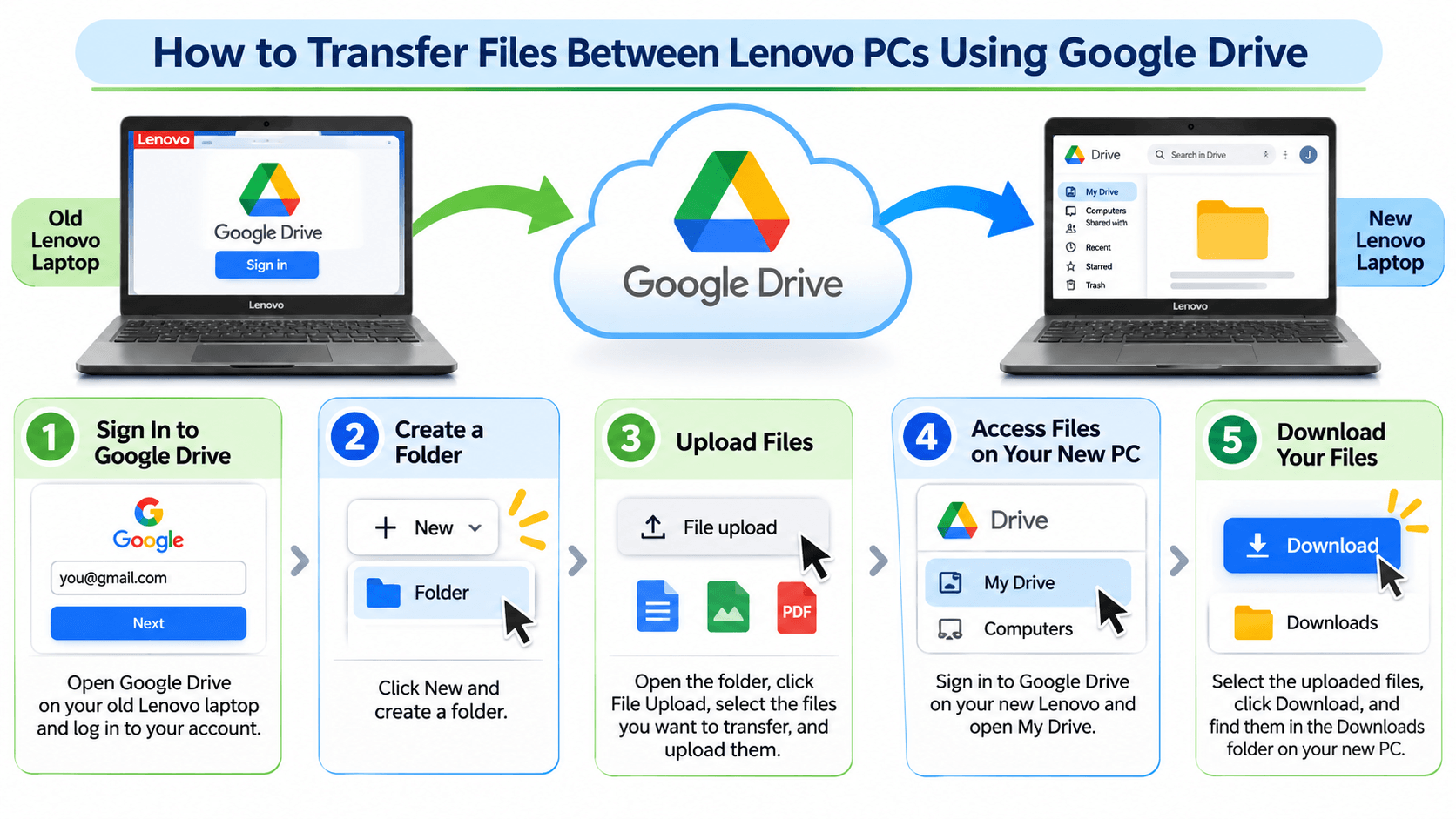
On your new Lenovo:
Step 1. Log in to your Google Drive with the same account.
Step 2. In the left panel, open My Drive to find the files you uploaded just now.
Step 3. Right-click them to select Download.
Step 4. Once done, you can go to the Downloads folder in File Explorer to access all your transferred files.
⭐Best for: Wireless file transfers and cross-device access
✅Pros
- No external drive or hardware required.
- Easy access from both Lenovo PCs.
- Automatically syncs files when sync is enabled.
❌Cons
- Requires a stable internet connection.
- Free storage space is limited.
- Large uploads and downloads can take time.
- Deletions in synced folders may sync across devices./li>
Solution 2: External Hard Drive
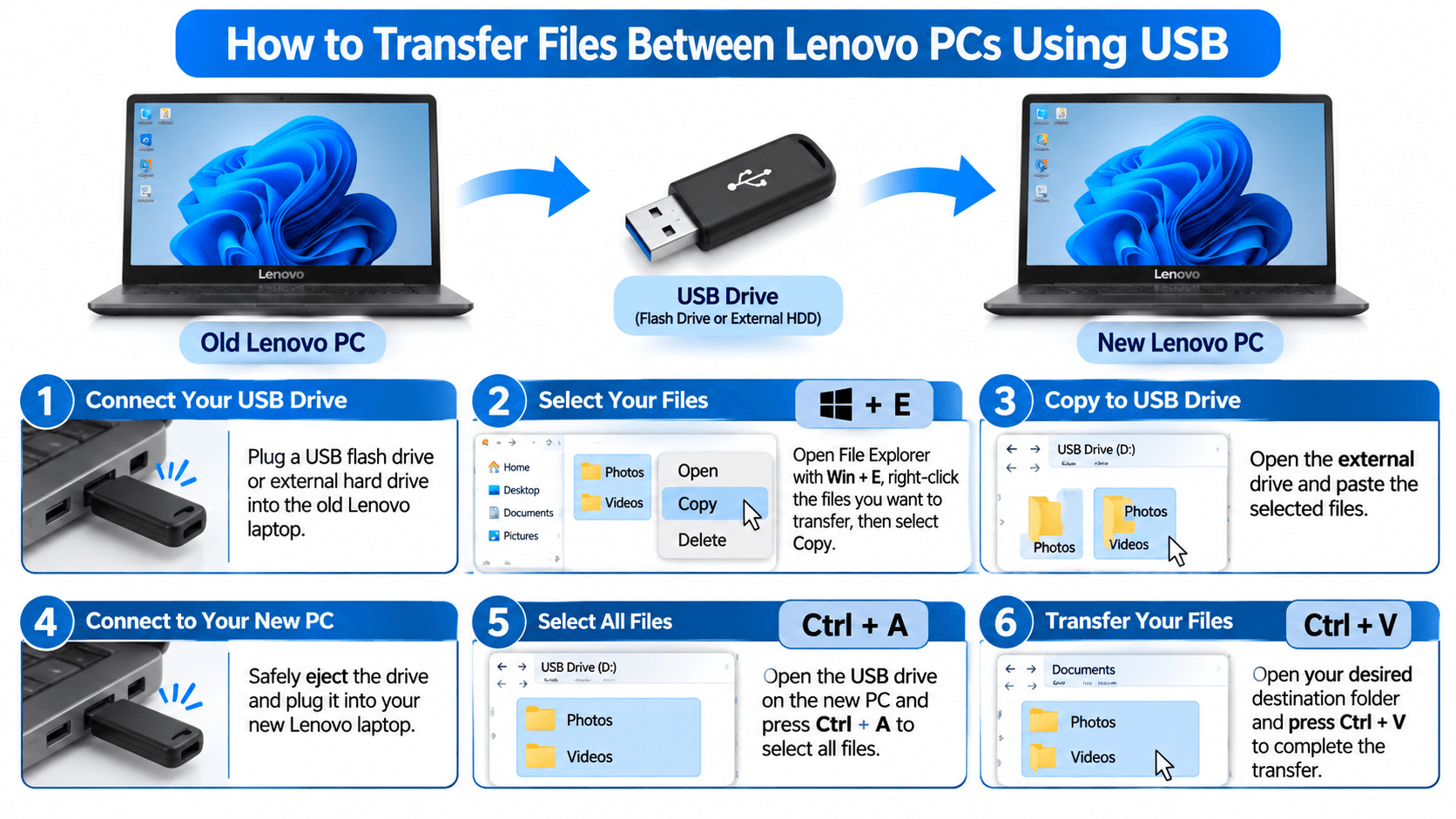
Alternatively, you can transfer files from Lenovo to Lenovo using an external hard drive or USB flash drive. Simply copy your files from the old PC and plug the drive into your new Lenovo to move them easily. Follow these tutorials:
Step 1. Take out your USB drive or external hard drive. Plug it into your old computer.
Step 2. Press Win + E simultaneously to open File Explorer, and then right-click on the files you want to transfer to select Copy.
Step 3. Access your external hard drive in File Explorer and paste these selected files into it.
Step 4. Eject your external drive and then plug it into your new Lenovo computer.
Step 5. Select the files in the external hard drive and press Ctrl + A to select them all.
Step 6. Open the target folder and then press Ctrl + V to paste your files.
⭐Best for: Large offline file transfers and backups
✅Pros
- No internet required.
- Ideal for large files and folders.
- Provides an extra backup copy.
❌Cons
- Requires a USB drive, HDD, or SSD.
- Manual copy-and-paste is required.
- Cannot transfer installed applications or Windows settings.
Solution 3: Windows Network Transfer
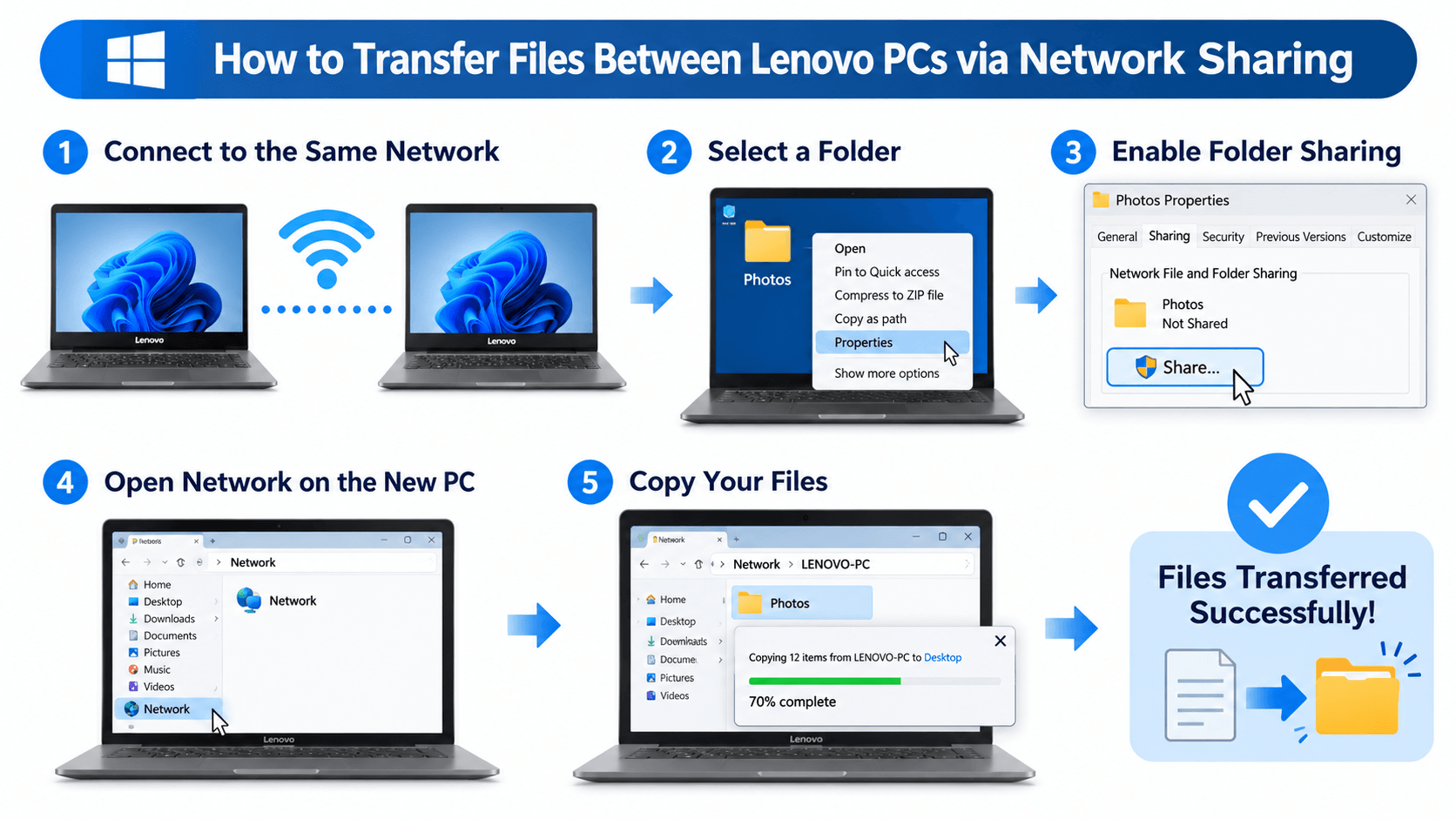
If you prefer not to install additional tools, Windows Network Transfer is another option for moving files from one Lenovo computer to another. Simply connect both devices to the same network and share files directly.
Step 1. Make sure both of your Lenovo PCs are under the same Wi-Fi or Ethernet.
Step 2. On your old Lenovo, right-click on the folder you want to transfer.
Step 3. In the drop-down menu, click Properties > Sharing > Share.
Step 4. Open your new PC and then find Network in File Explorer.
Step 5. Locate your old Lenovo laptop and then access the shared folder to copy the files you need.
⭐Best for: Direct PC-to-PC file transfers without a USB drive
✅Pros
- No external storage or additional software required.
- Direct transfer over a local network.
❌Cons
- Transfers files and supported applications.
- Supports application and data migration between PCs.
- Beginner-friendly guided transfer process.
Solution 4: EaseUS Todo PCTrans
Another convenient option for Lenovo-to-Lenovo file transfer is EaseUS Todo PCTrans. It supports different migration approaches, including network-based transfer and other transfer options, allowing you to move files, applications, and selected settings from the old PC to a new one based on your needs. You can also choose what to migrate instead of transferring unnecessary data to your new PC.
Step 1. Set Up the Old PC
- First, install and launch EaseUS Todo PCTrans and select Data Transfer on the left panel of the main interface.
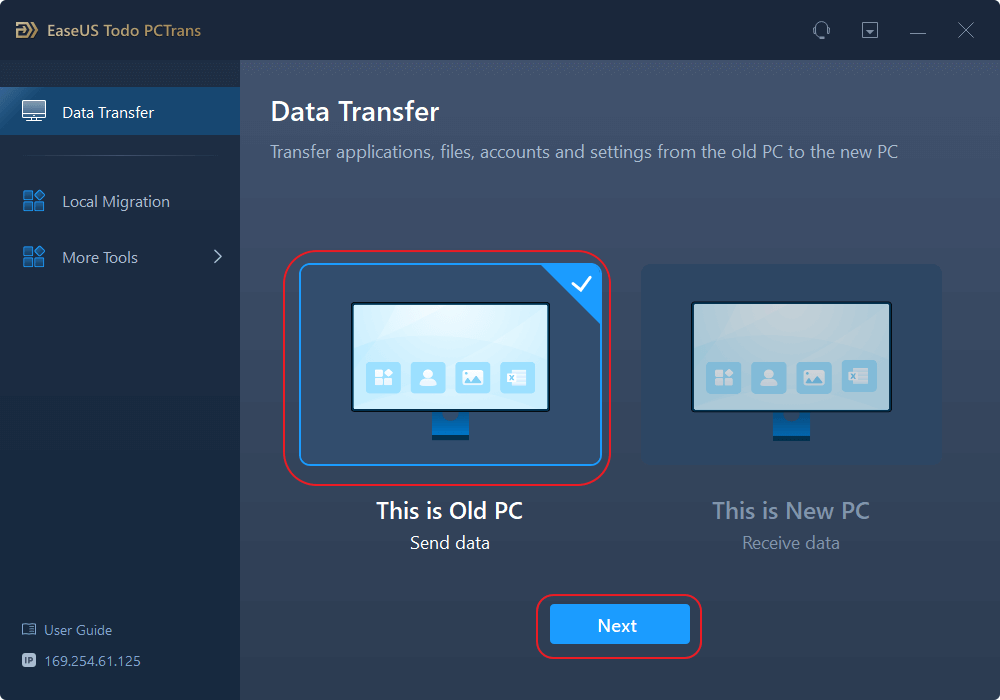
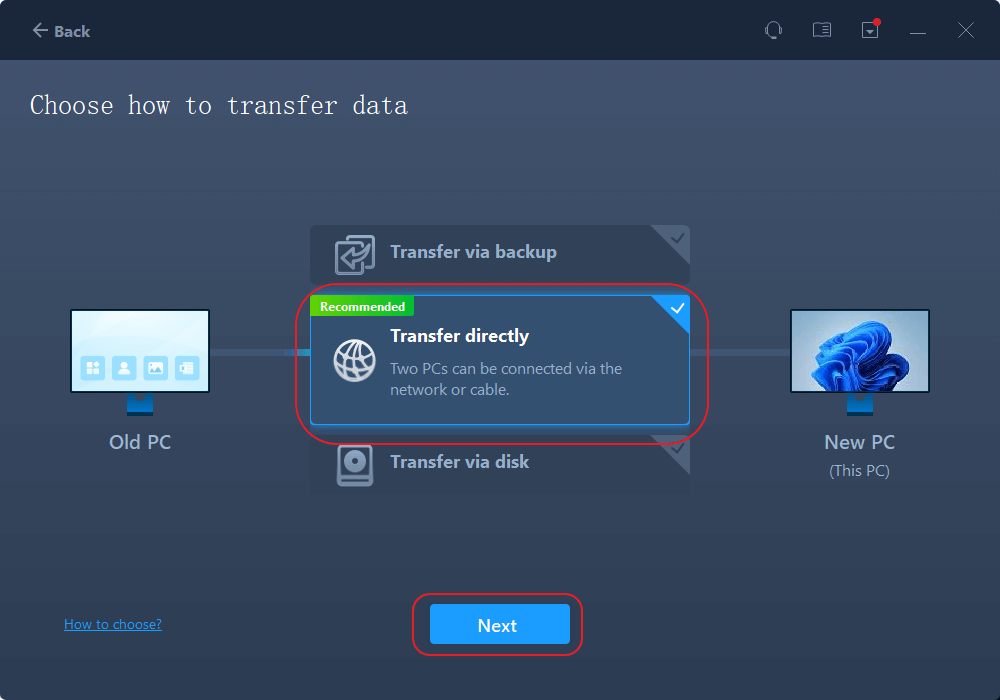
- Select "Transfer Directly" and click "Next" to continue.
Step 2. Set Up the New PC
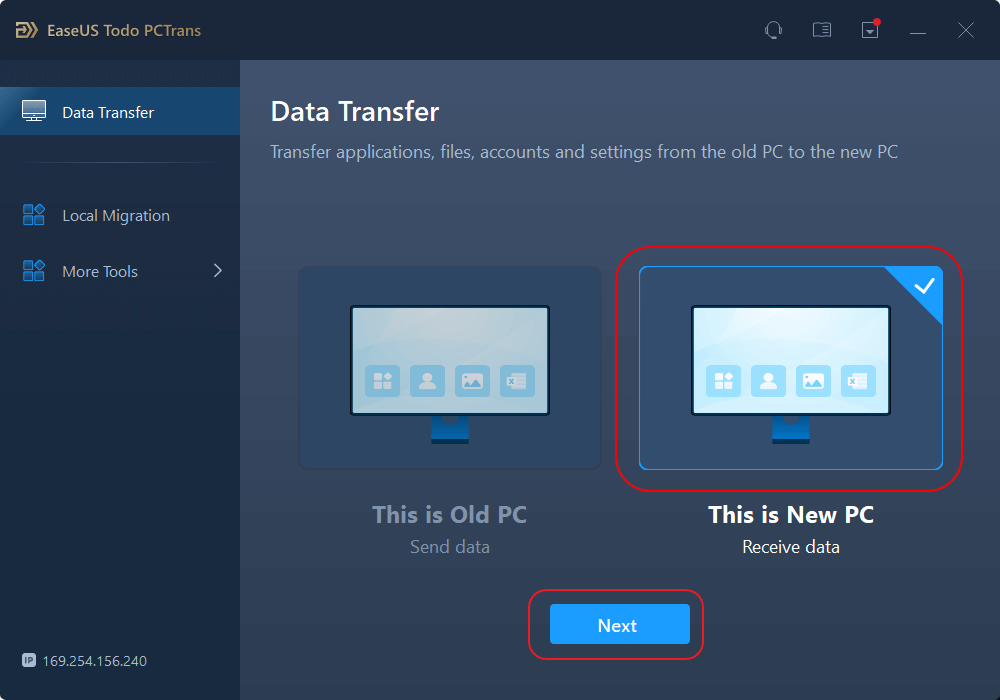
- Download and launch EaseUS Todo PCTrans on the new computer; select "This is New PC" and click "Next".
- Select "Transfer directly" and click "Next" to continue.
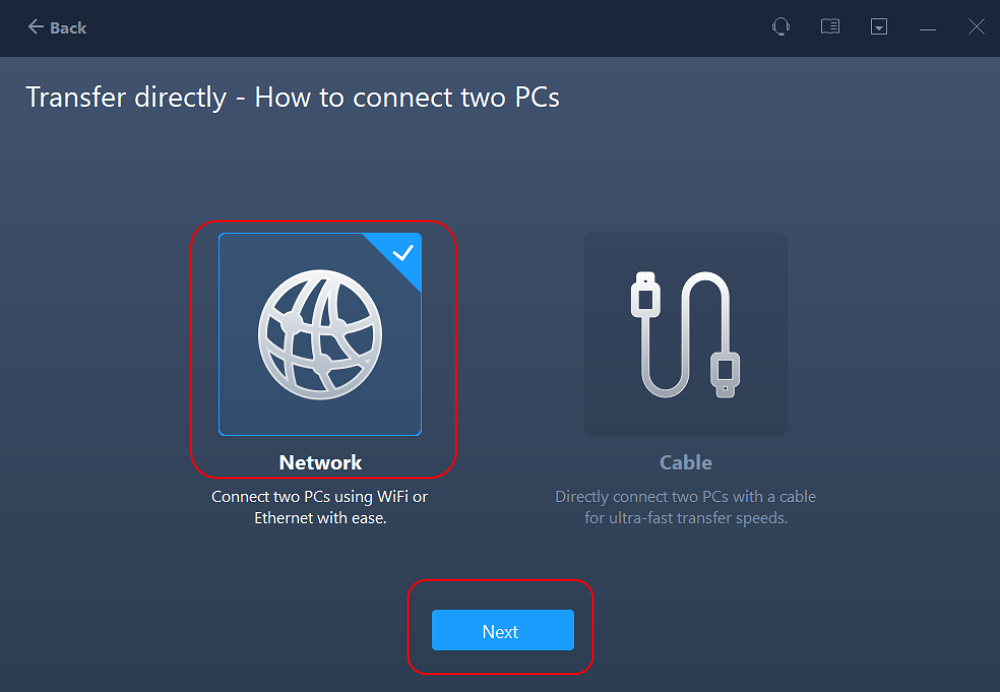
- Select "Network" and click Next to continue. This will automatically scan the old PC. (Make sure the two PCs are connected to the same LAN.)
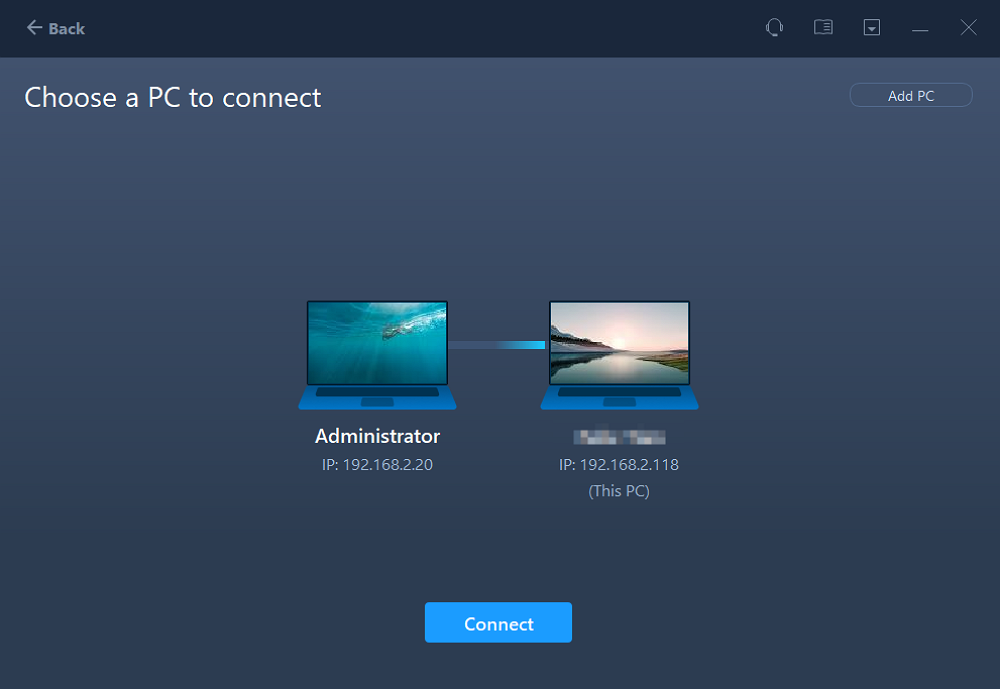
- Select the target PC and click Connect. Then, it will take some time to scan and analyze the data in old PC.
Step 3. Select the Files to Transfer
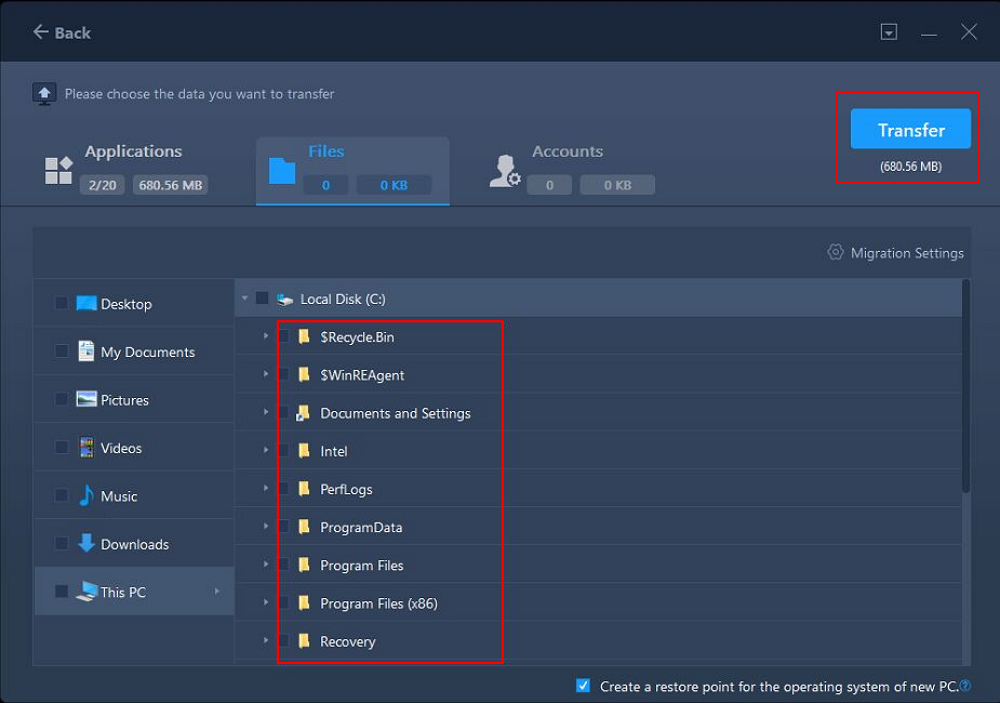
- Finally, on the new PC, select the Files tab, select the files you need to transfer. Then, click "Transfer" to start.
⭐Best for: Migrating files, programs, and supported data with less manual work
✅Pros
- Both Lenovo PCs must be connected to the same local network.
- Requires configuring folder sharing and permissions.
- Transfer speed depends on network performance.
- ❌Cons
- Requires installing the software on the computers involved.
- Free edition has transfer limits.
- Not all programs or application data are guaranteed to migrate successfully.
Wrapping Things Up
Not every Lenovo to Lenovo transfer method meets the same needs. USB drives are ideal for offline transfers, network sharing works for local connections, and cloud storage offers flexibility. However, for transferring files and supported applications with less manual effort, EaseUS Todo PCTrans is a practical alternative worth considering.
FAQ of Lenovo to Lenovo PC Transfer
How to transfer everything from old Lenovo to new Lenovo?
To move your files, programs, and other data from an old Lenovo to a new one, you can rely on Windows Backup, USB storage, or cloud syncing. While these methods work well for personal files, EaseUS Todo PCTrans is a convenient alternative for users who want to migrate files and applications together with less manual work.
Can I transfer installed programs from one Lenovo laptop to another?
Yes, but you generally cannot transfer installed programs simply by copying and pasting their folders. Applications may depend on registry entries, system files, licensing information, and other components. To migrate them, you can try EaseUS Todo PCTrans which doesn't require a fresh reinstallation.
What is the fastest way to transfer data from Lenovo to Lenovo?
The fastest way to transfer data between two Lenovo laptops depends on the amount of data and the connection speed. A direct network connection or high-speed external SSD is generally a good option for transferring large files, while Wi-Fi transfer tools offer convenience without additional hardware. For hundreds of gigabytes of data, a wired connection is often more reliable than a slow wireless network.
How to perform a full 1-to-1 migration from one Lenovo to another?
For a complete Lenovo-to-Lenovo migration, use disk-cloning software to duplicate your old laptop's entire system drive. Start by checking that the new Lenovo's SSD has enough space, updating Windows and drivers, and connecting both devices to power. Clone the old drive directly using an SSD enclosure or create a system image and restore it to the new computer. Once migration is complete, check hardware drivers, Windows activation, and application functionality.
About the Author

Cici is the junior editor of the writing team of EaseUS. She accepted the systematic training on computers at EaseUS for over one year. Now, she wrote a lot of professional articles to help people resolve the issues of hard drive corruption, computer boot errors, and disk partition problems.
Reviews and Awards
-
EaseUS Todo PCTrans Free is a useful and and reliable software solution created to serve in computer migration operations, be it from one machine to another or from an earlier version of your OS to a newer one.
Read More -
EaseUS Todo PCTrans is by the folks at EaseUS who make incredible tools that let you manage your backups and recover your dead hard disks. While it is not an official tool, EaseUS has a reputation for being very good with their software and code.
![]() Read More
-
It offers the ability to move your entire user account from your old computer, meaning everything is quickly migrated. You still get to keep your Windows installation (and the relevant drivers for your new PC), but you also get all your apps, settings, preferences, images, documents and other important data.
Read More

Related Articles
-
Transfer Files from PC to PC with Ethernet Cable on Windows 10
![Cedric]() Cedric/2026/07/01
-
Windows Migration Assistant Not Working? Fixes Uncovered
![Sherly]() Sherly/2026/10/07
-
Free File Transfer Software for Windows 10 Recommend [Beginners' Choice]
![Tracy King]() Tracy King/2026/10/07
-
Fast File Transfer Software for PC Free Download | With Guide
![Jean]() Jean/2026/10/07
 Cedric/2026/07/01
 Sherly/2026/10/07
 Tracy King/2026/10/07
 Jean/2026/10/07


